WordPress PDF Viewer Not Working: Embed Fixes, Mobile Issues, and Plugin Alternatives
A grey box where your PDF should be, a document that only shows page one on iPhone, a plugin that broke after an update. This article walks through the real causes, the fixes that work, and a lighter alternative that loads on every device.
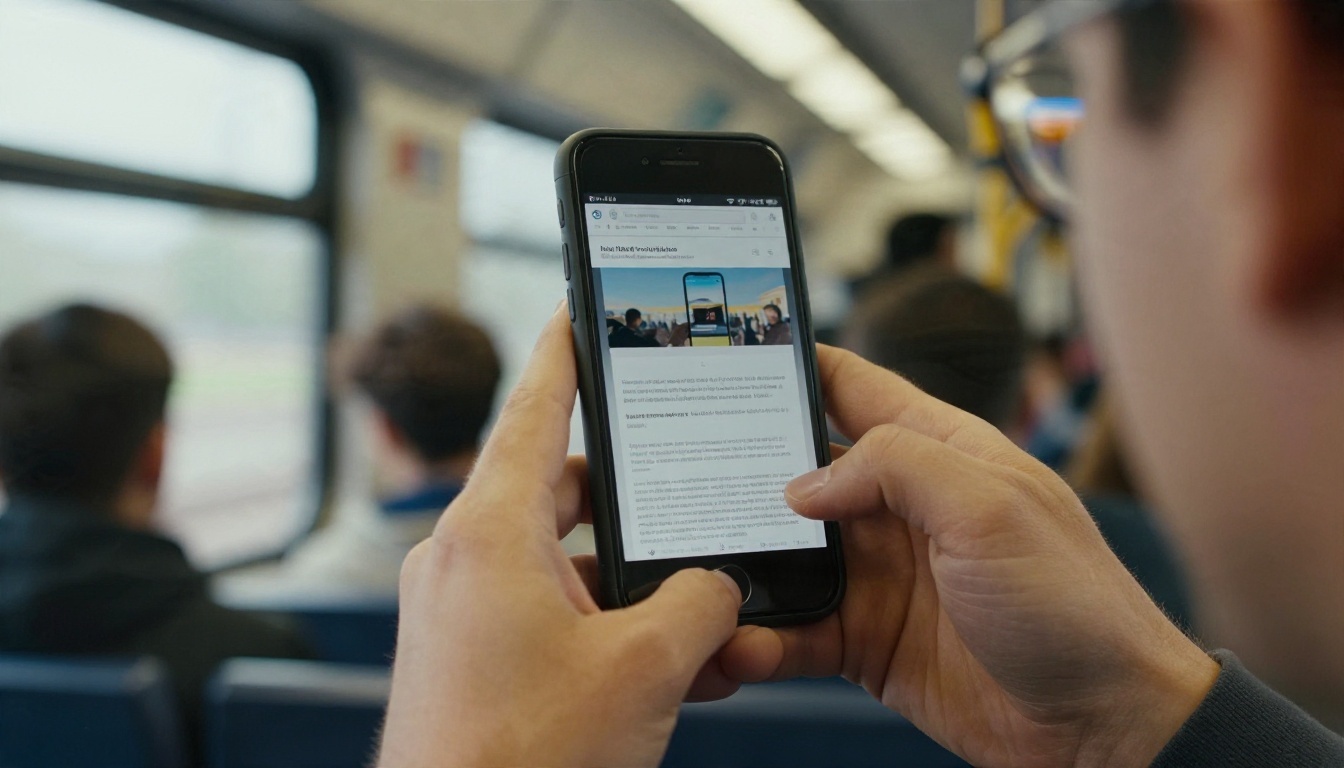
You upload the PDF, paste the embed, hit Update, and the page shows a blank grey box. Or worse, it looks perfect on your desktop and falls apart on a customer's phone. A WordPress PDF viewer not working is one of the most common headaches for anyone who publishes catalogs, menus, reports, or brochures online, and the cause is rarely obvious. This article walks through the real reasons embeds fail, the fixes that actually work, and a lighter alternative: turning the file into a flipbook with Flipbooks AI so it loads the same way everywhere.
💡 Short on time? Jump to the symptom table in the first section. Find what you see on screen, apply the matching fix, and test again.
Why the Viewer Breaks
PDFs were never designed to live inside web pages. Browsers treat them as downloadable documents, and WordPress plugins try to bridge the gap with iframes, JavaScript libraries, or the browser's own built-in reader. Every layer is a place where something can go wrong.
Plugin and Theme Conflicts
Most PDF embed plugins load a JavaScript library (often PDF.js) on the front end. If your theme, a caching plugin, or an optimization plugin delays or combines scripts, the viewer never initializes. You see an empty container because the code that fills it did not run.
Typical culprits include:
Script minification and combining in caching plugins
Deferred or delayed JavaScript features that postpone scripts until a user interacts
Page builders that wrap blocks in containers with hidden overflow
Old plugins that have not been updated for the latest WordPress or PHP version
Browser and Server Limits
Even a perfect plugin can fail when the server says no. Security headers such as X-Frame-Options or a strict Content Security Policy can block a PDF from appearing inside an iframe. A file served over http:// on an https:// page is blocked as mixed content. Large files can hit PHP upload limits or time out before the first page renders.
Match the Symptom to the Cause
Use this table to narrow things down before you start changing settings.
What you see
Most likely cause
Fastest fix
Blank grey or white box
Script blocked, delayed, or minified
Exclude the viewer script from optimization
"Refused to display in a frame"
Security headers on the file or CDN
Adjust X-Frame-Options or host the file on your own domain
Only page one on iPhone
Safari renders PDFs in iframes as a single image
Use a JavaScript viewer or a flipbook
Download prompt instead of preview
Server sends Content-Disposition: attachment
Change the header or use a viewer plugin
Endless spinner on large files
File too heavy or server timeout
Compress the PDF and raise PHP limits
Works logged in, fails for visitors
Cache or permission rules
Purge cache and check file access settings
Quick Fixes for Blank Embeds
Start with the cheap fixes. In my experience, about three out of four blank embeds are solved by one of the steps below, and none of them require touching code.
Clear Every Cache First
Purge your caching plugin, your server cache, and your CDN cache, in that order. Then open the page in a private window so your browser does not serve an old copy. A surprising number of "broken" viewers are simply stale pages from before the plugin was activated.
Read the Browser Console
Open the page, press F12, and click the Console tab. Red lines tell you exactly what is failing. You are looking for three kinds of messages:
Blocked by CORS policy: the file lives on another domain that does not allow your site to load it.
Mixed content: the PDF URL starts with http:// while your site uses https://.
Uncaught TypeError or ReferenceError: a script failed, usually because another script loaded first or never loaded at all.
⚠️ Do not edit theme files directly while debugging. Use a staging copy or a child theme so you can roll back in seconds.
Run the Conflict Test
Switch to a default theme such as Twenty Twenty-Four and deactivate every plugin except the PDF viewer. If the embed appears, reactivate plugins one at a time until it breaks again. The last one you turned on is your conflict. This takes ten minutes and saves hours of guessing.
Fix File Size and Server Limits
Large PDFs fail quietly. Check these settings with your host:
upload_max_filesize and post_max_size should be larger than your biggest file
memory_limit of at least 256M helps plugins that parse documents
max_execution_time of 120 seconds or more prevents timeouts on slow servers
Also compress the PDF itself. A 60 MB brochure full of uncompressed photos does not need to be 60 MB for screen reading. Exporting at screen resolution often cuts the size by 70 percent or more.
Step-by-Step Embed Repair
If the file loads but the viewer will not, rebuild the embed from scratch:
Re-upload the PDF to the Media Library and copy the fresh URL.
Confirm the URL begins with https:// and opens directly in a new tab.
Delete the old block and add a new File or PDF Embed block.
Paste the new URL and set a fixed height of at least 600 pixels.
Update the page, purge caches, and test in a private window.
Mobile Issues and How to Fix Them
Desktop browsers ship with capable PDF readers. Phones do not. That single fact explains most mobile complaints.
The iPhone Page One Problem
Safari on iOS displays an embedded PDF as a static image of the first page inside the iframe. Visitors cannot scroll through pages, and pinch zoom often fights with the page scroll. No setting in WordPress can change that behavior, because it comes from the browser itself. The only reliable answers are a JavaScript based viewer that draws pages itself, or converting the document to a format built for the web.
Fixed Widths and Tiny Text
Many embed codes include width="800" or similar. On a 390 pixel wide phone, that creates sideways scrolling or squeezes text to an unreadable size. Replace fixed widths with width="100%" and wrap the iframe in a responsive container:
When an iframe fills the whole screen, a thumb trying to scroll the page ends up scrolling the document instead. Visitors feel stuck. Keep the viewer shorter than the screen height, or add clear space above and below so people can escape.
How Common Approaches Behave on Phones
Approach
Multi-page scroll
Pinch zoom
Load speed
Setup effort
Plain link to PDF
Depends on device
Yes
Slow for big files
None
Basic iframe embed
Often page one only on iOS
Inconsistent
Slow
Low
PDF.js based plugin
Yes
Yes
Medium
Medium
Page-turning flipbook
Yes
Yes
Fast, pages load progressively
Low
When Plugins Stop Making Sense
Plugins are convenient until they are not. Every extra plugin adds scripts to your pages, another update to track, and another possible conflict.
Signs It Is Time to Switch
Consider moving away from your current viewer if any of these sound familiar:
You fixed it once and it broke again after an update
Mobile visitors keep reporting problems
The plugin adds a visible watermark or upsell banner on the free tier
Page speed scores dropped after you installed it
You need analytics, passwords, or lead capture and the plugin offers none
Plugin Alternatives Compared
Option
Best for
Main drawback
Another PDF viewer plugin
Quick swap, same workflow
Same class of conflicts and mobile limits
Google Docs viewer iframe
Zero install
Google controls availability, plain look, often blocked
Raw <iframe> or <object>
Developers who want control
Inconsistent on mobile Safari
Hosted flipbook embed
Catalogs, magazines, brochures, reports
Requires converting the PDF once
Direct download link
Forms, contracts, files meant to be saved
No preview, higher bounce
The hosted flipbook route has one major advantage for WordPress owners: nothing heavy runs on your server. The reader lives on the flipbook platform, and your page only holds a small embed. That removes whole categories of problems, including script conflicts, PHP limits, and cache quirks.
💡 If your PDF is a catalog or price list, a viewer that mimics real page turning keeps shoppers reading longer than a scrolling grey document. Tools like the Catalog Flipbook Creator are built for exactly that.
How to Embed a Flipbook Instead
Here is the full process using Flipbooks AI. It takes about five minutes for a typical document, and you can browse every flipbook tool if you want a template matched to your content type.
In your flipbook dashboard, click Share and then Embed.
Copy the embed code. It is already responsive, so you do not need the wrapper shown earlier.
In WordPress, edit the page and add a Custom HTML block.
Paste the code and click Preview.
Publish, purge your cache, and test on a phone.
If you prefer not to embed at all, copy the direct link and add it to a button or menu item. Both options work with password protection if the content is private.
Protect and Track
Once the flipbook is live, you can go further without touching WordPress again:
Password protection for client proposals or internal manuals
Offline downloads so visitors can save a copy
Analytics and lead generation to see who reads what and capture emails (available on the Professional plan, see pricing)
Unlimited flipbooks on the Standard plan and above
Feature Comparison at a Glance
Feature
Typical free PDF plugin
Flipbooks AI embed
Works on iPhone with all pages
Often no
Yes
Mobile-responsive layout
Varies
Yes, built in
Watermark
Common on free tiers
Never
Password protection
Rare
Yes
Reader analytics
No
Yes (Professional)
Load on your server
Heavy scripts
Light embed only
Video and audio inside pages
No
Yes
Real-World Examples
Theory is nice. Here is how the fix plays out for actual site owners.
A Ceramics Studio and Its Catalog
A small studio kept its seasonal catalog as a 45 MB PDF on a WooCommerce site. Desktop visitors saw it fine, but mobile shoppers got a grey box or a download prompt. After converting the file with the Product Catalog Generator and embedding the result, the catalog opened in under two seconds on a phone, and the owner stopped receiving "your link is broken" emails.
Real Estate Brochures on a Listing Page
An agent embedded property brochures with a free viewer plugin. Safari showed only the cover page of each brochure, so buyers never saw floor plans. Moving to a flipbook from the Real Estate Brochure Creator gave every visitor full page access, and password protection kept pre-market listings private.
A Magazine or Newsletter Archive
Publishers with dozens of back issues pay a speed penalty when each page loads a full viewer script. A hosted approach with the Magazine Flipbook Creator keeps the archive page light, because each issue is just a small embed.
Pre-Launch Checklist
Run through this list every time you publish a document on WordPress, whatever method you use.
✅ The file URL starts with https://
✅ Caches are purged (plugin, server, CDN)
✅ The page was tested on one iPhone and one Android phone
✅ The console shows no red errors
✅ The viewer height fits inside a phone screen with room to scroll past it
✅ A fallback download link sits below the embed for visitors on restricted networks
✅ Page speed was checked before and after adding the embed
💡 Keep a short note of the exact embed method and plugin version used on each page. When something breaks six months from now, you will know where to look first.
Mistakes That Waste Hours
Debugging on your own device only. Your laptop is not your visitor's phone.
Updating everything at once. When something breaks, you will not know which update caused it.
Ignoring file size. A heavy PDF punishes every viewer, however good.
Hosting the PDF on a third-party domain without CORS settings.
Skipping the fallback link. Even the best embed fails sometimes.
Ready to Stop Debugging?
If your WordPress PDF viewer keeps breaking, you can keep tuning plugins and cache rules, or remove the problem entirely. Convert the file once, embed a small snippet, and move on to work that matters.
Your visitors will not care how the document gets onto the page. They only care that it opens, reads well on a phone, and does not make them wait. Give them that, and the grey box becomes someone else's problem.