You have a tablet, a stylus, a stack of photos and an idea for a magazine. The obvious question is whether you can lay out the whole issue on an iPad, export a clean PDF, and get it in front of readers without ever opening a desktop. Short answer: yes, and the last step is easier than most people expect. Once your PDF is ready, a tool like Flipbooks AI turns it into an online magazine with real page-turning, a shareable link and no watermark.
This article walks through the full path: what InDesign on iPad handles well, where it still leans on the desktop, how to export a PDF that looks sharp, and how to publish it online so people actually read it.

Can InDesign Run on an iPad?
Adobe has brought InDesign to the iPad, so designing a magazine on a tablet is no longer a workaround involving remote desktops or third-party layout apps. You open the app, start a document, place frames, set type and export. The experience is built around touch and Apple Pencil, which suits quick page planning and on-the-go edits.
That said, the iPad version has been rolling out in stages, and Adobe keeps adding features. Before you commit an entire issue to it, check the current feature list inside the app and on Adobe's site. Treat anything below as a practical overview rather than a promise of every desktop tool.
What Works Well on a Tablet
- Page setup: choosing size, margins, columns and facing pages.
- Frames for text and images: drag, resize and fill with content.
- Type styling: font choices, size, leading and alignment.
- Photo placement: pulling images from the Photos app, Files or cloud storage.
- PDF export: producing a file for print or screen.
For a short magazine, a zine, a lookbook or a newsletter, this is plenty.
Where the Desktop Still Wins
Large, text-heavy issues with complex tables of contents, long documents split into books, heavy scripting or tight prepress control are still more comfortable on a Mac or PC. Many designers use a hybrid workflow: rough the layout on the iPad, then polish on the desktop if needed.
💡 Pro tip: Open your file on both devices before a deadline. Fonts and linked images are the usual source of surprises when you switch screens.
| Task | iPad | Desktop |
|---|
| Quick layout sketches | Excellent | Good |
| Editing on the train or couch | Excellent | Not practical |
| Long documents with 100+ pages | Possible, slower | Better |
| Detailed prepress settings | Limited | Full control |
| Stylus-based page planning | Natural | Needs a tablet |

Setting Up Your iPad Magazine
A good magazine starts with decisions made before you place a single photo. Do these first and the rest of the work feels calm.
Pick a Page Size That Fits Your Goal
If readers will mostly see the issue on screens, choose a size that matches how people hold devices. If you also plan to print, stick to a standard trim size so your printer has no surprises.
| Goal | Suggested format | Why it works |
|---|
| Print and screen | US Letter or A4 | Familiar proportions, easy to print |
| Mostly mobile reading | Portrait, narrow ratio | Less pinching and zooming |
| Photo-driven lookbook | Square or landscape | Images get room to breathe |
| Pocket zine | A5 or half letter | Cheap to print, quick to read |
Build a Grid and Stick With It
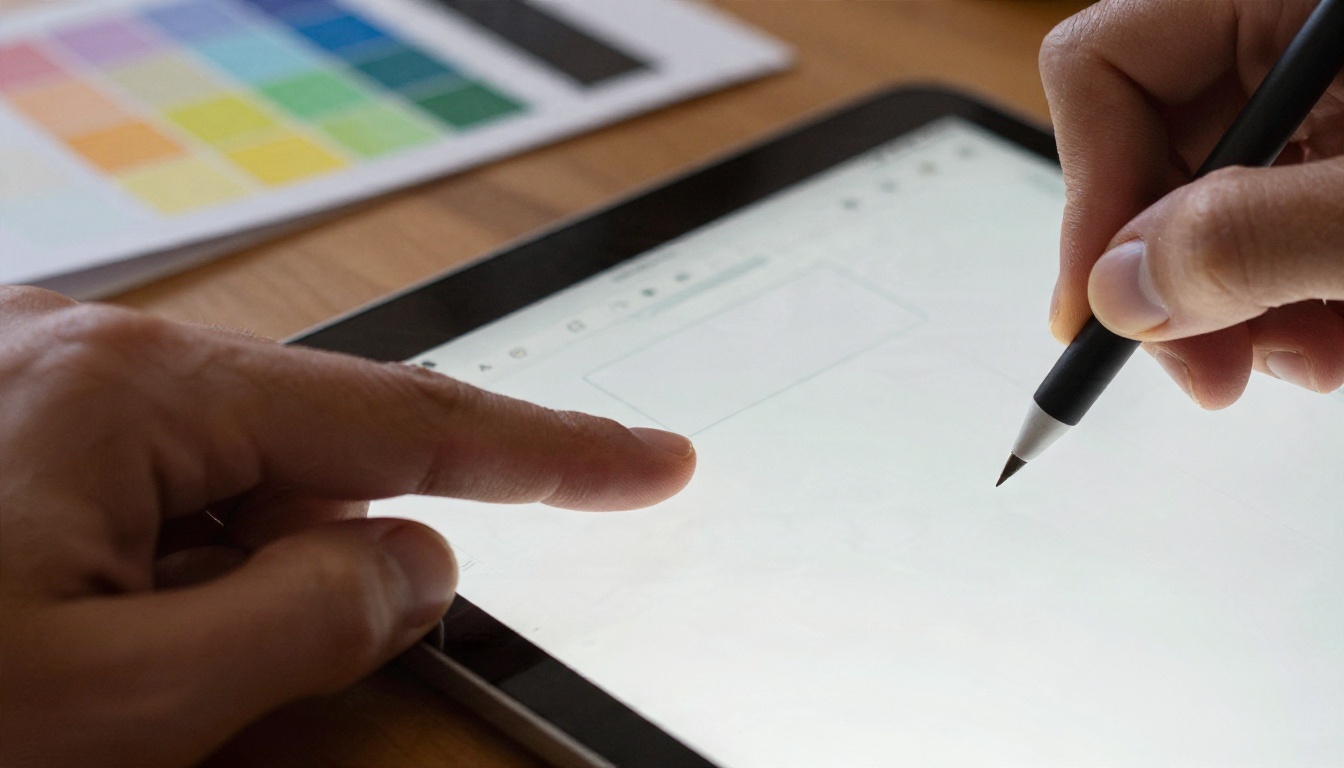
Set columns and margins at the start. A three-column grid for body text and a wider two-column setup for feature stories gives you variety without chaos. With Apple Pencil, you can draw frames directly where you want them, then nudge them into place with your finger.
Place Photos and Text Smartly
- Gather assets first. Keep photos in one album or cloud folder so you are not hunting while designing.
- Place images before text. Let strong photography set the rhythm, then wrap copy around it.
- Use styles. Define a headline, a subhead and a body style once, then apply them everywhere.
- Check contrast. Light grey text on a busy photo looks fine on a desk and unreadable on a phone.
⚠️ Warning: Image resolution matters. Photos that look sharp on a tablet may print soft. Aim for roughly 300 ppi at final size if print is in the plan.
How to Export a PDF From Your iPad
Exporting is the step that turns a layout into something you can send, print or publish. The exact menu labels may shift between app updates, but the flow is consistent.
- Open your finished document.
- Tap the share or export option.
- Choose PDF as the format.
- Pick a quality preset: smallest size for screens, higher quality for print.
- Decide whether to export as spreads or single pages.
- Save to Files, iCloud or another storage location.
Screen PDF or Print PDF?
| Setting | Screen PDF | Print PDF |
|---|
| File size | Small | Large |
| Image quality | Compressed | High resolution |
| Typical use | Email, web, flipbook | Printer, proofing |
| Page layout | Single pages are usually best | Spreads or single pages, ask your printer |
| Color | RGB works well | CMYK often preferred |
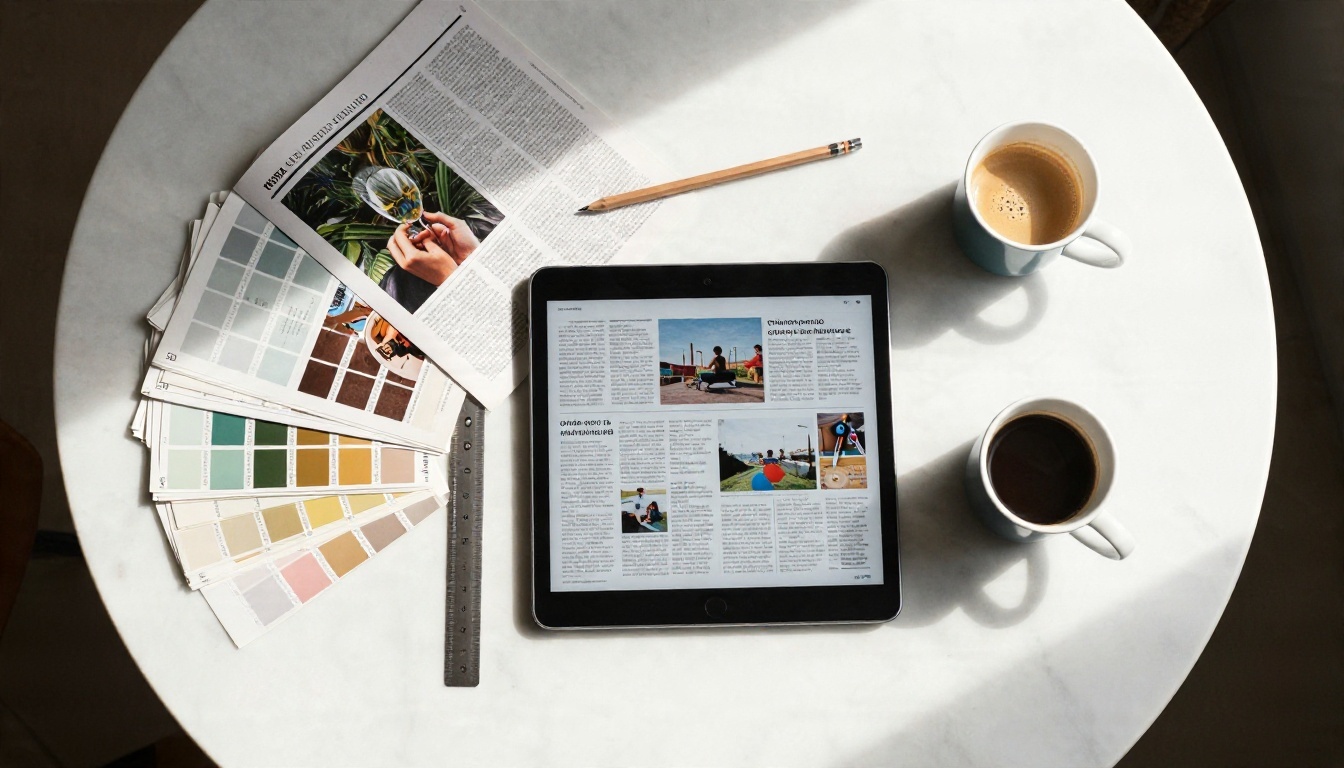
For online sharing, a screen PDF is usually the right choice. It loads faster and still looks crisp on modern displays. If you are also sending a file to a printer, export a second, higher-quality version.
Keep the File Size Reasonable
Huge files frustrate readers and slow down uploads. A few habits help:
- Resize oversized photos before placing them.
- Avoid placing the same photo several times at full resolution.
- Use a screen-quality preset for web publishing.
- Test the PDF on your phone before you share it.
✅ Best practice: Open the exported PDF in Files on the same iPad and swipe through every page. If it looks right there, it is almost certainly ready for upload.

Sharing a PDF Online: The Problem
Sending a PDF by email works for a small group. For an actual audience, it has problems. Readers must download the file, open a separate viewer, pinch and scroll vertically, and there is no feel of turning a page. Links break when attachments get stripped. You also have no idea whether anyone opened it.
Plain PDF vs Online Magazine
| Feature | Plain PDF attachment | Online flipbook |
|---|
| Page-turning feel | No | Yes |
| Opens in a browser | Sometimes | Always |
| Shareable single link | Needs hosting | Built in |
| Embed on a website | Awkward | Simple |
| Works on phones | Needs zooming | Responsive |
| Reader analytics | None | Available on higher plans |
| Password protection | Manual | Built in |
This is where a flipbook platform fits in. You keep your InDesign design exactly as built, and the reader gets a smooth, magazine-style experience on any device.

How to Create a Magazine Flipbook with Flipbooks AI
If your issue is a PDF, you are already most of the way there. The PDF to Flipbook Converter and the Magazine Flipbook Creator are built for this exact job. You can also browse the full set of flipbook tools if your project is closer to a newsletter, a lookbook or a catalog.
Step 1: Create Your Account
Head to Flipbooks AI and sign up. You can look at the pricing plans before deciding how many flipbooks you need.
Step 2: Upload Your PDF
- From the dashboard, choose to create a new flipbook.
- Select the PDF you exported from your iPad. You can pick it straight from Files in Safari.
- Wait for the conversion. Each page becomes a flipbook page, and your text and images stay sharp.
Step 3: Customize the Look
- Branding: add your logo and choose colors that match the issue.
- Background: pick a color or image that frames the pages nicely.
- Page effects: adjust the page-turn style and sound if you like.
- Multimedia: add video or audio where it suits the story, such as an interview clip beside a profile.
Step 4: Choose How to Share
- Direct link: paste it in a message, newsletter or social post.
- Embed code: place the magazine on your site. The Embed Flipbook on Website tool shows how.
- Password protection: keep a members-only issue private.
Step 5: Use the Pro Features
On the Professional plan, you get analytics to see which pages hold attention, and lead generation to collect emails before readers open the issue. Offline downloads let subscribers keep a copy for flights or poor signal. Check the pricing page for the current plan details.
| Plan feature | Why a magazine publisher cares |
|---|
| No watermarks | Your brand stays front and center |
| Unlimited flipbooks (Standard and above) | Publish every issue without counting |
| Mobile-responsive design | Readers on phones get a clean layout |
| Password protection | Subscriber-only or client-only issues |
| Analytics and lead generation (Professional) | See what works and grow your list |
| Offline downloads | Read anywhere |
💡 Pro tip: Update your flipbook link once and reuse it. If you fix a typo in the PDF, replace the file and the same link keeps working for everyone who already has it.
Real-World Examples
Theory is fine, but concrete cases show how this plays out.
An Independent Fashion Zine
A photographer shoots a styled editorial on Saturday, lays out eight pages on an iPad that evening, exports a screen PDF and publishes a flipbook before Monday. The link goes in an Instagram bio. Readers swipe through glamorous full-page images on their phones, and the photographer checks analytics to see which spread kept people longest. A Lookbook Flipbook Builder fits this workflow well.

A Company Newsletter Team
A small marketing team designs a quarterly magazine. One person lays out pages on the iPad during a client visit, the editor reviews on the desktop, and the final PDF becomes a flipbook shared via email. The E-Magazine Publishing Tool keeps the process in one place.
A School or Community Publication
Volunteers often have more tablets than desktops. A teacher can compile student work into a magazine, export once and publish through the School Newsletter Creator. Parents open the link on their phones with no download.

Mistakes That Cost You Readers
Most problems are small, and all of them are avoidable.
Skipping the Phone Test
Design on a 12-inch tablet and you may forget that most readers use a phone. Zoom out on your layout and check whether body text is still legible at small sizes.
Using Spreads When You Need Single Pages
Some flipbook setups handle single pages and spreads differently. If your pages look cropped or doubled, re-export with the other option and compare.
Forgetting Links and Contents
A clickable table of contents makes a magazine feel alive. Add internal links in the layout before export, then test them after upload.
Ignoring File Names and Versions
Name exports clearly, for example "issue-04-screen.pdf" and "issue-04-print.pdf". Future you will be grateful when a client asks for a revision.
Ready to Publish Yours?
So, can you design a magazine in InDesign on an iPad, export a PDF and share it online? Yes. Design it on the tablet, export a screen-quality PDF, and let a flipbook platform handle the reading experience.
Here is your short checklist:
- Set page size and grid before adding content.
- Place photos, apply text styles, and test on a phone.
- Export a screen PDF, plus a print PDF if needed.
- Upload to Flipbooks AI and customize branding.
- Share the link, embed it, or protect it with a password.
Ready to publish your first issue? Get started for free, browse all tools and templates, or compare pricing plans to choose what suits your magazine. When you are set to go further, create an account and pick a plan in a couple of minutes.



