Typing "Android app to read flipbooks" into the Play Store usually ends in the same frustration: dozens of PDF readers and ebook apps, but almost none that give you a real page-turn experience. The reason is simple. A flipbook is not a file format, it is a web experience built from a PDF, and most flipbooks, including those made with Flipbooks AI, are designed to open in a browser without any install at all.
That does not mean apps are useless. Some are great for saving documents, reading on a plane, or keeping a library in one place. This article sorts out which Android options are free, which ones work offline, and when a browser is the smarter choice. You will also see a step-by-step tutorial for publishing a flipbook that every Android phone can open.
Do You Need an App at All?
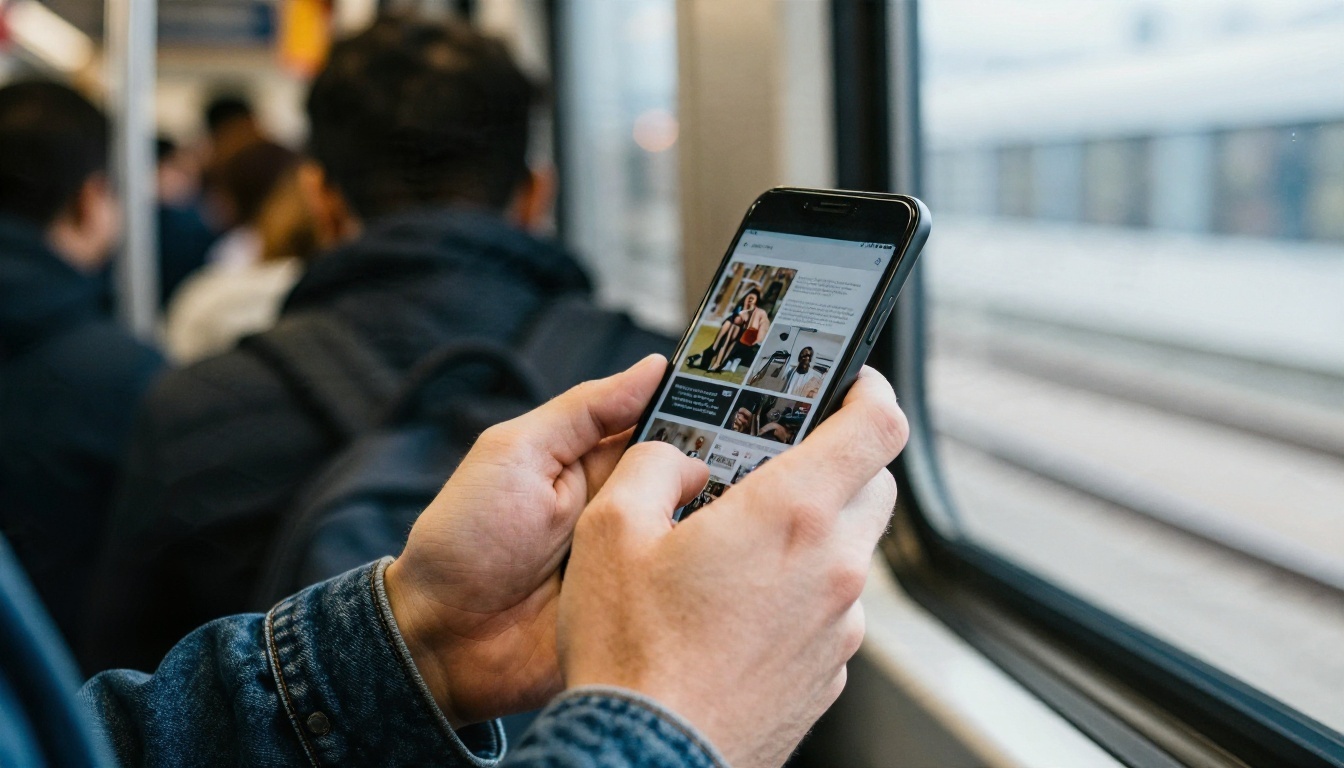
Short answer: usually no. If someone sends you a flipbook link, Chrome, Firefox, Samsung Internet or Edge will open it directly. The pages load, you swipe or tap to turn them, and you can pinch to zoom. No account, no storage used, no update prompts.
An app becomes useful in three situations:
- You want to keep a copy of the document on your device.
- You will be without a connection (flights, tunnels, rural areas).
- You manage a large library of PDFs and want everything in one place.
How Flipbooks Work on Android
A flipbook starts as a PDF. The platform converts each page into an image or HTML layer, adds a page-turn animation, and publishes the result at a web address. Because the output is HTML5, Android treats it like any other website.
That is why a standard PDF reader app will often show you a plain vertical scroll instead of the flip effect. The reader is opening the source file, not the interactive version.
💡 Pro tip: If you only need the content, a PDF app is fine. If you want the page curl, embedded video, audio, or clickable links the author added, open the flipbook link in a browser.
Native App vs Browser Reading
| Feature | Native Android App | Mobile Browser |
|---|
| Install required | Yes | No |
| Page-turn animation | Rarely | Yes, if the author enabled it |
| Embedded video and audio | Limited | Supported |
| Offline reading | Yes, after saving a file | Only with a download or cache |
| Storage used | Moderate to high | Very low |
| Always shows the latest version | No | Yes |
| Works on every Android version | Depends on the app | Depends on browser updates |
Free Android Apps Worth Trying
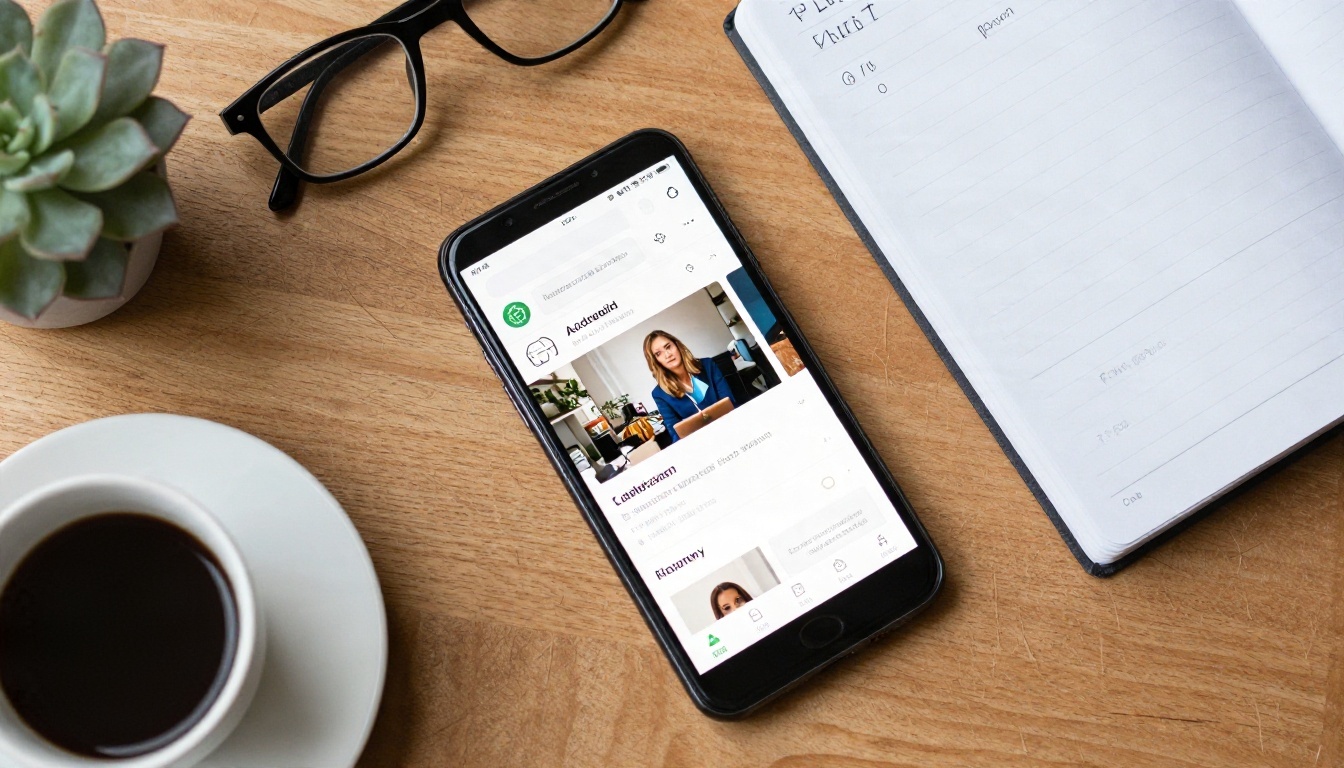
No Android app is built specifically to replace the browser for flipbooks, but several free readers handle the underlying PDF well. Features and limits change with updates, so check each listing in the Play Store before you rely on it.
Google Play Books
Already installed on most Android phones. It lets you upload your own PDF and EPUB files, sync them across devices, and read them without a connection after you download them. It is clean and fast, but it displays pages in a standard reader layout, so there is no flip animation and no interactive elements from the original flipbook.
Adobe Acrobat Reader
The familiar choice for PDFs. It handles large files, supports annotations, and works with local files and cloud storage. The free version covers reading, highlighting and basic commenting. Again, you get the document, not the web flipbook around it.
Moon+ Reader and Other Ebook Apps
Ebook apps such as Moon+ Reader are popular with people who read a lot, because they offer themes, brightness controls, and some page-turn animations for supported formats. They are a decent fit for text-heavy flipbooks like manuals or ebooks, though image-rich catalogs can look cramped.
Free App Comparison
| App | Cost | Opens PDF | Offline | Page-flip effect | Best for |
|---|
| Google Play Books | Free | Yes | Yes | No | Syncing personal files |
| Adobe Acrobat Reader | Free tier | Yes | Yes | No | Annotation and forms |
| Moon+ Reader | Free tier | Yes | Yes | Some modes | Long reading sessions |
| Chrome (browser) | Free | Via link | With download | Yes | Interactive flipbooks |
| Firefox (browser) | Free | Via link | With download | Yes | Privacy-focused users |
⚠️ Watch out: Apps that advertise "flipbook reader" in the store often come with heavy ads or ask for broad permissions. Read the reviews and permissions before installing anything you do not recognize.
How to Read Flipbooks Offline
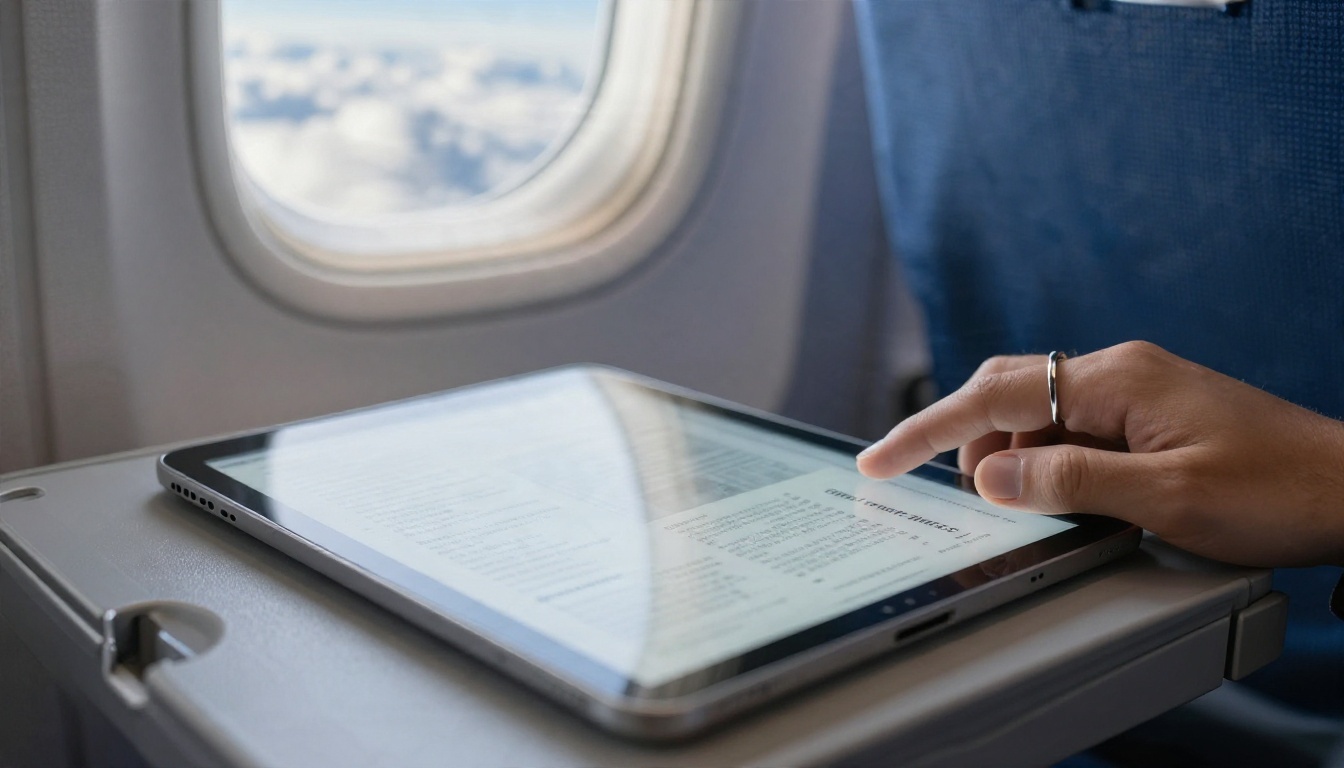
Offline reading is where apps earn their place. Browsers need a connection to load a flipbook, so you need a plan before you lose signal. There are three realistic routes.
Save the PDF Source
The simplest method. If the publisher offers a download button, tap it and store the PDF in your Downloads folder or open it directly in Google Play Books or Acrobat Reader. You lose the animation, but you keep every page.
Use Offline Downloads
Some platforms let publishers enable offline downloads for readers. Flipbooks AI includes this as a feature, so a creator can let readers keep a copy for later. If you publish flipbooks yourself, switching this on is the most reader-friendly option for people who travel.
Browser Tricks That Help
Chrome on Android lets you download pages and files from the menu. Results vary depending on how a site is built, so do not count on it for interactive flipbooks. Treat it as a backup, not your main plan.
A quick offline checklist for Android:
- Open the flipbook link while you have Wi-Fi.
- Look for a download or save PDF option in the viewer.
- Save the file to your device, not only to cloud storage.
- Open it once in your reader app to confirm it loads.
- Switch on airplane mode and test again before you travel.
✅ Best practice: Always test your offline copy in airplane mode while you are still at home. It takes thirty seconds and avoids a bad surprise at the gate.
Browser Alternatives That Just Work
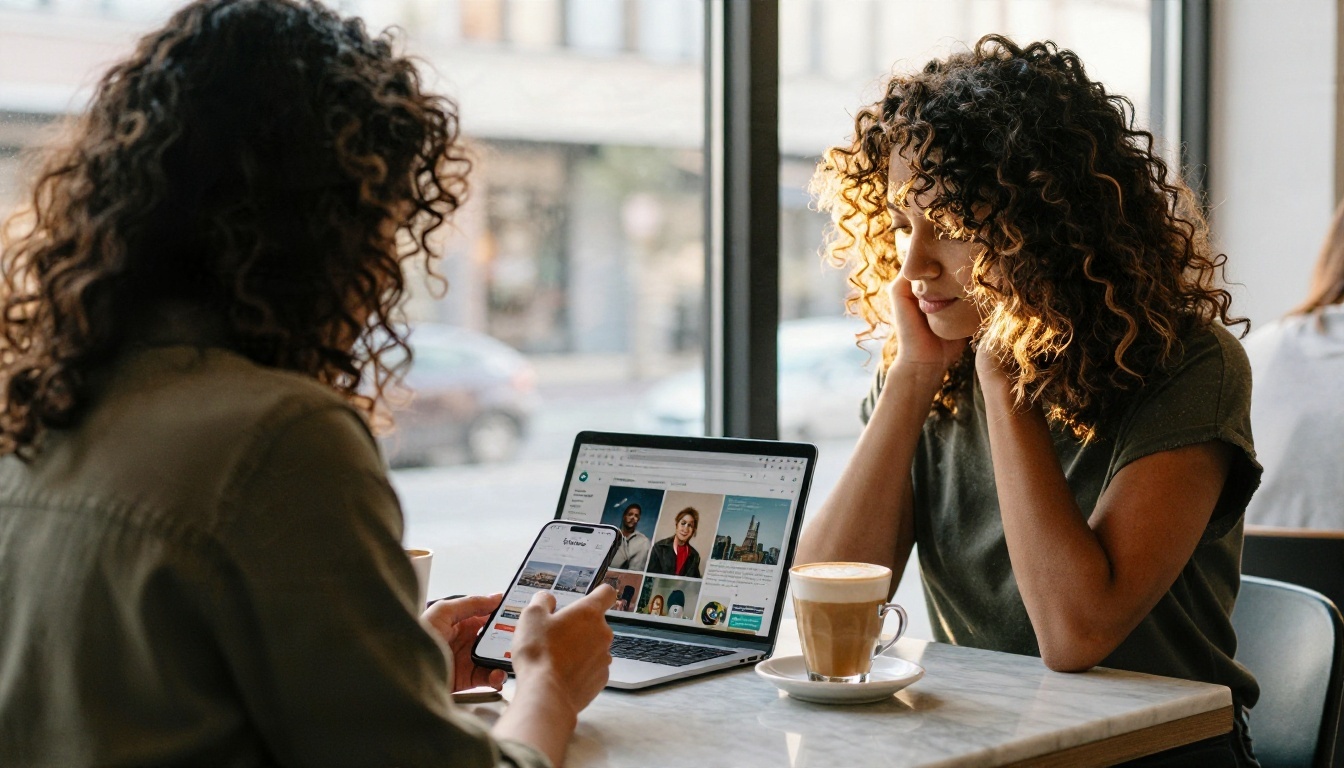
For most people, the browser is the best Android flipbook reader already on the phone. It is updated automatically, handles HTML5 well, and keeps every interactive element the author built.
Chrome and Firefox on Android
Both open flipbooks quickly. Tap the link, wait for the pages to load, then swipe to turn. Rotate the phone to landscape for a two-page spread, which feels much closer to a printed magazine. Firefox adds extra tracking protection, while Chrome tends to feel faster on mid-range hardware.
Add a Shortcut to Your Home Screen
If you reopen the same publication often, such as a menu, price list or training manual, you can pin it like an app:
- Open the flipbook in Chrome.
- Tap the three-dot menu in the top corner.
- Choose Add to Home screen.
- Confirm the name and tap Add.
You now have an icon that opens the flipbook in one tap, with no download and no extra storage.
Browser Reading Compared
| Browser | Page-turn support | Zoom and pinch | Home screen shortcut | Notes |
|---|
| Chrome | Excellent | Smooth | Yes | Default on most phones |
| Firefox | Excellent | Smooth | Yes | Strong privacy controls |
| Samsung Internet | Very good | Smooth | Yes | Pre-installed on Galaxy phones |
| Edge | Very good | Smooth | Yes | Syncs with desktop profile |
How to Create a Mobile Flipbook with Flipbooks AI
If you are the one publishing, you control the reader experience. A flipbook that is built to be mobile responsive means your audience never needs to hunt for an Android app. Here is the process.
Step 1: Open your account. Go to Flipbooks AI and create an account. You can check pricing plans if you want to compare options before you commit.
Step 2: Upload your PDF. Drag the file into the upload area. The platform converts each page automatically, usually within a short time for a normal-sized document. The PDF to Flipbook Converter is the fastest entry point.
Step 3: Customize the look. Add your logo, pick brand colors, choose the background, and set page effects. Keep text at a readable size, because phone screens are small.
Step 4: Add multimedia. Embed videos and audio so readers can play them straight from the page. No watermarks are added, ever.
Step 5: Protect private content. Turn on password protection if the flipbook is for clients, staff or members only.
Step 6: Share it. Copy the direct link, or use the embed code to place the flipbook on a site. The Embed Flipbook on Website tool walks you through it.
Step 7: Enable offline downloads. Let readers save a copy so they can use it on a plane or in a basement shop with no signal.
Step 8: Track results. On the Professional plan you get analytics and lead generation, so you can see who opens the flipbook and from which device.
💡 Pro tip: After publishing, open your own link on an Android phone in both portrait and landscape before you send it to anyone. Ten seconds of testing catches most layout problems.
Plan Comparison
| Capability | Standard | Professional |
|---|
| Unlimited flipbooks | Yes | Yes |
| No watermarks | Yes | Yes |
| Password protection | Yes | Yes |
| Offline downloads | Yes | Yes |
| Analytics | No | Yes |
| Lead generation | No | Yes |
Check the pricing page for the current plan details, since inclusions can change.
Real Scenarios on Android
Flipbooks are read on phones far more often than on desktops. Here is how different people actually use them.
Boutique Lookbooks
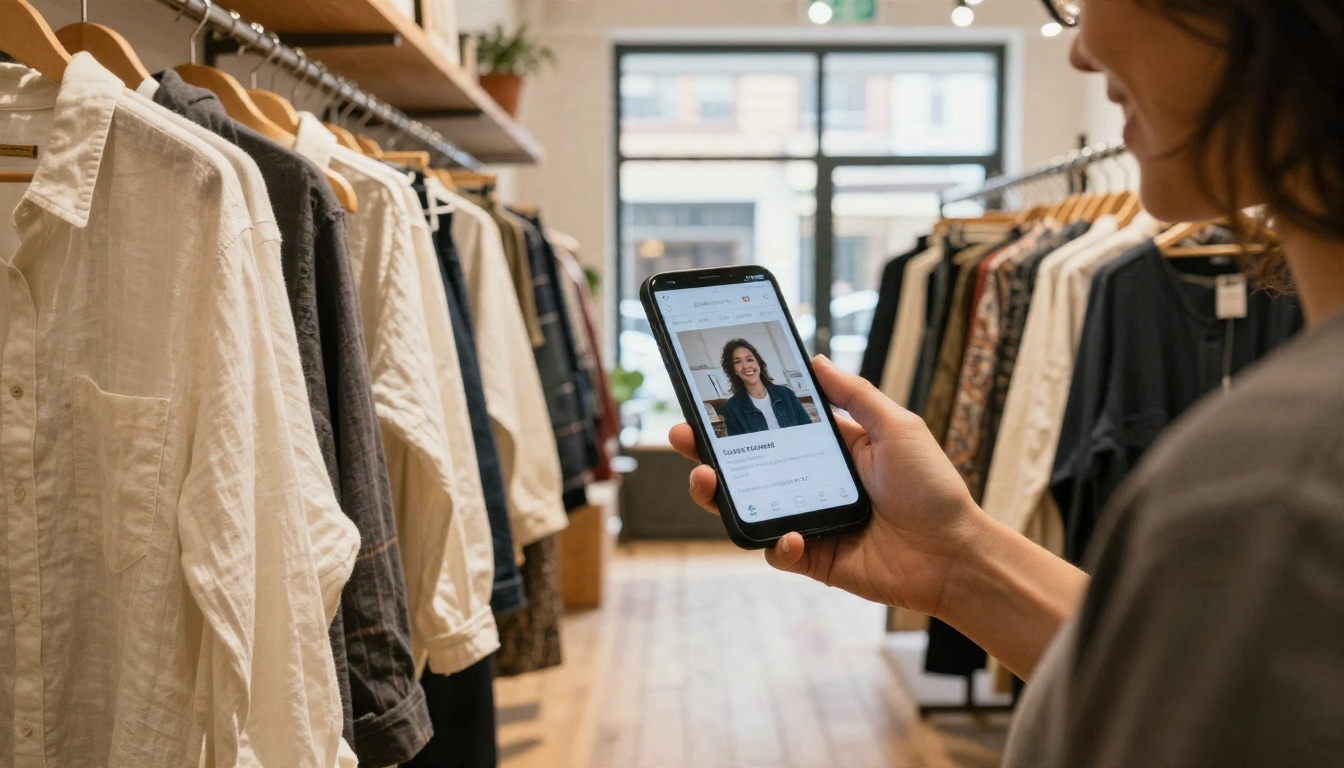
A small clothing shop can share a seasonal lookbook by link or QR code. The customer taps, swipes through outfits, and never installs anything. Shops can build one with the Interactive Lookbook Designer or the Fashion Catalog Creator.
Student Course Material

Students often read on the phone between classes. A tutor can publish readings through the Course Material Publisher and allow offline downloads, so the material is available even on a patchy campus network. A Training Manual Flipbook works the same way for staff onboarding.
Restaurant Menus
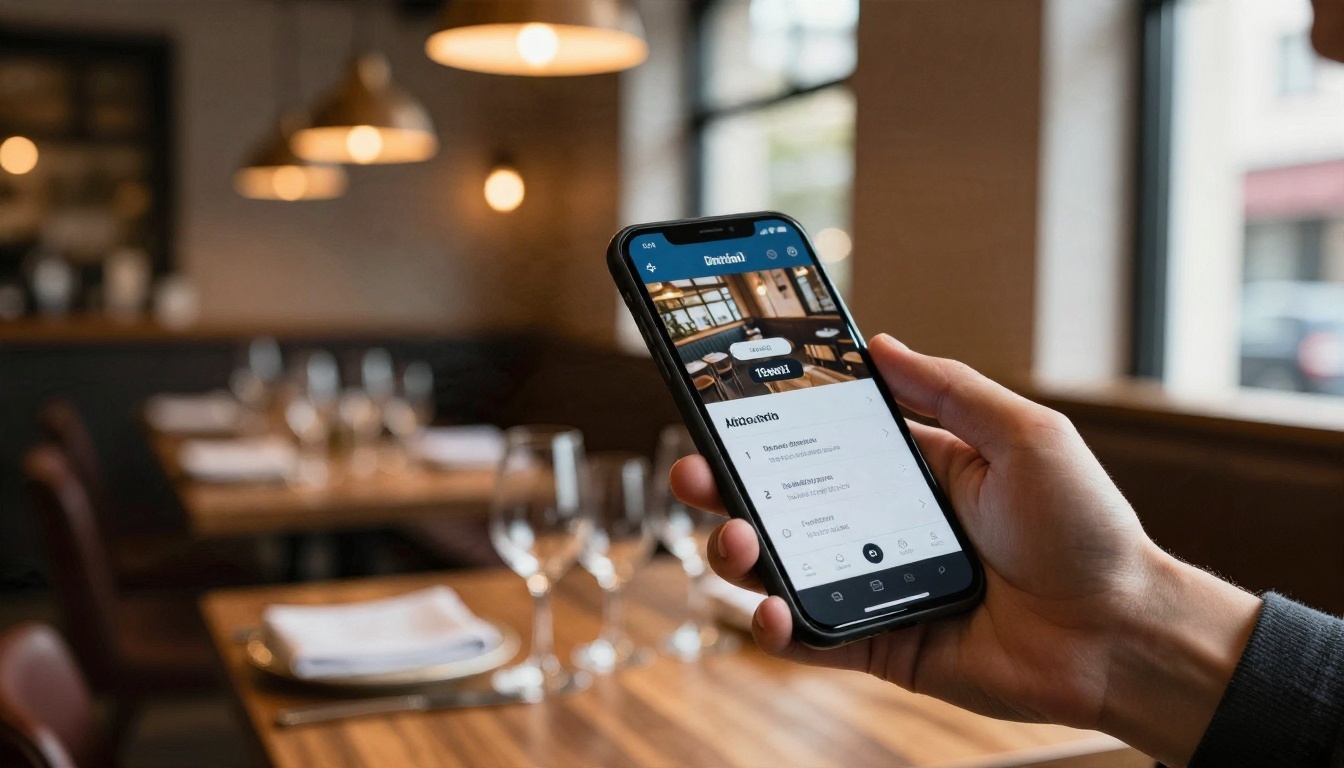
A restaurant prints a QR code for each table. Guests scan it and the menu opens in their browser, with photos and prices that the owner can update in minutes. The Restaurant Menu Creator is built for exactly this, and the Digital Price List Generator suits shops and service businesses.
Use Case Summary
| Scenario | Best reading method | Offline needed? | Suggested tool |
|---|
| Retail lookbook | Browser via link or QR | Rarely | Lookbook designer |
| Student readings | Browser plus download | Often | Course Material Publisher |
| Restaurant menu | Browser via QR | No | Restaurant Menu Creator |
| Sales brochure | Browser or PDF download | Sometimes | Brochure Flipbook Maker |
| Field manual | Downloaded file | Yes | Training Manual Flipbook |
Fixing Common Problems
Even good flipbooks can misbehave on older or low-memory devices. These are the issues that come up most often.
Pages Load Slowly
Large image files are the usual cause. If you are the publisher, compress images in the source PDF before uploading. If you are the reader, switch from mobile data to Wi-Fi and close background tabs.
Text Is Too Small
Pinch to zoom, or rotate to landscape. Publishers can help by using larger body text and simpler layouts. Tablets handle dense pages better than phones, so if you read catalogs often, a tablet is worth considering.
Flipbook Will Not Open Offline
A browser cannot show an interactive flipbook with no connection unless it was saved in advance. Use the download option, or keep a PDF copy in a reader app.
| Problem | Likely cause | Fix |
|---|
| Blank page after tapping link | Outdated browser | Update Chrome or Firefox |
| Slow page turns | Heavy images, weak signal | Use Wi-Fi, close other tabs |
| No flip animation | Opened in a PDF app | Open the link in a browser |
| Cannot read offline | No saved copy | Download the PDF beforehand |
| Password prompt loops | Cached old link | Clear site data, retry |
Pick Your Setup Today
Here is the practical summary. For reading, a modern browser handles nearly every flipbook better than a dedicated app. For keeping a copy, pair it with Google Play Books or Acrobat Reader. For publishing, choose a platform that creates mobile-responsive flipbooks with offline downloads, so your readers do not have to hunt for software.
Ready to publish something Android users can open in one tap? Get started for free on Flipbooks AI, browse all flipbook tools to find the right template, or compare pricing plans to choose what suits your project.



