You downloaded a PDF, opened it, and spent the next ten minutes scrolling through a endless gray column of pages. It works, but it does not feel like reading. If you want an app to read PDF like a book, with facing pages, a proper page turn and a layout that respects the original design, you have more free options than you might think. Some live on your phone, some on your tablet, and some run straight in the browser. And if you publish PDFs yourself, Flipbooks AI can turn the file into a page flip reader that your audience opens on any device with no install at all.
This article compares the best free choices, tells you honestly where each one falls short, and shows you how to pick the right setup for your reading habits.
Why PDFs Feel Nothing Like Books
The Scroll Problem
A PDF is a fixed layout file. It was built to print, so every page has a set size, set margins and often a set design spread across two facing pages. Most default viewers ignore that and stack the pages vertically. You lose the sense of progress, you lose the spread, and a double page photo gets sliced in half by the gap between pages.
What "Like a Book" Really Means
When people search for this, they usually want one or more of these things:
- Single page snapping, where one swipe moves exactly one page.
- Two page spreads on tablets and wide screens, like an open paperback.
- A visible page turn, either a curl animation or a clean horizontal slide.
- Bookmarks and a remembered position, so you resume where you stopped.
- Night or sepia mode for comfortable evening reading.
💡 Pro tip: Be clear about which of these you actually care about. A clean page snap is easy to find for free. A true page curl animation is rare in standard PDF readers and usually comes from a flipbook converter instead.
Free Apps for Phone and Tablet
Android Options
Android has a deep bench of free readers. These are the ones worth installing:
- Google Play Books: You can upload your own PDFs to your library, and they sync across devices. It handles reading position well, though the page layout stays close to the original PDF.
- Xodo PDF Reader: Popular for annotation, with a continuous scroll mode and a single page mode. A good choice if you highlight a lot.
- Librera Reader: A free, ad supported reader that handles many formats and offers a book style mode with page animation settings, plus day and night themes.
- Moon+ Reader: Best known for EPUB, but it opens PDFs and offers page turn effects in its settings. Some extras sit behind a paid upgrade.
- Adobe Acrobat Reader: Reliable, with a page by page view and a reading mode that reflows text on supported files.
iPhone and iPad Options
Apple users start with a strong built in choice and can add a few more:
- Apple Books: Opens PDFs sent from Files, Mail or Safari, saves them in your library and remembers your place. Page turns are clean, though the curl animation you get with EPUB books is not the same for PDFs.
- Files and Quick Look: Zero setup, fine for a quick look, but no real reading features.
- PDF Expert (free tier) and Adobe Acrobat Reader: Both offer single page and continuous modes, with annotation tools on the free plans.
- Kindle app via Send to Kindle: Sending a PDF to your Kindle library gives you familiar reading controls, although fixed layout PDFs can look small on a phone.
⚠️ Watch out: Many apps call themselves "free" but lock page modes, dark themes or cloud sync behind a subscription. Check the settings screen before you commit your whole library to one app.
Quick Comparison of Mobile Readers
| App | Platform | Single page mode | Two page spread | Page turn effect | Cost |
|---|
| Google Play Books | Android, iOS | Yes | Limited | Slide | Free |
| Apple Books | iPhone, iPad | Yes | Limited | Slide | Free |
| Librera Reader | Android | Yes | Yes (tablet) | Several options | Free with ads |
| Moon+ Reader | Android | Yes | Yes (tablet) | Several options | Free, paid extras |
| Xodo | Android, iOS | Yes | Limited | None | Free, paid extras |
| Adobe Acrobat Reader | Android, iOS | Yes | Limited | None | Free, paid extras |
Features change with app updates, so check the current version before you rely on any single row.
Browser Readers That Need No Install
Built-In Viewers
Your browser already contains a capable PDF reader. Chrome, Edge and Firefox all open PDFs without a plugin, and each one offers more than most people realize.
- Chrome and Edge: Open the viewer menu and look for a two page view or a page view option. It places pages side by side and gets you closer to an open book on a wide monitor.
- Firefox: The reader has spread options for odd or even pages and a wrapped scrolling mode, which arranges pages in a grid.
- Safari: Offers single page and two page views in its built in viewer on Mac.

Two Page Settings That Help
A few small adjustments make a big difference in how book like a PDF feels:
- Switch to a two page spread and set the first page to display alone, so the cover sits on its own like a real book.
- Use fit to page instead of fit to width, so you see a whole spread without scrolling.
- Turn on full screen to hide the browser interface.
- Use the page number box to jump rather than dragging a scrollbar.
The limit is obvious: a browser viewer is a tool, not a design. Nothing animates, and each of your readers has to adjust those settings on their own.
Which Option Fits Your Situation
Not everyone needs the same setup. Here is a plain way to decide.
| If you want to... | Best choice | Why |
|---|
| Read novels or long reports on a phone | Google Play Books or Apple Books | Syncs position, simple controls |
| Highlight and annotate study material | Xodo or Acrobat Reader | Strong annotation tools |
| Read magazines on a tablet | Librera Reader or a browser two page view | Spreads keep layouts intact |
| Get a real page curl feel | A flipbook converter | Animation is built into the output |
| Share a PDF so readers need no app | A flipbook link | Opens in any browser |
Notice the last two rows. Everything above them is about your own reading. The moment you want other people to read a PDF with a book feel, the question changes. You cannot ask a customer to install Librera. You can send them a link.
Turn Any PDF Into a Flipbook
If you want a page curl, a clean book layout and a link that works on every phone, tablet and browser, convert the PDF into a flipbook. The PDF to Flipbook Converter on Flipbooks AI does exactly that, and the result is mobile responsive, so it adapts to the screen in the reader's hand.
Step 1: Create Your Account
Head to Flipbooks AI and create an account. You can look at pricing plans any time to see which tier matches your volume.
Step 2: Upload the PDF
- Click the upload button in your dashboard.
- Select your PDF or drag it onto the page.
- Wait a moment while the pages are converted. Text, images and layout stay as designed.
- Open the preview and flip through it to confirm every page looks right.
✅ Best practice: Export your PDF at the final page size before uploading. Pages with mixed sizes can look uneven in a book layout.
Step 3: Customize the Look
Next, make the reader feel like yours:
- Custom branding: Add your logo and pick background colors that match your site.
- Page effects: Choose how the pages turn and how the book opens.
- Multimedia: Embed videos and audio directly into the pages.
- Clean output: There are no watermarks, ever, so the reader looks professional.
Step 4: Share It Everywhere
You have several sharing routes, and you can use more than one:
| Sharing option | Best for | Notes |
|---|
| Direct link | Email, chat apps, social posts | Opens in any browser |
| Embed code | Websites and landing pages | See the Embed Flipbook on Website tool |
| Password protection | Private documents, client files | Only people with the password can open it |
| Offline download | Readers with weak signal | Useful for travel and events |
Step 5: Track Who Reads It
On the Professional plan you get analytics and lead generation, which show how readers move through your pages and let you capture contact details before they open the book. Unlimited flipbooks are available from the Standard plan and above. You can compare each tier on the pricing page.
Real World Examples
A Home Cook With a Recipe Collection
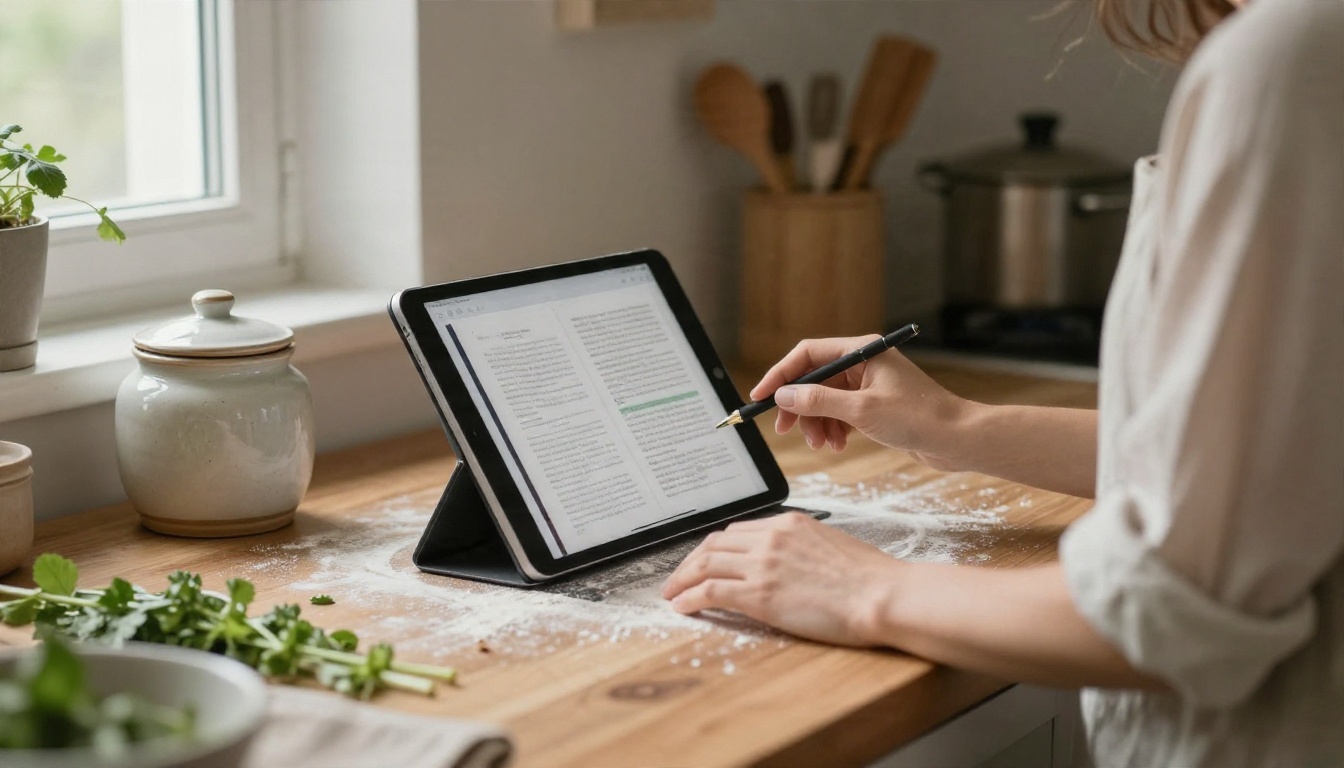
A food blogger has a 60 page recipe PDF. Readers on tablets prop it in the kitchen, and they want clean page turns with floury fingers. A flipbook version works well here, and the Recipe Book Flipbook tool is built around that exact use.
A Shop Sharing a Product Catalog
A small business owner sends a catalog PDF as an email attachment. Half the recipients open it on a phone and pinch zoom through tiny text. Moving the file into a flipbook through the Digital Catalog Maker gives them a link, a book feel and a layout that fits their screen.
A Teacher Sharing Course Material
A teacher wants students to read a workbook without installing anything. A flipbook link opens on school laptops, family tablets and phones alike. The Course Material Publisher is a natural match, and students can bookmark their place as they go.

An Author Publishing an Ebook
Writers who distribute a PDF ebook directly can build a book style reader with the E-Book Flipbook Generator, then place it on their own site and keep the full reading experience in their hands.
Free Reader or Flipbook: A Direct Comparison
| Feature | Free reader app | Browser viewer | Flipbook link |
|---|
| Install required | Yes | No | No |
| True page turn animation | Sometimes | No | Yes |
| Works on phone and tablet | Yes | Yes | Yes, responsive |
| Branding and logo | No | No | Yes |
| Share one link with anyone | No | Partly | Yes |
| Password protection | Depends on the app | No | Yes |
| Reading analytics | No | No | Yes (Professional) |
| Best for | Personal reading | Quick viewing | Publishing and sharing |

Common Mistakes to Avoid
Judging an App by Its Store Page
Screenshots rarely show the settings that matter. Open a real PDF with spreads and check how the app handles it before you decide.
Ignoring Page Size
A PDF built for A4 print looks cramped on a small phone in any reader. If you are the one publishing, think about mobile first, or rely on a responsive flipbook that adjusts layout to the screen.
Sending Raw Attachments
Large PDF attachments get blocked, downloaded in the wrong place or opened in a basic viewer. A link is lighter, safer and easier to update later.
Skipping Tablet Tests
Spreads that look perfect on a monitor can feel tiny on a seven inch tablet. Test on the smallest screen your audience is likely to use.

Ready to Read Your PDFs Like Books?
For your own reading, start with what is already on your device: Apple Books, Google Play Books or the two page view in your browser. If you want more control, try Librera Reader or Moon+ Reader on Android.
For everyone else who needs to open your PDF, there is a better route. Create your first flipbook for free on Flipbooks AI, browse the full set of flipbook tools to find a template that fits your project, and compare pricing plans when you are ready for analytics, lead capture and unlimited flipbooks. Prefer to go straight to the point? Upload your file to the PDF to Flipbook Converter and watch a flat PDF turn into a book you can flip through on a phone, a tablet or any browser.



