You open a PDF on your phone and spend the next minute pinching, zooming and dragging a page sideways just to read one paragraph. Sound familiar? The format was built for printers, not for pocket screens, and the app you pick decides whether reading feels smooth or miserable. This ranking looks at the best PDF reading apps for phone, tablet and desktop, with free options for every device, and then shows where a flipbook from Flipbooks AI beats a plain PDF when the goal is to share a document with other people.
What to Look for in a PDF Reader
Before the app list, it helps to know what separates a pleasant reader from a frustrating one. Most people judge a PDF app in the first thirty seconds, and the same few things decide the verdict every time.
Features That Matter on Phones
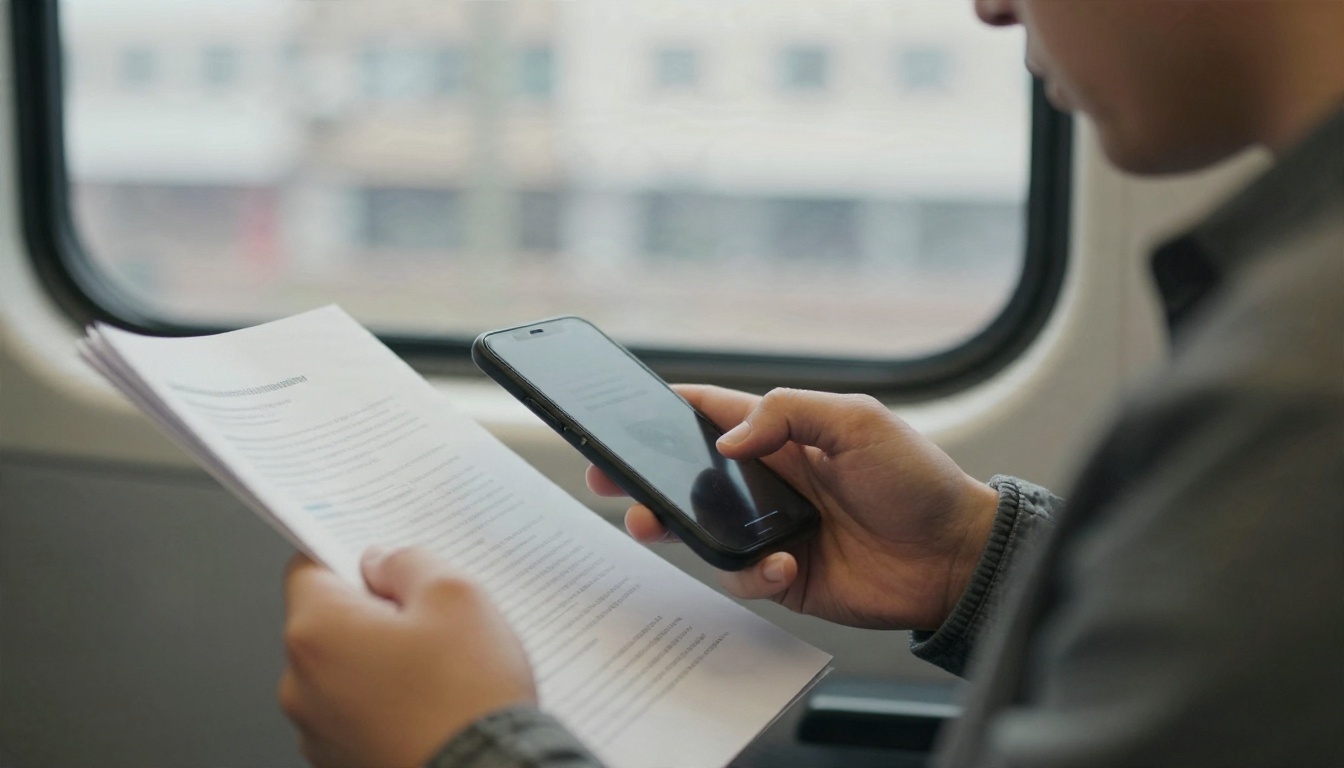
A phone has a narrow screen, so the reader has to do the heavy lifting. Look for reflow or text-fit modes, fast scrolling through long files, a dark theme for night reading, and cloud sync so you can pick up where you stopped on another device. Battery drain matters too. A reader that renders pages slowly burns through your charge on a long commute.
Tablet and Stylus Needs
Tablets are where PDF reading gets serious. You want highlighting, handwritten notes, bookmarks and a clean two-page spread in landscape mode. Palm rejection with a stylus is a quiet deal breaker. If the app registers your wrist as a stroke, you will uninstall it within a day.
Desktop Power Features
On a desktop you are usually working with the file, not just reading it. That means tabbed documents, full-text search, form filling, signing, and side-by-side comparison. Speed also counts. A bloated reader that takes ten seconds to launch is a real cost when you open twenty files a day.

| Feature | Phone | Tablet | Desktop |
|---|
| Fast page rendering | Essential | Essential | Essential |
| Highlights and notes | Nice to have | Essential | Important |
| Stylus support | Rare | Essential | Rare |
| Form filling and signing | Useful | Useful | Essential |
| Cloud sync | Essential | Essential | Important |
| Full-text search | Useful | Useful | Essential |
| Low memory use | Important | Important | Nice to have |
💡 Pro tip: Test any new reader with your heaviest file, the 200-page scan or the image-heavy report. Light files hide the weaknesses that show up on the documents you actually struggle with.
Best PDF Apps for Phone
Phones account for most casual PDF reading: invoices, menus, tickets, quick contracts and the occasional long report. The goal here is speed and comfort, not editing.
Free Picks for Android
Adobe Acrobat Reader is the default most people try first. It is free, available on every major platform, and handles highlighting, comments and basic form filling. Editing and exporting sit behind a paid plan, so treat the free tier as a very good reader and nothing more.
Xodo PDF Reader is a strong alternative with a lighter feel. It offers annotation, form filling and document scanning in the free version, and it syncs with common cloud storage services. Google Drive's built-in viewer deserves a mention too. It opens almost anything instantly, which is perfect for a file someone just sent you.
Free Picks for iPhone
iPhone users already have two good options installed. The Files app previews PDFs with a built-in markup tool, and Apple Books lets you add PDFs to your library alongside your ebooks, with sync across Apple devices. Acrobat Reader and Xodo are both available on iOS as well, so the choice comes down to whether you want extra annotation tools or a quieter reading experience.
⚠️ Watch out: Free readers change their feature limits from time to time. Always check the store listing for what is free today before you commit your document archive to one app.
| App | Platform | Price | Best for |
|---|
| Adobe Acrobat Reader | Android, iOS | Free, paid upgrades | Forms and comments |
| Xodo PDF Reader | Android, iOS | Free, paid upgrades | Annotation and scanning |
| Google Drive viewer | Android, iOS | Free | Quick opening of shared files |
| Apple Books | iOS | Free | Long reading with sync |
| Files app | iOS | Free, built in | Quick previews and markup |
Best PDF Apps for Tablet
The tablet is the one device where reading a PDF can feel almost like reading paper. The screen is big enough for a full page, and a stylus makes markup natural.
Annotation and Stylus Picks
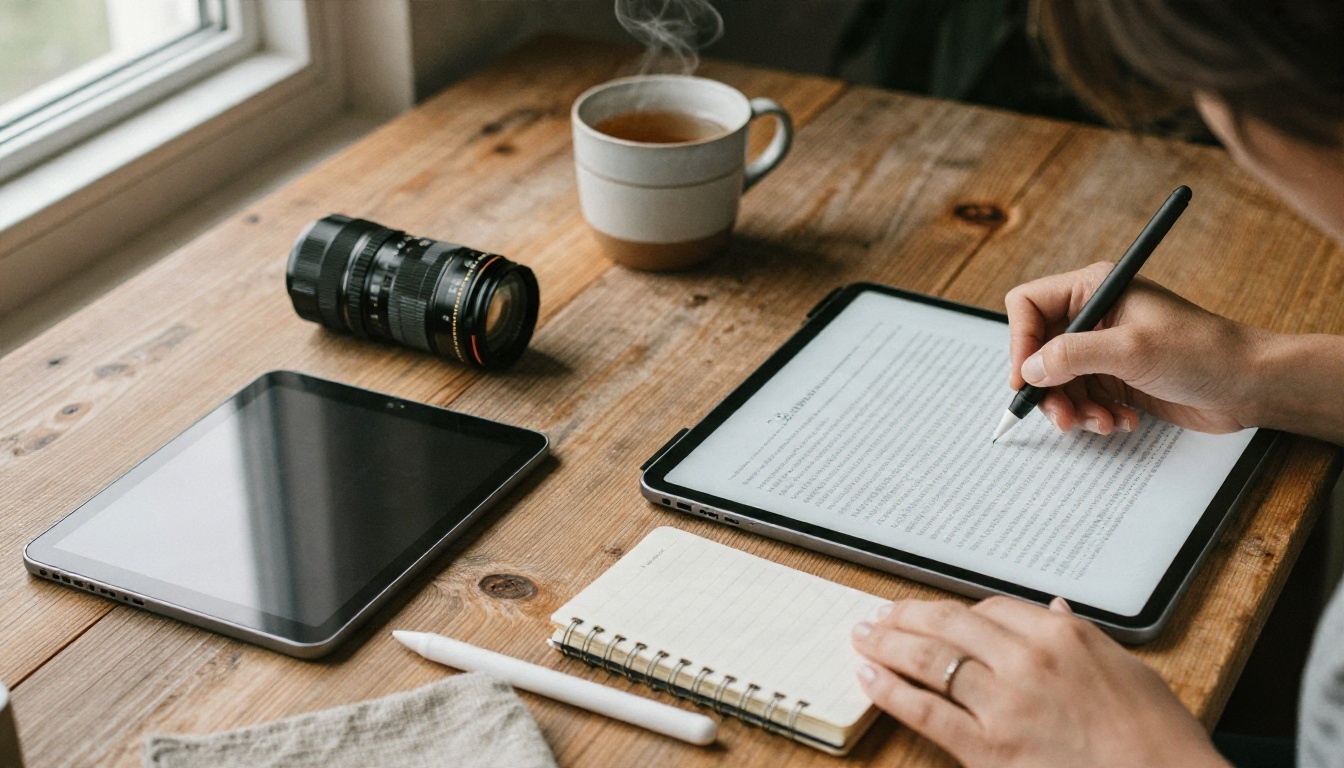
PDF Expert from Readdle is a favorite among Apple users who mark up documents daily. It is fast, the interface is clean, and its annotation tools feel precise. It runs on a subscription, so it suits people who work in PDFs every week. For a free route, Xodo and Acrobat Reader both support stylus input and handle highlighting and freehand notes without charge. On iPad, the Markup tools in the Files app cover quick signatures and sketches.
Typical tablet workflow:
- Open the PDF in your reader of choice.
- Switch to landscape for a two-page spread.
- Highlight key passages in a single color so you can scan them later.
- Add handwritten notes in the margins.
- Export a flattened copy so the markup shows in any viewer.
Comfortable Long Reading
If you read for an hour at a time, comfort matters more than markup. Pick a reader with a warm night mode, adjustable page margins and a continuous scroll option. Apple Books and Google Play Books both let you upload a PDF and read it in a calm, distraction-free interface. For e-ink tablets, a plain reader with a reflow mode tends to beat feature-heavy apps because the screen refreshes slowly.
| Need | Best choice | Why |
|---|
| Daily markup with stylus | PDF Expert | Fast, precise tools |
| Free markup | Xodo or Acrobat Reader | No cost, solid tools |
| Long reading sessions | Apple Books or Google Play Books | Calm interface, sync |
| Quick signature | Files app Markup | Already installed |
Best PDF Apps for Desktop
Desktop readers are judged on speed, search and the ability to handle messy real-world files. This is also where the gap between built-in and dedicated apps is widest.
Lightweight Readers for Windows
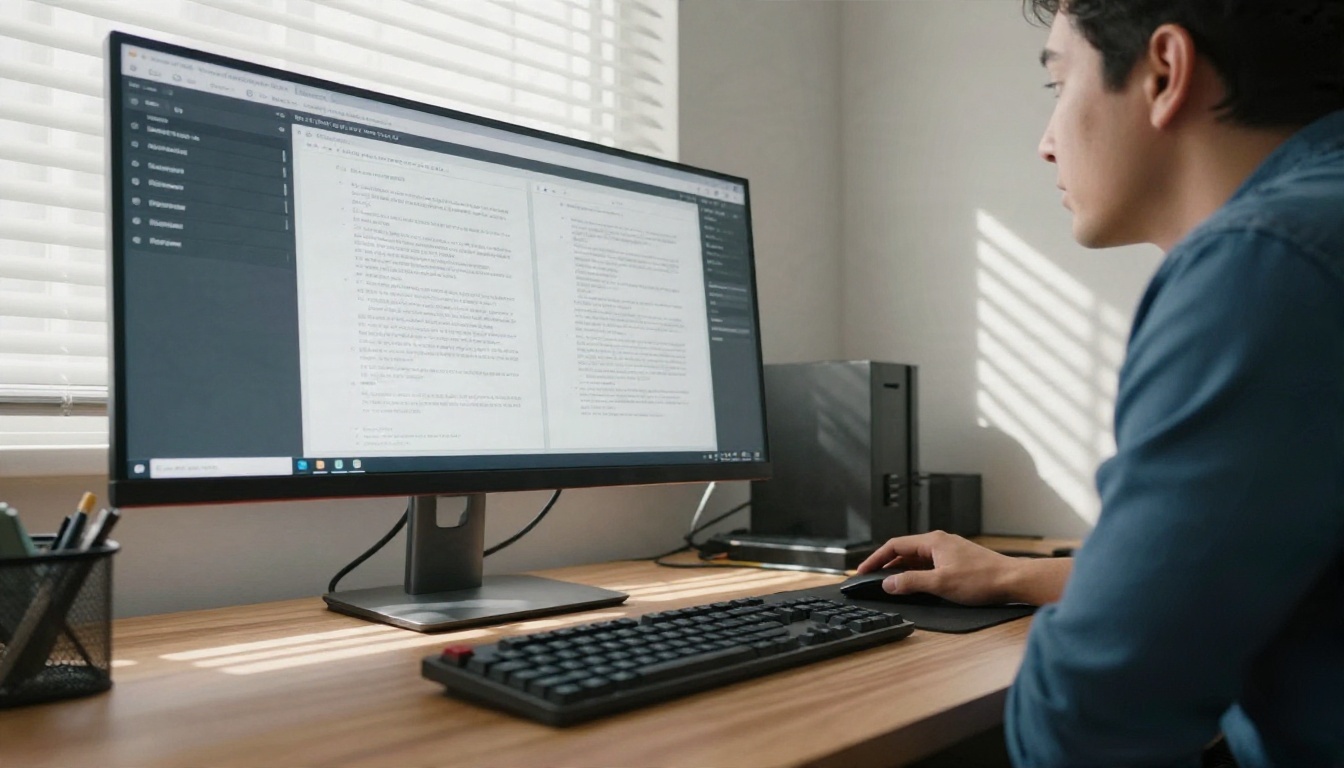
SumatraPDF is the speed champion. It is free, open source, tiny, and opens documents almost instantly. It does not offer deep annotation, but for pure reading it is hard to beat. Foxit PDF Reader sits in the middle: free, quick, and equipped with comments, highlights and form filling. Adobe Acrobat Reader remains the safe pick when you receive forms or documents that rely on Adobe-specific features. Browsers like Microsoft Edge and Chrome also open PDFs natively, and Edge adds highlighting and basic drawing.
Mac and Linux Options
On a Mac, Preview is already excellent. It reads, annotates, signs, merges and reorders pages, all without installing anything. Many people never need another reader. Power users who want more can try PDF Expert. On Linux, Okular is a polished free reader with strong annotation support, and it also runs on Windows.
| App | Platform | Price | Strength |
|---|
| SumatraPDF | Windows | Free | Speed |
| Foxit PDF Reader | Windows, Mac, Linux | Free, paid upgrades | Balanced features |
| Adobe Acrobat Reader | Windows, Mac | Free, paid upgrades | Compatibility |
| Preview | Mac | Free, built in | Everyday editing |
| Okular | Linux, Windows | Free | Annotation |
| Edge or Chrome | All | Free, built in | Zero setup |
✅ Best practice: Keep one lightweight reader for everyday opening and one full-featured tool for the rare files that need forms, signatures or page edits. Using one heavy app for everything slows your day.
When a Flipbook Beats a PDF
Every app above solves the reader's problem. None of them solves the publisher's problem. If you send a PDF to customers, students or clients, you cannot control which app they open it in, how it looks on their screen, or whether they read past page two. That is where a flipbook comes in.
Where PDF Readers Fall Short
- Inconsistent display: the same file looks different in every app and on every screen size.
- Heavy downloads: large catalogs and brochures stall on mobile connections.
- No insight: you never learn who opened the file or which pages they read.
- No branding: the reader shows the app's interface, not yours.
- Poor sharing: attachments get blocked, buried or forgotten.
A flipbook turns the same PDF into a page-turning web document that opens in any browser, adapts to phone, tablet and desktop, and loads fast. Readers do not need to install anything. You share a link or embed it on your site.
| Factor | PDF in a reader app | Flipbook |
|---|
| Needs an app | Often | No, opens in a browser |
| Mobile layout | Fixed page, zoom needed | Responsive, page-turn feel |
| Branding | None | Custom colors and logo |
| Tracking | None | Analytics on paid plans |
| Embedding on a website | Awkward | Simple embed code |
| Password protection | Depends on the file | Built in |
| Embedded video and audio | Limited | Supported |
Real-World Scenarios

- A boutique owner turns the seasonal lineup into an Interactive Lookbook and shares one link on social media instead of emailing a heavy file.
- A restaurant publishes its menu with the Restaurant Menu Creator so guests scan a QR code and read it on their phones.
- A real estate agent sends a property pack using the Real Estate Brochure tool, and sees which listings buyers opened.
- A teacher shares reading packs through the Course Material Publisher, so students open them on any device without a download.
- A sales team builds a pitch with the Sales Presentation tool and keeps it password protected for each prospect.
💡 Rule of thumb: If the PDF is for you, use a reader app. If the PDF is for other people, convert it to a flipbook.
How to Create a Flipbook from a PDF
The process takes a few minutes and requires no design or coding skills. Here is the full path from file to shareable link with the PDF to Flipbook Converter.

Upload and Convert
- Go to Flipbooks AI and create an account.
- Click the upload button and choose your PDF. Catalogs, brochures, reports and ebooks all work.
- Wait a few seconds while the pages convert. Your document appears as a page-turning flipbook preview.
- Check page order and image quality in the preview before moving on.
Customize the Look
- Add your logo and brand colors so the viewer matches your site.
- Pick a page-turn effect and a background that suits the content.
- Drop in video or audio on pages where a demo or voice note adds value.
- Add clickable links on product pages, contact details or booking buttons.
Share and Track
- Copy the direct link and paste it into email, chat or social posts.
- Use the embed code to place the flipbook on your site. The Embed Flipbook on Website page shows how.
- Turn on password protection for private documents.
- Allow offline downloads for readers who want a copy.
- On the Professional plan, switch on analytics and lead generation to see page views and capture contact details. Compare options on the pricing page.
✅ Good to know: Flipbooks AI adds no watermarks, ever, and the Standard plan and above includes unlimited flipbooks, so you can convert your whole library without counting.
| Plan feature | What it gives you |
|---|
| Custom branding | Your logo and colors on every flipbook |
| Password protection | Private access for sensitive files |
| Unlimited flipbooks | Standard plan and above |
| Analytics | Page views and reader behavior, Professional plan |
| Lead generation | Contact capture inside the flipbook, Professional plan |
| Offline downloads | Readers keep a copy |
Pick Your Setup and Start
You do not need a dozen apps. Match the tool to the device, and match the format to the audience.
| Your situation | Best setup |
|---|
| Reading on a phone | Acrobat Reader, Xodo or Apple Books |
| Marking up on a tablet | PDF Expert, Xodo or Files Markup |
| Fast reading on Windows | SumatraPDF or Foxit PDF Reader |
| Everyday editing on Mac | Preview |
| Sharing with customers or clients | Flipbook |
| Publishing a catalog or menu | Flipbook with a link or QR code |
Here is the short version. Free readers are more than good enough for personal reading on any device. The moment a PDF becomes something you send out, a flipbook gives readers a faster, cleaner experience and gives you control over branding, privacy and results.
Ready to see the difference? Create your first flipbook for free on Flipbooks AI, browse all the flipbook tools to find a template for your use case, or compare pricing plans to choose the one that fits your library.



