Most people searching for the best program to create a magazine want the same thing: a polished result without a design degree and without a monthly bill that rivals their rent. The good news is that the options are stronger than ever. The catch is that no single tool wins every job. A zine for your climbing club, a quarterly fashion title, and a corporate newsletter each need different strengths. This ranking compares free options, template libraries, and online tools, then shows how to turn the finished PDF into a page-turning digital edition with Flipbooks AI.
What Makes a Magazine Program Good
Before comparing names, decide what a program must do for you. A magazine is a long document with repeating structure, so the tool needs to handle dozens of pages without falling apart. Here is what actually separates a good choice from a frustrating one.
Layout control
Magazines live on grids. You want columns, margins, and parent pages (the repeating page furniture such as folios and running headers) that update everywhere when you change them once. Tools that treat every page as a blank canvas make a 40 page issue painful.
Template quality
A strong template saves hours, but only if it is editable. Look for templates with real text styles, swappable image frames, and a consistent type scale. A pretty template with every element flattened into one image is a trap.
Output formats
Ask where the magazine will end up. Print needs high resolution PDF export with bleed and CMYK support. Screen readers need a lightweight file that opens on a phone. Most publishers need both, so the best program is often a pair: one tool to design, another to publish.
💡 Pro tip: Write down your three must-haves before opening any app. For most first-time editors they are: free to start, usable templates, and a clean PDF export.
Free Options Worth Using
You can produce a genuinely good magazine without paying anything. These are the free tools that earn their place.
Canva
Canva is the easiest entry point. It offers a large library of magazine, zine, and lookbook templates, drag-and-drop photo frames, and brand color storage. The free plan covers most basic needs, while some premium elements and brand kit features sit behind a paid plan, so check the current limits before you commit. It handles issues up to a few dozen pages, though very long documents can feel sluggish in the browser.
Best for: school magazines, club newsletters, small business lookbooks, and anyone who wants results in an afternoon.
Scribus
Scribus is open-source desktop publishing software, and it is free with no catch. It supports CMYK, bleed, spot colors, and proper print PDF output. The interface looks dated and the ramp-up is steeper than Canva, but for print-focused teams on a zero budget it is the most capable free layout engine available.
Best for: print zines, community publications, and editors who value full control over cost.
Google Docs and Slides
This sounds odd, but it works for small projects. Slides gives you a page-sized canvas, shared editing, and free PDF export. Docs works for text-heavy newsletters with simple columns. Neither offers professional typography controls, so treat them as a quick fix rather than a long-term home.

⚠️ Watch out: Some "free" magazine makers add a watermark to exports or lock the download button behind a subscription. Test a one page export before you build an entire issue.
Paid Programs for Print Work
If you publish on paper regularly, or you work for clients, a paid layout application usually pays for itself in saved hours.
Adobe InDesign
InDesign remains the industry standard for magazines. Parent pages, paragraph and character styles, linked images, data merge, and tight integration with Photoshop and Illustrator make it the most complete production tool for long issues. It runs on a subscription, and the ramp-up takes real effort. If you edit a title with a design team, this is still the safest choice.
Affinity
Affinity's publishing tools offer a serious alternative to InDesign, with styles, grids, and strong PDF export. Its pricing model has shifted in recent years, so confirm the current terms on the official site. For freelancers who dislike subscriptions, it deserves a long look.
Microsoft Publisher
Publisher used to be the default for office newsletters, but Microsoft ended support for it in October 2026. If you still have old files, export them to PDF now and move future issues to a supported tool.
Side-by-Side Comparison
The table below puts the most popular programs next to each other so you can rank them against your own priorities.
| Program | Cost to Start | Templates | Print Ready | Ramp-Up Time | Best For |
|---|
| Canva | Free plan | Large library | Good (PDF) | Hours | Fast, attractive issues |
| Scribus | Free | Few | Excellent | Days | Print zines on no budget |
| Google Slides | Free | Basic | Basic | Minutes | Quick internal newsletters |
| Adobe InDesign | Subscription | Via marketplaces | Excellent | Weeks | Professional print titles |
| Affinity | Check current terms | Moderate | Very good | Days | Freelancers, one-off projects |
| Flipbooks AI | Free to try | Tool-based starters | Digital first | Minutes | Publishing and sharing the finished issue |
A fair warning: that last row plays a different role. Flipbooks AI does not replace a layout program. It publishes what you design, which brings us to the part most rankings skip.
Why Publishing Matters as Much as Design
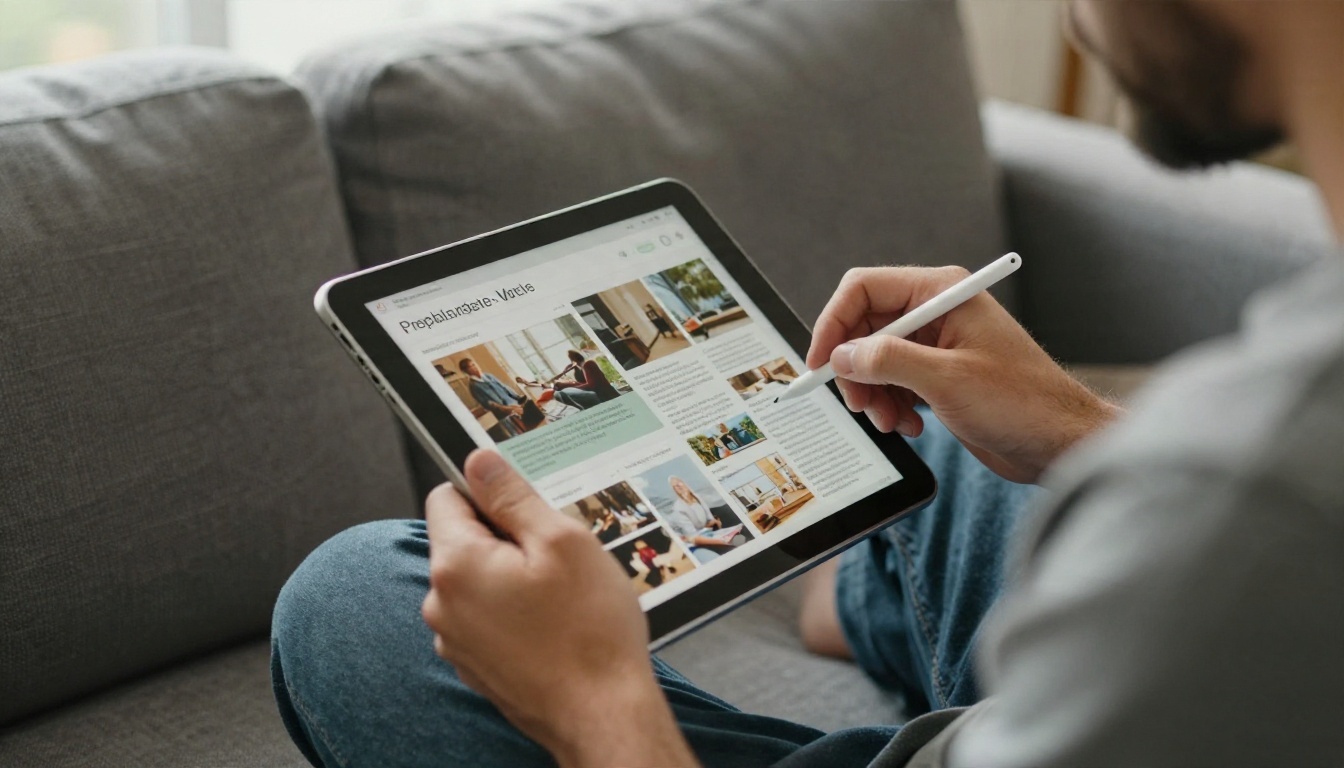
A PDF is a fine file, but it is a poor reading experience. It downloads slowly on mobile, it has no page-turn feel, and you cannot see who opened it. That is why many editors design in Canva or InDesign and then convert the result into a flipbook.
Digital editions give you:
- Realistic page-turning that feels like holding a printed issue
- Mobile-responsive reading with no pinching and zooming
- Embedded video and audio for interviews and behind-the-scenes clips
- Shareable links and embed codes for websites and email
- Analytics to see which pages readers actually reach
The comparison below shows how the two formats stack up.
| Feature | Plain PDF | Flipbook Edition |
|---|
| Page-turn experience | None | Yes |
| Works well on phones | Poor | Yes |
| Embed in a website | Awkward | One snippet of code |
| Password protection | Limited | Yes |
| Reader analytics | None | Available on Professional |
| Watermark | Depends on host | None on Flipbooks AI |
✅ Best practice: Keep your layout program as the source file. Export a PDF each time, then upload it as a new edition so you never edit inside the viewer.
How to Publish a Magazine with Flipbooks AI
Once your issue is designed, this tutorial takes you from PDF to a shareable digital magazine. The dedicated Magazine Flipbook Creator and the E-Magazine Publishing Tool follow the same flow.
Step 1: Create your account
Head to Flipbooks AI and create an account. You can try it before choosing a plan, and you can compare pricing plans whenever you are ready.
Step 2: Upload your PDF
Export your finished magazine as a PDF from Canva, InDesign, Scribus, or any other program. Drag the file into the uploader. The PDF to Flipbook Converter processes every page and keeps your fonts and images sharp.
💡 Pro tip: Export at 150 dpi for screen-only editions. It keeps file size down and loading fast without visible quality loss on most devices.
Step 3: Customize the look
Open the settings panel and adjust:
- Branding: add your logo and choose a background color that matches the issue
- Page effects: pick the page-turn style and speed
- Multimedia: embed videos, audio clips, and links on specific pages
- Toolbar options: show or hide download, print, and share buttons
Step 4: Share it your way
Publish and choose how readers will find the issue:
- Copy a direct link for social media and email
- Use the Embed Flipbook on Website option to paste an embed code into your site
- Turn on password protection for subscriber-only issues or internal editions
Step 5: Use the Pro features
On the Professional plan you can track analytics to see page-level reading behavior, enable lead generation forms before readers access an issue, and allow offline downloads. The Standard plan and above also include unlimited flipbooks, which is useful when you publish monthly.
Templates and Layout Tips
Templates speed up production, but they only help if you use them well. A few habits separate amateur layouts from professional ones.
Pick a grid and keep it
Choose a two or three column grid and place every element on it. Consistency matters more than creativity at the page level. Readers sense a steady grid even when they cannot name it.
Pair fonts with restraint
Use one serif for body text and one sans-serif or display face for headlines. Two families, three weights, done. More than that and the issue starts to look like a ransom note.
Prepare images before placing them
Resize and crop photos first. Check resolution: 300 dpi for print, 150 dpi for screen. Keep faces away from the center fold, because the gutter swallows detail.

The next table matches common magazine types with the program and template approach that tends to work.
| Magazine Type | Recommended Design Program | Template Style | Publishing Format |
|---|
| School or club zine | Canva or Scribus | Playful, photo-led | PDF plus flipbook |
| Fashion or lifestyle title | InDesign or Affinity | Large images, minimal text | Flipbook with embedded video |
| Business newsletter | Canva or Google Slides | Clean, two columns | Flipbook with analytics |
| Photo magazine | InDesign | Full-bleed spreads | Flipbook for screens, print for sales |
| Product lookbook | Canva | Grid of product shots | Lookbook flipbook |
Real-World Use Cases
Theory is fine, but here is how people actually use these tools.
A boutique owner builds a seasonal lookbook
A clothing shop designs a 16 page seasonal magazine in Canva, exports the PDF, and publishes it as a flipbook. The owner shares the link in a newsletter and shows the issue on a laptop at the counter. Customers flip through products without waiting for a download.

A fashion editor runs a quarterly title
An independent editor lays out 60 pages in InDesign with parent pages and styles, sends proofs to the team, and then exports the final PDF. Print copies go to a local printer, while the digital edition goes online with embedded interview videos. A fashion catalog layout can also reuse the same pages for retail buyers.

A newsroom of one
A solo creator publishes a monthly photo essay. Scribus handles the print edition, and the same PDF becomes a password-protected flipbook for paying supporters. Analytics show which stories readers finish, which helps decide what to shoot next month.
Ranking by Goal
If you are still undecided, this quick ranking maps priorities to a clear pick.
| Your Priority | Top Choice | Runner-Up |
|---|
| Lowest cost | Scribus | Canva free plan |
| Fastest first issue | Canva | Google Slides |
| Best print control | InDesign | Affinity |
| Best digital reading experience | Flipbooks AI | A plain PDF link |
| Team collaboration | Canva | Google Slides |
Notice that publishing appears as its own category. Many people spend weeks choosing a layout program and thirty seconds on how readers will open the file. Reverse that attitude and your audience will notice.
Common mistakes to avoid
- Starting in the wrong tool: Do not lay out a 50 page title in a slide editor.
- Skipping bleed: Print jobs need 3 mm of extra image beyond the trim edge.
- Using low resolution images: They look fine on a laptop and terrible on paper.
- Ignoring mobile readers: Most digital readers open links on phones, so check the issue on a small screen.
- Forgetting a share plan: Decide how the issue reaches readers before you finalize the pages.
Pick Your Program Today
The best program to create a magazine depends on the job, but the path is simple. Start with Canva if you want speed, Scribus if you want free print control, or InDesign if you publish professionally. Then give the finished PDF a better home as a digital edition.
Ready to publish your first issue? Get started for free on Flipbooks AI, browse all flipbook tools and templates, or compare pricing plans to choose what works for your magazine.



