Every free booklet maker makes the same quiet deal: you get a tool at no cost, and it takes something back. Sometimes it is a watermark across the bottom corner. Sometimes it is a cap of eight pages, a locked export button, or a layout that falls apart the moment you print it double sided. This article sorts the options by type (online software, mobile apps and desktop programs) and spells out what each one limits, so you can choose before you lose an afternoon. We also show where a digital route such as Flipbooks AI fits when your booklet never needs to touch paper.
What "Free" Really Means
A free booklet creator is rarely free in every direction. The price is paid in one of a few currencies, and knowing which one you are paying helps you decide whether the trade is fair for your project.
The Three Trade-Offs
Most free tools fall into one of these buckets:
- Time: the software is fully free but you do the layout, page ordering and print setup by hand.
- Branding: the tool is free but stamps its logo on exports, or adds a "made with" page at the end.
- Features: the tool is free but locks the best templates, high resolution export or extra pages behind a paid plan.
None of these is a scam. They are business models. The problem only appears when you find the limit at 11 p.m. the night before an event.
Four Limits to Check First
Before you invest an hour in any tool, run through this short list:
- Page count. Can you add 16 or 24 pages, or does the free plan stop at 8?
- Export format. Is a print-ready PDF included, or only a low resolution image or a link?
- Watermarks. Does the export carry the tool's logo, and can you see that before you finish?
- Ownership. Can you download the source or the PDF and walk away, or is the booklet trapped inside the platform?
💡 Pro tip: Export a one-page test file in the first five minutes. If the watermark or resolution is a deal breaker, you will know before you have placed a single photo.
Online Booklet Makers
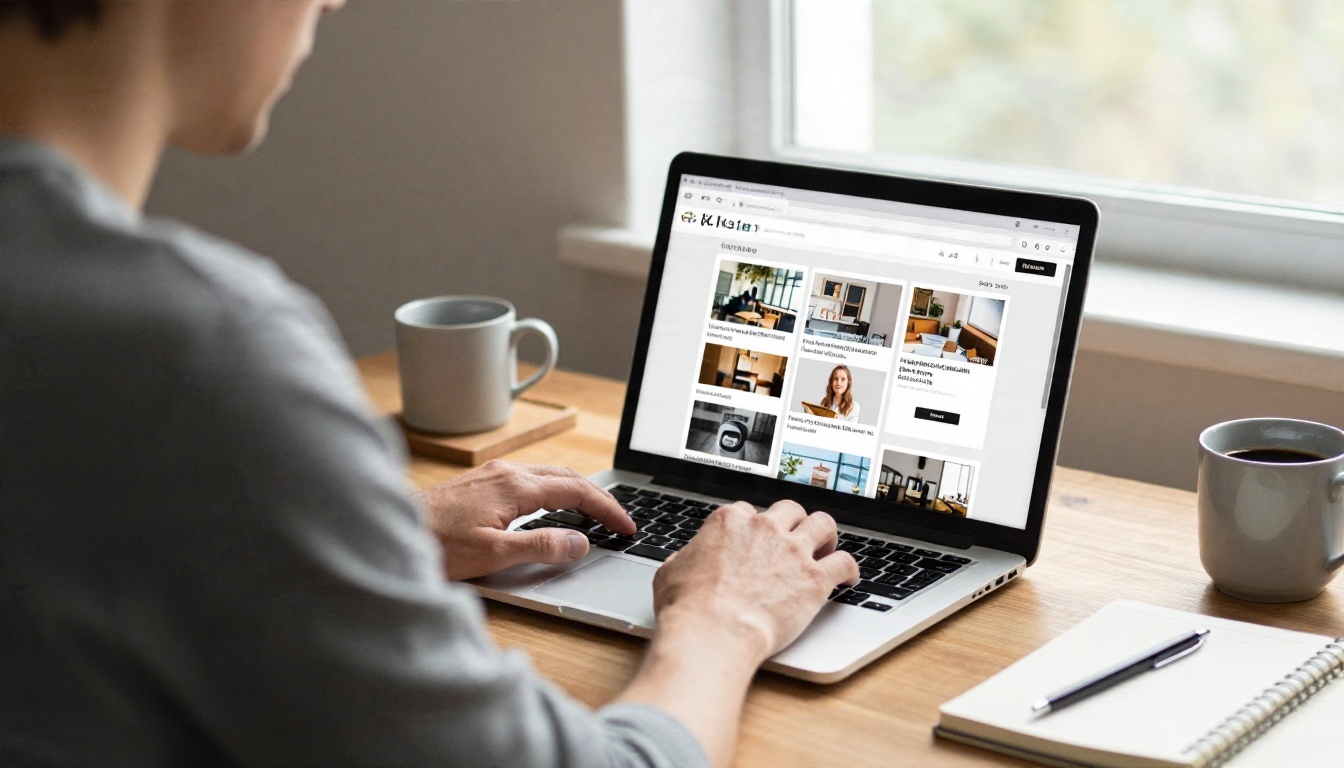
Browser based editors are the most popular route, because there is nothing to install and the templates look polished from the first click. They suit people who want a good result without opening a design program.
What You Get
A typical free online plan includes:
- A library of booklet templates in A5, A4 and half letter sizes
- Drag and drop placement for text, photos and shapes
- Basic fonts and a limited set of stock images
- PDF export, often at standard rather than print quality
- Cloud saving, so you can edit from any device
For a school newsletter, a small event program or a product leaflet, this is often enough. A fast first draft takes under an hour.
Where They Stop
The limits tend to cluster around the same places:
- Premium templates and images are marked with a small crown or lock, and using one forces an upgrade at export time.
- Print-ready output (CMYK, bleed, crop marks) is frequently reserved for paid plans.
- Page caps appear on tools that treat a booklet as a "document with extras."
- Watermarks sit on exports, or the free plan allows only a few downloads per month.
⚠️ Warning: A booklet sent to a commercial printer needs bleed (usually 3 mm) and a high resolution PDF. If the free export cannot supply both, the printer will crop your edges or reject the file.
Mobile Apps for Booklets
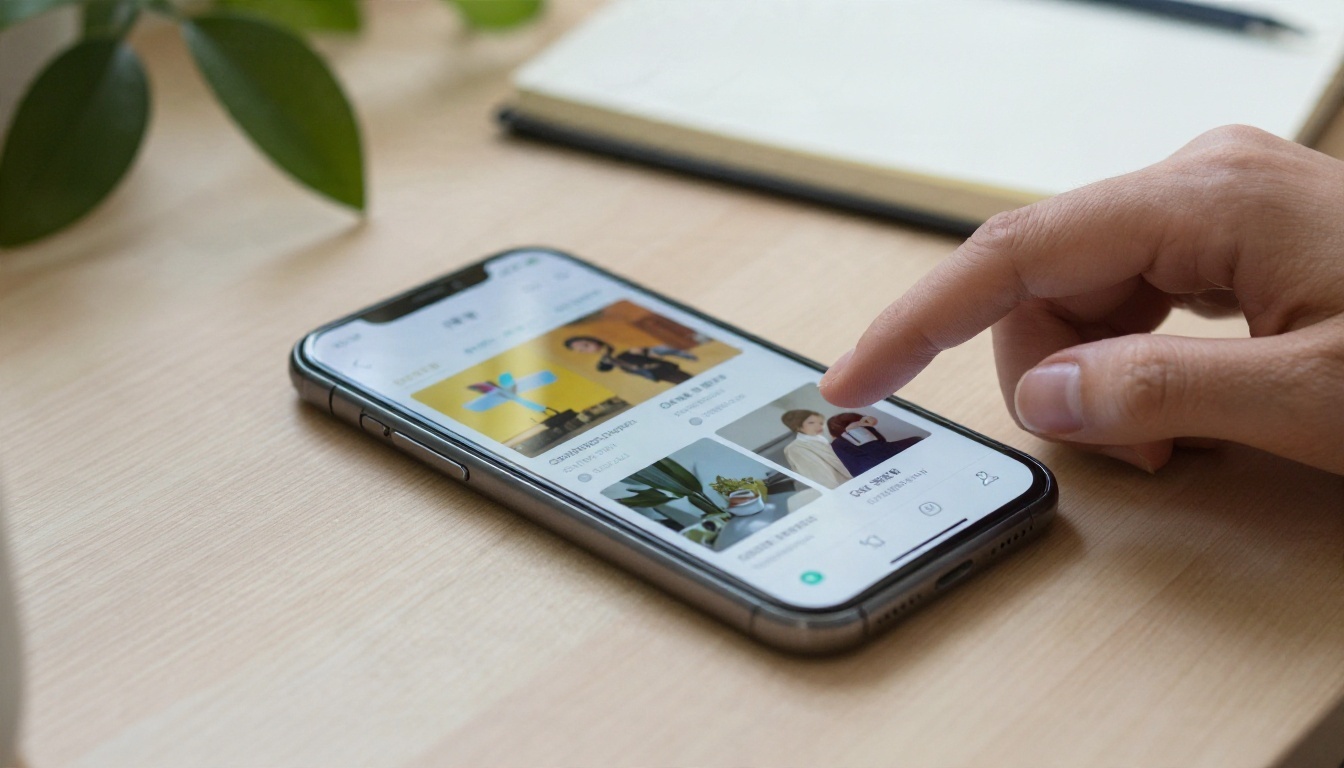
Phones and tablets can build a booklet, and for certain jobs they are surprisingly handy. A real estate agent can drop in photos taken at a viewing. A teacher can assemble a worksheet pack on the train.
Good for Quick Drafts
Apps shine when speed matters more than precision:
- Photos go straight from the camera roll into a page
- Templates are simplified, so beginners rarely get lost
- Sharing a draft with a colleague takes one tap
Common Restrictions
The trade is control. Small screens make fine typography tiring, and many apps hide settings that desktop editors expose.
- Fewer fonts, and limited control over spacing and margins
- Export caps, or exports that arrive as images rather than a clean PDF
- Ads in the free tier, or a banner that has to be removed with a subscription
- No page imposition, which means the app will not reorder pages for folded printing
Treat an app as a sketchbook. Build the idea there, then finish on a larger screen if the project needs print precision.
Desktop Software and Word Processors
The most overlooked free booklet creator is probably already on your computer. Word processors can lay out a booklet, and the output is yours, with no watermark and no account.
Book Fold in Word
Microsoft Word includes a booklet layout that handles page order for you. The steps:
- Open Layout, then Margins, then Custom Margins.
- Under Pages, set Multiple pages to Book fold.
- Choose the paper size and orientation (landscape works for most booklets).
- Write or paste your content. Keep the total page count a multiple of four.
- Print on both sides, flip on the short edge, then fold and staple.
It is plain and dependable. The limit is design: you get text and pictures, but not the polish of a template library.
LibreOffice and Free Layout Tools
LibreOffice Writer offers a Brochure option in its print dialog (under the Page Layout tab) that arranges pages for folding. It is free, open source and has no export limits. Free desktop publishing programs go further, with proper bleed, CMYK handling and master pages, but they ask for patience while you learn the interface. Google Docs, by comparison, has no built-in booklet print option, so people export a PDF and use a separate tool to reorder pages.
💡 Pro tip: Design in a word processor, export to PDF, then convert that PDF into a digital page-turning version with a PDF to Flipbook Converter. One file, two formats.
Free Options Compared at a Glance
Here is how the main categories stack up on the limits that matter most.
| Option type | Typical free limit | Watermark risk | Print-ready PDF | Best for |
|---|
| Online booklet editors | Locked premium templates, capped downloads | Medium to high | Often paid | Fast, good-looking drafts |
| Mobile apps | Few fonts, image-only exports, ads | Medium | Rarely | Quick drafts on the move |
| Word processors | Basic design only | None | Yes, with manual setup | Text-heavy booklets |
| Free desktop publishing | Steeper learning curve | None | Yes | Print projects with bleed |
| Flipbook platforms | Depends on the plan | Check the plan | Not the goal | Screen-first sharing |
Plan Your Page Count
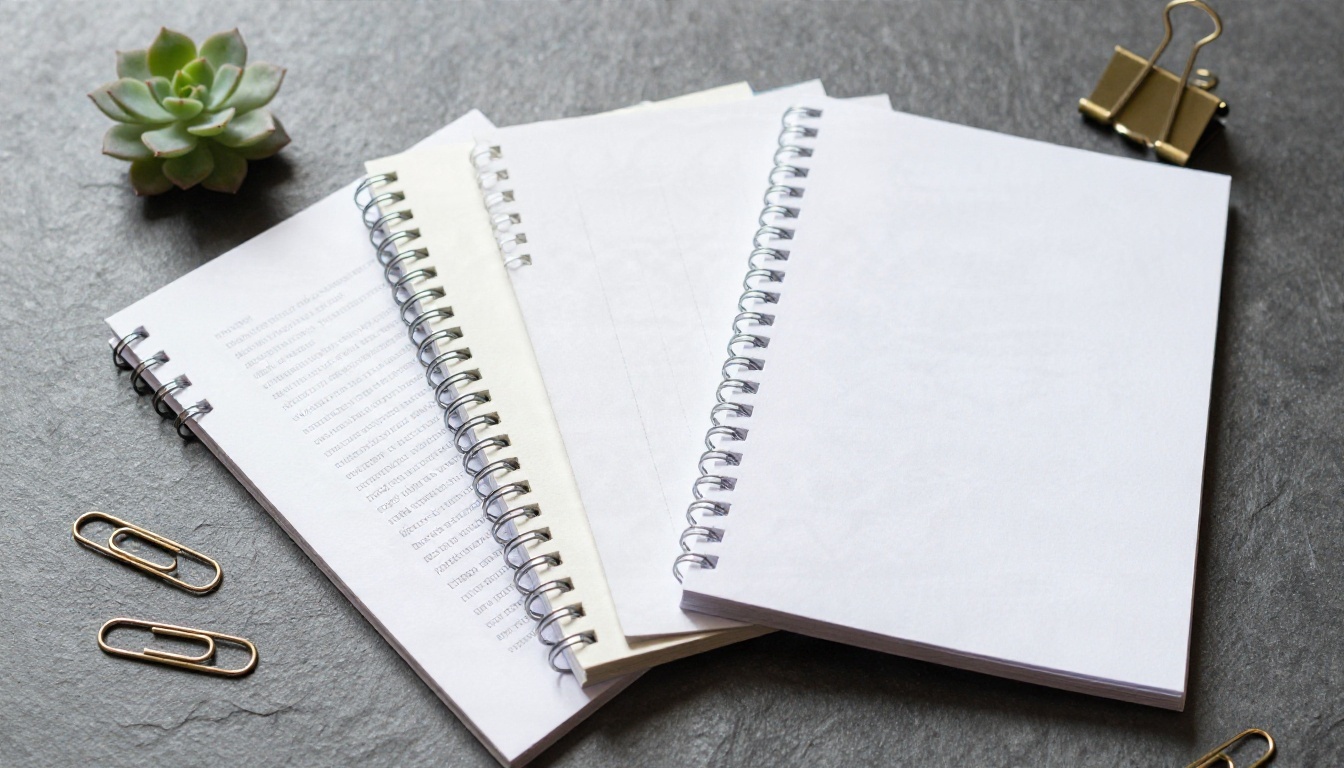
A folded booklet is built from sheets, and each sheet gives you four pages (two on each side). That is why page counts for stapled booklets jump in steps of four.
| Sheets of paper | Booklet pages | Typical use |
|---|
| 1 | 4 | Leaflet, order of service |
| 2 | 8 | Event program, short menu |
| 3 | 12 | Product leaflet, newsletter |
| 4 | 16 | Small catalog, workbook |
| 5 | 20 | Training handout |
| 6 | 24 | Portfolio, extended manual |
If your content runs to 13 pages, you will pay for 16. Use the three blank pages for notes, a map or a contact page rather than leaving them empty. Past roughly 40 pages, saddle stitching gets bulky and a glued spine or wire binding looks better.
Three Common Mistakes
- Ignoring margins near the fold. Text too close to the spine gets swallowed. Leave extra inner margin.
- Designing in RGB for commercial print. Colors shift when converted to CMYK. Ask the printer for a profile.
- Skipping a proof. Print one copy on plain paper, fold it, and read every page. Typos hide on the back of a sheet.
Free tools are built around different outcomes. Some assume paper, others assume a link. Deciding early saves you from using the wrong one.
When Paper Wins
Paper is hard to beat when the booklet is handed over in person: a café menu, a gallery guide sheet, a welcome pack in a rental home, or a handout at a workshop. People hold it, keep it, and do not need a battery.
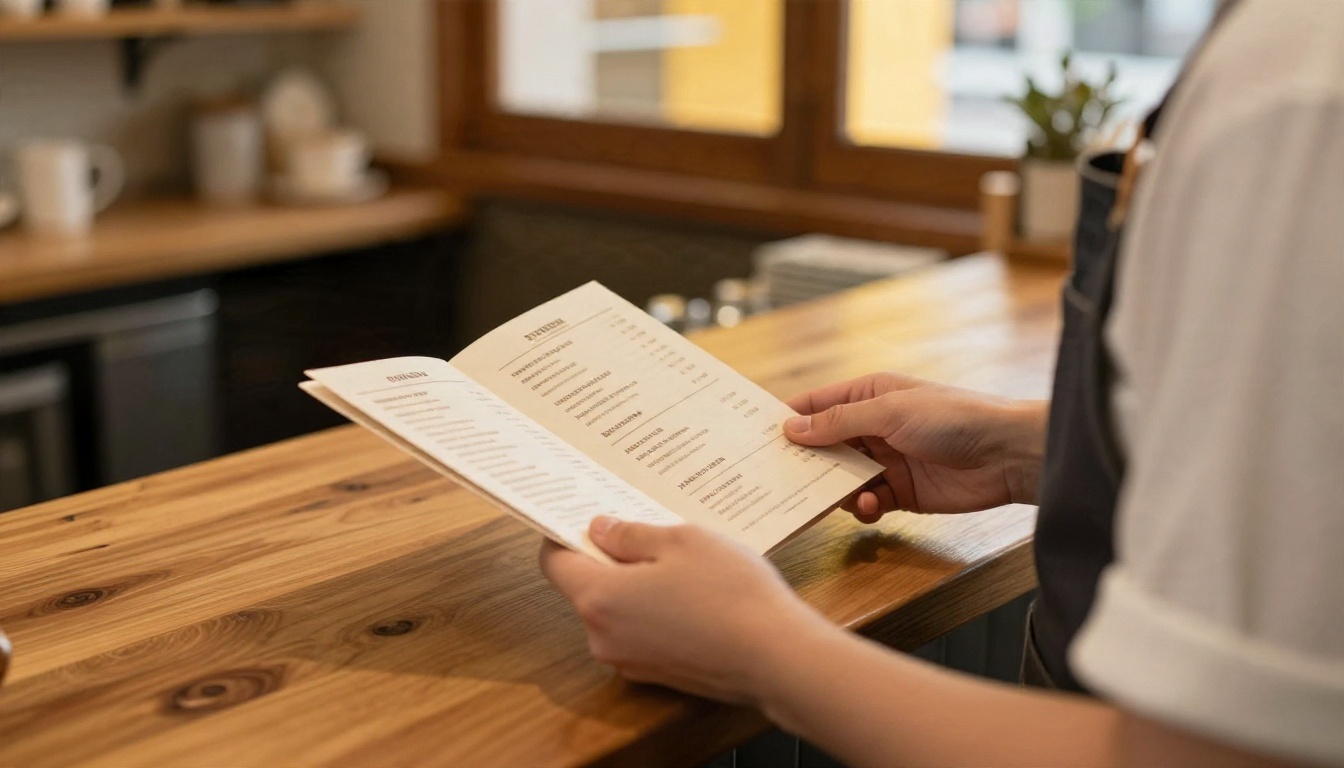
A café, for example, can print a small run of stapled menus from a word processor template and update them whenever prices change. If you also want a scannable version, the Restaurant Menu Creator turns the same PDF into a page-turning menu.
When a Flipbook Wins
A digital booklet makes sense when the audience is remote, the content changes often, or you want to know who actually opened it. Sales teams send product leaflets by link. Event organizers publish a program before doors open. Agencies share proofs with clients without printing a single sheet.

| Use case | Best format | Why |
|---|
| Restaurant or café menu | Print plus QR flipbook | Handed out in person, updated online |
| Event program | Flipbook | Shared before the day, no print cost |
| Product leaflet | Flipbook plus PDF | Easy to send and track |
| Workshop handout | Print | Attendees annotate it |
| Client proof | Flipbook | Fast review, no courier |
| Welcome pack | Print plus flipbook | Physical copy and a link for guests |
Useful starting points on the platform include the Event Program Maker and the Brochure Flipbook Maker.
Build a Booklet with Flipbooks AI
If your booklet will be read on screens, Flipbooks AI removes most of the limits listed above. It takes a PDF you already made (in Word, LibreOffice or any design tool) and turns it into a page-turning flipbook with no watermark.

Steps in Order
- Get started. Go to Flipbooks AI and create an account. It takes a minute.
- Upload your PDF. Drag the file in. The platform converts each page into a flipbook spread, and text stays sharp on phones and large monitors alike.
- Customize the look. Add your logo, pick brand colors, choose the page turn effect and set the background. Everything is mobile-responsive, so readers on small screens get a clean layout.
- Add multimedia. Embed videos and audio where they help, such as a product demo on page three or a welcome message on the first spread.
- Review. Flip through the booklet as a reader would. Check that links work and that the spine area looks natural.
- Publish. Pick how people will reach it, using the options in the next section.
✅ Best practice: Keep page one visually simple. It is the first thing readers see, and a clean opening encourages them to keep turning pages.
Sharing and Tracking
Once the booklet is live, you can share it in several ways:
- Direct link for email, messaging apps and social posts
- Embed code to place the booklet on a page using the Embed Flipbook on Website tool
- Password protection for private content such as internal manuals or client proofs
- Offline downloads for readers who want a copy without a connection
Teams that need to measure results can look at the Professional plan, which adds analytics and lead generation. You can see which pages hold attention and capture contact details before a reader opens the booklet. Compare the options on the pricing page. The Standard plan and above also allow unlimited flipbooks, which is useful if you publish a new booklet every month.
| Feature | Free booklet editors | Flipbooks AI |
|---|
| Watermark on output | Common | None, ever |
| Page-turn reading experience | Rare | Yes |
| Password protection | Rarely free | Yes |
| Embed on a website | Limited | Yes |
| Analytics and lead capture | Almost never | Professional plan |
| Audio and video inside pages | Rare | Yes |
Make Your Booklet Today
Pick the tool that matches the finish line, not the one with the nicest homepage. If you need paper and have patience, a word processor with book fold is free and honest. If you want a quick, attractive draft, an online editor will do, as long as you test the export first. If your readers are on phones, skip the printer and publish a flipbook.
Ready to turn your booklet into something people can flip through on any device? Get started for free on Flipbooks AI, browse all flipbook tools to find the closest match for your project, or compare pricing plans when you need analytics, lead capture and unlimited publishing.



