Every Saturday, someone in your church opens a Microsoft Publisher file, swaps last week's sermon title for this week's, and hopes the columns do not shift. It works, but the finished bulletin often lives on paper only. Visitors who skipped the lobby never see it, and homebound members wait for a mailed copy. The fix is simple: keep Publisher as your design tool, export a clean PDF, and turn that PDF into a flipbook with Flipbooks AI. One template, three outputs: print, PDF and a page-turning online edition.
This article shows how to build a reusable church bulletin template in Publisher, export it without layout surprises, and publish it so anyone can read it on a phone.
Why Publisher Still Works for Bulletins
Publisher has a reputation for being old-fashioned, yet thousands of churches still use it for a good reason. It lets a non-designer place text boxes, photos and borders exactly where they belong, and it prints predictably on the office copier.
What Publisher Does Well
- Fixed layouts. Text boxes stay where you put them, so the order of service does not wander across the page.
- Built-in bulletin sizes. Half-letter booklets and trifolds are a few clicks away.
- Easy reuse. A saved template means a new bulletin starts from last week's structure, not a blank page.
- Volunteer friendly. Most people who have used Word can pick up Publisher in an afternoon.
The Catch With Print Only
A printed bulletin has a short life. It sits in a pew rack, gets folded into a Bible, or ends up in the recycling bin by Monday. It also cannot be searched, shared by text message, or opened by someone who is traveling.
⚠️ Microsoft has announced that Publisher is being retired, with support ending in October 2026. Your existing files still work in an installed copy, but this is a good reason to make PDF your long-term format. A PDF opens anywhere, long after the software that made it is gone.
Pick the Right Bulletin Layout
Before building anything, decide on the format. The layout drives your page count, your paper cost and how the flipbook will read later.
Half-Letter Booklet
Four or eight pages, folded from letter paper. This is the best choice for churches with a full order of service, a few announcements and a prayer list. It also converts to a flipbook beautifully because every spread feels like a small magazine.
Single Sheet, Two Sides
One letter page printed front and back. It is fast and cheap, ideal for smaller congregations or a midweek service. Keep it to a short order of service and three or four announcements.
Trifold Panel
A letter sheet folded in thirds. Trifolds suit special services, Easter or Christmas programs, and visitor welcome packets. They are harder to read on a phone as flat PDFs, so export the panels in reading order.
| Layout | Pages | Best for | Print cost | Flipbook result |
|---|
| Half-letter booklet | 4 to 8 | Weekly services with full announcements | Medium | Excellent, reads like a magazine |
| Single sheet | 2 | Small congregations, midweek services | Low | Good, quick two-page read |
| Trifold | 6 panels | Holiday programs, visitor packets | Medium | Fair, needs panel reordering |
| Large-print booklet | 8 to 12 | Members with low vision | Higher | Excellent, zoom works well |
💡 If you only build one template, make it the half-letter booklet. It handles heavy and light weeks equally well, and you can leave a page blank on slow weeks.
Build a Template You Can Reuse
A good template is mostly about what you leave empty. Your goal is a file where the weekly job is replacing text, not redesigning pages.
Set Up the Background Layer First
Put everything that never changes on the background page: the church logo, a thin border, the address, the website and the service times. Page numbers belong here too. That way a volunteer cannot accidentally delete the footer while editing the announcements.
Use Placeholder Text Boxes
Create a labeled text box for each recurring item. Typical blocks include:
- Welcome message and visitor note
- Order of service
- Scripture readings
- Sermon title and speaker
- Announcements (three to five slots)
- Prayer list
- Giving information and QR code
- Upcoming calendar
Type obvious dummy text such as "Reading 1 goes here" so nobody forgets to replace it.
Lock Down Fonts and Colors
Pick two fonts, one for headings and one for body text, and a palette of two or three colors. Save them in the color scheme and font scheme settings so every new text box inherits them. Use 11 or 12 point body text at minimum. Smaller type looks fine on a monitor and fails in a dim sanctuary.
Save It as a Template File
Use Save As and choose the Publisher template format, then store it in a shared folder that more than one person can reach. Name each weekly file by date, for example 2026-11-15-bulletin.pub, so the archive sorts itself.
Export a Clean PDF From Publisher
The PDF is the bridge between your design file and everything online. A bad export gives you a blurry flipbook, so spend two minutes on settings.
Choose the Right Quality Setting
In Publisher, go to File, Export, Create PDF/XPS Document, then open the options. Match the setting to your purpose:
| Setting | File size | Image quality | Use it for |
|---|
| Minimum size (online) | Smallest | Lower | Email attachments |
| Standard (online and printing) | Medium | Good | Flipbooks and web reading |
| High quality printing | Large | Highest | Sending to a commercial printer |
| Commercial press | Largest | Highest, CMYK | Professionally bound programs |
For a flipbook, Standard is the sweet spot. Photos stay sharp and the file stays small enough to load quickly on a mobile connection.
Check Fonts and Images Before Exporting
- Use common fonts, or make sure the export embeds them.
- Replace any pixelated logo with a larger original.
- Make sure photos are at least 150 dpi at the size they appear.
- Remove printer marks and bleed if the PDF is for screens only.
Export Single Pages, Not Printer Spreads
If you built a booklet using Publisher's fold layout, export pages in reading order, not as printer spreads. Otherwise page 1 sits beside page 8 and the online edition reads backwards.
✅ Best practice: open the finished PDF and scroll through it once. Check page order, links and the first line of every column before you upload it anywhere.
Turn the PDF Into a Flipbook
Once you have a clean PDF, publishing it as a flipbook takes a few minutes. The PDF to Flipbook Converter keeps your layout intact and adds realistic page-turning, zoom and mobile support.
How to Create a Bulletin Flipbook with Flipbooks AI
- Open your account. Go to Flipbooks AI and sign in or create a free account.
- Upload the PDF. Drag the exported bulletin into the upload area. Conversion starts automatically and usually finishes in under a minute.
- Check the page order. Flip through the preview. Every page should appear in the order you planned.
- Add your branding. Set your church colors, upload the logo and choose a background that matches the bulletin's palette.
- Pick page effects. Choose the page-turn style and sound. Soft, quick turns suit a bulletin better than dramatic curls.
- Add multimedia. Link the sermon video, add a worship playlist or embed a short audio welcome from the pastor.
- Share it. Copy the direct link, grab the embed code for your church website, or print the link as a QR code on next week's bulletin.
No watermarks appear on your pages, and the layout is fully mobile responsive, so members on small screens get the same experience as someone on a desktop.
Share It Where People Already Look
You have several options, and most churches use more than one:
- Direct link in a text message or email blast
- Embed code on a "This Week" page of your website, using the Embed Flipbook on Website tool
- QR code printed in the lobby or on the previous week's bulletin
- Password protection for staff-only editions, such as a council meeting packet
Pro Features Worth Knowing
On the Professional plan you get analytics, so you can see how many people open the bulletin and which pages they read. Lead capture can also collect names from visitors who want to hear about events. Offline downloads help members with weak reception. Check pricing plans to see which tier fits your congregation, and note that unlimited flipbooks begin on the Standard plan.
PDF or Flipbook: Which to Send
You do not have to pick one. Each format fits a different moment, and the same exported file feeds both.
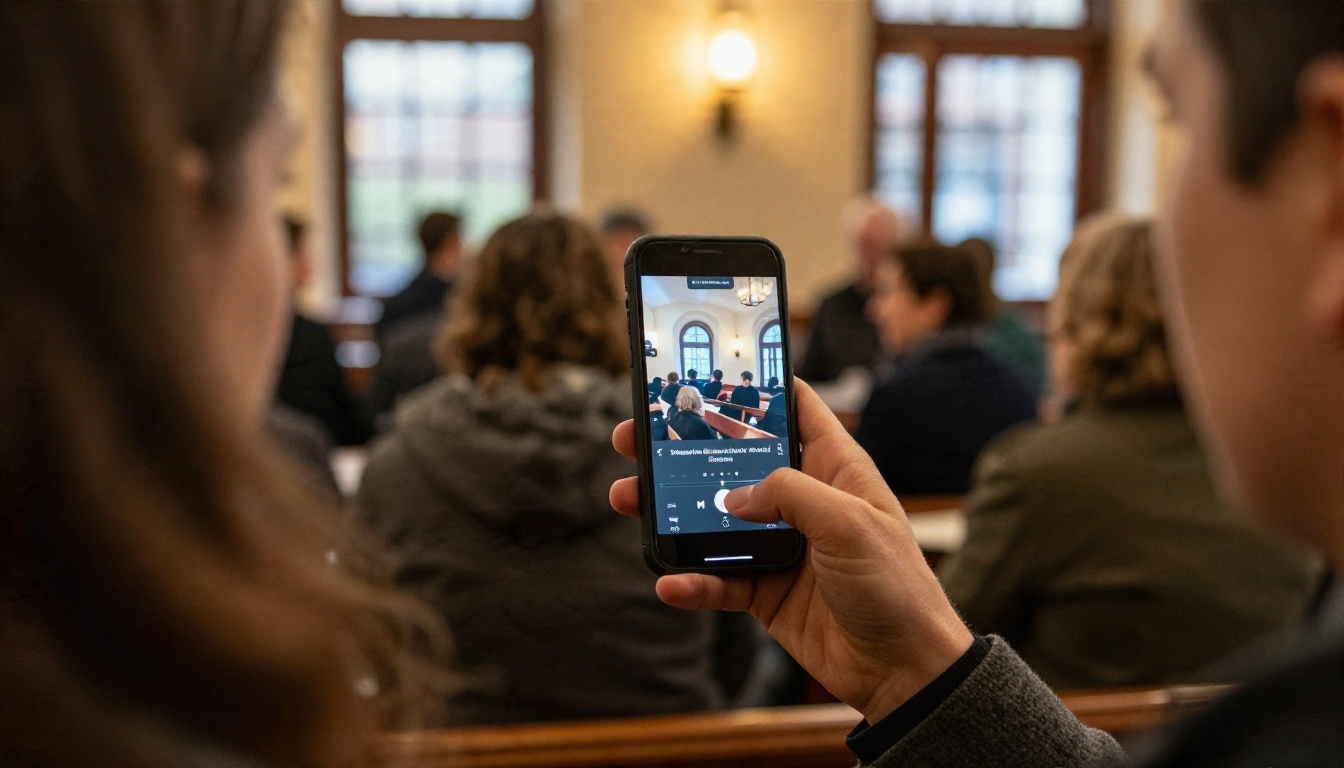
| Feature | Plain PDF | Flipbook |
|---|
| Reading on a phone | Pinch and scroll | Page-turn, auto-fit |
| Clickable links and video | Basic links only | Links, video, audio |
| Visitor tracking | None | Analytics on Professional plan |
| Password protection | Limited | Built in |
| Embed on a website | Awkward | One snippet |
| Printing | Excellent | Available if enabled |
| Setup time | Seconds | A few minutes |
A short rule of thumb: send the PDF when someone wants to print it, and share the flipbook when someone wants to read it. For members who are not comfortable with technology, a printed copy in the mail still wins, and that is fine.
Real Examples From Church Offices
- A small rural parish prints 80 bulletins but has 140 families on its list. The extra 60 families now get a link by text on Saturday night.
- A growing congregation places a QR code on the welcome desk so visitors can take the bulletin home on their phone instead of carrying paper.
- A church with many snowbirds keeps winter residents connected by posting each flipbook on the website while they are away.
Churches that publish more than a weekly bulletin can use the same method for the Newsletter Flipbook Publisher, the Event Program Maker for Christmas and Easter services, or the Non-Profit Annual Report tool for year-end giving updates.
A Weekly Routine That Works
A template only saves time if the routine around it is clear. Here is a schedule that a single volunteer can run in about half an hour of actual editing.

Monday to Friday: Collect Content
Set one deadline, such as Wednesday at noon, for announcements and prayer requests. Give people a short form or a single email address. Late items wait for the next week, and everyone learns quickly.
Friday: Fill, Proof, Export
- Open last week's file and Save As with the new date.
- Replace placeholder text, one block at a time.
- Ask the pastor to proof the order of service and scripture references.
- Export the PDF using the Standard setting.
- Upload to the flipbook tool and check the preview on your own phone.
Saturday: Publish and Print
Send the link, update the website embed and print the paper copies. If you replace the PDF behind your flipbook each week, make sure you keep the old editions in an archive so members can look back at past services.
| Day | Task | Owner | Time |
|---|
| Wednesday | Collect announcements | Office or secretary | 10 min |
| Thursday | Confirm readings and hymns | Pastor or worship lead | 10 min |
| Friday | Fill template and proof | Volunteer editor | 30 min |
| Friday | Export PDF and build flipbook | Volunteer editor | 10 min |
| Saturday | Send link, print copies | Office | 15 min |
Mistakes That Waste Your Time
Most bulletin problems are not design problems. They are process problems, and they repeat every week until someone fixes the template.
Overstuffing the Page
When every group wants a full paragraph, the bulletin becomes unreadable. Give each announcement a word limit, put details on a web page, and link to it from the flipbook.
Forgetting Large Print
Members with low vision often get the worst experience. Keep one large-print version, 14 point or bigger, and offer it as its own flipbook. Digital zoom helps, but a designed large-print edition helps more.
Skipping the Phone Check
A bulletin that looks right on a 24-inch monitor can be tiny on a phone. Always preview on a real device before sending. Increase small fonts and shorten long lines if the text is hard to read.
Using Copyrighted Images and Music
Church bulletins are public documents, and a flipbook online reaches farther than paper in a pew rack. Stick with licensed clip art, your own photos or properly credited images. Confirm hymn and song reuse permissions with your licensing provider before embedding any audio.
⚠️ Never post personal details such as home addresses, phone numbers or medical information in a public flipbook. For prayer lists, use first names only or move the list into a password-protected edition.
Publish This Sunday's Bulletin
You already have the hardest part: a Publisher template your volunteers know. The next step is small. Export this week's bulletin as a Standard quality PDF, upload it, and share the link.
- Create your free account on Flipbooks AI.
- Convert your first bulletin with the PDF to Flipbook Converter.
- Browse all flipbook tools for newsletters, programs and reports.
- Compare pricing plans when you are ready for analytics, offline downloads and unlimited flipbooks.
Keep designing in Publisher for as long as it serves you. When the software changes, your PDFs and flipbooks will still open, and your congregation will still have this week's bulletin in their pocket.



