You have the story, the characters, and a rough idea of the ending. What you do not have is a clean way to arrange panels so a reader's eye moves exactly where you want it. That gap is where comic book layout software earns its place. The right app handles page sizes, gutters, bleed, and export, so you can spend your hours drawing instead of fighting rulers. And once the pages are done, a tool like Flipbooks AI can turn the finished PDF into a page-turning comic that opens on any phone.
This article compares free options, browser based makers, and the two most common drawing setups, Procreate and Krita. Expect honest trade-offs, real settings, and a step-by-step publishing workflow.
What Comic Layout Software Actually Does
Before picking an app, it helps to know which jobs you are hiring it for. A page of sequential art is a small engineering project. You are balancing reading order, pacing, and print specs at the same time.
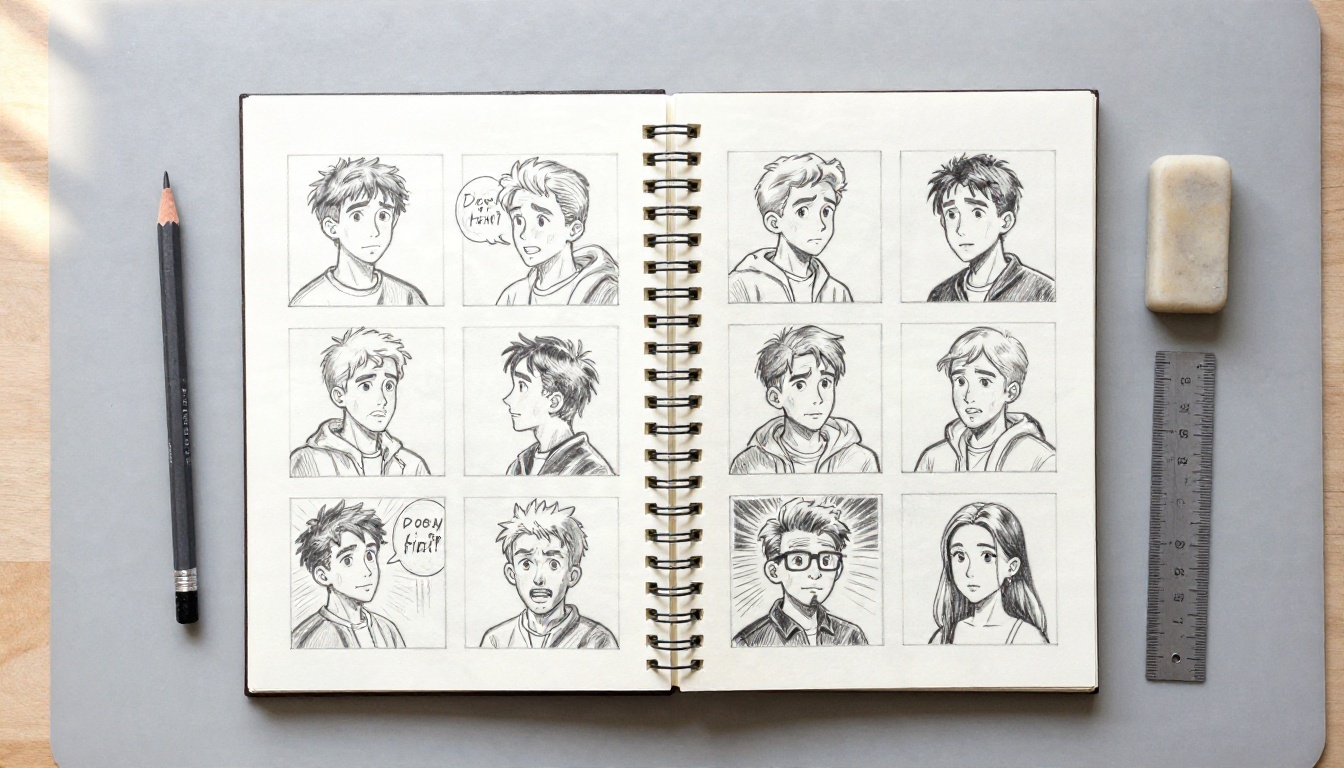
Panels, Gutters, and Bleed
Three terms come up in every layout app:
- Panels are the framed boxes that hold each moment of action.
- Gutters are the white spaces between panels. They control rhythm. Narrow gutters feel fast, wide ones feel slow.
- Bleed is artwork that runs past the trim line so no white sliver appears after cutting.
Good software lets you set all three numerically, then reuse them on every page. Weak software makes you eyeball it, and you will notice by page twelve.
Print or Screen First?
Decide this on day one, because it changes your canvas size, resolution, and color mode.
| Decision | Print First | Screen First |
|---|
| Typical page size | 6.625 x 10.25 in trim (US comic) | 1600 px wide, tall scroll or single page |
| Resolution | 300 dpi color, 600 dpi line art | 150 to 220 ppi is plenty |
| Color mode | CMYK conversion at export | RGB throughout |
| Bleed needed | Yes, about 0.125 in | No |
| Safe margin | 0.25 in inside trim | Minimal |
| Best output | Print ready PDF | PDF, CBZ, or flipbook |
💡 Pro tip: Draw at print size even if you plan to publish online. You can always shrink a page, but you cannot rescue a low resolution one.
Free Options Worth Your Time
You do not need a subscription to make a professional looking page. Several free apps cover the whole pipeline.
Krita for Full Comic Projects
Krita is free, open source, and built by artists. It handles layers, brushes, vector shapes for panel borders, and a dedicated comics workflow. It runs on Windows, macOS, and Linux. The trade-off is that it feels heavy on older laptops, and its text tools are functional rather than pretty.
Scribus, GIMP, and MediBang
Each of these fills a different gap:
- Scribus is a desktop publishing app. It is excellent for assembling finished art, adding lettering, and exporting a print ready PDF with bleed and crop marks.
- GIMP works for raster cleanup, color correction, and batch resizing.
- MediBang Paint is a free drawing app with built in panel cutting tools and comic page presets, popular with manga artists.
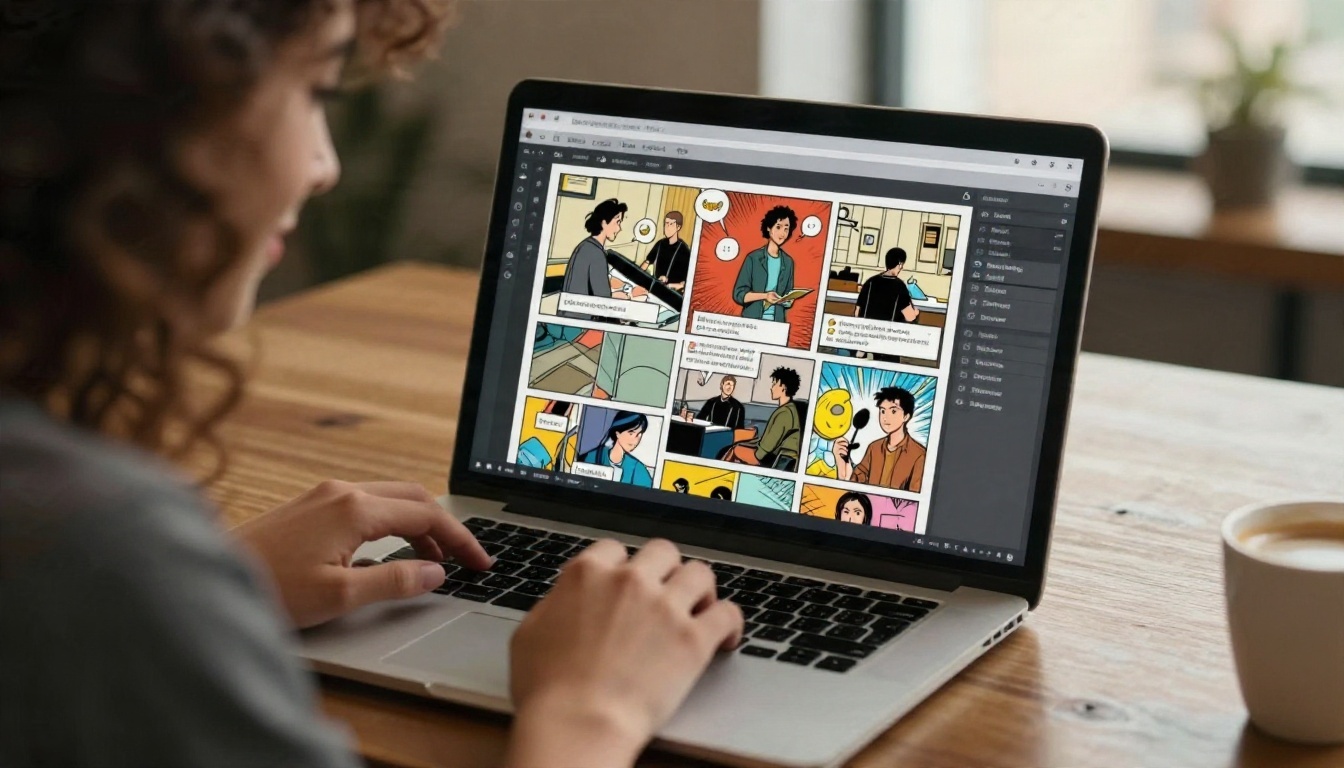
Free Tools Compared
| Tool | Cost | Strongest At | Weak Spot | Platform |
|---|
| Krita | Free | Drawing plus comic project export | Heavy on low spec machines | Desktop |
| Scribus | Free | Print ready PDF assembly | Dated interface | Desktop |
| GIMP | Free | Cleanup, resizing, color fixes | No panel tools | Desktop |
| MediBang Paint | Free tier | Panel cutting, manga presets | Some features need an account | Desktop, mobile |
| Inkscape | Free | Vector speech bubbles, borders | Slow with many raster images | Desktop |
✅ Best practice: Draw in Krita or MediBang, then assemble and letter in Scribus. Splitting art and layout keeps files small and edits safe.
Online Comic Makers Compared
Browser based makers trade control for speed. They shine when you need a four panel strip, a classroom project, or a quick storyboard.
Canva and Browser Templates
Design platforms such as Canva offer comic strip templates with ready made panels, speech bubbles, and stock characters. You drag, drop, and export. For a newsletter strip or a social media series, that is often enough. Dedicated comic sites like Pixton, Storyboard That, and Make Beliefs Comix add character posing and scene libraries, which suits teachers and beginners.
When Online Makers Fall Short
Be realistic about the limits:
- Fixed page sizes. Many tools cannot produce true print trim sizes with bleed.
- Limited hand drawn art. Importing your own illustrations is sometimes awkward.
- Export quality. Free tiers may compress images or add branding.
- Locked projects. Moving a half finished comic to another app can be painful.
| Online Maker | Best For | Custom Art Import | Print Ready Export |
|---|
| Canva | Strips, social series | Yes | Yes, with paid plans for some formats |
| Pixton | Classrooms, beginners | Limited | Limited |
| Storyboard That | Storyboards, lesson plans | Limited | Basic |
| Make Beliefs Comix | Quick, casual strips | No | Basic |
⚠️ Warning: Read the export terms before you invest in a long project. A free plan that adds a logo to every page is fine for a classroom, not for a book you plan to sell.
Procreate Tips for Comic Pages
Procreate is a drawing app for iPad, not a layout app. It has no native multi-page comic mode. Still, thousands of artists make full comics in it, because the pencil feel is hard to beat.
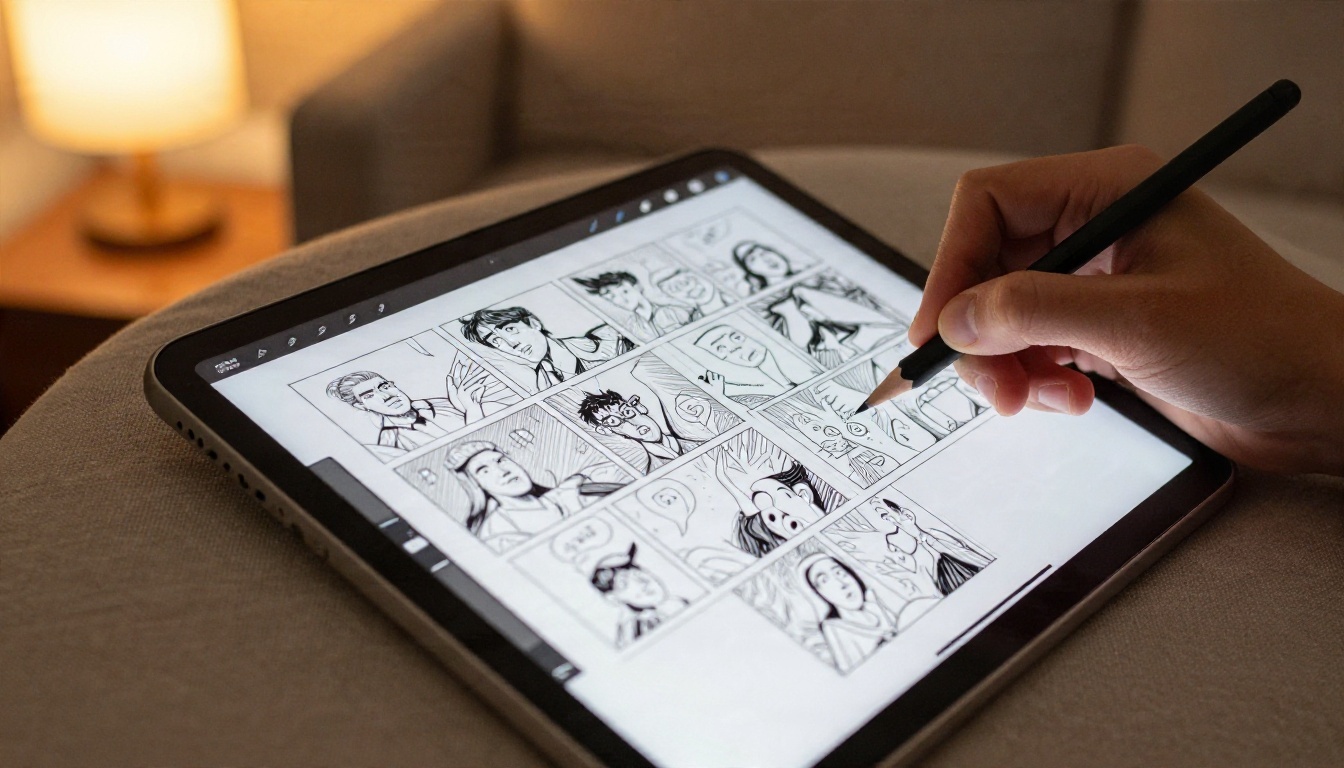
Set Up Your Canvas Right
Create a custom canvas at your final trim size plus bleed, at 300 dpi. A US comic page with bleed is about 6.875 x 10.5 inches. Keep the layer limit in mind: higher resolution means fewer layers, so plan a lean structure per page:
- One layer for panel borders
- One for pencils
- One for inks
- One or two for flat color
- One for lettering, kept separate so you can edit text later
Draw Panels Without a Frame Tool
Since there is no panel cutting tool, build panels with simple shapes:
- Turn on the 2D Grid under the drawing assist options and set the grid size to match your gutter spacing.
- Draw a rectangle selection for each panel, then fill it on the border layer.
- Use that filled shape as a clipping mask base so art stays inside the frame.
- Let a hand drawn art element break the frame on purpose when you want impact.
Manage Pages in the Gallery
Duplicate a finished blank page template from the gallery for each new page, so every sheet starts with identical margins. Name files with zero padded numbers, such as page_01 and page_02. When you are done, export each page as a PNG or PDF and assemble them elsewhere, such as Scribus or a PDF editor.
💡 Pro tip: Procreate's color profile is RGB. If you are heading to print, test one page at your printer first and adjust saturation before you finish the other twenty.
Krita Tips for Faster Pages
Krita is where free software becomes serious. A few settings turn it into a respectable comic pipeline.
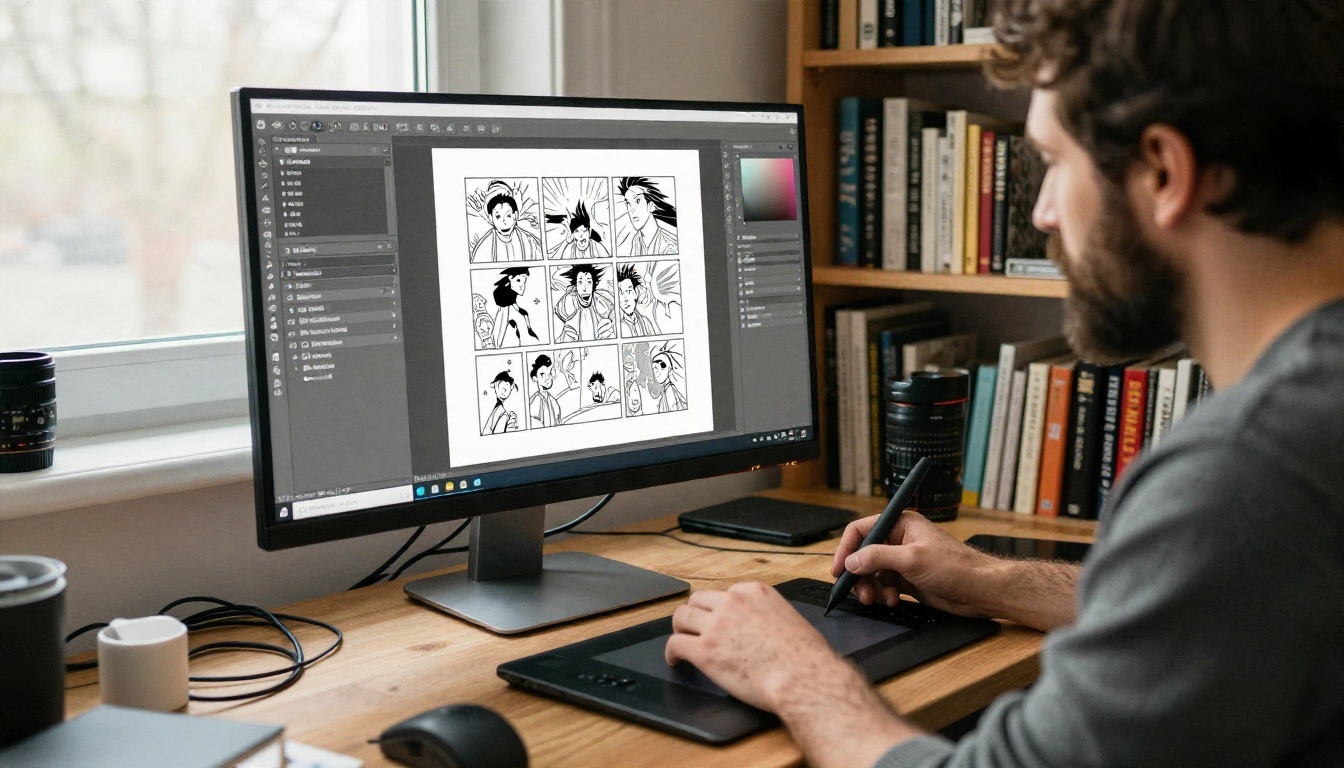
Use the Comics Manager
Krita ships with a Comics Project Manager plugin you can switch on in the Python plugin settings. It lets you:
- Set up a project with metadata, page size, and a folder structure
- Keep every page file in one place
- Export to formats like CBZ, EPUB, and web ready images, with PDF through another step
That alone saves hours of manual renaming and resizing.
Reusable Page Templates
Build a template file with your trim, bleed, and safe margin lines on a locked layer. Then save panel layouts as separate templates. A few handy starters:
| Template | Panel Count | Best Used For |
|---|
| Six panel grid | 6 equal | Dialogue scenes |
| Wide plus two | 3 | Establishing shots |
| Splash with inset | 2 | Big reveals |
| Tall strip stack | 4 | Fast action beats |
Vector Layers for Clean Borders
Draw panel borders on vector layers so you can resize and nudge them without blurry edges. Pair that with a basic stabilizer on your inking brush for smooth lines, and a separate layer for speech bubbles.
✅ Best practice: Lock your border and margin layers once the layout is approved. Accidentally nudging a frame at page 30 is a miserable way to spend an evening.
Paid Software Worth a Look
Free is great, but some paid apps speed up the layout step. Clip Studio Paint is the industry favorite for a reason: it has a frame border tool that cuts panels with one drag, multi-page documents, and built in print settings. Affinity Publisher and Adobe InDesign are strong for lettering and print assembly.
| Software | Pricing Model | Panel Tool | Multi Page | Best For |
|---|
| Clip Studio Paint | Purchase or subscription | Yes | Yes | Full comic production |
| Procreate | One time purchase | No | No | Sketching, inking on iPad |
| Krita | Free | Via vector layers | Via Comics Manager | Budget conscious creators |
| Affinity Publisher | One time purchase | Frames | Yes | Lettering, print layout |
| InDesign | Subscription | Frames | Yes | Studio publishing |
How to Publish a Comic with Flipbooks AI
A PDF is fine for printers, but readers rarely enjoy downloading one. A flipbook gives them a real page-turning experience in the browser. Here is the workflow with Flipbooks AI.
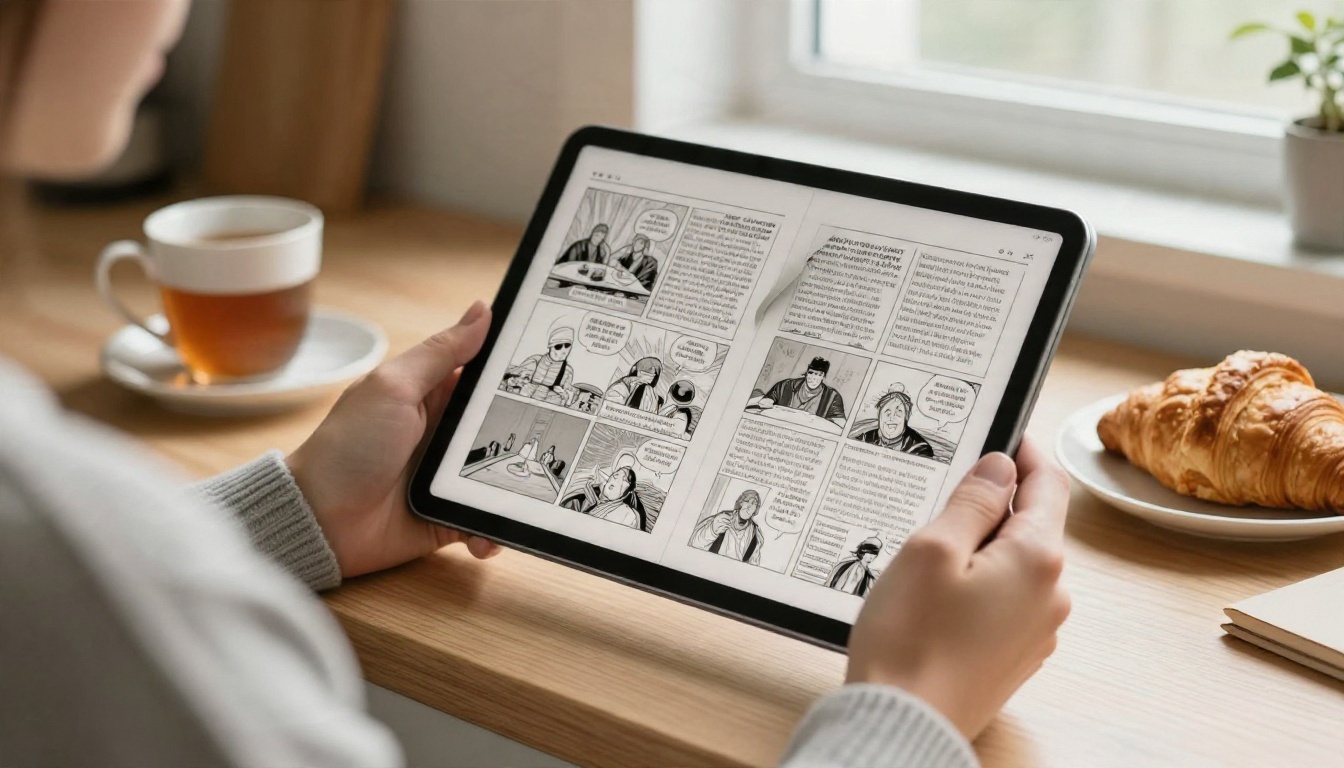
- Export your pages as one PDF. Use Scribus, Clip Studio, or Krita's export. Keep pages in reading order and put the title page first.
- Create an account. Create a free account to open the dashboard.
- Upload the PDF. Drag the file in, and the PDF to Flipbook Converter turns each page into a flippable spread. No watermarks are added.
- Customize the look. Set a background color that suits your art, add your logo or branding, and choose page effects, like a soft curl when pages turn. You can also attach links, audio, or video.
- Share it. Copy a direct link, grab an embed code, or place it on your site with the Embed Flipbook on Website option. Add password protection for backer rewards or early access.
- Review on mobile. The viewer is mobile-responsive, so check a few pages on your phone before you announce it.
For longer series, the Interactive E-Book Publisher and E-Book Flipbook Generator pages show how the same process works for book length projects. If you want a showcase for your sample pages, the Portfolio Flipbook Builder is a natural fit.
Pro Features for Serious Creators
On the Professional plan, you get analytics to see which pages readers reach, lead generation to collect email addresses before a preview, and offline downloads for readers on trains and planes. Standard plans and above include unlimited flipbooks, handy if you release a new issue each month. Check pricing plans to compare tiers.
| Need | Feature | Plan |
|---|
| Share a free preview issue | Public link and embed | All plans |
| Release many issues | Unlimited flipbooks | Standard and above |
| Reward backers privately | Password protection | Available per flipbook |
| See where readers drop off | Analytics | Professional |
| Collect email subscribers | Lead generation | Professional |
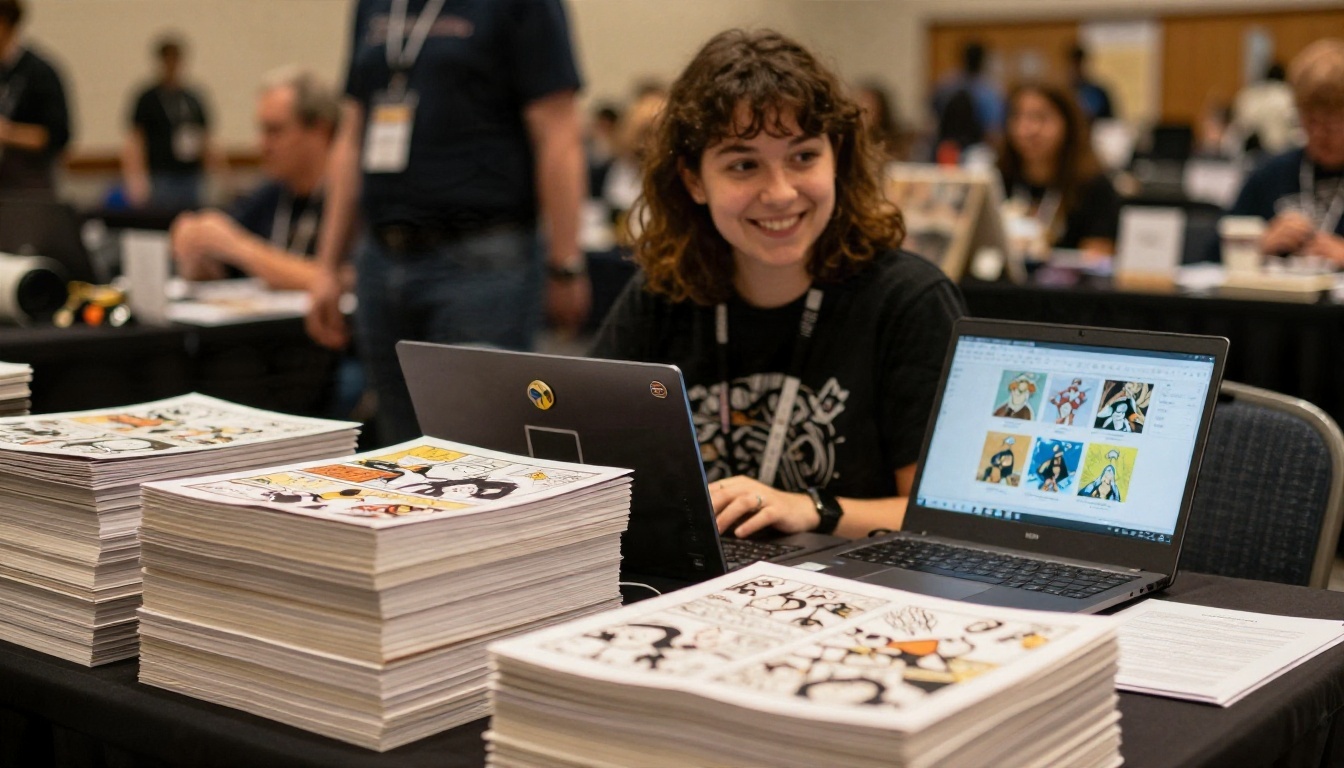
💡 Real-world use: A webcomic creator can post a 24 page issue as a flipbook, share the link in a newsletter, and print a QR code on convention flyers. Readers sample the first pages instantly, and the printed copy sits on the table next to the laptop.
Mistakes That Ruin Page Flow
Software cannot fix weak layout habits. Watch for these.
1. Inconsistent Gutters
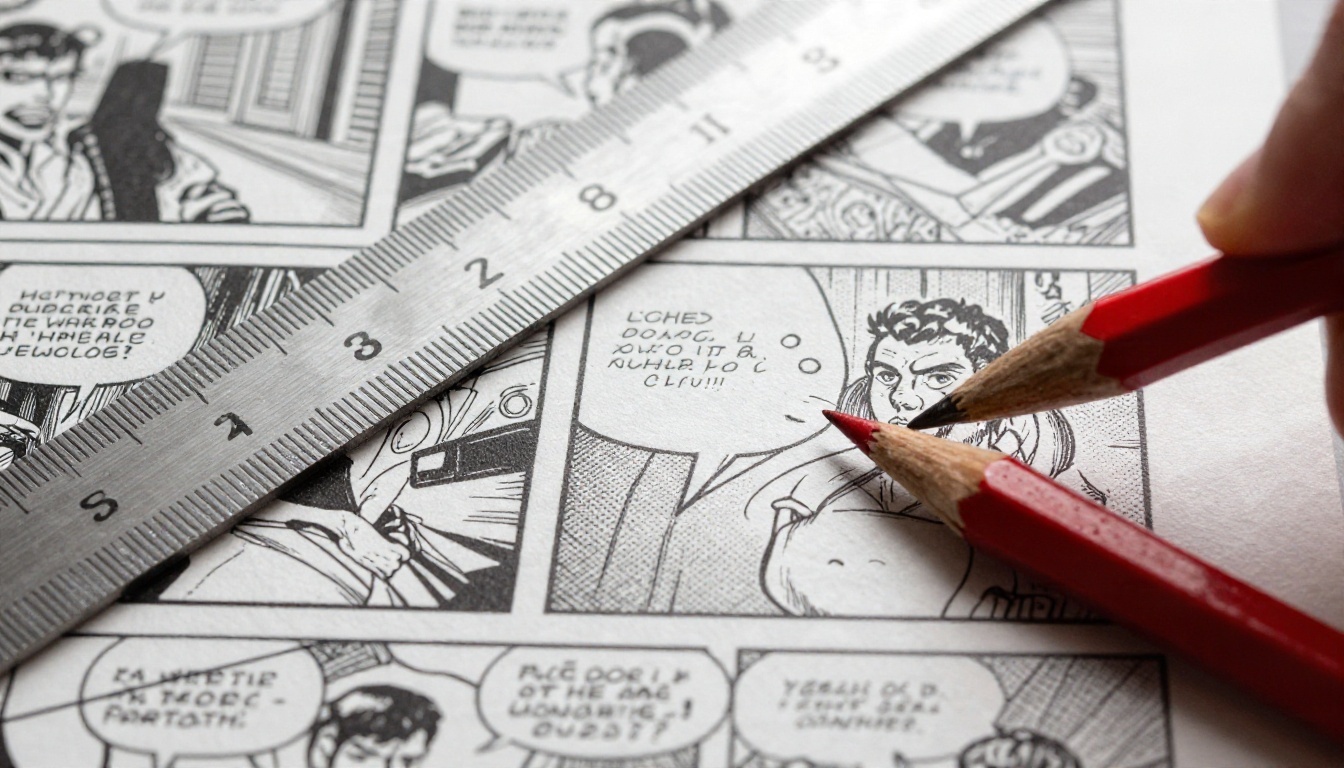
Mixing 3 mm and 8 mm gutters at random makes pages feel sloppy. Pick one standard, then change it only for a deliberate effect, such as a slow beat.
2. Lettering Too Close to the Trim
Text near the edge gets clipped in print. Keep dialogue inside your safe margin, and place bubbles in reading order, left to right and top to bottom in Western comics.
3. Skipping a Print Test
Colors shift, blacks turn muddy, and thin lines vanish. Order a single proof page before committing to a full print run.
Choose Your Setup and Ship Pages
Here is the short version of which path fits which creator:
| If You Are... | Pick This Setup |
|---|
| A beginner making a short strip | Canva or a browser maker |
| Broke but serious about a long comic | Krita plus Scribus |
| An iPad sketcher who loves the pencil feel | Procreate, assembled in Scribus or Clip Studio |
| Producing a full series for print | Clip Studio Paint plus a layout app |
| Releasing digitally to readers worldwide | Any of the above plus a flipbook |

Start small. Draw one page, export it, and see how it reads on a phone and on paper. Once you have a full issue, get started for free on Flipbooks AI, browse all flipbook tools, or compare pricing plans to find the tier that matches how often you publish. Your readers are waiting for page one.



