Staring at a blank page is the fastest way to abandon an ebook. A good template fixes that in minutes, and a good multi-page template fixes it for the whole book: title page, contents, chapter openers, body pages, quotes, checklists and a closing call to action, all already laid out. This article compares the free options in Word, Google Docs and Canva, shows where each one breaks down, and then shows how to turn the finished file into an interactive reader experience with Flipbooks AI.
💡 Quick answer: Word is best for long text-heavy books, Google Docs is best for collaboration, and Canva is best for visual, magazine-style ebooks. All three export to PDF, and a PDF is all you need to publish a flipbook.
Why Multi-Page Templates Matter
A single-page template is a flyer. An ebook needs rhythm: readers should meet a different layout every few pages so the eye keeps moving. That is why the phrase "multiple pages" in your search matters more than the word "free".
What a Real Multi-Page Template Includes
Before you download anything, check that the file contains at least these page types:
- Title page with space for the book name, subtitle and author
- Table of contents that is linked or easy to update
- Chapter opener with a large heading and room for an image
- Standard body page in one or two columns
- Pull quote or callout page
- Checklist, worksheet or table page
- About the author page
- Closing page with a link or call to action
If a template offers only three or four of those, you will end up designing the rest yourself, which defeats the purpose.
The Hidden Cost of Starting Blank
Most first-time authors lose their first week to formatting. Margins, heading sizes, spacing and image placement all need decisions. A template makes those decisions for you, so you spend the time on the words. For lead magnets, workbooks and short guides to your audience, a template can cut production time from weeks to a weekend.
Free Ebook Templates in Word
Microsoft Word remains the default choice for long manuscripts. It handles page numbers, headers, footers, styles and automatic contents tables better than any other free-to-use editor, provided you already own a copy or use the browser version.
Where to Find Word Templates
You have three reliable sources:
- Inside Word itself. Open the new document screen and search for "book" or "booklet". Microsoft ships several layouts at no extra cost.
- Template libraries. Many design blogs and stock sites give away .docx ebook kits in exchange for an email address or nothing at all.
- Your own old files. A past report with good styles makes an excellent base. Save it as a template and strip the content.
Edit Without Breaking the Layout
Word templates fall apart when people ignore styles. Follow this routine:
- Use Heading 1 for chapter titles and Heading 2 for sections, never manual bold text.
- Paste text as plain text, then apply the style.
- Insert images with "In line with text" wrapping to stop them jumping between pages.
- Insert section breaks, not repeated blank lines, to start a new chapter.
- Update the contents table last, after every edit.
⚠️ Pasting from a web page imports hidden formatting that overrides the template. Always paste as plain text.
Where Word Falls Short
Word is weak at visual design. Layering text over photos, building tidy icon grids, or placing a magazine-style sidebar takes patience. If your ebook is more portfolio than manuscript, look at Canva instead.
Google Docs Options for Ebooks

Google Docs is free, runs in any browser and saves automatically. Its template gallery is smaller than Word's, but the platform shines when more than one person touches the book.
Best Use Cases
Google Docs works well for:
- Team ebooks where marketing, sales and a subject expert all contribute
- Client reports that need comments and suggestions before sign-off
- Training handbooks that change often
- Early drafts that will later move into a designed layout
Comments, suggestion mode and version history make review rounds painless. A real example: a small agency writes a 30-page onboarding handbook in Google Docs, collects feedback from five colleagues in two days, then exports a clean PDF.
Pages Mode vs Pageless Mode
Google Docs offers a pageless view that is great for screen reading but useless for an ebook with fixed page breaks. For a multi-page template, switch back to pages format and set margins, page size and page numbers before writing anything.
Practical Limits
- Fewer built-in design layouts than Word or Canva
- Image placement is less precise
- Fonts are limited to the Google library
- The contents table is simple, though it does link to headings
💡 Many authors write in Google Docs and then move the finished text into a Canva template for the visual pass. It combines the best of both.
Canva Options for Visual Ebooks
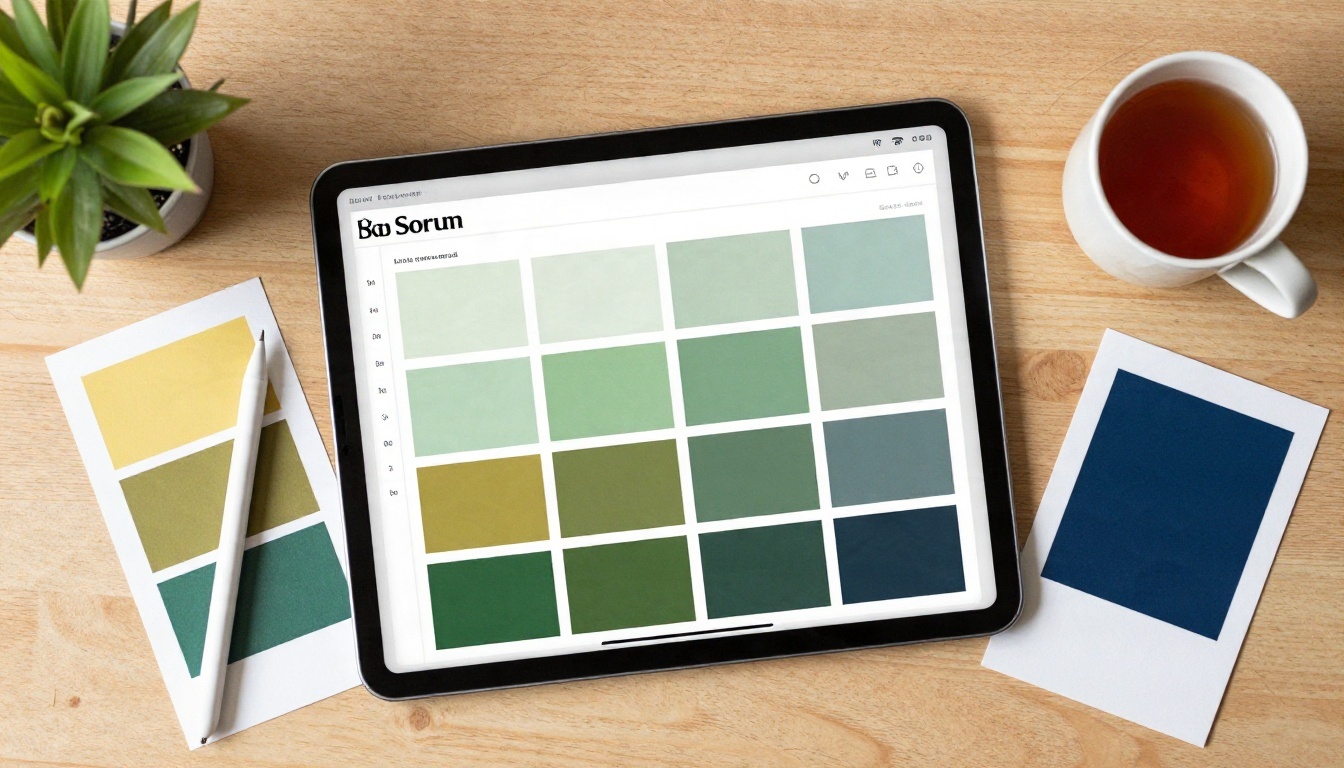
Canva is where multi-page templates look most impressive. Search for "ebook" or "document" and you will find dozens of designs with 10 to 40 pages, each with coordinated fonts, colours and photo frames.
Free vs Paid Elements
The free plan gives you plenty of templates, but some photos, icons and fonts carry a paid label. Here is how to stay on the free side:
- Filter your search for free templates and elements
- Swap any paid image for a free photo from the built-in library or your own
- Replace premium fonts with a free pair that has a similar feel
- Check the page thumbnails for small paid icons before you finish
Build Consistent Multi-Page Layouts
Canva lets you duplicate pages and reorder them with drag and drop. A reliable method:
- Pick one template and keep its colour palette.
- Duplicate the chapter opener for each chapter.
- Duplicate the body page, delete placeholder text and paste your own.
- Lock decorative elements so they do not move by accident.
- Add page numbers last.
Export Settings That Matter
For reading on screens, choose PDF Standard. For printing, choose PDF Print. If your ebook has links, keep the option that preserves them, since a PDF with live links converts to a clickable flipbook later.
Word vs Google Docs vs Canva
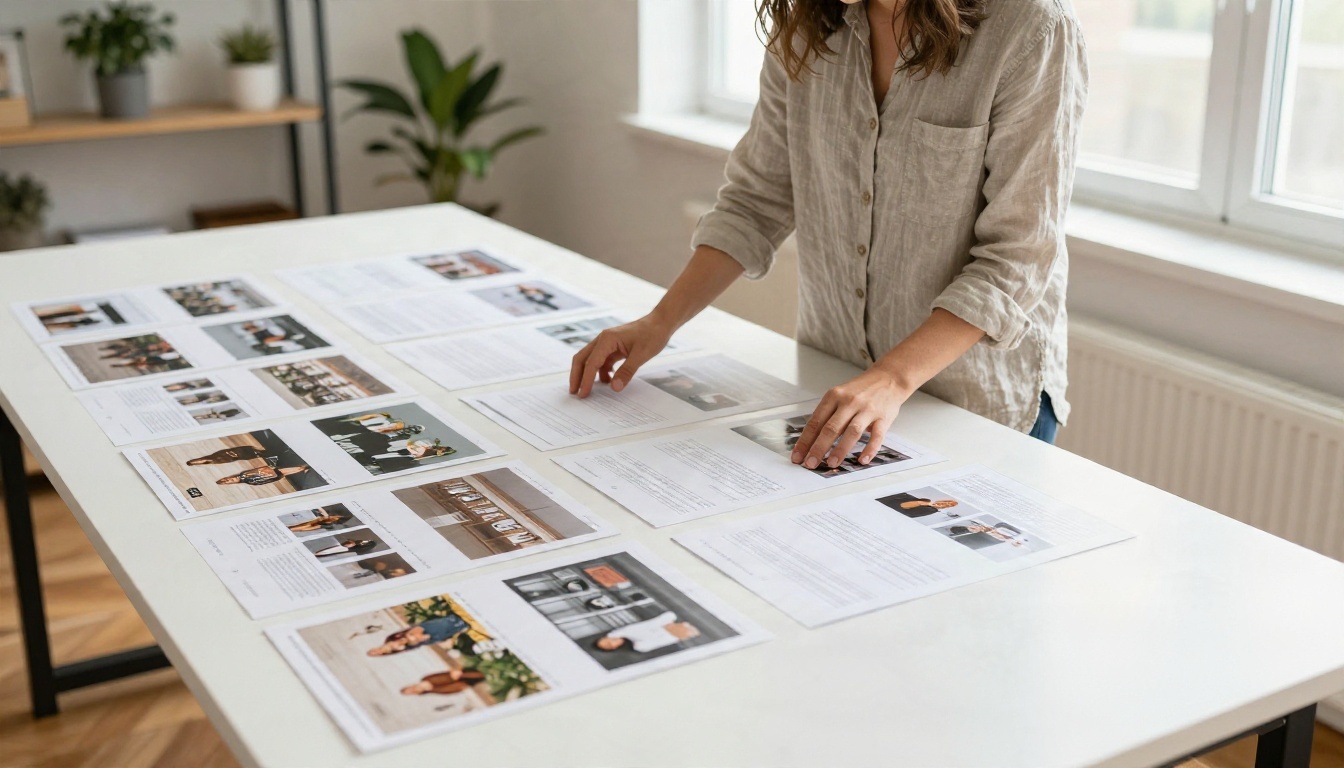
Here is the side-by-side view most people want before choosing.
| Feature | Word | Google Docs | Canva |
|---|
| Cost to start | Needs a licence or free web version | Free with a Google account | Free plan available |
| Best for | Long text-heavy books | Team drafting and review | Visual, designed ebooks |
| Template variety | Medium | Low | Very high |
| Design flexibility | Medium | Low | High |
| Automatic contents table | Excellent | Good | Manual |
| Collaboration | Good | Excellent | Good |
| PDF export | Yes | Yes | Yes |
| Learning curve | Medium | Low | Low |
Which One for Which Goal
| Your goal | Recommended tool | Why |
|---|
| 60-page manuscript | Word | Styles and contents handle long text |
| Lead magnet checklist | Canva | Fast, polished, easy icons |
| Company handbook | Google Docs | Everyone can comment and edit |
| Photo-driven lookbook | Canva | Frames and layers suit images |
| Workbook with tables | Word | Tables and form spacing are stable |
A Real-World Example
A fitness coach wants a 24-page meal planning ebook. She drafts recipes in Google Docs with her nutritionist, moves the final text into a free Canva template for photo layouts, and exports a PDF. Total cost: nothing. Total time: one weekend.
Five Template Mistakes to Avoid

Even a good template can produce a poor ebook. Watch for these.
Mistake 1: Too Many Fonts
Stick to two typefaces: one for headings, one for body text. Templates that use four or five look fun in a preview and messy at page 20.
Mistake 2: Tiny Body Text
Phones are the most common reading device. Keep body text at 11 to 12 points on a standard page, and avoid light grey text on white backgrounds.
Mistake 3: Skipping the License Check
Free does not always mean free for commercial use. Read the terms before you sell or distribute an ebook built on a downloaded template, especially for fonts and stock photos.
Mistake 4: Placeholder Leftovers
Search the final file for "Lorem", "Your Name Here" and stray sample images. Placeholders hide on back pages more often than anywhere else.
Mistake 5: Exporting Without a Mobile Test
Open the PDF on a phone before you publish. If you have to pinch and zoom to read it, the layout needs larger text or fewer columns.
✅ Best practice: Ask one person who has never seen the book to read three pages on their phone and tell you what felt awkward.
Turn Your Template Into a Flipbook

A PDF is fine for downloads, but it feels static. A flipbook gives readers a page-turn experience on desktop and mobile, with a shareable link instead of an email attachment. The Interactive E-Book Publisher and E-Book Flipbook Generator on Flipbooks AI are built for exactly this.
How to Create an Ebook Flipbook with Flipbooks AI
- Open your account. Go to Flipbooks AI and sign up. You can try the platform before choosing a plan on the pricing page.
- Upload your PDF. Drag the exported file from Word, Google Docs or Canva into the PDF to Flipbook Converter. Conversion takes a short time, and your page order and links are preserved.
- Customize the look. Add your logo, pick background colours that match the template palette, and choose a page-turn effect. Add video or audio on pages where it helps.
- Check the mobile view. The flipbook is mobile-responsive, so test it on your phone before sharing.
- Set access. Share a direct link, or use password protection for paid or private ebooks.
- Publish and embed. Copy the embed code to place the flipbook on your site with the Embed Flipbook on Website tool.
💡 Flipbooks created on the platform carry no watermarks, so your branding stays clean.
Analytics and Lead Capture
On the Professional plan you can see how readers behave, which pages they reach, and capture contact details before they open the book. That turns a free ebook into a measurable lead magnet. Offline downloads are also available, so readers can keep a copy for flights or poor connections. Compare options on the pricing page.
Plan Comparison at a Glance
| Need | What to use |
|---|
| One-off ebook, simple sharing | Direct link from the converter |
| Many ebooks and catalogs | Standard plan with unlimited flipbooks |
| Lead capture and reader data | Professional plan with analytics |
| Private client deliverables | Password protection |
Real Ways People Use Free Templates
Templates are not only for authors. Here is how different people put them to work.
Coaches and Consultants
A coach builds a 15-page starter workbook in Canva, exports it, and shares it as a flipbook link in every email signature. Clients can read it on a phone between meetings.
Teachers and Course Creators
Educators who write lesson packs in Word or Google Docs can publish them through the Course Material Publisher. Students open one link, and updates go live without resending files.
Small Businesses
A boutique writes a seasonal style booklet in a free Canva template and publishes it as a flipbook on its product page. The same file works for the website, social posts and in-store QR codes.

A Quick Pre-Publish Checklist
- Title, author name and date are correct
- Contents table matches the real page numbers
- Every image is licensed or your own
- Links are clickable and open the right pages
- Text is readable on a phone
- File name is clean and descriptive
Ready to Publish Yours?
Pick the tool that fits your book, not the one with the flashiest preview. Word for long manuscripts, Google Docs for team drafts, Canva for visual pages. Export to PDF, then give readers something better than an attachment.
Ready to create your first flipbook? Get started for free on Flipbooks AI, browse all flipbook tools to find the right template-friendly format, or compare pricing plans to choose what works for you.



