You built a flipbook. It looks great on screen, the pages turn smoothly, and then someone asks the one question every publisher hears sooner or later: "Can you just send me a PDF?" If you made the flipbook yourself on a platform like Flipbooks AI, you already have what you need to answer that in a few minutes, and you do not have to pay for it.
This tutorial walks through the flipbook to PDF process from start to finish: what the two formats actually are, three free ways to export, how to protect quality, and what to do when something goes wrong. Every method here is meant for flipbooks you own. If someone else made the flipbook, ask them for the file instead of extracting it.
What Flipbook to PDF Really Means
A flipbook is a viewing experience. A PDF is a file. That difference explains almost every export question people ask.
When you publish a flipbook, a platform takes your pages and wraps them in a viewer with page-turn animation, zoom, sharing buttons and sometimes video or audio. The pages themselves usually started life as a PDF. So "exporting a flipbook to PDF" often means getting back to a clean, portable version of the same pages.
Flipbook vs PDF at a Glance
| Feature | Flipbook | PDF |
|---|
| Reading experience | Page-turn animation, zoom, responsive | Static, scroll or page view |
| Works offline | Only with an offline download | Yes, by default |
| Embeds in a website | Yes, with an embed code | Usually a download link |
| Multimedia | Video, audio, links | Limited |
| Print-ready | Not designed for it | Yes |
| Email attachment | Share a link instead | Attach the file |
| Analytics | Views and clicks (on supported plans) | None |
Neither format wins everywhere. The flipbook is better for readers on screens. The PDF is better for archiving, printing and sending to people who want a file in their hands.
Why Export in the First Place
People ask for PDFs for practical reasons, not out of habit:
- Printing: a local print shop wants a file, not a link.
- Archiving: your accountant or legal team keeps records in a folder.
- Poor connections: a client on a slow network can still open a file.
- Procurement rules: some companies only accept attachments.
- Backup: a PDF on your drive does not depend on any platform.
💡 Pro tip: Keep both. Share the flipbook link for the best reading experience and attach the PDF as a fallback. Readers pick what suits them.
Before You Export: Check Your Source
Most bad exports are decided before you click anything. Spend two minutes on the source and you will save yourself an hour of fixing blurry pages.
Find the Original PDF
If you created the flipbook by uploading a PDF, that file is your best export. It has the highest quality, the right page size and the original fonts. Check these places first:
- The folder where you saved the design file (InDesign, Canva, Word or Google Docs).
- Your downloads folder, searching for the name of the flipbook.
- Your email, in case you sent the PDF to a colleague.
- Cloud storage such as Google Drive, Dropbox or OneDrive.
Found it? Then the "export" is just a copy. You can stop here. The rest of this article is for people who no longer have the source or who need a PDF that reflects the finished flipbook.
Check Page Size and Resolution
Look at three things in the source before exporting:
- Page dimensions: A4, US Letter and square formats print differently.
- Image resolution: 150 DPI is fine for screens, 300 DPI for print.
- Fonts: embedded fonts keep text sharp and searchable.
⚠️ Warning: A PDF can never be sharper than the pages it was built from. If your flipbook pages were low resolution to begin with, the export will look soft no matter which tool you use.
Three Free Ways to Export
There is no single button that suits every situation, so here are the three routes that work for flipbooks you own, from cleanest to most improvised.
| Method | Cost | Quality | Speed | Best for |
|---|
| Reuse your source PDF | Free | Best | Instant | Anyone who kept the original |
| Offline download from the platform | Plan dependent | High | 1 to 2 minutes | Owners on a supporting plan |
| Browser print to PDF | Free | Good | 2 to 5 minutes | Quick copies when nothing else works |
| Free online page merger | Free | Depends on input | 5+ minutes | Pages saved as images |
Method 1: Reuse Your Source PDF
This is the cleanest route. Open the original file, check that it matches the published version, and send it. If you edited the flipbook after upload (new links, replaced pages), re-export from your design tool so the PDF matches what readers see.
Rename the file with something readable such as spring-catalog-2026.pdf. Descriptive names help people find it later and also help search engines if you host the file on your site.
Method 2: Browser Print to PDF
Every modern browser can turn a web page into a PDF. It is not perfect for animated viewers, but it works when you need something fast.
- Open your flipbook in Chrome, Edge or Firefox.
- Press Ctrl+P (Windows) or Cmd+P (Mac).
- Set the destination to Save as PDF.
- Set margins to None and enable Background graphics.
- Choose a paper size that matches your pages.
- Click Save.
Results depend on how the viewer renders pages. Some viewers print one page per sheet, others print only the visible spread. If you only get the first page, switch to a single-page or scroll view if the viewer offers one, then try again.
💡 Pro tip: Set the scale to 100% rather than "Fit to page". Automatic scaling often shrinks content and adds odd white borders.
Method 3: Free Online Page Merger
If you have each page as an image (for instance, exported from a design tool), a free online merger can stitch them into one PDF. The steps are always similar:
- Upload the page images in the right order.
- Pick page orientation and size.
- Choose a compression level.
- Download the merged file.
Be careful with confidential material. Free tools process your files on someone else's server, so skip them for contracts, financial reports or anything under NDA.
How to Export with Flipbooks AI
If you are building flipbooks regularly, the smoothest route is to keep everything in one place. Flipbooks AI converts your PDF into a flipbook, and your original file stays the master copy you can export from at any time.

Create and Upload
Here is how to create a flipbook that you can export again whenever you want.
- Go to Flipbooks AI and create an account.
- Open the PDF to Flipbook Converter.
- Upload your PDF. The platform converts each page into a flipbook page.
- Wait for the conversion to finish and preview the result.
- Check page order, zoom and mobile view before sharing.
Whatever your content, there is probably a dedicated tool: the Digital Catalog Maker for product ranges, the Interactive E-Book Publisher for longer reads, or the Report Flipbook Creator for business documents. You can browse them all in the tools directory.
Customize Branding and Pages
Before you export or share, polish what readers will see:
- Branding: add your logo and brand colors so the flipbook looks like you.
- Page effects: pick the page-turn style that suits your content.
- Multimedia: embed video and audio where they add value.
- No watermarks: published flipbooks stay clean, with no platform watermark.
Doing this first matters because any PDF you generate from the viewer later will reflect those choices.
Share and Protect
Once the flipbook is ready, you have several ways to share it:
| Sharing option | Use it when | Notes |
|---|
| Direct link | Emailing or messaging | Fastest, works on every device |
| Embed code | Adding it to a website | See Embed Flipbook on Website |
| Password protection | Private or client-only content | Readers enter a password to open it |
| PDF attachment | Printing or archiving | Use your source PDF |
✅ Best practice: Use password protection for anything confidential, then send the password in a separate message from the link.
Analytics and Offline Downloads
Some features sit on higher tiers. Analytics and lead generation belong to the Professional plan, and offline downloads let readers keep a copy. Check the pricing page to see which plan covers what you need, since plan details can change.
Analytics help you decide whether a PDF is worth offering. If most readers open the flipbook on phones and spend several minutes per session, the flipbook is doing its job. If many ask for a printable copy, add the PDF as a secondary option.
Real-World Use Cases
A few scenarios show how the flipbook and the PDF work together instead of competing.

| Who | Flipbook for | PDF for |
|---|
| Restaurant owner | Website menu readers | Printing table menus |
| Real estate agent | Online listings | Handing out at open houses |
| Boutique founder | Seasonal lookbook | Wholesale buyers who want an attachment |
| Teacher | Interactive course material | Students without reliable internet |
| Nonprofit manager | Public annual report | Funders who archive documents |
A restaurant can publish a menu with the Restaurant Menu Creator, embed it on its website, and keep a PDF for the print shop that makes laminated table copies.
A real estate agent can build a listing booklet with the Real Estate Brochure tool, share the link in messages, and print the PDF before a viewing.
A school can publish a term newsletter using the School Newsletter Creator and attach the PDF for parents who prefer to save it.
A photographer can present a portfolio through the Photography Portfolio tool and send a compressed PDF to clients who only open attachments.
Reading on the Move
PDFs shine for commuters. A saved file opens instantly on a train, in an airport or anywhere reception drops out. That is the clearest argument for keeping a PDF alongside your flipbook.

Keep Quality High and Files Small
A good export is sharp and light. These two goals pull in opposite directions, so it helps to know where to compromise.

Pick the Right Quality Level
| Purpose | Suggested resolution | Typical file size (20 pages) |
|---|
| Email attachment | 100 to 150 DPI | Roughly 2 to 6 MB |
| On-screen reading | 150 DPI | Roughly 4 to 10 MB |
| Home or office printing | 200 to 250 DPI | Roughly 10 to 25 MB |
| Professional printing | 300 DPI | 25 MB and up |
These figures are rough estimates. Photo-heavy pages will always weigh more than text-heavy ones.
Test Before You Send
Open the finished PDF and check it like a reader would:
- Scroll through every page.
- Zoom to 200% on images and small text.
- Click each link.
- Check the file on your phone.
- Confirm the file size is something an inbox will accept.
Fixing Common Export Problems
Even simple exports trip people up. Here are the three problems that show up most.
Blurry Pages
The cause is nearly always a low-resolution source or heavy compression. Re-export from the original design file at a higher DPI, and avoid exporting from a screenshot. If you used a free merger, choose the "high quality" or "no compression" setting.
File Is Too Large
Try these fixes in order:
- Lower image resolution to 150 DPI.
- Use JPEG compression on photos.
- Remove unused fonts and hidden layers in your design tool.
- Split a long document into chapters.
- Share the flipbook link instead of attaching the file.
Links Stop Working
Links made inside a flipbook viewer may not carry over to a PDF made by browser print. If hyperlinks matter, add them in your original design file and export from there. Then test every link in the final PDF.
⚠️ Warning: Do not trust that a link works just because it is underlined. Click each one.
Organize Your Archive
Once you start exporting regularly, a little order saves time. Use one folder per publication, name files with a date, and keep both the editable source and the final PDF together.
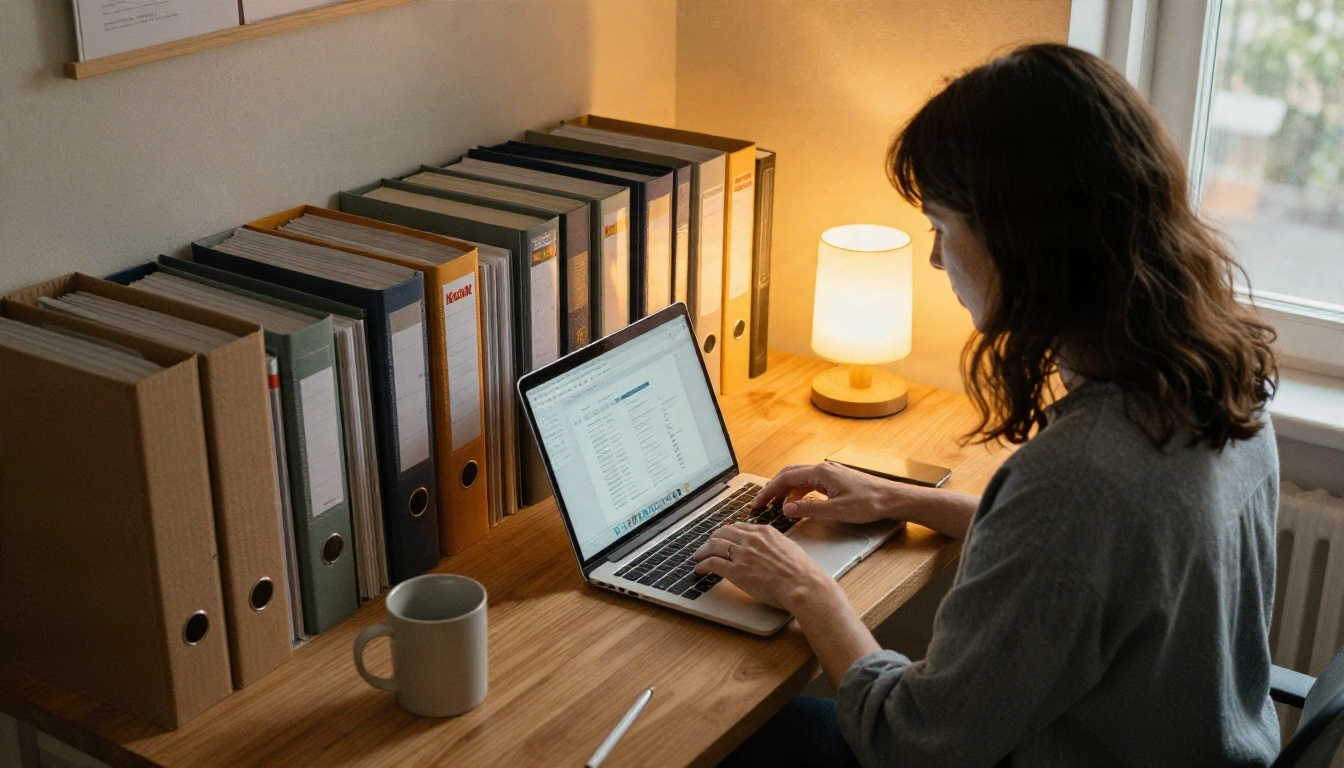
A simple naming pattern works well:
brand-title-year-version.pdfbrand-title-year-version-print.pdf for the high-resolution copybrand-title-year-version-email.pdf for the lightweight copy
Ready to Export Your Flipbook?
The flipbook to PDF question has a short answer: keep your source file, use the platform's download option when your plan includes it, and fall back on browser print for quick copies. Match the quality to the purpose and test the result before it goes to anyone.
Here is where to go next:
Build the flipbook for the readers who love a good page turn, keep the PDF for the ones who want a file, and you will never have to scramble when someone asks for it.



