You export a beautiful PDF, email it, and then watch it get opened once, scrolled halfway, and forgotten. That is the quiet tragedy of the format. A flat file does not feel like a magazine, a menu, or a brochure, even when the design inside is excellent. A flippable book maker fixes this by taking the same PDF and turning it into an online book with real page-turning motion, right in the browser. With Flipbooks AI, you upload the file, adjust the look, and share a link. No design software, no installs, and no watermark stamped across your pages.
This article shows how the process works, what to compare before you pick a tool, and how to build your first flipbook step by step. You will also find real examples, three comparison tables, and a short list of mistakes that make page flips feel clumsy.
What a Flippable Book Maker Does
A flippable book maker is an online tool that converts a static document into an interactive publication. Pages sit side by side like an open book, and readers click, swipe, or drag a corner to turn them. The sound and the motion are optional, but the feel is not: it should resemble paper.
Behind the scenes, the tool reads each PDF page, renders it as a sharp image or text layer, and wraps those pages in a viewer that runs on any modern device. Your original file stays untouched, so you can always go back and edit it.
Flipbook vs Plain PDF
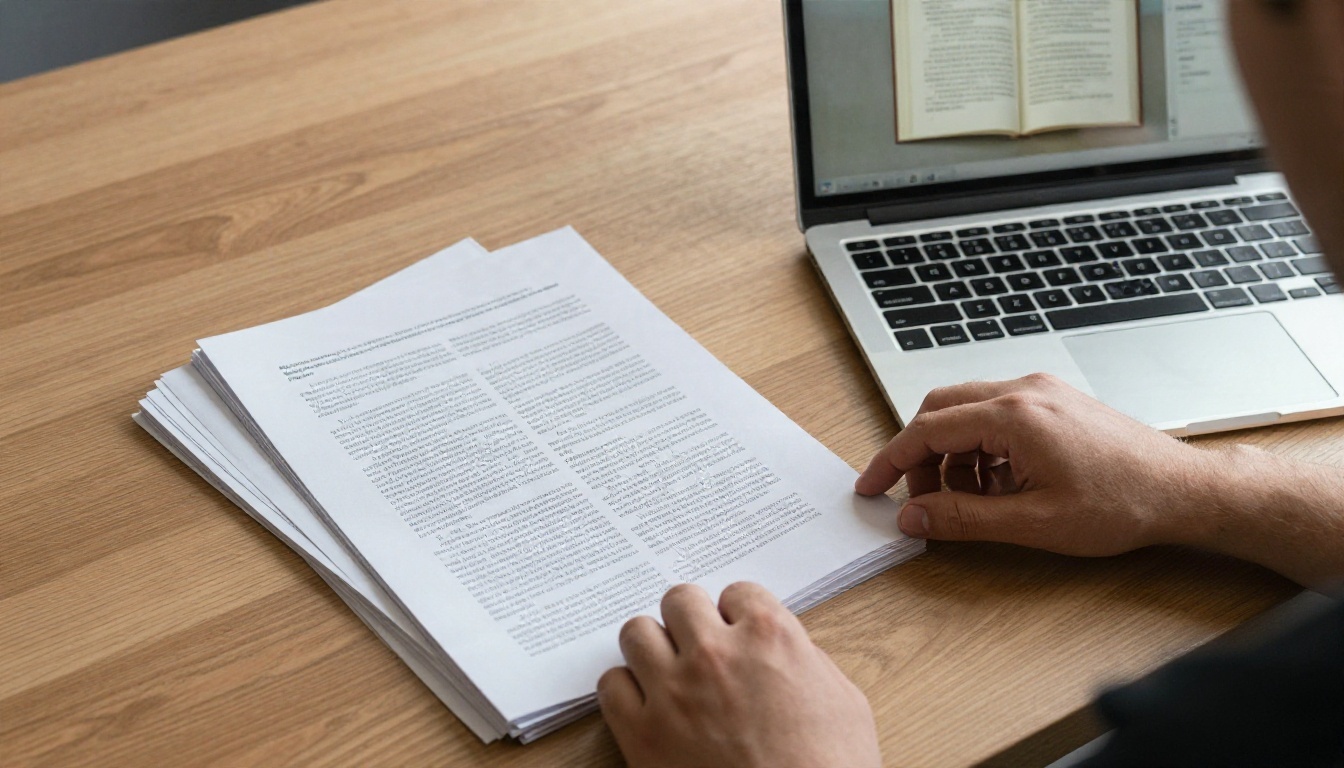
The difference shows up the moment someone opens the link. A PDF downloads or loads in a basic viewer. A flipbook opens as a designed experience with a page curl, zoom, and a shareable address.
| Feature | Plain PDF | Flipbook |
|---|
| Page-turning motion | No | Yes |
| Opens in browser without download | Sometimes | Always |
| Mobile-friendly layout | Pinch and scroll | Responsive, swipe to turn |
| Clickable links and media | Limited | Links, video, and audio |
| Visitor tracking | None | Analytics on paid plans |
| Password protection | Needs separate software | Built in |
| Custom branding | Only inside the file | Viewer colors, logo, background |
💡 Pro tip: A flipbook does not replace your PDF. Keep both. Send the flipbook link for reading and keep the PDF for printing.
Who Actually Uses One
The audience is wider than you might think. Small shops publish catalogs. Restaurants post menus. Agents share property brochures. Teachers hand out course booklets. Photographers send portfolios. Anyone who already makes PDFs is a candidate.
Why Start From a PDF
You might wonder why the best flipbook workflow begins with a PDF instead of a blank canvas. There are three practical reasons.
- You already have one. Canva, InDesign, Word, Google Docs, Pages, and Figma all export PDFs. Your design work is done before you open the flipbook tool.
- Layout stays exact. Fonts, margins, spreads, and image crops come across the way you set them. Nothing reflows or breaks.
- It is fast. Upload, wait a short moment, and the book is ready to preview.
Starting from a PDF also means one source of truth. When prices change or a date moves, you fix the original, upload it again, and share the updated link.
What Makes a Good Source File
Not every PDF converts equally well. Before uploading, check the following:
- Page size is consistent. Mixed sizes create awkward spreads.
- Images are high resolution. Aim for at least 150 DPI so zooming stays crisp.
- Text is live, not outlined. Searchable text keeps links and accessibility intact.
- Spreads are in single-page order. Page one should be the front page, not a printer spread.
- File size is reasonable. Compress oversized files before upload to speed up loading.
⚠️ Warning: Printer-ready PDFs with crop marks and bleed often show those marks inside the flipbook. Export a screen version instead.
How to Create a Flipbook with Flipbooks AI
Here is the full workflow, from a blank browser tab to a link you can send. It takes most people about ten minutes the first time and under five after that. The same steps apply whether you are making a menu, a catalog, or a report.
Step 1: Sign Up and Upload
- Go to Flipbooks AI and create an account.
- Open the dashboard and choose to create a new flipbook.
- Drag your PDF into the upload area, or click to pick it from your computer.
- Wait while the pages are processed. A progress indicator shows when each page is ready.
You can also start from the dedicated PDF to Flipbook Converter page if you only want to convert a single file and see the result quickly.
Step 2: Customize the Look
This is where a plain conversion becomes your own publication. Inside the editor you can adjust:
- Branding: add your logo, set the title, and match viewer colors to your brand palette.
- Background: use a solid color, a gradient, or an image behind the book.
- Page effects: choose the page curl, shadow depth, and flip speed.
- Layout: pick single-page or two-page spreads, and decide how the book opens.
- Multimedia: attach video, audio, and clickable links to specific pages.

✅ Best practice: Pull your hex colors straight from your brand sheet. Matching the viewer background to your site makes an embedded flipbook look native.
Step 3: Share and Embed
Once the book looks right, choose how people will reach it:
- Direct link: paste it into an email, a chat, a social post, or a QR code.
- Embed code: place the flipbook inside any webpage. The Embed Flipbook on Website tool covers the details for site owners.
- Password protection: require a password for private material such as internal manuals or client proposals.
- Offline download: let readers save a copy for places with weak signal.
Step 4: Add Pro Features
When you need to know who is reading, the Professional plan adds analytics and lead generation. You can see how many people opened the book, which pages held attention, and where readers dropped off. You can also place a contact form in front of the content to collect emails. See the pricing plans for what each tier includes.
| Capability | Where It Helps |
|---|
| Page-level analytics | Spot which products or pages draw the most interest |
| Lead capture form | Collect emails before a reader opens a gated report |
| Password protection | Share contracts or internal documents safely |
| Offline downloads | Serve readers on the road or at events |
| Video and audio embeds | Add a founder message or product demo to a page |
Free vs Paid Options Compared
Everybody likes free, and for a first flipbook it often covers the need. The real question is what happens when you publish more, want analytics, or care about how the book looks to customers. Always check the pricing page for the current limits before you commit to a plan, since plans evolve.

What to Compare Before You Pick
Many free converters trade convenience for compromises. Here is what to watch for.
| Question | Why It Matters |
|---|
| Does the tool add a watermark? | Watermarks on every page look unprofessional on customer-facing material |
| Can you publish unlimited flipbooks? | A single-book limit stalls teams with many catalogs or issues |
| Is the viewer mobile-responsive? | Most readers open links on a phone |
| Can you add your own branding? | Branded viewers build trust |
| Is there password protection? | Needed for private or paid content |
| Are there analytics? | Without data, you are guessing which pages work |
Flipbooks AI never places a watermark on your pages. Unlimited flipbooks arrive with the Standard plan and above, while analytics and lead generation belong to Professional. That gives a clear upgrade path: begin small, then move up only when a project demands it.
Free Tool or Paid Plan: A Quick Rule
- Use a free option if you are testing the idea, publishing one document, or sharing something casual.
- Move to a paid plan if you publish regularly, need unlimited flipbooks, want branding control, or need data on readers.
💡 Try the free route first with a real document, not a sample. You will find out in one sitting whether the output matches what you picture.
Real Examples That Work
Abstract features are easy to nod at. Concrete scenarios are easier to judge. These are common ways people use a flippable book maker built from a PDF.

A Cafe Menu on a QR Code
A cafe owner designs a seasonal menu in a layout app and exports it as a PDF. After conversion, a QR code on each table opens the menu as a flipbook that feels like a printed card. When prices change, the owner updates the PDF, re-uploads it, and every table shows the new version without reprinting. The Restaurant Menu Creator is built for exactly this job, and the Spa & Wellness Menu tool suits service businesses.
A Property Brochure for Buyers
A real estate agent finishes a brochure with floor plans, photos, and neighborhood notes. Instead of attaching a heavy file, the agent sends a flipbook link. Buyers open it on a phone, zoom into floor plans, and flip through at their own pace. The Real Estate Brochure Creator is a natural starting point.

A Product Catalog for Wholesale Buyers
Catalogs are the classic case. A supplier updates a 60-page catalog each season. A flipbook link works in emails, on a website, and in a sales rep's tablet. With analytics enabled, the team sees which product pages get the most attention. Compare the Product Catalog Generator and the Digital Catalog Maker to find the closer fit.
A Course Booklet for Students
A teacher bundles lesson notes into a PDF and shares it as a flipbook. Students open it on a school laptop or a home phone. The Course Material Publisher fits this scenario, and the Training Manual Flipbook suits workplace onboarding.

Matching the Use Case to the Tool
You can see the whole range on the tools directory.
Mistakes That Ruin Page Flips
Most disappointing flipbooks fail for the same few reasons. None of them are hard to fix.
Uploading a Printer Spread
If your PDF is laid out as printer spreads, with pages two and seven side by side, the book will read in the wrong order. Export pages in reading order, one page per sheet.
Skipping the Preview
Always flip through the entire book on your phone before sharing. Check that text is readable at normal size, that images are sharp, and that links work. Five minutes here saves an awkward correction email later.
Forgetting the Reader's Device
Most visitors will not open your flipbook on a large monitor. Use a font size that holds up on a small screen, and avoid dense two-column text at tiny sizes.
Ignoring the Data
If you are on a plan with analytics, look at it. A page where readers drop off tells you what to rewrite. A page with long viewing time shows what deserves more room in the next edition.
⚠️ Warning: Do not share a private document by link alone. Turn on password protection for contracts, pricing sheets for select clients, and internal manuals.
Making It Too Long
Sixty pages of dense text is a fine e-book and a poor menu. Match the length to the job. If readers need an answer in ten seconds, keep it short.
Plenty of tools can convert a PDF. The right one is the tool you will still be happy with after your tenth upload.

A Short Checklist
Before you commit, run through this list:
If a tool misses more than two of these, keep looking.
When a Flipbook Is the Wrong Choice
Be honest about the limits. A flipbook is not the best format for a long legal contract that needs signatures, a spreadsheet people must edit, or a document people will always print. For those, a plain PDF or a form tool still wins. Everything else that benefits from looking like a real publication is a good candidate.
| Content Type | Flipbook | Plain PDF |
|---|
| Catalogs and lookbooks | Strong fit | Acceptable |
| Menus and price lists | Strong fit | Acceptable |
| Magazines and newsletters | Strong fit | Weak |
| Annual reports | Strong fit | Acceptable |
| Editable forms | Poor fit | Strong fit |
| Print-only documents | Poor fit | Strong fit |
Ready to Flip Your First PDF?
You already did the hard part when you designed the document. The last step is giving it a format people enjoy opening. A flippable book maker turns that file into something that feels like paper, works on every screen, and travels as a single link.
Here is a simple plan:
- Pick one PDF you already have, such as a menu, a catalog, or a brochure.
- Create your free account on Flipbooks AI and upload it.
- Adjust colors, add your logo, and preview on your phone.
- Share the link, embed it on your site, or print it as a QR code.
- Compare pricing plans when you want unlimited flipbooks, analytics, or lead capture.
Want to see every option first? Browse all flipbook tools to find a template for your exact project, or head straight to the PDF to Flipbook Converter and try it with a real file. When you are ready for more, pick a plan and publish without limits.



