You exported a 300 MB PDF, dragged it into a flipbook tool, and watched the upload bar crawl to a stop. Sound familiar? Size problems are the number one reason a perfectly good document fails to become a smooth page-turning flipbook. Whether you publish with Heyzine or with Flipbooks AI, the same three questions decide the result: how heavy is the file, how many pages does it hold, and what shape and resolution is each page? This article answers all three for Heyzine users and gives you export settings you can copy today.
One honest note before we start. Heyzine changes its plan limits from time to time, so I will not print a single "official" number as if it were permanent. Instead, you will get a framework for checking your plan, plus tested working ranges for page dimensions and image resolution that hold up on nearly any flipbook platform.
Why Flipbook Size Matters
Two Kinds of Size
When people search for "flipbook size" they usually mean one of two things, and mixing them up causes most upload errors.
- File size is the weight of the PDF in megabytes. It controls whether the upload succeeds and how fast the flipbook opens.
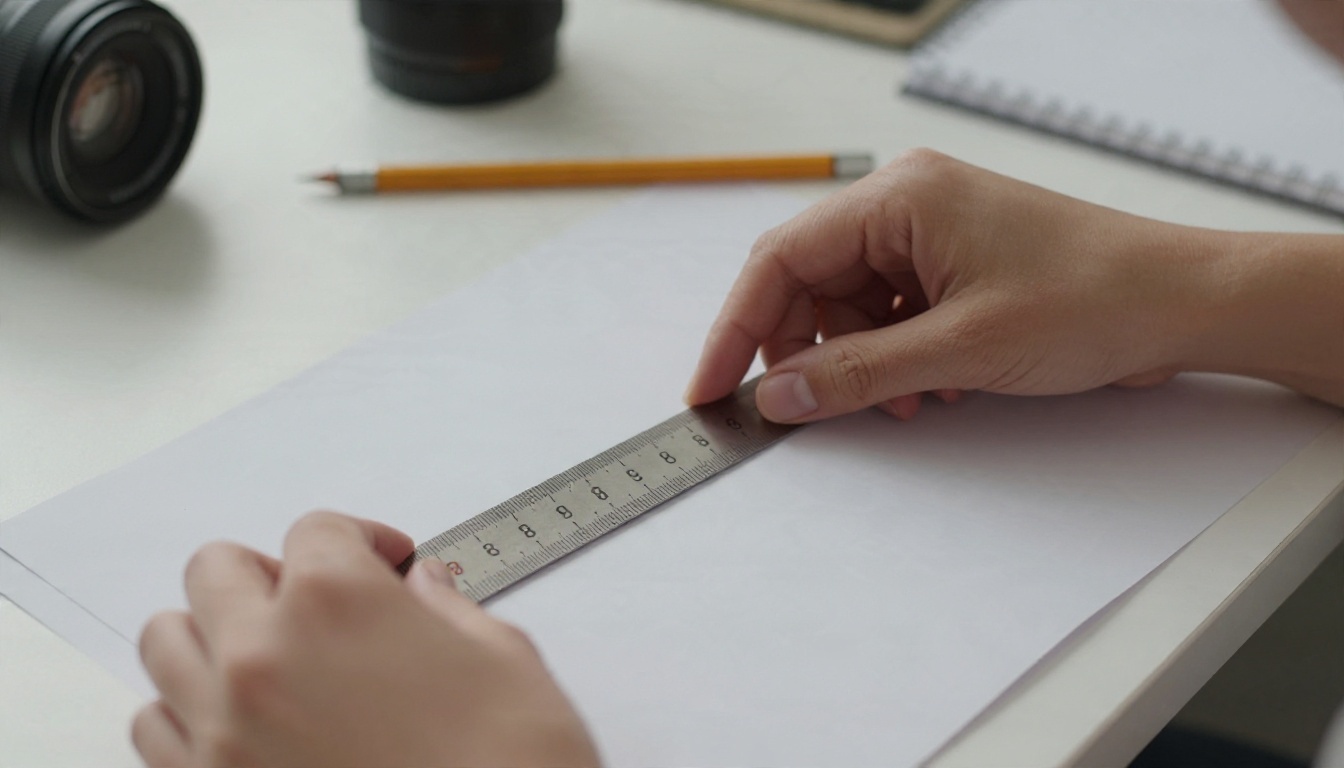
- Page size is the physical shape of each page, such as A4, US Letter or a square 8 x 8 inch layout. It controls how the flipbook looks on screen.
A PDF can have perfect page dimensions and still be rejected because it weighs too much. It can also be tiny in megabytes yet look stretched, because the page ratio does not suit a two-page spread.
What Breaks When It Is Wrong
Oversized or badly proportioned files cause very visible problems for readers:
- Slow first load, especially on mobile data
- Pages that appear blurry while high-resolution versions are still downloading
- White bars around pages because the aspect ratio clashes with the viewer
- Failed or stalled conversions on free and entry-level plans
- Tiny text on phones when the page was designed for print at poster scale
💡 Pro tip: Think of the flipbook as a website, not a print file. Every extra megabyte is a visitor who may leave before page one appears.
Heyzine PDF File Limits
Plan-Based Caps
Heyzine ties its upload ceiling to the plan you are on. Free accounts get the tightest allowance, and paid tiers raise both the maximum PDF weight and the number of flipbooks you can keep active. Because the exact figures are updated on the vendor's pricing page, treat any number you read in a forum post as possibly out of date.
Here is how to check your own limit in under two minutes:
- Sign in to your Heyzine dashboard and open the account or plan page.
- Note the maximum PDF size and the maximum page count listed for your tier.
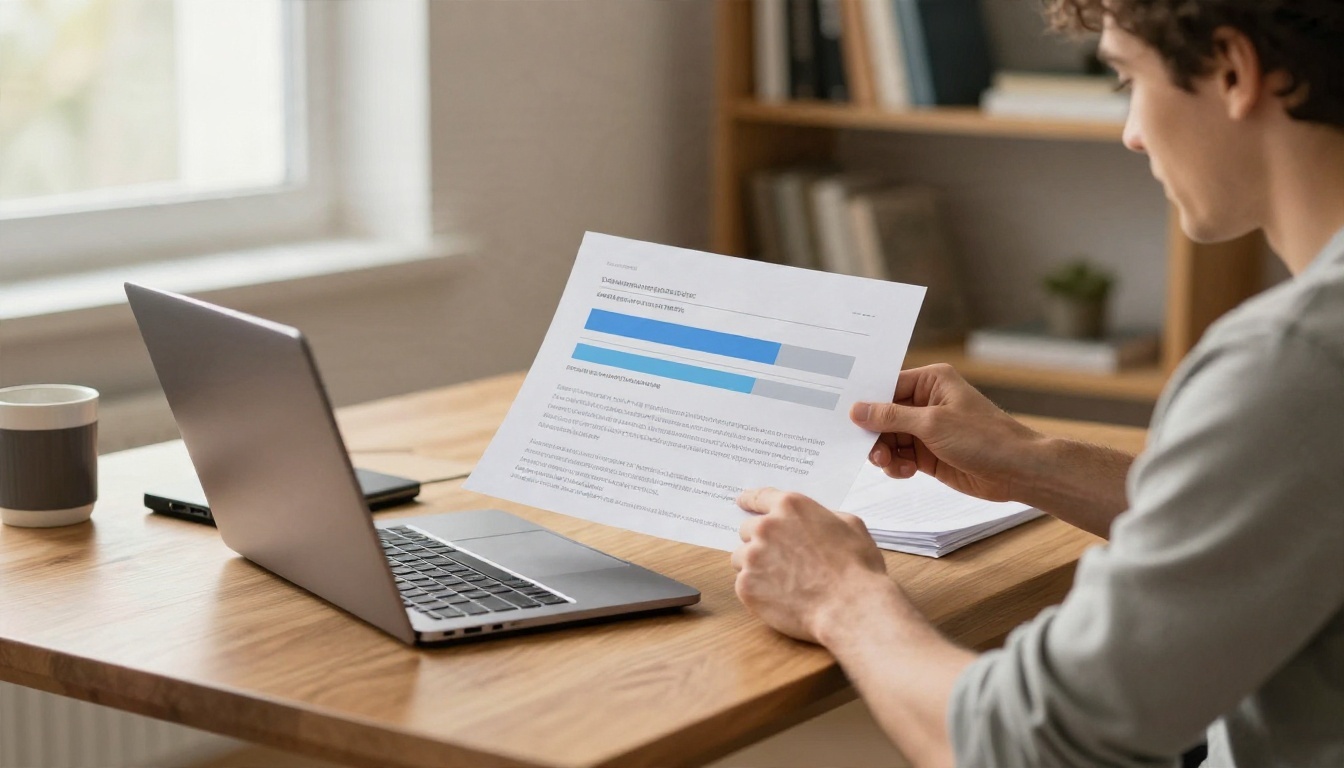
- Right-click your PDF, open its properties and compare the real file size.
- If your PDF is within about 80 percent of the cap, compress it anyway. Uploads near the ceiling fail more often.
| What to check | Where to find it | Why it matters |
|---|
| Maximum PDF file size | Plan or pricing page | Upload is rejected above this number |
| Maximum page count | Plan or pricing page | Long documents may need splitting |
| Number of active flipbooks | Dashboard | Older projects may need archiving |
| Branding and watermark rules | Plan comparison | Free tiers often add visible branding |
Page Count vs File Weight
Page count and file weight are linked, but not in a straight line. A 200-page text-only manual can be smaller than a 12-page photo lookbook. What really drives weight is the number and resolution of embedded images.
| Document type | Typical pages | Typical weight before optimizing | Main weight driver |
|---|
| Text manual | 100 to 300 | 2 to 15 MB | Embedded fonts |
| Product catalog | 40 to 120 | 30 to 150 MB | Product photos |
| Fashion lookbook | 12 to 40 | 40 to 250 MB | Full-bleed images |
| Annual report | 60 to 150 | 15 to 80 MB | Charts and photos |
| Restaurant menu | 2 to 12 | 3 to 25 MB | Food photography |
These ranges are practical estimates from common exports, not Heyzine rules. Your own files may land higher or lower.
Best Page Dimensions
Pick the Right Aspect Ratio
Flipbooks show pages in pairs on desktop and one at a time on phones. Your page ratio should therefore look good in both layouts. Stick to a standard ratio and the viewer will do the rest.
| Format | Typical size | Ratio feel | Best for |
|---|
| A4 portrait | 210 x 297 mm | Tall, classic | Brochures, reports, manuals |
| US Letter portrait | 8.5 x 11 in | Slightly wider than A4 | North American documents |
| Square | 8 x 8 in or 210 x 210 mm | Equal sides | Lookbooks, photo books |
| A5 portrait | 148 x 210 mm | Compact, book-like | E-books, menus |
| 16:9 landscape | 1920 x 1080 px | Slide-like | Presentations, pitch decks |
Two rules save a lot of grief:
- Keep every page the same size. A single odd page in the middle of a PDF can break the spread alignment.
- Do not mix portrait and landscape unless you truly need to. Readers will see jumps in scale as they turn pages.

Resolution and DPI
Print designers love 300 DPI. Screens do not need it. A flipbook page is rarely displayed wider than about 1000 to 1400 pixels on a laptop, and half of that on a phone. Embedding 6000 pixel photos only inflates your file.
| Use case | Recommended image resolution | Approximate DPI at page size |
|---|
| Mobile-first flipbook | 1200 px on the long edge | 100 to 130 |
| Standard web flipbook | 1600 to 2000 px on the long edge | 130 to 170 |
| Zoom-heavy catalog | 2400 px on the long edge | 170 to 200 |
| Downloadable print version | 300 DPI | 300 |
✅ Best practice: Use 150 DPI as your default for a web flipbook. Move up to 200 DPI only for pages where readers will zoom into fine detail, such as technical drawings or fabric swatches.
Export Settings That Work
Images and Compression
Your export dialog is where file size is won or lost. Most layout and office tools offer presets named something like "Smallest file", "Standard" and "High quality print". For flipbooks, the "Standard" or "Web" preset is usually the sweet spot.
Follow this order of operations:
- Resize photos to the sizes in the table above before placing them in the layout.
- Export as JPEG at roughly 75 to 85 percent quality rather than lossless formats.
- Downsample images to 150 DPI in the PDF export dialog.
- Turn off any option that preserves editing capabilities or embeds thumbnails.
- Flatten transparency only if you see rendering glitches in the viewer.
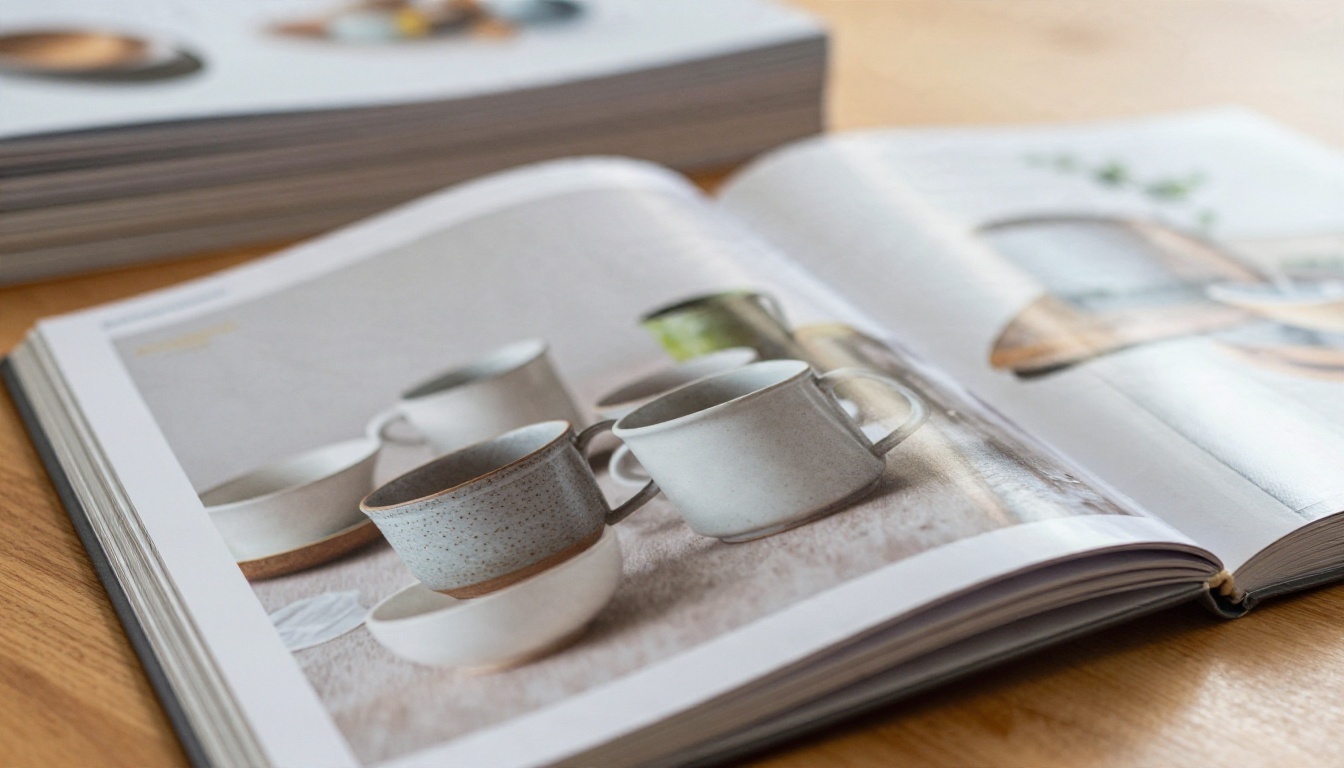
⚠️ Warning: Compressing an already compressed JPEG over and over adds visible blocky artifacts. Always export from your original layout file, never from a previously shrunk PDF.
Fonts, Links and Bookmarks
Small details also affect the reading experience:
- Embed fonts so text does not swap to a default typeface on upload.
- Keep live links for URLs, emails and table of contents entries. Most flipbook viewers preserve them as clickable areas.
- Use RGB color for screen-only publishing. CMYK can look dull once displayed on a monitor.
- Add bookmarks for long documents so readers can jump between chapters.

Fixing Oversized PDFs
Shrink Without Blur
If your file is already too big, you do not need to redesign anything. Try this sequence and stop as soon as the file fits:
- Re-export from the source with the web preset. This alone often cuts weight by half.
- Downsample images to 150 DPI.
- Remove hidden layers and unused swatches or pasted objects.
- Subset fonts rather than embedding full font families.
- Run a PDF optimizer as the last step, and compare page two and page twenty for visible damage.
| Method | Typical savings | Risk of visible quality loss |
|---|
| Re-export with web preset | 40 to 70 percent | Low |
| Downsample to 150 DPI | 30 to 60 percent | Low to medium |
| Remove hidden layers and objects | 5 to 20 percent | None |
| Subset fonts | 2 to 10 percent | None |
| Heavy PDF optimizer, lowest quality | 60 to 90 percent | High |
Split Long Documents
Sometimes the document itself is the problem. A 400-page parts catalog does not need to live in one flipbook. Splitting by section keeps each file light and lets readers jump straight to the part they need.
A furniture retailer, for example, could publish separate flipbooks for sofas, dining and outdoor lines, then link them from a landing page. That approach also makes updates faster because you only re-upload the section that changed.
How to Create a Flipbook with Flipbooks AI
If you want a second option, or you keep hitting plan caps, Flipbooks AI turns the same optimized PDF into a page-turning flipbook with no watermarks. The steps below work for catalogs, menus, brochures and reports.
Step 1: Upload Your PDF
- Go to Flipbooks AI and create an account.
- Open the PDF to Flipbook Converter.
- Drag your optimized PDF into the upload area, or pick it from your drive.
- Wait for the conversion to finish. Pages are processed into a flipbook automatically.
💡 If you are publishing a menu, the Restaurant Menu Creator is built for short, image-rich files. For product ranges, try the Product Catalog Generator.
Step 2: Customize the Look
After conversion you can adjust how the flipbook feels:
- Custom branding: Add your logo and pick background colors that match your site.
- Page effects: Choose how pages turn and how fast.
- Multimedia: Embed videos and audio on pages where a clip helps more than a paragraph.
- Mobile-responsive layout: Check the single-page view on a phone before you publish.

Step 3: Share and Protect
Once it looks right, publish it in the way that suits your audience:
- Direct link for email and social posts
- Embed code to place the flipbook on your site, using the Embed Flipbook on Website tool
- Password protection for private catalogs, internal reports or client-only price lists
- Offline downloads so readers can keep a copy

Step 4: Use Pro Features
Teams that need to measure results can look at the Professional plan, which adds analytics and lead generation forms so you can see which pages get read and capture contact details before a download. Unlimited flipbooks are available from the Standard plan upward. Compare the options on the pricing page.
Real-World Size Examples
Numbers are easier to apply when you see them on real projects. These are starting points you can adjust.
| Project | Page format | Image resolution | Target file size | Notes |
|---|
| Restaurant menu | A5 portrait | 1600 px | Under 15 MB | Compress food photos at 80 percent |
| Fashion lookbook | Square | 2000 px | Under 60 MB | Keep full-bleed spreads sharp |
| Real estate brochure | A4 portrait | 1800 px | Under 30 MB | Use the Real Estate Brochure Creator |
| Annual report | A4 portrait | 1600 px | Under 40 MB | Vector charts stay small |
| Sales deck | 16:9 landscape | 1920 px | Under 25 MB | Try the Sales Presentation tool |
| E-book | A5 portrait | 1200 px | Under 20 MB | Embed fonts, keep bookmarks |

A Quick Pre-Upload Checklist
Run through this list before you press upload:
✅ Best practice: Keep a "web master" copy of every PDF alongside your print version. Name it clearly, and you will never upload the wrong file again.
Ready to Publish Your Flipbook?
Heyzine can handle a well-prepared PDF without trouble. Check your plan limit, keep pages uniform, aim for 150 DPI and trim the file before you upload. Do those four things and most size errors disappear.
If you would rather skip the plan ceilings and watermark worries, get started for free on Flipbooks AI and convert your first PDF in minutes. Browse all flipbook tools to find a template that fits your catalog, menu or report, then compare pricing plans when you need analytics, lead capture or unlimited flipbooks. You can also sign in and jump straight to pricing if you already know what you need.



