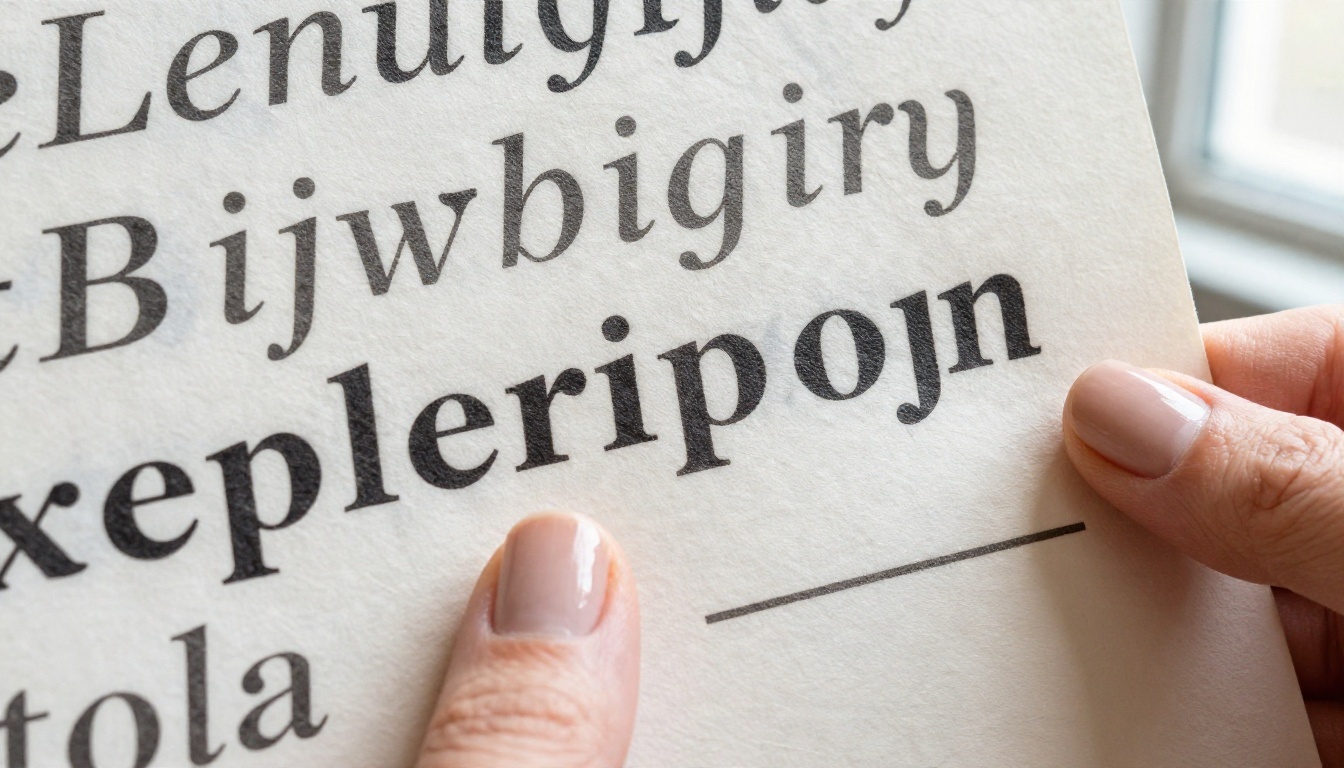
How to Fix PDF to HTML Fonts Incorrect: Embedded Fonts, Free Tools and Settings
Your PDF looks perfect on screen, but the HTML version shows the wrong typeface, broken spacing or strange symbols. This article shows why it happens, how to check embedded fonts, which free tools and settings fix it, and how to publish a PDF so every reader sees the original type.
You export a beautiful PDF, run it through a converter, open the HTML, and the headline is suddenly set in Times New Roman. Spacing is off, bullets turn into little boxes, and half the ligatures have vanished. If that sounds familiar, you are dealing with one of the most common PDF to HTML problems: incorrect fonts. The good news is that it is fixable, and often in under ten minutes. And if your real goal is just to get a PDF online looking exactly right, a tool like Flipbooks AI can skip the whole HTML rebuild. We will cover both paths below.
Why PDF Fonts Break in HTML
How Fonts Live Inside a PDF
A PDF is a fixed layout format. Each letter is placed at exact coordinates, using a font program that is either embedded (stored inside the file) or referenced (the file only names the font and hopes the viewer has it). Embedded fonts are usually subsets: only the glyphs used in the document are stored, to keep the file small.
That subsetting is great for printing and viewing, but it is the root of many conversion headaches. A subset font may have a name like ABCDEF+Garamond-Bold, hold only 40 characters, and use a custom internal encoding that does not map cleanly to Unicode.
What HTML Converters Get Wrong
HTML is a flowing, text based format. A converter has to decide: do I rebuild the text as real HTML, or do I draw each page as an image or SVG? When it rebuilds text, it must do three things correctly:
Extract the font file from the PDF (or find a lookalike).
Turn it into a web format such as WOFF or WOFF2.
Map every character back to the right glyph.
If any step fails, the browser falls back to a default font. That is the whole story behind most "fonts incorrect" reports.
Spot the Symptoms First
Common Signs of Font Trouble
Before you change a single setting, match what you see to a likely cause. This saves a lot of guessing.
Symptom in the HTML
Most likely cause
Quick fix
Whole page in a default serif or sans
Font not embedded in the PDF
Re-export the PDF with fonts embedded
Random symbols or boxes instead of letters
Subset font with custom encoding
Convert with an embed option, or use outlines
Missing ligatures such as "fi" or "ffl"
Ligature glyphs not mapped to Unicode
Decompose ligatures during conversion
Text too wide or overlapping
Fallback font has different metrics
Embed the original font as WOFF2
Bold or italic looks fake
Only the regular weight was loaded
Load each weight with its own @font-face rule
Correct on desktop, wrong on phone
Font file blocked or not loaded
Check file path, CORS headers, MIME type
Check Embedding in 30 Seconds
The fastest diagnosis uses pdffonts, a free command line tool that ships with Poppler. Run it against your file:
pdffonts yourfile.pdf
Look at the emb and sub columns. A yes under emb means the font is embedded. A no means the PDF is pointing at a font that the converter cannot extract.
💡 Pro tip: If you do not want to use a terminal, open the PDF in Adobe Acrobat Reader, go to File, then Properties, then the Fonts tab. It lists each font and whether it is embedded or a subset.
Fix It With Embedded Fonts
Re-Export the PDF Properly
If pdffonts shows any font with emb = no, fix the source before you touch the converter. In the original app:
InDesign: Export as PDF (Print), and under Advanced set the subset threshold to 100% so fonts are always embedded.
Word: Save As PDF, open Options, and tick ISO 19005-1 compliant (PDF/A), which forces embedding.
Google Docs and Canva: Fonts are embedded automatically, so the problem usually appears later.
Existing PDFs: Use Ghostscript to rewrite the file with embedded fonts, provided the fonts are installed on your machine.
Once you have the font file (from your design folder, a licensed source, or an extraction tool), turn it into WOFF2. It is the smallest and best supported web format. The free fonttools library does this in one line:
Extracting a font from a PDF does not give you the right to publish it on a website. Many desktop licenses allow PDF embedding but forbid web use. Check the license, or switch to an open source twin such as those from Google Fonts when you are unsure.
⚠️ Warning: Embedding a commercial font in a public website without a web license can lead to takedown notices. When in doubt, use an open font with a similar design.
Free Tools That Actually Work
You do not need a paid suite. These free tools solve most font problems, and each shines in a different spot.
Tool
Best for
Font handling
Learning curve
pdf2htmlEX
Pixel faithful HTML
Extracts and embeds fonts as WOFF, TTF or others
Medium (command line)
pdftohtml (Poppler)
Quick text extraction
Maps to system fonts, basic embedding
Low
Ghostscript
Repairing PDFs before converting
Forces embedding and subsetting
Medium
FontForge
Fixing broken glyph maps
Edits and exports web fonts
High
LibreOffice Draw
One off page fixes
Opens PDF, lets you swap fonts
Low
fonttools (pyftsubset)
Making WOFF2 files
Subsets and compresses fonts
Medium
pdf2htmlEX: The Best Free Starting Point
pdf2htmlEX is the tool most people reach for because it was built to keep the original look. By default it embeds fonts, images and CSS into a single HTML file. If the output looks wrong, try these options one at a time:
--embed-font 1 makes sure fonts are embedded rather than linked.
--font-format woff picks the web format (woff, ttf, otf and svg are supported).
--decompose-ligature 1 splits ligatures into separate letters, which cures most missing "fi" problems.
--process-type3 1 attempts to convert Type 3 fonts, which are often the culprit behind garbled text.
--fit-width 1000 scales the page to a fixed width.
A typical command:
pdf2htmlEX --embed-font 1 --font-format woff --decompose-ligature 1 --dest-dir out input.pdf
pdftohtml and LibreOffice for Quick Jobs
Poppler's pdftohtml is lighter. It is good when you only need the text and do not care about pixel accuracy. Add -fontfullname to keep complete font names so your CSS can target the right family.
For a single stubborn page, open the PDF in LibreOffice Draw, replace the wrong font with a similar one, and export again. It is not elegant, but it is fast.
Settings That Make the Difference
Converter Settings Worth Checking
Different converters use different names, but these options matter everywhere:
Setting
What it does
Recommended value
Embed fonts
Stores font data with the HTML
On
Font format
Web format of the output
WOFF2 or WOFF
Ligature handling
Splits or keeps ligatures
Decompose when letters go missing
Text as images
Draws text as pictures
Only as a last resort (hurts SEO and accessibility)
Unicode mapping
Matches glyphs to characters
On, so text is selectable and searchable
Page scaling
Fixes the page width
Fit to width for responsive layouts
CSS Fallbacks That Save You
Even with perfect embedding, always add a fallback stack so that a missing file does not wreck the layout:
body {
  font-family: "MyFont", Georgia, "Times New Roman", serif;
}
Choose fallbacks with similar widths. Using font-size-adjust and the size-adjust descriptor in @font-face also helps match the metrics between your web font and the fallback, which reduces layout jumps.
Server Details People Forget
If the font works on your machine but not live, check:
MIME type: WOFF2 should be served as font/woff2.
CORS: Fonts loaded from another domain need an Access-Control-Allow-Origin header.
Path: Relative URLs break when the HTML moves into a subfolder.
Cache: Force a refresh, since browsers hold on to old font files.
✅ Best practice: Open the browser developer tools, go to the Network tab, filter by "Font", and reload. Any red line shows you exactly which file failed.
Skip the Rebuild With a Flipbook
Here is a different way to look at it. Many people convert PDF to HTML only because they want the document readable online. If that is you, fixing fonts one file at a time is a lot of effort for a result that still might shift between browsers.
A flipbook keeps the page design the way you exported it, so you are not asking a converter to rebuild every paragraph as flowing HTML. You get page turning, zoom, mobile support and a shareable link, and the original typography stays intact.
Customize the look. Add your logo, pick background colors, choose page flip effects, and drop in videos or audio where they help.
Share it. Copy the direct link, or use the embed code for your website. Add a password if the content is private.
Track results. On the Professional plan you get analytics, lead generation and offline downloads. See the pricing plans for details.
Flipbooks AI never adds watermarks, and the Standard plan and above gives you unlimited flipbooks, so you can republish after every font fix without worrying about a cap.
Real Use Cases
A restaurant uploads a menu with a custom display font. With the Restaurant Menu Creator, guests see the exact lettering on any phone.
A real estate agent shares a listing with the Real Estate Brochure tool, so branded headings do not turn into Arial.
Converting before checking embedding. Always run pdffonts first. A converter cannot extract what is not there.
Rasterizing everything. Turning text into images fixes the look but kills search, copy and screen reader access. Use it only when nothing else works.
Ignoring weights and styles. If you only load Regular, the browser fakes Bold and Italic. Declare each style separately.
A Short Troubleshooting Checklist
Work through this list in order, and stop when the problem disappears:
Fonts show emb = yes in pdffonts
PDF re-exported or repaired with Ghostscript if needed
Converter set to embed fonts in WOFF or WOFF2
Ligatures decomposed if letters are missing
Type 3 fonts processed or replaced
@font-face rules exist for each weight and style
Fallback stack uses similar font metrics
Server sends the right MIME type and CORS header
Final check on a real phone, not just desktop
Pick the Right Fix
Not every case needs the same solution. Use this quick map:
Your situation
Best option
You need real, searchable HTML text and own the font license
pdf2htmlEX with embedded WOFF2 fonts
Only some pages have problems
Fix those pages in LibreOffice Draw, then reconvert
PDF has fonts that are not embedded
Re-export from the source or repair with Ghostscript
You want the PDF online and looking identical
Publish as a flipbook
You publish many documents each month
Flipbook workflow with a saved branding setup
Ready to Publish Without Font Problems?
Wrong fonts in a PDF to HTML conversion nearly always come down to missing embedding, mapping glitches or a skipped web license. Check with pdffonts, repair with Ghostscript, convert with pdf2htmlEX settings that embed fonts, and back it all up with sensible CSS fallbacks.
If you would rather not fight with code, get started for free on Flipbooks AI and turn your PDF into a flipbook that looks like the original. Browse the full list of flipbook tools to find the right template, or compare pricing plans to pick the one that fits your workload. When you are ready to go further, upgrade your account for analytics and lead capture.