You do not need a design agency, a print run or a software subscription to publish a booklet. You need a PDF, a free online tool and about twenty minutes. With a platform like Flipbooks AI, that PDF becomes a page-turning electronic booklet that opens in any browser, works on phones and shares with a single link.
This article walks through the whole process: what an electronic booklet is, how to plan one, which free tools are worth your time, where to find templates, and the best ways to send your finished booklet to readers. Every section includes something you can act on today.
What Is an Electronic Booklet?
An electronic booklet (also called a digital booklet, e-booklet or online booklet) is a short publication, usually between 4 and 40 pages, that readers open on a screen instead of holding on paper. Think product brochures, event programs, menus, training handouts, travel itineraries and welcome packs.
The best ones behave like the real thing. Pages turn, readers zoom in on details, and links inside the pages jump to your website or booking form.
Booklet vs Plain PDF
A PDF is a file. A booklet is an experience. The difference shows up the moment someone opens it on a phone.
| Feature | Plain PDF | Electronic booklet |
|---|
| Page turning effect | No | Yes |
| Mobile-friendly reading | Pinch and scroll | Responsive layout |
| Shareable by short link | Needs file hosting | Built in |
| Embed on a website | Awkward | One snippet of code |
| Password protection | Limited | Available |
| Reader analytics | None | Available on higher plans |
| Videos and audio inside pages | No | Yes |

Where Booklets Work Best
- Restaurants and cafés that change their menu every season
- Real estate agents sending property brochures to buyers
- Teachers and trainers distributing course handouts
- Small shops publishing a seasonal product catalog
- Event organizers sharing programs, maps and speaker lists
- Freelancers sending a portfolio to prospective clients
💡 Pro tip: If your content has more than 40 pages, you are building a catalog or an e-book, not a booklet. The same tools work, but the planning advice below changes slightly.
Plan Before You Build
Most people open a design tool and start dragging things around. That is how a 12-page booklet turns into a 30-page mess. Ten minutes of planning saves an hour of rework.
Pick One Goal
Ask what you want the reader to do after the last page. Book a table? Request a quote? Download a price list? Write that single action on a sticky note and keep it in view while you work.
Outline Every Page
A simple booklet structure works for almost any topic:
- Front page: a strong image and a short title
- Page 2: a brief welcome or summary
- Pages 3 to 8: the main content, one idea per page
- Second to last page: proof, such as reviews, numbers or a photo of your team
- Back page: contact details and one clear call to action
Gather Your Assets
Collect everything in one folder before you start: logo, brand colors, photographs, product names, prices and links. Use images at least 1500 pixels wide so they stay sharp when readers zoom in.
⚠️ Warning: Do not paste low-resolution screenshots into your booklet. They look blurry on retina phone screens and make a professional document look careless.
Dozens of free tools can produce something booklet-like. They fall into three groups: general design editors, slideshow apps that export to PDF, and dedicated flipbook platforms that convert a PDF into a page-turning reader.
| Tool type | Best for | Typical free plan limits | Page-turning effect |
|---|
| Design editors | Building page layouts from scratch | Limited templates, watermark on some exports | No, export is a PDF |
| Slideshow apps | Quick text-and-image pages | Basic layouts, no link tracking | No, export is a PDF |
| Word processors | Text-heavy handouts | Plain formatting | No, export is a PDF |
| Flipbook platforms | Turning any PDF into a readable booklet | Limits on pages or number of booklets | Yes |
The practical workflow is a two-step combination. Design your pages in whichever editor you already know, export a PDF, then convert it with a flipbook tool. The PDF to Flipbook Converter handles the second step in a few clicks.
What Free Plans Really Give You
Free plans are useful for testing and for one-off projects. Expect these trade-offs:
- A cap on the number of booklets or pages
- Fewer customization options for colors and backgrounds
- No analytics or lead capture
- On some platforms, a visible watermark or advertising
What to Check Before Signing Up
Before you commit to any tool, run through this short list:
- Watermarks: Will your booklet carry someone else's logo?
- Mobile display: Open the demo on your phone, not just your laptop
- Link control: Can you change the booklet later without breaking the link?
- Privacy: Is password protection offered if your content is sensitive?
- Export: Can readers download the file for offline use?
✅ Best practice: Test every tool with the same 6-page PDF. Comparing the results side by side tells you more than any feature list.
Templates That Save Hours
A template gives you structure: margins, font pairs, image placeholders and a sensible page order. You replace the sample content with your own and keep the professional look.

Match the Template to the Job
Different booklets need different layouts. Here is a quick reference, with a matching tool for each:
You can also browse the full flipbook tools directory to find a starting point for your own niche.
Customize Without Breaking the Layout
Templates fall apart when you change too much. Follow these rules:
- Keep to two fonts: one for headings, one for body text
- Use three colors at most: brand color, neutral and one accent
- Leave at least 15 percent of each page empty
- Replace placeholder photos with images of the same orientation
How to Make One with Flipbooks AI
Here is the full process on Flipbooks AI, from blank page to live link. The same steps apply to any booklet, whatever the topic.
Step 1: Create Your Account
Go to flipbooksai.com/account and sign up. You can try the platform before paying anything, and you can compare plans later on the pricing page.
Step 2: Upload Your PDF
- Click the button to create a new flipbook
- Drag your PDF into the upload area, or choose it from your computer
- Wait a few seconds while the platform converts each page into a readable spread
- Check the preview: the first page should appear as a clean cover with the page-turn animation ready
Screenshot description: the upload screen shows a large dashed drop area in the center, a progress bar underneath, and a preview thumbnail strip appearing on the right as pages finish converting.
💡 Pro tip: Export your PDF at "high quality" and under 50 MB. Smaller files load faster for readers on slow mobile connections.
Step 3: Customize the Look
Open the design panel and adjust these settings:
- Branding: add your logo and choose a color for the toolbar
- Background: pick a solid color or a soft image behind the pages
- Page effects: choose how pages turn and how fast
- Multimedia: add video, audio or clickable links directly on a page
- Language: set labels for the toolbar so they match your audience
There is no watermark, ever, so your booklet looks like yours alone.
Step 4: Set Sharing Options
Choose how people will reach your booklet:
- A direct link to paste anywhere
- An embed code for your website
- Password protection for private content
- An optional offline download for readers who want a copy
Step 5: Use the Pro Features
If you need to know who is reading, the Professional plan adds analytics and lead generation. You can see how many people opened the booklet, which pages held their attention and, with a lead form, collect names and emails before readers continue. Unlimited booklets are included from the Standard plan up. Compare options on the pricing page.
| Feature | Free to try | Standard | Professional |
|---|
| Page-turning reader | Yes | Yes | Yes |
| No watermark | Yes | Yes | Yes |
| Unlimited flipbooks | No | Yes | Yes |
| Password protection | See plan details | Yes | Yes |
| Analytics | No | No | Yes |
| Lead generation | No | No | Yes |
⚠️ Note: Plan details can change. Always check the live pricing page before choosing a plan.
Share Your Booklet by Link
Sharing is where an electronic booklet beats print by a wide margin. One finished file can reach one person or ten thousand without extra cost.
Direct Link
The direct link is the simplest option. Copy it and paste it into an email, a WhatsApp message, an Instagram bio, a social post or a text. The recipient taps and the booklet opens, with no download and no app.
Embed on a Website
An embed code places the booklet inside a page on your site, so visitors read it without leaving. This is ideal for menus, catalogs and event pages. The Embed Flipbook on Website tool shows exactly where to paste the snippet.
QR Codes for Print Materials
Generate a QR code from your booklet link and add it to a poster, a table card, a business card or a shop window. Customers scan it and the booklet opens instantly. It is a cheap way to keep a printed sign always up to date, because the link stays the same when you replace the booklet behind it.
Password Protection
For internal manuals, client proposals and price lists meant for approved buyers, add a password. Only people who have the password can open the booklet.
| Sharing method | Best for | Effort |
|---|
| Direct link | Email, chat, social bios | Seconds |
| Embed code | Websites, landing pages | A few minutes |
| QR code | Posters, menus, packaging | A few minutes |
| Password protection | Private or paid content | Seconds |
| Offline download | Readers without a steady connection | Seconds |
✅ Best practice: Use a different link for each channel when you can. If you share one link on email and another on Instagram, your analytics tell you which channel works.
Real-World Examples
Abstract advice only goes so far. Here are three scenarios that show how the steps fit together.
A Café Menu That Updates Itself
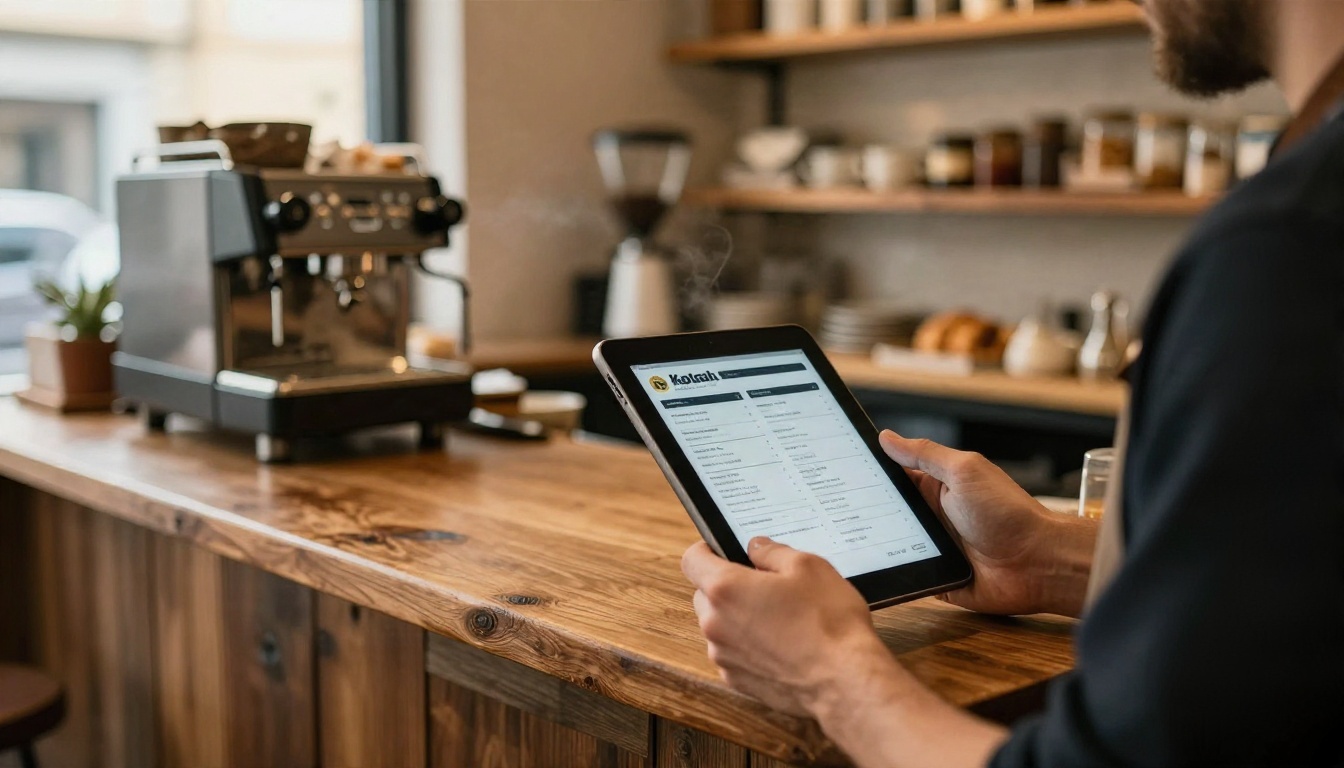
A café owner designs a 6-page menu with seasonal drinks, pastries and allergen notes. She uploads the PDF, adds a QR code to each table and puts the link in her Instagram bio. When the autumn menu arrives, she replaces the file. The QR codes on the tables never change, and nothing needs reprinting.
A Property Brochure for Buyers

An agent builds a 10-page brochure for each listing: exterior photo, room-by-room images, floor plan, neighborhood map and contact page. During viewings she opens it on a tablet. Afterward she emails the link so buyers can revisit it at home. With the Professional plan, she also sees which brochures get read to the last page. The Real Estate Brochure creator was made for exactly this.
A Course Handout for Students
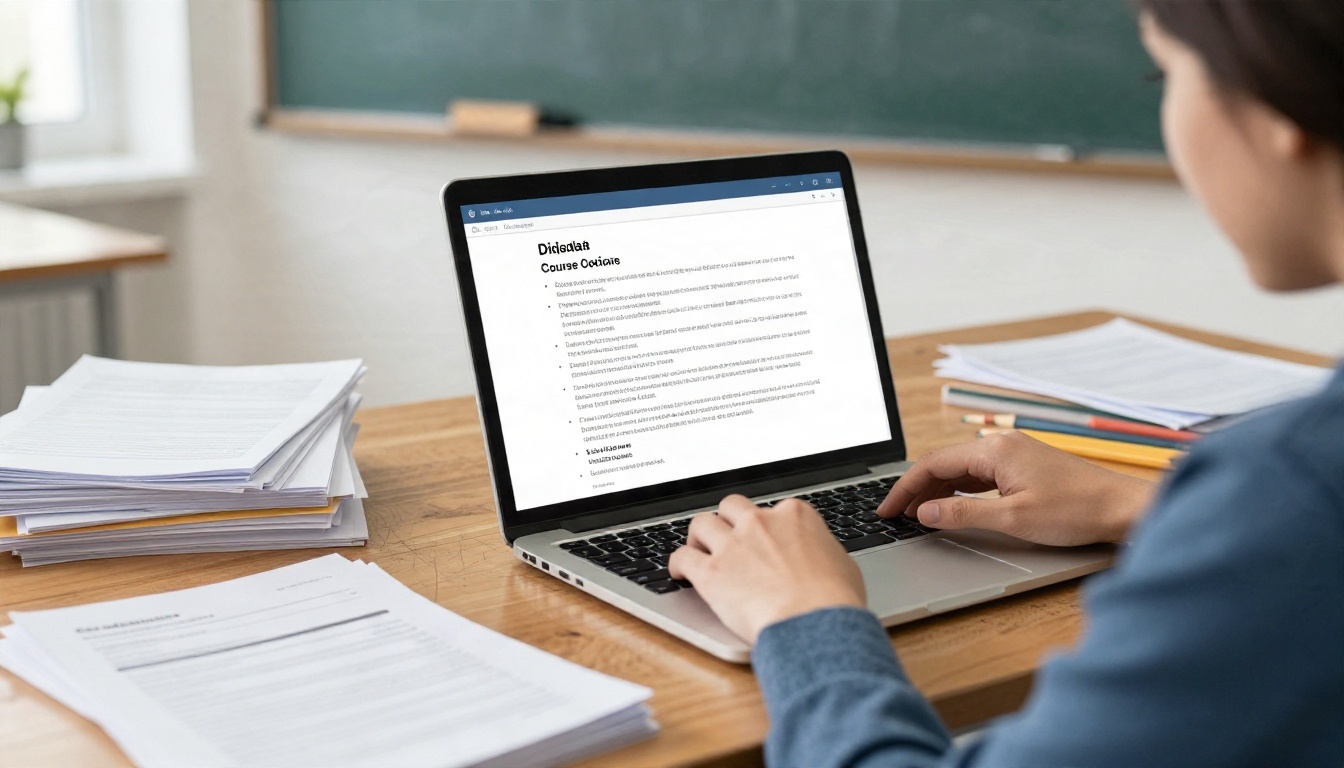
A teacher turns weekly worksheets into a single 12-page booklet with embedded video explanations. Students open it on phones during the commute. Parents get a password-protected link. The Course Material Publisher keeps the layout consistent from week to week.
Mistakes to Avoid
Even a good tool cannot rescue a booklet with basic flaws. These are the problems that show up most often.
Too Much Text Per Page
Readers skim on screens. Keep paragraphs to three lines, use headings and let images carry part of the message. If a page looks dense on your laptop, it will look worse on a phone.
Tiny Fonts and Weak Contrast
Use body text of at least 12 points in the original PDF. Avoid light gray text on white and avoid text over busy photos without a solid panel behind it.
Forgetting the Call to Action
A booklet without a next step is a missed chance. Add a clickable button, a phone number, a booking link or a QR code on the last page, and repeat it on at least one middle page.
Skipping the Phone Test
Always open the finished booklet on a real phone before you share it. Check that links work, images load and the first page looks right. It takes two minutes.
Measure and Improve
Once the booklet is live, treat it as a working document rather than a finished object.

With analytics on the Professional plan, check three numbers each week:
| Metric | What it tells you | What to do about it |
|---|
| Opens | How many people clicked your link | If low, change the subject line or post copy |
| Pages read | Where readers lose interest | Shorten or reorder the pages after the drop |
| Link clicks | Which offers get attention | Move strong links earlier in the booklet |
Update the booklet whenever something changes. Prices, opening hours and dates go out of date quickly, and a stale booklet costs trust.
Publish Your First Booklet Today
You now have everything you need: a plan, a short list of tools, templates matched to your topic and a set of sharing options. The fastest way to learn what works is to publish something small and improve it.
Ready to start? Create your free account on Flipbooks AI, upload a PDF and have a shareable link in minutes. Browse the tools and templates to pick a layout for your topic, and check the pricing plans when you need unlimited booklets, analytics or lead capture. If you are ready to go further, compare plans and upgrade whenever it suits you.



