Looking for an HTML5 flipbook template that works on every device? See free design styles, real examples by industry, the page sizes that print and display best, and every way to embed a flipbook on your website, with tables, tips and a short tutorial.
A PDF sitting in an email attachment gets skimmed for eight seconds and forgotten. The same file as an HTML5 flipbook template opens in the browser, turns pages with a soft curl, and works on a phone without pinching or zooming. If you want that result without hiring a developer, Flipbooks AI turns a PDF into a shareable flipbook in minutes. This article shows which free designs are worth using, what real examples look like, which page sizes behave best, and how to embed the finished flipbook anywhere.
What an HTML5 Flipbook Template Is
An HTML5 flipbook template is a pre-built layout and set of behaviors that wraps your pages in a page-turning viewer. It runs in any modern browser, so there is no plugin to install and nothing for your reader to download.
Why HTML5 Replaced Flash
Older flipbooks relied on Flash, which phones never supported and browsers eventually blocked. HTML5 uses standard web technology, so the same flipbook loads on a laptop, a tablet and a phone. It is also indexable, fast and safe.
What a Template Controls
The template decides how the viewer looks, not what your content says. Most templates control these things:
Page-turn style: realistic curl, slide or simple fade
Toolbar: zoom, thumbnails, full screen, share and download buttons
Background: solid color, gradient or a branded image
Layout mode: single page, two-page spread or auto-switch by screen width
Sound: optional page-flip audio
💡 Pro tip: Choose the template after you know your content. A photo-heavy portfolio needs a wide, quiet background. A price list needs fast zoom and clear thumbnails.
Free Designs Worth Using
"Free" should never mean a watermark across every page. On Flipbooks AI the output stays clean, with no watermarks, ever. Here are the design families that cover most projects.
Catalog and Brochure Layouts
These layouts favor a white or light grey backdrop so product photography stays the focus. Expect a visible thumbnail strip and a prominent zoom control. They suit the Product Catalog Generator and the Brochure Flipbook Maker.
Magazine and Portfolio Layouts
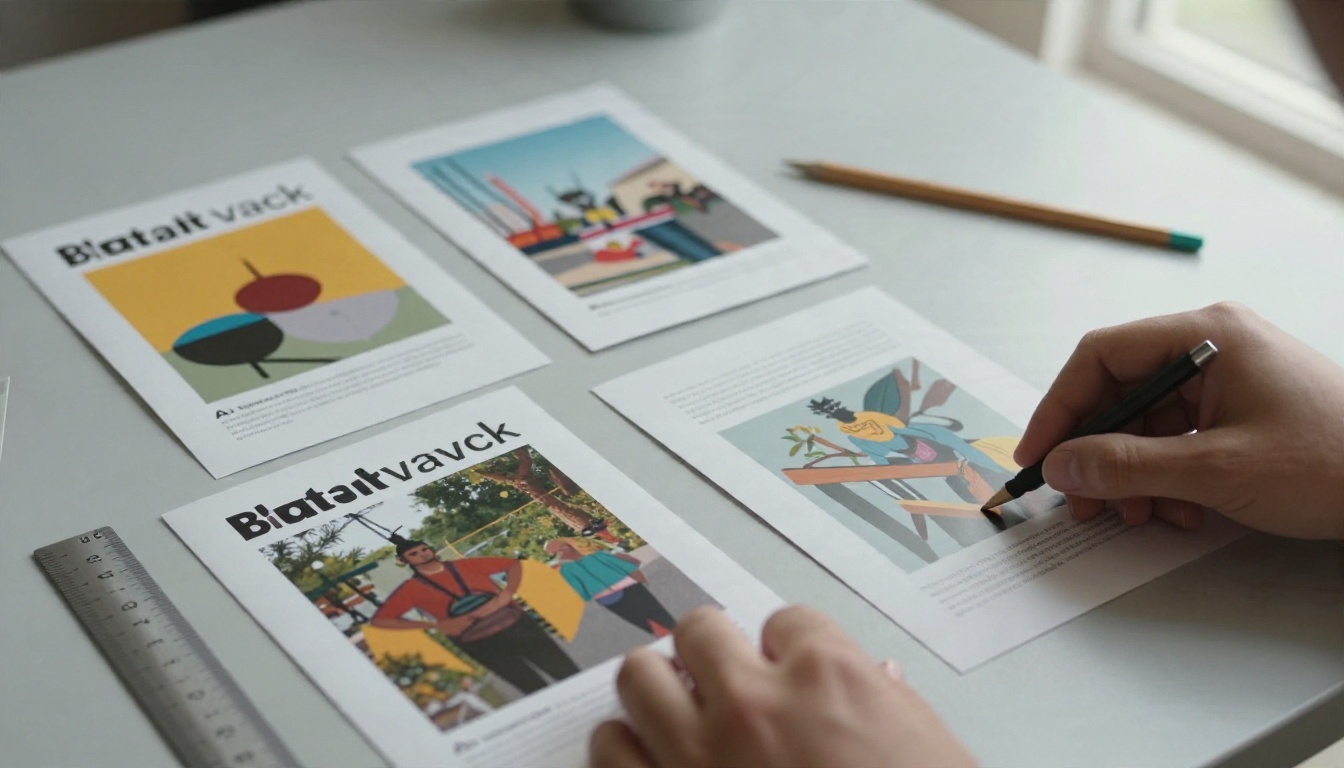
Here the spread is the hero. A dark or neutral stage with a gentle shadow under the pages makes photography feel like a printed object. Try the Magazine Flipbook Creator or the Digital Portfolio Creator.
Menu and Price List Layouts
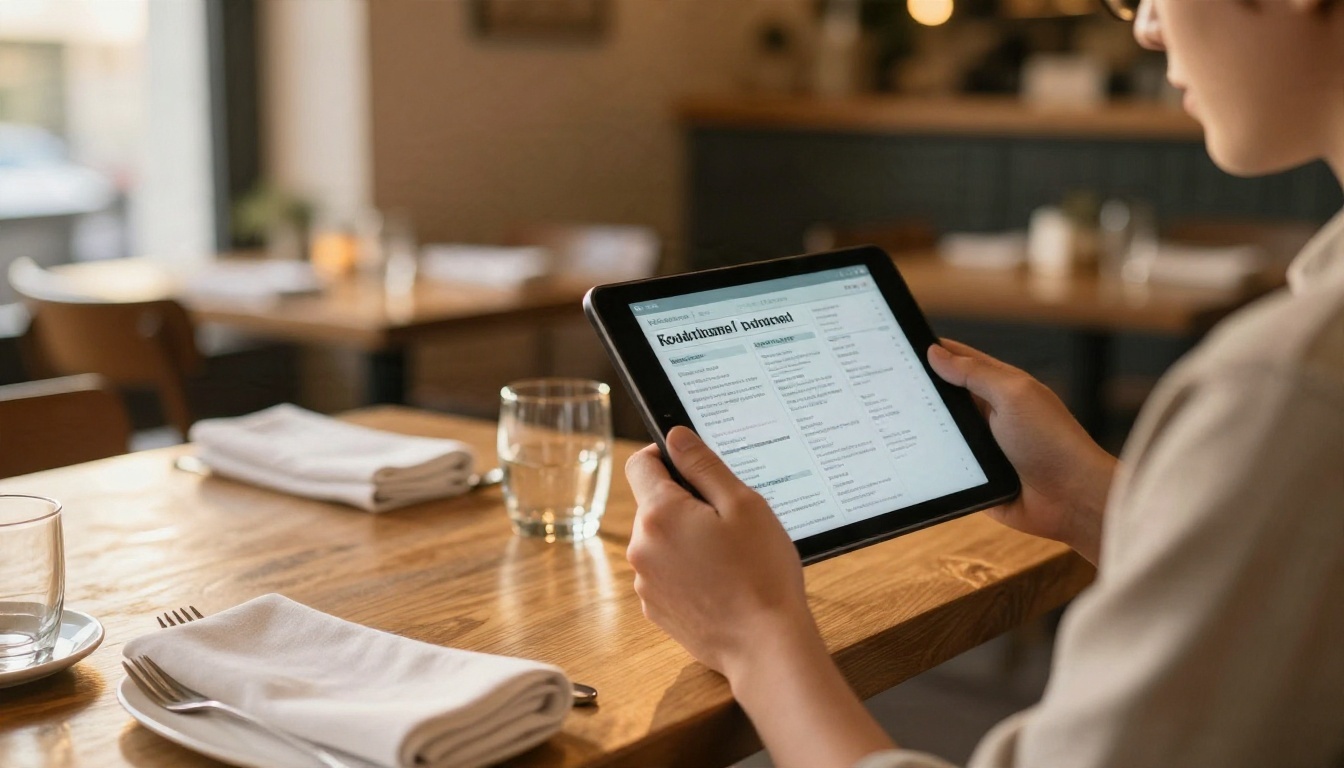
Menus need speed. Readers are hungry and standing at a table, so the best layouts load fast, use a large font on the toolbar, and open on a single page for phones. The Restaurant Menu Creator and the Digital Price List Generator follow this approach.
Design family
Best for
Background
Page-turn style
Mobile mode
Catalog
Products, furniture, fashion
Light grey or white
Soft slide
Single page
Magazine
Editorial, newsletters
Dark neutral
Realistic curl
Single page
Portfolio
Photography, design work
Charcoal or black
Fade or curl
Single page
Menu
Restaurants, spas, cafes
Warm tone
Quick slide
Single page
Report
Annual and corporate reports
White with brand accent
Slide
Single page
Real Examples by Industry
Templates look abstract until you see them used. These are the setups that work well in practice.
A Restaurant Menu
A bistro uploads its seasonal menu as a PDF, picks a warm background, and prints a QR code on each table. When prices change, the owner replaces the PDF and the QR code keeps working. No reprinting, no sticky notes over old prices.
A Real Estate Brochure
An agent builds a property brochure with floor plans on page three and a contact page at the end. Readers zoom into the plans on a phone while standing outside the property. The Real Estate Brochure Creator is made for exactly this.
A Product Catalog
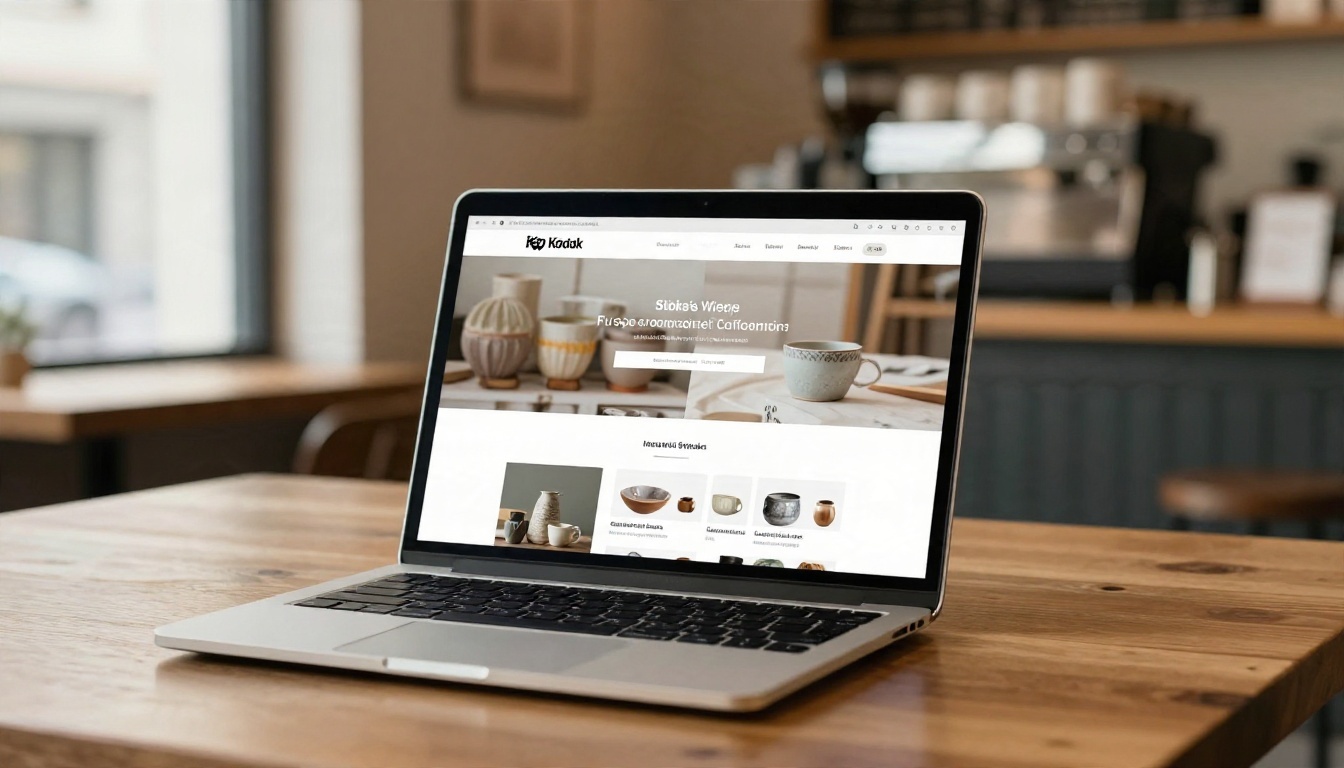
A ceramics shop publishes a 24-page catalog, embeds it on a "Wholesale" page and shares the direct link with trade buyers. The Digital Catalog Maker handles the conversion.
A Training Manual
A company turns a 60-page onboarding PDF into a flipbook protected by a password. New hires read it on a tablet, and managers know the content is current because there is only one live version. See the Training Manual Flipbook tool.
Use case
Typical page count
Suggested size
Sharing method
Restaurant menu
2 to 8
A4 portrait
QR code
Property brochure
8 to 16
A4 landscape
Direct link and email
Product catalog
20 to 60
Square or A4
Website embed
Training manual
30 to 100
A4 portrait
Password protected link
Photography portfolio
12 to 30
Landscape spread
Embed and social links
Page Sizes That Work
Size is the decision that is hardest to change later. If you pick the wrong ratio, every page needs a redesign. Choose before you start laying out.
Common Sizes Compared
Format
Dimensions (mm)
Ratio
Works well for
A4 portrait
210 x 297
1:1.41
Reports, manuals, menus
A4 landscape
297 x 210
1.41:1
Presentations, brochures
A5 portrait
148 x 210
1:1.41
Booklets, programs
US Letter
216 x 279
1:1.29
North American documents
Square
210 x 210
1:1
Catalogs, lookbooks, social sharing
16:9 slides
1920 x 1080 px
1.78:1
Sales decks, pitch decks
Single Page or Spread
On a desktop the viewer shows two pages side by side, like an open book. On a phone it should drop to one page. Design your PDF as single pages, not pre-joined spreads, and let the viewer handle the pairing. If you upload spreads as single pages, they will be shrunk to half size on a phone.
Resolution and File Weight
Aim for 150 to 200 DPI at final size. Anything higher mostly adds file weight without a visible gain on screens. A 40-page PDF under 25 MB loads quickly on a normal mobile connection.
⚠️ Watch out: Mixing page sizes in one PDF produces uneven pages and odd white margins. Keep every page at the same dimensions.
Embed Options Compared
Once the flipbook exists, you decide where it lives. You have more choices than most people expect, and you can combine them.
Iframe Embed
The iframe is the standard option. You paste a short snippet into your page and the flipbook appears inline. A typical snippet looks like this (the link below is a placeholder):
Use a percentage width so it adapts to the column. Set a height of at least 500 pixels for desktop. The Embed Flipbook on Website tool gives you a ready-made snippet.
Direct Link and QR Code
A direct link works in email, chat, social bios and PDF footers. Turn it into a QR code for menus, posters, packaging and business cards. Since the link stays the same when you update the file, printed QR codes never go out of date.
Password Protected Sharing
For private material such as price lists for trade partners or internal manuals, add a password. Readers get the same viewer, but only with the code you share.
Option
Setup effort
Updates automatically
Best for
Privacy control
Iframe embed
Low
Yes
Websites, landing pages
Page-level
Direct link
None
Yes
Email, social, chat
Link-level
QR code
Low
Yes
Print, signage, packaging
Link-level
Password link
Low
Yes
Private documents
Strong
Offline download
None
No
Fieldwork, trade shows
Depends on file sharing
Responsive Embedding Tips
Use width="100%" and avoid fixed pixel widths.
Place the embed in a full-width section so spreads stay legible.
Test on a real phone, not only a resized browser window.
Add a text link under the embed as a fallback.
How to Create an HTML5 Flipbook with Flipbooks AI
This takes about five minutes if your PDF is ready. Here is the full process.
Wait while the pages convert. Text stays sharp and images stay in their original quality.
Check the page order in the thumbnail view. Fix anything out of place in your source file and upload again.
Customize the Look
Choose a template that fits your content type.
Add your logo and set the brand colors for the toolbar and background.
Pick a page-turn effect: curl for editorial work, slide for catalogs.
Embed videos and audio on pages where they help, for example a product demo on page five.
Preview on desktop and phone before moving on.
Share and Embed
Copy the direct link for email and social posts.
Copy the embed code for your website.
Turn on password protection if the content is private.
Generate a QR code for printed material.
Pro Features
The Professional plan adds analytics so you can see which pages get read, plus lead generation to collect emails before someone opens the flipbook. Offline downloads let readers keep a copy for places without signal. Standard plans and above include unlimited flipbooks, so you can publish a new template for every campaign.
✅ Best practice: Name each flipbook after its purpose, such as "Spring Wholesale Catalog", not "Final v3". You will thank yourself when you have thirty of them.
Customizing Without Breaking the Design
A free template is a starting point. A few small changes make it look unique, and a few careless ones make it look cluttered.
Brand Colors and Typography
Pick one accent color for buttons and toolbar icons. Keep the background neutral. Your PDF carries the typography, so make sure fonts are embedded when you export.
Add Multimedia Sparingly
A short video on a product page can lift attention. A video on every page slows loading and distracts. Limit multimedia to three or four moments that actually help the reader.
Element
Do
Skip
Logo
One, in the toolbar
Repeating on every page
Colors
One accent and one neutral
Four competing colors
Video
Demo or welcome clip
Autoplay on every page
Audio
Optional page-flip sound
Background music that cannot be muted
Links
Clear buttons to contact or buy
Tiny text links in dense paragraphs
Common Mistakes to Avoid
Exporting at the wrong size. Decide on A4, square or landscape before design starts.
Uploading pre-joined spreads. They shrink badly on phones.
Using huge images. A 120 MB PDF frustrates mobile readers. Compress photos to a sensible size.
Hiding the share link. If readers cannot find it, they cannot pass it on.
Skipping the phone test. More than half of your readers will probably be on mobile.
Forgetting an end page. Finish with a clear next step: phone number, order link or contact form.
⚠️ Accessibility note: Keep body text large enough to read at phone width, and keep contrast high between text and background.
Pick Your Template Today
The best HTML5 flipbook template is the one that fits your content, your page size and the place your readers will open it. Start with a simple layout, test it on your phone, then refine.