You finished a layout, a client is waiting, and one question keeps nagging you: can you legally charge for work made in a free app? For Affinity, the short answer is yes, and that changed the math for a lot of freelancers, small shops and agencies. Once your design is done, the next step is getting it in front of people, and that is where a tool like Flipbooks AI turns a flat PDF into something readers can actually flip through. This article walks through licensing, pricing, PDF export settings, alternatives and a practical publishing workflow.
💡 Quick take: The current Affinity app from Canva is free to download and free to use for commercial projects. Optional AI and cloud extras sit behind a paid Canva plan. Always confirm the latest terms on the official Affinity site before you sign a client contract, because licensing pages get updated.
The Short Answer on Commercial Use
Affinity used to be famous for one thing: a one-time purchase that undercut Adobe's subscriptions. Then Canva, which owns the brand, released a new version of the software that combines vector, pixel and page layout work in a single application and made it free. Free here is not a trial. There is no watermark on your exports, no time limit, and no rule that says you cannot invoice for what you make.
That matters because most people searching this question are not hobbyists. They are designers pricing a logo, shop owners laying out a price list, or marketers building a PDF brochure on a tight budget.
What the Free Version Includes
The free app bundles the tools that used to be sold as three separate products. In practice you get:
- Vector tools for logos, icons and illustrations
- Pixel tools for photo retouching, masking and compositing
- Layout tools for multi-page documents, master pages, text frames and baseline grids
- Export options for PDF, PNG, JPEG, SVG and other common formats
- Local file saving, so your projects stay on your own drive
You will need a free Canva account to sign in, which some people dislike, but it does not cost anything.
Where Paid Features Still Appear
Free does not mean every feature is unlocked. The pieces that tend to require a paid Canva subscription are the cloud and AI extras, such as generative tools and some asset libraries. Core design, layout and export work does not depend on them.
| Capability | Free app | Paid Canva plan |
|---|
| Vector, pixel and layout work | Yes | Yes |
| Commercial use of your finished designs | Yes | Yes |
| Watermark-free export | Yes | Yes |
| PDF export with print presets | Yes | Yes |
| AI generation and some cloud features | Limited or no | Yes |
| Premium stock and template libraries | Limited | Yes |
What About the Older Affinity Apps?
If you bought Affinity Designer 2, Photo 2 or Publisher 2 earlier, those perpetual licenses are still yours. You can keep using them commercially, and files are generally compatible with the newer app. That is a nice safety net if you prefer software that never depends on an account.

Affinity Pricing at a Glance
Pricing is the reason this software got so much attention. Compare the old model, the new model and the usual competitors and the gap is obvious.
Free App vs Paid Extras
The free app costs nothing. If you want the AI features and extra content from Canva, you pay Canva's regular subscription price, which is typically billed monthly or yearly. Prices change by region, so check the live page rather than trusting a number in a blog post.
The Real Cost for a Freelancer
Software is only one line item. A realistic yearly budget for a solo designer includes:
- Design software, which can now be zero
- Fonts, since commercial font licenses are separate from your app license
- Stock photography, where each image carries its own license
- Hosting or publishing tools for delivering the finished piece
- Backup storage for client files
⚠️ Warning: A free app license does not cover the assets inside your design. A font, photo or icon pack may have its own commercial restrictions. Read them before delivering work to a client.
| Cost item | Free app route | Subscription route |
|---|
| Layout software | $0 | Monthly fee |
| Fonts | Free or purchased separately | Free or purchased separately |
| Stock images | Per image or per pack | Often bundled with limits |
| Publishing | Depends on your tool | Depends on your tool |
| Year one software total | Very low | Noticeably higher |
How PDF Export Works in Affinity
Your client rarely wants a native project file. They want a PDF that looks right on a phone, on a laptop and on a printer. Affinity handles this well, but the settings you pick change the result more than you might expect.
Choosing the Right PDF Preset
Open the export dialog and you will see presets built for different jobs. Think about where the file is going before you click anything.
- PDF (digital, small size): Best for email attachments and quick web previews
- PDF (digital, high quality): Good for screen reading with sharp images
- PDF (press ready): Keeps resolution high and respects bleed for commercial print
- PDF/X variants: Used when a print shop asks for a specific standard
✅ Best practice: When a printer gives you a spec sheet, match it exactly. If they do not give one, ask. A two-minute email saves a reprint.
Export Settings That Matter
Most export problems come from five settings. Check them every time.
| Setting | What it controls | Typical choice |
|---|
| Resolution | Image sharpness | 150 dpi for screen, 300 dpi for print |
| Color space | How colors reproduce | RGB for screen, CMYK for most print jobs |
| Bleed | Extra margin for trimming | 3 mm or 0.125 in for print |
| Embedded fonts | Keeps type consistent | Always on |
| Compression | File size vs quality | Higher quality for print, balanced for web |
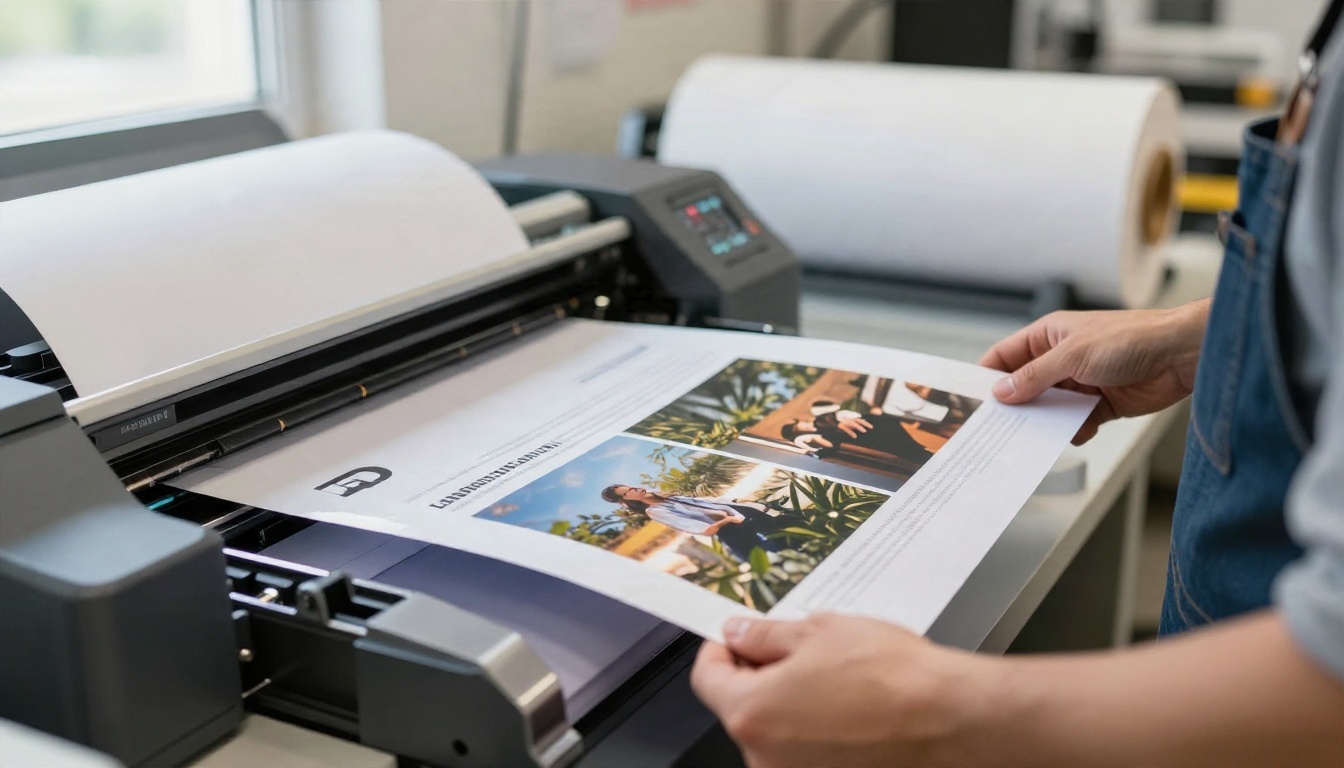
A few mistakes show up again and again:
- Exporting a print PDF at screen resolution, which makes photos look soft
- Forgetting bleed, so white slivers appear at the edge after trimming
- Leaving fonts unembedded, so a client's computer swaps them
- Sending a 200 MB file by email when a compressed version would do
Affinity vs the Alternatives
Free for commercial use is a strong selling point, but it is not the only option. Here is how the field looks.
Free Options Worth Knowing
- Scribus: An open-source page layout program with solid print features, though the interface feels dated
- Inkscape: A capable free vector editor for logos and illustrations
- GIMP: The long-standing free alternative for photo editing
- Canva (free tier): Easy templates and fast results, with limits on premium content
- Photopea: A browser-based editor that opens many file types
Paid Options and What You Get
- Adobe InDesign: The industry standard for complex publications, sold by subscription
- Adobe Illustrator and Photoshop: Familiar to most agencies, which helps when you share files
- Figma: Excellent for interface and collaborative work, less focused on print layout
- QuarkXPress: A long-time publishing application with a loyal base
| Tool | Cost model | Best for | Print-ready PDF |
|---|
| Affinity | Free app | Freelancers, small businesses | Yes |
| Scribus | Free, open source | Budget print layout | Yes |
| Canva free | Free with limits | Quick social and simple documents | Basic |
| InDesign | Subscription | Large agency publishing | Yes |
| Figma | Free and paid tiers | Screen design, teams | Limited |
| QuarkXPress | License or subscription | Legacy publishing workflows | Yes |

Instead of picking by brand loyalty, pick by the job. Here are a few real situations.
- A freelance designer building client brochures: Affinity gives you professional layout and print PDFs without a monthly bill. You keep more of each invoice.
- A boutique owner updating a seasonal lookbook: Canva's templates are quick, and Affinity is better when you want tighter control over typography and spacing.
- A design agency that exchanges files with big brands: InDesign may still be the safe choice because clients often request native files in that format.
- A student on a zero budget: Affinity or Scribus plus a free vector tool covers most coursework.
- A restaurant updating a menu every month: A simple layout in Affinity exported to PDF, then published online, is fast and cheap.
| Scenario | Recommended tool | Why |
|---|
| Solo brochure designer | Affinity | No subscription, strong print output |
| Quick social graphics | Canva | Templates and speed |
| Large publication with a team | InDesign | Industry file compatibility |
| Open-source preference | Scribus and Inkscape | Fully free and community supported |
| Interactive web publishing | Any layout tool plus Flipbooks AI | Turns the PDF into a page-turn experience |
Turn Your Affinity PDF Into a Flipbook
A PDF is a fine delivery format, but it is also a static file. Readers download it, skim page one and close it. Converting it into a page-turn flipbook gives you a link you can share, embed and track. This is where Flipbooks AI fits into the workflow: you design in Affinity, export a PDF and publish it in minutes.
If you are working on a specific type of document, these tools are useful starting points: the Digital Catalog Maker, the Online Brochure Designer, the Digital Portfolio Creator and the Interactive Lookbook Designer. You can browse every option in the tools directory.
How to Create a Flipbook from Your Affinity PDF
- Export your PDF from Affinity. Use the digital high-quality preset for screen reading. Keep fonts embedded and images at around 150 dpi to balance quality and load speed.
- Open the converter. Go to the PDF to Flipbook Converter or create an account to get started.
- Upload the PDF. Drag the file into the upload area. The platform converts each page into a flippable spread and keeps your typography and images sharp.
- Check the preview. Flip through every page on desktop and mobile view. Look for cut-off text or images that need re-exporting.
- Publish. Copy the share link or the embed code and place it where your audience already is.

Customize the Look
Your design already looks good, so keep the viewer from competing with it. Adjust the following:
- Branding: Add your logo and pick a background color that matches the brand palette
- Page effects: Choose a page-turn style and speed that feels natural, not distracting
- Multimedia: Add video or audio where it helps, such as a product demo on a catalog page
- Mobile layout: Flipbooks adapt to small screens, so test on a phone before you send the link
💡 Pro tip: If you sell a catalog, put the most popular product on the first spread. Most readers decide in the first few pages whether to keep going.
Share and Protect It
| Sharing option | Best use |
|---|
| Direct link | Email, messaging apps, social bios |
| Embed code | Your website, landing pages, online portfolio |
| Password protection | Client proofs, private price lists, internal documents |
| Offline download | Trade shows and low connectivity situations |
See how to place it on your own site with the Embed Flipbook on Website tool. There are no watermarks on the output, which matters when a client expects a clean, branded result.
Track What Readers Do
On the Professional plan you get analytics and lead generation. You can see which pages get attention and collect contact details before someone opens a gated document. That is useful for agencies who want to prove results to clients, or for shops testing which products draw interest. Compare pricing plans to pick the level that fits your volume. Standard plans and above include unlimited flipbooks.
Mistakes to Avoid Before You Sell Work
Even with a free license, a few slips can cost you money or credibility.
- Assuming assets are free. Fonts, photos and icons each have their own terms.
- Skipping the license page. Terms can change. Save a screenshot of the current version for your records.
- Delivering the wrong PDF. Send a print PDF to a printer and a lightweight PDF to the screen reader. Do not mix them up.
- Ignoring accessibility. Use readable type sizes, strong contrast and alt text when your platform supports it.
- Forgetting backups. Keep project files in two places, since a free app does not mean free data recovery.
- Never testing on mobile. More than half of web reading happens on phones, so check small screens first.
⚠️ Heads up: If your client needs native files in a different format, confirm that before you start. Switching tools halfway through a project is expensive.
A Simple Pre-Delivery Checklist
- Fonts embedded and licensed for commercial use
- Images at the correct resolution
- Bleed and crop marks set for print jobs
- PDF compressed for web delivery
- Share link tested on desktop and mobile
- Password set when the content is private
Ready to Publish Your Design?
So, is Affinity free for commercial use? Yes, the current app lets you design, export and invoice without paying for the software, with optional paid extras through Canva. Pair that with careful PDF export settings and you have a professional pipeline that costs very little to run.
The last step is delivery. Instead of emailing a heavy attachment, get started for free on Flipbooks AI and turn your PDF into an interactive flipbook with your own branding. Browse all tools and templates to find one that matches your project, or compare pricing plans when you are ready to add analytics, lead capture and unlimited flipbooks.



