A 38 MB proposal bounces back from your client's inbox. You compress it, lose the sharp photos, resend it, and then realize the old version is still floating around in three other threads. Sound familiar? A PDF link share fixes all of that. You upload the file once, send one short URL, and everyone sees the same, current document. Tools like Flipbooks AI go one step further and turn the PDF into a page-turning online reader, so recipients can read it in a browser without saving a copy.
This article compares the free ways to share a PDF by link, shows which link settings actually matter, and explains what "no-download sharing" can and cannot do. You will also see a step-by-step setup, real use cases, and the mistakes that cause most sharing headaches.
Why Email Attachments Fail
Email was built for messages, not for documents that change. Once a PDF is attached, you lose control of it. You cannot update it, you cannot see who opened it, and you cannot take it back.

The Size Limit Problem
Most mailbox providers cap attachments at roughly 20 to 25 MB, and the limit applies to the encoded message, which is larger than the file itself. A brochure with full-resolution photography blows past that easily. Many people then fall back on compressing the PDF, which softens images and makes small text harder to read.
A link has no such ceiling. The recipient gets a few characters of text, and the file stays on a server built to deliver it.
The Version Mess
Every attachment is a snapshot. If you fix a price on page 6 an hour after sending, the old copy still sits in every inbox. With a shared link, you replace the source file or re-upload it, and people who open the link see the newer version.
💡 Pro tip: If your document changes often, such as a price list or a menu, a link is not just convenient. It is the only way to avoid people quoting outdated numbers.
Free Online Options Compared
There are three broad families of free PDF link sharing. Each one trades something: simplicity, privacy, or reading experience.

Cloud Storage Links
Google Drive, Dropbox, and OneDrive all let you create a share link for a file. They are familiar, and most people already have an account. The downside is that the recipient often lands in a file viewer designed for storage, not for reading. Some free tiers also limit advanced link controls such as passwords and expiry dates, so check your plan before promising a client a locked link.
Dedicated Flipbook Links
A flipbook host converts your PDF into a web reader with page turns, zoom, and a clean layout, then gives you a link or an embed code. This is where the PDF to Flipbook Converter fits. The reading experience is closer to a magazine than a file preview, which matters when the PDF is a catalog, lookbook, or portfolio.
Quick Upload Sites
Temporary file transfer sites give you a link in seconds with no account. They are fine for a one-off hand-off between colleagues. They are a poor choice for anything you want to look professional, because the link often expires, the page shows ads, and there is rarely any control over who opens it.
| Option | Setup Time | Reading Experience | Password Option | Best For |
|---|
| Cloud storage link | 1 minute | Basic file viewer | Often paid plans only | Internal documents |
| Flipbook link | 2 to 3 minutes | Page-turning web reader | Yes | Catalogs, brochures, proposals |
| Quick upload site | 30 seconds | Download page | Rare | One-off transfers |
| Email attachment | Instant | Opens in local app | No | Small, final files |
Link Settings That Matter
A link is only as safe as its settings. Before you press "copy," check these three groups of options.
Access Level
The first question is who can open the link. You usually see two choices: anyone with the link, or specific people who must sign in. "Anyone with the link" is convenient, but treat it as public. If the URL is forwarded or posted, anyone can open it.
Passwords and Expiry
A password adds a second step without forcing anyone to create an account. An expiry date makes the link stop working after a deadline, which suits time-limited offers, tender documents, and review rounds.
⚠️ Warning: Never send the password in the same message as the link. Send it by text message or another channel, so one leaked email does not expose the file.
View Only vs Download
This is the setting people ask about most. A view-only link lets the recipient read the document in the browser. A download-enabled link also lets them save a PDF copy. Choose view-only when the content is a draft, a price list, or anything you do not want circulating as a file.

| Setting | What It Does | When to Use It |
|---|
| Public link | Anyone with the URL can read | Marketing material, public catalogs |
| Password link | Needs a code before opening | Client proposals, private reports |
| Expiry date | Link stops working after a date | Offers, tenders, review rounds |
| View only | Hides the download button | Drafts, price lists, internal docs |
| Download allowed | Reader can save an offline copy | Manuals, forms, receipts |
What No-Download Sharing Really Means
Here is the honest part. No-download sharing removes the download button. It does not make copying impossible. A determined person can take a screenshot, photograph the screen, or retype the text. No web viewer can stop that, and any tool that promises otherwise is overselling.
What view-only sharing does well is stop casual redistribution. Most people forward a PDF because it is a single click. When the only option is a link, forwarding becomes less tempting, and you keep the original in one place where you can change or remove it.
What You Get
- No loose copies in downloads folders
- One place to update or delete the document
- A cleaner reading experience on phones and tablets
- Optional password and expiry controls
What You Do Not Get
- Protection against screenshots or screen recording
- Control over content someone has already memorized or noted
- A substitute for legal agreements on sensitive material
✅ Best practice: For truly confidential documents, combine a password, a short expiry date, and a written confidentiality agreement. Technology reduces casual leaks; it does not replace trust.
Share a PDF Link in Flipbooks AI
Here is a practical setup using a flipbook host. The steps are similar on most platforms, but this example uses Flipbooks AI, which has no watermarks and works well on mobile screens.
Step 1: Create Your Account
Go to Flipbooks AI and sign up. You can compare plan limits on the pricing page if you plan to publish many documents, since unlimited flipbooks start on the Standard plan.
Step 2: Upload and Convert
- Open the dashboard and choose to create a new flipbook.
- Drag your PDF into the upload area.
- Wait a few seconds while the pages are converted into a flipbook.
- Check the page order and the first page, since that is what readers see first.
Large files are fine here, because the file is read in the browser instead of sent through a mailbox.
Step 3: Customize the Look
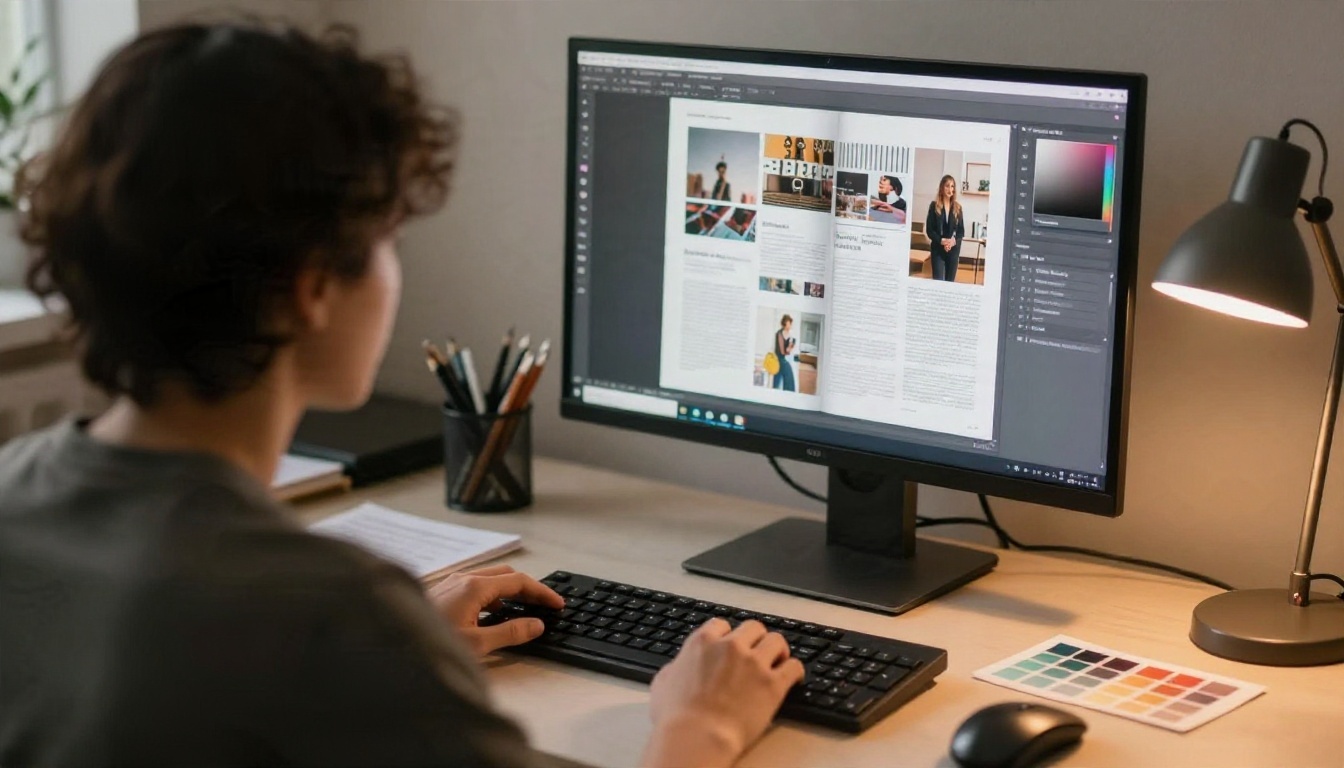
Add your custom branding so the reader feels like part of your site. You can adjust background colors, choose a page-turn effect, and add your logo. If the document benefits from motion, you can embed videos and audio on selected pages. Everything stays mobile-responsive, so a phone user does not have to pinch and scroll sideways.
Step 4: Set Your Sharing Options
- Copy the direct link for emails and messages.
- Turn on password protection for private content.
- Copy the embed code if you want the flipbook inside a page. The Embed Flipbook on Website tool shows how.
- Decide whether to allow offline downloads. Leave it off for view-only sharing.
Step 5: Track Who Reads It
On the Professional plan, you get analytics and lead generation. You can see how readers move through the document, and you can ask for an email address before they open it. That is useful when the PDF is a sales asset, because you learn who is genuinely interested instead of guessing. See the pricing plans for what each tier includes.
| Feature | Free Cloud Link | Flipbooks AI Flipbook |
|---|
| Page-turning reader | No | Yes |
| Watermark on output | No | No |
| Password protection | Depends on plan | Yes |
| Custom branding | Rare | Yes |
| Embed on your website | Limited | Yes |
| Analytics and lead capture | Basic or none | Professional plan |
| Mobile-responsive layout | Basic | Yes |
Real Examples by Use Case
Abstract settings are easier to choose when you picture a real situation.
Restaurant Menus
A restaurant changes its menu with the seasons. Printing is slow and QR codes pointing to a static PDF get stale. With a link, the owner re-uploads the file and the same QR code shows the new menu. The Restaurant Menu Creator suits this case, and a public view-only link is enough, since the menu is meant to be seen by everyone.

Real Estate Brochures
An agent sends a listing brochure to a couple who are comparing three houses. A large PDF full of photos is slow on mobile data. A flipbook link opens quickly, looks polished, and can be updated if the price drops. The Real Estate Brochure tool is built for this workflow.

Consultant Proposals
A freelancer sends a quote with day rates and terms. Here a password plus a 14-day expiry makes sense. The client reads the proposal, the link dies after the decision window, and old pricing does not circulate for months. For a polished result, try the Presentation Flipbook Designer or the Sales Presentation tool.
Team Reports
A small team can share one report link instead of five edited copies. With analytics on, the manager sees which sections were opened, and nobody wastes time asking whether the latest file was the one in the group chat.

Mistakes to Avoid
Most link-sharing problems come from a handful of repeat errors.
- Leaving "anyone with the link" on for private files. Check the setting every time, not just the first time.
- Sending the password beside the link. Use a separate channel.
- Forgetting expiry on temporary offers. An old discount link can come back to bite you.
- Uploading the wrong version. Open the converted file once before you send it.
- Assuming view-only means secure. It reduces casual copying only.
- Ignoring mobile. Open the link on your own phone before sending it to a client.

💡 Quick check before sending: Open the link in a private browser window. If it opens without a sign-in or password, so will it for everyone else.
Share Your First PDF Link Today
You do not need a paid tool to share a PDF by link, but you do need to pick the right option for the job. Use a cloud storage link for internal files, a quick upload site for one-off transfers, and a flipbook for anything that represents your brand. Whichever route you choose, set the access level, add a password or expiry when the content calls for it, and remember that view-only sharing discourages copying without fully preventing it.
Ready to try it? Create your free account on Flipbooks AI, upload a PDF, and share your first link in a few minutes. Browse the full list of flipbook tools to find a template for catalogs, menus, brochures, or reports, and compare the pricing plans when you need analytics, lead capture, or unlimited flipbooks.



