You send a PDF with a clean row of buttons, a booking link and a price list, and a customer replies: "Nothing happens when I tap it." If you have ever dealt with PDF links not opening in Safari, you know how quickly a polished document turns into a support ticket. The good news is that the cause is usually small: a setting, a preview mode that strips interactivity, or a link that was never a real link in the first place.
This article walks through the fixes for iPhone and Mac, explains what Preview and Quick Look can and cannot do, and shows how to repair the PDF itself. If you would rather not depend on how each device renders a PDF at all, you will also see how a flipbook from Flipbooks AI keeps links clickable in any browser.
💡 Fast triage: open the same PDF in Safari on a Mac, then on an iPhone. If it works in one and not the other, the problem is a setting or a preview mode. If it fails in both, the problem is inside the file.
Why PDF Links Fail in Safari
Safari has its own built-in PDF viewer, and it handles standard link annotations well. When a link refuses to open, one of four things is usually going on. Knowing which one saves you from trying every fix on the list.
Links That Were Never Links
Many PDFs contain text that looks like a link (blue, underlined, starting with https://) but carries no clickable annotation. This happens when a document is printed to PDF, scanned and run through OCR, or exported with hyperlink options turned off. Safari cannot turn plain text into a link for you in every situation, so the tap does nothing.
A quick test: hover over the link on a Mac. If the cursor stays an arrow instead of turning into a pointing hand, the annotation is missing.
Preview and Quick Look Limits
The second cause is where the PDF is being opened. A PDF can show up in several places, and each one behaves differently:
- Safari's own viewer: supports link annotations, page jumps and mailto links.
- Mail and Messages thumbnails: a quick preview that may not respond to taps the way a full view does.
- Files app and Quick Look: good at reading, less reliable with unusual link types.
- Preview on Mac: handles standard web links, but not scripted actions, embedded media or some form behaviors.
- In-app browsers (social apps, email clients): often block or reroute links for their own reasons.
Here is how the common environments compare.
| Where the PDF opens | Standard web links | Internal page jumps | Embedded video or audio | Scripted buttons |
|---|
| Safari on Mac | Usually works | Usually works | Limited | Limited |
| Safari on iPhone | Usually works | Usually works | Limited | Limited |
| Preview on Mac | Works | Works | Not supported | Not supported |
| Quick Look or Files on iPhone | Varies | Varies | Not supported | Not supported |
| Mail or Messages preview | Varies | Varies | Not supported | Not supported |
| Third-party in-app browser | Varies | Varies | Varies | Varies |
"Varies" means it depends on the app and the iOS or macOS version, so test with your own file.
⚠️ If your PDF relies on JavaScript buttons or embedded media, expect it to break outside Adobe Acrobat. Apple's viewers favor simple, standard links.
Fixes for iPhone
Start here if the failure happens on a phone. These steps go from the quickest to the most unusual.
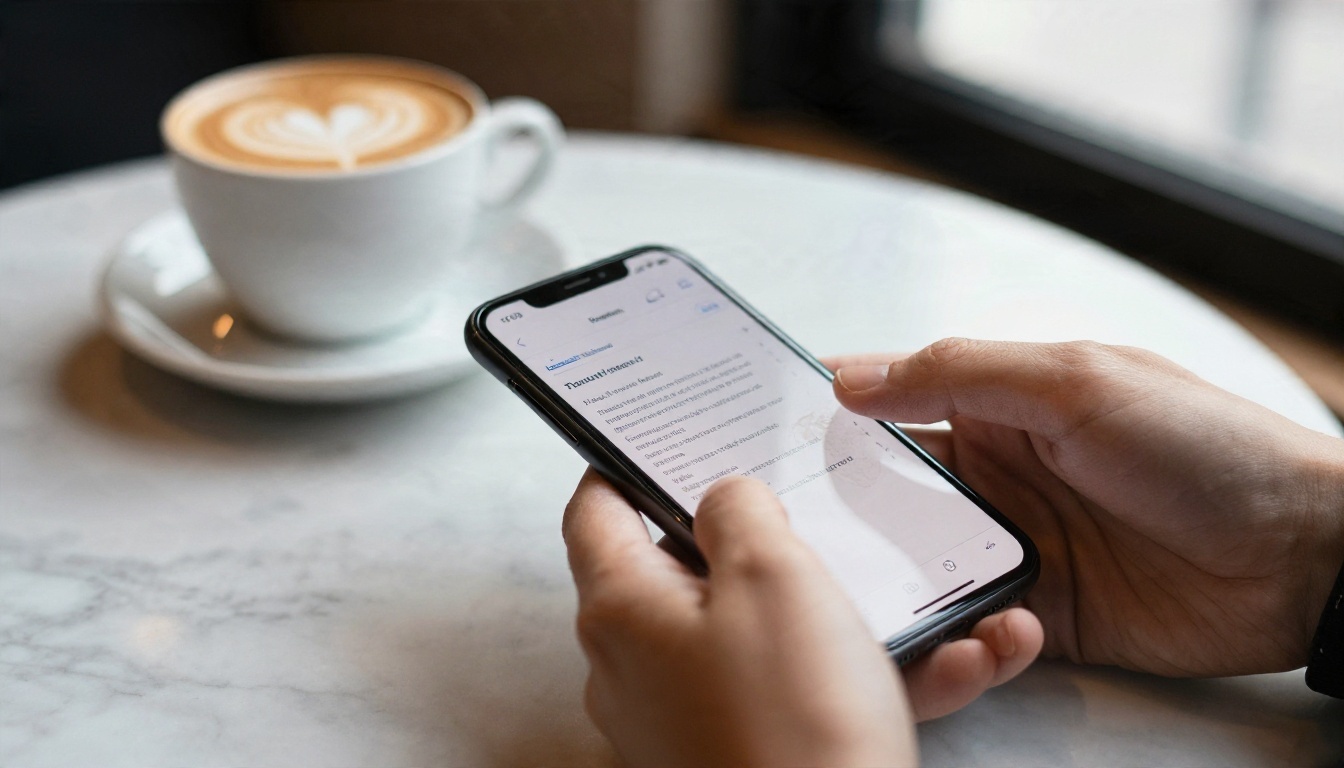
Open the PDF in Safari Itself
If the PDF came as an email attachment or a chat message, the thumbnail is not the real viewer. Open it properly:
- Tap the attachment to open the full preview.
- Tap the Share icon.
- Choose Open in Safari if the option appears, or save it to Files and open it from there.
- If the PDF is hosted online, copy its address and paste it into a Safari tab.
Loading the PDF from a web address in Safari is the most reliable path, because it uses Safari's own viewer rather than a mail or chat preview.
Check Pop-ups and Content Blockers
Some links try to open a new tab or window. If Safari blocks it, the tap looks dead.
- Go to Settings > Apps > Safari (on older iOS versions, Settings > Safari).
- Turn off Block Pop-ups temporarily and test again.
- Open Extensions and disable any content blocker, then retry.
- Check whether a VPN, DNS filter or privacy profile is blocking the destination domain.
Tip: if the link works with a blocker off, you have found your culprit. Add the destination to the blocker's allow list instead of leaving everything disabled.
Test Lockdown and Low Data Mode
Two less obvious settings can interfere:
- Lockdown Mode restricts several web features by design. If it is on, a PDF may behave differently. Try the document on a device without it.
- Low Data Mode can stop some pages from loading fully after the tap, so the link seems to fail when it is only slow.
If the destination page opens on cellular but not on a particular Wi-Fi network, the network is the cause, not the PDF.
💡 Long-press trick: press and hold a link in a PDF on iPhone. A menu with Open Link and Copy Link appears. If the menu shows up, the annotation is real and the problem is the destination or a blocker. If nothing appears, the link is just text.
Fixes for Mac Safari
On a Mac, the same PDF usually behaves better, which makes failures easier to pin down.
Safari Settings Worth Checking
Work through these in order:
- Open Safari > Settings > Websites > Pop-up Windows and allow pop-ups for the site hosting the PDF.
- Under Safari > Settings > General, check whether Open "safe" files after downloading is turned on. If a PDF downloads and opens in Preview instead of the browser, links may behave differently.
- In Settings > Extensions, disable ad blockers and privacy tools one at a time.
- Clear the cache with Develop > Empty Caches (enable the Develop menu in Settings > Advanced if you cannot see it), then reload.
- Test in a Private window, which loads without extensions in many setups.
When Preview Gets in the Way
Preview is a fine reader, but it is not built for interactive documents. A few things to know:
- Standard web links open in your default browser. If your default browser is misconfigured, the click appears to do nothing. Check System Settings > Desktop & Dock > Default web browser.
- mailto links need a default mail app. Without one, nothing opens.
- Embedded video, audio and JavaScript are not supported.
- Links to local files or network paths often fail because the reader does not have access.
To compare behavior, right-click the PDF in Finder and choose Open With, then try both Safari and Preview.
Symptom and Fix Reference
| What you see | Likely cause | First thing to try |
|---|
| Cursor stays an arrow over a link | No link annotation in the file | Re-export the PDF with hyperlinks enabled |
| Link works on Mac, fails on iPhone | Mail, Messages or Quick Look preview | Open the PDF in Safari or Files |
| Tap does nothing, no menu on long-press | Plain text, not a link | Add real hyperlinks in the source file |
| Link opens a blank page | Content blocker or pop-up block | Disable blockers, allow pop-ups |
| Email link does nothing | No default mail app set | Set a default mail app |
| Internal "jump to page" fails | Broken bookmark or destination | Rebuild the table of contents links |
| Link works in Acrobat only | Scripted action | Replace with a standard URL link |
Fixing the PDF Itself
If the same file fails everywhere, stop adjusting devices and repair the document.
Use Absolute URLs
A link written as www.example.com/menu without the protocol may be read as a relative path. Always include https:// in the address. The same goes for internal anchors: a link to a section should point to a named destination or a page, not to a file name that changed after export.
Export Settings That Keep Links Alive
Most tools can keep hyperlinks when exporting, but the option is easy to miss. Check these before you send the file:
- Word, Pages and Google Docs: use the PDF export option and confirm hyperlinks are preserved. Do not use "Print to PDF" if links matter.
- Design tools: make sure the link is applied to an object or text frame and that the export format keeps interactivity.
- Scanned documents: OCR does not create links. Add them in a PDF editor afterward.
- Compressed or merged files: merging tools sometimes drop annotations. Open the final file and test it.
✅ Best practice: after every export, open the PDF on a real iPhone and a real Mac, tap each link once, and only then publish it.
Skip the Problem With a Flipbook
You can tune settings for yourself, but you cannot tune your readers' phones. A customer on a locked-down work iPhone, a buyer reading inside a social app, and a colleague with three content blockers all see your PDF differently. That is why many teams convert the file to a web-based flipbook: it opens in a normal browser tab, with links that behave like any other web page.
| Feature | Raw PDF | Flipbook |
|---|
| Opens in a normal browser tab | Depends on the app | Yes |
| Links behave the same on iPhone and Mac | Not always | Designed to |
| Mobile-responsive layout | Fixed page size | Yes |
| Password protection | Limited | Available |
| Embedded video and audio | Often unsupported | Supported |
| Reader analytics | None | Professional plan |
| Offline downloads | Native file | Available |
How to Create a Link-Friendly Flipbook with Flipbooks AI
Here is the process from file to shareable link.
- Start on the platform. Go to Flipbooks AI and create an account. You can try it before you commit to a plan.
- Upload your PDF. Open the PDF to Flipbook Converter and drop in your file. The conversion runs automatically and turns each page into a flipbook page. Screenshot description: a large upload area in the center of the screen with a progress bar once the file is added.
- Check your links. Click through the preview and confirm each button and URL opens. If a link was only plain text in the original PDF, fix it in the source file and upload again.
- Customize the look. Add your logo, pick brand colors, choose a page-turn effect and, if you wish, embed videos or audio. There are no watermarks, ever.
- Choose how to share. Copy a direct link, grab the embed code for your site, or add a password for private material. The Embed Flipbook on Website tool covers the embed step.
- Turn on extras. Enable offline downloads for readers who want a local copy. On the Professional plan, add analytics and lead generation to see who opens the document and which pages hold attention. Compare options on the pricing page.
💡 Unlimited flipbooks are included from the Standard plan upward, so you can convert a whole catalog library instead of picking one file.
Sharing Options Compared
| Method | Best for | Notes |
|---|
| Direct link | Email, chat, QR codes | Opens in the reader's browser |
| Embed code | Websites and landing pages | Keeps visitors on your site |
| Password protected link | Contracts, internal decks | Share the password separately |
| Offline download | Travel, field work | Reader keeps a local copy |
Real-World Scenarios
Here are three situations where broken PDF links cost real money, and what a fix looks like.

A Restaurant Menu With Dead Booking Buttons
A restaurant sends its menu as a PDF with a "Reserve a table" link. Guests open it from a QR code on an in-app browser, and the button never fires. Moving the menu into the Restaurant Menu Creator gives guests a page that loads in a normal tab, with the reservation link working like any web button.
A Realtor Sending Listing Brochures
An agent emails a brochure with links to virtual tours. Clients read it in the Mail preview, where tapping does little. With the Real Estate Brochure tool, the same document becomes a link the client opens in Safari, tours included.
A Retailer Sharing a Product Catalog
A boutique owner shares a seasonal catalog on social platforms where links inside files are often blocked. Using the Product Catalog tool, each product page can lead shoppers straight to checkout, and the analytics on the Professional plan show which pages get opened most.
Other formats suffer from the same issue. If you publish price lists, reports or magazines, the Digital Price List Generator, Report Flipbook Creator and Magazine Flipbook Creator follow the same approach.
Quick Checklist Before You Send
Run through this list every time a PDF with links goes out:
- Hover test: does the cursor change to a hand over each link?
- Absolute URLs: does every address start with https://?
- Long-press test on iPhone: does an Open Link menu appear?
- Two viewers: have you tried Safari and Preview, or Safari and Files?
- No scripts: are all buttons standard links rather than JavaScript actions?
- Share the right way: are you sending a web address instead of an attachment when possible?
- Fallback: have you added a plain visible URL next to critical buttons?
| Priority | Check | Time needed |
|---|
| High | Real link annotations exist | 2 minutes |
| High | Test on a real iPhone | 3 minutes |
| Medium | Test in Mail preview | 2 minutes |
| Medium | Confirm https:// on all links | 5 minutes |
| Low | Test with blockers on | 5 minutes |
Ready to Stop Fighting Links?
Most PDF links not opening in Safari problems come down to three things: the link was never real, the PDF opened in a preview that limits interactivity, or a Safari setting got in the way. Fix the file first, then the viewer, then the settings.
If you want every reader to get the same working experience, convert the document instead of hoping each device cooperates. Get started for free on Flipbooks AI, browse all flipbook tools to find the right template for your document, or compare pricing plans to pick the one that fits your needs.



