You have a PDF that someone needs to read, and you already know how this usually goes. You attach it, the inbox rejects it for size, or the recipient downloads it, squints at tiny text on a phone, pinches and zooms, and gives up around page three. There is a better route to PDF read online free: turn the file into a page-flip link that opens in any browser, with no download and no app. Flipbooks AI does this in a few clicks, and the sections below show how it works, who it suits, and which mistakes to avoid.
💡 Quick answer: upload your PDF, copy the link, send it. The reader taps the link and flips through pages like a real magazine, on any device, without installing anything.
Why Download-Free Reading Matters
People do not want files. They want to read something and move on. Every extra step between a click and the first page costs you readers, and that is true whether you are sending a menu, a report, a lookbook or a study pack.

The Problem With Attachments
Attachments look simple, but they hide several failure points:
- Size limits. Many mail providers block files above 20 to 25 MB, and image heavy PDFs blow past that quickly.
- Security worries. Plenty of people refuse to open unknown files, and they are right to be careful.
- Storage clutter. The file lands in Downloads and stays there for years.
- Version chaos. Once a PDF is sent, you cannot fix a typo for people who already have it.
A link avoids all four. The file lives in one place, the reader opens it instantly, and you stay in control of what they see.
What "Readable" Really Means
A PDF can be technically open on a phone and still be unreadable. A fixed A4 page shrunk to a six inch screen forces constant zooming and sideways scrolling. A readable link does three things differently:
- It fits the page to the screen so text stays legible.
- It lets the reader flip forward and back with a tap or swipe.
- It loads fast, even on a mobile connection.
That is the gap a page-flip viewer closes.
What a Page-Flip Link Is
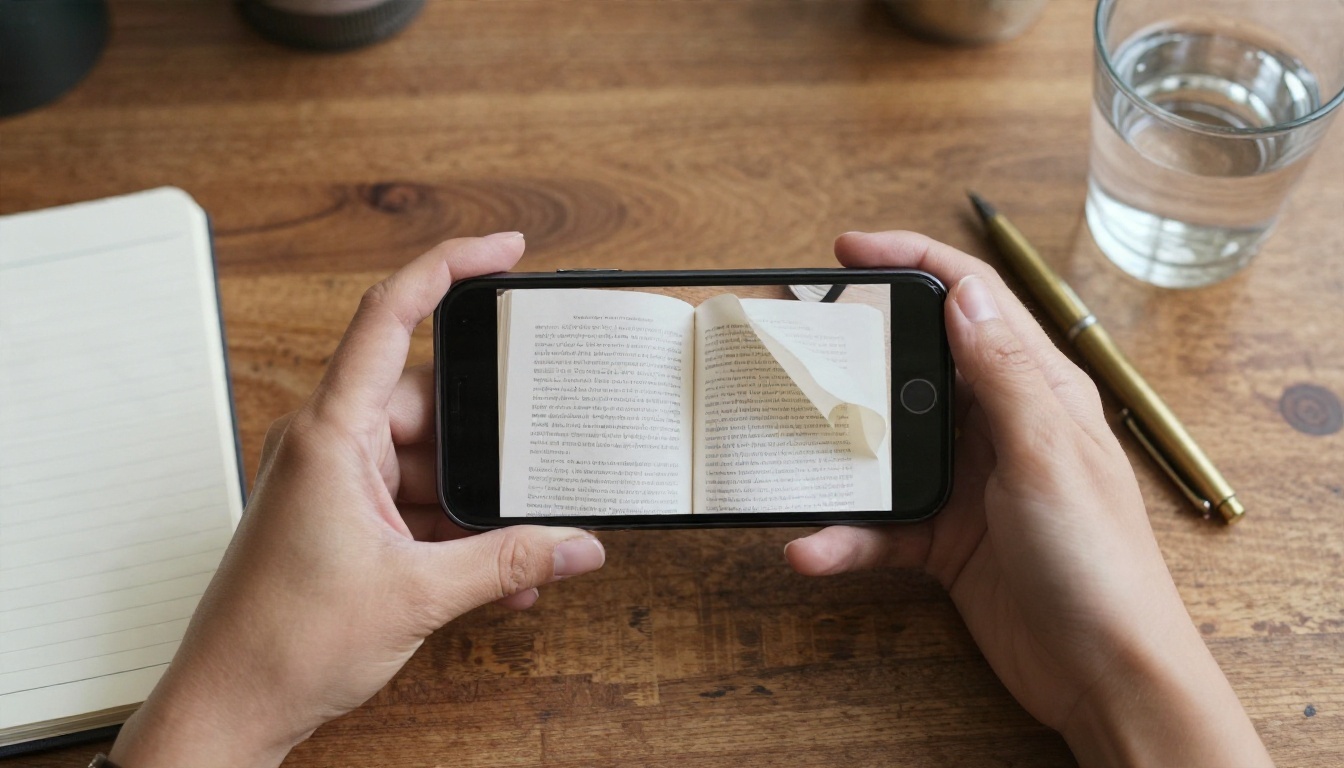
A page-flip link points to a web page that displays your PDF as a book. Pages turn with a soft curl animation, a thumbnail strip lets readers jump around, and the whole thing opens from a normal URL. No plugin, no login for the reader, no installer.
PDF Attachment vs Page-Flip Link
| Feature | PDF attachment | Page-flip link |
|---|
| Reader must download | Yes | No |
| Works inside a browser tab | Sometimes | Always |
| Phone friendly layout | Poor | Good |
| Page turn effect | None | Yes |
| Update after sending | Impossible | Possible |
| Can be password protected | Weak | Yes |
| Reading statistics | None | Available on Pro |
| Email size problems | Common | None |
It Works on Every Screen
The same link opens on an iPhone, an Android tablet, a Chromebook and a desktop monitor. The layout adapts: a single page on a narrow phone, a double page spread on a wide laptop. Because it is mobile-responsive, you never have to send a separate "phone version."
Why It Beats a Plain Browser Viewer
Dropping a PDF into cloud storage and sharing that link technically works, but the viewer is basic. There is no page-turn feel, little branding, and the reader often gets nudged to sign in or open an app. A flipbook keeps the experience clean and pointed at the content.
How to Create One in Minutes
Here is the full workflow for turning a PDF into a readable link with Flipbooks AI. The PDF to Flipbook Converter handles the conversion itself.

Step 1: Open Your Account
Head to Flipbooks AI and create an account. Sign up takes less than a minute, and you can start with a free plan before deciding if you need more.
Step 2: Upload the PDF
- Click the upload button on your dashboard.
- Drag your PDF into the window or pick it from your computer.
- Wait a few seconds while the pages are converted.
The converter keeps your fonts, images and layout as they are. Links inside the PDF stay clickable, so a table of contents or a "Buy now" button still works for the reader.
✅ Best practice: export your PDF at a sensible quality before uploading. A file that is crisp but not bloated loads faster for every reader.
Step 3: Customize the Look
Next, make the flipbook feel like yours:
- Branding: add your logo and pick a background color that matches your site.
- Page effects: choose how pages turn and whether sound plays.
- Multimedia: embed videos and audio where a static page would fall flat.
- Layout: pick single page or double page view.
There are no watermarks, ever, so the finished flipbook looks professional rather than like a trial.
Step 4: Pick How You Share It
Once the flipbook is ready, you get several sharing routes:
| Sharing option | Best for | Reader effort |
|---|
| Direct link | Email, chat, social posts | One tap |
| Embed code | Your own website or blog | None, it sits in the page |
| Password protected link | Private or paid content | Enter a password |
| Offline download | Readers with weak internet | One extra click |
For website use, the Embed Flipbook on Website tool gives you a snippet to paste into your page. Direct links are the quickest option, and they are what you want for read online with no download scenarios.
Pro Features Worth Knowing
If you share documents with customers or leads, the Professional plan adds analytics and lead generation. You can see how many people opened the link, which pages held attention, and even ask for an email address before the first page shows. Standard plans and above also include unlimited flipbooks, which matters once you start converting more than a handful of files.
Who Benefits Most
Almost any PDF that people need to read on a screen is a good candidate. These are the situations where a link tends to pay off fastest.

Small Businesses and Shops
A boutique owner can share a seasonal catalog in a WhatsApp message instead of mailing a 40 MB file. A restaurant can put its menu behind a QR code that opens a flipbook, and update it the same afternoon when the soup of the day changes. The Restaurant Menu Creator and the Product Catalog tool are built for exactly that.
Students and Teachers
A teacher can post one link in the class chat for a reading pack, and every student opens it on their own phone. No one has to hunt for a download folder. The Course Material Publisher and Training Manual Flipbook are good starting points.
Agents, Creators and Event Teams
Real estate agents send brochures that look sharp on a client's phone. Photographers share portfolios without worrying about image compression in email. Event organizers publish a program and fix the schedule when a speaker changes. Each scenario has a matching template:
💡 Tip: browse the full list of flipbook tools to find a template close to your document type.
Free Options Compared
You have more than one way to read a PDF online without a download. Here is how the common routes stack up on the points readers care about.
| Method | Page-turn feel | Branding | Phone layout | Link control |
|---|
| Browser PDF viewer | None | None | Basic | Low |
| Cloud storage preview link | None | Provider logo | Basic | Medium |
| Email attachment | None | None | Needs download | None |
| Page-flip link | Realistic | Your own | Responsive | High |
Where Free Really Stops
Most free tools impose one of three limits: a watermark across your pages, a tiny page count cap, or an expiry date that kills the link after a week. Before you send anything to a client, test the link in a private browser window and look at what the reader actually sees. If a stranger's logo sits across your page, it is not really free, it is a trade.
Why Watermarks Hurt
A watermark tells the reader your document is temporary. For a proposal, a menu or a portfolio, that is the wrong signal. Flipbooks AI keeps pages clean, so the document looks like it belongs to you.
Privacy and Control
A readable link is public by default, which is great for a menu and risky for a contract. Decide before you share who should be able to open it.
Use a Password When Needed
Add a password to any flipbook that holds pricing, internal notes or client material. Send the link in one message and the password in another. It takes ten extra seconds and prevents the most common leak, which is a forwarded email.
Update Without Re-Sending
Spotted a wrong phone number after sending? With a file attachment, you are stuck. With a flipbook link, you replace the source and everyone who opens the link next sees the fixed version. That also means one link can live on a business card, a QR poster or a pinned social post for months.
⚠️ Warning: never put sensitive personal data such as ID numbers or bank details into a link without a password. Treat any shareable URL as something that may be forwarded.
Five Mistakes to Avoid
Even a good tool can deliver a poor result. These are the slip-ups that show up most often.
- Uploading a huge scan. A 300 page scan at maximum resolution loads slowly. Compress images first.
- Skipping the phone test. Open the link on your own phone before sending. Check that text is readable at normal size.
- Forgetting a call to action. If you want a reply, add a clickable button or email link on the last page.
- Using a vague link name. Give the flipbook a clear title so the preview in chat apps looks trustworthy.
- Ignoring the numbers. On the Professional plan, open the analytics after a week. If readers drop off at page four, tighten that page.
✅ Best practice: send the link with one short sentence explaining what the reader will find. People click more readily when they know it is a quick read and not a download.
A Simple Pre-Send Checklist
- Open the link in a private window.
- Flip through every page once.
- Tap at least one embedded link.
- Check the password if you set one.
- Copy the link only after all that.
Ready to Share Your First Link?
Sharing a PDF should feel as easy as sharing a photo. With a page-flip link, your reader taps once, starts reading immediately, and never touches a download folder. You keep the document branded, up to date and under your control.
Here is the shortest path from file to link:
- Create your free account on Flipbooks AI.
- Upload your PDF with the PDF to Flipbook Converter.
- Copy the link, or paste the embed code on your site.
- Compare pricing plans when you need analytics, lead capture or unlimited flipbooks.
Want more ideas first? Browse the full set of tools and templates, pick the one that matches your document, and send your first readable link today. When you are ready to go further, view the plans and choose what fits your workload.



