You have a PDF. It looks fine on your screen, but nobody wants to scroll through forty pages of flat, static rectangles. A book, on the other hand, invites people in: the pages turn, the spread feels familiar, and readers actually reach the last page. That is the whole point of a PDF to book converter, and with Flipbooks AI you can make the switch in a few minutes without installing anything.
This article walks through how the conversion works, which free options are worth your time, what to check before you upload, and how to get a smooth page flip effect that works on phones as well as desktops. Expect tables, a step-by-step tutorial, and a few honest warnings about "free" tools that are not quite free.
💡 Quick answer: Upload your PDF to an online converter, pick a page flip style, add your branding, and share the link or embed code. The rest of this article helps you avoid the traps along the way.
What PDF to Book Conversion Means
A PDF is a fixed document. It was built for printing and archiving, so it stays identical on every device. That is a strength for contracts and a weakness for anything meant to be read for pleasure or browsed.
A PDF to book conversion takes those same pages and wraps them in a viewer that behaves like a physical book. Pages sit side by side as spreads, a soft curl follows your finger or cursor, and a cover opens before the first page appears. The content does not change. The experience around it does.
PDF vs. Flipbook Format
Here is how the two formats compare in everyday use:
| Feature | Standard PDF | Online Book (Flipbook) |
|---|
| Reading feel | Scroll or zoom, flat | Page turns, spreads, curl animation |
| Sharing | Attachment or download | One link or embed code |
| Mobile experience | Pinch and pan | Responsive, tap or swipe to flip |
| Tracking | None | Views, time on page (paid plans) |
| Updates | Resend a new file | Replace once, link stays the same |
| Extras | Limited | Video, audio, links, search |
Why the Page Flip Effect Works
The flip animation is not decoration. People recognise the motion from a lifetime of holding books, so they approach the content with a different mindset. A brochure that flips feels like a brochure. A PDF that scrolls feels like paperwork.
Three practical benefits show up again and again:
- Longer reading sessions, because the format feels familiar and low effort.
- Better first impressions for portfolios, catalogs and proposals.
- Easier sharing, since a link works in email, chat and social posts.
Free Options Compared
Plenty of sites advertise a free PDF to flipbook converter. Most are genuinely useful for a quick test, and most come with strings attached. Knowing the usual limits saves you from rebuilding a book on a different tool halfway through a project.

What Free Plans Usually Limit
Before you pick a tool, check these five things:
- Watermarks. Many free tiers stamp a logo on every page or on the viewer toolbar.
- Page counts. A cap of 20 to 50 pages is common.
- Expiry. Some books vanish after a few days unless you upgrade.
- Branding. You cannot change colours, backgrounds or the logo.
- Embedding. Free books often live on the vendor's domain only.
Converter Types at a Glance
| Converter Type | Typical Cost | Watermark | Best For |
|---|
| Free tier of a paid platform | $0 | Sometimes | Testing before committing |
| Open source desktop software | $0 | No | Technical users with time |
| Browser-only free converter | $0 | Often | One-off personal projects |
| Dedicated online flipbook platform | Paid subscription | No (on good platforms) | Business and client work |
Three Red Flags to Watch
⚠️ Warning: If a tool asks for a credit card before showing you a preview, or buries the watermark rule in the fine print, move on.
- No preview before export. You should see your book working before you commit.
- Forced public listing. Some free tools publish your book in a public gallery. That is a problem for private material.
- Unclear file ownership. Read the terms. Your content should remain yours.
For anything client-facing, a platform with no watermarks, ever is worth the small monthly cost. You can compare options on the Flipbooks AI pricing page and decide what fits your volume.
How to Create a Book with Flipbooks AI
This is the practical part. The workflow below uses the PDF to Flipbook Converter and takes about five minutes for a typical document.
Step 1: Create Your Account
Head to Flipbooks AI and create an account. Sign-up takes a minute and puts you straight into your dashboard, where every book you build is listed in one place.
Step 2: Upload Your PDF
- Click the button to add a new flipbook.
- Drag your PDF into the upload area or pick it from your computer.
- Wait while the platform processes each page. You will see thumbnails appear as it works.
- Check the preview. Pages should appear in the right order, with images sharp and text readable.
The converter keeps your layout, fonts and images exactly as they are in the source file. If a page looks wrong here, it is almost always an issue in the original PDF, not the conversion.
Step 3: Customize the Look
This is where a plain conversion becomes a branded book. You can adjust:
- Colours and background, so the viewer matches your site or brand palette.
- Logo placement, which sits in the toolbar rather than on your pages.
- Page effects, including the curl intensity and turning speed.
- Multimedia, such as embedded video and audio on any page.
- Links, turning URLs, buttons and product images into clickable hotspots.
💡 Pro tip: Keep the background a muted tone that contrasts with your page colour. A dark charcoal behind white pages makes the spread feel like it is sitting on a desk.
Step 4: Share and Protect
Once the book looks right, you have several ways to publish:
| Sharing Option | How It Works | Best Use |
|---|
| Direct link | Copy one URL and send it anywhere | Email, chat, social posts |
| Embed code | Paste a short snippet into your page | Website, blog, landing page |
| Password protection | Readers enter a code to open the book | Private proposals, internal reports |
| Offline download | Readers save a copy for later | Field teams, travel, low signal |
If you want the book on your own site, the Embed Flipbook on Website tool shows exactly how the snippet works.
Step 5: Track Results
Professional plans add analytics and lead generation. You can see how many people opened the book, which pages held attention, and capture contact details before the first page appears. See the plan comparison to check which features sit in which tier.
Prepare Your PDF First
Most conversion problems begin before the upload. Ten minutes of preparation gives you a noticeably cleaner result.
Page Size and Resolution
Use a consistent page size throughout. A mixed document, with some pages in portrait and others in landscape, creates awkward spreads. For screen reading, 150 DPI images are usually sharp enough, while 300 DPI is better if readers will zoom or print.
Fonts and Links
Embed your fonts when you export the PDF so text does not shift. Check that internal links, such as a clickable table of contents, point to the correct pages. Test external links before you convert, since a broken link in a book looks worse than one in a PDF.
File Size
Large files load slowly on mobile. Compress images before export, and aim for a file that is comfortable to open on a normal connection.
| File Element | Recommended Setting | Why It Matters |
|---|
| Page size | Same on every page | Clean spreads |
| Image resolution | 150 to 300 DPI | Sharp but light |
| Fonts | Embedded | No layout shifts |
| Colour mode | RGB for screens | Accurate on displays |
| File size | Under 50 MB if possible | Fast loading |
✅ Best practice: Put your cover page first and a blank or intro page second. The first spread sets expectations for everything that follows.
Real-World Use Cases
The same conversion works for very different projects. Here are scenarios that show up often.

Catalogs and Price Lists
A furniture seller can export a product PDF, convert it, and link each item photo to a purchase page. Tools like the Digital Catalog Maker and the Digital Price List Generator are built for this. When prices change, you replace the file and the same link keeps working.
Books, Magazines and Portfolios
Independent authors use an E-Book Flipbook Generator to give readers a sample chapter that feels like a real book. Photographers choose the Photography Portfolio option to present work in full spreads rather than a gallery grid.
Menus, Brochures and Reports
A restaurant can turn a menu PDF into a flipbook and place a link on its social profile or a QR code on each table. A hotel can do the same with a brochure. Corporate teams often convert quarterly summaries with the Report Flipbook Creator.
| Use Case | Typical Length | What Readers Do | Helpful Feature |
|---|
| Product catalog | 20 to 100 pages | Browse, click to buy | Clickable hotspots |
| Restaurant menu | 2 to 12 pages | Scan on phone | Mobile-responsive layout |
| Ebook sample | 15 to 60 pages | Read in sequence | Page curl, bookmarks |
| Annual report | 30 to 80 pages | Skim, search | Analytics, password option |
| Training manual | 20 to 150 pages | Reference | Offline download |
Page Flip Effect Settings That Work
A good flip feels natural. A bad one feels like a slideshow with extra steps.
Speed and Curl
Choose a turning speed around the middle of the range. Too fast and the animation looks twitchy. Too slow and readers lose patience by page ten. A soft curl with a subtle shadow behind the turning page reads as more realistic than an exaggerated fold.
Single Page or Double Spread
Use double spreads on desktop for books designed as facing pages, such as magazines and photo books. On phones, a single-page view is easier to read. A responsive viewer switches automatically, so you do not need to build two versions.
Sound and Motion
A quiet paper rustle on each turn can add atmosphere, but make it optional. Many readers open books at work or on public transport and will close the tab if it makes noise.
💡 Pro tip: Open your finished book on your own phone before you share it. If you have to pinch to read the body text, increase the font size in the source PDF and convert again.
Common Mistakes to Avoid

Uploading a Print-Only Layout
Print PDFs often include bleed marks, crop lines and tiny margins. On screen these look sloppy. Export a screen-optimised version with no printer marks.
Ignoring the Reader's Device
More than half of readers open links on a phone. Check type size, tap targets and loading time on a small screen before you publish.
Choosing Free When It Costs You
A free tool with a watermark on every page can cost you credibility. If the book represents your business, the small subscription fee is usually cheaper than the damage to your brand.
Skipping the Update Plan
Documents change. Choose a platform where you can replace the PDF and keep the same link, so old emails and printed QR codes still lead to the latest version.
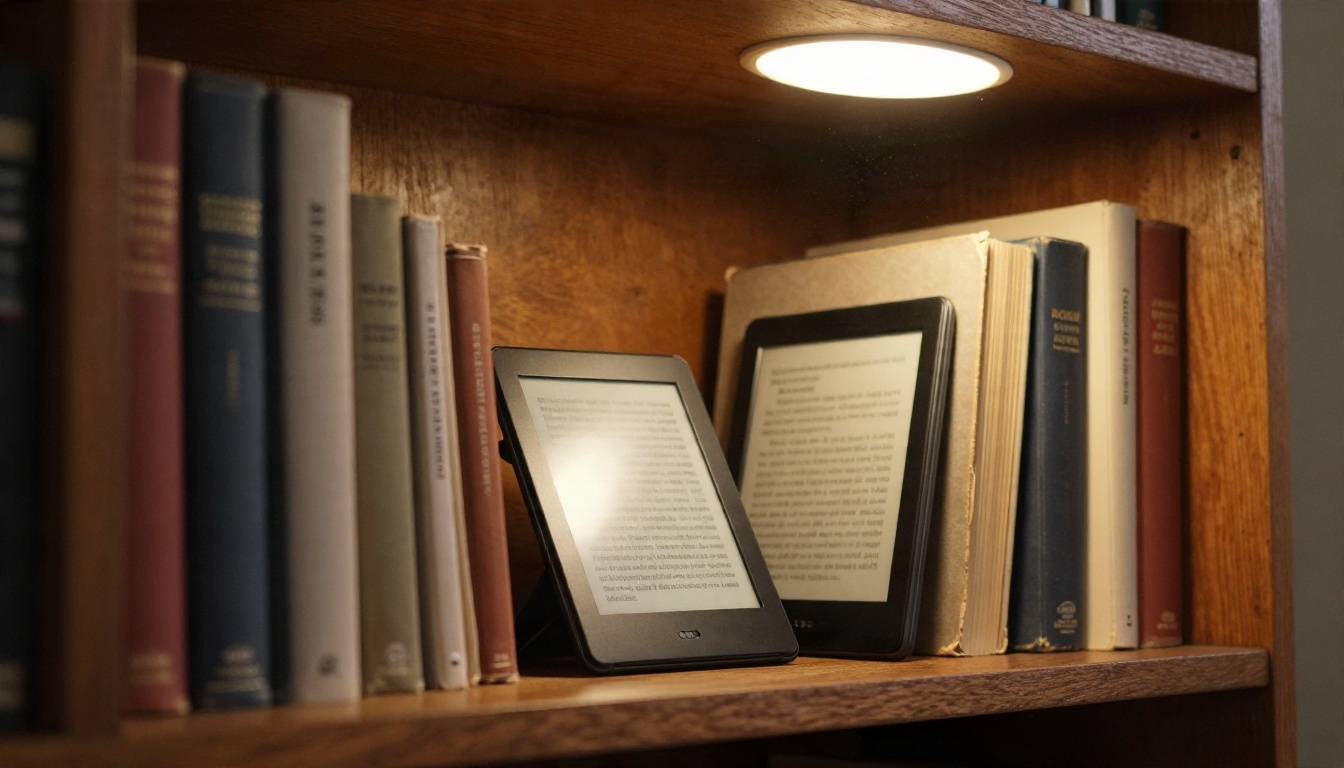
Different goals call for different tools. This quick comparison should help you decide:
| Your Goal | Best Fit | Why |
|---|
| Test a single document | Free tier of a platform | Low risk, quick preview |
| Share a client proposal | Paid platform, password protection | Private, professional |
| Publish a public catalog | Paid platform, embed option | Lives on your own website |
| Collect leads from a brochure | Professional plan | Lead forms and analytics |
| Distribute to field staff | Platform with offline download | Works without signal |
If you are unsure, begin with a short document. Convert it, look at the result, and test the sharing options. The tools directory lists dozens of templates for specific formats, from newsletters to lookbooks, so you can pick the closest match to your project.
Start Your First Book Today
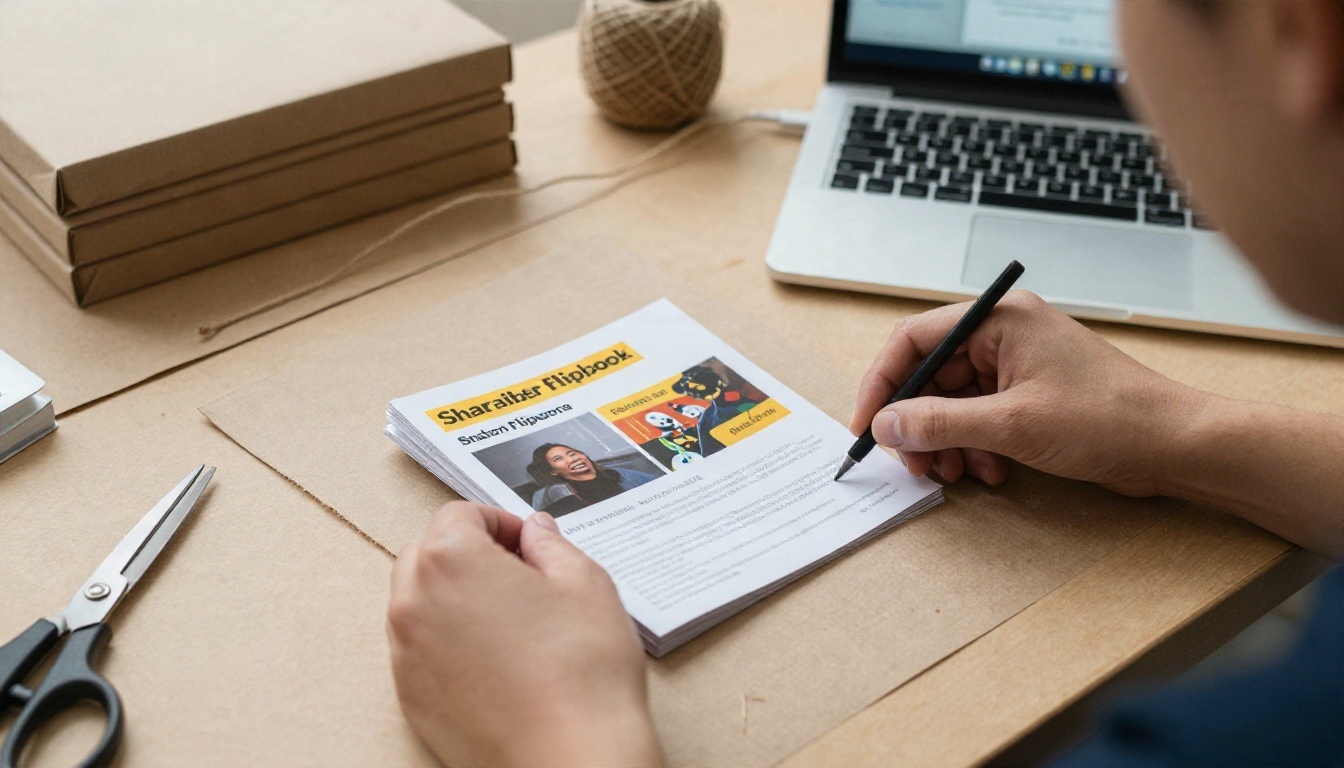
Converting a PDF into a book is one of the fastest upgrades you can make to a document that already exists. You keep your content, add a page flip effect readers recognise, and get a link that works everywhere. Nothing needs to be redesigned, and nothing needs to be installed.
Here is what to do next:
- Create your free account on Flipbooks AI and upload a PDF.
- Browse the flipbook tools to find a template that matches your project.
- Compare pricing plans if you need unlimited books, analytics or lead capture.
- Try the PDF to Flipbook Converter on your most important document first.
Ready to see your PDF turn into a real book? Get started with Flipbooks AI and publish your first flipbook today, with no watermarks and full control over how it looks.



