PDF Too Large to Email: How to Compress It, Free Online Tools and Link Options
Your email bounced because the PDF is too big. This article shows why it happens, how to shrink the file with free online compressors and built-in tools, and when a shareable link beats any attachment, with tables, settings and step-by-step instructions.
You hit send, and your email client bounces the message with a red warning: the attachment is too big. The PDF is a 38 MB proposal, the deadline is in ten minutes, and the client is waiting. If a PDF too large to email is your problem right now, there are two clean ways out. Shrink the file until it fits, or stop sending the file and send a link instead. This article covers both routes with free online tools, built-in options on Windows and Mac, and a link-based method using Flipbooks AI that keeps your original quality untouched.
Why Your PDF Gets Rejected
Email was designed for short text messages, not for brochures with forty photographs. Every provider sets a ceiling on message size, and once your PDF crosses it, the message never leaves your outbox.
Email Size Limits by Provider
Here are the typical limits for the most common services. They change occasionally, so check your provider's help page if you are close to the edge.
Provider
Attachment limit
What happens above it
Gmail
25 MB
Offers to insert a Google Drive link
Outlook.com
20 MB
Prompts you to upload to OneDrive
Microsoft 365 / Exchange
20 MB by default (admins can change it)
Message rejected
Yahoo Mail
25 MB
Message rejected
iCloud Mail
20 MB
Mail Drop link for larger files
The Hidden 33% Overhead
Here is the trap that catches people. Email encodes attachments in a format that inflates them by roughly one third. A 19 MB PDF can behave like a 25 MB one once it is packaged, and the receiving server also counts the message body and signature. So the practical safe size for a Gmail attachment is closer to 17 or 18 MB.
⚠️ A file that looks fine at 21 MB in your folder may still bounce. Aim at least 25% below the stated limit, and remember the recipient's server may enforce a lower one than yours.
What Makes a PDF So Heavy
Before you reach for a compressor, it helps to know where the weight comes from. A text-only contract of 30 pages is usually under 1 MB. A 30 page lookbook can pass 80 MB. The difference is almost always content, not page count.
Images and Scans
High resolution photographs are the number one culprit. A camera image placed in a layout at 300 dpi or more carries far more pixel data than any screen can show. Scanned documents are even worse, because every page is a full image, often saved at 600 dpi in colour when plain black and white would do.
Embedded Fonts and Layers
Designers often export with every font embedded in full, plus hidden layers, form data, thumbnails, and old revision history. None of it is visible, yet all of it counts toward the file size. Exporting a PDF from InDesign, Word, or Canva with the wrong preset can double the output.
Cause
Typical impact
Easy fix
Uncompressed photos
Very high
Downsample to 150 dpi
Colour scans at 600 dpi
Very high
Rescan at 200 to 300 dpi, or use greyscale
Full embedded fonts
Moderate
Subset fonts on export
Hidden layers and metadata
Low to moderate
Flatten and strip on save
Embedded video or audio
Very high
Link out instead of embedding
How to Compress It Fast
Pick the method that matches your situation. Quick and non-sensitive? Use an online tool. Confidential? Stay offline.
Free Online Compressors
Browser-based tools are the fastest path. You drag the file in, choose a strength, and download a smaller copy. Popular options include Smallpdf, iLovePDF, PDF24, Sejda, and the free compressor inside Adobe Acrobat online.
Tool type
Cost
Typical limit
Best for
Smallpdf, iLovePDF
Free tier, paid upgrade
Daily task limits, file size caps
One-off quick jobs
PDF24
Free
Generous for casual use
Frequent use without signup
Sejda
Free tier
Page and size caps per task
Choosing compression strength
Adobe online compressor
Free with limits
Few runs per day
Predictable output quality
⚠️ Online compressors upload your file to someone else's server. Never use them for contracts, medical records, tax documents, or anything with personal data. Use an offline method below instead.
Compress on Windows and Mac
You already own tools that work without uploading anything.
On a Mac (Preview):
Open the PDF in Preview.
Choose File > Export.
Open the Quartz Filter menu and pick Reduce File Size.
Save under a new name.
The default Mac filter is aggressive and can make images look soft, so check the result before sending.
On Windows: The operating system has no built-in PDF compressor. Open the file in Microsoft Word (it converts the PDF), then use File > Save As > PDF and choose Minimum size (publishing online). If you have Adobe Acrobat Pro, use File > Save As Other > Reduced Size PDF or the Optimize PDF panel for finer control.
Command Line for Power Users
If you are comfortable in a terminal, Ghostscript is free, offline, and reliable:
Swap /ebook for /screen when you need the smallest result, or /printer when quality matters more than size.
Compression Settings Compared
Whatever tool you pick, it is really choosing an image resolution behind the scenes. This is how the common levels behave.
Level
Image resolution
Typical size reduction
Looks like
Low compression
About 300 dpi
10% to 30%
Nearly identical, print ready
Medium (ebook)
About 150 dpi
40% to 70%
Sharp on screen, fine for email
High (screen)
About 72 dpi
70% to 90%
Soft images, readable text
💡 Start with medium. It is the sweet spot for most documents and normally drops a 40 MB file well below 10 MB.
When Compression Hurts Quality
Compression always trades detail for size. For a text-heavy report, you will not notice. For a portfolio, a photography book, or a product catalog where the pictures sell the product, a blurry page costs you credibility.
Safe Shrinking Habits
Keep the original. Always save the compressed version under a new filename.
Zoom to 200% on a photo page and a text page before sending, since damage shows up at zoom first.
Remove unused pages and duplicated assets before compressing, not after.
Split the file into two parts (for example, "Proposal Part 1" and "Part 2") when both halves must stay sharp.
Avoid compressing twice. Running a compressed file through another tool stacks artifacts.
When to Stop Compressing
If you have already reached medium compression and the file is still above 15 MB, more squeezing will wreck the images. This is the moment to change strategy. Stop fighting the attachment limit and send a link.
Link Options Beat Attachments
A link has no size ceiling for the recipient's inbox, arrives in a few kilobytes, and lets you update the file later without sending a second email. Your message is delivered every time.
Cloud Drive Links
Google Drive, OneDrive, Dropbox, and iCloud all generate a share link in seconds. They work well for internal files, though a few limits are worth knowing:
The recipient usually sees a file viewer or download prompt, not a polished reading experience.
Permissions are easy to get wrong. "Anyone with the link" is public to anyone who forwards it.
Large PDFs often load slowly on phones, and some viewers refuse to preview files beyond a certain size.
Flipbook Links
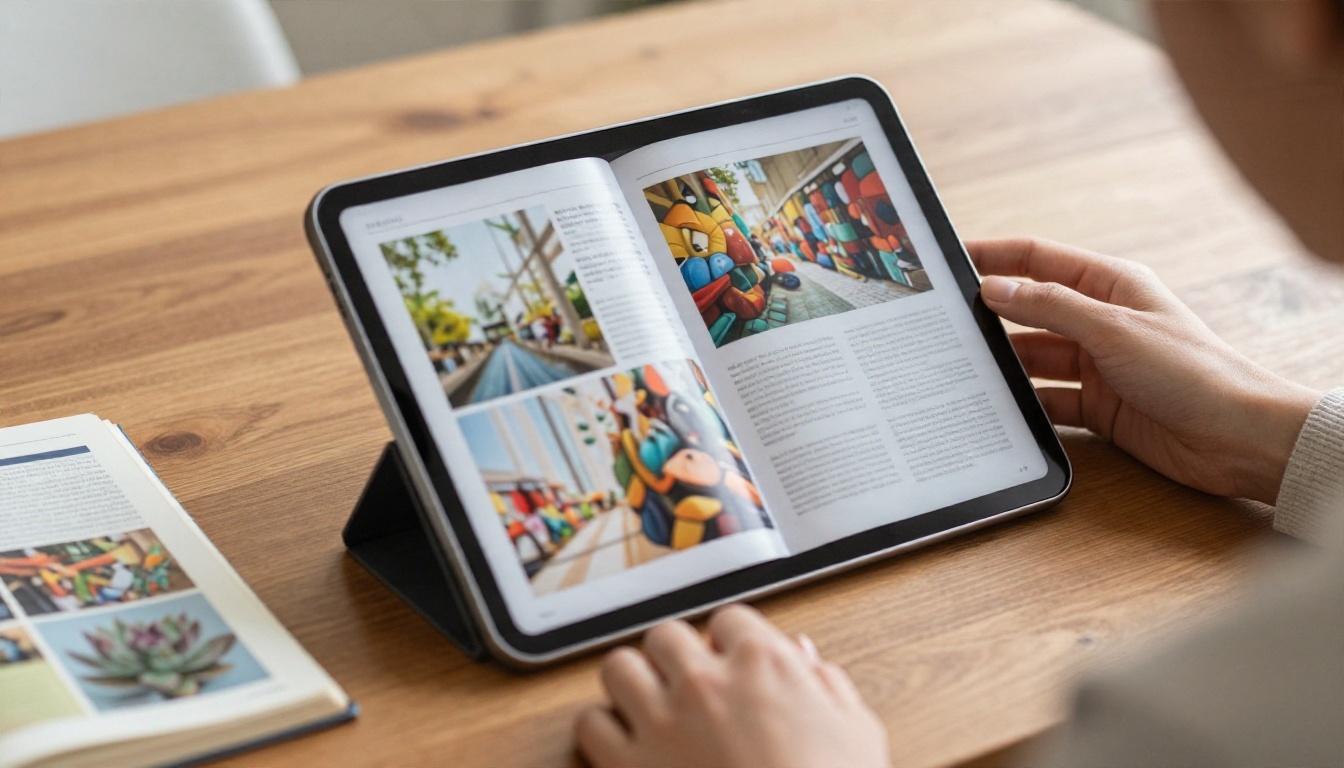
A different option is converting the PDF into an online flipbook. The reader opens a link and turns pages like a magazine, on any phone, tablet, or desktop, with no download. Because the pages load progressively, an 80 MB catalog opens quickly instead of stalling. With Flipbooks AI your original PDF is uploaded at full quality, so nothing gets blurred to make it fit.
Feature
Email attachment
Drive or cloud link
Flipbook link
Size limit
About 20 to 25 MB
Depends on storage
Large PDFs supported
Quality loss
Often, after compression
None
None
Reading experience
Download, then open
Basic viewer
Page-turn reader, mobile friendly
Password protection
Needs extra tools
Account-based
Built-in option
Update after sending
No
Yes
Yes
Reader tracking
None
Limited
Analytics on Professional plan
How to Share a Large PDF with Flipbooks AI
This is the fastest way to turn a bounced attachment into a link that works. The whole process takes a couple of minutes.
The content is private, such as contracts or client reports
Offline download
Readers need a copy for travel or poor connections
Paste the link into your email, and the message goes out as a few lines of text. No bounce, no attachment, no quality loss.
Step 4: Track and Capture Leads
Plans differ here, so compare pricing plans before you decide. The Professional plan adds reader analytics (who opened it, which pages held attention) and lead generation forms that ask for an email address before the reader proceeds. Standard plans and above also give you unlimited flipbooks.
✅ Best practice: use password protection for anything confidential and send the password in a separate message or text.
Real-World Examples
Theory is fine, but here is how it plays out for people with a real inbox problem.
A Freelancer Sending a Proposal
A freelance designer has a 46 MB proposal with portfolio images. Compressing to 8 MB makes the work look dull. Instead, they convert to a flipbook, add a password, and send one link. The client reads it on a phone in the car, and the designer sees in analytics that page six was opened three times.
A Shop Owner with a Product Catalog
A small business owner exports a 70 page price list every season. Emailing it to 200 wholesale customers is impossible as an attachment. Using the Product Catalog Generator, they publish once, send a single link, and update the same link when prices change. Browse the full list of flipbook tools for menus, brochures, and reports.
A Team Sharing a Confidential Report
An operations manager needs to send a quarterly report to a board. Public online compressors are out of the question. They publish the report with the Report Flipbook Creator, enable a password, and share a protected link.
Which Method Fits Your Case
Your situation
Best move
File is 25 to 30 MB, mostly text
Medium compression, then attach
File is full of photos, quality matters
Flipbook link
File contains personal or financial data
Offline compression or a password-protected link
You send the same file to many people
Flipbook link, updated in one place
Recipient only needs to read, not edit
Flipbook link or cloud viewer
Recipient must edit or sign
Compress, then attach or share through the signing tool
Pick Your Fix in 60 Seconds
Here is the shortest path from a bounced email to a delivered one:
Check the size. Under 15 MB? Send it. Over 15 MB? Move on.
Try medium compression with an offline tool, or a free online one if the content is not sensitive.
Zoom in and inspect photos and small text on the result.
Still too large, or quality suffers? Use a link.
Need privacy or tracking? Choose a flipbook with a password.
A bounced attachment is annoying, yet it is also a prompt to send something better than a heavy file: a link that opens fast, looks sharp, and lets you correct a typo later without chasing everyone.