You built a good deck. Forty slides, clean charts, a story that finally makes sense. Then you attach it to an email, the file is 38 MB, the fonts break on the recipient's laptop, and nobody opens it. A PPT flipbook template fixes that problem at the source: you design the slides once with page turning in mind, then publish them as a lightweight, browser based flipbook that opens on any phone, tablet, or desktop. With Flipbooks AI, the whole route from PowerPoint to a shareable link takes a few minutes.
This article walks through the three decisions that matter: which free slide designs actually work as flipbook pages, which page sizes keep your layout sharp on every screen, and how to publish the finished file online with embeds, passwords, and analytics.
What a PPT Flipbook Template Is
A PPT flipbook template is a PowerPoint (or Google Slides) file built so each slide reads like a printed page. It keeps the slide master, fonts, color palette, and grid ready, so you only swap text and photos. When you export it as a PDF and upload it to a flipbook platform, each slide becomes a page that readers turn with a swipe or a click.
Slides vs. Flipbook Pages
A slide is made to be spoken over. A flipbook page is made to be read alone. That small difference changes how you write.
| Element | Live Slide | Flipbook Page |
|---|
| Text amount | 10 to 25 words | 40 to 90 words |
| Reader | Audience listening to you | One person reading alone |
| Navigation | You click forward | Reader swipes, taps, or clicks |
| Sharing | Attached file or screen share | One link or embed code |
| File size | 20 to 60 MB with media | Small, streamed in the browser |
| Tracking | None | Views, time on page, clicks |
💡 Pro tip: Write a deck as if you could not be in the room. If a slide only makes sense when you explain it, add one more sentence to the slide itself.
Who Benefits Most
Anyone who sends decks to people they cannot sit next to:
- Sales teams sending proposals and one pagers that need to look polished on a phone.
- Teachers sharing lesson decks with students who open them on tablets.
- Agencies presenting concepts to clients without worrying about missing fonts.
- Founders sharing investor decks with a password and a view count.
- Event organizers publishing schedules and speaker lineups that update through a single link.
A restaurant group, for example, can turn its quarterly tasting menu deck into a flipbook and place the link on a table QR code. The same slides, no reprint. If menus are your main use case, the Restaurant Menu Creator is built for exactly that.
Free Slide Designs That Work
Not every free template makes a good flipbook. Many are packed with tiny captions, thin line icons, and edge to edge animations that disappear once the file becomes a PDF. You want templates with generous margins, strong photo areas, and fonts that stay legible when a phone screen shrinks the page.
Where to Find Free Templates
You do not need to pay for a good starting point. These sources all offer free slide designs you can adapt:
| Source | Cost | Best For | Watch Out For |
|---|
| PowerPoint built in designs | Free with Office | Clean business decks | Common looks, many people use them |
| Google Slides template gallery | Free | Team collaboration | Fewer premium layouts |
| Canva presentation templates | Free tier | Photo heavy, visual decks | Some assets locked to paid plans |
| Slidesgo and similar libraries | Free with credit line | Education and creative decks | Attribution slide may be required |
| Your own slide master | Free | Brand consistency | Takes an hour to build once |
⚠️ Check the license. Some free libraries require an attribution slide. Read the terms before you publish a deck publicly or sell access to it.
Layout Rules for Page Turning
Follow these rules and almost any template becomes a good flipbook:
- One idea per page. If you need two headlines, you need two pages.
- Keep a safe margin of at least 5 percent on every side. Some viewers crop slightly on small screens.
- Use a title page and a closing page. A flipbook without a clear first and last page feels unfinished.
- Add page numbers in a consistent corner so readers can jump back to the right spot.
- Place the main photo or chart in the top two thirds. Text sits below, where thumbs naturally scroll.
- Avoid animations as the only way to reveal content. A PDF freezes them, so everything must be visible on the page itself.
Fonts, Colors, and Images
Pick two fonts: one for headings, one for body text. Keep body text at 18 points or larger on a 16:9 slide. For color, choose one dominant tone, one accent, and one neutral. High contrast matters more in a flipbook than in a live talk, because readers view pages in sunlight, on trains, and on small screens.
For images, export at 150 to 200 DPI equivalent. Anything lower looks soft on a retina display, and anything much higher inflates the file for no visible gain.
Page Sizes and Aspect Ratios
Page size is the setting people ignore, then regret. If your deck is 16:9 but your audience reads on phones held upright, half the screen sits empty. If your deck is portrait but the reader opens it on a widescreen monitor, the page appears small and surrounded by blank space.
| Format | Ratio | Pixels (Approx.) | Best Use |
|---|
| Widescreen slide | 16:9 | 1920 x 1080 | Webinar decks, pitch decks, desktop viewing |
| Classic slide | 4:3 | 1600 x 1200 | Education, older templates, printing |
| A4 landscape | 1.41:1 | 3508 x 2480 | Reports that may be printed |
| A4 portrait | 1:1.41 | 2480 x 3508 | Brochures, lookbooks, ebooks |
| Square | 1:1 | 1500 x 1500 | Social friendly lookbooks, product highlights |
| Vertical story | 9:16 | 1080 x 1920 | Mobile first stories and quick catalogs |
Choosing Between 16:9 and 4:3
Choose 16:9 when most readers will open the link on a laptop or desktop. It matches modern screens and fits nicely in a website embed. Choose 4:3 if your content is text heavy, since its taller page leaves more room for paragraphs, or if the deck may be printed on letter or A4 paper.
If you are unsure, check where your last three decks were opened. Phone dominant audiences benefit from portrait or square pages. Desktop dominant audiences are better served by 16:9.
Setting Size in PowerPoint
Set the size before you add content, not after. Resizing a finished deck stretches images and shifts text boxes.
- Open the Design tab.
- Click Slide Size, then Custom Slide Size.
- Choose a preset such as Widescreen (16:9) or Standard (4:3), or enter a custom width and height.
- When asked, pick Ensure Fit so content scales down instead of being cropped.
- Check the title page and two or three content pages for misaligned elements.
💡 For a portrait flipbook, enter 8.27 inches wide and 11.69 inches high for A4, or 8.5 by 11 for US Letter.
How to Publish Online With Flipbooks AI
Once the template looks right, publishing takes four short steps. This is the how to create a PPT flipbook with Flipbooks AI walkthrough, from the first account to the shared link.
Export Your Deck to PDF
In PowerPoint, choose File, Export, Create PDF/XPS. Set the optimization to Standard for online publishing, and make sure Hyperlinks are included if your slides contain clickable links. Google Slides users can pick File, Download, PDF document. Name the file clearly, such as spring-product-deck.pdf, so it is easy to find later.
Upload and Convert
Create a free account on Flipbooks AI, then drag your PDF into the upload area. The platform reads each page and builds the page turning flipbook automatically. For a closer look at this step, the PDF to Flipbook Converter shows how the conversion works. If your file is a presentation, the Presentation Flipbook Designer is the closest match for the way slides are laid out.

Brand and Customize
After conversion, open the editor and adjust the look to fit your brand:
- Logo and colors: add your logo, then match the background and toolbar to your palette.
- Page effects: choose a realistic page curl, a soft slide, or a simple fade.
- Multimedia: embed videos and audio on pages where a clip says more than a paragraph.
- Links: make buttons, product images, and contact details clickable.
- Mobile view: preview the flipbook on a phone size before publishing. It is responsive by default, but a quick check catches odd crops.
Every flipbook is published without watermarks, which matters when the deck represents your brand in front of a client.
Share, Embed, and Protect
Once you hit publish, you have several ways to share:
| Sharing Option | How It Works | Best For |
|---|
| Direct link | One short URL, opens in any browser | Email, chat, social posts |
| Embed code | Paste a snippet into your site | Landing pages, blog posts, help centers |
| QR code | Print or display on screen | Events, menus, packaging |
| Password protection | Reader enters a password to view | Investor decks, internal training, private proposals |
| Offline download | Reader saves a copy | Field teams, travel, low signal areas |
To place the flipbook on your own site, follow the steps in the Embed Flipbook on Website tool. Paste the code into a page block, and the flipbook appears in place without sending visitors elsewhere.
✅ Best practice: Use password protection for anything with pricing, financials, or client names. Send the password in a separate message from the link.
Pro Features Worth Using
On the Professional plan, you get analytics and lead generation. Analytics show how many people opened your flipbook, which pages held attention, and where readers dropped off. Lead capture can ask for a name and email before the reader gets past a chosen page, which suits gated whitepapers and sales decks. Compare plans on the pricing page. The Standard plan and above include unlimited flipbooks, so you can publish a new version of a deck for every client without counting.

Real Examples by Industry
The same template structure adapts to very different jobs. Here is how teams use it:
A Teacher's Weekly Deck
Picture a secondary school teacher who builds a weekly lesson in PowerPoint. Instead of emailing the file to thirty students, she exports it to PDF, uploads it, and posts one link in the class portal. Students open it on tablets, flip through the examples, and open an embedded audio clip for pronunciation practice. At the end of the term she keeps every deck in one place, and she can reuse the same template for next year's class.

A Sales Rep on the Road
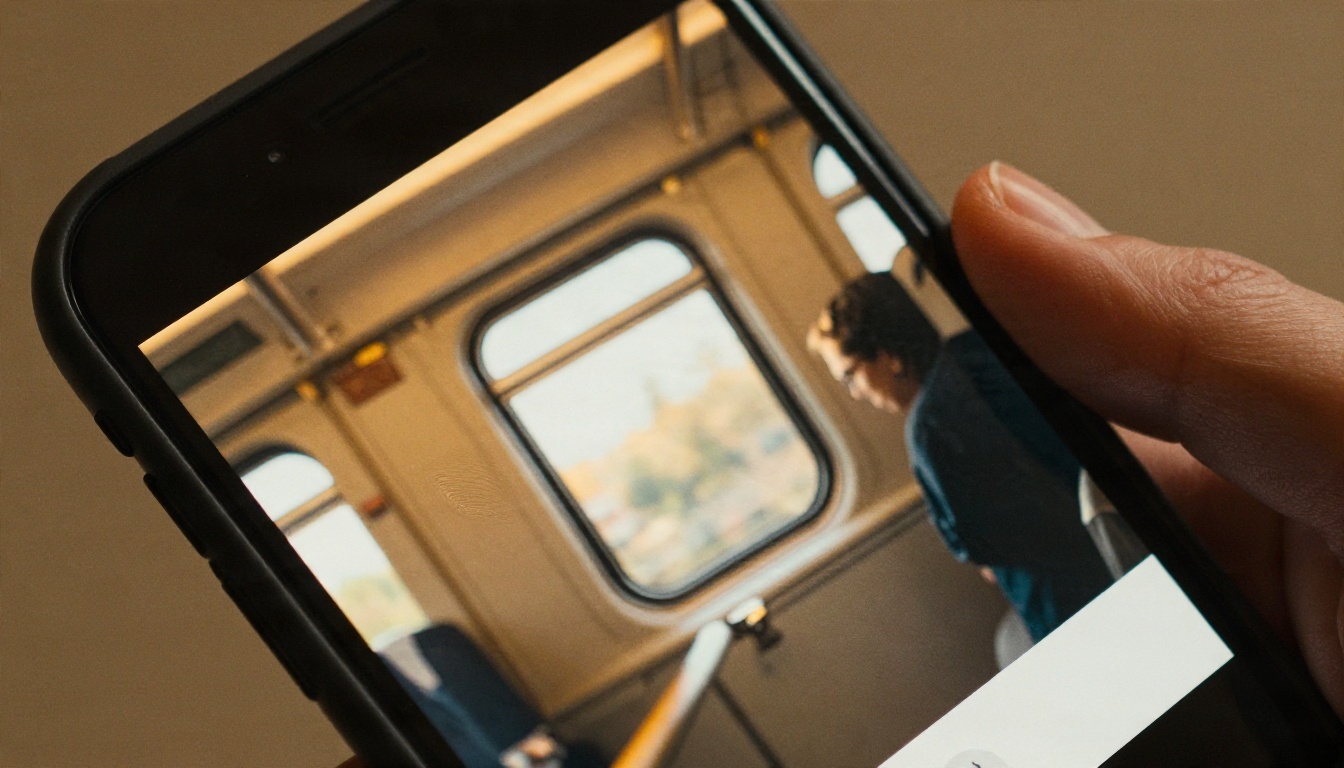
A sales rep sends a proposal flipbook after a call. The link opens instantly on the buyer's phone during a train ride, with no download and no broken fonts. Later, the analytics show that the buyer spent most of the time on the pricing page and returned twice. That is a better signal than silence, and it tells the rep exactly what to talk about on the follow up call.
Mistakes That Ruin Your Flipbook
Most weak flipbooks fail for the same few reasons. Check these before you publish.
- Tiny text. If you have to zoom to read a caption on a phone, it is too small. Raise body text to 18 points or more.
- Mixed page sizes. One portrait page inside a landscape deck creates awkward jumps. Pick one size and hold to it.
- Heavy PDF export. A 60 MB file loads slowly. Compress large photos before inserting them, and export with the Standard setting.
- No links. A flipbook can send readers to a booking page, a product, or a contact form. Add at least one clear call to action on the last page.
- Skipping the mobile preview. Always open your own link on a phone before you send it to anyone else.
⚠️ Watch out for custom fonts. If a font is not embedded when you export the PDF, it may be swapped for a default one. In PowerPoint, check the export options, or convert unusual fonts to their embedded versions first.
A Quick Pre Publish Checklist
- Slide size set before design started
- One idea per page, with page numbers
- Photos compressed, text readable on a phone
- Links tested after export
- Password set if the content is private
- Preview checked on desktop and mobile

Publish Your First Flipbook Today
A good PPT flipbook template is mostly discipline: one size, one idea per page, readable type, and a clear last page. Do those four things and any free slide design starts to look professional. The rest is publishing, and that part is quick.
Here is a simple plan for this afternoon:
- Pick a free template and set the slide size first.
- Fill it with your content, one idea per page.
- Export to PDF with the Standard setting.
- Create your account and upload the file.
- Add your branding, test on a phone, and share the link.
Ready to try it? Get started for free on Flipbooks AI, browse all flipbook tools and templates for your use case, or compare pricing plans when you are ready for analytics and lead capture.



