Scanned PDF Too Large to Email: Reduce File Size, Fix Quality, and Share Online
Your scan is 60 MB and your inbox says no. This article shows why scanned PDFs balloon, which scanner and compression settings shrink them without blurring the text, how to repair a scan that already looks rough, and how to share the result as a clean online link instead of a heavy attachment.
You scanned the contract, attached it, hit send, and got a bounce. A scanned PDF can easily weigh 40, 60, even 100 MB, while most inboxes stop accepting attachments around 20 to 25 MB. The good news: the file is almost always bloated for fixable reasons, and you can shrink it without making the text unreadable. And if shrinking is not enough, you can skip the attachment entirely and share the document as a link using a tool like Flipbooks AI.
This article walks through the whole problem in order: why scans get huge, which limits you are fighting, what to change at the scanner, how to compress an existing file, how to repair a scan that looks bad, and how to share it online so the recipient never has to download a monster file.
Why Scanned PDFs Get So Big
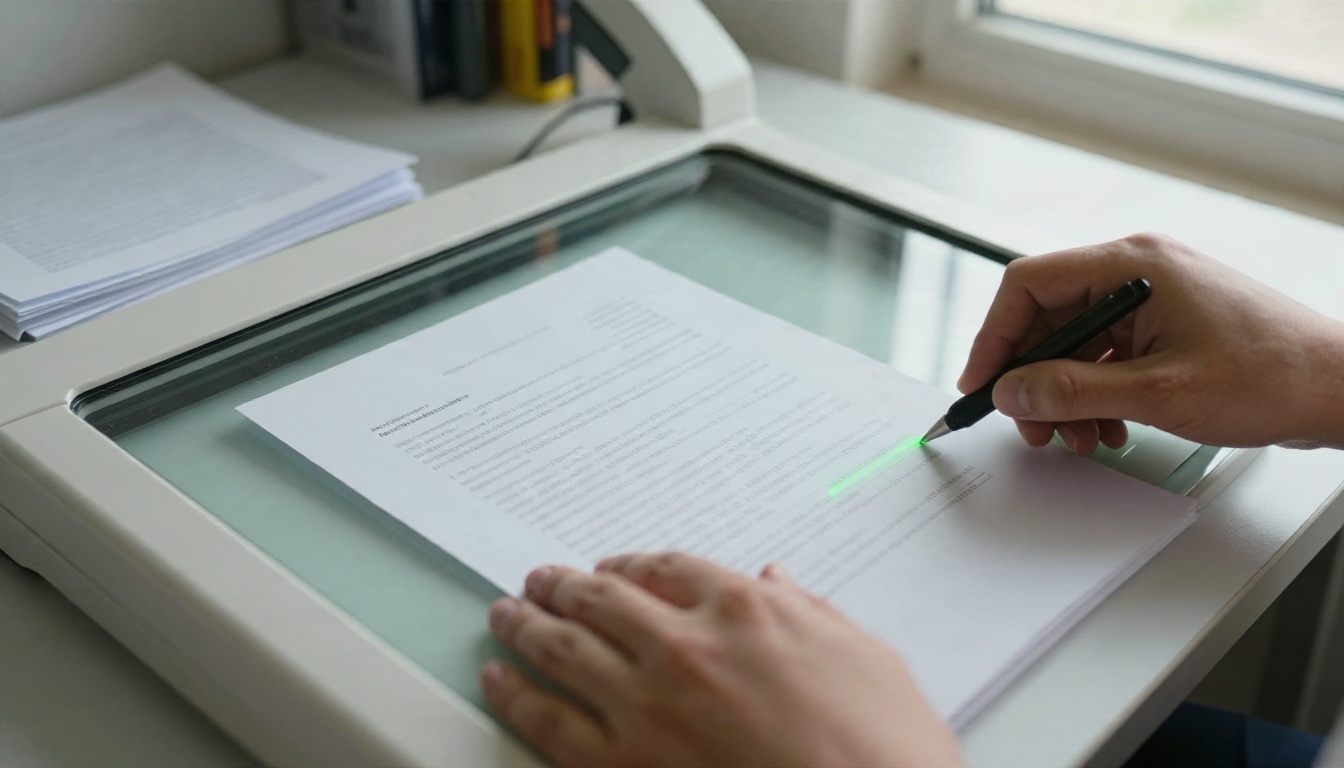
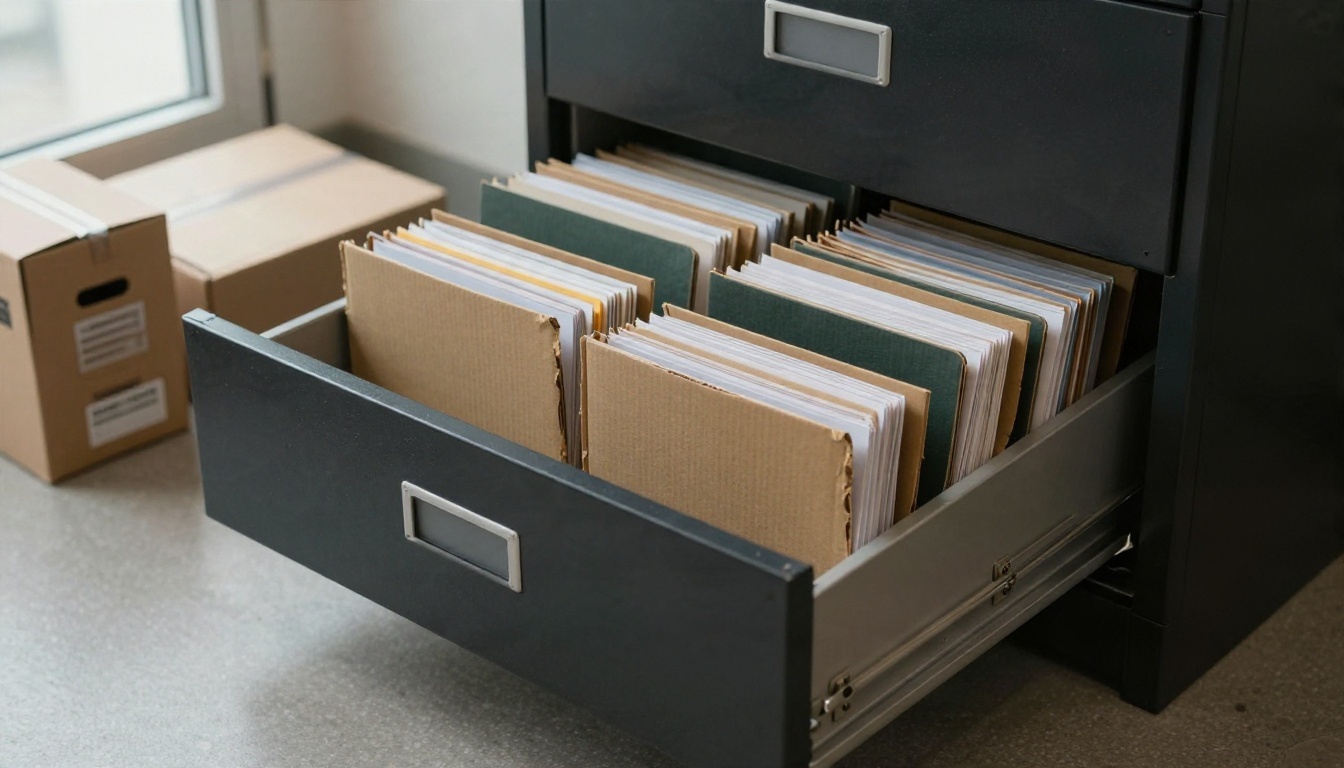
A normal PDF made from a word processor stores text as text. A few hundred words take a few kilobytes. A scanned PDF is different: each page is a photograph of paper. Every page is a full image, and images are heavy.
Pages Are Pictures, Not Text
When a scanner captures a page, it records millions of pixels. Unless OCR (optical character recognition) runs afterward, the computer sees no words at all, only a grid of colored dots. That is why a 10 page scan can be 500 times larger than a 10 page text document.
Resolution and Color Do the Damage
Two settings decide most of the file size: DPI (dots per inch) and color mode. Doubling the DPI roughly quadruples the pixel count. Scanning a black and white letter in full color adds data that carries no useful information.
Scan setting (per page)
Typical file size
Good for
600 DPI, full color
3 to 8 MB
Archival photos, fine art
300 DPI, full color
0.8 to 2 MB
Documents with stamps or logos
300 DPI, grayscale
0.4 to 1 MB
Contracts with signatures
200 DPI, black and white
30 to 80 KB
Plain text forms, letters
These are rough ranges. Paper type, content, and the scanner's built-in compression all shift the numbers.
💡 Quick math: a 20 page contract scanned at 300 DPI in color often lands between 16 and 40 MB. The same contract at 200 DPI in black and white can fit under 2 MB.
Email Limits You Will Hit
Before shrinking anything, know the target. Every provider has a ceiling, and attachments grow by about 33 percent when email encodes them. A 20 MB file can therefore behave like a 27 MB message.
Email service
Attachment limit
Notes
Gmail
25 MB
Larger files become Drive links
Outlook.com
20 MB
Business servers may set lower caps
Yahoo Mail
25 MB
Counts the whole message
iCloud Mail
20 MB
Mail Drop handles larger files
Proton Mail
25 MB
Total message size
⚠️ Watch the recipient's side. Your provider may allow 25 MB, but the person on the other end might sit behind a corporate server with a 10 MB limit. A message can leave your outbox and still bounce.
A safe target for email is under 10 MB. For a link based method, size matters far less, which we get to later.
Fix It at the Scanner
The cheapest place to cut file size is before the file exists. Rescanning takes five minutes and beats any rescue operation.
Pick 200 to 300 DPI
For reading on a screen and printing a standard letter, 300 DPI is plenty and 200 DPI is often fine. Higher values only make sense for photographs, tiny print, or documents someone may enlarge heavily. Most scanners default to 600 DPI, which is why so many oversized files exist.
Use Grayscale or Black and White
Match the color mode to the page:
Black and white: text only pages, forms, printed letters
Grayscale: pages with signatures, pencil notes, or shaded tables
Color: only when the color carries meaning, such as a colored stamp or chart
Save Directly as PDF
Scanning to JPEG or TIFF and converting later wastes space and adds a quality loss step. Choose PDF output in the scanner software, and if there is a "compact" or "high compression" option, test it on one page first.
Scanning with a Phone
Phone scanner apps are convenient, but many export at the camera's full resolution. Look for a quality or size setting in the export screen and choose medium. Hold the phone parallel to the page, use even light, and avoid shadows. Good capture means less cleanup later.
Reduce File Size Without Ruining Quality
Sometimes the paper is gone and you only have the big file. Compression is still on the table. The aim is to shrink the images inside the PDF, not to damage the text people need to read.
Use a Built In Compression Tool
Most PDF editors have an option often called Reduce File Size or Optimize PDF. Choose a medium preset first, check the result at 100 percent zoom, and only step lower if the text is still crisp.
For people comfortable with a command line, Ghostscript is free and predictable:
The /ebook preset targets around 150 DPI images and works well for screen reading. Use /printer if the result needs to look sharper.
⚠️ Skip the one click quick filters on some operating systems. A few of them crush images so aggressively that signatures and small print turn to mush. Always compare before and after.
Run OCR and Compress Together
OCR adds an invisible text layer so you can search and copy words. Many OCR tools also apply mixed content compression, which separates text from background and compresses each part with the best method. That can cut a scan by 80 to 90 percent while keeping letters sharp.
Split Oversized Scans
If the file is still too big, divide it. A 120 page archive can become four 30 page parts, each small enough to send. It is a fallback, though, because recipients now juggle multiple files.
Method
Size reduction
Quality risk
Effort
Rescan at 200 to 300 DPI
60 to 95%
Low
Medium
Switch to grayscale or B&W
50 to 90%
Low
Medium
PDF editor "Reduce File Size"
30 to 80%
Medium
Low
Ghostscript /ebook preset
50 to 85%
Medium
Medium
OCR with mixed content compression
70 to 90%
Low
Low
Split into parts
None (per file smaller)
None
Medium
Fix Blurry or Dark Scans
Sometimes the problem is reversed. The file is small enough but looks terrible: tilted pages, gray backgrounds, faint text. Fix the image first, compress second.
Deskew, Crop, and Boost Contrast
Most scanning software and PDF editors offer three quick repairs:
Deskew straightens pages that went in at an angle.
Crop removes black borders and scanner edges, which also cuts size.
Contrast and brightness lift faded text and whiten gray paper.
A clean white background compresses much better than a gray, noisy one, so these fixes help quality and size at once.
When Compression Went Too Far
If text now looks fuzzy or has halos around letters, the compression was too strong. Go back to the original file, never to the already compressed one. Recompressing a compressed file stacks losses and gets worse every round.
✅ Best practice: keep one untouched master scan in an archive folder, and create smaller copies for sending. That way you can always make a better version later.
Skip the Attachment and Share a Link
Even a well compressed scan can be annoying as an attachment. It fills inboxes, gets stripped by security filters, and forces the recipient to download and open a separate app. A link avoids every one of those problems.
Why Links Beat Attachments
No size limit worries. The file lives online, so the email stays tiny.
One version. If you fix a page, the link shows the update. No more "final_v3_REAL.pdf" confusion.
Works on phones. The reader opens a page in the browser, with no download.
Control. You can add a password or see who opened it.
Sharing method
Size limit
Works on mobile
Password option
See who viewed
Email attachment
20 to 25 MB
Download needed
No
No
Cloud drive link
Storage based
Needs viewer app
Sometimes
Sometimes
Messaging app
Often 100 MB or less
Yes
No
No
Online flipbook link
Handled by the platform
Yes, in browser
Yes
Yes (Professional plan)
How to Share a Scanned PDF with Flipbooks AI
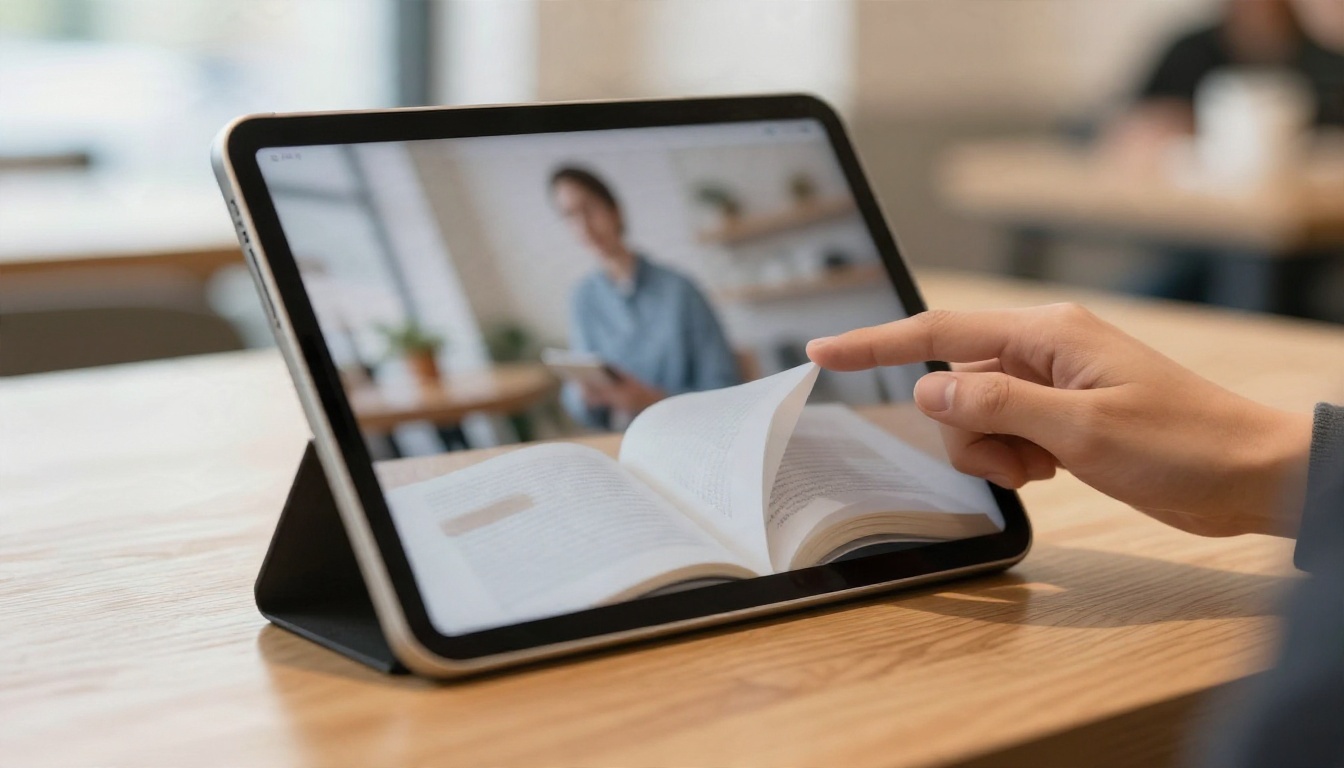
A flipbook turns a heavy PDF into a page turning document that opens instantly in any browser. Here is the process from start to finish.
Step by Step
Open the platform. Go to Flipbooks AI and create an account. Use the same email you will share from so everything stays in one place.
Upload your PDF. Use the PDF to Flipbook Converter, drag in the scan, and wait while each page is converted. Even a lightly compressed scan works, since readers load pages as they flip.
Check every page. Flip through the preview. Look for tilted pages, missing sheets, or text that is too faint. Fix those in your source file and upload again if needed.
Customize the look. Add your logo, pick background colors, choose the page turning effect, and set a title that tells readers what they are opening. Branding makes a plain scan look professional. You can also embed videos and audio when a document benefits from them.
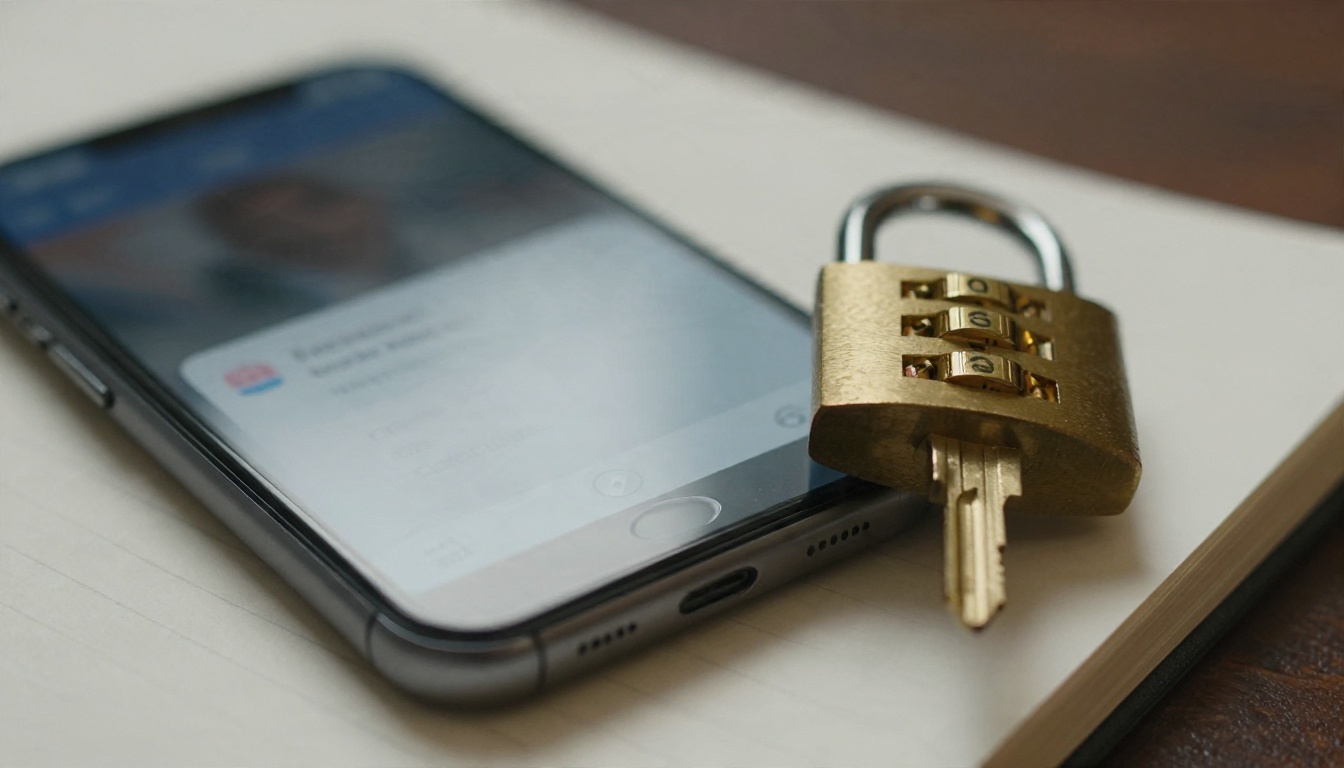
Set access. Turn on password protection for private files such as contracts, medical forms, or financial records. Skip it for public material.
Share it. Copy the direct link for emails and messages, or use the embed code to place the document on a page with the Embed Flipbook on Website tool.
Go further if needed. On the Professional plan, add analytics to see how many people opened the document and how far they read, plus lead capture so you know who they are. Offline downloads let readers keep a copy. See the pricing plans for details.
💡 Good to know: every flipbook is exported with no watermarks, the layout adapts to phones and tablets automatically, and the Standard plan and above allow unlimited flipbooks.
Scans often contain signatures, IDs, account numbers, or addresses. Use a password, send it through a different channel than the link (a text message instead of the same email), and delete the flipbook when it is no longer needed. Never post a link to a sensitive document on a public page.
Common Mistakes to Avoid
Most failed attempts at shrinking a scan come down to a handful of habits:
Scanning at 600 DPI by default. Change the scanner profile once and save the preset.
Using color for every page. Black and white or grayscale is enough for most paperwork.
Compressing a compressed file. Always start from the original.
Skipping the zoom check. Open the result at 100 percent and read the smallest text.
Splitting files without a naming system. Use "Contract_Part1of3" so the recipient knows the order.
Sending private scans unprotected. An attachment can be forwarded freely, while a password protected link gives you control.
Forgetting the recipient's limit. If you do not know it, send a link.
Send Your Scan Today
Here is the short version. Scan at 200 to 300 DPI, pick grayscale or black and white, run OCR with compression, check the result at full zoom, and keep the original safe. When the file is still too heavy, or when you want a cleaner experience for the reader, turn it into a link.
Ready to try it? Create a free account on Flipbooks AI and upload your first scan. Browse all the flipbook tools to find a layout that suits your document, or compare plans and features when you need analytics, lead capture, and unlimited flipbooks.