You opened Scribus, stared at the property palettes for ten minutes, and still could not get a simple two-column newsletter to behave. You are not alone. Scribus is a serious piece of free software, but plenty of people want a Scribus alternative open source option that gets a brochure out the door before lunch. This comparison walks through the best free tools for the job, shows where each one shines, and then covers the step most layout tools skip: turning the finished PDF into an interactive flipbook with Flipbooks AI.
Why People Leave Scribus
Scribus has been around for more than two decades, and it earned its reputation honestly. It handles CMYK, spot colours, bleed settings and PDF/X export, which is exactly what a commercial printer asks for. So why do so many people go looking for something else?
Where It Still Wins
Be fair to the old workhorse. If you are preparing a 48-page printed catalogue for an offset press, Scribus gives you tools that most free competitors simply do not have:
- True CMYK and spot colour control for print-ready files
- Linked text frames that flow copy across columns and pages
- Page templates that repeat headers, footers and page numbers automatically
- PDF/X export that satisfies strict prepress requirements
- Zero cost, zero licence worries, because it is open source under the GPL
Where It Slows You Down
The trouble starts when your project is small. A tri-fold brochure or a monthly newsletter does not need a prepress toolbox, yet you pay for one anyway:
- The interface is dense, and basic jobs such as placing an image take several dialog boxes.
- Fonts and imported files sometimes misbehave between operating systems.
- Collaboration is awkward, because project files are not built for sharing in a browser.
- The output is a static PDF, so readers on phones pinch and zoom through tiny pages.
💡 Pro tip: Before you switch tools, ask what the final file is for. A printed run of 5,000 brochures and an emailed newsletter have very different requirements, and the right tool depends on that answer.
Five Open Source Options Compared
Here is a side-by-side look at Scribus and the free tools most often used in its place. Ratings are based on how quickly a beginner can produce a decent brochure or newsletter.
| Tool | Best For | Ease of Use | CMYK Support | Multi-Page Layouts | Cost |
|---|
| Scribus | Print-ready catalogues | Hard | Yes | Excellent | Free |
| LibreOffice Writer and Draw | Newsletters, simple brochures | Easy | Limited | Good | Free |
| Inkscape | Single-page flyers, vector art | Medium | Limited | Basic | Free |
| Penpot | Team layouts in a browser | Medium | No (RGB) | Good | Free |
| GIMP | Photo-heavy covers and posters | Medium | Via plugin | Poor | Free |
| Typst | Text-heavy, data-driven documents | Medium | Limited | Excellent | Free |
LibreOffice Writer and Draw
For most small teams, this is the first stop. Writer handles columns, text wrapping, styles and tables in a way that anyone who has used a word processor already understands. Draw gives you a freeform canvas for brochures where you want to drop frames wherever you like.
- Export to PDF is built in, with options for image compression and PDF/A.
- Styles keep headings and body text consistent across a long document.
- Templates are plentiful and easy to edit.
The limits show up in professional print work. CMYK handling is basic, so ask your printer whether RGB files are acceptable before you commit.
Inkscape for Single Pages
Inkscape is a vector editor, and it is wonderful for flyers, posters and one-page brochure panels. You get precise control over shapes, gradients and typography, and the files stay sharp at any size. Recent versions support multiple pages, which makes a short brochure possible, though long text documents are still painful.
Use it when the design matters more than the word count: event invitations, menu panels, or the front panel of a tri-fold.
Penpot for Team Layouts
Penpot is an open source design tool that runs in the browser, and you can even host it yourself. Several people can work on the same board at once, leave comments, and share a link with a client. It is built around screens and prototypes more than print, so expect RGB colour and a workflow that suits digital newsletters better than offset printing.
GIMP for Image Work
GIMP will not lay out your brochure, but it will rescue the photos that go into it. Retouch, resize, crop and sharpen before placing images in another tool. Think of it as the prep kitchen, not the dining room.
Typst for Text-Heavy Documents
Typst is a newer open source typesetting system. You write markup, and it produces clean PDFs with consistent spacing. It is excellent for reports, price lists and anything fed by data. It is a poor fit if you want to drag a photo around and eyeball the result.
⚠️ Watch out: Free does not mean friction-free. Every tool above has a trade-off, so match the tool to the project instead of forcing one app to do everything.
Best Pick by Project Type
Different documents call for different tools. This table keeps the decision simple.
| Project | Best Free Tool | Backup Option | Final Output |
|---|
| Tri-fold brochure | Inkscape or Draw | Scribus | Print PDF plus flipbook |
| Monthly newsletter | LibreOffice Writer | Penpot | Email PDF plus flipbook |
| Product catalogue | Scribus | Typst | Print PDF plus flipbook |
| Event programme | Draw | Inkscape | Mobile flipbook |
| Annual report | Typst or Writer | Scribus | Print PDF plus flipbook |

Brochures
A brochure lives or dies on its first panel. Start in Inkscape or Draw for a one-page or tri-fold layout, place your photos after cleaning them in GIMP, and export a PDF. Keep text short, use a tight colour palette of two or three shades, and leave generous margins. If a printer is involved, request their bleed and colour requirements before you design anything.
Hotels, estates and dealerships often skip the printer altogether and publish digitally, which is where tools such as the Hotel Brochure Designer and the Real Estate Brochure Creator come in handy.
Newsletters
Newsletters are text-first. LibreOffice Writer wins here, because styles, columns and page numbers are already familiar. Build a template once, duplicate it each month, swap the stories, and export. Teams that send newsletters to schools, clubs or customers can then publish the PDF through a Newsletter Flipbook Publisher so readers get a clean, swipeable edition instead of an attachment they never open.
Turning Your PDF Into a Flipbook
Whichever free tool you choose, you end up with a PDF. That is a fine print format and a mediocre reading experience on a phone. Readers have to zoom, scroll sideways, and download the file before they see anything.
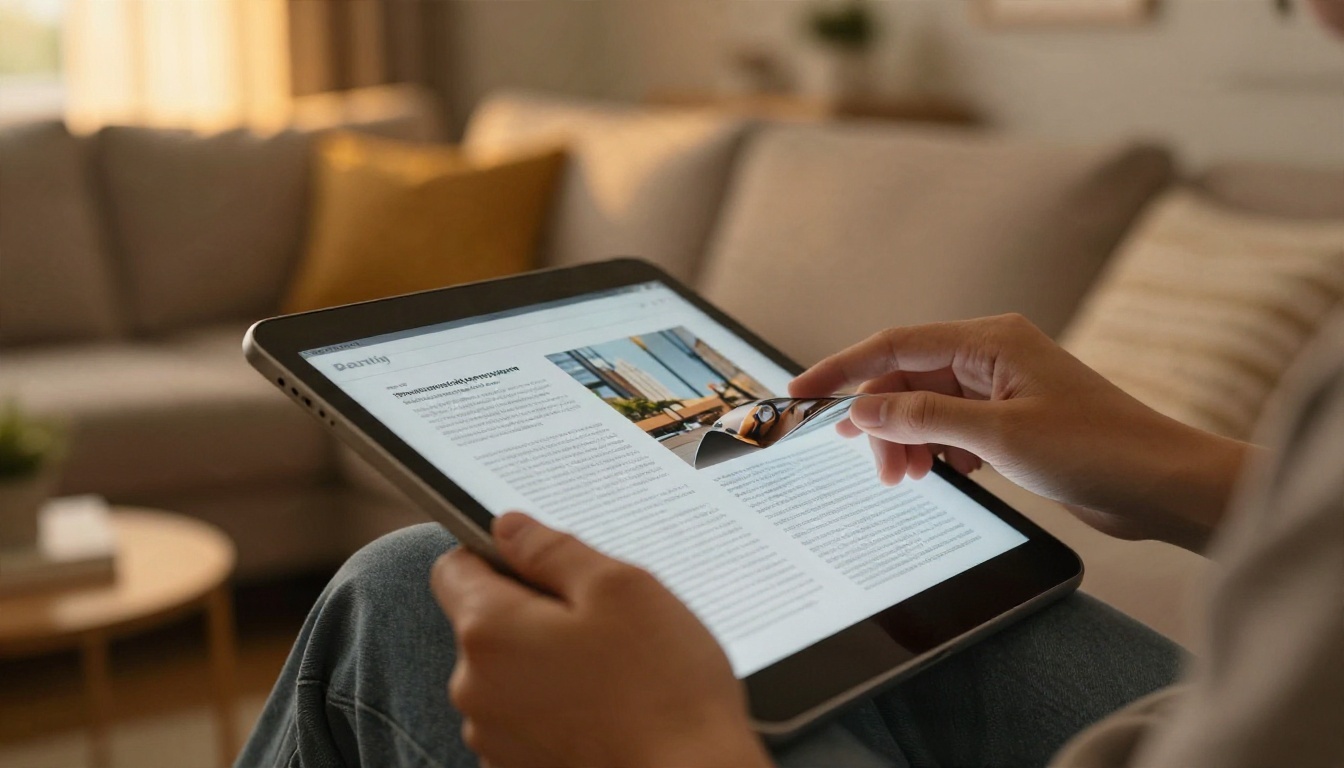
A flipbook fixes that. The PDF becomes a page-turning publication that loads in the browser, adapts to the screen size, and can be shared with a single link.
Here is how the two formats compare:
| Feature | Plain PDF | Flipbook |
|---|
| Opens in the browser | Sometimes | Always |
| Mobile-friendly reading | Poor | Responsive |
| Page-turn effect | No | Yes |
| Embedded video and audio | Limited | Supported |
| Password protection | Basic | Built in |
| Reader analytics | None | Available on Professional |
| Easy website embedding | No | Yes |
The PDF to Flipbook Converter is the quickest route, and the Brochure Flipbook Maker is tuned for exactly the kind of file you will produce with the tools above.
How to Create a Brochure Flipbook with Flipbooks AI
Here is the full workflow, from finished PDF to shared link. It takes only a few minutes once your file is ready.
First, create an account on Flipbooks AI. Then follow these steps.
Upload and Convert
- Open your dashboard and choose the option to create a new flipbook.
- Upload your PDF by dragging it into the upload area. Files exported from Scribus, LibreOffice, Inkscape or Typst all work.
- Wait for conversion. Each page is turned into a crisp, readable flipbook page. Text stays sharp and links in your PDF remain clickable.
- Preview the result to confirm page order, images and fonts look right.
💡 Pro tip: Export your PDF at a moderate image resolution, around 150 to 200 DPI for screens. Files stay light, pages load fast, and readers on slow connections will thank you.
Brand It
Customisation is where a plain brochure starts to feel like yours:
- Add your logo and pick brand colours for the toolbar and background.
- Choose a page effect, such as a classic curl or a smooth slide.
- Set the cover and background so the flipbook matches your website.
- Embed multimedia such as product videos, audio notes or clickable links on any page.
There are no watermarks, ever, so the finished flipbook looks like it belongs to your brand and nobody else's.

Share and Protect
Once the design is ready, choose how readers reach it:
- Direct link: paste it into emails, social posts or messages.
- Embed code: place the flipbook on a page of your site. The Embed Flipbook on Website tool shows how.
- Password protection: keep internal newsletters, pricing sheets or draft brochures private.
- Offline download: let readers save a copy for trains, flights and poor reception.
Pro Features
If you want to know who actually reads your brochure, the Professional plan adds analytics and lead generation. You can see which pages hold attention and collect contact details before a reader opens the full document. Standard plans and above give you unlimited flipbooks, which suits teams publishing a new newsletter every month. See the pricing plans to compare them.
A Free Stack That Actually Works
Theory is fine, but here is a realistic example. Imagine a small community garden group that sends a monthly newsletter and prints a tri-fold brochure twice a year.
Their workflow:
- Photos: a volunteer crops and brightens pictures in GIMP.
- Newsletter: the editor writes in LibreOffice Writer using a saved template.
- Brochure: a designer builds the tri-fold in Inkscape and exports a print PDF.
- Printing: a local print shop receives the brochure PDF and runs 500 copies.
- Digital edition: both PDFs are uploaded to Flipbooks AI and shared through a link in the group's email list and on its website.
The total software cost is zero for design, and the digital edition keeps the newsletter readable on phones. Members who never opened PDF attachments now flip through the pages from their sofa.
Here is how that stack compares with sticking to Scribus alone:
| Task | Scribus Only | Free Stack Above |
|---|
| Newsletter template setup | 2 to 3 hours | About 30 minutes |
| Tri-fold brochure | Fine, but fiddly | Fast in Inkscape |
| Photo retouching | Needs another tool | GIMP handles it |
| Mobile reading | Static PDF | Flipbook |
| Team feedback | File swapping | Shared links |

Mistakes to Avoid
Switching tools does not fix a weak workflow. Watch for these common slips:
- Ignoring the printer's specs. Ask for bleed, margins and colour mode first. Redoing a layout after the fact costs more than asking early.
- Using too many fonts. Stick to two. One for headings, one for body text.
- Forgetting to embed fonts in the PDF. Missing fonts change your layout on someone else's screen.
- Uploading huge image files. Large files slow down both email and flipbook loading.
- Skipping a mobile test. Open your flipbook on a phone before you send it to anyone.
✅ Best practice: Keep a project folder with three subfolders: source files, print PDFs and web PDFs. You will export two versions of nearly every document, and tidy folders prevent embarrassing mix-ups.

Sketching a simple grid on paper before opening any software saves hours. Decide your columns, margins and image positions first, then recreate them in whichever tool you pick.
Ready to Publish?
You do not need to wrestle with Scribus to produce a professional brochure or newsletter. Pick the free tool that fits the job: LibreOffice for text, Inkscape for single-page designs, Penpot for team projects, GIMP for photos and Typst for data-driven documents. Keep Scribus for the heavy prepress work where it truly earns its place.
Then give your readers a better way to read. Upload your finished PDF and get started for free on Flipbooks AI, browse all of the flipbook tools to find the right template for your project, or compare pricing plans when you are ready for analytics, lead capture and unlimited publications.
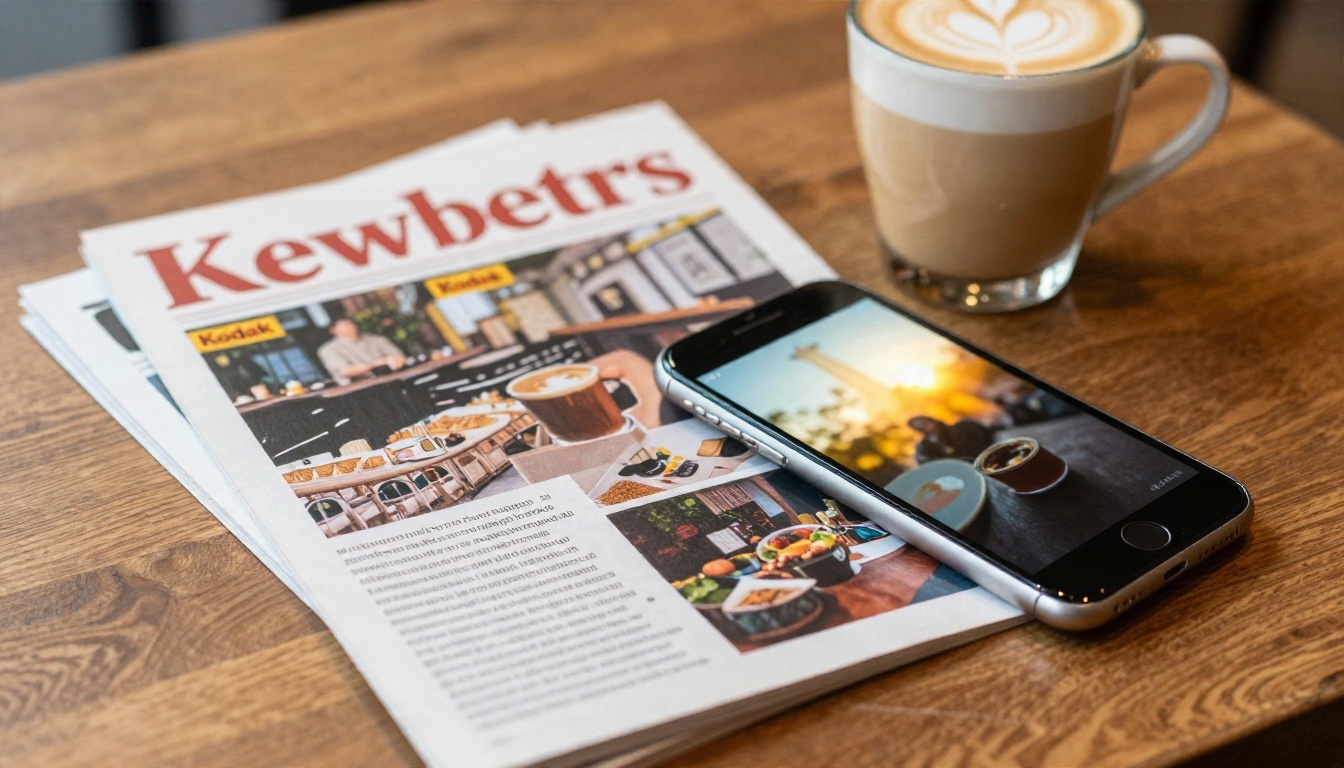
Print the copies for the cafe counter, and share the flipbook link for everyone else. When you want to unify the whole process, start with an account and pick the plan that fits your publishing schedule.



