You hit send, and a minute later the bounce notice lands in your inbox: "Message size exceeds the limit." Or worse, the email goes through, but your client opens a 40 MB attachment on a phone and gives up after ten seconds. The fix is simple: send the PDF as a link instead of a file. With a tool like Flipbooks AI, you turn the document into an online page-turning viewer and share one short URL in Outlook, WhatsApp, Gmail or any other app.
This article walks through exactly how to do it, app by app, with the size limits that cause trouble, a clear comparison of your options, and real situations where a link beats an attachment every time.
Why Attachments Keep Failing
Attachments feel natural because email was built around them. But the way we use PDFs today (brochures, proposals, catalogs, reports full of images) pushes them past what inboxes were designed to handle.
The Size Limits Nobody Reads
Every mail provider and messaging app sets a ceiling. When you attach a file, the email system also encodes it, which adds roughly a third to its real size. A 18 MB PDF can therefore be refused by a 25 MB limit.
| Platform | Typical attachment limit | What happens when you go over |
|---|
| Outlook.com | About 20 MB | Prompts you to upload to OneDrive |
| Microsoft 365 (Exchange Online) | 25 MB by default, adjustable by admins | Message bounces or is blocked |
| Gmail | 25 MB | Converts to a Drive link automatically |
| Yahoo Mail | 25 MB | Message refused |
| WhatsApp (documents) | Up to 2 GB per file | Works, but slow on mobile data |
💡 Pro tip: Limits change and companies often set stricter rules on their own servers. If a recipient works at a large company, assume their ceiling is lower than the public number.
Security Filters and Spam Folders
Size is only the first obstacle. Corporate gateways scan attachments, and a PDF with embedded scripts, many images or an unusual structure can be quarantined. The sender sees nothing wrong, and the recipient never gets the email. Messages with a plain link and a short sentence rarely trigger the same filters.
Other everyday problems with attachments:
- Version chaos: three people download version 2, and you have already fixed it in version 3.
- Phone frustration: pinching and zooming a letter-sized page on a six-inch screen.
- No visibility: you never know whether anyone opened the file.
- Storage clutter: the same 30 MB file sits in every recipient's mailbox forever.
What "PDF as a Link" Really Means
Sending a link means the file lives in one place online and your message only carries the address. The recipient clicks and views it in their browser. There are two common ways to do this, and they feel very different to the person on the other end.
Cloud Drive Links
Services like OneDrive, Google Drive or Dropbox give you a share link. It solves the size problem, but the viewer is basic: a grey toolbar, a download prompt, sometimes a request to sign in. Permissions also get confusing, and "Anyone with the link" settings are easy to forget.
Flipbook Links
A flipbook link opens your PDF as a polished, responsive reader with realistic page turns, zoom and a layout that reflows nicely on mobile. You can add your own branding, protect it with a password and, on higher plans, see who opened it. The PDF to Flipbook Converter handles the conversion in a few clicks.
| Feature | Email attachment | Cloud drive link | Flipbook link |
|---|
| Size limit problem | Yes | No | No |
| Opens well on mobile | Poor | Average | Excellent |
| Custom branding | No | No | Yes |
| Password protection | Only by encrypting the file | Account based | Built in |
| View tracking | No | Limited | Yes (Professional plan) |
| Update after sending | No | Yes | Yes |
| Looks professional | Plain | Plain | Polished reader |
Send a PDF Link in Outlook
Outlook is where most business attachments fail, so start here. Once you have your link ready (the next section shows how to create one), the sending part takes under a minute.
Paste the Link in a New Message
- Open Outlook and click New email (or New message in the web version).
- Add the recipient, a clear subject line, and a short greeting.
- Paste the link on its own line. Outlook usually turns it into a clickable hyperlink right away.
- Add one sentence telling people what they will see, for example: "Our 2026 pricing and service packages, 24 pages."
- Send. No paperclip icon, no size warning.
Turn the Link into Clean Text
A raw URL can look messy, and some people hesitate to click long addresses. Replace it with descriptive text:
- Type the words you want, such as View the proposal.
- Select them and press Ctrl + K (on Mac, Cmd + K).
- Paste the link into the Address field and click OK.
⚠️ Warning: Avoid phrases like "click here". They look suspicious to spam filters and tell the reader nothing. Name the document instead.
Outlook on Mobile
In the Outlook app, tap New message, paste the link in the body, and send. If you have the link copied in your clipboard, the app often offers a quick paste prompt. For links you share often, save the address in a notes app so it takes two taps.
Share a PDF Link on WhatsApp
WhatsApp accepts large documents, but nobody enjoys downloading a 50 MB file over mobile data, and the PDF then opens inside a separate viewer app. A link avoids both problems.
From Your Phone
- Copy your flipbook link.
- Open the chat with your client, colleague or group.
- Paste the link into the message field.
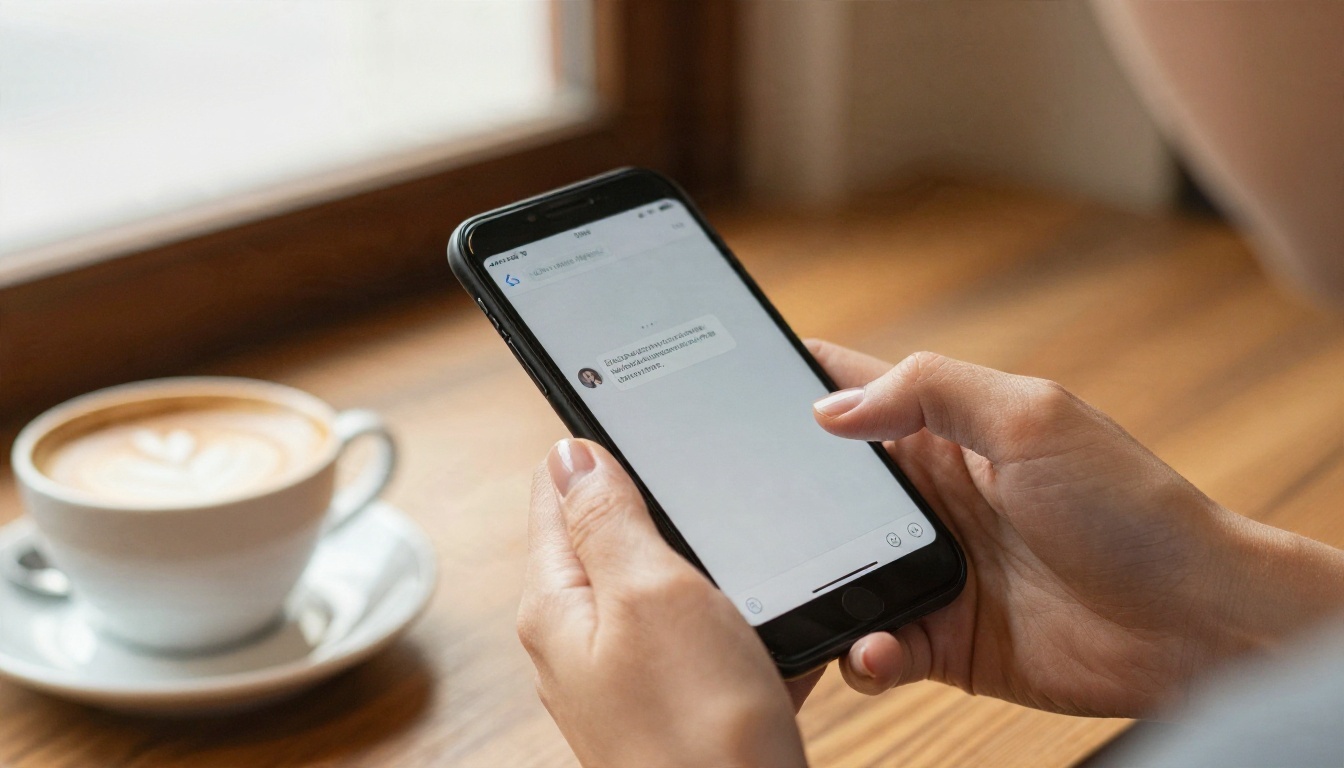
- WhatsApp shows a preview card with a title and image. Add a short line of context.
- Tap send.
The preview card matters. It builds trust because people see a title and a thumbnail before they tap, which makes a link feel like content, not a risk.
From WhatsApp Web and Business
On WhatsApp Web, paste the link with Ctrl + V and press Enter. If you use WhatsApp Business, save the link as a quick reply with a shortcut such as /catalog. Customers who ask "Can you send your price list?" get an instant, tidy answer.
✅ Best practice: Put the link in its own message, separate from your explanation. That way the preview card shows up cleanly and the reader can tap it without hunting through text.
Email Without Attachments in Gmail and Others
The same logic works in every mail client. Gmail will even convert oversized attachments to Drive links on its own, but you lose control over how the document looks. Pasting your own link keeps the branding and the viewer consistent.
Gmail, Apple Mail and Yahoo
| Client | How to insert the link | Shortcut |
|---|
| Gmail | Select text, click the link icon, paste URL | Ctrl + K |
| Apple Mail | Select text, Edit menu, Add Link | Cmd + K |
| Yahoo Mail | Select text, click the link icon | Ctrl + K |
| Outlook | Select text, Insert, Link | Ctrl + K |
Add Links to Your Email Signature
If you send the same document again and again, put it in your signature: "Download our catalog" with the flipbook link behind it. Every email you send then carries your latest brochure at no extra effort. When you update the PDF later, the same link shows the new version.
Create Your PDF Link with Flipbooks AI
Here is the full process, from file to shareable link. It takes about two minutes for an average document.
Step 1: Upload and Convert
- Go to Flipbooks AI and create an account.
- Click to create a new flipbook and drag your PDF into the upload area.
- Wait a few seconds while the pages convert. Your layout, fonts and images are preserved, and the result is mobile responsive from the first page.
Whatever the document is, there is probably a matching tool. A few examples: the Digital Catalog Maker for product ranges, the Online Brochure Designer for marketing material, and the Sales Presentation tool for decks you send before a meeting.
Step 2: Customize the Viewer
Open the settings panel to make the flipbook look like yours:
- Branding: add your logo and choose colors that match your website.
- Page effects: pick the page-turn style and background.
- Multimedia: embed videos or audio on specific pages, such as a founder introduction on page two.
- No watermarks: your flipbook carries no third-party branding, ever.
💡 Pro tip: Preview the flipbook on your phone before you share it. If you can read it comfortably with one thumb, your recipients can too.
Step 3: Choose How to Share
Once the flipbook is published, you get several options:
| Sharing option | Best for | Where to use it |
|---|
| Direct link | Fast sharing | Outlook, Gmail, WhatsApp, SMS |
| Password protection | Private or confidential files | Contracts, financial reports, internal material |
| Embed code | Displaying it on a page | Your website, blog or landing page (embed guide tool) |
| Offline download | Recipients with weak connections | Trade shows, travel, field teams |
Copy the direct link, then paste it into your email or chat as shown in the sections above. If the content is sensitive, switch on password protection and send the password through a different channel, such as a text message.
Step 4: Track Results on Professional
On the Professional plan you get analytics and lead generation. You can see how many times a flipbook was opened, which pages held attention, and collect a name and email before someone views the file. Compare the pricing plans to see which features fit your volume. Standard plans and above include unlimited flipbooks.

Real Situations Where Links Win
The theory is simple. Here is how it plays out for real people who send PDFs for a living.

Shops and Small Businesses
A boutique owner gets WhatsApp messages all day asking for the latest collection. Instead of attaching a heavy PDF each time, she saves one link as a quick reply. Customers tap, flip through the lookbook on their phone and reply with the items they want. When the new season arrives, she updates the flipbook and the same link shows the new collection. The Interactive Lookbook Designer suits this workflow well.
Real Estate Agents
An agent walking a client through an apartment can share the property brochure on the spot, with photos, floor plans and pricing. No waiting for an attachment to download on a weak signal. Agents who want a ready template can try the Real Estate Brochure creator.

Teams and Corporate Reports
A finance team distributing a quarterly report to 60 stakeholders would normally fill 60 mailboxes with the same large file. With a link, everyone looks at one version, and the team sees who actually opened it. For this kind of material, the Corporate Report Maker is a natural fit.

| Scenario | Old way | Link way | Result |
|---|
| Product catalog to wholesale buyers | 35 MB attachment, often bounced | One flipbook link | Delivered every time |
| Proposal to a new client | Plain PDF, no feedback | Branded flipbook with views tracked | Know when to follow up |
| Price list on WhatsApp | Re-sent after each change | One permanent link | Always the current prices |
| Internal report | Multiple versions in circulation | Password protected link | One source of truth |
Mistakes to Avoid
Links solve many problems, but a few habits can still cause trouble.
Mistake 1: Sending a Naked Link With No Context
An email containing only a URL looks like phishing. Always add a sentence explaining what the link is, how many pages it has and why the person is receiving it.
Mistake 2: Forgetting Access Settings
If the document is confidential, do not rely on a link being "hard to guess". Use password protection, and send the password separately. If it is public marketing material, leave it open so nobody has to ask for access.
Mistake 3: Ignoring the Mobile Experience
More than half of emails are opened on a phone, and WhatsApp is mobile by nature. A PDF that looks fine on a desktop monitor may be unreadable on a small screen. A responsive flipbook solves this, but you should still test it on a real phone.

✅ Quick checklist before you hit send:
- The link opens in a private browser window without errors
- The first page looks good on a phone
- Your message names the document and says what to look at
- Password protection is on if the content is private
- You have saved the link for next time
Send Your First PDF Link Today
Attachments will not disappear, but you no longer have to depend on them. A link never bounces for size, gives your document a professional look on every device, and lets you fix typos after the message has gone out. Whether you write from Outlook, reply on WhatsApp or send a quick Gmail note, the routine is the same: convert once, copy the link, paste and send.
Ready to try it? Get started for free on Flipbooks AI and turn your next PDF into a link in about two minutes. Browse all flipbook tools to find a template for your document type, or compare the pricing plans to see when analytics and lead generation make sense for you.



