You open a chat on Instagram, tap the plus icon, look for the document option, and find nothing. Or you try a workaround, the upload spins forever, and your client is still waiting for the price list. If you have ever tried to send a PDF on Instagram message threads and hit a wall, you are not doing anything wrong. The platform was built for photos, videos, and voice notes, not for files. The good news: there are quick fixes, and there is a cleaner option. A Flipbooks AI link turns your PDF into a page-turning web document that opens inside any DM with one tap.
This article walks through why the problem happens, six fixes to try right now, and a step-by-step method to share your document as a link that actually works on mobile.
Why Instagram Won't Send Your PDF
Most people assume the app is glitching. In reality, the behavior is mostly by design. Instagram's direct messages have always focused on visual and short-form media, and general file attachments have not been part of the standard experience for most accounts. Features change from time to time and rollouts differ by country and account type, so you may see something different from your colleague. But for the majority of users, a PDF simply has no attach button.
What Instagram DMs Actually Support
Here is what the chat window typically accepts:
- Photos and videos from your camera roll
- Voice messages recorded in the thread
- GIFs and stickers
- Shared posts, reels, and profiles
- Plain text links, which become tappable previews
Notice what is missing. There is no document picker, no file browser, and no drag and drop on mobile. When a tutorial online claims you can attach a PDF directly, it is usually describing a workaround, a third-party app, or a feature that only appears for some accounts.
Common Symptoms and Their Causes
| What you see | Likely cause | Fastest fix |
|---|
| No file or document option in the chat | Feature not available on your account or region | Share a link instead |
| Upload spins and never finishes | Weak connection or oversized media | Switch network, compress the file |
| "Couldn't send" message | App cache issue or outdated version | Update app, clear cache |
| PDF arrives as a blurry image | Pages were screenshotted at low resolution | Use a link to the original file |
| Link preview is blank | Link blocked, private, or expired | Use a public or password-protected link |
| Recipient cannot open the file | Their phone lacks a PDF viewer | Send a browser-based link |
💡 Pro tip: Before trying anything complicated, ask yourself what the recipient needs. In most cases they want to read the document, not own the file. That distinction changes the best solution.
Six Quick Fixes to Try First
Some problems are real glitches rather than missing features. Work through these in order. Each takes under two minutes.
Update the App and Restart
An outdated build is the most common reason a normal message fails to send. Open your app store, check for an Instagram update, install it, and then force close the app before reopening it. If you are on a beta or a very old version, new messaging features may not appear at all.
Clear Cache and Check Storage
On Android, open the app settings for Instagram and clear the cache. On iPhone, offloading and reinstalling the app has the same effect. Also check that your phone has free storage. A nearly full device can fail silently when it tries to prepare a file for upload.
Switch Networks and Retry
Move from mobile data to Wi-Fi, or the other way around. Large attachments often fail on weak signals. If you are on a VPN, switch it off for a moment, since some VPNs interfere with media uploads.
Compress the File First
If your PDF is full of high-resolution photos, it can be tens of megabytes. Shrink it with a compression tool, or export it again from your design software using a "web" or "smallest size" preset. Smaller files upload faster and are less likely to time out.
Turn Pages into Images
Export each page as a JPG or PNG and send them as a multi-photo message. This works, but only for short documents. A 30-page catalog becomes a flood of images that the recipient has to scroll through, one chat bubble at a time.
Send a Link Instead
Upload the PDF to a cloud drive and paste the share link. Instagram will accept it as plain text. This is the most reliable fix on the list, though the experience on the other end can be rough, as the next section shows.
⚠️ Warning: Never send a cloud link set to "anyone with the link can edit." Always use view-only permissions, or recipients could change or delete your file.
Why Common Workarounds Keep Falling Short
The fixes above get a file to the other person. They do not guarantee that the person will actually open it, finish it, or come back. Here is how each approach compares for a typical customer chat.
| Method | Works on mobile | Looks professional | Tracks views | Password option | Effort |
|---|
| Screenshots as photos | Yes | Low | No | No | High |
| Cloud drive link | Yes | Medium | Limited | Sometimes | Low |
| Email attachment, then DM | Partly | Medium | No | No | Medium |
| Third-party file app | Varies | Medium | Varies | Varies | Medium |
| Flipbook link | Yes | High | Yes | Yes | Low |
Screenshots Lose Detail
Compression is applied to every image sent in a chat. Fine print, thin fonts, and small price numbers turn soft. Customers zoom in, squint, and give up. Screenshots also cannot hold clickable links, so any button or website address in your PDF becomes dead decoration.
Drive Links Feel Clunky
A generic storage link opens a gray viewer, sometimes asks the visitor to sign in, and often pushes people to download an app. For a customer on a phone in the middle of a scroll session, that is friction. Every extra tap loses a few people.
Email Detours Break the Flow
Asking someone to move from Instagram to email takes them out of the conversation. Many never come back. The message was warm, and the handoff made it cold.
The Flipbook Link Alternative
A flipbook turns a static PDF into a web page that looks and feels like a real publication. Pages turn with a swipe, text stays sharp at any zoom level, and links inside your document remain clickable. You share a single short URL, and Instagram displays it like any other link. Nothing to attach, nothing to download.
What the Recipient Sees
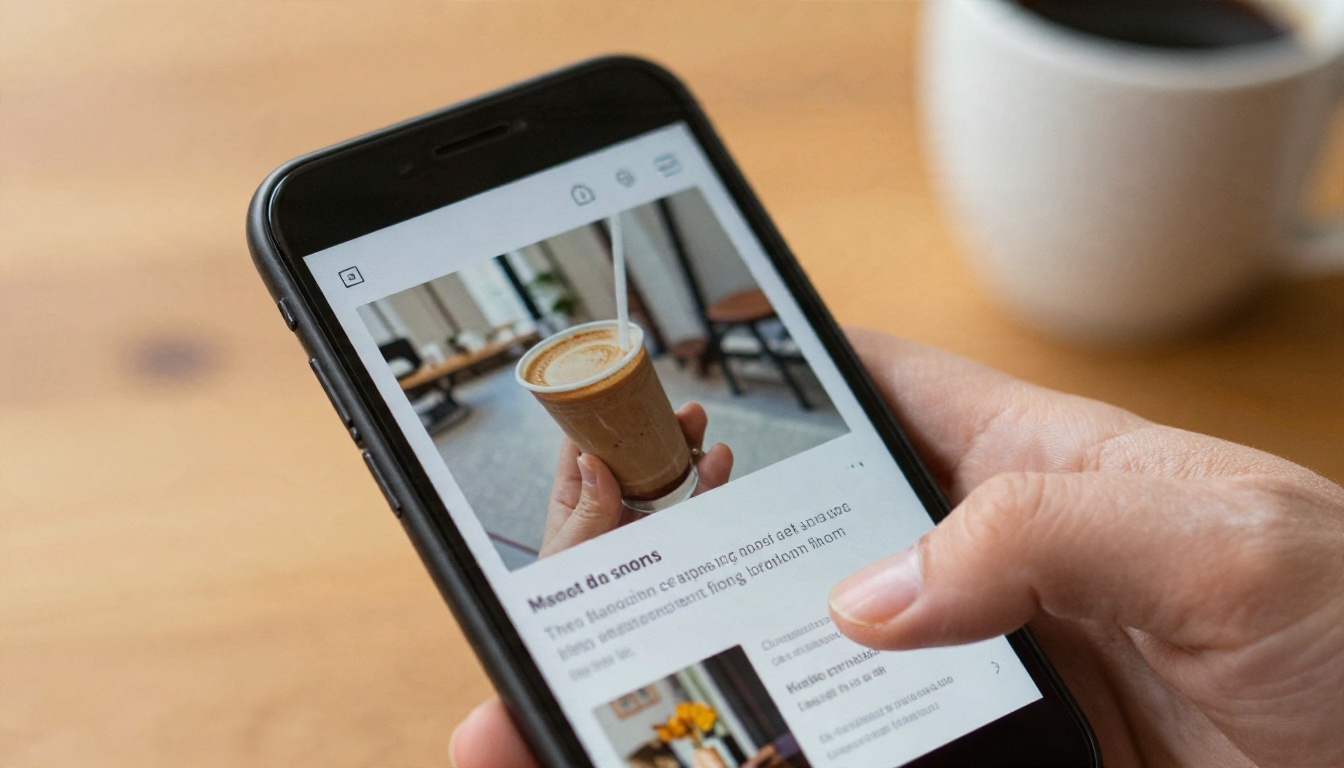
When your customer taps the link, the flipbook opens in their phone browser. No app install. No login. The first page loads quickly, and the layout adapts to the screen, which is why mobile-responsive design matters so much here. They swipe through your catalog, menu, or proposal the way they would flip a magazine.
Who Benefits Most
- Boutique owners sending lookbooks and seasonal catalogs
- Restaurants and cafes sharing menus with a customer who asks for the specials
- Real estate agents answering a DM about a property brochure
- Photographers and designers replying to a booking inquiry with a portfolio
- Coaches and course creators delivering a free workbook or media kit
- Event organizers sending a program or schedule
A small shop owner, for instance, might get ten messages a day asking, "Do you have a catalog?" Instead of typing the same answer and fighting with attachments, they paste one link and move on.
✅ Best practice: Keep one evergreen link for your standard catalog or price list, and update the flipbook behind it when your prices change. You never have to resend a new URL.
How to Create a Flipbook with Flipbooks AI
The whole process takes a few minutes, even if you have never made a digital publication before. Here is the full path from PDF to shareable link.
Step 1: Create Your Account
Go to Flipbooks AI and create an account. Pick a plan that suits your volume. You can compare options on the pricing page, including the Standard plan for unlimited flipbooks and the Professional plan for analytics and lead capture.
Step 2: Upload and Convert the PDF
Use the PDF to Flipbook Converter. Drag your file into the upload area, or select it from your device. The platform reads each page, keeps the fonts and images sharp, and rebuilds the document as a flipbook. Large files are handled without you needing to compress anything first.
💡 Tip: Export your PDF at its original quality. The converter does the optimization, so you keep the crisp look that screenshots destroy.
Step 3: Customize the Look
Open the editor and adjust what matters for your brand:
- Branding: add your logo and choose a background color that matches your Instagram feed
- Page effects: pick a realistic page-turn animation and sound, or keep it minimal
- Multimedia: embed videos and audio, such as a short product demo or a welcome message
- Links and buttons: make your website, WhatsApp number, or booking page clickable inside the pages
There are no watermarks on your finished flipbook, so the result looks like your own publication.
Step 4: Choose Sharing Options
For each flipbook you can pick how it travels:
- Direct link for DMs, Stories, and your bio
- Embed code to place it on your website, using the Embed Flipbook on Website tool
- Password protection for private proposals, contracts, or client-only price lists
- Offline download when a recipient wants a copy
Step 5: Add Analytics and Lead Capture
On the Professional plan, you can see how many people opened your flipbook, which pages they read, and how long they stayed. You can also add a lead form so interested visitors leave their name and email before reading. It is a simple way to find out who is serious. Check the pricing plans to see which tier includes these tools.

Pick the Right Template Tool
Different documents benefit from different starting points. Browse all flipbook tools, or jump straight to one of these:
Sharing Your Link on Instagram

Once your flipbook is ready, copy the link. Where you put it decides how many people actually see it.
Inside Direct Messages
Paste the link into the chat with one friendly sentence before it. Instagram generally shows a link preview, and the person taps to open the flipbook in their browser. If the preview does not appear, the link still works as plain text.
In Your Bio and Stories
Add the link to your profile so anyone can find it without messaging you. In Stories, use the link sticker where it is available, and point to it with a short line like "Full catalog here." Pair this with a pinned highlight so new followers see it first.
Message Templates That Work
Keep replies short and useful. A few starters you can save as quick replies:
- "Here is our latest catalog, swipe through at your own pace: [link]"
- "The full menu is here, with prices and allergens: [link]"
- "My portfolio and rates are in this one, tell me what you like: [link]"
- "Here is the private proposal. Password is in the next message."
💡 Pro tip: Send the password in a separate message. It adds a small layer of privacy and keeps the link tidy.
Mistakes That Waste Your Link
Even a good link can underperform. Watch for these:
- Sending the file name instead of a link. A message saying "catalog.pdf" with no URL helps nobody.
- Using a huge, unoptimized PDF. Slow loading makes people leave. Trim extra pages and oversized photos.
- Forgetting the first page. The cover page of your document is what people see first, so make it clear and inviting.
- Leaving outdated prices live. Update the flipbook behind your link whenever something changes.
- Skipping the test. Open your own link on a phone, on mobile data, before sending it to a customer.
- No next step inside the document. Add a clickable button for booking, ordering, or messaging you.
Quick Checklist Before You Hit Send
- The link opens on both iPhone and Android
- Text is readable without zooming
- Clickable buttons work
- Password, if used, is ready to share
- Your contact details appear on the last page
Send Your First Flipbook Link Today

When a PDF will not send in an Instagram message, you have two paths. You can keep fighting the app with cache clearing, compression, and screenshot batches, or you can skip the attachment and send a link that opens beautifully on any phone. The fixes in this article will solve a stuck upload. The flipbook approach solves the bigger problem: giving your customer a smooth, professional way to read what you made.
Ready to try it? Get started for free on Flipbooks AI, convert your first PDF in a few minutes, and paste the link into your next DM. Browse the full list of tools and templates to find the right starting point, and compare pricing plans when you are ready for analytics, lead capture, and unlimited flipbooks.



