Picture a customer who needs 250 saddle-stitched booklets by Friday. They want to pick a size, upload a PDF, see a price and pay, all without emailing your shop three times. That is the promise of web to print, and the gap between a store that delivers it and one that frustrates buyers comes down to a handful of features. This article breaks down the web to print features that matter for booklet printing: online ordering, templates, pricing logic and PDF handling. You will also see where a flipbook proof step, built with Flipbooks AI, cuts down on reprints and "I never approved that" arguments.
If you run a print shop, a design studio or a small business that resells printed booklets, treat the sections below as a buying checklist. Booklets are a tricky product. Page counts must be multiples of four for saddle stitch, spine width changes with paper weight, and the outer pages often use a different stock from the inner ones. A good web to print setup absorbs that complexity so customers never see it.
💡 Quick take: The best booklet storefronts do four things well. They limit choices to combinations you can actually produce, quote prices instantly, check every PDF before it reaches a press, and show the buyer a realistic preview before payment.
What Web to Print Actually Means
How the Workflow Runs
Web to print (also called W2P or online print ordering) moves the quoting, file submission and approval steps from email and phone calls into a browser. For booklets, the typical flow looks like this:
- The buyer chooses a format (A5, A4, US Letter, square) and binding (saddle stitch, perfect bound, wire-o).
- They set the page count, paper stock and quantity.
- The system calculates a price and a delivery date.
- The buyer picks a template or uploads a print-ready PDF.
- The file is checked automatically, then approved by the buyer.
- Payment is taken and the job drops into production with all specs attached.
Every step you automate is one fewer back-and-forth message. Shops that move to this model usually report that the biggest saving is not the quoting time but the number of jobs that arrive with correct specs the first time.
Who Gets the Most Value
Not every printer needs a full storefront, but several groups benefit quickly:
- Commercial print shops that field repeat booklet orders such as manuals, programs and catalogs.
- Schools and clubs that print yearbooks, event programs and newsletters every term.
- Agencies that reorder branded booklets for clients. A realtor, for example, may reprint a property booklet each month, and a Real Estate Brochure Creator preview helps them sign off before ordering paper copies.
- Restaurants and hotels that update printed menus and welcome booklets seasonally.
| Task | Email and phone workflow | Web to print workflow |
|---|
| Getting a quote | Hours or days | Seconds, on screen |
| Spec errors (wrong page count) | Found at prepress | Blocked at ordering |
| File checks | Manual, by operator | Automatic preflight |
| Proof approval | PDF attached to email | Online preview and click to approve |
| Reorders | Start from scratch | One click from order history |
Online Ordering Features That Matter

A Configurator That Prevents Mistakes
The product configurator is the heart of the store. For booklets it should enforce production rules rather than hope customers read a help page. Look for these behaviors:
- Page count steppers that jump in multiples of four for saddle stitch and warn when a count exceeds what the stapler can handle (usually 64 to 80 pages depending on stock).
- Paper options filtered by binding. Heavy 350 gsm stock should not be offered for a 48-page stapled inner section.
- Live specification summary that updates beside the form, so the buyer sees exactly what they are paying for.
- Finished size diagrams showing trim size, bleed and safe margin.
Accounts, Reorders and Saved Specs
Booklet buyers tend to come back. A quarterly newsletter, an annual report or a seasonal catalog gets reprinted with minor edits. Order history with a "reorder with new PDF" button keeps those customers loyal and saves you from re-keying specs. Saved address books and approval roles (one person uploads, another pays) matter for schools and companies.
Checkout, Shipping and Status Tracking
Even a perfect configurator fails if checkout is clumsy. Check that the platform supports:
- Multiple delivery addresses on one order, useful for splitting 500 booklets across five branches.
- Shipping quotes by weight, since booklets add up fast in a carton.
- Tax and VAT handling, and invoices for business accounts.
- Order status emails: file approved, in production, shipped.
⚠️ Watch out: A storefront that lets customers choose any option combination, then sorts out impossible jobs by email, simply moves the old problem onto a new website.
Booklet Templates That Save Time

Fixed, Editable and Blank Templates
Templates solve two problems: customers who have no design skills, and customers whose designs break production rules. Most web to print systems offer three types, and each fits a different buyer.
| Template type | What the buyer can change | Best for | Risk |
|---|
| Download only (InDesign, Word, Canva-style files) | Everything, offline | Designers | Files still need preflight |
| Online editable | Text, logos, some images | Small businesses, franchises | Limited layout freedom |
| Locked brand templates | Only approved fields | Multi-location brands | Needs setup by admin |
| Blank guides with margins and bleed | Everything | Experienced buyers | Easy to place text in unsafe zones |
Brand Locks and Variable Data
For franchises and associations, locked templates are the feature to prioritize. Head office sets fonts, colors and logo positions. Local branches only edit the address, the opening hours or a photo. The result is hundreds of booklets that look consistent without anyone policing them.
Variable data goes a step further. A spa group might print the same wellness booklet for ten locations, each with its own price list and phone number. If you handle the digital version too, a Digital Price List Generator lets you keep pricing pages current between print runs.
Template Checks Before You Commit
Before you pick a platform, open its sample templates and test a few things:
- Is bleed built in (typically 3 mm or 0.125 inch)?
- Do page counts adjust automatically, or does the buyer have to rebuild the file?
- Are fonts embedded so text does not shift?
- Can the buyer export a PDF proof from the editor?
A template that looks lovely on screen but exports with live text outside the safe margin is a support ticket waiting to happen.
Pricing Rules and Instant Quotes
What Drives Booklet Price
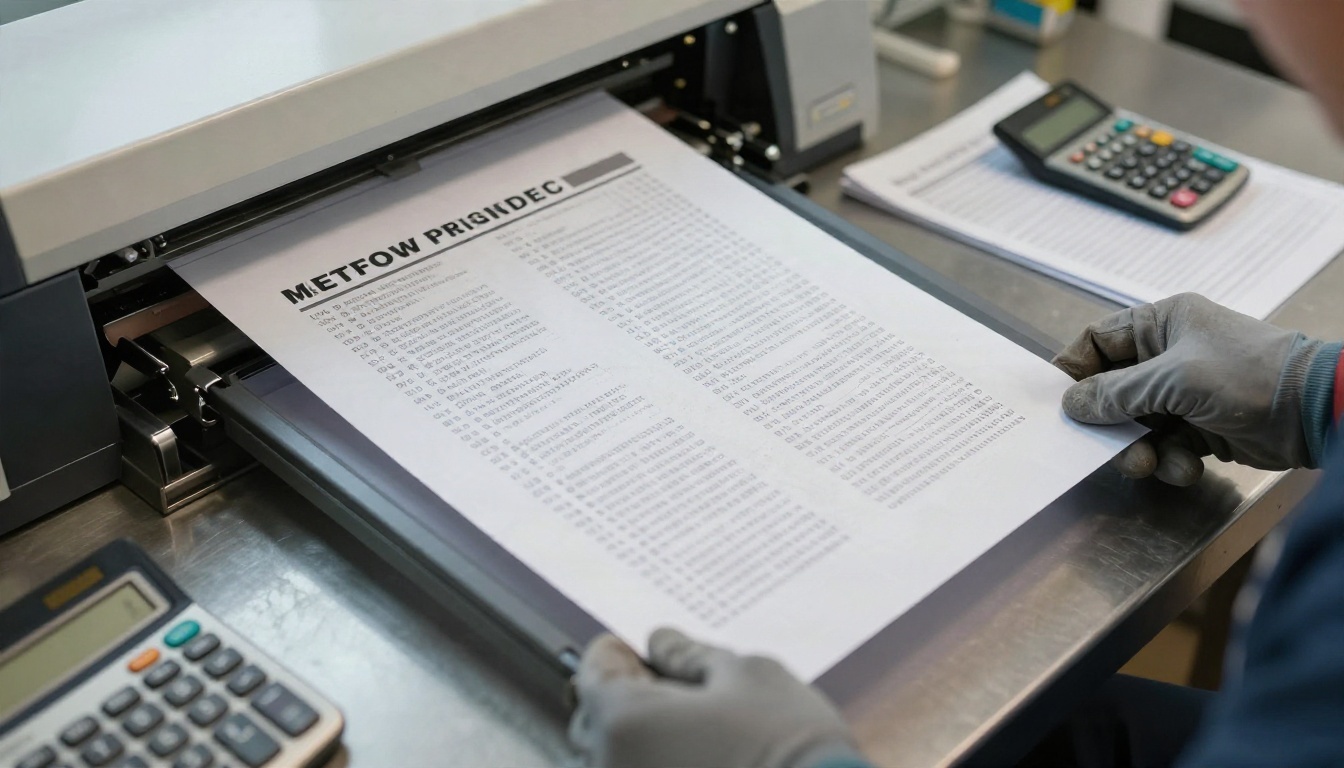
Booklet pricing is a formula with several moving parts. A good engine lets you set each component and see the result without writing code.
- Quantity: setup costs spread over more copies, so per-unit price falls.
- Page count: each extra sheet adds paper, click charges and finishing time.
- Paper weight and coating: uncoated 100 gsm is cheaper than silk 170 gsm.
- Color mode: full color on all pages versus black and white inner pages with color outer pages.
- Binding: saddle stitch is cheapest, perfect binding costs more and needs a minimum page count.
- Turnaround: rush jobs carry a surcharge.
Quantity Breaks in Practice
The table below shows an example price curve for a 16-page A5 saddle-stitched booklet on 130 gsm silk with a 250 gsm outer page. The numbers are illustrative, but the shape is typical.
| Quantity | Price per booklet | Total | Saving versus 50 copies |
|---|
| 50 | $3.10 | $155 | None |
| 100 | $2.20 | $220 | 29% per unit |
| 250 | $1.45 | $362 | 53% per unit |
| 500 | $1.05 | $525 | 66% per unit |
| 1,000 | $0.82 | $820 | 74% per unit |
Margins, Discounts and Surprises
Behind the scenes, look for markup controls by product and by customer group. Trade accounts often get a fixed discount, while walk-in customers see list price. Coupon codes, minimum order values and automatic shipping thresholds help protect margin. Above all, the quote the customer sees should match the invoice. Hidden fees at checkout are the quickest way to lose a booklet order.
💡 Pro tip: Show a small price table (50, 100, 250, 500 copies) on the product page. Buyers who see the curve often move up a tier because the saving is obvious.
PDF Options Every Shop Needs

Upload Requirements Buyers Can Follow
Most booklet problems start with the PDF. Customers send single-page files when you need spreads, or the other way round. They forget bleed, use RGB images or embed no fonts. Your upload screen should tell them what you need in plain words and offer both options:
- Single pages in reading order (the system imposes them for you).
- Printer spreads only if the buyer understands imposition and wants control.
- Cover and inner files uploaded separately, because the outer pages often use different stock and color.
Accepted formats should include PDF/X-1a or PDF/X-4 where possible, with clear notes on resolution (300 dpi at final size) and color profile.
Preflight and Automatic Fixes
Automatic preflight reads the PDF and flags issues before an operator touches it. Compare what different levels of checking actually deliver:
| Preflight feature | What it catches | Why it matters for booklets |
|---|
| Page count check | Count not divisible by four | Saddle stitch needs full sheets |
| Page size and bleed | Wrong trim size, missing 3 mm bleed | White edges after trimming |
| Font embedding | Missing or substituted fonts | Text reflows and breaks layout |
| Image resolution | Photos below 200 dpi | Soft, pixelated pictures |
| Color space | RGB or spot color surprises | Dull or shifted colors |
| Transparency flattening | Complex effects | Odd artifacts on press |
Some systems also fix issues automatically, such as converting RGB to CMYK or adding blank pages to reach a multiple of four. Make sure the system tells the buyer what changed. Silent edits cause arguments later.
Proofs Customers Actually Read
A flat PDF proof is accurate but rarely loved. Customers skim it, miss the typo on page 11, and approve. A page-turning preview is different: they flip through like a real booklet, see spreads as they will print, and notice errors faster. That is where a flipbook step fits neatly into a web to print workflow.
How to Create a Booklet Proof Flipbook with Flipbooks AI
If your web to print platform does not include a visual proof, you can add one in minutes. The PDF to Flipbook Converter turns the customer's PDF into an interactive, page-turning preview you can send as a link. It works well alongside the Brochure Flipbook Maker for brochure-style booklets, and the Online Brochure Designer when a customer needs layout help first.
Step 1: Upload the PDF
- Go to Flipbooks AI and create an account.
- Click the upload area on the dashboard and select the booklet PDF. Files with 16 to 80 pages convert in a short wait.
- You will see a thumbnail grid of the pages. Screenshot description: a row of page thumbnails on the left, with a large two-page spread preview in the center.
- Check that the page order and the front page look right before moving on.
Step 2: Customize the Look
- Open the customization panel and add your shop logo so the proof looks branded.
- Pick a background color that matches your storefront, and choose a page-turn effect and sound if you like.
- Add a short note on the first page or in the link description, such as "Please check all spreads, then approve."
- Optional: embed a short video or audio clip, helpful if the final booklet will also have a digital version.
Everything is mobile-responsive, so buyers can review on a phone while commuting. And there are no watermarks, so the proof looks like it came from your own system.
Step 3: Share and Protect
- Copy the direct link and paste it into your approval email or order notes.
- For private jobs, switch on password protection. This is essential for unreleased catalogs, legal documents or internal training booklets.
- If your store has an order page, use the Embed Flipbook on Website option to place the preview inside it with an embed code.
- Update the flipbook if the customer sends corrections. The link stays the same, so everyone sees the latest version.
Step 4: Add Analytics and Lead Capture
On the Professional plan you can go further:
- Analytics show which pages were viewed and for how long, useful for confirming that the customer opened the whole proof.
- Lead generation forms can collect email addresses when you share a sample booklet publicly, for example a portfolio of past print work.
- Offline downloads let customers keep a copy of the preview.
Check the pricing plans to see which tier matches your volume. The Standard plan and above offer unlimited flipbooks, which suits shops that proof dozens of jobs a week.
| Feature | Why a print shop uses it |
|---|
| PDF to flipbook conversion | Realistic proof of the booklet |
| Custom branding | Looks like part of your store |
| Password protection | Keeps client files private |
| Embed code | Preview inside order or approval page |
| Analytics (Professional) | Confirms the buyer reviewed every page |
| Lead generation (Professional) | Collects contacts from sample booklets |
| Offline downloads | Customer keeps a reference copy |
Compare Before You Commit
Use this table to score any web to print system you are considering. Give each row a 0 to 2 rating and add up the total. Anything under 14 will probably need workarounds.
| Feature area | What good looks like | Your score (0 to 2) |
|---|
| Configurator | Enforces binding and page rules | |
| Pricing engine | Quantity breaks, surcharges, trade groups | |
| Templates | Bleed built in, locked brand options | |
| PDF intake | Single pages and spreads, clear instructions | |
| Preflight | Automatic checks with plain-language reports | |
| Proofing | Visual preview and approval record | |
| Reorders | One-click from history | |
| Integrations | Links to accounting, shipping, MIS | |
Three Mistakes to Avoid
- Offering too many options. Twenty paper stocks sound generous, but they slow decisions and complicate stock management. Start with five.
- Skipping the approval record. If you cannot show who approved the file and when, reprints become your cost.
- Ignoring mobile. A growing share of buyers place orders from phones. Test the entire flow, including file upload.
A Real-World Scenario
A small print shop in a university town handles term-time orders for student societies. Before web to print, each booklet order took six emails: size, page count, price, file, correction, confirmation. After setting up a configurator with four booklet sizes, a single PDF upload with preflight, and a flipbook proof link sent automatically with each order, the typical job needed one email, and reprints for typos dropped sharply because students flipped through the proof before approving. The shop did not need new equipment. It needed a better front door.
✅ Best practice: Always send a visual proof, keep a timestamped approval, and store the approved PDF alongside the order. It protects both sides.
Ready to Preview Your Booklet?
Web to print is not about replacing your press operators or designers. It is about taking the repetitive parts of booklet orders, quoting, spec checks, file intake and approval, and letting software handle them while people handle the craft. Choose a platform with a strict configurator, a clear pricing engine, helpful templates and honest preflight, then add a visual proof step so nobody is surprised by the printed result.
Ready to try the proof step? Get started for free on Flipbooks AI and convert your first booklet PDF today. Browse all flipbook tools to find a format that fits catalogs, menus, brochures and reports, or compare plans and upgrade when you are ready for analytics, lead generation and unlimited flipbooks.



