Short answer: yes, most hyperlinks in Word survive the trip to PDF. The longer answer is where people get burned, because a few link types quietly die, and one popular export method kills all of them at once. If you have ever sent a polished report only to hear "your links don't work," this article is for you. We will sort every common link type into survivors and casualties, walk through the export settings that protect them, and show how to publish the final file as a shareable flipbook with Flipbooks AI.

The Short Answer
When you export from Word using the built-in PDF exporter, Word translates each hyperlink into a link annotation inside the PDF. That annotation is a clickable rectangle sitting on top of the text, pointing to a web address, an email address, or a location inside the same file. Because the link is rebuilt rather than copied as plain text, it works in any decent PDF viewer.
The catch is that the exporter only rebuilds what it recognizes. Anything Word treats as a real hyperlink or a real internal reference gets converted. Anything that merely looks like a link, or relies on Word-only behavior, does not.
What Survives Without Effort
- Web links (http and https) typed or pasted as hyperlinks
- Email links that use the mailto format
- Bookmarks and links that jump to them
- Cross-references to headings, captions, and numbered items
- Table of contents entries built from heading styles
- Links attached to pictures and most shapes
What Breaks Most Often
- Links created by Microsoft Print to PDF or any virtual printer
- Links that point to a .docx file, since the PDF still asks for a Word document
- Relative file paths that only worked on your own computer
- Footnote and endnote reference numbers, which are often not clickable in the PDF
- Embedded video and audio, which become still images
💡 Pro tip: Before exporting, press Ctrl+A and then F9 in Word to refresh every field. Stale cross-references and table of contents entries are the number one cause of links that point nowhere.
Link Types Tested One by One
Here is a quick reference table before we go deeper into each type.
| Link type | Survives Save As PDF? | Notes |
|---|
| Web URL (https) | ✅ Yes | Clickable in every major viewer |
| Email (mailto) | ✅ Yes | Opens the default mail app |
| Bookmark link | ✅ Yes | Jumps inside the PDF |
| Cross-reference | ✅ Yes | Needs "Insert as hyperlink" ticked |
| Table of contents | ✅ Yes | Must use heading styles and a real TOC field |
| Picture or shape link | ✅ Usually | Test text boxes and grouped shapes |
| Header or footer link | ✅ Yes | Repeats on every page |
| Footnote number | ⚠️ Often not | Add a manual bookmark link if needed |
| Local file path | ⚠️ Partly | Link survives, target does not travel |
| Link to another .docx | ❌ Points to Word file | Re-point to a PDF or a web address |
| Embedded video | ❌ Static image only | Link to the video URL instead |

Web Links and Email Addresses
These are the easy wins. A hyperlink created with Ctrl+K, or one that Word auto-formatted when you pressed space after a pasted address, becomes a clickable annotation. The display text can say anything you like, and the PDF still points to the real address behind it.
One detail worth knowing: screen tips (the little tooltip you can add in the Insert Hyperlink dialog) do not reliably appear in PDF viewers. Do not put essential information in a screen tip.
Bookmarks and Cross-References
Internal links are the quiet heroes of long documents. A cross-reference to "Figure 3" or "Section 2.1" becomes a jump link in the PDF, as long as the Insert as hyperlink box was checked when you created it. Manual bookmarks work the same way.
A common mistake is typing "see page 12" as plain text. That text will never be clickable. Use Insert, then Cross-reference, and let Word build the link.
Table of Contents Entries
A table of contents generated from Heading 1, Heading 2, and Heading 3 styles exports with every line clickable, page numbers included. A table of contents typed by hand does not. If you also tick the option to create bookmarks from headings during export, the PDF viewer gets a side panel of clickable chapters on top of the in-page table.
Links in Images, Shapes, and Footers
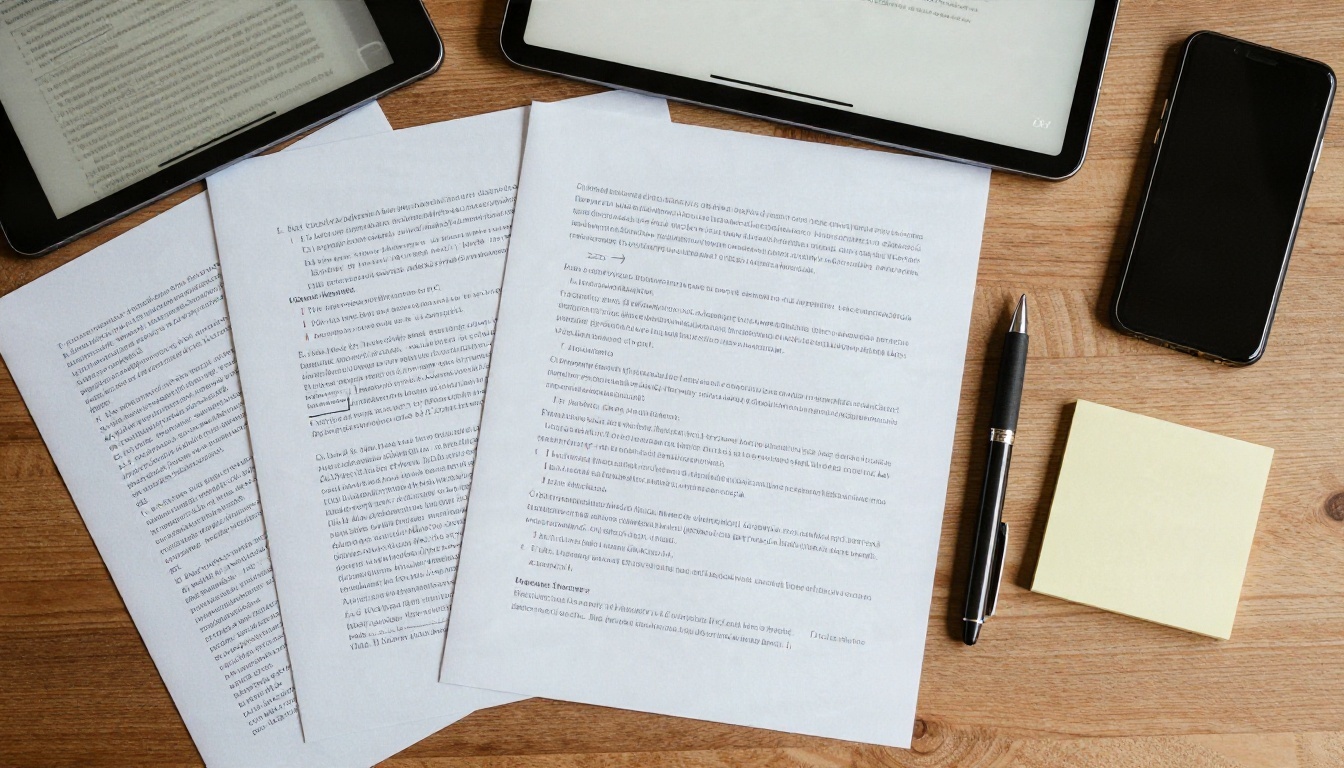
Hyperlinks attached to pictures export well, which makes clickable logos and buttons possible. Text boxes and shapes usually work, but grouped or rotated shapes occasionally lose their link, so click through each one in the finished PDF. Links placed in headers and footers repeat on every page, which is handy for a "Contact us" address.
Footnotes and endnotes are the odd case. The reference number in the body is frequently not a clickable jump in the PDF, even though a link inside the footnote text itself works. If readers need to hop between the two, add a bookmark and a cross-reference by hand.
Links to Files and Folders
A link to C:\Reports\budget.xlsx survives as a link, but the file does not travel with the PDF. On the reader's computer it points to nothing. Relative paths such as ..\data\budget.xlsx fail the same way once the PDF moves to a new folder. For anything you plan to send, upload the target file somewhere and link to the web address instead.
Export Method Decides Everything
You can have perfect links in Word and still lose all of them in the last second. The export route is the single biggest factor.
| Export method | Links preserved? | Bookmarks? | Best for |
|---|
| File, Save As, PDF (Windows) | ✅ Yes | ✅ Optional | Everything online |
| File, Export, Create PDF/XPS | ✅ Yes | ✅ Optional | Everything online |
| Mac: Save As PDF, "Best for electronic distribution" | ✅ Yes | ✅ Yes | Everything online |
| Mac: Save As PDF, "Best for printing" | ⚠️ May drop | ❌ No | Print shops |
| Microsoft Print to PDF | ❌ No | ❌ No | Avoid for linked files |
| Google Docs, Download as PDF | ✅ Yes | ✅ Headings | Shared team drafts |
| Online converters | ⚠️ Varies | ⚠️ Varies | Last resort |
Save As vs Print to PDF
Print to PDF behaves like a printer. A printer only cares about ink on paper, so it flattens everything into plain page content and the clickable layer disappears. It looks identical on screen, which is why this mistake goes unnoticed until someone clicks.

⚠️ Warning: If your export dialog says "Print" anywhere, you are on the wrong road. Use Save As or Export and pick the PDF format from the file type list.
Settings That Protect Your Links
Inside Save As, click the Options button and check these:
- Create bookmarks using Headings gives the PDF a clickable outline panel.
- Document structure tags for accessibility keeps reading order and helps screen readers announce links properly.
- Optimize for Standard (publishing online and printing) over "Minimum size," which can compress images harder than you want.
- Leave "Bitmap text when fonts may not be embedded" unticked unless a font problem forces your hand, since it turns text into images and hurts selection and searching.
- PDF/A compliance is fine for archives, but test links afterward, because some viewers restrict certain behavior.
Step by Step Export That Keeps Links
Follow this sequence every time and you will rarely see a dead link.
- Refresh fields. Press Ctrl+A, then F9, and choose "Update entire table" if prompted.
- Check the links in Word. Hold Ctrl and click a sample of web links, email links, and cross-references.
- Open Save As. Choose PDF as the file type, not "Print."
- Click Options. Tick bookmarks from headings and document structure tags.
- Pick Standard quality. This keeps images crisp for screen reading.
- Save, then open the PDF in a different viewer. A browser and a dedicated reader behave slightly differently.
- Click every unusual link. Table of contents, picture links, footers, and email addresses deserve a test.
- Right-click a web link, then copy. Paste it into a text file to confirm the address is exactly what you meant.
✅ Best practice: Name your test routine. Teams that keep a short checklist taped near the monitor catch broken links before clients do.
Fixing Links That Stopped Working
Even careful exports occasionally misbehave. A few quick diagnoses solve most problems.
Check Before You Send
Open the PDF and hover over each link. A hand cursor means a live annotation. A plain arrow means the text is just text. If you see an arrow over something that should be a link, return to Word and rebuild it with Ctrl+K rather than retyping the address.
Also check that the visible text matches the destination. Pasted links sometimes carry tracking strings, trailing spaces, or a line break that cuts off half the address.
Repair Common Problems
| Symptom | Likely cause | Fix |
|---|
| Nothing is clickable | Used Print to PDF | Re-export with Save As |
| Table of contents dead | Typed manually | Insert an automatic table of contents |
| Link opens a Word file | Target was a .docx | Link to the PDF or a web address |
| Link opens "file not found" | Local path | Upload target and use a web link |
| Page jumps land one page off | Fields not refreshed | Press F9 and re-export |
| Footnote number not clickable | Viewer or Word limit | Add a bookmark and cross-reference |
| Video does not play | Embedded media flattened | Link to the hosted video |

Turn the PDF Into a Flipbook
A PDF with working links is already useful. Placing it in a flipbook makes it feel like a publication: page turns, a clean reading view that works on phones, and a link you can drop into an email or a website. The PDF to Flipbook Converter at Flipbooks AI is built for exactly this step, and there are no watermarks on your finished flipbook.
How to Create a Flipbook From Your Word PDF
- Open the platform. Go to Flipbooks AI and create an account if you do not have one.
- Upload your PDF. Drag the exported file into the upload area. Conversion starts automatically and takes a short while for long documents.
- Test your links in the preview. Click a web link, an email link, and a table of contents entry. If all three work in the PDF, they should work here too.
- Customize the look. Add your logo, adjust colors, pick a page-turn effect, and set the background to match your brand.
- Add multimedia. Since a Word file cannot hold playable video, this is the moment to add video or audio to a page directly.
- Share it. Copy the direct link, or use the Embed Flipbook on Website tool to place it on your site.

Protect and Share the Result
If the document is private, turn on password protection so only people with the code can open it. For marketing files and catalogs you can leave it open and let readers browse on any device, since the layout is mobile responsive. Offline downloads are also available when you want readers to keep a copy.
Pro Features Worth a Look
On the Professional plan you get analytics that show which pages readers visit and how long they stay, plus lead generation forms that collect an email before someone reads. These are useful for sales material, because you can see whether the links you worked so hard to protect are actually being read. Compare options on the pricing page.
| Feature | Plain PDF | Flipbook on Flipbooks AI |
|---|
| Clickable web and email links | ✅ | ✅ |
| Page-turn reading experience | ❌ | ✅ |
| Embedded video and audio | ❌ | ✅ |
| Password protection | ⚠️ Viewer dependent | ✅ |
| Reader analytics | ❌ | ✅ (Professional) |
| Lead capture | ❌ | ✅ (Professional) |
| Mobile-responsive reading | ⚠️ Pinch and zoom | ✅ |
| Embed on a website | ⚠️ Plugin needed | ✅ |
Real-World Examples
Seeing how this plays out in different settings makes the rules easier to remember.

- A freelance designer sends a portfolio exported from Word with picture links pointing to live project pages. Using Save As keeps each image clickable. She then turns it into a Digital Portfolio so clients can browse on a tablet.
- An HR team builds a handbook with a table of contents, cross-references to policies, and email links to department contacts. Refreshing fields before export keeps every jump accurate, and a Training Manual Flipbook makes the file easier to read on phones.
- A small shop owner writes a price list with links to product pages. Rather than relying on a printed PDF, she publishes a Digital Price List that updates cleanly when prices change.
- A consultant delivers an annual summary with links to supporting spreadsheets stored on a shared drive. Links to local paths would have failed, so each target was uploaded and referenced by web address, then the final file went into an Annual Report layout.

💡 Pro tip: Keep a single "master" Word file and re-export whenever something changes. Editing a PDF afterward almost always damages links, while editing the source and exporting again keeps them intact.
Your Next Move
So, will hyperlinks in Word convert to PDF? Yes, as long as you use Save As or Export, build links with the real hyperlink and cross-reference tools, and avoid printing to PDF. Web links, email links, bookmarks, table of contents entries, and picture links all make it through. Local file paths, links to .docx files, footnote numbers, and embedded media are the ones to double check.
Ready to publish the finished file? Get started for free on Flipbooks AI, browse all flipbook tools to find a layout that fits your document, or compare pricing plans to pick the level that matches your needs.



