A scanned PDF that looks like it survived a flood is not rare. Pages tilt a few degrees, gray speckles dot the margins, text blurs at the edges, and the file weighs 80 MB for ten pages. An AI document cleaner fixes those problems in seconds: it straightens the page, removes noise, sharpens the lettering, and makes every word searchable. This article shows how these tools work, which free options and online tools deserve your time, and how to turn the cleaned file into a polished page-turning publication with Flipbooks AI.
What an AI Document Cleaner Does
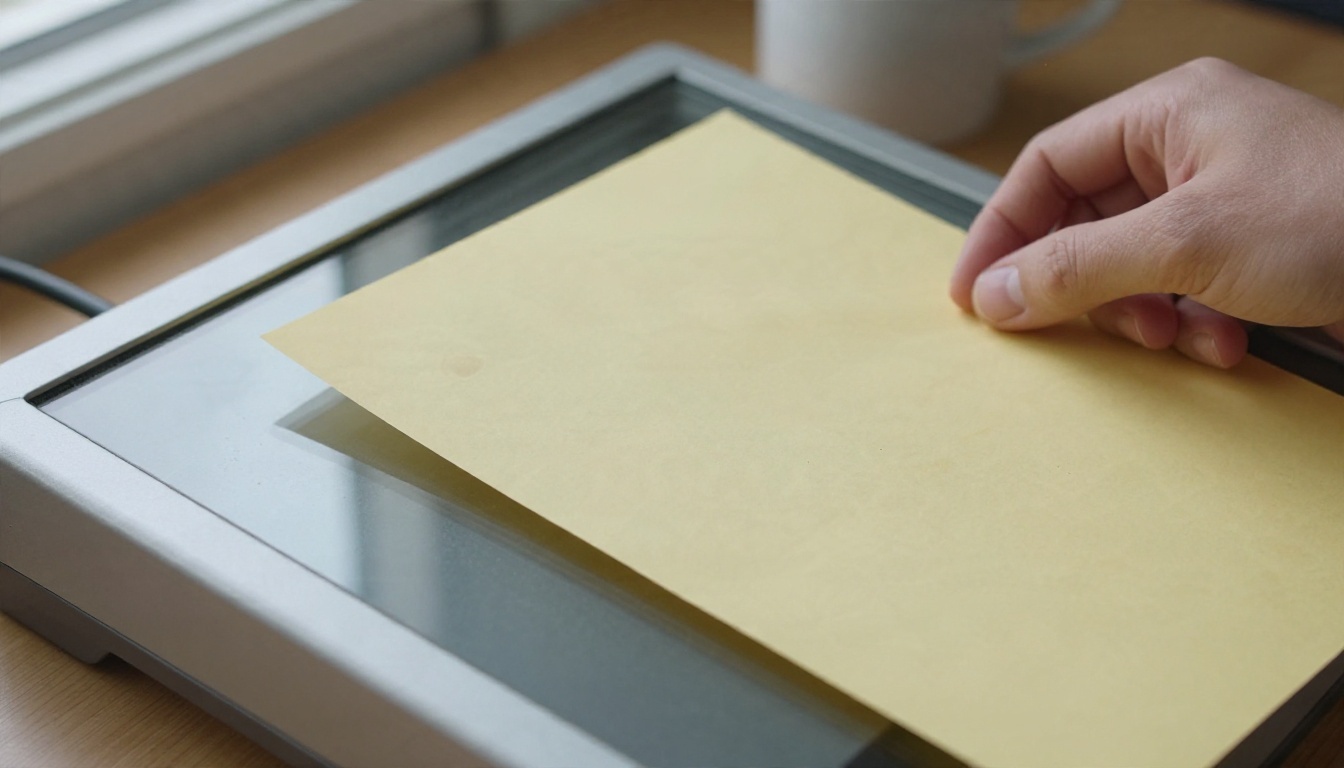
Think of it as a patient editor who retouches every page of a scan before anyone sees it. Traditional scanner software applies the same filter to everything. An AI cleaner looks at each page, decides what is paper, what is ink, and what is dirt, and treats them differently.
The Problems It Fixes
Most cleaners handle the same short list of defects. Here is what you can expect, and what each fix looks like in practice.
| Problem | What You See | What the Cleaner Does |
|---|
| Skew | Text lines tilt across the page | Detects the baseline and rotates the page level |
| Noise and speckles | Gray dots, scanner dust, photocopy grain | Removes isolated marks without touching letters |
| Shadows and gutters | Dark band near the book spine | Evens out the background brightness |
| Faded ink | Light gray, hard to read text | Raises contrast and thickens thin strokes |
| No searchable text | Cannot copy or find words | Runs OCR and adds an invisible text layer |
| Oversized file | 5 to 10 MB per page | Compresses the image layer, often by 70 percent or more |
How the AI Works
Older tools relied on fixed thresholds: anything darker than a set gray value became black, everything else became white. That fails on yellowed paper or uneven lighting. Modern cleaners use trained neural models that recognize letter shapes, so they can separate a faded "e" from a coffee stain. The same models power better OCR, the step that converts pixels into real, selectable text.
💡 Pro tip: Cleaning and OCR are two separate jobs. A tool that only sharpens the picture will still leave you with a PDF you cannot search. Always check that the output has a text layer.
Why Scanned PDFs Go Wrong
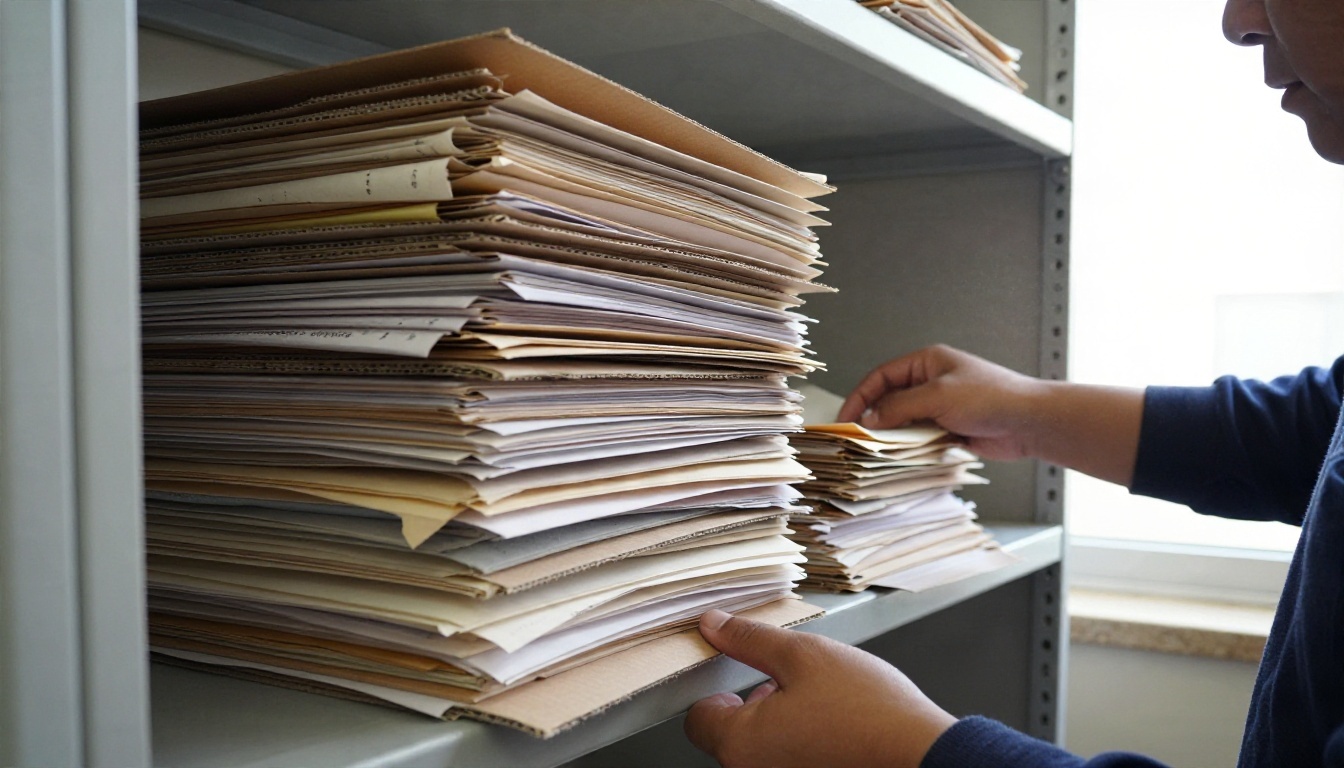
Before picking a tool, it helps to know where the damage starts. Nearly every bad scan traces back to one of a few causes, and the source decides how much a cleaner can rescue.
Skew, Noise, and Shadows
Paper feeders pull sheets in at a slight angle. Photocopies of photocopies pile up grain. A thick book pressed on the glass leaves a dark curve at the spine. These defects are mechanical, which is good news: they are exactly what AI cleanup handles best. A page that is skewed by three degrees can be corrected with almost no loss in quality.
Low Resolution and Missing Text
Resolution is the harder limit. A scan made at 100 DPI contains very little detail, and no software can invent real information that was never captured. Cleaners can smooth edges and make the page look better, but OCR accuracy on tiny, blurry text will stay modest. If you can still access the paper original, rescan at 300 DPI for text documents. That single change beats any filter.
⚠️ Warning: Be suspicious of any tool that promises to "restore" illegible handwriting or crushed text perfectly. AI can guess letters, and guesses sometimes produce confident but wrong words in contracts and invoices. Always proofread numbers and names.
Free Options Worth Trying
You do not need a paid subscription to get a clear improvement. Three families of free tools cover most needs, and each fits a different kind of user.
Browser-Based Tools
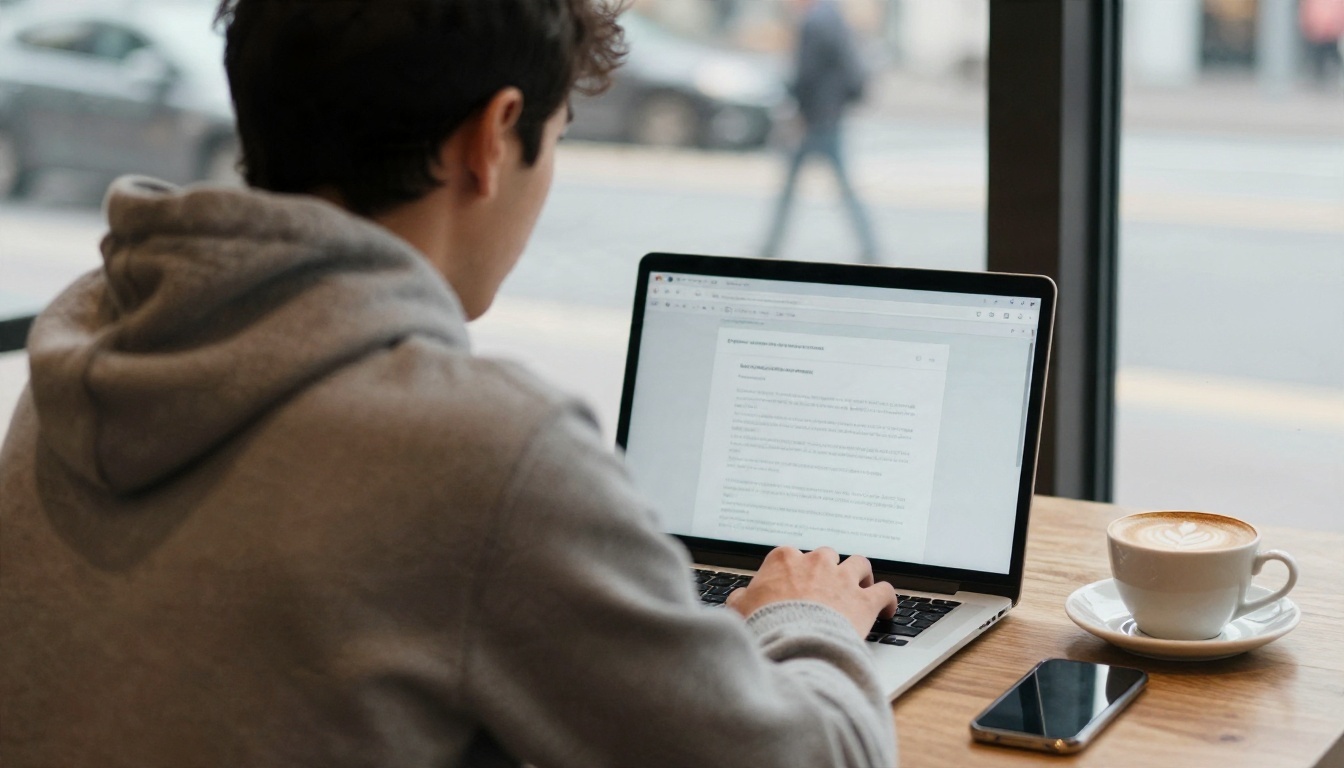
Free online cleaners let you drop in a PDF and download the result. They are the fastest route for a one-off job. The trade-off is usually a cap on page count or file size, and some add a watermark to the output. Check limits before you upload a 200-page archive.
Open Source Software
For bulk work, open source wins. OCRmyPDF adds a text layer, straightens pages, and removes background noise from the command line. Tesseract is the OCR engine behind many other tools. ScanTailor is built for book scans: it splits double pages, fixes margins, and cleans backgrounds in batch. These tools need a little setup, but they cost nothing and never send your files anywhere.
Phone Scanning Apps
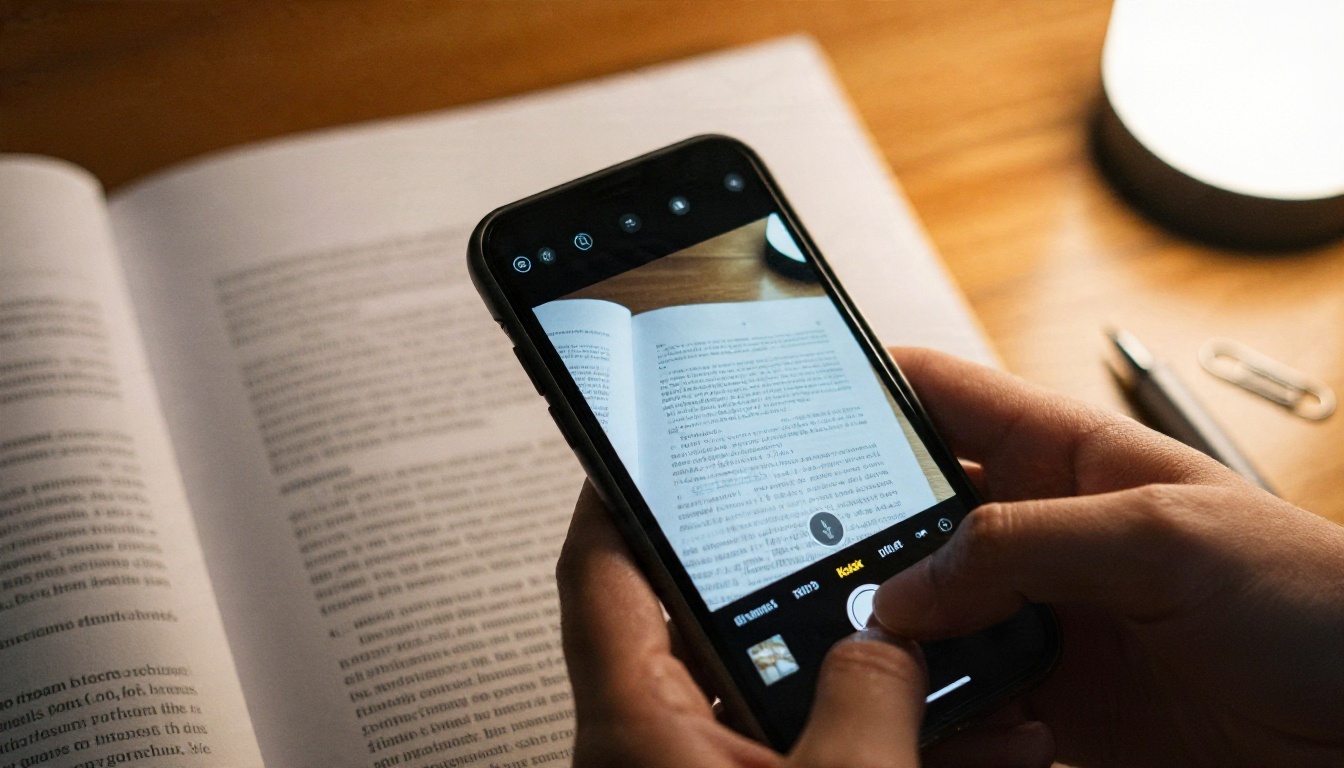
If you start from paper, a phone app often produces a cleaner file than an old flatbed. Good apps detect page edges, flatten perspective, and apply an adaptive filter on the spot. Hold the phone parallel to the page, use even light, and avoid casting your own shadow.
Free Options Compared
| Option | Best For | Watermark | Batch Processing | Works Offline |
|---|
| Free online cleaner | One or two short files | Sometimes | Rarely | No |
| OCRmyPDF | Large folders, text layers | None | Yes | Yes |
| ScanTailor | Scanned books and manuals | None | Yes | Yes |
| Phone scanning app | Paper documents on the go | Depends on app | Limited | Mostly |
| Google Drive OCR | Quick text extraction | None | Limited | No |
How to Clean a Scanned PDF
Here is a workflow that holds up for almost any document, whether it is a single receipt or a 120-page report.
Step-by-Step Cleanup
- Back up the original. Copy the file before any processing. Cleaning is not always reversible.
- Check the resolution. Open the PDF and zoom to 200 percent. If letters look like blocks, rescan if you can.
- Deskew and crop. Let the tool detect page edges and rotate each page level.
- Remove noise and fix the background. Choose a gentle setting first. Aggressive denoising can erase thin strokes, periods, and decimal points.
- Run OCR. Select the correct language. A wrong language setting is the most common reason OCR output looks like gibberish.
- Compress. Reduce the image layer to a sensible size, usually 150 to 300 DPI for reading.
- Proofread a sample. Search for three or four words you know appear in the document. If the search finds them, the text layer works.
✅ Best practice: Process one representative page first. If it looks right, run the whole file. This saves time and prevents a bad setting from ruining hundreds of pages.
3 Common Mistakes
- Over-cleaning. Maximum denoise settings erase faint signatures and fine print. Stop one notch below the strongest option.
- Ignoring the language. Multilingual documents need multiple OCR languages enabled at once.
- Skipping the proofread. Invoices and contracts hold numbers that matter. One wrong digit can cost real money.
The choice comes down to convenience against control. Neither wins every time.
| Factor | Online Tools | Desktop or Open Source |
|---|
| Setup time | None | Minutes to an hour |
| Speed on one file | Fast | Fast |
| Large batches | Usually limited | Excellent |
| Cost | Free tier, then paid | Often free |
| Privacy | Files leave your device | Files stay local |
| Output quality control | Few settings | Detailed settings |
Privacy Before Convenience
Uploading a document to a website means a copy lives on someone else's server, even briefly. For a restaurant menu or a public brochure, that is fine. For tax returns, medical records, signed contracts, or client data, it is a real risk. Read the retention policy, look for automatic file deletion, and prefer local tools for anything sensitive.
⚠️ Warning: Never upload identity documents, bank statements, or confidential client files to a free tool you have not vetted. If a service does not state how long it keeps your files, assume it keeps them.
How to Create a Flipbook from a Cleaned PDF with Flipbooks AI
A clean PDF is easy to read, but it is still a flat file that people must download. Turning it into a flipbook gives readers a page-turning experience in the browser, on any device, with no software to install. The PDF to Flipbook Converter on Flipbooks AI is built for exactly this step, and the cleanup you just did makes a visible difference: sharp text and straight pages look far better as animated spreads.

Upload and Convert
- Go to Flipbooks AI and create an account.
- Click the upload button and select your cleaned PDF.
- Wait a few moments while each page is converted into a flipping page.
- Preview the result. Text that was cleaned and made searchable stays crisp when readers zoom in.
💡 Pro tip: Upload the compressed version of your PDF, not the raw scan. Smaller files load faster for readers, especially on mobile connections.
Branding and Page Effects
Make the flipbook look like your own publication rather than a generic viewer.
- Custom branding: add your logo, and match the background to your brand colors.
- Page effects: adjust the page-turn animation and the paper feel to suit the document.
- Multimedia: embed videos and audio on pages, such as a spoken walkthrough of a manual.
- Mobile-responsive layout: the flipbook adapts to phones and tablets automatically.
- No watermarks, ever: your published flipbook carries only your branding.
Share, Protect, and Track
You have several ways to deliver the finished flipbook:
- Direct link: paste it into an email or chat message.
- Embed code: place it on your site. The Embed Flipbook on Website tool shows how.
- Password protection: keep private documents limited to the people who should see them.
- Offline downloads: let readers save a copy for later.
On the Professional plan, you also get analytics and lead generation, so you can see which pages hold attention and collect contact details before a reader opens the file. Standard plans and above include unlimited flipbooks. Compare options on the pricing page to pick the right level.
Real-World Use Cases
Cleaning and publishing scanned material pays off across many kinds of work. These examples show the pattern.

A Student Archive Example
Picture a student who inherits a stack of lecture handouts from older classmates. The pages are photocopies of photocopies, tilted and speckled. Using a free cleaner, they deskew the pages, remove noise, and run OCR so the notes become searchable. They then publish the set as a single flipbook that the whole study group can open from a phone. Searching for "enzyme" takes a second instead of an hour of flipping paper.

A Small Business Example
A ceramics studio has a twelve-page paper catalog that was scanned years ago. The photos are muddy and the text is slightly crooked. After cleanup and OCR, the owner converts the file into a flipbook with the Digital Catalog Maker, embeds it on the website, and shares one link with wholesale buyers. No more emailing heavy attachments.
Ready to Publish Clean Documents?
A good scan does not need to be perfect at the source. It needs a short cleanup pass: straighten, denoise, run OCR, compress, and proofread. Use a free online cleaner for quick jobs, open source software for big batches, and keep sensitive files on your own machine.
When the file is clean, give it a better home than an email attachment. Get started for free on Flipbooks AI, browse all flipbook tools to find a format that matches your document, and compare pricing plans when you are ready for analytics, lead capture, and unlimited publishing.



