Most annual reports do not fail because of bad numbers. They fail because the document looks like a spreadsheet that wandered into a Word file: cramped margins, five fonts, charts squeezed beside paragraphs, and a PDF that weighs 80 MB. A good annual report template for Word fixes the structure before you type a single figure, and it saves days of formatting work. This article shows where to find a free template, which page size to pick, how to design pages people actually read, and how to export a clean PDF. Then you can publish the finished file as an interactive flipbook with Flipbooks AI.
💡 Quick answer: Use a Word template with real Styles (Heading 1, Heading 2, Body), set the page to Letter or A4 before you add content, keep margins at 0.75 to 1 inch (19 to 25 mm), and export with "Standard" quality for screen sharing.
Why Word Still Works for Annual Reports
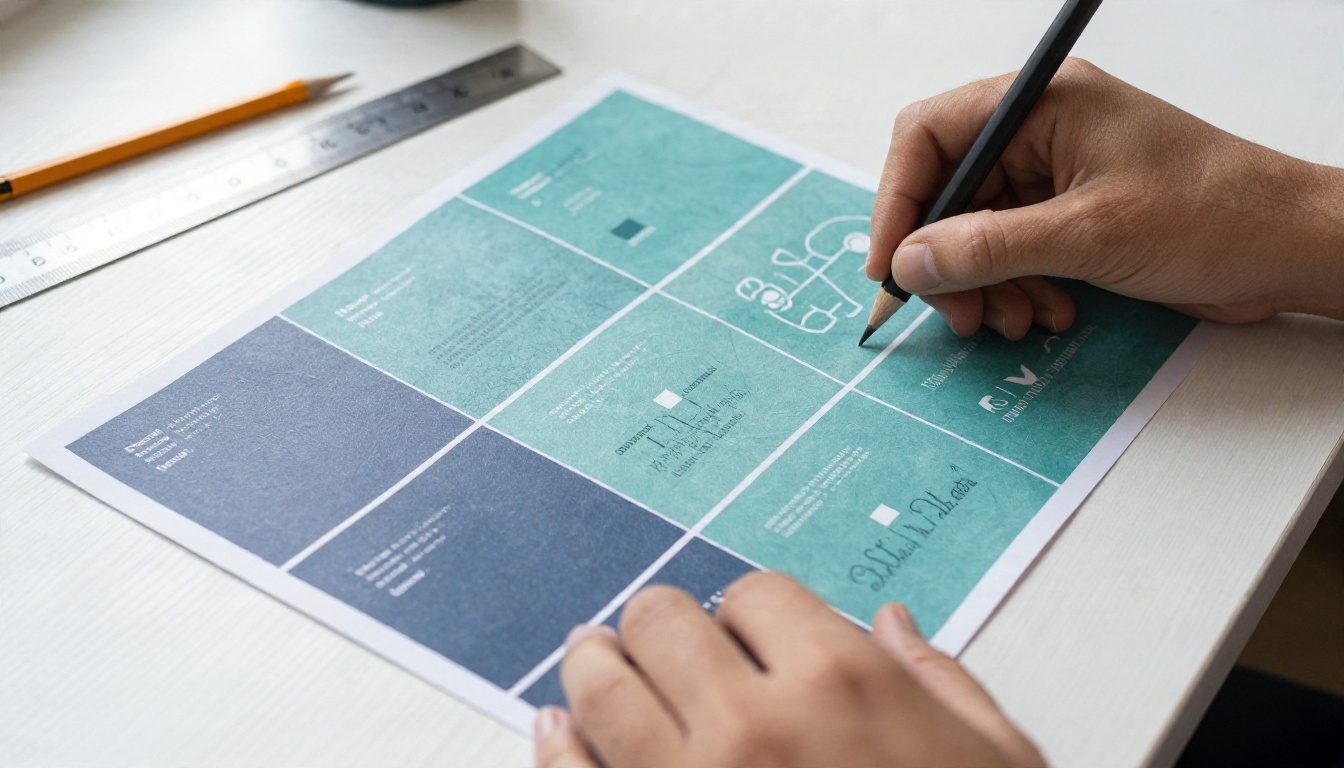
Designers love InDesign, but most small companies, nonprofits, schools and startups write their annual report in Word. It is already installed, your finance team already knows it, and several people can edit one file without a training session. For a 12 to 40 page report, Word is more than enough when the template is built properly.
Who Benefits Most
Word suits teams that care more about speed and control than pixel-level typography.
- Small businesses that publish a yearly summary for clients and lenders
- Nonprofits that need a donor report with impact figures and photos
- Schools and associations that report to boards and members
- Startups preparing an investor update with revenue, headcount and milestones
- Departments inside larger companies that need a lightweight internal report
Where Word Falls Short
Be honest about the limits. Word struggles with heavy image bleeds, complex multi-column magazine layouts and exact color separation for commercial printing. If you plan to print 5,000 copies on coated stock, hand the final PDF to a print shop and ask for a proof first. For everything that lives on screens, Word is fine.
Free Download Options That Work
"Free download" is where many people get burned. Random sites bundle templates with ads, broken fonts or macros you should never enable. Stick to sources you can verify.
Built-In Word Templates
Open Word, choose File > New, and type "annual report" in the search box. Microsoft's own gallery returns several ready-made layouts with title pages, section headers, sample tables and placeholder charts. These files are free, safe, and use standard fonts, so nothing breaks when you share them. You can also search for "report" or "business report" to see simpler variations.
Template Comparison Table
| Source | Cost | Safety | Customization | Best for |
|---|
| Word built-in gallery | Free | High | Full, uses Styles | Most small teams |
| Office template site downloads | Free | High | Full | Quick starts with several layouts |
| Free community template sites | Free | Medium, check the file | Varies | Creative layouts, with caution |
| Paid marketplace templates | $10 to $60 | Medium to high | Often excellent | Branded, polished looks |
| Build your own from a blank file | Free | High | Total | Teams with brand rules |
⚠️ Never enable macros in a downloaded template. A report does not need them. If Word asks, choose "Don't enable" and look for a different file.
What to Check Before Using One
Before you commit, spend five minutes inspecting the file:
- Open the Styles pane. If the headings are plain bold text instead of real Styles, the table of contents will not generate.
- Check the fonts. Fonts that are not installed on your computer get swapped, and your layout shifts.
- Look at the page size. Many downloads default to Letter even if you work in A4.
- Click a chart. Editable charts are far better than pasted pictures.
- Test a long paragraph. Paste in 400 words and see whether the layout survives.

Page Size and Margins That Make Sense
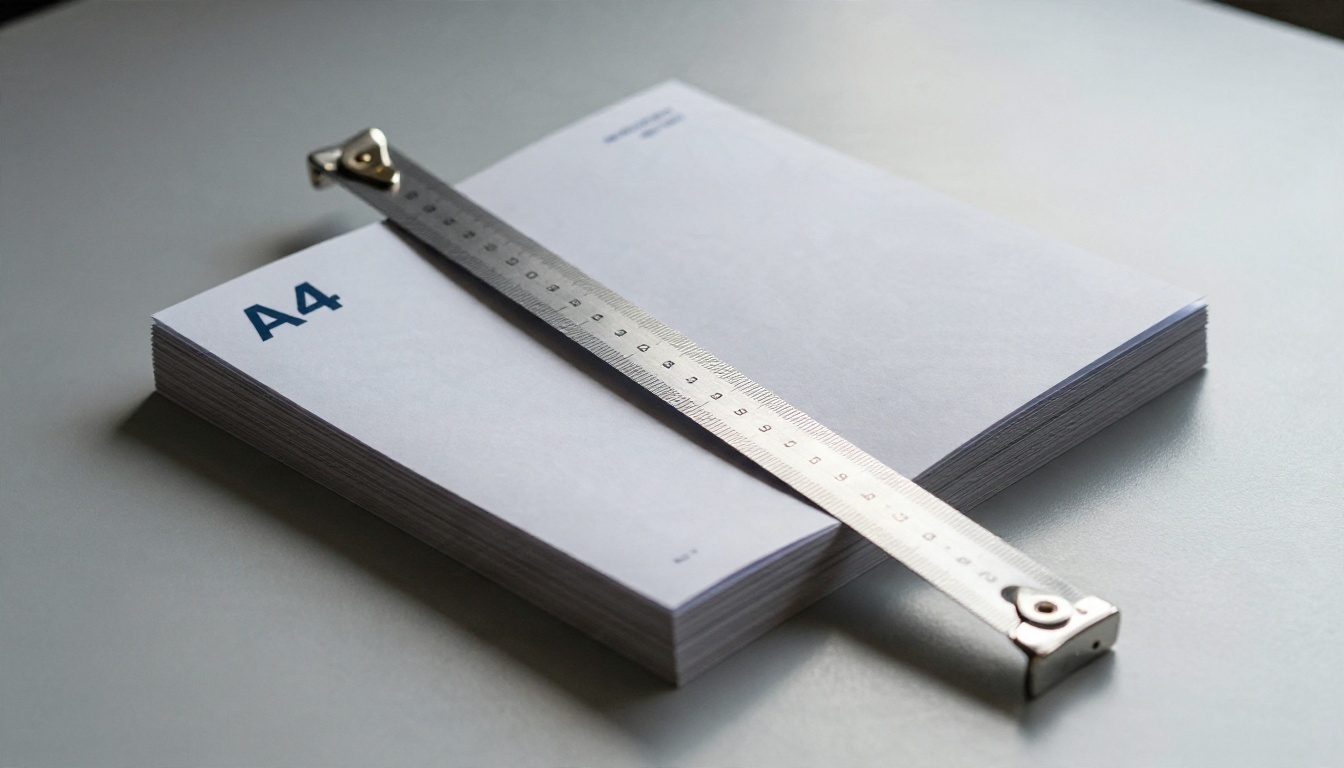
Choose the page size first. Changing it after you have placed charts and photos breaks almost everything. In Word, go to Layout > Size and pick your format before adding content.
Letter vs A4
| Format | Dimensions | Used in | Screen reading | Print notes |
|---|
| US Letter | 8.5 x 11 in (216 x 279 mm) | USA, Canada, Mexico | Good, slightly wider | Cheap to print locally |
| A4 | 210 x 297 mm (8.27 x 11.69 in) | Most of the world | Good, slightly taller | Standard for European printers |
| Half Letter / A5 | 5.5 x 8.5 in / 148 x 210 mm | Short summaries | Needs larger text | Booklet style |
| Square (custom) | 8 x 8 in (203 x 203 mm) | Brand and nonprofit stories | Great on phones | Higher print cost |
| Landscape Letter / A4 | 11 x 8.5 in / 297 x 210 mm | Slide-style reports | Best on widescreens | Awkward to bind |
If your readers are mostly on screens, a landscape or square page often fits laptops and tablets better than portrait. If a board member will print it, stay portrait and match their local paper size.
Margins, Bleed and Binding
Word does not support true bleed, so avoid full-page background colors if you plan to print. For margins, these values are reliable:
- Top and bottom: 0.75 to 1 inch (19 to 25 mm)
- Left and right: 0.8 to 1 inch (20 to 25 mm)
- Gutter (if bound): add 0.25 to 0.5 inch (6 to 12 mm)
- Header and footer distance: 0.4 inch (10 mm) so page numbers never touch the edge
Design Tips That Look Professional
A report that looks calm gets read. A report that looks busy gets skimmed and closed. These rules take little effort and change the whole feel.
Fonts and Color
Pick two fonts at most: one for headings, one for body text. A serif heading with a clean sans-serif body is a safe pairing. Keep body text between 10 and 11 pt, with line spacing around 1.15 to 1.3.
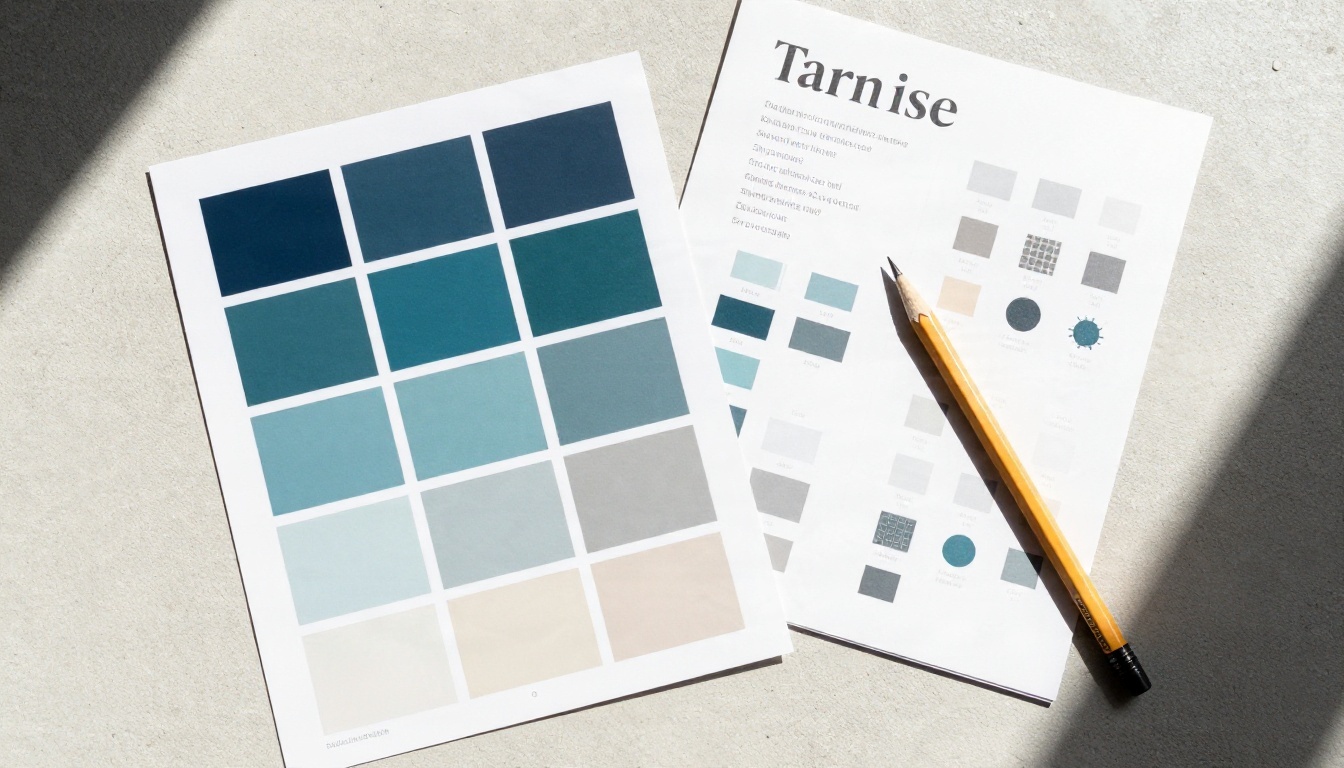
For color, choose one dominant brand color, one accent and a neutral grey. Use the accent only where you want the eye to land, such as a highlighted number or a pull quote.
| Element | Recommended size | Style note |
|---|
| Title page headline | 36 to 54 pt | Short, bold, one line if possible |
| Heading 1 | 22 to 28 pt | Brand color |
| Heading 2 | 15 to 18 pt | Dark grey or brand color |
| Body text | 10 to 11 pt | Dark grey (#222), not pure black |
| Captions | 8 to 9 pt | Italic, lighter grey |
| Pull quotes | 16 to 20 pt | Accent color, wide spacing |
Charts and Tables
Numbers are the heart of an annual report, so give them room. Rules that work:
- One message per chart. Title it with the finding ("Revenue grew 18%"), not the topic.
- Round aggressively. Show 4.2M, not 4,213,877, in the main text and keep detail in an appendix table.
- Limit colors to the palette you already chose.
- Use real Word tables, not screenshots, so text stays sharp and searchable.
- Align numbers to the right and keep the same decimal places in every column.

Photos and White Space
Real photos of your people, projects or products beat stock images every time. Compress them before inserting (1600 pixels on the long edge is plenty for a report) and leave at least a third of each page empty. White space is not wasted space. It tells readers where to rest.
✅ Best practice: Place one strong image on each section opener, then keep the following pages text and data only. It creates rhythm without slowing the file down.
Build Your Report Structure
A strong template follows a predictable order, which makes the document easy to scan. Use this outline as a baseline and adjust page counts to your organization.
| Section | Typical length | What it contains |
|---|
| Title page | 1 page | Logo, year, one-line theme |
| Table of contents | 1 page | Auto-generated from Heading styles |
| Letter from leadership | 1 to 2 pages | Highlights, tone, thanks |
| Year in numbers | 1 page | 4 to 6 headline figures |
| Operations and milestones | 3 to 6 pages | Projects, launches, timeline |
| Financial statements | 4 to 10 pages | Income, balance sheet, cash flow, notes |
| People and governance | 2 to 3 pages | Team, board, policies |
| Outlook and contact | 1 to 2 pages | Next year priorities, contact details |
Build the table of contents with References > Table of Contents. Because every heading uses a real Style, it updates itself when you right-click and choose "Update Field". Do this right before you export, every single time.

PDF Export Without Quality Loss
The PDF is what most people will actually open. Treat it as the real product.
Export Settings Step by Step
- Update all fields (select all with Ctrl+A, then press F9) so page numbers and the table of contents are correct.
- Run Review > Check Accessibility and fix missing alt text on images.
- Choose File > Save As (or Export) and select PDF as the type.
- Click Options and tick Create bookmarks using Headings so readers can jump between sections.
- Pick Standard (publishing online and printing) for most reports, or Minimum size if the file must go by email.
- Tick Document structure tags for accessibility.
- Save, then open the PDF and scroll through every page before sharing.

| Export option | File size | Image quality | Use it when |
|---|
| Standard | Medium (5 to 20 MB) | High | Website, print, investor decks |
| Minimum size | Small (1 to 6 MB) | Medium | Email attachments |
| ISO 19005-1 (PDF/A) | Medium | High | Archiving and compliance |
| Print shop PDF (from a design tool) | Large | Highest | Offset printing |
Common Export Mistakes
- Missing fonts. Embed them, or stick to fonts everyone has.
- Shifted layout. It usually means a font swap or a different default printer. Export from the same machine where you finished the design.
- Huge file size. Oversized photos are the cause 90% of the time. Compress them before you insert them.
- Dead links. Test every hyperlink in the exported PDF, not only in Word.
- No bookmarks. A 40 page PDF without bookmarks feels like a wall.
⚠️ A PDF is a flat file. It cannot show analytics, it gets forwarded without you knowing, and a 20 MB attachment often bounces. That is why many teams now turn the PDF into a flipbook.
How to Create an Annual Report Flipbook with Flipbooks AI
A static PDF works, but a page-turning web version is easier to open on phones, simple to share with a link, and it tells you who read it. With the Annual Report Creator you can convert your exported Word PDF in a few minutes. Teams that publish a nonprofit annual report or a corporate report use the same flow.

Upload and Customize
- Create your account. Sign up at Flipbooks AI, no credit card needed to try it.
- Upload the PDF. Drag your exported file into the PDF to Flipbook Converter. Pages convert into a realistic page-turn flipbook, with text and links preserved.
- Add your branding. Set your logo, background color and toolbar colors to match the template palette. No watermarks are added, ever.
- Choose page effects. Pick the page-turn style and sound that suit a formal report, usually subtle and fast.
- Add multimedia. Embed a short message from your CEO as a video, or add audio to the year in numbers page.
- Preview on mobile. The flipbook is mobile-responsive, so check how it reads on a phone before you publish.
Share and Track
- Direct link: paste it in an email, a LinkedIn post or a donor newsletter.
- Embed code: place the flipbook on your site with the Embed Flipbook on Website tool.
- Password protection: limit access for confidential board or investor reports.
- Offline downloads: let readers save a copy for a flight or a meeting.
- Analytics and lead generation: see which pages get read and collect emails before a reader opens the report. These are Professional plan features, so check the pricing plans.
| Feature | PDF by email | Word file | Flipbook |
|---|
| Opens smoothly on phones | Sometimes | No | Yes |
| Page-turn reading | No | No | Yes |
| Password protection | Limited | Limited | Yes |
| Page-level analytics | No | No | Yes (Professional) |
| Embeds on a website | Awkward | No | Yes |
| Editable by readers | No | Yes | No |
| Watermark-free | Yes | Yes | Yes |
💡 Pro tip: Put the flipbook link in your email signature during reporting season. Executives, donors and partners can open the report in one tap.
A Real Example in Practice
A regional animal shelter wrote its report in Word using a free built-in template. Staff swapped the colors for their brand palette, added a square photo on each section opener, and put six headline numbers on one page: animals adopted, volunteer hours, donations raised, vet visits, foster homes and events held. They exported a Standard PDF of 9 MB, converted it to a flipbook, and embedded it on the donation page. The result was a report that donors opened from a text message, without downloading anything.
A small software company took a different route. It kept the report short, 14 pages, used landscape A4 so it read like a slide deck on laptops, and protected the flipbook with a password for investors. Both teams used the same Word workflow. They only changed the page size and the sharing method.
Your Pre-Publish Checklist
Run through this list before you send anything out:
Ready to Publish Your Report?
Start with a clean Word template, set the page size first, keep the design calm, and export a tidy PDF. Then give your readers a better way to open it. Get started for free on Flipbooks AI, browse all flipbook tools for other report formats, or compare pricing plans to pick the level of analytics and protection your report needs. If you already know the plan you want, go straight to sign up and pricing.



