You tap a PDF attachment on your Android phone and wait. The page loads half blurred, the text is tiny, and one pinch later you are scrolling sideways through a single sentence. Picking the best Android PDF viewer decides whether reading a contract, textbook, or price list on a phone feels easy or painful. This article compares the top free apps, shows how offline reading really works, and looks at when a flipbook built with Flipbooks AI beats a plain PDF on a small screen.
💡 Quick answer: For most people, Adobe Acrobat Reader or Xodo is the safest free pick. If you only read files stored in the cloud, Google Drive is already installed. If you publish PDFs for other people to read on phones, a flipbook is the better format.
What Makes a Good Android PDF Viewer
A PDF was designed for paper. Phones are about 6 inches wide, so every viewer has to solve the same problem: show a fixed layout page on a narrow screen without making you fight it. Some apps do that well. Others simply shrink a page to postage stamp size.
Speed and Rendering
Open a 200 page PDF with scanned images and you will see the difference between apps within seconds. A good viewer renders the first page instantly, loads the rest in the background, and keeps scrolling smooth even on a budget phone with 4 GB of RAM.
Look for these basics:
- Fast first page: under two seconds for a normal file
- Sharp zoom: text re-renders when you zoom instead of staying blurry
- Reflow or fit-to-width modes: these make text readable without sideways scrolling
- Dark mode: a real night mode, not just an inverted white page
- Low battery drain: long reading sessions should not melt your battery
Annotation and Forms
Reading is only half the job. Many people need to highlight a paragraph, type into a form, or sign a document from the sofa. A strong viewer should offer:
- Highlight, underline, and strikethrough tools
- Freehand drawing with a finger or stylus
- Text comments and sticky notes
- Fillable form support
- A saved signature you can place in two taps
Best Free Android PDF Apps
Here are the apps worth installing, with honest notes on what you get for free. Store listings and free tiers change often, so check the current details in Google Play before you rely on a specific feature.
Adobe Acrobat Reader
The default choice for a reason. Adobe invented the format, and the app opens nearly every PDF you throw at it, including odd ones with embedded fonts and layers. Commenting, highlighting, and fill and sign are available in the free version. Editing text, exporting to Word, and combining files usually sit behind a paid plan.
Best for: work documents, forms, and anyone who wants the most compatible reader.
Watch out for: upgrade prompts and a heavier app size than lighter rivals.
Xodo PDF Reader
Xodo feels fast and clean, with strong annotation tools in the free tier. Drawing, highlighting, and form filling work well on both phones and tablets. It also supports cloud storage connections, which helps if your files live in several places.
Best for: students and note takers who mark up a lot of pages.
Watch out for: some premium tools are locked, and the interface offers many buttons at once.
Foxit PDF Reader
Foxit is a lightweight option that runs well on older phones. It handles comments, simple form filling, and basic document protection. If your device is a few years old and larger apps feel sluggish, this one is worth a test.
Best for: older or low memory devices.
Watch out for: a few extras require an account or a paid upgrade.
Google Drive and Files by Google
You may not need to install anything. Tap a PDF in Gmail or Google Drive and the built in viewer opens it. It is basic: scroll, zoom, search, and print. But it is fast, free, and already on your phone. Drive also lets you mark a file as available offline, which we cover in the next section.
Best for: quick reading without extra apps.
Watch out for: limited annotation compared with dedicated viewers.
💡 Also worth a look: ReadEra and Librera Reader are free readers that handle PDF alongside EPUB, DJVU, and other formats. They suit people who keep a mixed library of books and documents on one device.
Side by Side App Comparison
| App | Best for | Annotation | Works offline | Free tier |
|---|
| Adobe Acrobat Reader | Work files and forms | Strong | Yes, for files on device | Core reading and commenting |
| Xodo PDF Reader | Study and markup | Very strong | Yes, for files on device | Most annotation tools |
| Foxit PDF Reader | Older phones | Good | Yes, for files on device | Core reading and comments |
| Google Drive viewer | Fast cloud reading | Basic | Only if marked offline | Fully free |
| ReadEra / Librera | Mixed e-book libraries | Basic to good | Yes, for files on device | Core reading |
Offline Reading Without Headaches
Nothing is worse than opening a PDF on a plane, in a subway tunnel, or in a rural area and seeing a spinning wheel. Offline reading is simple once you know where the file actually lives.
Save Files Locally
When you download a PDF from email or a website, Android stores it in your Downloads folder. Any viewer above can open it with no connection. To make this easy:
- Download the PDF while you have Wi-Fi.
- Open it once in your chosen viewer to confirm it loads.
- Move it to a dedicated folder such as Documents/Offline.
- Star or pin it inside the app so you can find it fast.
Cache Cloud Files
If your file sits in Google Drive, Dropbox, or OneDrive, it is not offline by default. Open the file menu and choose the offline option (in Drive it is called Available offline). The app then keeps a copy on your phone. Do this before you travel, not at the gate.

Check Storage and Battery
Large scanned PDFs can reach hundreds of megabytes. Check free space before downloading a batch, and turn on battery saver if you plan to read for hours. A dark theme also helps on OLED screens, since black pixels use very little power.
⚠️ Warning: A PDF opened from a link in your browser may only be cached temporarily. If you need it later without a signal, save it properly to your device first.
| Offline method | Setup time | Best situation | Risk |
|---|
| Download to device | 1 minute | Travel, commuting | Takes storage space |
| Drive "Available offline" | 30 seconds | Shared team files | Must be set before losing signal |
| Email attachment saved | 1 minute | One off documents | Easy to lose in the inbox |
| Flipbook offline download | 2 minutes | Catalogs, magazines, manuals | Needs a flipbook platform |
Where PDFs Fall Short on Phones
Even the best viewer cannot fix a layout that was designed for a printed A4 sheet. If you have ever read a brochure on a phone, you know the frustration.
The Pinch and Pan Problem
A typical PDF page holds two columns, small captions, and a footer. On a phone, you zoom in to read one column, then pan left and right for every line. Your thumb does more work than your eyes. For long reads, that is tiring. For customers who just want to see your prices, it is a reason to leave.
Other common issues:
- Large file size: a 40 MB catalog can take a long time on mobile data
- No tracking: you never know if anyone opened your PDF
- Download required: many people refuse to download a file from an unknown sender
- No interactivity: links, video, and audio are limited or missing
Flipbook Alternatives
A flipbook takes the same PDF and turns it into a page turning web experience. It loads in a browser, adapts to the screen, and feels familiar because pages flip like a real publication. No app installation is needed, and the reader never has to pinch anything just to find a price.
Flipbooks work especially well for:
- Product catalogs and price lists
- Restaurant and spa menus
- Property brochures
- Magazines, newsletters, and annual reports
- Portfolios and lookbooks
Tools such as the PDF to Flipbook Converter take your existing file and produce a mobile responsive version in minutes.
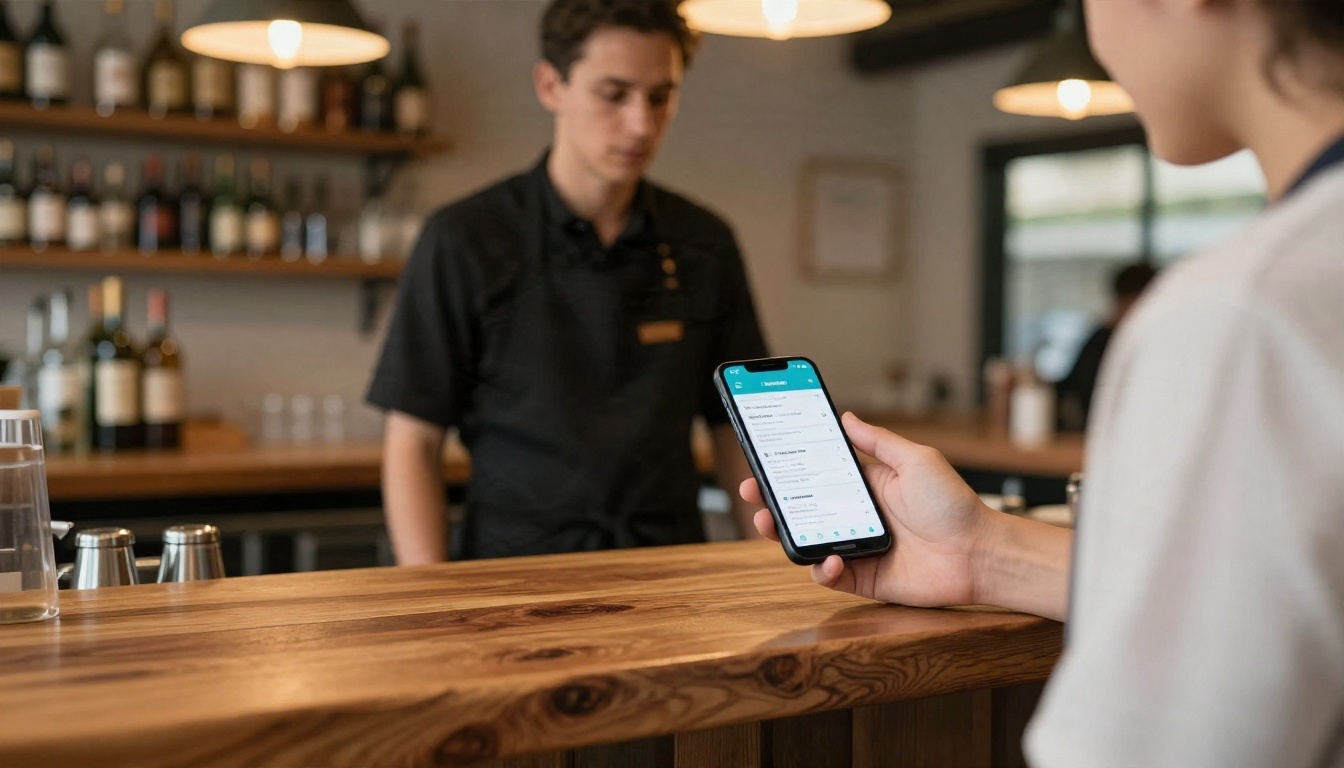
Real example: A restaurant owner exports the menu as a PDF and shares the link on a table QR code. Guests on Android open it in their browser, flip through starters and mains, and never download a thing. The owner updates one file and the same link shows the new menu. The Restaurant Menu Creator is built for this exact job.
How to Create a Flipbook with Flipbooks AI
If you publish PDFs for others, here is the quick workflow. You do not need design skills or coding.
Upload Your PDF
- Go to Flipbooks AI and create an account.
- Click the upload button and select your PDF (a catalog, brochure, e-book, or report).
- Wait a few seconds while the platform converts each page into a flipbook page. Text stays sharp and links stay clickable.
- Preview the result on a phone-sized screen to check that it reads well.
✅ Best practice: Export your PDF at a normal resolution (150 to 200 DPI is plenty). Oversized images slow down loading on mobile data.
Customize the Look
Next, make the flipbook match your brand:
- Branding: add your logo and choose your colors
- Page effects: adjust the flip animation and background
- Multimedia: embed videos and audio on selected pages
- Clean output: there are no watermarks, ever
For a product range, try the Digital Catalog Maker. For a magazine or newsletter, the Magazine Flipbook Creator fits better.

Share Securely
Once the flipbook looks right, you have several ways to publish it:
- Direct link: paste it into WhatsApp, email, or social posts
- QR code: print it on menus, posters, or business cards
- Embed code: place the flipbook on your site with the Embed Flipbook on Website tool
- Password protection: keep private documents for approved readers only
A real estate agent, for example, can send a property brochure link to a buyer, who opens it straight from a text message on an Android phone. See the Real Estate Brochure tool for a ready made layout.
Pro Features Worth Knowing
Higher plans add tools for people who need to measure results:
| Feature | What it does | Plan level |
|---|
| Unlimited flipbooks | Publish as many as you need | Standard and above |
| Offline downloads | Readers keep a copy for later | Available on supported plans |
| Analytics | See views, pages read, and time spent | Professional |
| Lead generation | Collect contact details before reading | Professional |
| Custom branding | Your logo, colors, and domain feel | Standard and above |
Compare every option on the pricing page to pick the right tier.
Which Option Fits Your Use Case
Not everyone needs a flipbook. Not everyone needs Acrobat either. Match the tool to the job:
| Your situation | Best choice | Why |
|---|
| Reading work documents and signing forms | Adobe Acrobat Reader | Wide compatibility and fill and sign tools |
| Studying with lots of highlights | Xodo PDF Reader | Strong free annotation |
| Old phone with limited memory | Foxit PDF Reader | Light and quick |
| Quick look at a Drive file | Google Drive viewer | Already installed |
| Mixed library of books and files | ReadEra or Librera | Supports many formats |
| Sending a catalog or menu to customers | Flipbook | No download, mobile friendly, trackable |
| Showing a portfolio to clients | Flipbook | Polished page turn presentation |
| Private team documents | Flipbook with password | Controlled access |

Quick Decision Rules
- You are the reader: install one viewer, set up dark mode, and save important files offline before you travel.
- You are the publisher: convert your PDF into a flipbook so every Android user gets a smooth experience, whatever app they have installed.
- You are both: keep Acrobat or Xodo for your own reading, and use a flipbook for anything you send out.
💡 Pro tip: If you are not sure whether your readers will like a flipbook, send the same file both ways to a small test group. Compare how many people open each version and how long they stay. Flipbook analytics make that comparison easy.
Ready to Try a Better Reader
The best Android PDF viewer is the one that matches how you read. Adobe Acrobat Reader wins on compatibility, Xodo on annotation, Foxit on speed for older devices, and Google Drive on convenience. Set up offline access before you travel, and your files will open anywhere.
If your goal is to share documents with customers, clients, or students, a flipbook removes most of the pain of PDF on phones. Here is where to go next:
Your next PDF does not have to be a pinch, pan, and squint experience.



