You downloaded a book as a PDF, opened it, and the experience was awful. Tiny text, endless sideways scrolling, no bookmarks, and a page that jumps every time you touch the screen. The file is fine. The reader is the problem. Picking the best PDF reader for books is mostly about matching the app to how you actually read: on a phone during a commute, on a laptop for study, or on a tablet in bed. If you publish books yourself, a platform like Flipbooks AI can also turn that same PDF into a page-turning reading experience that opens in any browser.
This article compares the free options worth installing, explains when page-flip view helps and when it gets in the way, and shows how to set up mobile reading so your eyes survive a full chapter.
What Makes a PDF Reader Good for Books
Most PDF software was built for forms, invoices, and contracts. Books ask for something different. You read for long stretches, you want to return to your place instantly, and you care about comfort more than editing tools.
Reading comfort beats feature count
A reader with fifty tools and a cramped interface loses to a plain one that remembers your page. Look for these basics first:
- Last-page memory that survives closing the app
- Smooth zoom and fit-to-width so text is readable without panning
- Bookmarks and a table of contents for jumping between chapters
- Night mode or sepia themes for low-light reading
- Fast opening of large files, since illustrated books can run past 100 MB
- Text search that highlights results in context
💡 Pro tip: Test any reader with the heaviest PDF you own. A reader that feels quick on a 2 MB file may stall on a scanned textbook.
Page-flip view: does it matter?
Page-flip view mimics a physical book. You see a spread, swipe or click an edge, and the page curls over. It looks lovely and it feels familiar, but it is not always practical. On a small phone screen, a two-page spread makes the text microscopic. On a large monitor or tablet in landscape, it can be the most natural way to read a novel, a photo book, or a magazine.
Think of it as a preference, not a requirement. Most traditional PDF apps offer a continuous scroll or a single-page mode. Dedicated flipbook viewers add the animated page turn.
| Feature | Why it matters for books | Priority |
|---|
| Remembers last page | You never lose your place | Essential |
| Night or sepia mode | Less glare in the evening | High |
| Two-page spread | Matches print layouts and photo books | Medium |
| Page-curl animation | Pleasant, but cosmetic | Low |
| Text reflow | Makes small screens readable | High on phones |
| Offline access | Reading on planes and trains | High |
| Highlights and notes | Study and research | Depends on you |
Best Free PDF Reader Apps Compared
Free does not mean weak here. Several excellent readers cost nothing, and a few of the paid ones add little for book reading.
Desktop picks for Windows, Mac, and Linux
- SumatraPDF (Windows): Very light, opens instantly, and handles PDF, EPUB, MOBI, and comic formats. The interface is minimal, which is exactly what many book readers want.
- Adobe Acrobat Reader: Familiar and reliable, with solid search and annotation. It is heavier than the alternatives and pushes extra features, but it renders complex layouts well.
- Foxit Reader: Fast and friendly with tabs, so you can keep several books open at once.
- Okular (Linux, also on Windows): Strong annotation support and a clean reading view.
- Apple Preview and Apple Books (Mac): Preview is built in and perfectly fine for casual reading. Apple Books can hold PDFs in your library and sync them across Apple devices.
Android and iPhone picks
- Google Play Books: Lets you upload your own PDFs, keeps them in your library, and syncs your reading position across devices.
- Apple Books (iPhone and iPad): Handles PDFs in the same library as purchased books, with a clean layout and simple bookmarks.
- Xodo and similar annotators: Better when you highlight and take notes a lot, as with textbooks or research papers.
- Moon+ Reader and Librera: Popular on Android for deep control over themes, margins, and scrolling behavior.
- KOReader: Open source, available on several platforms and e-ink devices, and well known for its ability to reflow text from PDFs.
| App | Platform | Page-flip animation | Text reflow | Offline reading | Cost |
|---|
| SumatraPDF | Windows | No | Limited | Yes | Free |
| Adobe Acrobat Reader | Desktop and mobile | No | Yes (mobile mode) | Yes | Free tier |
| Foxit Reader | Desktop and mobile | No | Limited | Yes | Free tier |
| Google Play Books | Android, iOS, web | Yes | For EPUB mostly | Yes, if downloaded | Free |
| Apple Books | iOS, macOS | Yes | For EPUB mostly | Yes | Free |
| Moon+ Reader | Android | Yes | Partial | Yes | Free with ads |
| Librera | Android | Yes | Yes | Yes | Free |
| KOReader | Multi-platform | Optional | Yes | Yes | Free |
⚠️ Heads up: Feature sets change with app updates. Check the current store listing before you commit a large library to any one app.
Mobile Reading Without Eye Strain
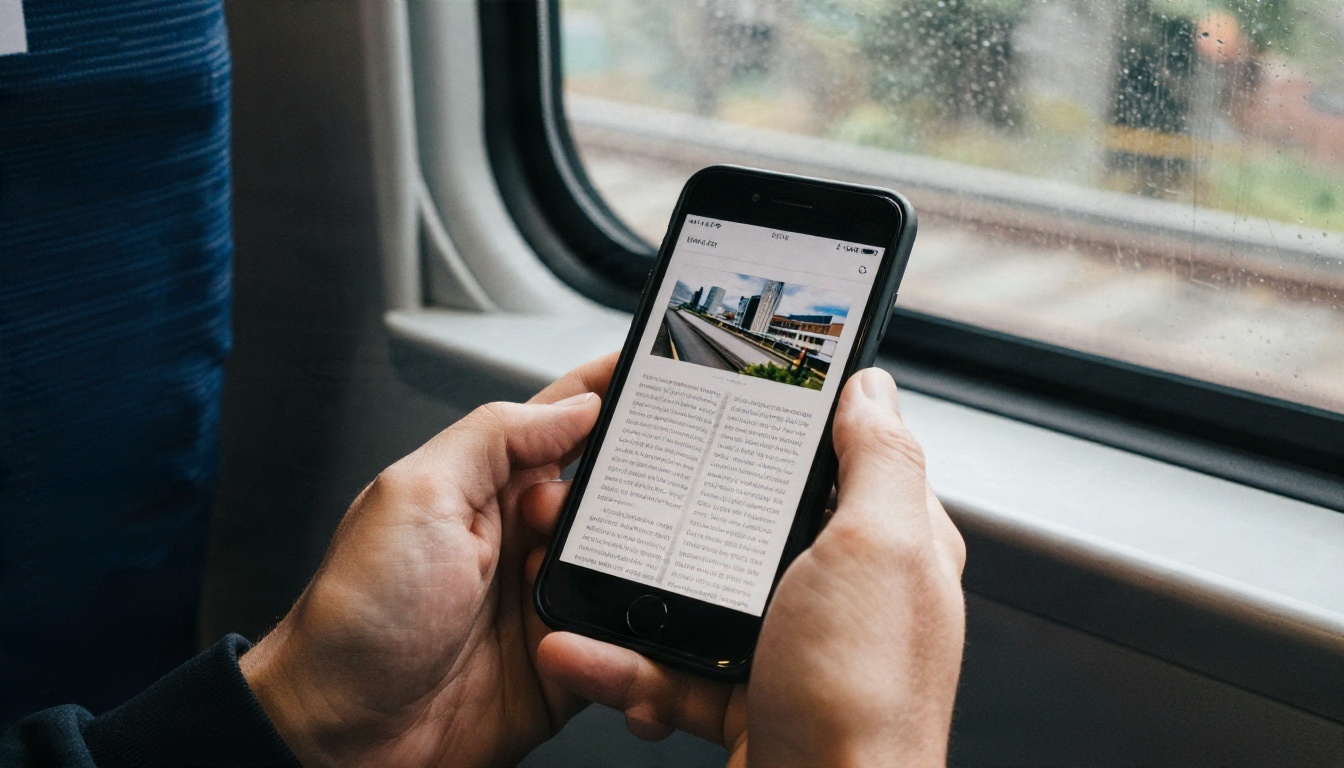
A phone screen is roughly the size of a paperback's single column, yet a PDF page is designed for a full sheet of paper. That mismatch is why so many people give up on PDF books on mobile.
Reflow vs. fixed layout
A PDF has a fixed layout: each page is a picture of where everything sits. Zooming in forces you to drag sideways for every line. Reflow re-wraps the text to fit your screen, like an EPUB.
- Use reflow for novels, essays, and plain-text nonfiction.
- Use fixed layout for cookbooks, art books, comics, and textbooks with diagrams.
- Try a tablet for fixed-layout books. A 10-inch screen shows a page at near-print size.
Reflow can scramble tables, footnotes, and captions. If a page looks broken after reflowing, switch back for that section.
Night mode and brightness settings
Reading a bright white page in a dark room is tiring. Most readers include a few fixes:
- Turn on dark or sepia mode after sunset.
- Lower the screen brightness below your usual level.
- Enable your phone's warm display filter in the evening.
- Increase line spacing or margins if your app allows it.
- Take a short break every 20 to 30 minutes.
✅ Best practice: Set the reader to open in the same view every time. Switching modes mid-book is a surprisingly common reason people drift away from digital reading.
One-handed reading setup
On a commute you often have one hand free. Choose an app with tap zones for page turning, turn off accidental pinch-zoom if it keeps triggering, and lock the screen orientation. Small settings like these matter more than which logo is on the icon.
How Page-Flip View Really Works
Page-flip view comes from a different category of software than traditional PDF viewers. A flipbook takes each PDF page, renders it as an image or lightweight layer, and animates the turn between them.

Readers vs. flipbook viewers
| Aspect | Standard PDF reader | Flipbook viewer |
|---|
| Install required | Usually yes | No, opens in a browser |
| Page turn | Scroll or jump | Animated curl or slide |
| Best for | Study, search, annotation | Browsing, presenting, publishing |
| Sharing | Send the file | Send a link or embed it |
| Access control | File-level only | Password or link-based |
| Mobile experience | Depends on the app | Designed to adapt |
The main practical difference is distribution. With a standard reader, the book lives in a file on a device. With a flipbook, it lives at a web address that anyone can open on a phone or desktop without installing anything.
When page-flip view is the right choice
Page-flip suits books where page design is part of the content:
- Photography and art books
- Cookbooks and travel books
- Magazines and lookbooks
- Brochures and catalogs
- Children's picture books
For dense, text-heavy study material, a classic reader with fast search and highlights is usually better. Many people keep both: a standard app for work, a flipbook for pleasure and browsing.
Offline Reading and Library Sync
Reading online is easy until the train enters a tunnel or the flight takes off. Offline access should be a firm requirement, not a nice extra.

Download before you travel
- In Google Play Books and Apple Books, make sure the title is downloaded to the device, not only listed in your library.
- In file-based readers, store the PDF locally rather than in a cloud folder that streams on demand.
- For browser-based flipbooks, look for a download for offline reading option from the publisher.
Keeping your place across devices
Syncing is where library-style apps beat file-based ones. If you read on a phone in the morning and a tablet at night, a synced app resumes on the right page. File-based readers often need a cloud folder and manual care to match that. If you only read on one device, skip the complexity.
| Need | Best fit |
|---|
| Same book on phone and tablet | Google Play Books or Apple Books |
| Large local library, no account | SumatraPDF, Librera, KOReader |
| Heavy highlighting | Xodo or Acrobat Reader |
| Browsing visual books | Flipbook viewer in a browser |
Publish Your Own Book as a Flipbook
If you are an author, a small publisher, or someone who produces guides for clients, you are on the other side of this problem. Your readers will open your PDF on whatever device they have, and you cannot control the reader app. A flipbook solves that by giving everyone the same polished page-turn view.
How to create a flipbook from your PDF
Here is the process on Flipbooks AI, using the PDF to Flipbook Converter:
- Open the platform. Go to Flipbooks AI and create an account. You can start on the free option and move up later.
- Upload your PDF. Drag the file into the uploader. The platform converts each page into a flippable page automatically. A clean, high-resolution export gives the sharpest result.
- Check the preview. Flip through the book. Confirm page order, image quality, and that links still work.
- Customize the look. Add your branding, choose background colors, adjust page effects, and place your logo. You can also embed video and audio where it suits the content.
- Set access. Decide whether the book is public, link-only, or protected with a password. Password protection is useful for paid editions, review copies, and client documents.
- Share it. Copy the direct link, or use the Embed Flipbook on Website option to place the book on your own page.
Every flipbook is mobile-responsive, so it adapts to phone screens instead of forcing readers to pinch and drag. There are no watermarks, which matters when the book represents your name.
💡 Pro tip: Export your PDF with single pages, not printer spreads, so the flipbook can build the two-page view for you.
Tools for different book types
Different books call for different starting points. Browse the full tools directory or jump straight to the right one:
Analytics and offline downloads
Once the book is live, the Professional plan adds analytics and lead generation, so you can see how many people opened it and where they stopped. Readers can also be given an offline download, which solves the tunnel and airplane problem from their side. Compare options on the pricing page.
✅ Best practice: Offer the flipbook for browsing and a downloadable PDF for people who want to annotate. Different readers want different things.
Quick Picks by Reader Type
Skip the debate and choose by your situation.
Students and researchers
Use Acrobat Reader, Xodo, or Okular for highlights, notes, and fast search. Keep a flipbook for any visual materials your instructor shares.
Commuters and casual readers
Use Google Play Books or Apple Books for sync and clean layout. Try Librera or Moon+ Reader on Android if you want more control over fonts and margins. Switch to reflow for text-heavy novels.
Authors and publishers
Keep a standard reader to proof the PDF, then publish through a flipbook so readers get a consistent page-turning view. A book that looks great on your screen but breaks on a phone costs you readers.
| Reader type | Main need | Best option |
|---|
| Student | Notes and search | Acrobat Reader, Xodo |
| Commuter | Sync and reflow | Play Books, Apple Books |
| Visual book fan | Spread and page turn | Flipbook viewer |
| Minimalist | Speed | SumatraPDF |
| Author | Consistent display everywhere | Flipbook plus PDF download |
5 Common Mistakes to Avoid
- Reading fixed-layout PDFs on a small phone without reflow. Switch modes or move to a tablet.
- Trusting cloud streaming for travel. Download the file first.
- Choosing by animation. A pretty page curl does not make a reader good. Check search, bookmarks, and memory of your place.
- Sending authors' proofs as raw PDFs. Review copies get opened in unknown apps. A link-based flipbook gives you control.
- Ignoring eye comfort. Dark mode and warm filters cost nothing and make long sessions easier.
Pick Your Reader Today
There is no single winner, only a better match. For quick, free reading on a computer, try SumatraPDF or Acrobat Reader. For phones and tablets, Google Play Books or Apple Books handle sync and offline reading well. For visual books and anything you plan to share, a page-flip view in the browser gives the most natural feel.
If you create books rather than only read them, turn your next PDF into a flipbook. Get started for free on Flipbooks AI, browse the tools and templates, or compare pricing plans to see which tier fits your publishing plans.



