Book Flipping Pages Online: Free Page-Flip Effect, Sound and Embed Options
Turn a flat PDF into a book that people actually want to read. See how the page-flip effect works, when page-turn sound helps, and how to embed your flipbook on any website with a few lines of code, step by step.
Nobody gets excited about scrolling through a grey PDF viewer. But put the same pages into a book that curls, turns, and even rustles as you move forward, and people stay longer. That is the whole appeal of book flipping pages online: a familiar gesture, now available in any browser. With Flipbooks AI you can upload a file, get a realistic page-flip effect, add optional sound, and paste an embed code into your site, all without a watermark. This article walks through how each piece works, what to switch on, and what to leave off.
Why Page Flipping Still Works
Most of us grew up turning paper pages. The motion tells your brain two things at once: you are making progress, and there is more to come. A scrolling PDF gives you neither signal. It just moves.
The Pull of the Page Turn
A page that bends under your finger gives instant feedback. You see the paper edge lift, the shadow slide, and the next spread appear. That small bit of theatre makes readers feel like they are holding something, even on a laptop screen. Brochures, catalogs, and portfolios benefit most, because their pages are designed as spreads and lose a lot when flattened into a long vertical strip.
Where Plain PDFs Fall Short
A PDF is a great storage format. It is a weak reading format. Files are heavy, they download before they open, and on a phone they force constant pinching and zooming. Here is how the two formats compare in everyday use:
Feature
Standard PDF Viewer
Online Flipbook
Page turn motion
None, vertical scroll
Realistic curl or slide
Sound
Not available
Optional page-turn audio
Opens in browser
Often downloads first
Loads instantly via link
Embeds on a website
Clumsy
Single iframe snippet
Mobile reading
Pinch and zoom
Responsive layout
Branding
File name only
Colors, logo, custom look
Tracking views
Rarely
Analytics on Professional plan
💡 Pro tip: If your document is mostly text with no spreads, keep it short. Flipbooks shine when layout matters, so a two-page magazine feature will feel better than a 300-page legal contract.
How the Page-Flip Effect Works
Behind the curl is simple geometry. The viewer treats each page as a flat surface, bends one corner along a curve, and draws a shadow on the page underneath. When you drag, the curve follows your cursor or thumb. When you release, the page either completes the turn or snaps back.
Curl, Slide, and Fade Compared
Not every document needs the full paper simulation. Pick the motion that suits the content and the audience.
Page Effect
Feels Like
Best For
Watch Out For
Page curl
A real paperback
Magazines, lookbooks, photo albums
Slightly heavier on very old phones
Slide
A carousel
Presentations, price lists
Less tactile, fewer visual cues
Fade
A slideshow
Short reports, one-page handouts
Loses the book metaphor
Single page view
A phone reader
Mobile-first documents
Spreads are split in two
A fashion brand showing a lookbook will want the curl. A sales team sharing a ten-slide deck may prefer a clean slide. Neither choice is wrong, but mixing them across your materials makes your brand feel inconsistent.
Speed and File Weight
A beautiful effect is useless if the book takes ten seconds to open. Three habits help:
Compress images before exporting your PDF. Photos at 150 to 200 DPI look sharp on screen and stay light.
Cut pages you do not need. Every blank filler page is a wasted flip.
Test on a mid-range phone, not only on your own laptop.
⚠️ Warning: Do not upload a 400 MB print-ready PDF and hope for the best. Export a screen-optimized version instead. Readers will wait a couple of seconds, not a minute.
Adding Page-Turn Sound
Sound is the detail people remember. A soft paper rustle as the page lifts makes the experience feel physical, almost like sitting with the book on your lap. It is also the feature most likely to annoy someone in an open-plan office, so it deserves a little thought.
When Sound Helps
Page-turn audio works well in places where the reader expects atmosphere:
Photo albums and wedding books. The rustle adds warmth and a sense of occasion.
Storybooks for children. Sound rewards every swipe and keeps small hands curious.
Portfolios and lookbooks. A subtle effect makes a showcase feel considered.
Recipe collections. Paired with a gentle background track, it feels like a kitchen shelf cookbook.
You can also go beyond the turn sound. On Flipbooks AI you can embed videos and audio inside the pages, so a chef can speak over a recipe or a musician can attach a track to a gallery spread.
When to Keep It Silent
Skip the audio for corporate reports, training manuals, and anything people open at work. A sudden rustle during a meeting is not the impression you want to leave. When in doubt, ship the silent version and let readers opt in.
✅ Best practice: Keep sound short, soft, and never looping. A single half-second page rustle feels natural. Anything longer becomes noise.
How to Create a Page-Flip Book with Flipbooks AI
Here is the whole process, from file to live link. It takes a few minutes for a short document.
Choose to create a new flipbook and upload your PDF.
Wait a moment while the file is converted into pages with the page-flip effect already applied.
If you only need a quick conversion, the PDF to Flipbook Converter is the fastest route. Pages keep their original layout, fonts, and links.
Step 2: Customize the Look
Open the editor and set the details that make the book feel like yours:
Branding: add your logo and pick background and toolbar colors that match your site.
Page effects: choose curl, slide, or another transition.
Layout: decide between a two-page spread on desktop and single page on mobile.
Sound: switch the page-turn audio on or off.
The result stays mobile-responsive, so readers get a comfortable layout whether they open it on a phone, tablet, or widescreen monitor.
Step 3: Add Video, Audio, and Links
A static book is nice. A book with a demo video on page three is better. Drop in video or audio files, then add clickable links to products, booking pages, or contact forms. A hotel can link every room photo to a booking page. A musician can attach a preview track to each album spread.
💡 Pro tip: Put your most important link on page two or three, not the last page. Many readers never reach the end.
Step 4: Share and Embed
Once the book looks right, you have several ways to publish it:
Sharing Option
How It Works
Best For
Direct link
Copy a URL and send it anywhere
Email, chat, social posts
Embed code
Paste an iframe on your site
Blogs, landing pages, shops
Password protection
Readers enter a password first
Private proposals, client reports
Offline download
Readers save a copy
Trade shows, travel, low signal
Need the embed flow in detail? The Embed Flipbook on Website tool shows exactly where to find the snippet.
Embed Options Compared
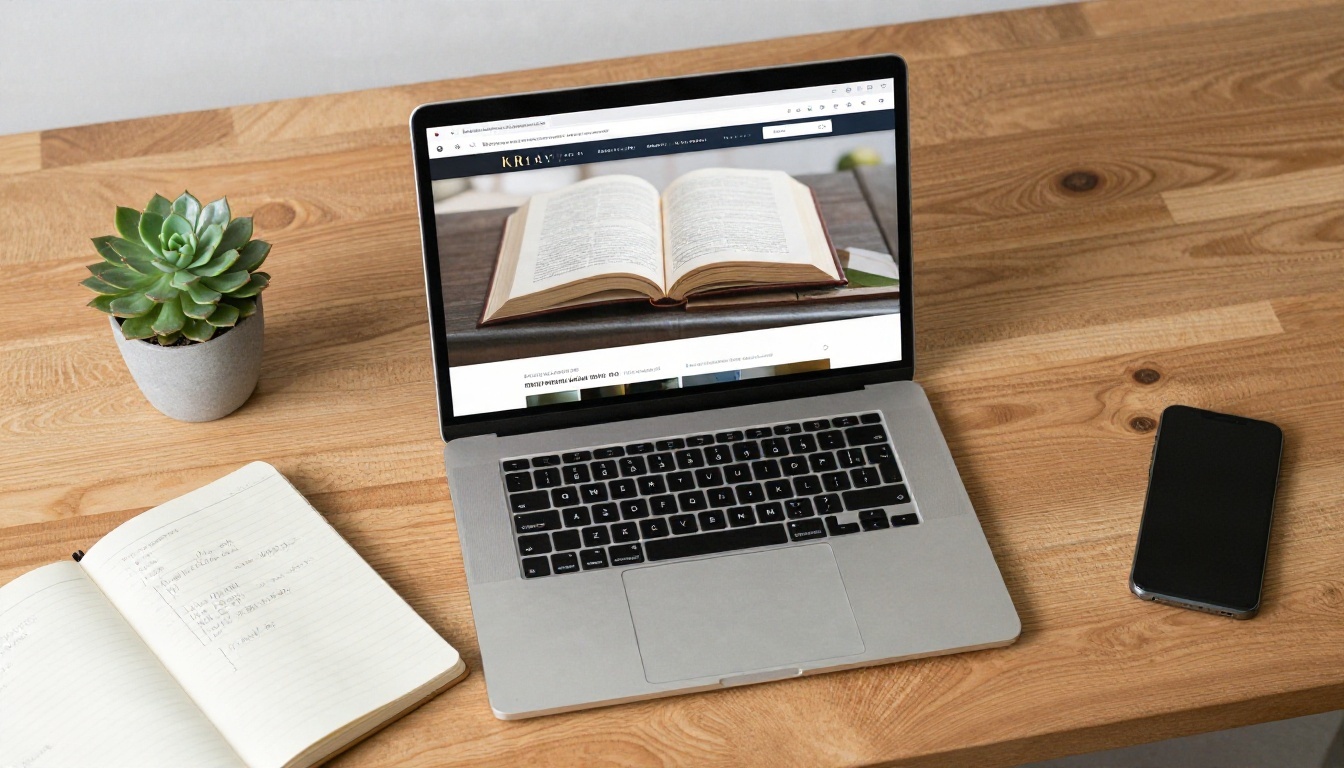
Embedding is where the flipbook stops being a file and becomes part of your site. A visitor never leaves the page, which means they stay in your environment, near your menu, your contact form, and your next article.
Iframe, Link, or Pop-Up
There are three common ways to place a flipbook in front of people:
Inline iframe: the book sits right inside your page content. Best for blog posts and product pages.
Plain link: you send readers to a full-screen viewer. Best for social media and newsletters.
Button that opens the viewer: a clean call to action on your page that opens the book on click. Best when your page is already busy.
A basic inline embed looks like this. Replace the placeholder with the address from your own flipbook:
Fixed widths break on phones. Use width="100%" and give the frame a sensible height, around 500 to 700 pixels for a page spread. If your site builder supports aspect-ratio containers, wrap the iframe in a 16:9 box so the book scales with the page.
Placement
Suggested Height
Notes
Blog post body
500 to 600 px
Leave space for text above and below
Landing page hero
650 to 750 px
Pair with a short headline
Sidebar widget
400 px
Single page view works best
Full-width section
80 vh
Feels immersive, good for portfolios
⚠️ Warning: Always test the embed on a real phone before you publish. Some site builders add padding that squeezes the frame and hides the page controls.
Real-World Use Cases
The same page-flip engine serves very different businesses. A few examples show how the options combine.
Bookshops and Catalogs
An independent bookshop can turn its seasonal picks into a flipbook, embed it on the homepage, and share the link in its newsletter. Shoppers browse like they would at the counter, then click through to buy. If you sell products rather than books, the Digital Catalog Maker offers the same effect with product-focused layouts.
Classrooms and Training
Teachers can convert worksheets, course packs, and reading lists into a book students open on any device. For companies, the Training Manual Flipbook keeps onboarding material in one clean link, with password protection if the content is internal.
Recipe Books and Personal Projects
Home cooks, food bloggers, and small restaurants can publish a recipe collection that feels like a printed cookbook. The Recipe Book Flipbook tool is built for this, and you can attach a short video to any recipe that needs a visual demo.
Here is a quick view of which setup suits which job:
Use Case
Page Effect
Sound
Delivery
Bookshop picks
Curl
Optional
Embed on homepage
Product catalog
Curl or slide
Off
Embed plus direct link
Training manual
Slide
Off
Password protected link
Recipe collection
Curl
On, soft
Embed on blog
Wedding album
Curl
On, soft
Private link
Sales deck
Slide
Off
Direct link by email
Browse the full range of flipbook tools to find a template that matches your project.
What Stays Free and What Costs
Plenty of people search for a free page-flip tool and then discover the output carries a big logo across every spread. Two things are worth checking before you commit to any platform: whether the flipbook shows a watermark, and how many books you can publish.
The No-Watermark Promise
Flipbooks AI never adds a watermark to your book, so the pages look like your brand and nobody else's. You can try the platform from the account page and see exactly how your own PDF looks before deciding on anything.
Analytics on the Professional plan show how far readers get and which pages hold attention. If everyone drops off at page four, you know exactly where to rework your layout. Lead generation lets you place a short form before the content, so each download or view comes with a contact you can follow up on.
✅ Best practice: Publish a first version, wait a week, then check which pages people reach. Edit the weak spots and republish. A flipbook is easy to refine, so treat it as a living document.
Start Flipping Today
You now have everything needed to build a book that feels good to read: choose a page effect that suits your content, add sound only where it belongs, and embed the result where your audience already is.
Ready to try it? Get started for free on Flipbooks AI, upload your first PDF, and share the link in a few minutes. Browse all available tools and templates to find the right fit, or compare pricing plans when you are ready for analytics, unlimited flipbooks, and lead capture.