Most people open a blank document, drop in a few photos and hope the printed booklet comes out right. It rarely does. Pages land in the wrong order, text sits too close to the fold, and the PDF you email around gets ignored on phones. Good booklet design software solves the first two problems, and a tool like Flipbooks AI solves the third by turning the finished file into a page-turning online booklet. This article covers free options, templates worth starting from, print setup rules that save money, and the simplest ways to share your booklet online.
What Booklet Software Actually Does
A booklet is a small multi-page document, usually folded and stapled, with pages that read in order when you flip through. Software built for this job handles three things a plain word processor often fumbles: page layout, page order (imposition) and export quality.

Print Booklets vs Digital Booklets
You do not have to pick one. The same layout can feed both a print run and an online version. Here is how they differ.
| Feature | Print Booklet | Digital Booklet |
|---|
| Cost per copy | Paid per print run | Close to zero |
| Updates after release | Reprint needed | Replace the file anytime |
| Links and video | Not possible | Clickable links, embedded media |
| Reader tracking | None | Views, time on page, leads |
| Feels premium | Yes, tactile paper | Depends on the viewer |
💡 Pro tip: Design once at print size, then export two files: a print-ready PDF and a screen-friendly PDF. That single habit saves hours.
Who Needs One
Booklets show up in more places than most people expect:
- Event organizers printing programs and schedules
- Restaurants and cafes with compact menus
- Real estate agents handing out property info packs
- Schools and clubs producing newsletters and handbooks
- Freelancers sending a short portfolio or service overview
Free Booklet Design Software Options
You can build a very good booklet without spending money. The catch is knowing where each free tool is strong and where it quietly gets in your way.
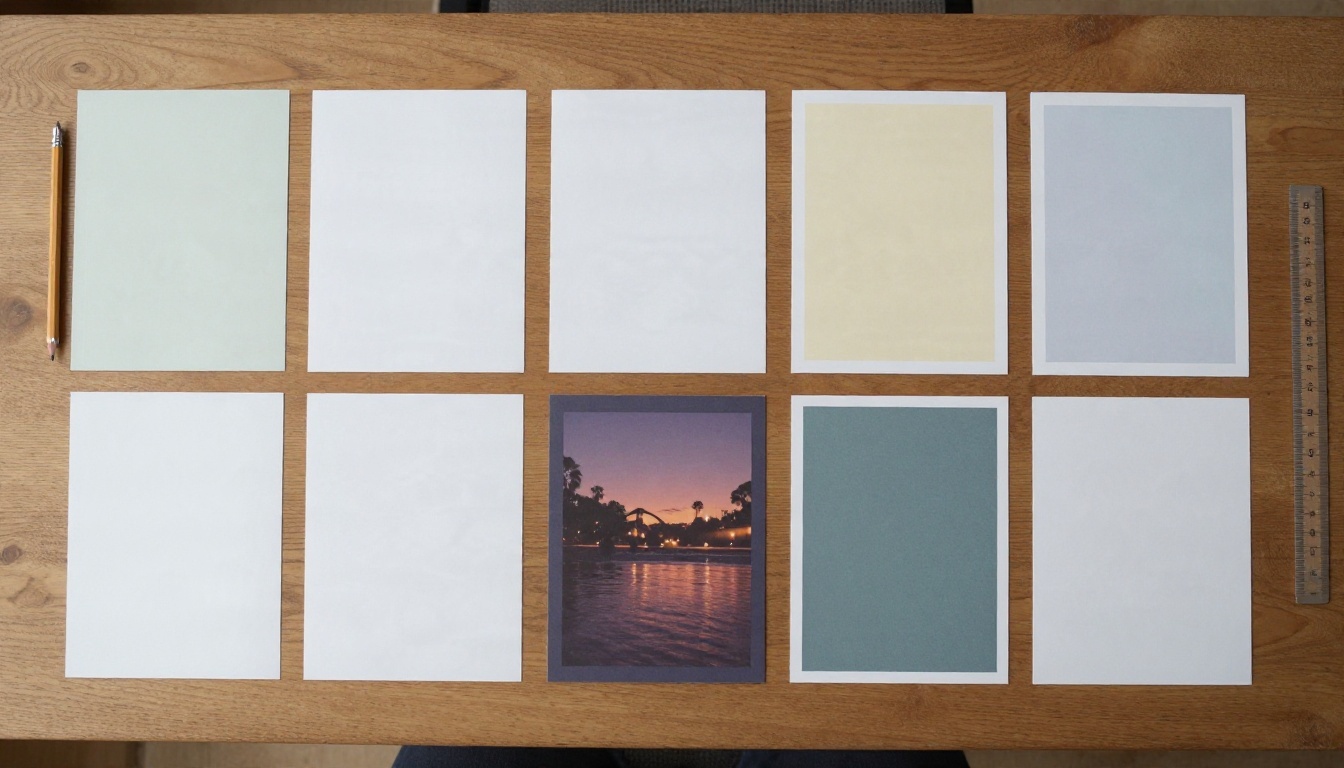
Free Tools Compared
| Tool | Best For | Strength | Watch Out For |
|---|
| Canva (free plan) | Fast, good-looking layouts | Huge template library, drag and drop | Some assets locked, limited print color control |
| Google Docs / Slides | Simple text-heavy booklets | Easy collaboration | No real bleed or booklet imposition |
| Microsoft Word / Publisher | Office users | Built-in booklet fold option in page setup | Fine layout control is clumsy |
| LibreOffice Writer | Budget print jobs | Free forever, book fold setting | Dated interface |
| Scribus | Serious print layout | Open source, bleed and CMYK support | Steeper learning curve |
| Adobe Express (free tier) | Social-style booklets | Clean templates | Premium features gated |
Pricing and feature limits change often, so check each tool's current plan page before committing to a project.
Where Free Plans Fall Short
Free software usually stumbles in the same four spots:
- Color mode: Many free editors export only RGB, while commercial printers prefer CMYK.
- Bleed: Some tools have no bleed setting at all.
- Imposition: Reordering pages for a stapled booklet is often manual.
- Interactivity: A normal PDF export has no page-turning effect, analytics or lead capture.
⚠️ Warning: Always ask your printer what they accept before choosing software. A printer who wants CMYK PDFs with 3 mm bleed will reject an RGB export with none.
A Practical Free Workflow
Here is a setup that costs nothing and still gives professional results:
- Draft the content and page order in Google Docs.
- Lay out the pages in Canva or Scribus, depending on how much print control you need.
- Export a PDF for the printer.
- Upload the same PDF to a flipbook tool for the online version.
Booklet Templates That Save Hours
Starting from a template is not cheating. It is how working designers build consistency fast. A good template already has margins, a grid, heading styles and image frames set up for you.
Choosing a Template Size
Size drives cost, so decide early. These are the most common formats:
| Format | Size (Closed) | Typical Use |
|---|
| A5 | 148 x 210 mm | Event programs, product booklets |
| A6 | 105 x 148 mm | Pocket guides, short menus |
| US Half Letter | 5.5 x 8.5 in | Handbooks, workbooks |
| Square 6 x 6 | 6 x 6 in | Portfolios, lookbooks |
| DL | 99 x 210 mm | Slim brochures, rack cards |
Template Checklist
Before you commit to a template, open it and check that it:
- Uses real styles for headings and body text, not manual formatting
- Has bleed and margin guides visible
- Offers even page counts you can extend in multiples of four
- Keeps text in editable layers, not flattened images
- Matches your brand colors or lets you swap them in one step
✅ Best practice: Replace placeholder images with your own early. Layouts that look great with stock photos can break when your real photos have different proportions.
If your booklet leans toward brochures, a dedicated tool such as the Online Brochure Designer gives you a faster route from template to shareable file.
Print Setup Without Surprises
This is where most first-time booklets go wrong. The design looks perfect on screen, then the proof arrives with trimmed text and odd white edges.

Page Counts and Multiples of Four
A saddle-stitched booklet is made from sheets folded in half. Each sheet gives you four pages, so your total page count must be a multiple of four: 8, 12, 16, 20 and so on. If your content ends on page 14, you need to add two pages, such as a notes page or a contact page.
Bleed, Margins and Safe Zones
Printers cut paper in large stacks, and the blade is never perfectly exact. Three zones protect your design:
- Bleed: Extend backgrounds and images about 3 mm (0.125 in) past the trim edge.
- Trim line: The final size of the booklet.
- Safe zone: Keep all important text at least 5 to 10 mm inside the trim line.
Inner margins deserve extra room. Pages near the staple curve slightly, so give the fold side more space than the outer edge.
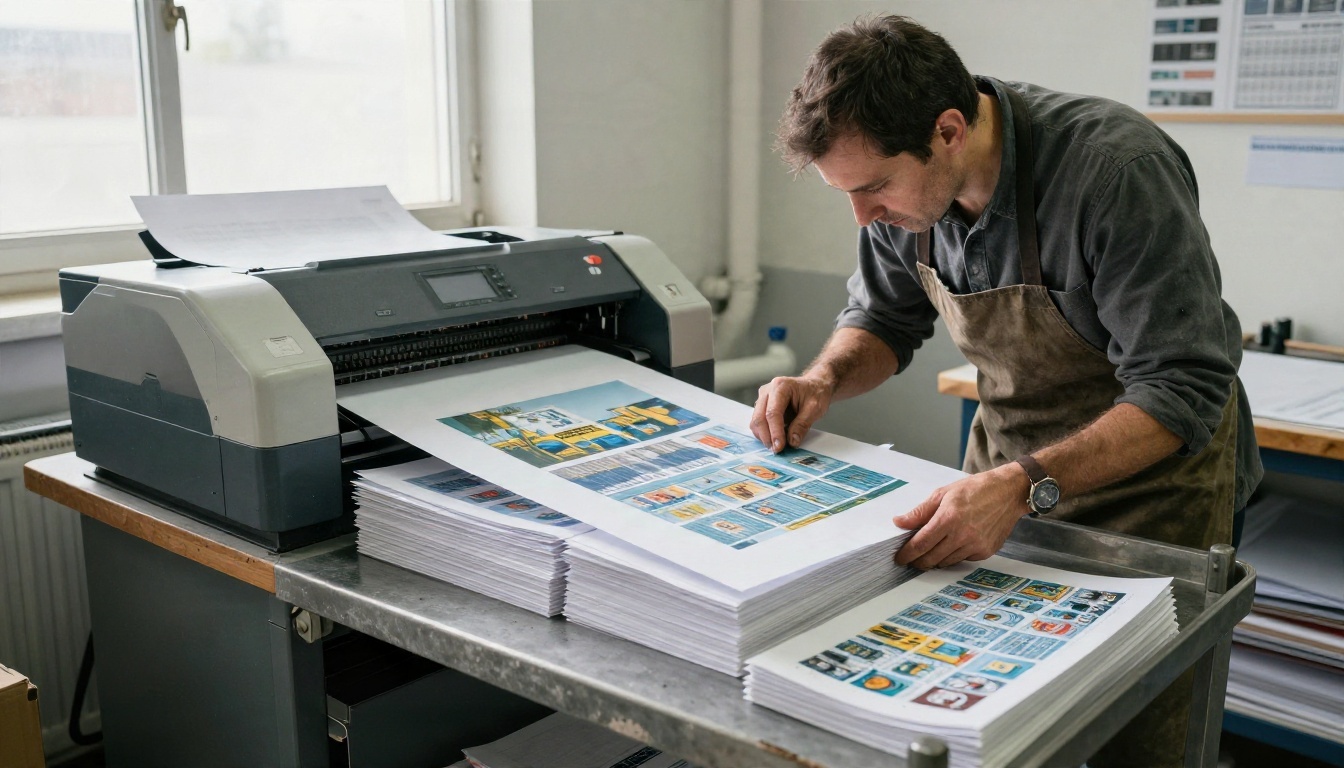
Color Mode and Resolution
- Use 300 dpi for photos meant for print.
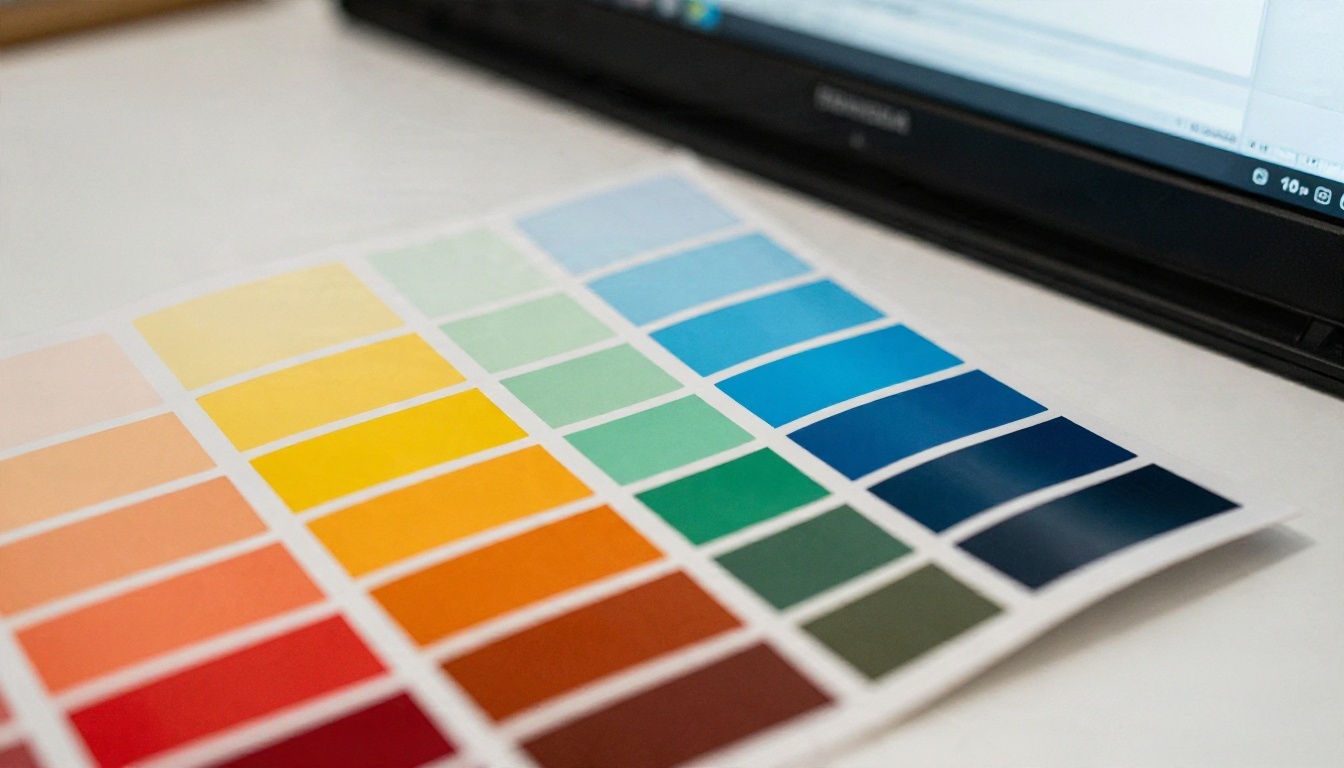
- Choose CMYK if your software allows it. Bright screen blues and greens can look duller on paper.
- Embed or outline fonts so the printer sees what you see.
- Export as PDF/X when the option exists.
Binding Options Compared
| Binding | Page Range | Look | Cost |
|---|
| Saddle stitch (staples) | 8 to about 80 pages | Classic, flat | Lowest |
| Perfect bound (glued spine) | 40+ pages | Book-like, printed spine | Medium |
| Wire-O / coil | Any | Opens fully flat | Medium |
| Single fold or tri-fold | 4 to 6 panels | Brochure style | Low |
💡 Pro tip: Order a single printed proof before a big run. Paying a small fee for one copy is cheaper than reprinting five hundred.
Proofing With a Second Pair of Eyes
Fresh eyes catch things you stopped seeing hours ago. Ask a colleague to check page order, spelling, contrast and whether any text sits near a fold.

Share Your Booklet Online
Printing is only half the story. Many readers will open your booklet on a phone, so the online version needs just as much care as the paper one.
Why PDFs Fall Short
A raw PDF attachment has real limits. It downloads slowly, zooms awkwardly on small screens, gives you no data on who read it, and offers no page-turning feel. For a booklet that wants to look polished, that is a weak final step.
Sharing Methods Compared
| Method | Setup Effort | Tracking | Looks Professional |
|---|
| Email attachment | Very low | None | Low |
| Cloud drive link | Low | Basic | Medium |
| Embedded flipbook on your site | Low | Detailed | High |
| Direct flipbook link | Very low | Detailed | High |
Make a Booklet Flipbook with Flipbooks AI
If you already have a finished booklet PDF, turning it into an online flipbook takes a few minutes. The PDF to Flipbook Converter is built for exactly this step.
Step-by-Step Tutorial
- Open the platform. Go to Flipbooks AI and create an account.
- Upload your PDF. Drag your screen-friendly export into the uploader. The file is converted into a flipbook with real page-turning motion.
- Customize the look. Set your brand colors, add a logo, choose a background and adjust the page effects. Mobile-responsive layout is handled automatically.
- Add multimedia. Place clickable links, video and audio where they help the reader, such as a menu item that opens a booking page.
- Set privacy. Share publicly or use password protection for client-only or internal booklets.
- Publish and share. Copy the direct link or grab an embed code. The Embed Flipbook on Website tool shows how to place it on any page.
✅ Good to know: Flipbooks AI never adds watermarks, and the Standard plan and above includes unlimited flipbooks. See the pricing page for current plan details.
Extra Options on Paid Plans
| Feature | What It Does | Plan |
|---|
| No watermarks | Clean, branded output | All plans |
| Unlimited flipbooks | Publish as many booklets as you need | Standard and above |
| Offline downloads | Readers keep a copy | Paid plans |
| Analytics | Views, reading time, page behavior | Professional |
| Lead generation | Collect contact details before access | Professional |
Real-World Booklet Examples
Seeing how others use booklets makes planning easier.

Three Common Mistakes
- Skipping the proof. One printed test copy catches problems no screen can show.
- Using low-resolution images. Photos pulled from websites look soft on paper.
- Forgetting the online version. A booklet that exists only on paper reaches only the people you can physically hand it to.
A Simple Pre-Launch Checklist
- Page count is a multiple of four
- Bleed and safe zones are set
- Fonts are embedded
- Links work in the digital version
- File sizes are small enough to load fast on mobile
- You have a print PDF and a screen PDF
Your Next Booklet Starts Here
Pick one free tool from the table above, grab a template in the size you need, set bleed and margins before you add content, and export two PDFs. That workflow keeps both the paper and the screen version looking sharp.
Ready to publish? Get started for free on Flipbooks AI and turn your PDF into an online booklet in minutes. Browse all flipbook tools to find the format that suits your project, or compare pricing plans to choose what works for you. When you are ready for analytics and lead capture, upgrade to Professional.



