Short answer: yes, AI can make a blurry screenshot sharper and a crooked, faded scan far easier to read. Long answer: it depends on what you ask it to do, because sharpening pixels and reading words are two very different jobs. Once your pages look right, you can turn them into a page-turning publication with Flipbooks AI, but the cleanup comes first, so that is where we start.
This article compares the tools that actually work, the free options worth your time, a repeatable workflow, and the situations where AI quietly makes things up. If you have ever squinted at a phone photo of a receipt, you are in the right place.
What AI Can Actually Fix
Most people lump every problem into "bad quality." AI tools do not. They handle specific defects, and some defects are much easier than others.
Resolution and Blur
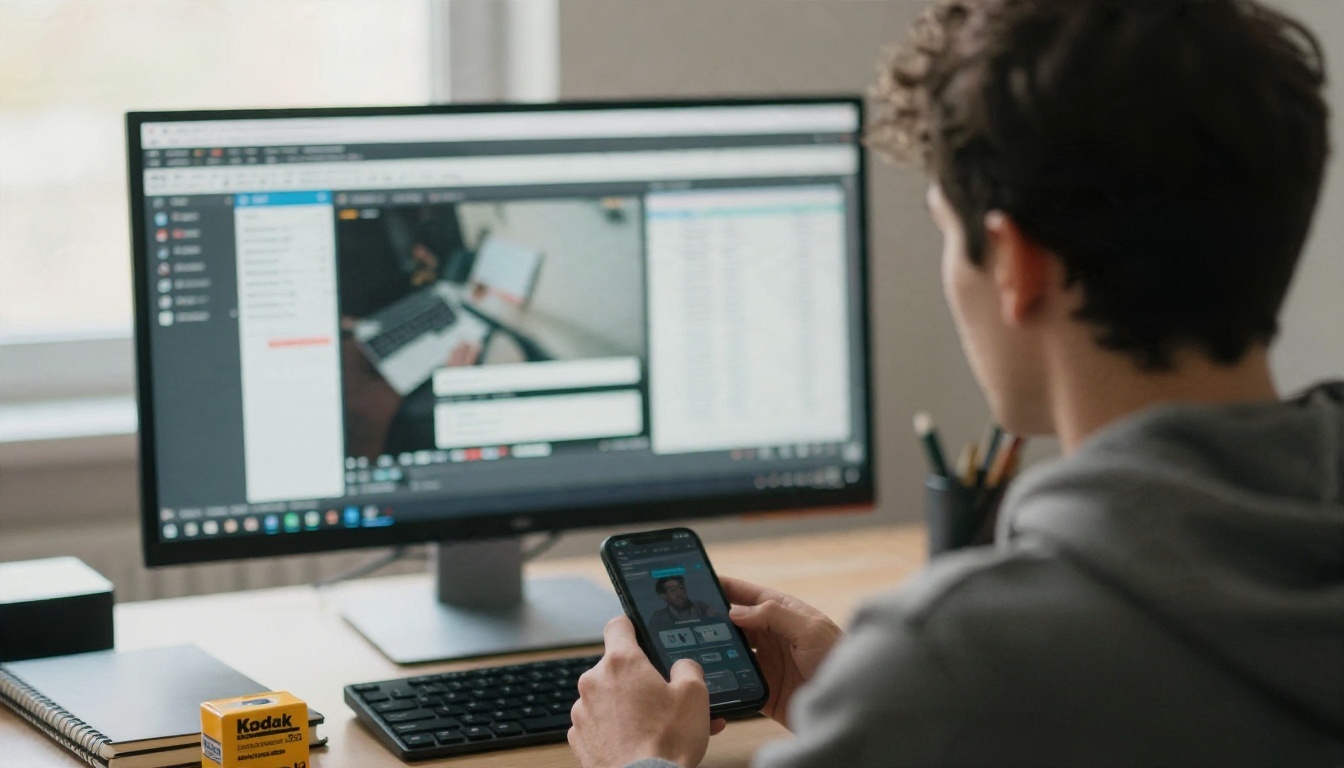
A low-resolution screenshot has too few pixels. An AI upscaler looks at the pixels you have and predicts what a sharper version would look like. For clean interface screenshots, flat colors and large text, the results are often impressive. For motion blur or out-of-focus photos of paper, the results are mixed.
Skew, Shadows and Noise
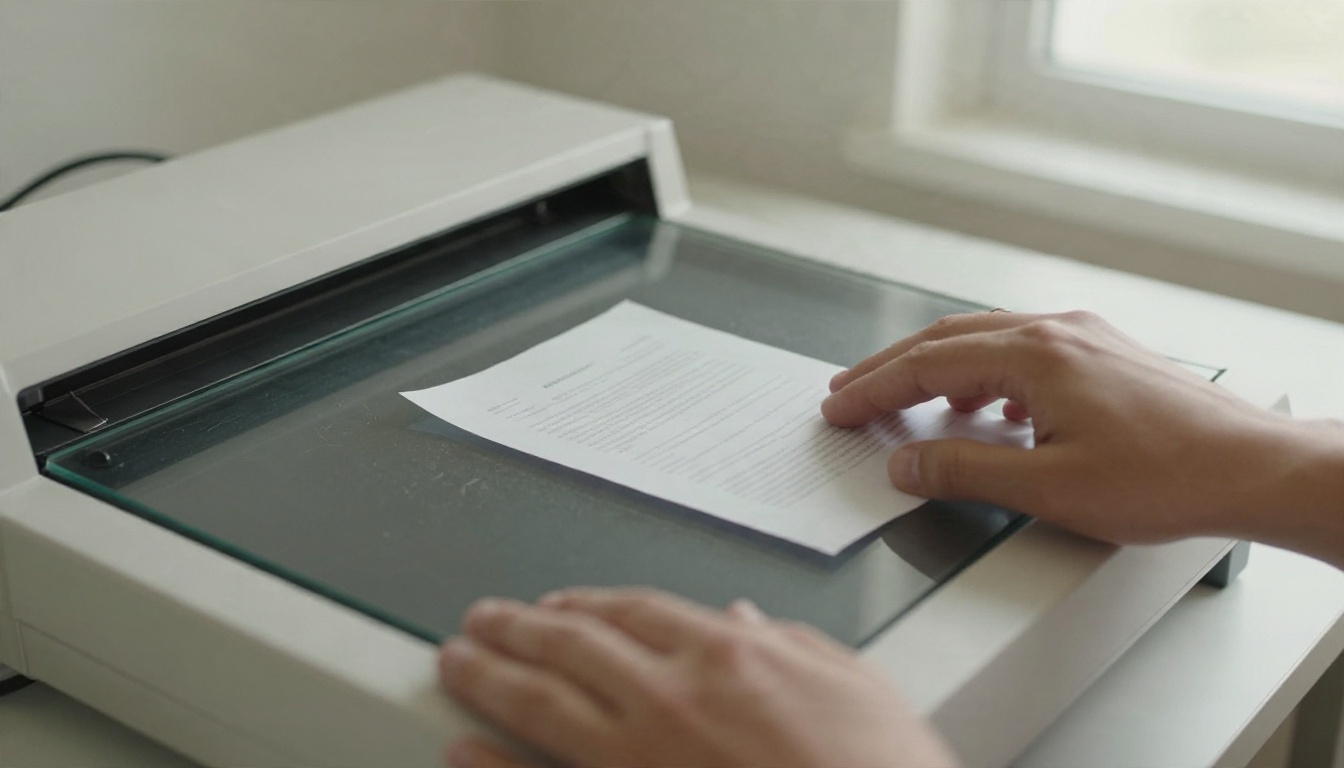
Phone photos of paper bring perspective distortion, shadows from your hand, and uneven lighting. This is where trained models shine. They detect page edges, flatten the perspective, remove shadows, and even out the background so that the page looks like a flatbed scan.
Text Recognition
OCR (optical character recognition) turns the picture of a word into a real, searchable word. Modern OCR engines are far more accurate than older ones, but they still stumble on handwriting, tiny print, and low-contrast text.
💡 Pro tip: Improving the look of a page and extracting its text are separate steps. A page can look beautiful and still be read wrongly by OCR, so always check both.
Pixel Repair vs. Text Recovery
Here is the distinction that saves the most frustration. A generative upscaler invents plausible detail. An OCR engine reads what is there. One is a painter, the other is a reader.
| Task | What the AI does | Best for | Risk level |
|---|
| Upscaling | Predicts missing pixels | Screenshots, logos, photos | Medium (can alter small characters) |
| Deskew and dewarp | Straightens the page geometry | Phone photos of paper | Low |
| Shadow and background cleanup | Evens out lighting and paper tone | Receipts, book pages | Low |
| Denoising | Removes grain and speckles | Old photocopies | Low to medium |
| OCR | Converts pixels to text | Searchable PDFs, copy and paste | Medium (misreads digits) |
| Handwriting recognition | Interprets cursive and print | Notes, forms | High |
The risk column matters. A deskew tool cannot change a number from 8 to 3. A generative upscaler sometimes can.
You do not need a paid subscription to get decent results, though paid tools are faster and more consistent. Here is an honest rundown by category.
Upscalers for Screenshots
- Upscayl: a free, open-source desktop app built around Real-ESRGAN style models. Runs on your computer, so images never leave your machine.
- Real-ESRGAN and waifu2x: open models available through several web front ends. Good for flat graphics and interface captures.
- Built-in photo editors: many operating systems and phone galleries now include one-tap sharpening.
Scanner and Cleanup Apps
- Phone scanner apps: the scanner built into Apple Notes, Google Drive, and Samsung's camera tools detect edges, flatten the page, and boost contrast.
- Adobe Acrobat online tools: convenient for scan cleanup and OCR, though free usage is limited and the paid tier adds more.
- ScanTailor: a free desktop tool for splitting, deskewing, and cleaning book scans in bulk.
OCR Engines
- Tesseract and OCRmyPDF: free, open source, and scriptable. OCRmyPDF adds a hidden text layer to scanned PDFs so they become searchable.
- Google Drive OCR: upload an image or PDF and open it as a document. Surprisingly good on clean print.
- Phone Live Text features: copy text straight from a photo, handy for quick jobs.
Free Options Compared
Free does not mean bad, but every free option has a catch. Some cap file size, some add watermarks, some require installation, and some send your files to a server you do not control.
| Tool type | Cost model | Privacy | Setup effort | Best use |
|---|
| Open-source desktop upscaler | Free | High (local) | Medium | Batches of screenshots |
| Web-based upscaler | Free tier with limits | Low to medium | None | One-off images |
| Phone scanner app | Free | Medium | None | Receipts, forms |
| OCRmyPDF or Tesseract | Free | High (local) | High | Large archives |
| Cloud OCR in a drive service | Free with account | Medium | Low | Clean typed pages |
| Online PDF editors | Free tier with limits | Low to medium | None | Occasional cleanup |
⚠️ Warning: Before uploading contracts, medical records, or tax papers to any free web tool, read what it says about file retention. When in doubt, use a local tool.
When Free Is Enough
For a handful of pages, a phone scanner and a free OCR option will do the job. Students scanning lecture notes, freelancers filing receipts, and anyone digitizing a few old letters rarely need more.
When to Pay
Pay when volume, consistency, or privacy requires it. An office digitizing thousands of pages needs batch processing, reliable output, and clear data handling. A paid tool that finishes in an hour what a free one does in a weekend is often worth it.
A Practical Cleanup Workflow
Tools matter less than order. Running steps in the wrong order is the most common reason AI cleanup disappoints.
Step by Step
- Capture well. Use even light, hold the phone parallel to the page, and avoid your own shadow. Good input beats clever software every time.
- Straighten first. Run deskew and perspective correction before anything else.
- Clean the background. Remove shadows and even out the paper tone.
- Denoise gently. Heavy denoising smears thin strokes in small print.
- Upscale only if needed. Screenshots under roughly 1000 pixels wide benefit most. Do not upscale a page that is already sharp.
- Run OCR. Add a text layer so the document is searchable.
- Proofread the numbers. Dates, amounts, and names are where errors hide.
- Save as PDF. Keep the original file too, in case you need to redo a step.
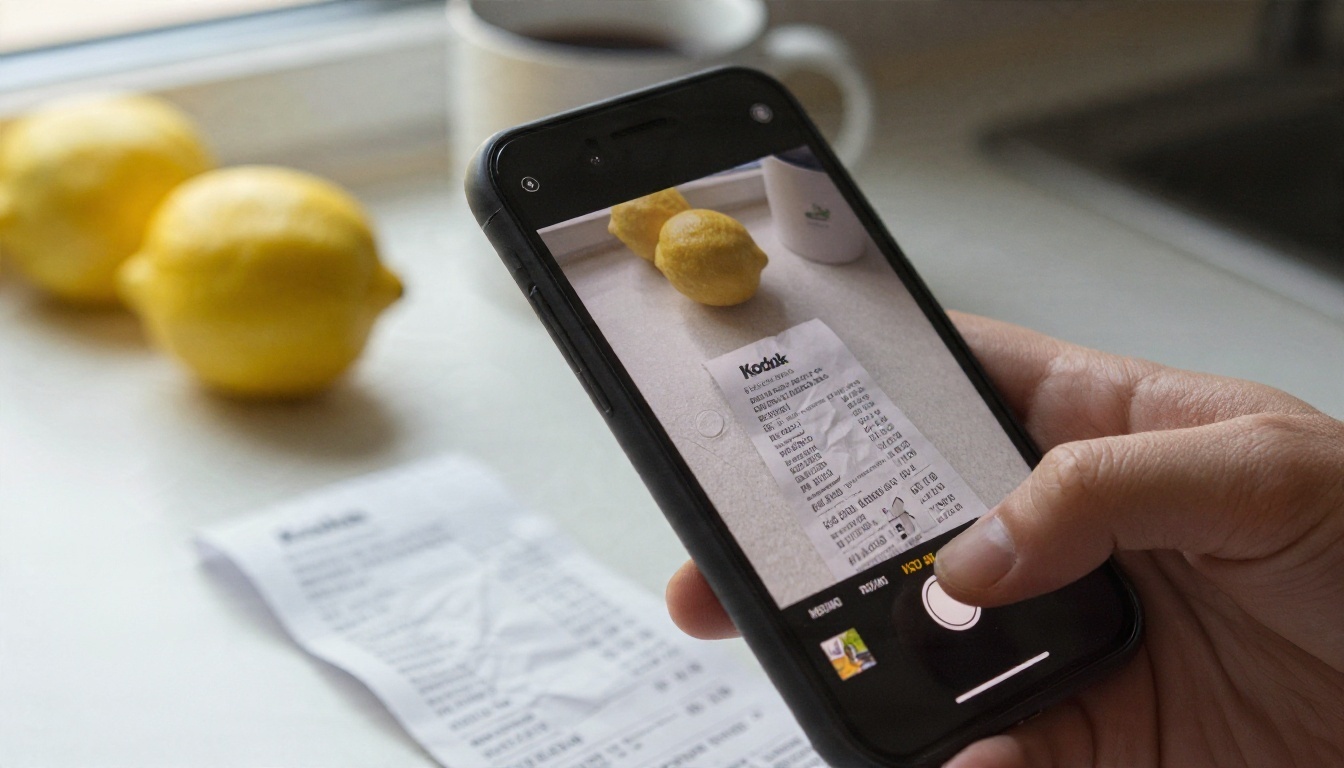
✅ Best practice: Always keep an untouched copy of the original scan. If a repair tool makes a bad guess, you can compare against the source.
A Real-World Example
Imagine a small bakery owner with a shoebox of supplier invoices from three years ago, some printed on thermal paper that has faded to pale gray. She photographs each invoice, runs a shadow cleanup and contrast boost, then OCR. Totals and dates come out searchable, and her accountant can finally filter by supplier. The faded ones need a second pass with a different contrast setting, and a few still need to be typed by hand. That outcome, mostly solved with a small manual remainder, is realistic.
Where AI Gets It Wrong
This is the part many tool reviews skip. AI is not magic, and some failures are quiet enough to cause real damage.
Invented Detail
A generative upscaler fills in what it thinks should be there. On a tiny, blurry line of text, it may produce letters that look crisp but are wrong. A "6" can become an "8." A name can become a different, more common name. The output looks confident, which is exactly the problem.
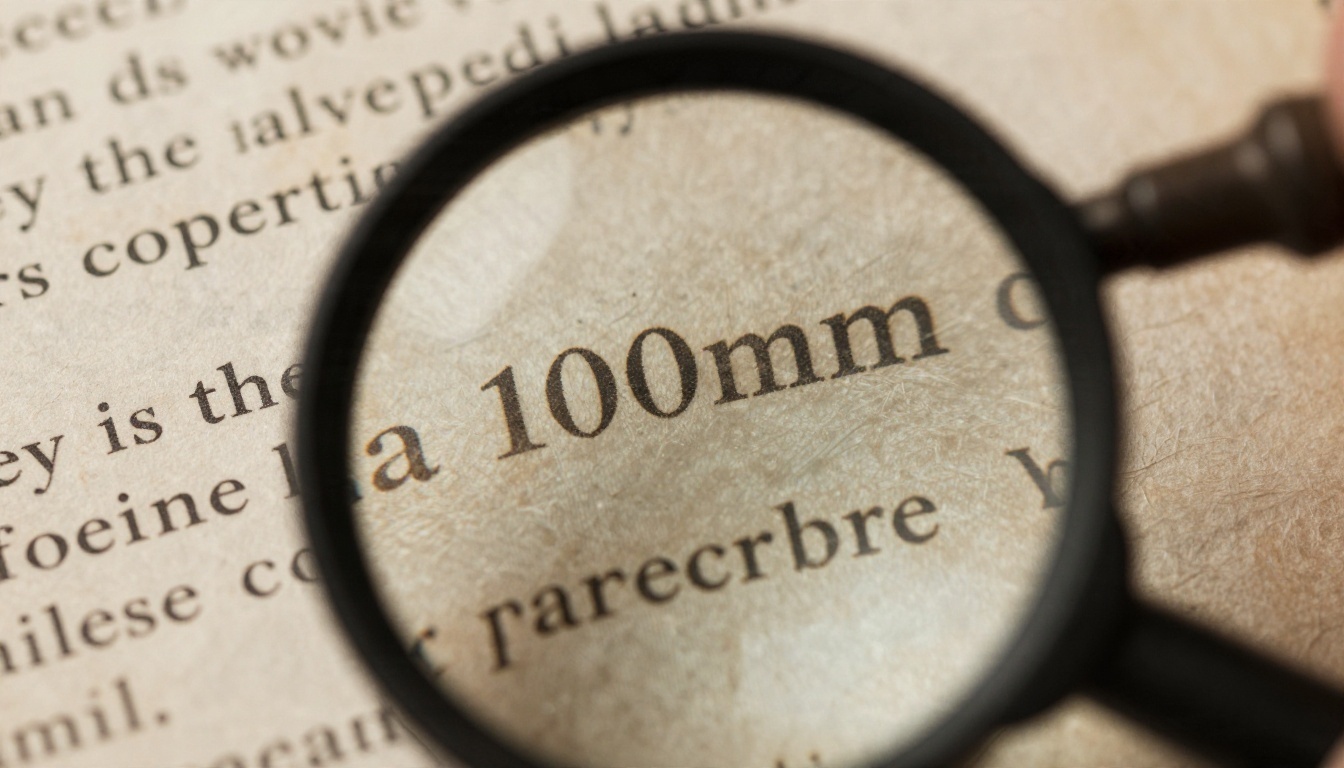
Handwriting and Odd Layouts
Cursive, mixed languages, tables with merged cells, and multi-column newsletters are all difficult. OCR often reads the columns in the wrong order, which scrambles the meaning even when each word is correct.
Legal and Financial Limits
If a document might be used as evidence, in a dispute, or for official filing, an AI-repaired version may not be acceptable. Keep the original and label any processed copy as a working version.
| Limit | Why it happens | Practical fix |
|---|
| Wrong digits after upscaling | The model guesses missing pixels | Compare to the original, check totals by hand |
| Scrambled reading order | OCR misreads column layout | Crop columns and process separately |
| Missed handwriting | Variable letter shapes | Type critical fields manually |
| Over-smoothed text | Aggressive denoising | Lower the denoise strength |
| Privacy exposure | Files sent to third-party servers | Use local tools for sensitive pages |
| Altered stamps and signatures | Model treats them as noise | Mask those regions or skip cleanup |
⚠️ Never use a generative upscaler on a signature, seal, or ID number and then treat the result as an accurate record.
Old Archives and Fragile Paper
Old paper is its own challenge. Yellowing, ink bleed, foxing, and fold lines confuse models trained mostly on clean modern pages. Still, a good scan at high resolution plus careful contrast adjustment can rescue a surprising amount.
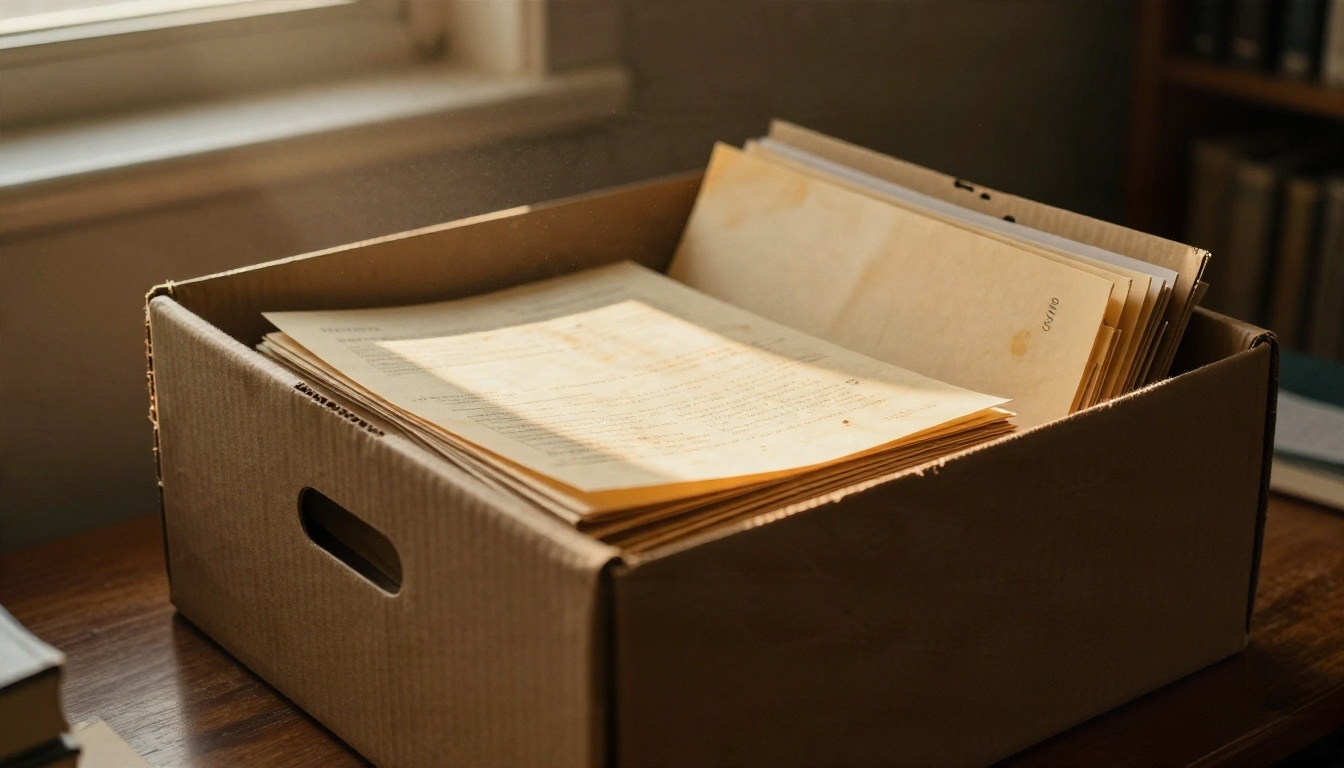
A few habits help with archives:
- Scan at 300 DPI or higher for text, 600 DPI for tiny print.
- Use a flatbed instead of a phone when the paper is brittle.
- Do not flatten with force. Let the scanner lid do the work.
- Save a lossless master (TIFF or PNG) before making smaller PDFs.
- Work in small batches so you can spot problems early.
💡 Tip: Families, historians, and small museums often get the best results by combining a careful scan, a gentle cleanup, and human proofreading of names and dates.
Turn Clean Pages into a Flipbook
Once your pages are sharp and searchable, the next question is how to share them. A folder of PDFs is functional, but it is not pleasant to read. A page-turning version looks better on phones, loads fast, and keeps your content in one link.
How to Create a Flipbook from Scanned Pages
Here is how it works on Flipbooks AI, using the PDF you just cleaned.
- Sign in. Create an account or log in.
- Upload your PDF. Use the PDF to Flipbook Converter. Your pages are converted into a flipbook with realistic page-turn motion.
- Customize. Add your logo, pick brand colors, adjust the page effects, and drop in video or audio where it helps.
- Share. Copy a direct link, grab an embed code to embed the flipbook on your website, or protect it with a password for private files.
- Measure. On the Professional plan you get analytics and lead generation, so you can see who opens your document and for how long.
Flipbooks have no watermarks, and the Standard plan and above allow unlimited flipbooks. You can also enable offline downloads, and the layout adapts to mobile screens automatically. See the pricing plans to compare options.
Good Fits for Scanned Material
A reader on a phone will never see your original file, only the page images. That means a cleanup step before upload pays off twice: the flipbook looks professional, and the text is searchable.
Quick Decision Table
Not sure where to start? Match your problem to a first move.
| Your problem | Try this first | Then |
|---|
| Blurry UI screenshot | Local upscaler | Check small text by eye |
| Crooked phone photo of a page | Scanner app with deskew | Run OCR |
| Faded thermal receipt | Contrast and shadow cleanup | Type the total by hand |
| 500-page book scan | ScanTailor plus OCRmyPDF | Convert to a flipbook |
| Sensitive legal papers | Local tools only | Keep the original untouched |
| Photo of a whiteboard | Perspective fix and contrast boost | Crop and annotate |
Myths Worth Dropping
- "AI restores any image." It predicts, it does not recover information that was never captured.
- "Higher resolution always means better." Upscaling a noisy scan gives you a larger noisy scan.
- "OCR is 100% accurate." Even good engines miss characters, so proofread anything that matters.
- "Free tools are unsafe." Many are fine. Just check how they handle your files.
- "One tool does everything." The best results usually come from two or three small tools in sequence.
Ready to Publish Your Cleaned Pages?
AI can genuinely improve screenshots and scanned documents when you treat it as an assistant and not an authority. Straighten, clean, upscale only when needed, run OCR, and proofread the details that carry weight. Keep your originals, and be honest about which copies were processed.
When your pages are ready, get started for free on Flipbooks AI and turn them into a shareable flipbook. Browse all flipbook tools to find a template that fits your project, or compare pricing plans when you need analytics, lead generation, and unlimited publishing.



