You typed a sentence, pressed enter, and a few seconds later Canva handed you a layout that looks like a designer spent an afternoon on it. That is the appeal of the Canva AI design generator, and it is also where most people stop. The design sits in a folder, gets exported as a flat PDF, and is emailed as an attachment that nobody opens. The better move is to treat the AI output as raw material and publish it somewhere readers actually enjoy it. A flipbook from Flipbooks AI turns that same design into a page-turning publication with a link you can share anywhere.
This article covers three things in order: what you get for free, which prompts produce designs worth keeping, and how to take the result from Canva to a live flipbook in a few minutes.
What the Canva AI Design Generator Does
Canva bundles several AI tools under one roof. People often call the whole set "the generator," but the pieces do different jobs, and knowing which one to reach for saves a lot of wasted prompts.

Magic Design and Magic Media
Magic Design builds whole layouts. You describe a document, such as a product sheet, a newsletter or a menu, and it returns several editable page options with text, shapes and placeholder images already arranged. Magic Media generates pictures and short clips from a text description. The two work well together: one builds the skeleton, the other fills it with visuals that match your idea.
There are also writing helpers that draft headlines and body copy, and background tools that remove or extend parts of a photo. Names and menus change as Canva updates its product, so treat the labels here as a map and check the current interface when you sit down to work.
Who Gets the Most From It
The generator rewards people who need decent design fast and cannot justify hiring someone for every small job.
- Small business owners making menus, price lists and promotional sheets
- Teachers and trainers building handouts and course material
- Freelancers drafting client proposals and portfolios
- Marketing teams who need a first draft before a designer polishes it
- Creators assembling lookbooks, recipe collections and mini e-books
💡 Pro tip: AI layouts are best at the first 70 percent of a job. Plan your time so the last 30 percent, the checking and fixing, is not a surprise.
Free Options and Their Limits
Canva has a free tier, and it does include some AI features. The catch is that free access to generative tools is usually capped, with a small number of uses before you are asked to upgrade. The exact numbers change over time, so look at Canva's current plan page rather than trusting any article, including this one.
What the Free Plan Usually Includes
Expect a taste of the AI tools rather than unlimited access. In practice that means you can test prompts, build a few layouts and export them. It is plenty for a single menu, a one-off flyer or a trial run before you decide whether the tool fits your workflow.
When Paid Plans Make Sense
Upgrade only when a limit actually blocks you. Common triggers are running out of generations mid-project, needing a saved brand kit, or wanting larger exports and premium stock assets. If you design once a month, free is likely enough. If you produce weekly content for clients, a paid plan pays for itself quickly.
| Need | Free plan | Paid plan |
|---|
| Try AI layouts | Limited uses | Higher or expanded limits |
| Editable templates | Large free library | Larger premium library |
| Brand kit with saved colors and fonts | Basic options | Fuller brand controls |
| PDF export | Yes | Yes, with more options |
| Team collaboration | Basic sharing | Expanded team tools |
⚠️ Heads up: Plan details shift often. Confirm limits on Canva's own pricing page before you commit to a deadline that depends on AI credits.
There is a useful side note here. Whatever you pay Canva for, the publishing side is a separate decision. A flipbook platform has its own plans, and Flipbooks AI pricing is worth checking early so you know what the full workflow costs.
Prompts That Produce Usable Designs
Vague prompts get vague designs. "A cool flyer" gives you something generic. A prompt with a purpose, an audience and a visual direction gives you something you can ship.
A Simple Prompt Formula
Use this order and you will rarely get a useless result:
- Document type: menu, brochure, lookbook, report, newsletter
- Audience: who will read it and what they care about
- Mood and style: warm, minimal, editorial, playful, formal
- Color direction: two or three named colors
- Content hints: sections, headings or items to include
- Format: page count, orientation, size
Five Prompts to Copy
Paste these and swap in your own details.
- "A six-page product catalog for a handmade candle shop, warm minimal style, cream and terracotta colors, one product per page with space for a short description and price."
- "A two-page restaurant menu for a small Italian bistro, rustic and friendly, deep green and gold, sections for starters, mains and desserts."
- "A photography portfolio with eight pages, editorial look, black and white with one muted accent color, large image areas and short captions."
- "A training handout for new retail staff, clean and bright, blue and white, numbered steps and a checklist on the last page."
- "A travel itinerary booklet for a three-day city break, relaxed and sunny, sand and sky blue, one day per spread with room for maps and tips."
Common Prompt Mistakes
| Mistake | What happens | Better approach |
|---|
| Only one or two words | Generic layout | Add audience, mood and colors |
| Asking for ten ideas at once | Cluttered, unfocused page | One document, one purpose |
| No page count | Single page when you wanted six | State the number of pages |
| Skipping brand colors | Off-brand palette | Name exact colors you use |
| Accepting the first result | Mediocre output | Regenerate two or three times |
✅ Best practice: Save the prompts that work. A short personal list of proven prompts is worth more than any template pack.
Fixing AI Results Before Export
AI layouts look finished from a distance and show their flaws up close. Spend ten minutes on repair work before you export anything.
Lock the Brand Basics
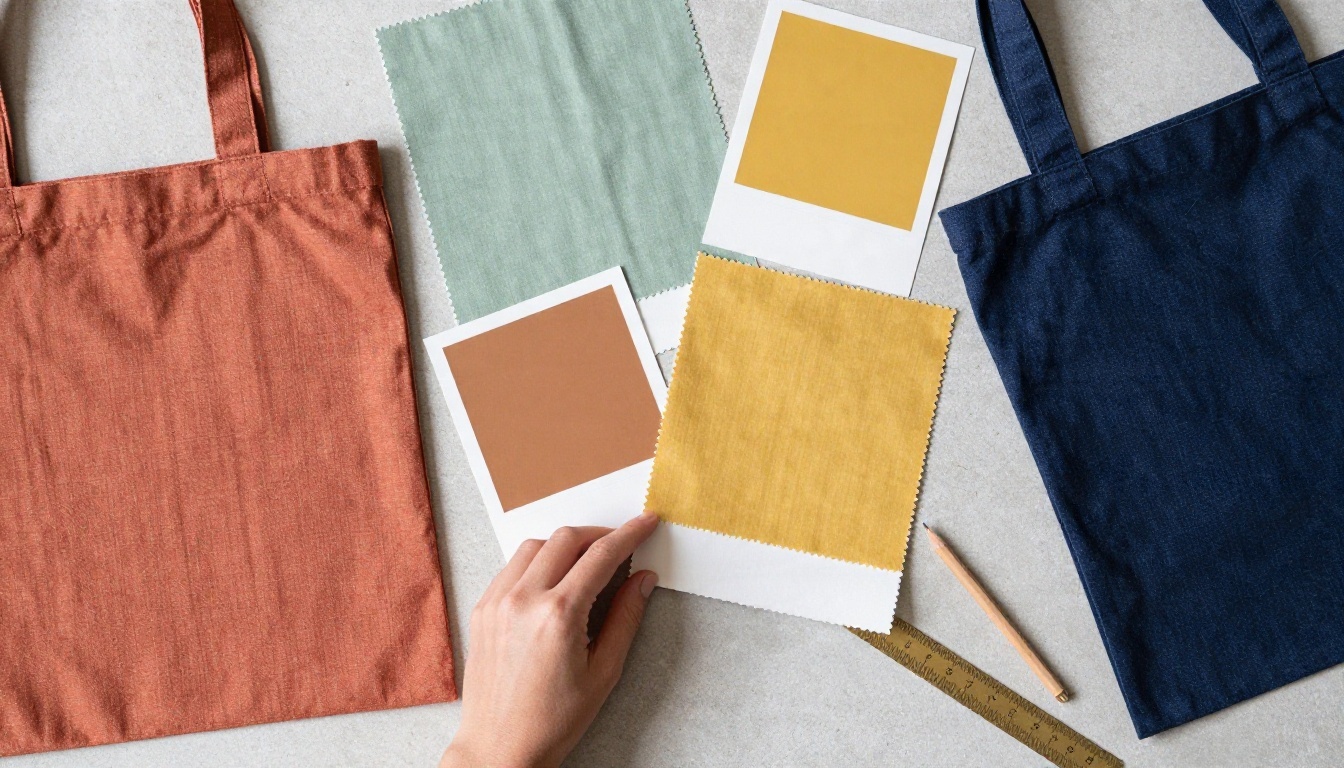
Replace any generated colors and fonts with your own. Consistency across pages is what makes a publication feel professional, and AI tools drift from page to page. Pick one heading font, one body font and a palette of three to four colors, then apply them everywhere.
Check Text and Spacing
Generated text is placeholder text. Read every line. Look for these usual suspects:
- Invented facts, prices or claims you never supplied
- Headlines that run too long and wrap awkwardly
- Uneven margins between pages
- Images that look slightly off, such as odd hands or garbled lettering
- Low-contrast text on busy backgrounds
A quick routine helps: zoom to 100 percent, scroll through each page once for text, then once for alignment. Only then export.
Why a Flipbook Beats a Loose PDF
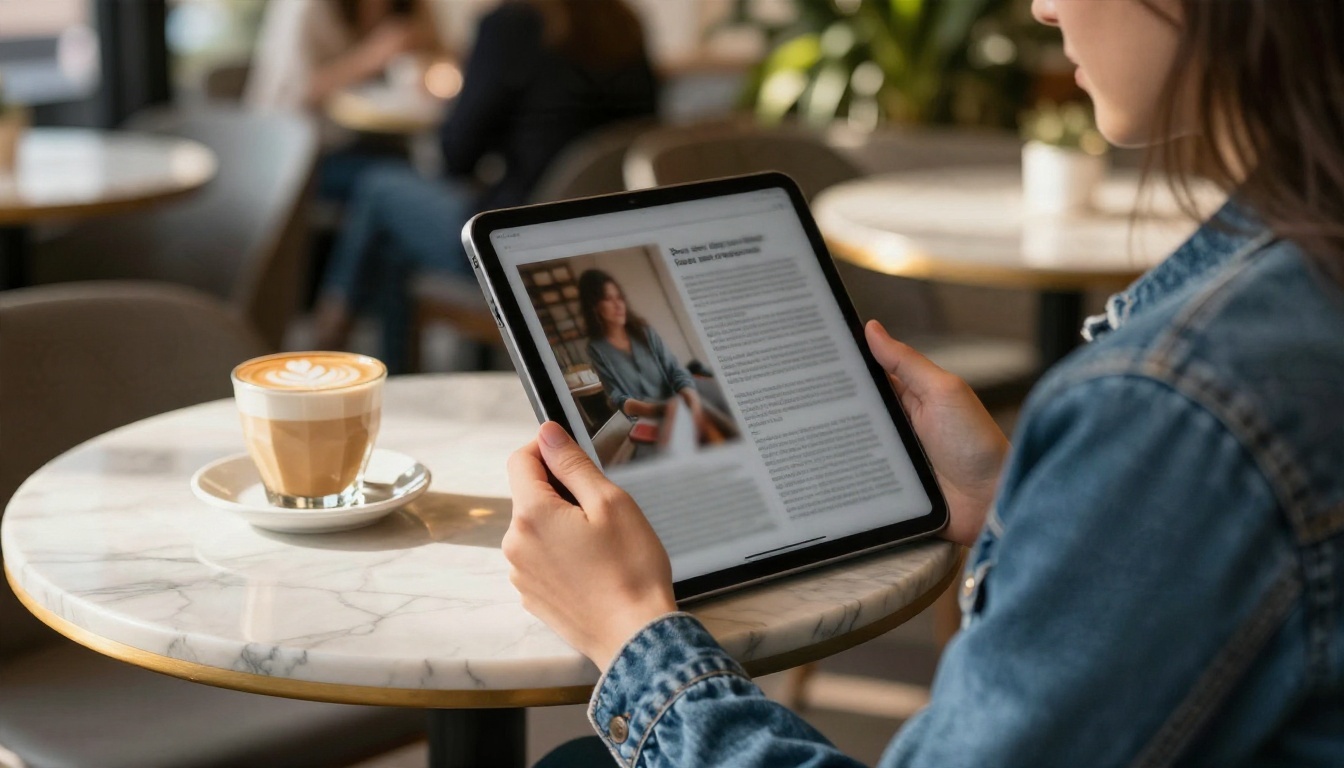
A PDF is a fine file format and a poor reading experience. It opens in a separate app, loads slowly on phones, and gives you no idea whether anyone read it. A flipbook solves all three problems while keeping the original design intact.
| Feature | Emailed PDF | Flipbook |
|---|
| Reading experience | Scroll or zoom | Page-turn effect |
| Mobile friendly | Often awkward | Responsive layout |
| Shareable link | Needs hosting | Built in |
| Embed on a website | Difficult | Simple embed code |
| Password protection | Depends on the app | Available |
| Reader analytics | None | Available on Professional plan |
| Video and audio | Not supported | Can be embedded |
Real-World Uses
- A café owner turns an AI-made menu into a flipbook and puts a QR code on each table, so updating a price never means reprinting.
- A realtor converts a property brochure into a link that clients open on their phones before a viewing.
- A freelance photographer publishes a portfolio as a flipbook and sends one clean link in every pitch.
- A teacher shares course material that students can read on a tablet without downloading anything.
How to Create a Flipbook with Flipbooks AI
The flow from Canva to a live flipbook is short. You need your finished design and a few minutes.
Export from Canva as PDF
- In Canva, finish your design and click Share, then Download.
- Choose PDF Standard for on-screen reading. Pick the print option only if you also plan to print.
- Select all pages and download the file.
💡 If your design includes links, such as a button to a booking page, keep them on the page. They carry over in the PDF and stay clickable in the flipbook.
Upload and Convert
- Go to Flipbooks AI and create an account.
- Click to start a new flipbook and upload your PDF.
- The platform converts each page into a flipbook page automatically. The PDF to Flipbook Converter handles this in seconds for typical file sizes.
Customize the Look
Once the pages load, you can shape how the flipbook feels:
- Custom branding: add your logo and brand colors around the reader
- Page effects: adjust the page-turn style and background
- Multimedia: embed videos and audio on selected pages
- Mobile layout: preview how it looks on a phone, since the design is mobile-responsive
Flipbooks AI exports carry no watermarks, ever, which matters when the result represents your business.
Share, Embed and Protect
You have several ways to put the flipbook in front of readers:
| Sharing option | Best for |
|---|
| Direct link | Email, social posts, messages |
| Embed code | Your website or blog, see the Embed Flipbook on Website tool |
| QR code | Printed menus, flyers, event signs |
| Password protection | Private proposals, client reports, internal material |
| Offline download | Readers with poor connectivity |
Pro Features: Analytics and Leads
On the Professional plan you get reader analytics and lead generation. You can see how far people read and which pages hold attention, and you can ask for contact details before opening the publication. The Standard plan and above offer unlimited flipbooks, which is handy if you publish regularly. Compare the options on the pricing page.
Three Workflows That Work
Here are three end-to-end examples that start with a Canva prompt and finish with a published flipbook.
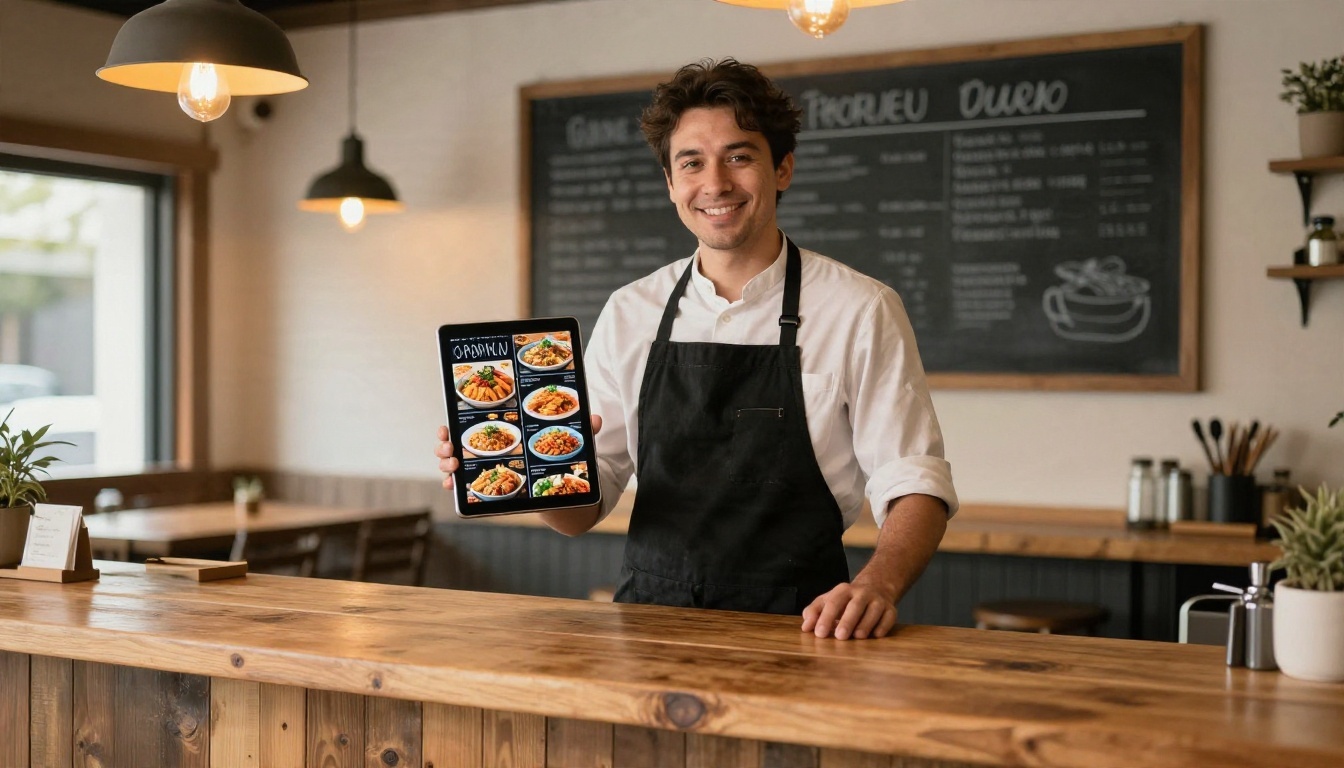
1. The bistro menu. Generate a two-page menu with the Italian bistro prompt above. Swap in your real dishes and prices, export as PDF, then use the Restaurant Menu Creator to publish it. Print the QR code on tables. When the chef changes a dish, upload a new PDF and the link stays the same.
2. The portfolio. Ask Canva for an eight-page editorial portfolio, replace the AI imagery with your own photographs, and export. Publish through the Digital Portfolio Creator and add password protection for client-only work.
3. The product catalog. Generate a six-page catalog, check every price by hand, and export. The Product Catalog Generator turns it into a browsable flipbook you can embed on your shop page and update whenever stock changes.

✅ Team tip: When several people review a design, agree on one person who makes the final PDF. Version confusion is the most common reason a wrong price ends up live.
Ready to Publish Your Design?
The Canva AI design generator is a fast way to get from a blank page to a solid draft, and the free tier is enough to test the idea. Write specific prompts, fix the details by hand, and export a clean PDF. Then give the work a better home than an email attachment.

Here is your next step list:
- Draft a design in Canva with one of the prompts above.
- Export it as a PDF.
- Create your account on Flipbooks AI and upload the file.
- Pick a branding style, then share the link or embed it.
- Browse all flipbook tools when you want a template built for a specific use.
Compare plans and pricing to see which tier fits how often you publish, and send your next AI-made design out as something readers actually want to open.



