You open Canva, search for a flipbook template, and within two minutes you have a pretty layout. Then the real questions start. Which page size should you pick? Will it look right on a phone? And how do you send it to a client without attaching a heavy PDF? This article answers all three. We will go through free page sizes, template examples you can copy, and every sharing option worth using, including how to turn your finished design into a page-turning publication with Flipbooks AI.
What a Canva Flipbook Template Is
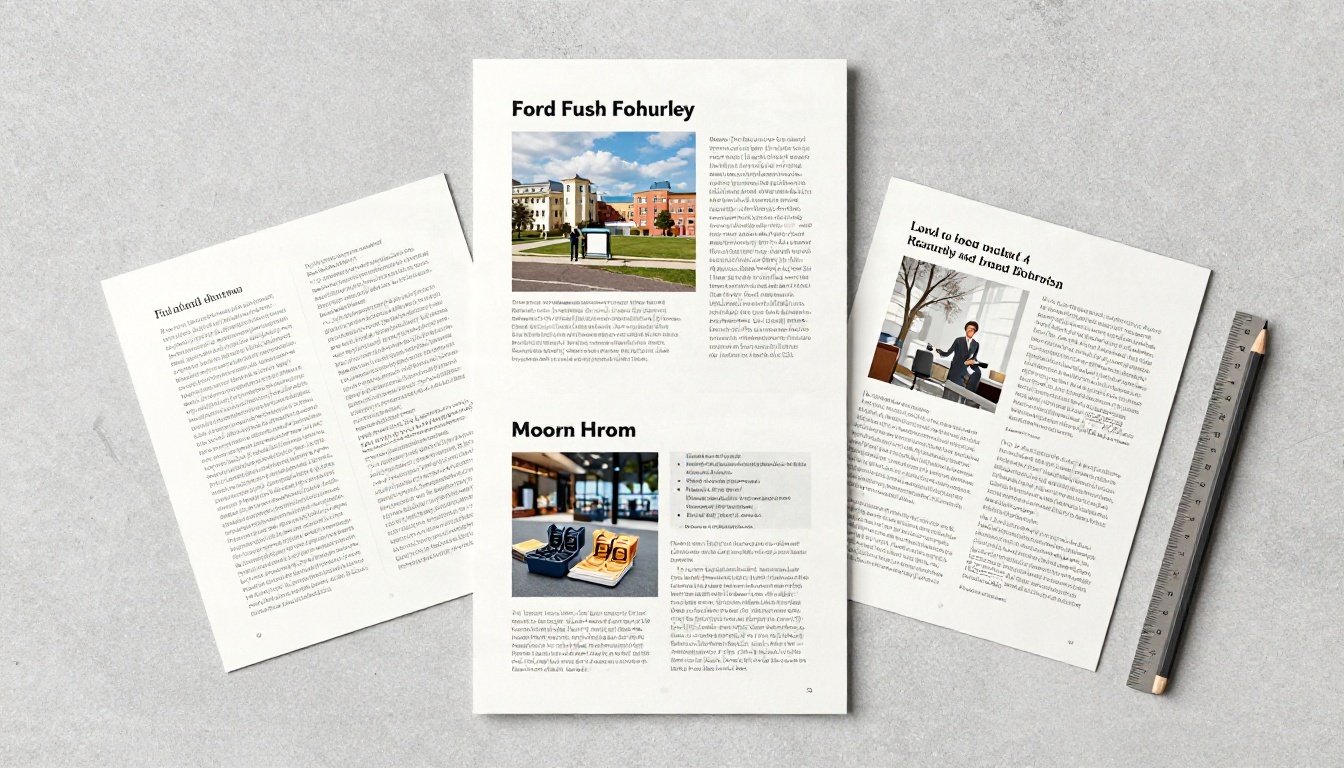
A Canva flipbook template is a multi-page design you build in Canva and then present as a booklet that readers flip through on screen. Canva handles the design side very well: fonts, photos, grids, brand colors. The flipping effect itself usually comes from a second step, where you export the design as a PDF and convert it.
That is why the phrase "Canva flipbook template" covers two jobs at once. You need a layout that looks good, and you need a format that converts cleanly.
Why Designers Choose This Route
- Free to start. You can build and export a basic multi-page design without paying for a design tool.
- Fast layouts. Thousands of brochure, catalog, lookbook and magazine pages are ready to edit.
- Brand control. Colors, fonts and logos stay consistent across every page.
- Simple export. A PDF is the universal handoff format for flipbook tools.
Where Canva Alone Falls Short
Canva is a design tool, not a publishing platform. A shared design link works, but it does not behave like a real publication. Readers may scroll instead of flip, you get limited control over who sees it, and there is no reading data to tell you which pages worked.
💡 Pro tip: Treat Canva as your design studio and a flipbook platform as your printing press. Each does one job well.
Free Page Sizes That Work
Page size is the decision most people rush, and it is the one that causes the most rework. A size that looks great on a laptop can become unreadable on a phone. Here is how the common options compare.
Print and PDF Sizes
If your flipbook might also be printed, start with a standard paper size. The pixel values below are approximate for on-screen design at 96 dpi, so check the exact figure in Canva's custom size box.
| Format | Dimensions (inches) | Dimensions (mm) | Approx. pixels | Best for |
|---|
| A4 portrait | 8.27 x 11.69 | 210 x 297 | 794 x 1123 | Brochures, reports, catalogs |
| US Letter portrait | 8.5 x 11 | 216 x 279 | 816 x 1056 | Magazines, newsletters (US) |
| A5 portrait | 5.83 x 8.27 | 148 x 210 | 559 x 794 | Menus, small booklets |
| Half Letter | 5.5 x 8.5 | 140 x 216 | 528 x 816 | Workbooks, recipe books |
| 6 x 9 book | 6 x 9 | 152 x 229 | 576 x 864 | E-books, short guides for readers |
Screen-First Sizes
When the audience will only read on a screen, you are free to use shapes that paper does not allow. Landscape and square pages tend to fill a monitor better.
| Format | Pixels | Ratio | Best for |
|---|
| Presentation landscape | 1920 x 1080 | 16:9 | Sales decks, portfolios, proposals |
| Square | 1080 x 1080 | 1:1 | Lookbooks, photo albums, product highlights |
| Mobile portrait | 1080 x 1920 | 9:16 | Social-first stories, quick price lists |
| Landscape A4 | 1123 x 794 | 1.41:1 | Photography portfolios, event programs |
How to Choose in 30 Seconds
- Will anyone print it? If yes, pick A4 or US Letter.
- Is it mostly photos? Choose square or landscape.
- Is it mostly text? Choose portrait, which reads more naturally.
- Will most people open it on a phone? Keep body text at 14 pt or larger and avoid tiny captions.
⚠️ Warning: Do not mix page sizes inside one document. Mixed sizes break the page-turn effect and produce odd white margins after conversion.
Template Examples Worth Copying
Good templates share one habit: they give every page one job. Here are three formats that work well, with the layout choices behind them.
Fashion and Product Lookbook
A lookbook lives on big photography. Use a square or landscape page, one hero image per spread, and a short caption in a single font. Keep the price or product name small and consistent in the same corner of every page. If you sell clothing, the Interactive Lookbook Designer is built for exactly this kind of layout.
Product Catalog
A catalog needs structure more than style. Use a portrait A4 grid with four to six products per page, a clear section divider every eight to ten pages, and a contents page near the front. A restaurant can follow the same logic for a menu, and the Digital Catalog Maker handles long product lists without slowing down.
Portfolio and Magazine
Portfolios work best in landscape, with one project per two-page spread. Magazines favor portrait pages with a strong title page, a contents page, and a mix of full-bleed photos and text columns. For a creative showcase, try the Digital Portfolio Creator once your Canva pages are ready.
Quick Comparison of Template Types
| Template type | Page count | Best size | Main goal | Typical reader device |
|---|
| Lookbook | 12 to 24 | Square | Show style | Phone |
| Catalog | 24 to 80 | A4 portrait | Help buyers choose | Laptop |
| Portfolio | 10 to 30 | Landscape | Win a project | Laptop |
| Magazine | 20 to 60 | US Letter | Tell stories | Tablet |
| Menu | 2 to 8 | A5 portrait | Speed up orders | Phone |
| Event program | 8 to 16 | Landscape A4 | Inform attendees | Phone |
Build Your Template in Canva
You do not need design training for this. Follow these steps and you will end up with a file that converts without surprises.
- Set the size first. Choose Create a design, then Custom size, and enter your dimensions. Changing size later can shift every element.
- Build a master page. Design one page with your margins, fonts and colors, then duplicate it for the rest.
- Add a title page. Use one strong image, a short headline and nothing else.
- Add a contents page. Even a short flipbook benefits from clear page links.
- Keep a safe margin. Leave at least 40 px on every side so nothing is clipped on small screens.
- Compress your images. Oversized photos create slow downloads. Aim for sharp but not enormous.
- Export as PDF. Choose PDF Standard for screen use or PDF Print if you also plan to print.
✅ Best practice: Name your pages as you go. A tidy file makes updating one page later a two-minute job instead of an hour of hunting.
Fonts and Colors That Convert Well
- Stick to two fonts, one for headings and one for body text.
- Use high contrast between text and background, especially on photos.
- Avoid pure white text on busy images unless you add a soft dark overlay.
- Keep link text underlined or colored so readers know it is clickable.
Sharing Options Compared
Once your design is finished, you have three main ways to put it in front of people. Each has a clear trade-off.

Canva Share Link
The fastest option. You click Share, copy the link and send it. It is fine for quick feedback from a teammate. It is less suited to public publishing because the experience is a design viewer, not a reading experience, and you have limited control over access and no page-level reading data.
PDF Download
A PDF is dependable and works offline. But it is heavy to email, it cannot be updated after you send it, and nobody gets the satisfying page-turn motion. Large files also tend to bounce from inboxes.
Flipbook Link or Embed
Converting your PDF into a flipbook gives you a short link, an embed code for your website, and a mobile-friendly reading view. This is the option most businesses end up using for catalogs, menus and brochures.
| Feature | Canva share link | PDF attachment | Flipbook link or embed |
|---|
| Page-turn effect | No | No | Yes |
| Works on mobile | Yes | Pinch and zoom | Responsive |
| Embed on a website | Limited | No | Yes |
| Password protection | Limited | Via file tools | Yes |
| Update after sharing | Yes | No | Yes, same link |
| Reading analytics | No | No | Yes (Professional plan) |
| File size concerns | None | High | None |
How to Publish with Flipbooks AI
Here is the exact process for turning your Canva PDF into a shareable flipbook. It takes about five minutes the first time.
Step 1: Create Your Account
Go to Flipbooks AI and sign up. You can try the platform free before choosing a plan. The sign-up screen is short, and you land on your dashboard straight away.
Step 2: Upload Your PDF
- Click Create new flipbook on your dashboard.
- Drag your Canva PDF into the upload box, or browse for the file.
- Wait a few seconds while the pages are converted. Text stays sharp and links in your PDF remain clickable.
If you want to see this one step on its own, the PDF to Flipbook Converter page shows the process in detail.
Step 3: Customize the Look
- Branding: add your logo and choose a background color that matches your design.
- Page effects: pick the flip style and speed you prefer.
- Multimedia: embed videos and audio on pages where a short clip adds meaning, such as a product demo on a catalog page.
- Layout: choose single page or double page view depending on your size.
💡 Pro tip: If your Canva design is square, choose single page view on mobile. Double page spreads can shrink text too much on a small screen.
Step 4: Share It Your Way
| Option | How it works | Best for |
|---|
| Direct link | Copy a short URL and paste it anywhere | Email, chat, social bios |
| Embed code | Paste an iframe snippet into your site | Product pages, blog posts |
| Password protection | Add a password so only invited readers get in | Client proposals, internal reports |
| Offline download | Let readers save a copy | Field teams, trade shows |
Need the embed route? The Embed Flipbook on Website tool explains where to paste the code on common site builders.
Step 5: Use the Pro Features
Plans differ in what they unlock, so check pricing plans for the current details. In short:
- Unlimited flipbooks are available from the Standard plan up.
- No watermarks, ever, on any plan.
- Analytics and lead generation sit in the Professional plan, so you can see which pages people read and collect contact details before they open your catalog.
- Mobile-responsive reading is built in, so you do not need to design a second version.
Real-World Uses Worth Stealing
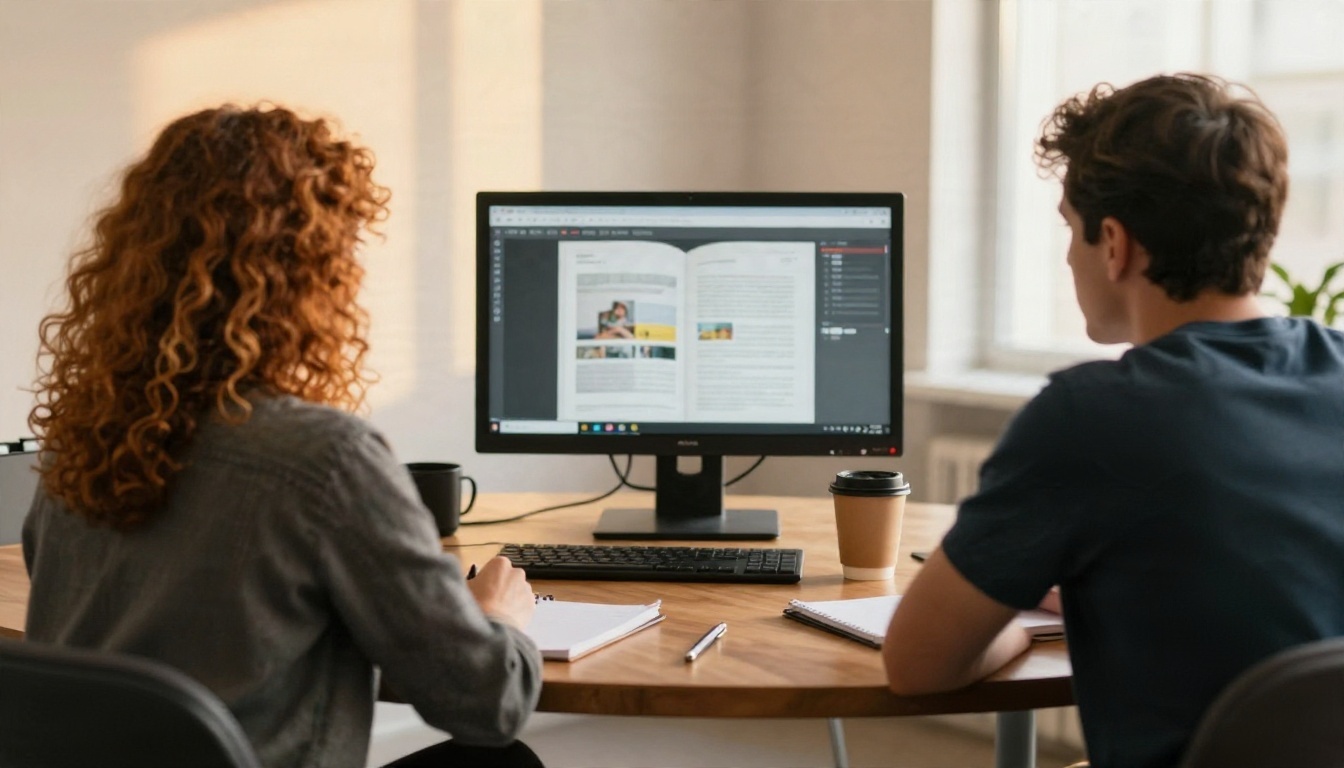
Seeing the whole workflow in context makes the choices easier. Here are scenarios where this Canva to flipbook route pays off.
- A boutique owner designs a 16-page square lookbook in Canva each season, publishes it as a flipbook, and drops the link in an Instagram bio. Updates keep the same link, so old posts never break.
- A restaurant builds a four-page A5 menu, then uses the Restaurant Menu Creator to publish it and prints a QR code for each table.
- A real estate agent designs a landscape property brochure and shares it with the Real Estate Brochure Creator, protecting private listings with a password.
- A freelance photographer exports a landscape portfolio and sends it through the Photography Portfolio tool, so a prospective client sees the work in seconds.
- A school builds a monthly letter in Canva and publishes it with the School Newsletter Creator.
Common Mistakes to Skip
After looking at many converted files, the same problems appear again and again.
- Tiny text. Text that looks fine on a desktop becomes unreadable on a phone. Keep body text large.
- Wrong size for the job. A portrait A4 page is awkward for a photo portfolio. Pick size by content type.
- Heavy images. A 60 MB PDF slows everything down. Compress photos before exporting.
- No contents page. Readers get lost in a 40-page catalog without one.
- Ignoring page margins. Content too close to the edge gets clipped on some devices.
- Forgetting links. Add clickable links to your website, shop or contact page before exporting.
- Sharing a file instead of a link. Links can be updated. Attachments cannot.
⚠️ Warning: Always do a phone check before you publish. Open the final link on a real device, not just a desktop browser window resized to look small.
A Quick Pre-Publish Checklist
Ready to Publish Your Flipbook?
A good Canva flipbook template comes down to three choices: the right page size, a layout with one job per page, and a sharing method that fits your audience. Get those right and your design stops being a file in a folder and becomes something people actually open.
Here is what to do next:
- Build your pages in Canva using one of the sizes above, then export as PDF.
- Create your account and get started for free on Flipbooks AI.
- Browse all flipbook tools to find the one that matches your use case, from catalogs to menus to portfolios.
- Compare pricing plans when you are ready for analytics, lead capture and unlimited publications.
- Pick your plan straight from your account with this direct upgrade link.
Your next design can be live, shareable and trackable before your coffee gets cold.



