Nobody needs a publishing house to put out a good looking magazine anymore. A laptop, a folder of photos and the right free tools are enough to produce an issue that readers will actually flip through. The hard part is choosing, because desktop programs, template libraries, phone apps and websites all promise to be free, and many of them are only free until you try to export. This article sorts the options by what they really give you, shows where the limits hide, and finishes with a way to publish your issue as an interactive flipbook with Flipbooks AI so it looks like a real magazine on any screen.
What "Free" Really Means
Before you pick a tool, decide what kind of free you can live with. There are three kinds, and they behave very differently once you are halfway through a 24 page issue.
Free Tier vs Open Source
A free tier is a limited version of a paid product. You get the editor, but some templates, fonts, exports or storage sit behind a paywall. Open source software is free in full, with no account and no watermark, but it asks more of you in setup time. A free trial is neither: it expires, and it belongs on this list only if you plan to finish the whole issue inside the trial window.
| Type | Typical cost | Watermark risk | Best for |
|---|
| Free tier | $0 with upsells | Medium | Fast first issues |
| Open source | $0 forever | None | Print ready, full control |
| Free trial | $0 for a few days | Low until it ends | One time projects |
| Office suite | Often already owned | None | Simple text heavy issues |
Hidden Costs to Watch
Free tools rarely charge you money, but they do charge you in other currencies. Watch for these:
- Export limits: some editors let you design for free but lock high resolution PDF export.
- Branding stamps: a small logo in the corner of every page is still a watermark.
- Locked assets: the best looking template is often the one marked with a crown icon.
- Storage caps: large photo spreads can hit a free storage ceiling quickly.
- Time: a program with a steep setup can cost you a full weekend.
⚠️ Free tiers change often. Check the current export and template limits on any tool before you commit a whole issue to it.
Free Magazine Software Worth Using
Layout software is where your magazine takes shape. Three options cover almost every need, from a quick one off issue to a recurring print ready publication.
Canva for Fast Visual Layouts
Canva is the easiest place to start. Its free plan includes a large set of magazine page layouts, drag and drop photo frames, and PDF export. You pick a template, replace the photos, edit the headlines and download. The trade off is that some premium photos and templates are paid, so filter for free items as you browse. For an issue of 12 to 30 pages with strong imagery, it is hard to beat for speed.
Scribus for Print Ready Control
Scribus is a free, open source desktop publishing program built for professional style print layout. It supports precise columns, bleed, color management and reusable page layouts, and it never adds a watermark. Expect an hour or two to get comfortable with the interface. In return you get the kind of typographic control that browser editors only approximate. It is the right pick if you plan to send the file to a printer.
Google Docs and Slides for Text Heavy Issues
If your magazine is mostly articles, a word processor does the job. Google Docs and Slides, or the free LibreOffice suite, let you set columns, insert images and export to PDF. Slides is especially handy because every slide is a page, so you control exactly where each photo sits. It will not give you fine typography, but it is perfect for a school, club or community newsletter.
| Tool | Best for | Free limits | Ease of use |
|---|
| Canva | Visual, photo led issues | Some premium assets locked | Very easy |
| Scribus | Print ready publications | None, fully open source | Moderate |
| Google Slides | Quick, simple layouts | Basic typography only | Very easy |
| LibreOffice Writer | Text heavy issues | None | Easy |
| Adobe Express | Social style layouts | Premium templates locked | Easy |
Templates That Save Hours
A good template removes the blank page problem. You still make every editorial decision, but the grid, type hierarchy and spacing are already solved.
Where to Find Free Ones
Most free templates live inside the editors themselves. Canva and Adobe Express each ship hundreds of magazine layouts, Google Slides has community template galleries, and Scribus users share layouts on forums and open design sites. For photography heavy issues, look for templates with generous image frames rather than dense text boxes.
| Source | Format | Customization | Licence note |
|---|
| Canva library | Editable online | High | Free items allowed in your own work |
| Adobe Express | Editable online | High | Check asset licence per item |
| Google Slides galleries | Slides file | Medium | Varies by author |
| Open design sites | Scribus or Docs | High | Read the licence before publishing |
How to Pick the Right One
Choose a template for your content, not for the screenshot. Use this quick test:
- Count your words. If a page holds 600 words, avoid templates built around one huge photo.
- Check the type. Pick a headline font you can read at small size on a phone.
- Look at the margins. Tight margins crop badly in print and look cramped on screen.
- Test two spreads. Paste real content into at least two page types before you commit.
💡 Pick no more than three page layouts for the whole issue: a feature opener, a text page and a photo page. Repeating a small set of layouts makes a free magazine look designed rather than assembled.
Apps for Phone and Tablet
You do not need a desk to make a magazine. Mobile apps are good enough for short issues, photo zines and event programs, especially if your content is already on your phone.
A Phone Workflow That Works
The mobile versions of Canva and Adobe Express handle layout, while your gallery app handles photo selection. A practical routine looks like this:
- Create an album of the 20 best photos for the issue.
- Open a magazine template in your design app and place photos first.
- Write headlines and captions after the images are in place.
- Export a PDF and review it on the same phone, because that is how many readers will see it.
When a Tablet Is Better
A tablet gives you a bigger canvas and better precision with a stylus. It is ideal for editing captions, adjusting crops and reviewing the final flow of pages. If you plan to publish digitally, a tablet is also the best device for testing how the finished flipbook reads.
Websites for Publishing Your Issue
Making the file is half the job. The other half is putting it in front of readers. Websites give you three broad routes, and each suits a different goal.
Blog Platforms and Newsletters
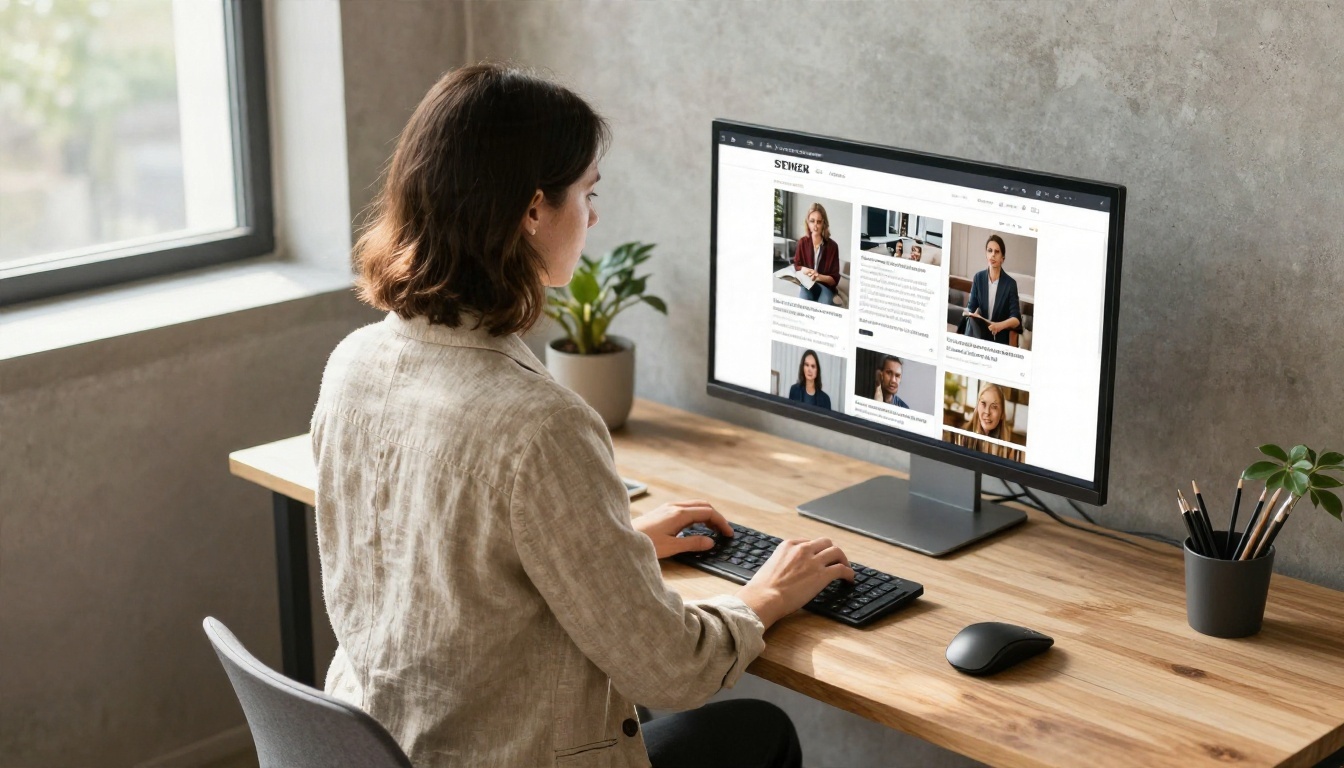
WordPress, Ghost, Substack and similar platforms let you publish each article as a web page. This works well for a continuous magazine with regular posts, and it helps with search traffic. It does not feel like a magazine, though. There are no spreads, no page turn and no sense of an issue with a beginning and an end.
Flipbook Publishing
A flipbook keeps the layout you designed. Readers see real pages, turn them with a swipe or click, and zoom into photos. If your issue started as a PDF, the PDF to Flipbook Converter turns it into a shareable publication, and the Magazine Flipbook Creator is built specifically for this format. For recurring editions, the E-Magazine Publishing Tool keeps your issues together in one place.
| Publishing route | Feels like a magazine | Setup time | Best for |
|---|
| Blog platform | Low | Medium | Ongoing articles, search traffic |
| Newsletter platform | Low | Low | Email subscribers |
| Raw PDF download | Medium | Very low | Print and archive |
| Flipbook | High | Low | Polished issues, sharing, embedding |
How to Create a Magazine with Flipbooks AI
Once your layout is exported as a PDF, Flipbooks AI turns it into an interactive magazine. Here is the full process.
Step by Step Setup
- Open your account. Go to Flipbooks AI and sign in or create an account.
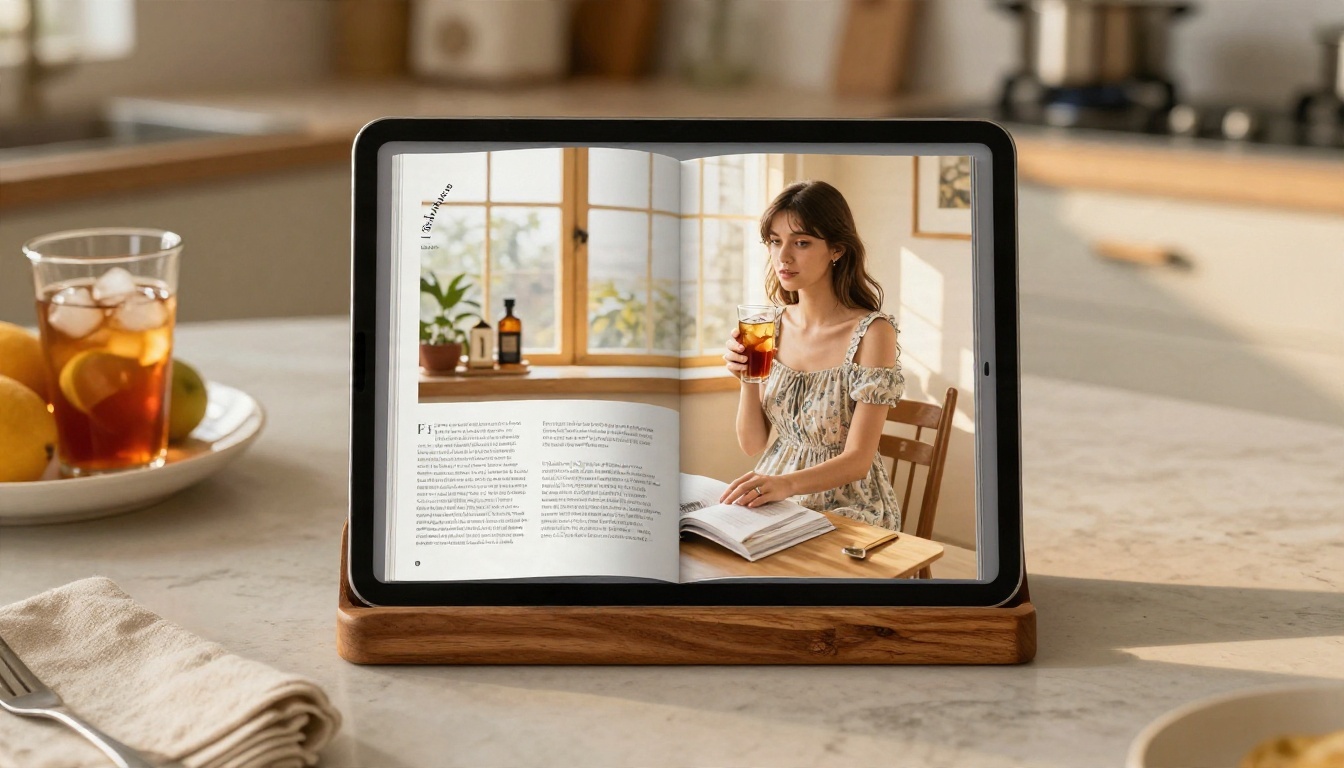
- Upload the PDF. Drag your exported magazine into the uploader. Conversion takes a short while, and every page becomes a flippable spread.
- Customize the look. Add your logo, pick background colors, and adjust page turn effects so the reader experience matches your brand. Mobile responsive design is built in, so the issue reads well on phones too.
- Add multimedia. Embed videos and audio, such as an interview clip or a playlist, directly on the pages where they belong.
- Share it. Copy the direct link, or use the embed code to place the magazine on your site with the Embed Flipbook on Website option. Turn on password protection if the issue is for subscribers, a team or a private group.
- Review and publish. Open the published link on your phone and your laptop, flip through every page, then send it out.
✅ Flipbooks AI never adds a watermark to your publication. Your magazine carries your branding and nothing else.
Pro Features Worth Knowing
Once your first issue is live, a few extras are worth a look:
- Analytics: see how many people opened the issue and which pages held their attention (Professional plan).
- Lead generation: collect reader emails before they open the magazine (Professional plan).
- Offline downloads: let readers save the issue and read without a connection.
- Unlimited flipbooks: publish every new issue without a cap on the Standard plan and above.
Compare what each plan includes on the pricing page.
Real Examples You Can Copy
A local running club can publish a monthly race recap with photos and results tables, then embed it on the club site. A photographer can turn a portfolio into a magazine style issue with the Digital Portfolio Creator. A small shop can send a seasonal lookbook to subscribers using the Newsletter Flipbook Publisher. In each case the design work happens in a free tool, and the flipbook is what the reader actually sees.
Mistakes That Make Free Look Cheap
A free budget does not need to look free. Most weak first issues share the same few problems, and all of them are easy to fix.
Three Common Errors
- Too many fonts. Use one font for headlines and one for body text. Three is already too many.
- Low resolution photos. A blurry image on a full page spread ruins the issue. Use originals, not screenshots.
- No page rhythm. Alternate dense text pages with full image pages so the reader gets room to breathe.
A Quick Pre Publish Check
Before you send the issue out, run this short list:
- Read every headline aloud and fix typos.
- Zoom to 200 percent on each photo and confirm it stays sharp.
- Check that every link and embedded media item works.
- Open the final version on a phone, a tablet and a laptop.
- Ask one other person to flip through it without your help.
| Problem | Quick fix | Tool to use |
|---|
| Blurry photos | Replace with originals | Your camera roll |
| Cramped text | Increase margins and leading | Canva, Scribus |
| Heavy file size | Compress images before export | Any PDF exporter |
| Dull page flow | Mix text and image pages | Any layout tool |

💡 If you work with a team, share the flipbook with a password before launch. Reviewers read it exactly as your audience will, and you avoid sending around heavy files.
Ready to Publish Your First Issue
You now have a clear path: design in a free editor, pick a template that fits your content, export a clean PDF, and publish it as a flipbook people enjoy opening. A photographer can place new work straight into a spread, a club can turn a newsletter into a magazine, and a solo creator can launch a first issue in a single weekend.
Here is where to go next:
Pick one tool, one template and ten good photos. That is all a first issue needs.



