You have a PDF that took hours to write, and you are about to email it as an attachment that half your readers will never open. There is a better route. When you create a flipbook from a PDF, the same file becomes a page-turning publication that opens in a browser, works on a phone, and travels as a single link. Tools like Flipbooks AI handle the conversion in a few clicks, and several free options let you test the idea before spending anything.
This article walks through what free actually means, how to choose a page size that survives conversion, and the cleanest ways to share your flipbook by link. Expect tables, a step-by-step tutorial, and a few mistakes worth avoiding.
Why Turn a PDF Into a Flipbook
A PDF is a fine container, but it behaves like a document. A flipbook behaves like a publication. That difference shapes how people read, share, and remember what you made.
What Changes for Readers
Readers get a familiar page-turn motion, fast loading, and a layout that adapts to their screen. There is no download prompt, no waiting for a 40 MB file to finish, and no pinch-and-zoom struggle on a small phone.
For you as the publisher, a flipbook means:
- One link instead of a stack of attachments
- Updates in place, so everyone sees the latest version
- A branded look instead of a generic PDF viewer
- Optional tracking to see whether anyone actually reads page 12
When a Plain PDF Still Wins
Not every file needs the treatment. Contracts that must be signed, forms that people fill out and print, and files meant for archiving usually stay as PDFs. A flipbook shines when the goal is reading and impressions: catalogs, brochures, magazines, lookbooks, reports, and menus.
💡 Pro tip: If readers will mostly print the file, keep the PDF as the primary format and offer the flipbook as a viewing option alongside it.
Free Online Options Compared
Searching for a free converter returns dozens of results. They are not equal, and the word "free" hides a lot of tradeoffs.
What Free Usually Means
Free tiers typically fall into three patterns: a permanent free plan with limits, a time-limited trial, or a free converter that adds branding to every page. Before you upload anything, check three things on the pricing page: whether a watermark appears, how many pages or flipbooks you can create, and whether your link stays live.
| Free Option Type | Typical Limits | Best For |
|---|
| Permanent free plan | Page cap, one or few flipbooks | Quick tests and small projects |
| Time-limited trial | Full features for a few days | Evaluating before a launch |
| Ad-supported converter | Branding or ads on pages | Personal use where looks matter less |
| Open-source self-hosted | No fees, but setup required | Developers with their own server |
Watermarks and Page Limits
A watermark on every page makes a business catalog look unfinished. Page limits are even more frustrating: you finish designing a 60-page report and discover the cap is 30. Read the fine print first.
⚠️ Warning: Some free converters delete flipbooks after a set period. If the link goes into a printed brochure or a QR code, confirm the retention policy before you publish.
You can try Flipbooks AI for free and compare its plans against the table above. Its core promise is simple: no watermarks, ever, and the Standard plan and above unlock unlimited flipbooks.
How to Judge a Free Tool Fast
Run this five-minute test on any converter:
- Upload a PDF with images, links, and small text.
- Open the result on your phone, not just your laptop.
- Check whether the text stays sharp when zoomed.
- Look for any logo you did not add.
- Copy the link, open it in a private browser window, and see if it still loads.
If a tool fails two of these steps, move on.
Page Size Tips That Prevent Ugly Results
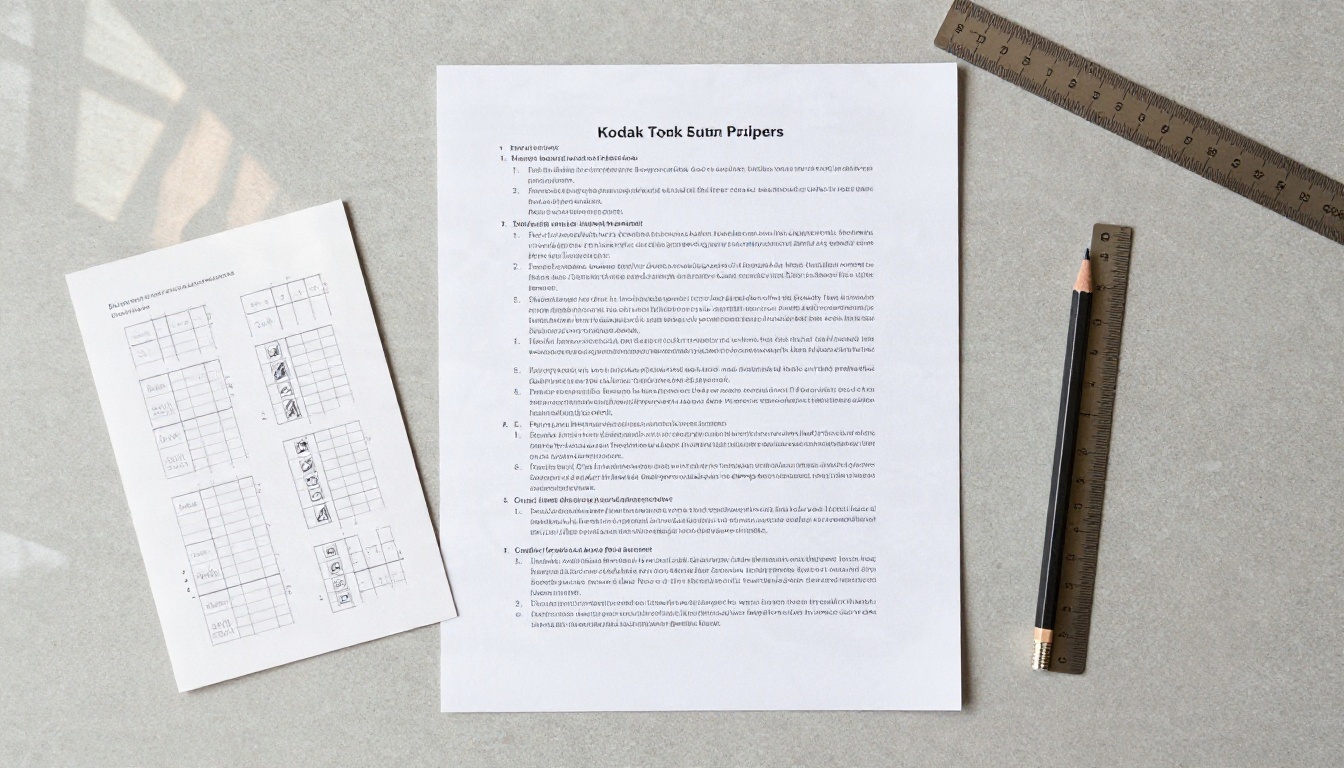
Page size is the most overlooked part of converting a PDF to a flipbook. The wrong ratio gives you thick white bars, cropped text, or spreads that look lopsided.
Pick the Right Ratio
Your PDF's page size becomes the flipbook's page shape. Choose it by where people will read.
| Page Format | Approx. Ratio | Works Best For |
|---|
| A4 portrait (210 x 297 mm) | 1 : 1.41 | Reports, brochures, manuals |
| US Letter portrait (8.5 x 11 in) | 1 : 1.29 | North American business documents |
| A5 portrait (148 x 210 mm) | 1 : 1.41 | Booklets, menus, event programs |
| Square (e.g. 1080 x 1080 px) | 1 : 1 | Lookbooks, photo albums, social-friendly pieces |
| Landscape 16 : 9 | 1.78 : 1 | Slide decks, presentations |
| Landscape A4 | 1.41 : 1 | Catalogs, portfolios, wide layouts |
A good rule: portrait for text-heavy documents, landscape or square for image-heavy ones. Mixing sizes inside one PDF is the fastest way to get a jumpy reading experience, so keep every page identical.
Set Margins and Resolution
Keep important text at least 10 mm away from the edges. Page-turn effects can slightly crop the outer border, and phones sometimes trim it further.
For resolution, 150 DPI is a solid target for screen reading. Going to 300 DPI only inflates the file size without a visible gain on most displays. Keep body text at 10 pt or larger, since small print becomes hard to read on a phone.
Shrink the File Size
Large files load slowly, and slow loading loses readers. Before converting:
- Compress images to JPEG at around 80 percent quality
- Embed only the fonts you use
- Remove hidden layers and unused artboards
- Flatten transparency effects if the preview looks off
✅ Best practice: Export once from your design tool using a "smallest file size" or "screen" preset, then convert. It beats compressing an already compressed PDF.
How to Create a Flipbook with Flipbooks AI
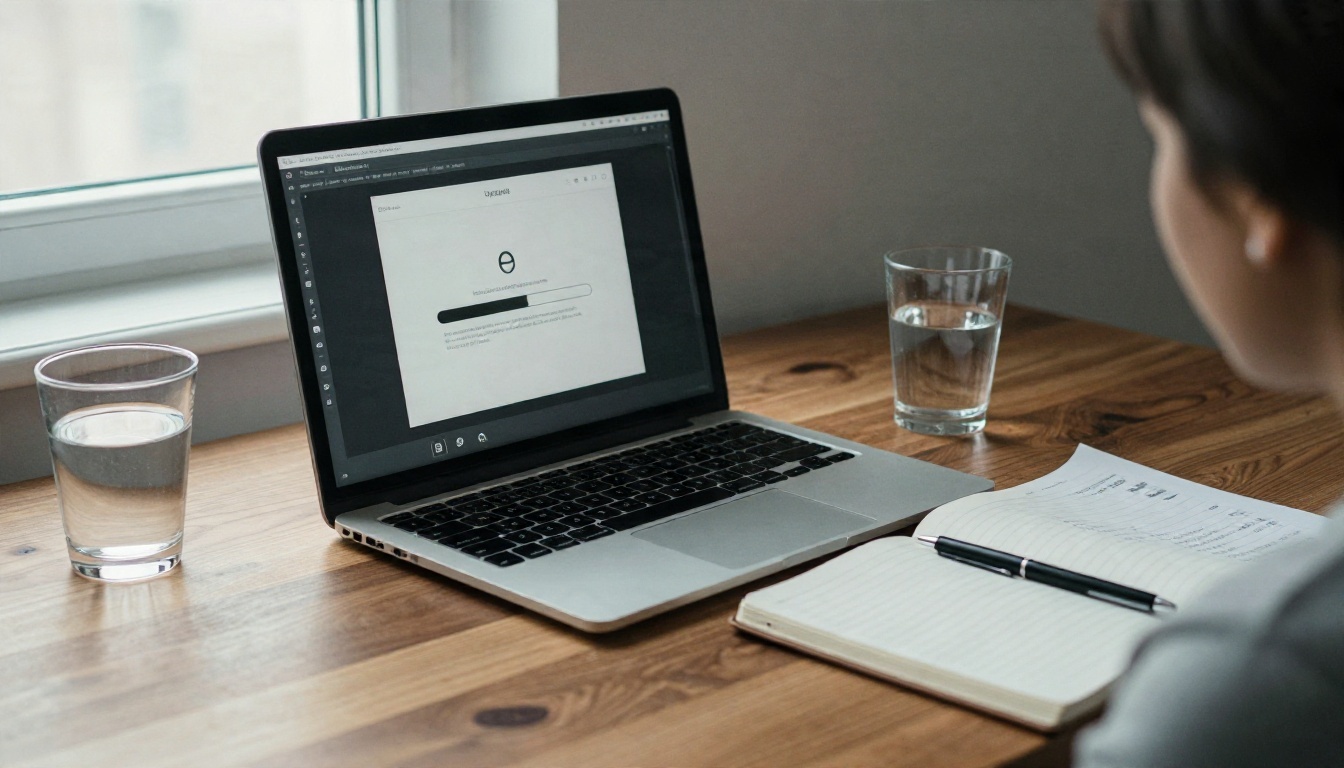
Here is the full workflow, from file to finished publication. The same steps apply whether you are building a menu, a report, or a portfolio.
Upload and Convert
- Go to Flipbooks AI and create an account.
- Open the PDF to Flipbook Converter.
- Drag your PDF onto the upload area, or pick it from your device.
- Wait for the pages to process. Conversion time depends on file size and page count.
- Open the preview and flip through every page.
Check the preview on both desktop and mobile widths. If a page looks cropped, go back to the margin advice above.
Brand It
Once the pages load, you can style the viewer so it feels like part of your brand rather than a third-party tool:
- Custom branding: add your logo and name
- Colors: match the background and toolbar to your palette
- Page effects: choose the turning animation and sound
- Multimedia: embed videos and audio on specific pages
For catalogs, the Catalog Flipbook Creator is a useful starting point. For brochures, try the Brochure Flipbook Maker.
Check It on Mobile
The viewer is mobile-responsive, so pages resize automatically. Still, open the flipbook on a real phone. Look at the first page load time, the tap targets for any links, and whether the text is readable without zooming.
Unlock Pro Features Only When You Need Them
Basic conversion works without extras. When you outgrow it, the Professional plan adds analytics, lead generation forms, and offline downloads, which help when you need to know who reads your material and what they do next.
| Feature | Basic Use | Professional Use |
|---|
| PDF to flipbook conversion | Yes | Yes |
| No watermarks | Yes | Yes |
| Password protection | Available | Available |
| Embedded video and audio | Yes | Yes |
| Analytics and lead capture | No | Yes |
| Offline downloads | Check plan | Yes |
💡 Plan details change, so confirm the latest feature list on the pricing page before you choose.
Share by Link, Embed, or Both
A flipbook is only useful once people can open it. You have three main delivery routes, and you can combine them.
Direct Links
A direct link is the simplest option. Paste it into an email, a chat message, a social bio, or a printed QR code. The reader taps and the flipbook opens, with no account and no download.
A few habits make links work harder:
- Use a clear name for the flipbook so the link preview reads well
- Add the link to your email signature
- Turn it into a QR code for packaging, posters, and table cards
- Test it in a private window to confirm it opens for strangers
Embed on Your Website
If you want the flipbook to sit inside a page of your site, use an embed code. The Embed Flipbook on Website tool explains the process. You paste a small snippet into your page editor, and the flipbook appears inline.
| Sharing Method | Setup Time | Best For |
|---|
| Direct link | Seconds | Email, chat, social posts |
| QR code | Minutes | Print materials, in-store displays |
| Embed code | A few minutes | Landing pages, blogs, product pages |
| Password-protected link | Minutes | Client reports, internal documents |
Password Protect Private Content
Not everything should be public. Investor decks, client proposals, and internal training material belong behind a password. Share the link in one message and the password in another, or through a different channel entirely.
⚠️ Warning: A password is a gate, not a vault. If the content is truly sensitive, do not depend on a shared link alone.
Real-World Examples
Seeing how others use the format helps you decide what to build first.

A Restaurant Menu That Updates Itself
A café owner exports the weekly menu as an A5 PDF, converts it, and prints a QR code on every table. When prices change, they replace the PDF behind the same link. No reprinting, no stale menus. The Restaurant Menu Creator suits this case.
A Sales Catalog for Wholesale Buyers
A distributor sends a 48-page catalog as a link instead of a heavy attachment. Buyers open it on their phones between meetings. With the Product Catalog Generator, the catalog stays consistent and easy to refresh each season.
A Portfolio That Feels Like a Book
A photographer converts a landscape PDF into a flipbook and adds it to their site. Visitors flip through it like a printed book. See the Photography Portfolio tool for a ready-made layout.
Training Material for a Remote Team
A manager turns a 25-page onboarding manual into a password-protected flipbook. New hires open it anywhere, and updates apply immediately. The Training Manual Flipbook tool was built for exactly this.
| Use Case | Ideal Page Size | Suggested Sharing |
|---|
| Restaurant menu | A5 portrait | QR code at tables |
| Wholesale catalog | Landscape A4 | Direct link by email |
| Photo portfolio | Square or landscape | Embed on website |
| Training manual | A4 portrait | Password-protected link |
| Annual report | A4 portrait | Link plus embed |
Common Mistakes to Avoid
Most failed conversions come from the same handful of errors.
- Mixed page sizes. One landscape page in a portrait document makes the whole flipbook jump.
- Text too close to the edge. Margins protect readability on every screen.
- Oversized files. A 100 MB PDF will frustrate mobile readers on slow connections.
- Skipping the mobile check. Most traffic comes from phones, so test there first.
- Forgetting links inside the PDF. Add clickable links before converting, and confirm they work afterward.
- Ignoring watermark rules. Verify a free tool's branding policy before you print the URL anywhere.
✅ Best practice: Keep a short checklist: same page size, 10 mm margins, compressed images, mobile test, link test. It takes two minutes and prevents most problems.
Ready to Publish Yours?
Converting a PDF takes less time than writing the email that would have carried it. Pick a page size that suits your content, compress the file, and test on a phone. Then choose how to deliver it: a link, a QR code, an embed, or a password-protected page.
Here is where to go next:
When you are ready to go further, choose a plan and publish without watermarks.



