You have a PDF that looks fine on your own screen and falls flat everywhere else. Readers open it, scroll for ten seconds, and leave before page three. A PDF flip book fixes that by turning the same file into a page-turning publication that feels like a real magazine. The good news is that you need no design skills and no budget. With a free online tool like Flipbooks AI, you can upload a file, pick a look, and share a link in about five minutes. This article walks through every route: free online converters, apps, and the different ways to embed a flip book on your own website.
What Is a PDF Flip Book?
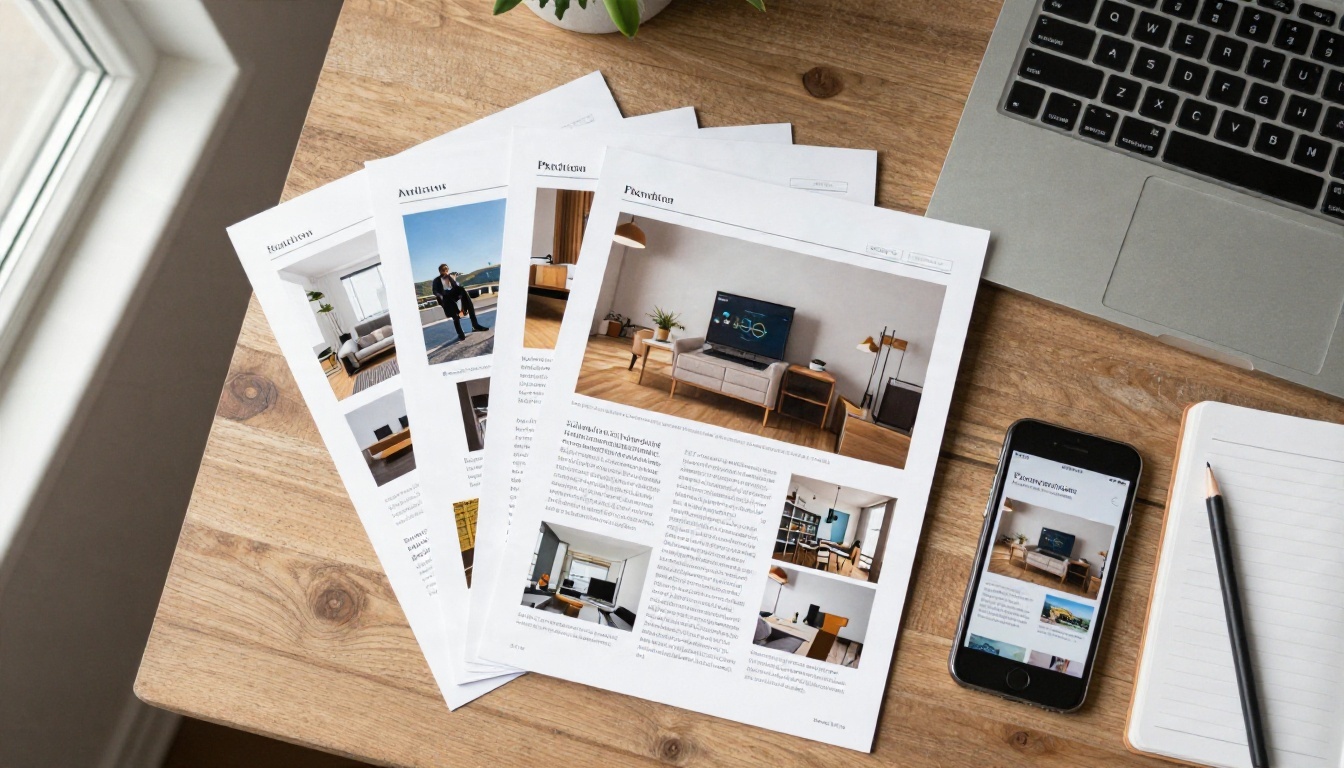
A flip book is a digital publication built from a PDF, where each page turns with a smooth, paper-like animation. Readers click or swipe to move forward, zoom into details, and often jump straight to a page from a thumbnail strip. The source is still your original PDF, so the layout, fonts and images stay exactly as you designed them.
Think of it as the difference between handing someone a loose stack of sheets and handing them a bound book. The content is identical, but the experience is not.
Why Readers Prefer Page Turns
People read on screens the way they read on paper when the format feels familiar. A page-turn layout gives them a sense of progress, a clear start and end, and a reason to keep going. Here is what changes when you switch from a raw PDF to a flip book:
- No download needed. Readers open a link in the browser, with no PDF viewer and no waiting.
- Mobile friendly. The pages resize to fit phones and tablets instead of forcing pinch and zoom.
- Trackable. Many platforms report views, time on page and clicks, which a PDF attachment never does.
- Shareable. One short link works in email, chat, social posts and QR codes.
- Branded. You can add your logo, colors and a custom background instead of a gray viewer frame.
What to Prepare First
Before you upload anything, spend ten minutes on the file itself. A flip book can only look as good as the PDF behind it.
- Export at the right size. Use the original page size, and keep images at 150 to 300 DPI so they stay sharp when zoomed.
- Check the page order. Cover page first, back page last. Decide whether you want single pages or two-page spreads.
- Compress wisely. Aim for a file under 50 MB. Very heavy PDFs load slowly and frustrate readers on mobile data.
- Keep links live. Internal and external links in the PDF can stay clickable in many flip book tools, so test them first.
- Embed fonts. This stops odd substitutions after conversion.
💡 Pro tip: Export from your design tool as "Press quality" or "High quality print," then run a quick compression pass. You get sharp pages without a bloated file.
Dozens of web tools claim to convert a PDF to a flip book. Most follow the same pattern: upload, wait a moment, get a link. The real differences show up in what happens after the conversion, such as watermarks, page limits, branding and sharing options.
What Free Plans Usually Limit
Free is a great starting point, but read the fine print. These are the limits that surprise people most often:
- Watermarks stamped on every page or on the loading screen
- Page caps, often 10 to 30 pages, which breaks longer catalogs
- Expiring links that vanish after a few days or weeks
- Forced ads or sign-up banners inside the reader
- No embed support on the free tier, so you can only share a link
- No password protection, which matters for private reports
⚠️ Warning: If a flip book represents your business, a third-party watermark on every page looks unprofessional. Check this before you share anything with clients.
Side by Side Comparison
Here is how the main types of tools compare. This is a general pattern, so always confirm the current limits on each provider's pricing page.
| Option | Cost to Start | Watermark | Embed on Website | Best For |
|---|
| Online flip book platform | Free account available | Varies by provider | Yes, usually via iframe | Catalogs, menus, brochures, reports |
| Quick one-off converter | Free, no sign-up | Often yes | Rarely | A single throwaway file |
| Desktop software | One-time or subscription | No | Export to HTML | Offline work, local files |
| Mobile app | Free with in-app upgrades | Often yes | Limited | Reading and sharing on the go |
| DIY with open-source code | Free, but developer time | No | Yes, fully custom | Teams with web developers |
For most people, an online platform wins because it balances speed, quality and sharing options. Flipbooks AI is built around that balance: no watermarks, ever, and embedding that works on every plan.
Make One with Flipbooks AI
This is the fastest path from PDF to published flip book. The whole process takes minutes, and you can keep editing after you publish. If you want a dedicated page for this job, use the PDF to Flipbook Converter.
Step 1: Upload Your PDF
First, create an account. Then follow these steps:
- Click Create new flipbook from your dashboard.
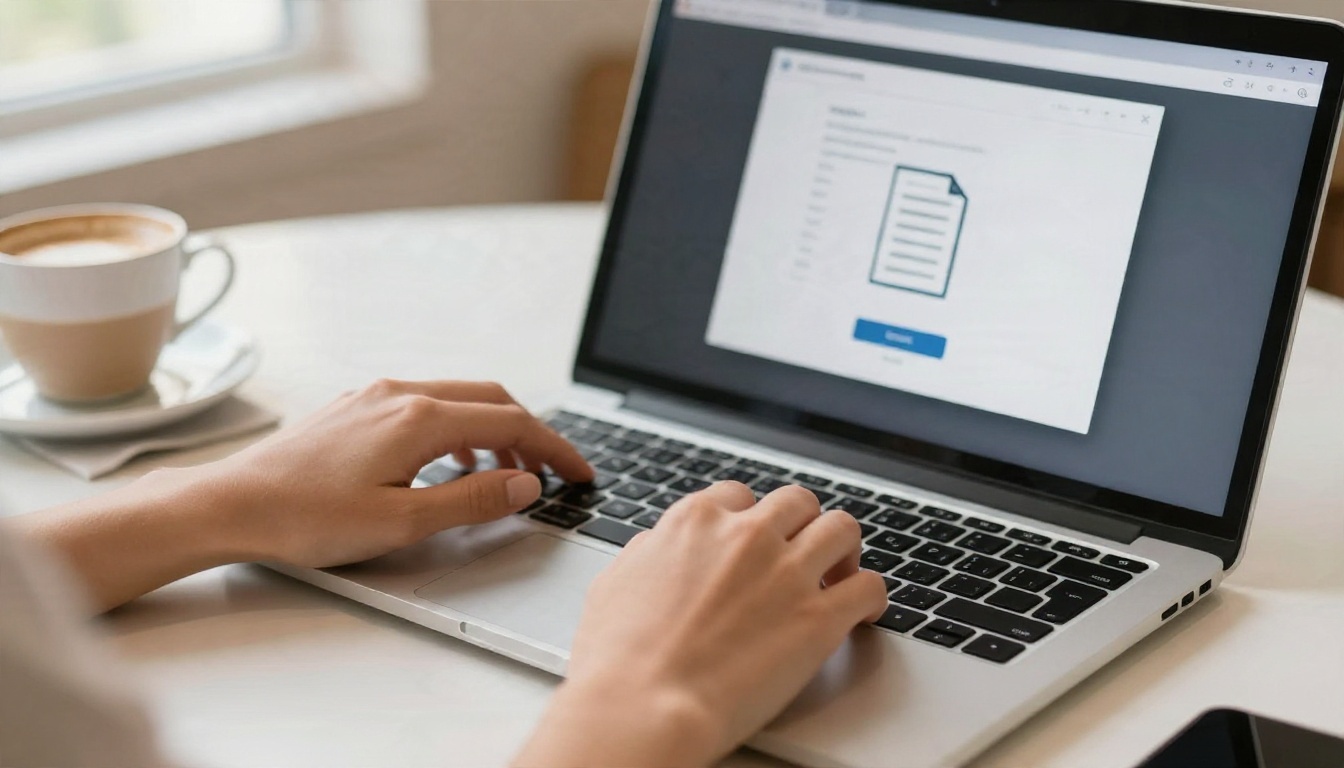
- Drag your PDF into the upload area, or browse your files and select it.
- Wait for the conversion bar to finish. A typical 40-page file takes under a minute.
- Review the preview. Flip through the pages and confirm that text, images and links look right.
✅ Best practice: Upload the final version of your PDF. You can replace it later, but starting with the right file keeps your link and settings intact.
Step 2: Customize the Look
Next comes the part that makes your flip book feel like yours. The editor lets you adjust the following:
- Branding: Add your logo and set the reader's accent colors to match your brand.
- Background: Choose a solid color, a gradient or a custom image behind the book.
- Page effects: Pick the turn animation and sound, or keep it silent for a calm feel.
- Layout: Switch between single page and two-page spread views.
- Multimedia: Embed videos and audio directly on pages, such as a product demo or a welcome message.
- Mobile-responsive design: The reader adapts automatically, so you do not build a separate phone version.
Keep the styling simple. A neutral background lets your pages do the talking.
Step 3: Share and Protect It
Once the design looks right, choose how people will reach it:
- Direct link: Paste it in an email, message or social bio.
- Embed code: Copy the snippet and place it on any web page.
- QR code: Print it on packaging, posters or business cards.
- Offline download: Let readers save a copy for places with weak signal.
- Password protection: Lock private content such as internal reports or client proposals.

Pro Features Worth Using
If your flip book supports sales or marketing, the Professional plan adds tools that turn readers into measurable results:
| Feature | What It Does | Who Benefits Most |
|---|
| Analytics | Shows views, reading time and popular pages | Marketers, publishers |
| Lead generation | Asks for an email before readers open the book | Sales teams, consultants |
| Unlimited flipbooks (Standard plan and above) | Removes the cap on publications | Agencies, growing catalogs |
| Custom branding | Replaces default styling with your own | Any business |
| Offline downloads | Saves a copy for later reading | Field teams, events |

Analytics change how you work. If readers drop off at page 8, you know where to tighten the content. If page 14 gets the most time, you know which offer deserves more space.
App and Desktop Options
Not everyone wants to work in a browser. Apps and desktop programs exist, and each has a place.
Mobile Apps and Phone Reading
Dedicated mobile apps let you convert a PDF straight from your phone, which is handy when a file arrives in a chat and you need to share it fast. The tradeoff is that editing tools are often limited and free versions tend to add watermarks.
The more important question is how readers experience your flip book on a phone. A responsive web reader is usually better than an app, because nobody has to install anything. Readers tap your link and start turning pages.

Desktop Software Tradeoffs
Desktop programs work offline and can export HTML packages. They suit people who handle sensitive files or who need to host everything on their own server. The downsides are real, though:
- You install and update the software yourself
- Collaboration is harder because files live on one machine
- Analytics are usually missing
- Sharing means uploading the exported folder somewhere
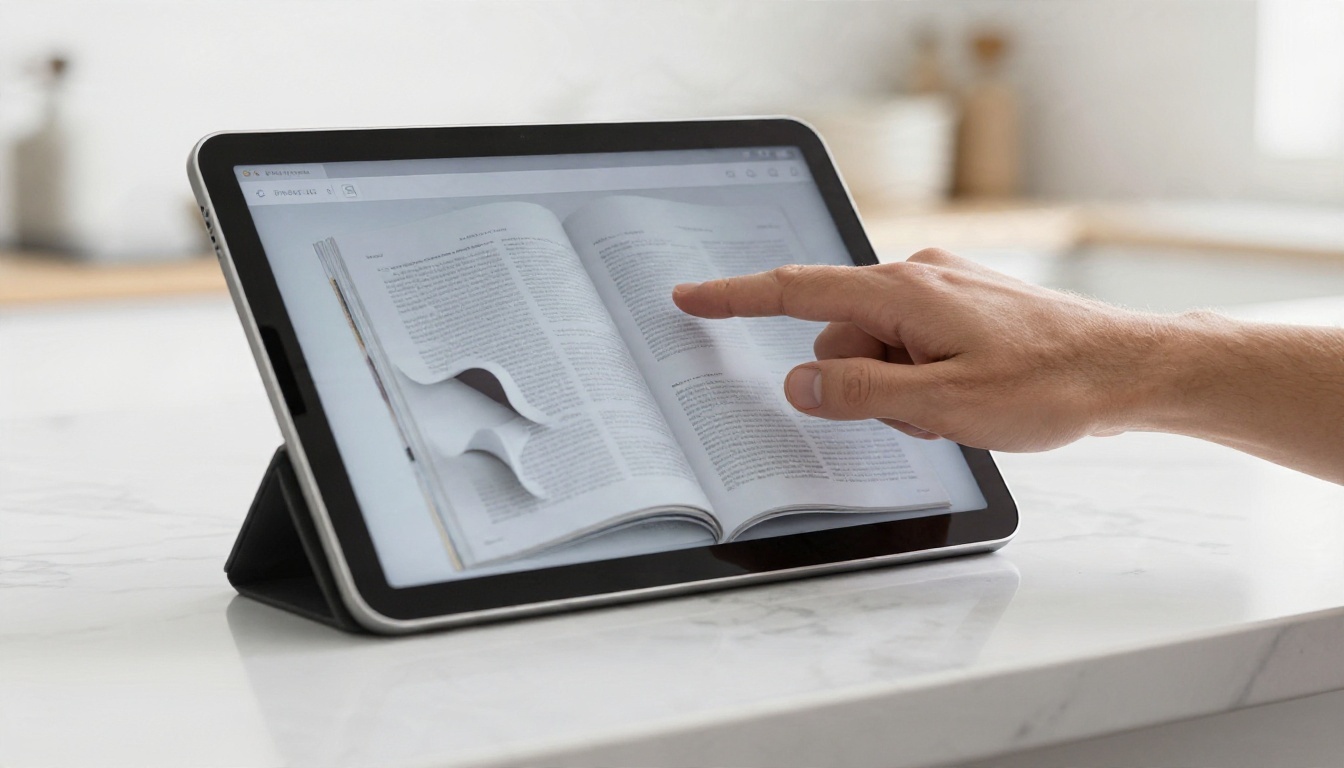
A tablet is a middle ground. It gives you a large touch screen for reviewing a flip book while you stay inside a browser.
Embed Options for Your Website
A link is great, but a flip book that lives inside your own page feels more professional. Visitors stay on your site, see your navigation and read without a detour. The Embed Flipbook on Website tool shows exactly how this works.

The iframe Embed Method
An iframe is a small HTML snippet that displays another page inside your own. Here is the process:
- Open your published flip book and choose Share, then Embed.
- Copy the code. It looks like a short line starting with
<iframe.
- Paste it into an HTML or custom code block on your page.
- Set the width to 100% so it adapts to the screen, and choose a height of 600 to 800 pixels for desktop.
- Save, publish and test on both phone and laptop.
Most website builders accept this approach, including WordPress, Wix, Squarespace, Shopify and Webflow. Look for a block called "Custom HTML," "Embed code" or "Code snippet."
💡 Pro tip: Place the embed above the fold on a dedicated landing page. A single flip book with one clear heading beats a crowded page with five widgets.
Links, Popups and QR Codes
Not every situation needs a full embed. Compare the three simplest alternatives:
| Method | Setup Effort | Best Use |
|---|
| Direct link | Seconds | Email, chat, social posts |
| Button or popup | A few minutes | Opening a catalog from a product page |
| QR code | A few minutes | Print materials, store windows, events |
| Full iframe embed | 5 to 10 minutes | Dedicated landing pages and blog posts |
Real Examples by Industry
Flip books suit any content that already lives in a PDF. These are common scenarios, each with a matching tool you can try.
Restaurants and Cafes
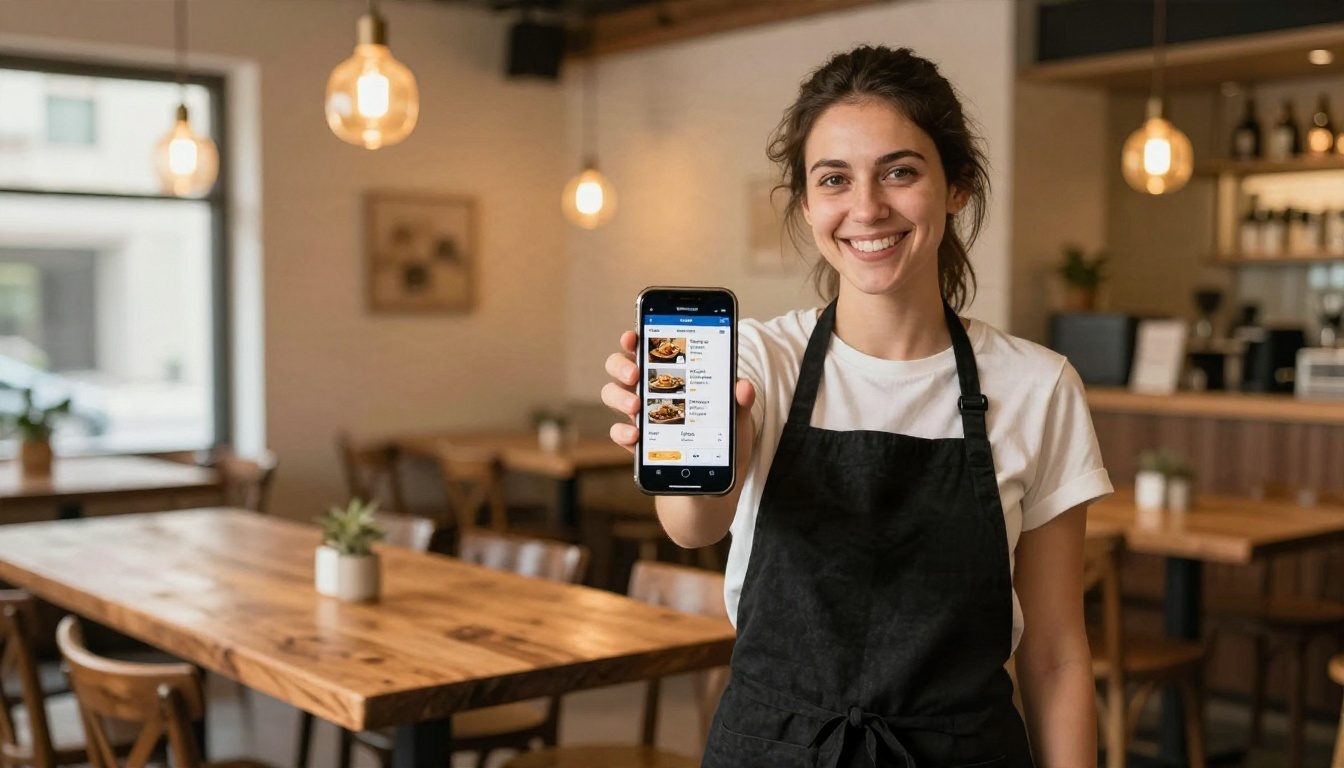
A restaurant can publish its menu as a flip book, update prices in minutes and print a QR code for each table. No more reprinting laminated sheets when a dish changes. Try the Restaurant Menu Creator or the Menu Flipbook Designer to see how it works.
Sales Teams and Product Catalogs
Real estate agents can send a property brochure with a single link. Furniture and fashion brands can show a seasonal lineup with zoomable photos. Sales teams can lock a proposal behind a password and see when the client opens it.
Here is a quick map of use cases to tools:
You can also browse every option in the tools directory.
Mistakes That Ruin Flip Books
Even a good platform cannot rescue a poor setup. Avoid these common slips:
- Uploading a low-resolution PDF. Blurry pages look worse in a flip book than in a PDF because readers zoom in.
- Ignoring page one. The first page decides whether people keep reading. Put your strongest image and a clear title there.
- Using tiny text. Body copy under 10 points is hard to read on a phone. Test on a real device.
- Skipping the link check. Broken buttons and dead links kill trust fast.
- Embedding with a fixed width. A hard-coded 1200 pixel width breaks on mobile. Always use a responsive setting.
- Forgetting the call to action. End with a clear next step, such as a contact link, booking page or order form.
- Choosing a tool with a watermark. Your brand should be the only one on the page.
⚠️ Warning: Do not password protect a flip book and then post the password in a public place. Share it only with the people who need it.
Ready to Publish Yours?
Making a flip book from a PDF is simpler than most people expect. Prepare a clean file, pick a platform with no watermark, customize the look, and choose the sharing method that suits your audience: link, QR code or embed. Start small with one catalog, menu or report, then expand once you see how readers respond.
Here are your next steps:
Your PDF already holds the content. A flip book gives it the stage it deserves.



