You wrote the perfect email, attached the PDF, hit send, and got a bounce notice ten seconds later. Or worse, the message landed in a spam folder and nobody ever opened it. If that sounds familiar, the fix is simple: stop attaching the file. In this article you will see exactly how to send a PDF in email without attachment, using three practical methods: a plain shared link, an embedded preview, and an interactive flipbook built with Flipbooks AI. Each one has strengths, and I will show you where each one fails so you can pick the right tool for the job.
Why Attachments Cause Trouble
Attachments feel like the default, but they are the weakest way to deliver a document. Three problems show up again and again.
Size Limits and Bounces
Gmail caps messages at roughly 25 MB, Outlook.com sits near 20 MB, and many corporate mail servers enforce 10 MB or less. A brochure with high-resolution photos can blow past that without effort. Worse, email encoding inflates attachments by about a third, so a 15 MB PDF can behave like a 20 MB one once it travels.
Spam Filters and Trust
Security gateways scan attachments, and some quietly quarantine PDFs from senders they do not recognize. Even when the message arrives, many people hesitate to open an unexpected file. A link to a familiar page feels safer than a download.
No Control After Sending
Once a PDF leaves your outbox, it is gone. You cannot fix a typo, swap in a new price list, or see whether anyone read it. Every copy forwarded to a colleague is another outdated version floating around.
⚠️ Warning: If you attach a file and later spot an error, the only option is to send a corrected copy and hope the recipient deletes the old one. They rarely do.
Three Ways to Skip the Attachment
Before diving into each method, here is the quick comparison. Keep this table handy when you decide how to send your next document.
| Method | Setup time | Reader experience | Tracking | Best for |
|---|
| Shared cloud link | 1 minute | Opens a basic file viewer | Limited | Internal drafts, quick sharing |
| Preview image with link | 5 to 10 minutes | Visual teaser, one click to read | Click tracking in email tool | Newsletters, campaigns |
| Flipbook link or embed | 3 to 5 minutes | Page-turning reader, works on mobile | Page-level analytics (Professional plan) | Catalogs, proposals, reports |
Option One: Send a Link
The fastest way to send a PDF in email without attachment is to upload the file somewhere and paste the URL. No design work, no new tools.
Cloud Storage Links
Google Drive, Dropbox, OneDrive and iCloud all generate shareable links. The process is nearly identical everywhere:
- Upload the PDF to your storage account.
- Right-click the file and choose Share or Get link.
- Set access to Anyone with the link (or restrict to specific people).
- Choose Viewer permission so nobody edits your original.
- Copy the link and paste it into your email.
Gmail and Outlook Shortcuts
Both clients help you out. In Gmail, attach a file over 25 MB and it automatically converts to a Drive link. In Outlook, the Attach file menu lets you choose Share as OneDrive link directly. Pick that option and the recipient gets a link instead of a bulky file.
Where Plain Links Fall Short
Plain links work, but they come with trade-offs:
- The recipient may be asked to sign in or request access.
- The built-in viewer looks generic and often performs poorly on phones.
- There is no branding, so your document looks like every other shared file.
- Links to personal storage can break if you move or rename the file.
💡 Pro tip: Write the link as descriptive text, such as "View the 2026 product catalog", instead of pasting a long raw URL. It looks cleaner and gets more clicks.
Option Two: Embed a Preview
Many people search for how to "embed" a PDF in an email, and here is the honest truth: email clients do not support true embedding. Gmail, Outlook and Apple Mail strip out iframes, JavaScript and embedded viewers for security reasons. What you can do is place a visual preview inside the message that links to the full document.
Thumbnail Plus Button
The reliable approach looks like this:
- Export the first page of your PDF as a PNG or JPG image, at about 600 pixels wide.
- Insert the image into your email body.
- Turn the image into a hyperlink pointing to your document.
- Add a clear button or line below it: "Read the full document".
- Write meaningful alt text, because some clients block images by default.
What Email Clients Block
| Element | Gmail | Outlook | Apple Mail |
|---|
| iframe embed | Blocked | Blocked | Blocked |
| JavaScript viewer | Blocked | Blocked | Blocked |
| Linked image | Works | Works (may need image download) | Works |
| Animated GIF preview | Works | First frame only in some versions | Works |
✅ Best practice: Test your email by sending it to a Gmail account, an Outlook account and your phone before it reaches a real audience. Preview images behave differently across clients.
Where True Embeds Work
You can fully embed a document on a web page, a landing page or a help center article. The email simply points readers there. If you want a quick walkthrough, the Embed Flipbook on Website tool produces ready-to-paste code for that.
Option Three: Share a Flipbook
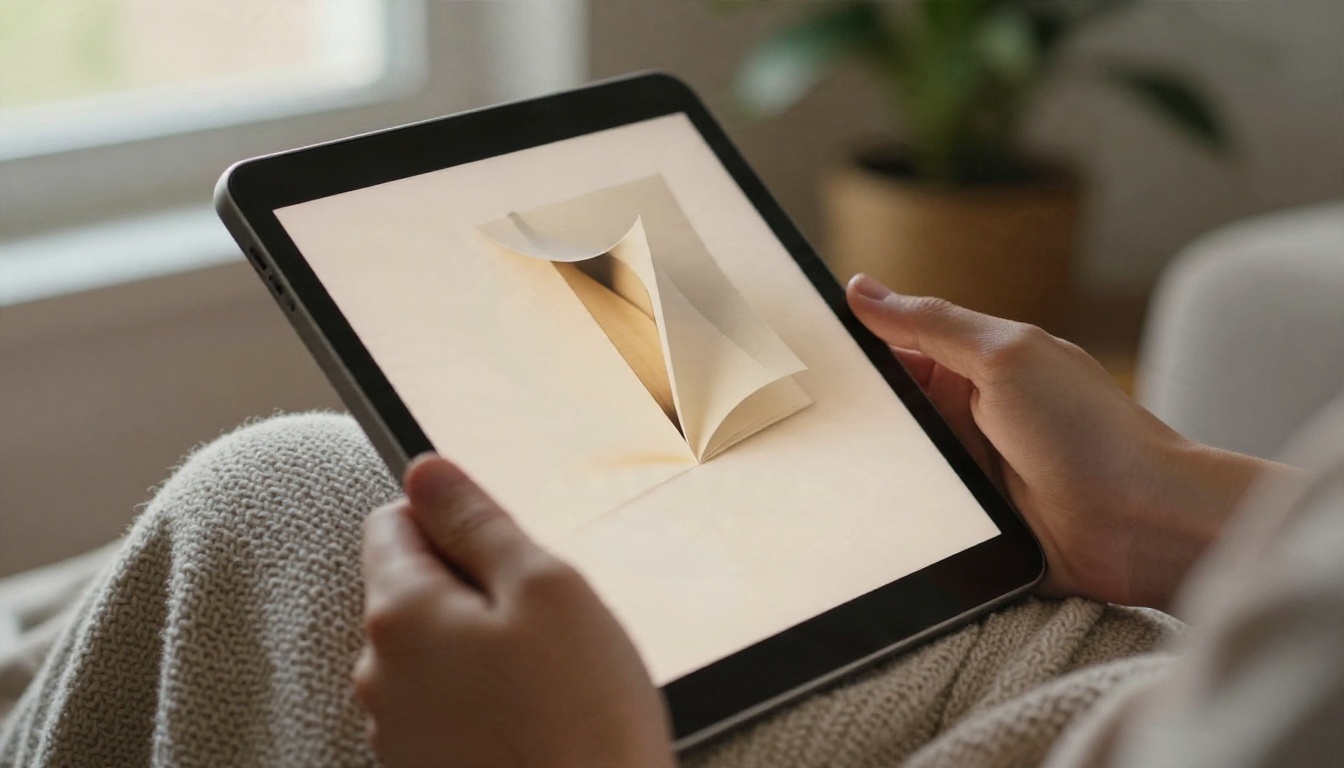
A flipbook turns your PDF into a hosted, page-turning reader with its own URL. The recipient clicks one link and reads on any device, with no download, no sign-in and no file viewer quirks. For anything polished, such as a catalog, a proposal or a magazine, this is the strongest option.
Why Flipbooks Beat Plain Links
- Mobile-responsive: pages resize to fit phones, tablets and desktops.
- Branded: your colors, logo and domain feel, not a storage provider's.
- Updatable: fix a typo and the same link shows the new version.
- Protected: add a password when the content is private.
- Measurable: see opens, reading time and which pages people visit.
- Rich: drop in videos, audio and clickable links on any page.
Feature Comparison
| Feature | Email attachment | Cloud link | Flipbook |
|---|
| File size limit | 10 to 25 MB | Large | Large |
| Works well on mobile | Often awkward | Mixed | Yes |
| Custom branding | No | No | Yes |
| Password protection | Needs zipping | Basic | Yes |
| Update after sending | No | Yes | Yes |
| Page-level analytics | No | No | Yes (Professional plan) |
| Offline download | Already downloaded | Manual | Yes |
| Watermarks | None | None | None, ever |
How to Create a Flipbook With Flipbooks AI
Here is the full workflow, from PDF to sendable link, in about five minutes. Start by opening Flipbooks AI or create a free account if you do not have one yet.
Step 1: Upload Your PDF
- Log in and click Create new flipbook.
- Drag your PDF into the upload area. The PDF to Flipbook Converter processes every page and keeps your fonts, images and links intact.
- Wait a few seconds while pages render. Large files with dozens of pages typically finish in under a minute.
Step 2: Customize the Look
- Pick a background color that matches your brand.
- Upload your logo and set it to appear in the toolbar.
- Choose a page-turn effect, or keep the default smooth flip.
- Add multimedia: embed a video on page two, a voiceover on the cover page, or clickable buttons that open your booking form.
💡 Pro tip: Match the flipbook background to your email header color. The click from inbox to reader feels seamless, and recipients trust it more.
Step 3: Choose How to Share
You have several routes, and you can use all of them:
- Direct link: paste it into your email as text or behind a button.
- Embed code: place the flipbook on a landing page or blog post, then link that page in your email.
- Password protection: set a password for private documents and share it in a separate message.
- QR code: useful when the email prompts people to continue on mobile.

Step 4: Turn On Pro Features
The Professional plan adds the tools that make a flipbook more than a pretty reader:
- Analytics: see how many people opened the link, how long they stayed and which pages held their attention.
- Lead generation: ask for a name and email address before the reader opens the document.
- Offline downloads: let readers save a copy to read on a plane or in a basement meeting room.
The Standard plan and above include unlimited flipbooks, so you can publish a new version for every client without counting.
Step 5: Write the Email
Keep the message short. A simple structure works well:
- Subject line: name the document, such as "Your Spring Catalog".
- First line: say what it is and why it matters to the reader.
- The link: a button or bold text linking to your flipbook.
- Closing line: tell them what to do next, whether that is replying or booking a call.
Real-World Examples
Theory is fine, but here is how people actually use these methods.
Real Estate Agents
An agent preparing a property pack for a buyer cannot risk a bounce, since the buyer might move on to the next listing. With the Real Estate Brochure Creator, the agent turns a 40 MB photo-heavy PDF into a flipbook, sends a single link, and sees on the analytics screen that the buyer spent four minutes on the floor plan page. That tells the agent exactly what to discuss on the follow-up call.

Sales Teams
A sales rep sending a proposal wants it opened, not buried. A Sales Presentation flipbook with a password, a short intro video on page one and lead capture on the cover gives the rep a clear signal. If the client forwards it to a decision maker, the rep gets a notification of the new view.
Restaurants, Shops and Designers
- Restaurants: a menu flipbook linked in a reservation confirmation email always shows today's dishes.
- Retailers: a Digital Catalog Maker link in a promotional email replaces a heavy PDF with a shoppable reader.
- Freelancers: a Digital Portfolio Creator link in a pitch email loads fast and looks sharp on any screen.
Mistakes to Avoid
Even with the right method, small errors can undermine the result.
| Mistake | Why it hurts | Fix |
|---|
| Sending a raw, very long URL | Looks suspicious and wraps badly | Use descriptive link text or a button |
| Forgetting access settings | Recipient sees "Request access" | Test the link in a private browser window |
| Huge preview image | Slow load, may be clipped | Keep it under 200 KB and 600 px wide |
| No alt text on the image | Blank box when images are blocked | Describe the document in alt text |
| Skipping a mobile test | Over half of emails are opened on phones | Open the link on your own phone first |
| Ignoring analytics | You miss the best follow-up timing | Check opens before replying |

⚠️ Warning: Never put a password in the same email as the link it protects. Send it through a separate channel, such as a text message or a call.
Which Option Should You Pick?
Use this short decision list:
- Need it done in one minute and the audience is internal? Use a cloud storage link.
- Sending a newsletter or campaign? Use a preview image that links to the document.
- Sending a catalog, proposal, report or brochure to clients? Use a flipbook.
- Handling private or sensitive material? Use a flipbook with a password.
- Need to know who read it? Use a flipbook with analytics.
Send Your Next PDF the Better Way
Attachments belong to an older era of email. A link is lighter, a preview is friendlier, and a flipbook is the one that makes your document look professional while telling you what happens after you press send.
Ready to try it? Get started for free on Flipbooks AI and turn your first PDF into a shareable flipbook in minutes. Browse all flipbook tools to find a template for your use case, or compare pricing plans to see which tier adds the analytics and lead capture you need.



