You have 120 photos from a weekend away, all sitting in your iPhone camera roll, and you want to send them to your family as something better than a messy album link. Then you try to upload them to a flipbook tool and get an error: unsupported file type. The culprit is almost always HEIC, the default format your iPhone uses. The good news is that the fix takes about five minutes. Convert the HEIC images to a single PDF, upload that PDF to Flipbooks AI, and you get a page-turning flipbook with a shareable link, no watermark and no app to install.
This tutorial walks through every free route for turning HEIC images into a PDF, how to prepare the pictures so the flipbook looks sharp, and how to publish and share the result. You will also find comparison tables, a troubleshooting list and real examples for weddings, portfolios, property listings and travel albums.
What HEIC Actually Is
HEIC (High Efficiency Image Container) is Apple's default photo format since iOS 11. It stores the same visual quality as JPEG at roughly half the file size, which is why your phone can hold thousands of pictures without choking. The catch is compatibility: many websites, older Windows machines and a lot of upload forms still do not accept it.
Why HEIC Breaks Sharing
When you attach a HEIC picture to an email, upload it to a web form or drop it into a design tool, one of three things happens:
- The tool rejects the file outright.
- The image uploads but shows as a blank gray box.
- The picture appears, but colors look washed out because the wide color profile is not read correctly.
A flipbook platform needs pages, and pages come from a document. That is why the cleanest path is HEIC to PDF to flipbook, rather than trying to feed raw images into the builder.
HEIC vs JPEG vs PDF
| Format | Typical File Size | Works Everywhere? | Best Use |
|---|
| HEIC | Smallest (about 50% of JPEG) | No, limited outside Apple devices | Storing photos on your iPhone |
| JPEG | Medium | Yes | Emailing a single picture, social posts |
| PDF | Depends on page count and compression | Yes | Multi-page albums, printing, flipbooks |
💡 Pro tip: A PDF is not a downgrade. It wraps your pictures into ordered pages, which is exactly what a flipbook reads. Think of the PDF as the bridge between your camera roll and the finished publication.
Pick Your Conversion Route
You do not need paid software. Four free methods cover almost every situation, and the right one depends on the device in front of you.
Method 1: The Files App on iPhone
This is the fastest option when your photos are already on your phone, and it needs no extra downloads.
- Open the Photos app, select the pictures you want, tap Share, then choose Save to Files.
- Open the Files app and go to the folder where you saved them.
- Tap Select, pick all the images, then tap the three dots at the bottom right.
- Choose Create PDF.
- The PDF appears in the same folder. Rename it, for example Lisbon-Trip-2026.
Each image becomes one page, in the order of the file names. If the order looks wrong, rename the pictures with numbers first (01, 02, 03) and run the step again.
Method 2: The Photos App Print Trick
Apple hides a PDF maker inside the print dialog. It works well for smaller sets of pictures.
- In Photos, select your images and tap Share, then Print.
- On the print preview screen, pinch outward on the first page thumbnail. The preview expands into a PDF.
- Tap Share in the top corner and choose Save to Files.
The result is a standard PDF, although the pages sometimes include white margins because the print layout assumes paper sizes. If you want edge-to-edge images, use Method 1 instead.
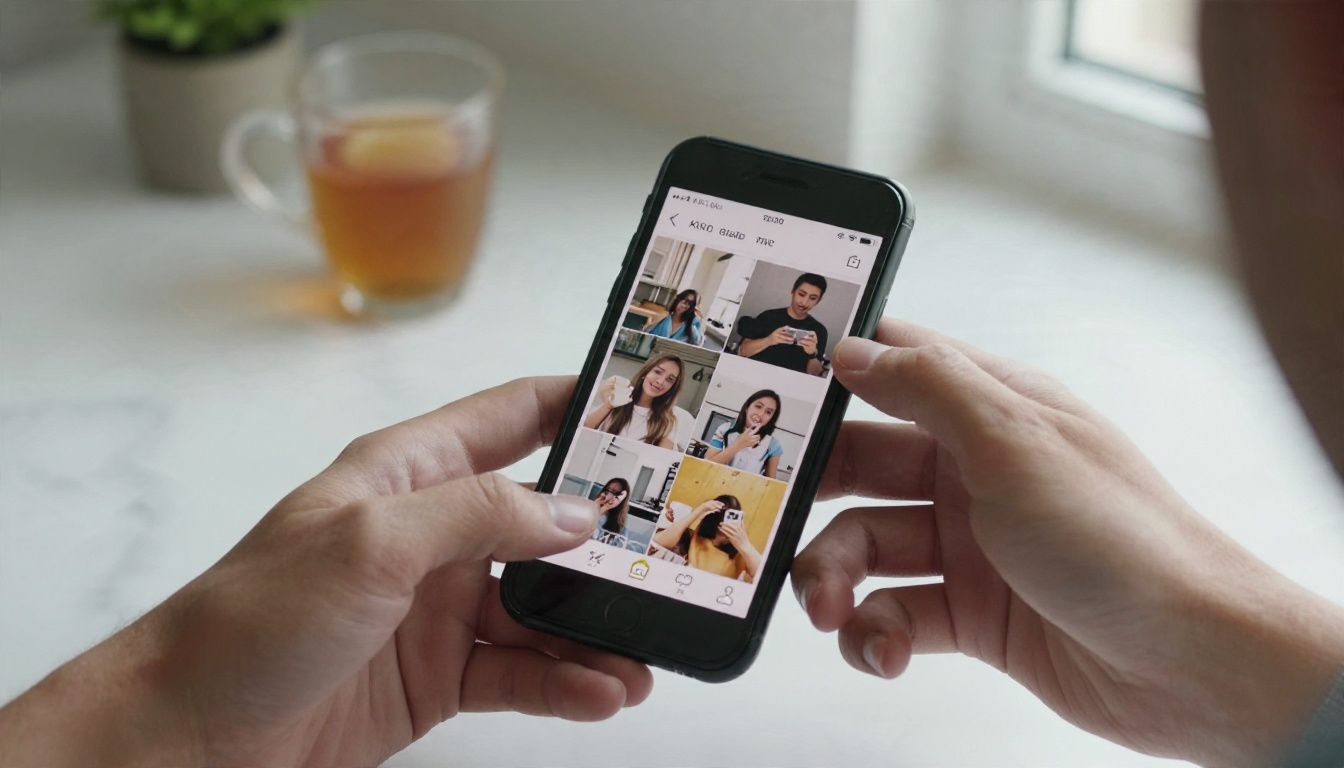
Method 3: Preview on a Mac
If you have synced your photos to a Mac, Preview gives you more control than the phone does.
- Drag the HEIC files into a Finder folder.
- Select them all, right-click and choose Open With, then Preview.
- In the sidebar, drag the thumbnails into your preferred order.
- Go to File, then Print, and open the PDF dropdown in the lower left.
- Pick Save as PDF.
On Windows, install the free HEIF Image Extensions from the Microsoft Store first, so your photos open normally, then use the built-in Print to PDF printer.
Method 4: Free Online Converters
Browser-based converters let you drop in HEIC files and download a PDF. They are handy when you are on a borrowed computer. Be selective though, because you are uploading personal pictures to someone else's server.
⚠️ Privacy warning: Avoid uploading pictures of children, IDs, contracts or private moments to unknown converter sites. Prefer the Files app or Preview, which keep everything on your own device.
Which Method Should You Use?
| Method | Device Needed | Speed | Page Order Control | Privacy |
|---|
| Files app | iPhone or iPad | Very fast | Rename files | Stays on device |
| Photos print trick | iPhone or iPad | Fast | Selection order | Stays on device |
| Preview | Mac | Fast | Drag and drop | Stays on device |
| Online converter | Any browser | Medium | Depends on the site | Files leave your device |
Prepare Photos Before Converting
Five minutes of preparation changes a so-so flipbook into one that looks like a printed photo book. Do these steps before you create the PDF, because fixing them afterward means starting over.
Order and Rotation
A flipbook tells a story, so sequence matters. Group pictures by moment: arrival, daytime, evening, and the last day. Open each image in the Photos app and check that portrait shots are not sideways. A picture that looks fine in your camera roll can still carry a rotation flag that some converters ignore.
Size and Quality
An iPhone 15 or newer photo can be 3 to 6 MB. Fifty of them in one PDF can climb past 200 MB, which is slow to upload and slow to load on a phone with weak signal. Aim for a final PDF between 20 and 80 MB for most albums.
| Number of Photos | Suggested Quality | Expected PDF Size |
|---|
| 10 to 20 | Original | 30 to 80 MB |
| 20 to 60 | Medium (export or compress) | 40 to 100 MB |
| 60 to 150 | Compressed | 60 to 150 MB |
To make iPhone pictures lighter without losing visible quality, you can open Settings, then Camera, then Formats, and choose Most Compatible. From then on your phone saves JPEG instead of HEIC, which sidesteps the problem for future shots. Existing HEIC photos stay as they are, so you still need one of the methods above for older pictures.
💡 Pro tip: Use a consistent orientation for the whole album. Mixing portrait and landscape pages is fine for a casual trip album, but a wedding or portfolio looks more polished when most pages share the same shape.
How to Create a Flipbook with Flipbooks AI
Once the PDF is ready, the rest is quick. The platform converts each page into a realistic page-turning layout that works on phones, tablets and desktops. If you prefer a dedicated page for this step, the PDF to Flipbook Converter handles it directly.
Upload the PDF
- Go to Flipbooks AI and create an account. You can begin on the free option and check pricing plans later if you need more.
- Click the upload button and select your PDF from your phone, Mac or PC.
- Wait while the pages are converted. A 40-page album usually takes less than a minute.
- Open the preview and flip through to confirm every picture is in the right position.
✅ Best practice: Check the first two and last two pages carefully. These are the pages people see before they decide whether to keep reading.
Customize the Look
This is where a bunch of pictures starts to feel like a real publication.
- Branding: Add your logo and pick a background color that matches your pictures. A dark neutral background makes color photos stand out.
- Page effects: Choose how pages turn, from soft curl to flat slide, and adjust the sound if you like.
- Multimedia: Add a video clip or a background audio track, for example the music from your trip or your wedding song.
- Links: Place clickable areas on pages, such as a link to a booking page or a map location.
Share and Protect
You have several ways to deliver the finished flipbook:
| Sharing Option | Best For | Notes |
|---|
| Direct link | Family, friends, clients | Works in any message app |
| Embed code | Websites and blogs | See the Embed Flipbook on Website tool |
| Password protection | Private albums, wedding photos | Visitors need the password to open it |
| Offline download | Events with poor signal | Guests keep a copy on their device |
For a private family album, switch on password protection before you send the link. Share the password in a separate message so that a forwarded link alone does not give access.
Use Professional Features
If you publish pictures for clients or customers, the Professional plan adds analytics and lead generation. You can see how many people opened the flipbook, which pages held attention longest and, with a lead form, who asked for more information. The Standard plan and above allow unlimited flipbooks, and every plan stays free of watermarks.
Real-World Uses for Photo Flipbooks
Converting HEIC pictures is not just for vacation memories. Because almost everyone shoots on a phone now, the same workflow suits many jobs.
A Real Estate Agent Example
An agent walks through a house with an iPhone and takes 30 pictures. Back at the office she creates a PDF with the Files app, adds a cover page with the address and price, and uploads it. Ten minutes later she has a flipbook link to place in her listing email, with analytics showing which buyers opened it and which rooms they looked at longest.
A Wedding Guest Example
A bride asks guests to send their pictures after the reception. Most of them arrive as HEIC files. The photographer collects them, converts to PDF on a Mac with Preview, sorts them by part of the day and publishes a password-protected flipbook. Guests receive one link and one password, and everybody sees the same album in the same order.
A Travel Blogger Example
A blogger shoots a city break on an iPhone and wants a lightweight photo story to put inside a post. She converts 25 images, uploads the PDF, and uses the embed code to place the flipbook in her article. Readers page through it on mobile without downloading anything.

Common Mistakes and Fixes
Most problems come from a handful of small mistakes. Here is how to spot and fix them quickly.
The PDF Is Too Large
If the upload stalls or the file is huge, the pictures are probably at full resolution. Use a compression option when exporting from Preview (the Quartz Filter menu offers Reduce File Size), or select fewer images per PDF and split the album into chapters.
Pages Are in the Wrong Order
The Files app sorts alphabetically by file name. Photos named IMG_4021 and IMG_4019 may not match the order you shot them. Rename the images with a numeric prefix like 01, 02, 03 before creating the PDF.
Colors Look Dull
This tends to happen with online converters that ignore the color profile of the original HEIC. Convert on-device with the Files app or Preview, which keep colors close to what you see on your phone screen.
Live Photos Do Not Move
A Live Photo is saved as a still image plus a short clip. A PDF only keeps the still. If you want motion, add a short video to the flipbook as multimedia instead, since the platform lets you embed videos and audio.
Quick Troubleshooting Table
| Problem | Likely Cause | Fix |
|---|
| Upload rejected | File is still HEIC, not PDF | Convert to PDF first |
| Blank pages | Converter could not read the HEIC | Use Files app or Preview |
| Sideways pictures | Rotation flag ignored | Rotate in Photos, then reconvert |
| Slow loading | PDF over 150 MB | Compress or split the album |
| White borders | Print dialog added margins | Use the Files app method |
Make Your First Photo Flipbook Now
You now have everything needed to go from a camera roll full of HEIC files to a polished, shareable publication. Pick a conversion method that suits your device, order your pictures, create the PDF and upload it. The whole process takes less time than scrolling through your album looking for that one good shot.
Ready to see your pictures turn into pages? Get started for free on Flipbooks AI, browse all the flipbook tools to find the best fit for your project, or compare pricing plans if you need analytics, lead capture and unlimited flipbooks.



