You send a beautiful brochure to a client. They open it on a tablet in a hotel lobby, the text is tiny, the screen dims after thirty seconds, and the Wi-Fi drops halfway through page three. That is not a design problem. It is a setup problem, and it is fixable in about ten minutes. This article walks through the display settings, the free tools, and the offline options that make interactive brochures behave on a tablet, with a hands-on tutorial built around Flipbooks AI.
An interactive brochure is a brochure that reacts: pages turn, links open, videos play, and images zoom. On a tablet, those features either feel smooth or feel broken, and the difference usually comes down to a handful of choices you make before you ever share the file.
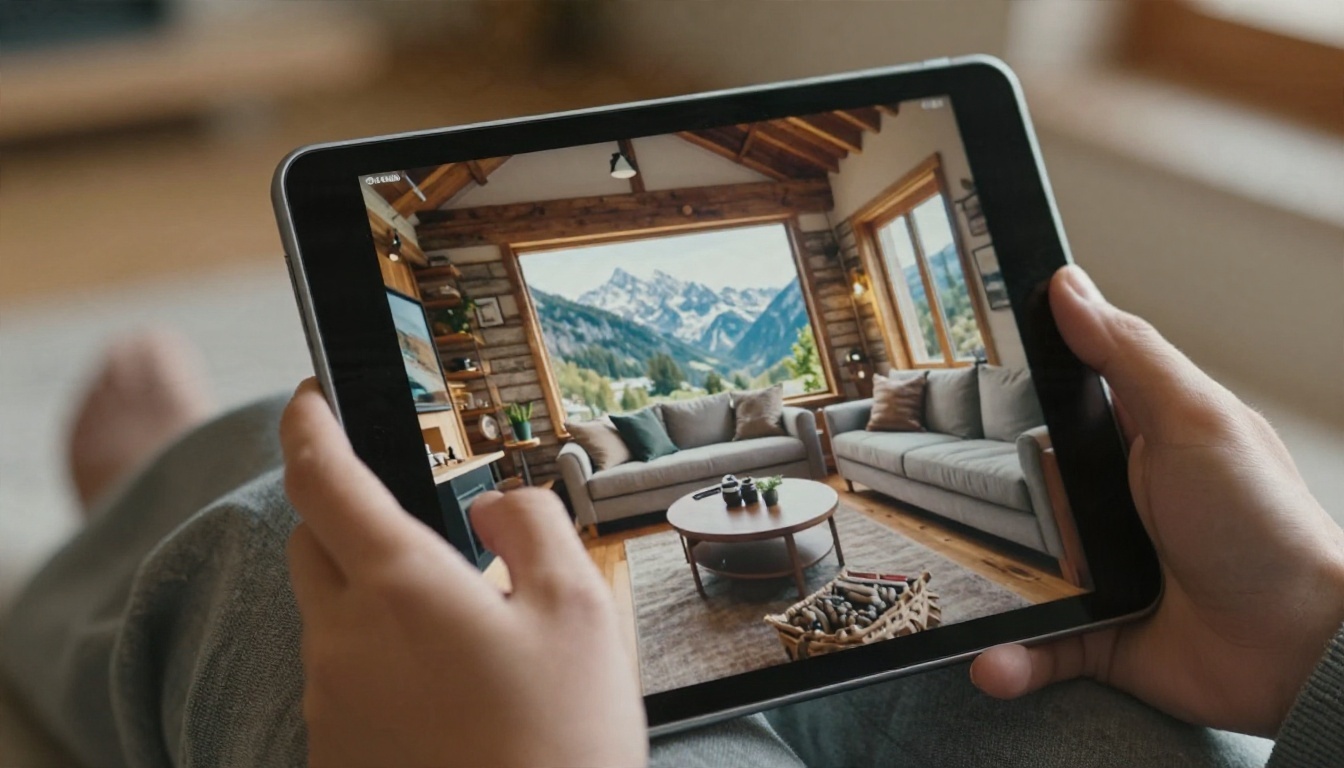
Why Tablets Suit Interactive Brochures
A phone is too small for a two-page spread. A laptop is too formal for a coffee table. A tablet sits in the middle, and that middle ground is exactly where brochures live: browsed casually, passed between people, and revisited later.
Screen Size Does the Heavy Lifting
Most tablets have a screen between 8 and 13 inches. That is close to the size of a folded paper brochure, which means layouts designed for print translate with very little change. Fonts stay readable, photos keep their impact, and buttons are big enough for a thumb.
Who Actually Reads on a Tablet
The audience is wider than you might expect:
- Sales teams who present brochures face to face instead of mailing paper
- Travelers who save a destination brochure before boarding a flight
- Property buyers who flip through listings during an open house
- Trade show visitors who browse product pages at a booth kiosk
- Retail staff who show a catalog to customers on the shop floor
💡 Pro tip: Before you design anything, decide whether most of your readers will hold the tablet or prop it on a stand. Handheld reading favors portrait. Stand and kiosk reading favors landscape.
Display Settings That Matter Most
Most complaints about tablet brochures trace back to four settings: orientation, brightness, auto-lock, and zoom. Fix those and you remove about 80% of the friction.
Portrait or Landscape
Landscape shows a two-page spread, which feels like opening a real brochure. Portrait shows one page at a time, which gives larger text and easier one-handed reading.
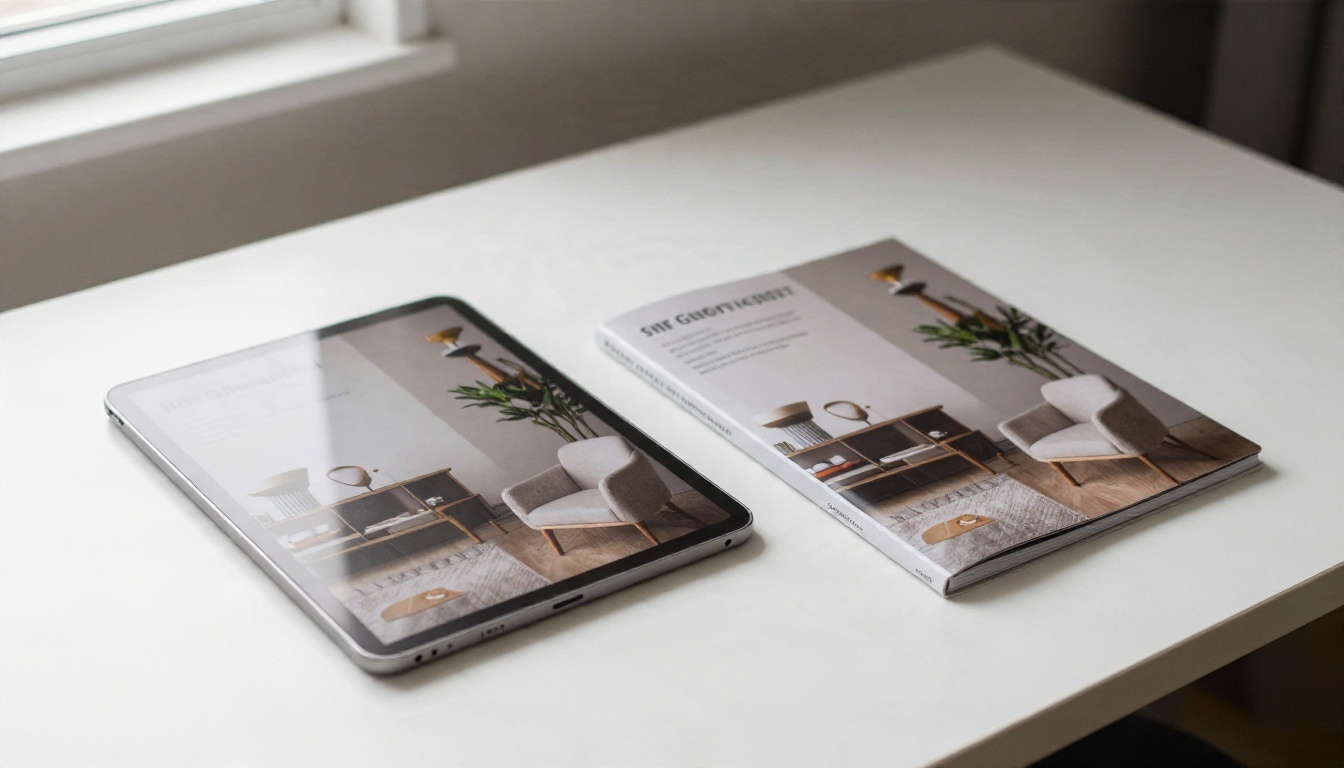
A well-built flipbook adapts on its own. When you rotate the device, it should switch between spread and single-page view without reloading. If yours does not, test it before sending it out.
Brightness and Auto-Lock
Brightness is a trade-off between readability and battery. Photography-heavy brochures need a brighter screen to keep colors accurate. Text-heavy ones look fine at 50 to 60 percent.
Auto-lock is the quiet killer. A tablet that goes dark every 30 seconds ruins a presentation. On most devices you can find this under Display or Screen Time Out in settings, and extend it to 5 or 10 minutes while you present.
Zoom and Text Size
Pinch-to-zoom should work on every page. If your brochure has small print, such as specifications or legal notes, test zoom on the actual device, not just on your desktop preview. Also check that zoomed pages stay sharp. A low-resolution export will blur the moment someone pinches in.
Here is a quick reference for the settings worth checking:
| Setting | Recommended Value | Why It Matters |
|---|
| Orientation | Landscape for spreads, portrait for reading | Controls page layout and text size |
| Brightness | 60 to 80 percent indoors | Keeps photos accurate without draining battery |
| Auto-lock | 5 to 10 minutes during presentations | Prevents the screen from sleeping mid-pitch |
| Auto-rotate | On for readers, off for kiosk stands | Stops accidental flips on a mounted device |
| Pinch zoom | Enabled, tested at 200 percent | Keeps small print readable |
| Do Not Disturb | On while presenting | Blocks pop-up notifications over your pages |
| Low power mode | Off during use | Some modes slow animation and video playback |
⚠️ Warning: Anti-glare screen protectors can soften fine text. If your brochure uses thin fonts, test with the protector on before a big event.
You can build and view an interactive brochure without spending anything. The catch is knowing what free plans give you and what they quietly take away.
What Free Plans Usually Limit
Free tiers across the industry tend to follow the same pattern. Watch for these trade-offs:
- Watermarks placed on every page or on the final screen
- Page limits that cut off longer brochures
- Public-only links with no password option
- No offline download, which breaks the plane and trade show scenarios
- No analytics, so you never learn which pages people read
The watermark is the one that hurts most. A brochure with someone else's logo on it looks unfinished to a client, and it undermines the brand you worked to build.
Free Options Compared
| Option | Best For | Interactive Features | Offline Use | Common Drawback |
|---|
| Plain PDF in the Files app | Quick sharing | Links only | Yes, saved on device | No page-turn feel, no video |
| Slides export | Simple presentations | Basic links | Yes, if downloaded | Layout shifts across devices |
| Free flipbook plans | Page-turn effect | Links, some media | Often limited | Watermarks, page caps |
| Flipbooks AI | Branded brochures | Video, audio, links, zoom | Offline downloads available | Some features sit in paid plans |
The honest takeaway: a PDF is fine if all you need is a document. If you want the brochure to feel like a brochure, with page effects and embedded media, use a proper flipbook tool. You can browse all flipbook tools to see which template fits your industry.
Offline Viewing Without Signal
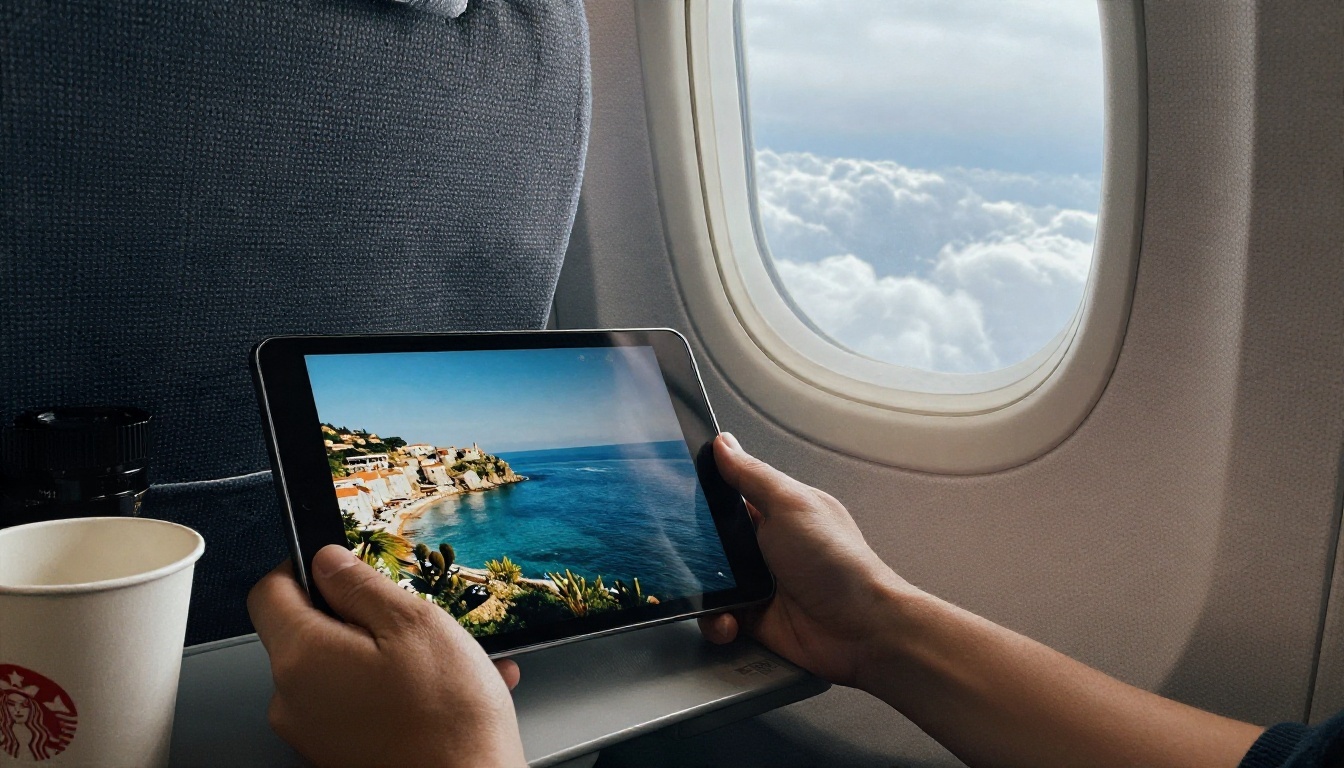
Offline access is where tablet brochures earn their value. Planes, basements, remote properties, and crowded convention halls all share one trait: bad connections. A brochure that needs the internet at every page turn will fail you at the worst moment.
Download Before You Travel
The most reliable method is simple: download the file while you are on Wi-Fi, then confirm it opens in airplane mode. Do not assume it works. Test it.
Follow this checklist the night before an event:
- Open the brochure while connected and let every page load fully.
- Use the download option if the platform offers one.
- Switch the tablet to airplane mode.
- Reopen the brochure and flip through every page.
- Tap each video and audio clip to confirm it plays.
- Check that internal links still jump to the right page.
External links, such as a website or booking page, will not open offline. That is normal. Just make sure your brochure still makes sense without them.
Browser Cache or Saved File
There are two common offline approaches, and they behave differently.
| Method | How It Works | Reliability | Best Use |
|---|
| Browser cache | The browser stores pages you already viewed | Low, can be cleared automatically | Short gaps in signal |
| Saved or downloaded file | A copy lives on the device | High | Flights, trade shows, field visits |
| Installed web shortcut | Home screen icon that opens a stored version | Medium | Repeat readers |
✅ Best practice: Always rely on a saved file for anything important. Browser cache is a bonus, not a plan.
Storage matters too. A brochure packed with 4K video can run to several hundred megabytes. Compress video before upload, and check free storage on the tablet if you are loading several brochures for an event.
How to Build One with Flipbooks AI
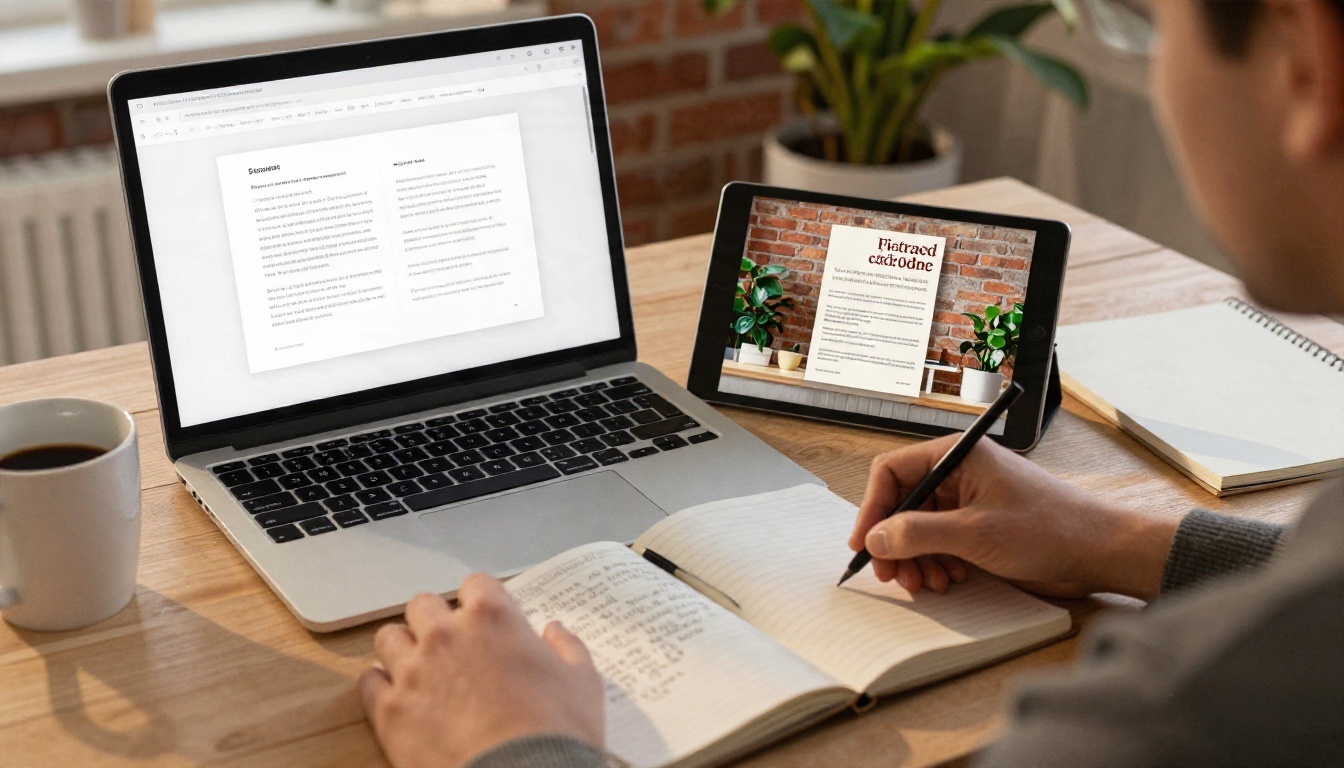
If your brochure currently lives as a PDF, you are most of the way there. This tutorial turns it into a tablet-ready flipbook that respects the display and offline needs covered above. The process works well for the Online Brochure Designer and Brochure Flipbook Maker workflows.
Upload and Convert Your PDF
- Go to Flipbooks AI and create an account.
- Click the option to create a new flipbook.
- Upload your brochure PDF. Export it at the highest practical resolution so pinch zoom stays sharp.
- Wait for the conversion. Pages appear as a turnable flipbook with realistic page effects.
- Open the preview and rotate the preview window to check both portrait and landscape layouts.
If you are starting from a plain document, the PDF to Flipbook Converter handles the same job as a standalone step.
Brand It and Add Media
This is where a brochure stops looking like a file and starts looking like yours.
- Custom branding: add your logo, pick background colors, and match your brand palette.
- Page effects: choose a page-turn style that suits the content. A subtle curl works for luxury brochures. A quick slide suits product sheets.
- Embedded media: drop in videos and audio clips directly on the pages where they matter.
- Links: connect buttons and images to your booking page, contact form, or catalog.
There are no watermarks, so the finished brochure carries only your branding.
💡 Pro tip: Put your most important video on page two, not page twelve. Tablet readers often skim, and the early pages decide whether they keep going.
Share, Protect, and Download
Once the design looks right, pick how it travels:
- Direct link: best for email and messaging apps.
- Embed code: place the brochure inside your site. The Embed Flipbook on Website tool shows how.
- Password protection: lock private pricing or confidential material.
- Offline download: enable downloads so readers can open the brochure on a tablet without a connection.
Pro Features Worth Adding
The Professional plan adds analytics and lead generation. You can see which pages get read, how long readers stay, and capture contact details before a reader opens the brochure. For sales teams this closes the loop between a tablet demo and a follow-up call. Compare the options on the pricing page to see which plan fits your volume. Standard plans and above include unlimited flipbooks.
| Feature | Basic Use | Professional Use |
|---|
| Watermark-free flipbooks | Yes | Yes |
| Custom branding | Yes | Yes |
| Password protection | Yes | Yes |
| Offline downloads | Yes | Yes |
| Page analytics | No | Yes |
| Lead capture forms | No | Yes |
Real-World Examples
Theory only goes so far. Here is how different teams set up their tablet brochures.

Real estate agents load a property brochure with floor plans and photo galleries, then keep it available offline because many empty houses have poor reception. The Real Estate Brochure Creator fits this workflow, and landscape orientation shows floor plans at the right scale.
Hotels mount tablets at reception or in rooms, running brochures about the spa, restaurant, and local tours. They lock auto-rotate and disable auto-lock so the screen stays ready. The Hotel Brochure Designer suits this use case.
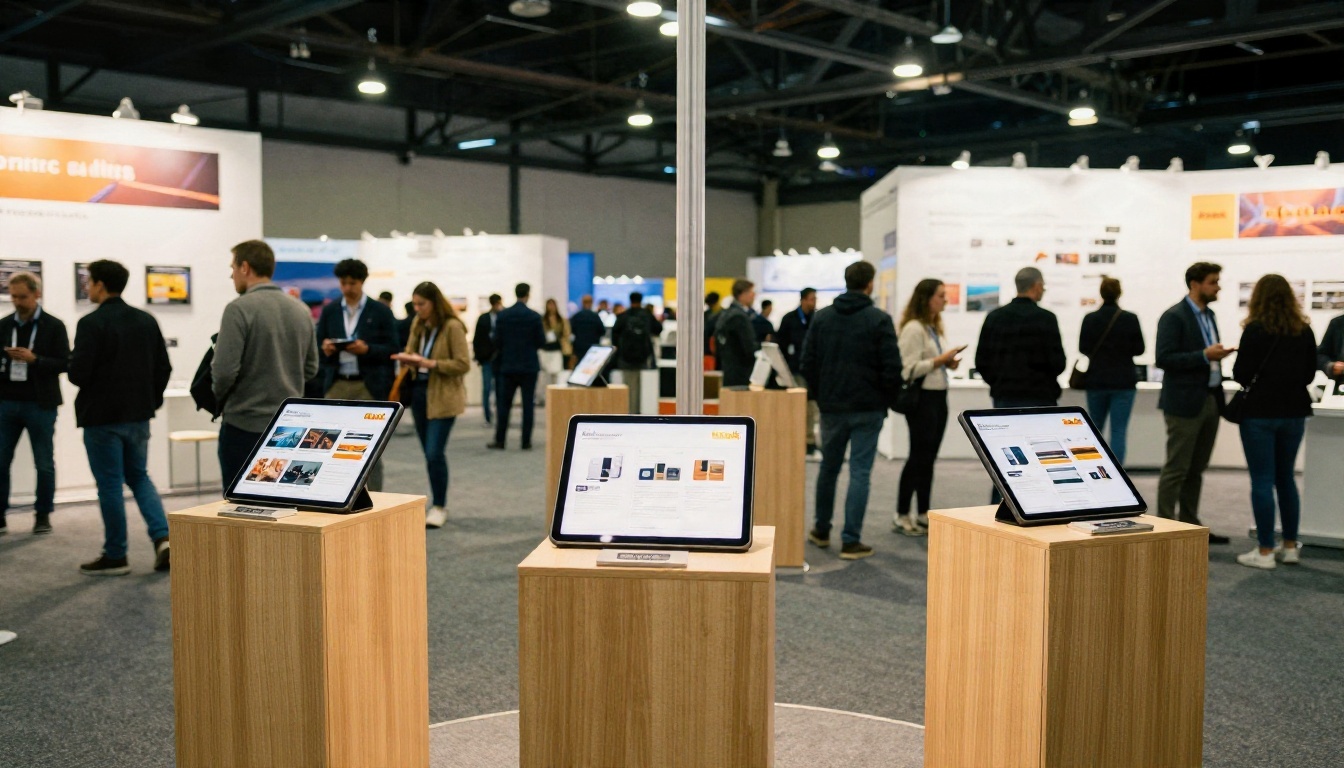
Trade show exhibitors place several tablets at a booth, each loaded with the same offline file. If the venue network collapses, which happens often, nothing changes for visitors.
Automotive dealers hand a tablet to a buyer and let them explore trims and colors at their own pace. The Automotive Brochure Generator gives them a branded layout to start from.
Here is a quick comparison of the settings each team prefers:
| Team | Orientation | Auto-Lock | Offline File | Password |
|---|
| Real estate | Landscape | 10 minutes | Yes | Optional |
| Hotel lobby | Landscape, locked | Never | Not required | No |
| Trade show | Landscape, locked | Never | Yes | No |
| Sales visit | Portrait or landscape | 10 minutes | Yes | Yes |
| Retail floor | Portrait | 5 minutes | Yes | No |
Mistakes That Cost You Readers
Even a polished brochure can fall flat on a tablet. These are the errors that show up again and again.
- Exporting at low resolution. Zoom blurs the text and makes the brand look cheap.
- Skipping the airplane mode test. You find out about the offline problem in front of the client.
- Burying videos deep in the file. Most readers never reach them.
- Using tiny tap targets. Buttons smaller than a fingertip frustrate people fast.
- Ignoring auto-lock. The screen sleeps and the conversation stalls.
- Relying on external links offline. The tap does nothing and the reader assumes the file is broken.
⚠️ Warning: Outdoor reading brings glare. If your audience reads on terraces or in the field, favor high-contrast layouts with dark text on a light background and leave extra margin around buttons.
Ready to Build Yours?
A tablet brochure works when three things line up: the display is set for the situation, the tool does not get in the way, and the file opens without a connection. Check orientation, brightness, auto-lock and zoom. Choose a tool that does not stamp its own logo on your work. Download, then test in airplane mode.
When you are ready, get started for free on Flipbooks AI and convert your first PDF today. If you want to see everything available, browse the full set of tools and templates to find the right layout for your industry. And when you need analytics, lead capture and unlimited flipbooks, compare the pricing plans to choose what works for your team.



