Most magazines don't fail because of bad ideas. They stall because the production process is a mess of mismatched apps, lost fonts, and PDFs named "final_v7_REAL." The good news: you don't need a corporate budget to run a clean pipeline. With the right magazine production software, a free layout tool, and an online publishing step like Flipbooks AI, a team of one can ship an issue that looks like it came from a studio of ten.
This article breaks down what each type of software does, which free options hold up under real deadlines, how paid layout tools compare, and the exact workflow I'd use to go from blank flatplan to a shareable online magazine.
What Magazine Software Actually Does
"Magazine software" is not one product. It's a chain of tools, and most frustration comes from expecting a single app to handle every link.
The Five Production Stages
Every issue, print or digital, moves through the same stages:
- Planning: a flatplan that maps every page, ad slot, and feature.
- Writing and editing: copy in a shared document, with tracked changes.
- Layout: columns, styles, images, and typography in a page layout app.
- Proofing: checking bleeds, color, links, and typos on a PDF.
- Distribution: print files for the press, plus an online edition for readers.
Different tools own different stages. A word processor is fine for stage two and terrible for stage three. A layout app is great at stage three and clumsy at stage five. Knowing where each tool stops saves you hours.
Print First or Digital First?
Your answer changes the software you pick. A print-first magazine needs CMYK output, bleed control, and PDF/X export. A digital-first title can work in RGB, embed video, and skip the press check entirely. Many small publishers do both: one master PDF, one printed run, one online edition.
💡 Pro tip: Build your master file at print specs (3 mm bleed, 300 dpi images). You can always downgrade for screens. You can't upscale a blurry image for the press.
Free Options Worth Using
Free doesn't mean toy. Several free tools handle a full issue, as long as you accept their trade-offs.
Scribus and Open Source Layout
Scribus is the long-standing open source desktop publishing app. It supports master pages, CMYK, spot colors, and PDF/X export, which puts it closer to professional software than most people expect. The interface feels dated, and the learning curve is real, but you own your files and pay nothing, ever.
Pair it with GIMP or Krita for image editing and Inkscape for vector graphics, and you have a free desktop stack that can produce press-ready files.
Canva and Browser Editors
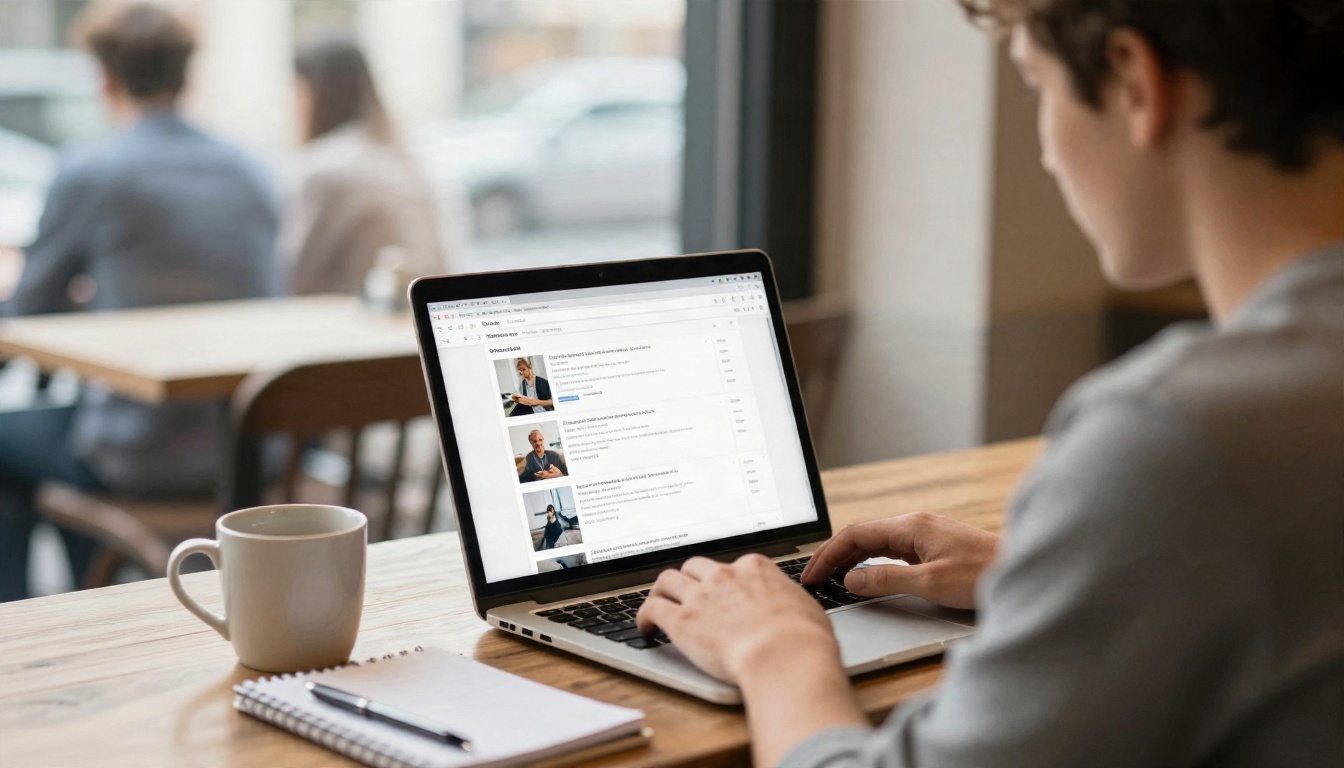
Browser editors like Canva are the fastest way to get a good-looking page on screen. Templates, stock assets, and drag-and-drop editing make them ideal for newsletters, zines, and short digital magazines. The limits show up at scale: long documents get sluggish, style control is looser than in a real layout app, and print-ready CMYK export usually sits behind a paid tier.
Free Tier Limits to Watch
Before you commit an entire issue to a free plan, check these:
- Page count caps on a single document
- Export quality (some free tiers compress images)
- Watermarks on exports or shared links
- Commercial use rights for templates and stock photos
- Font licensing for anything you plan to print
⚠️ A free tool that watermarks your exported PDF is not free. It's a trial. Test an export before you build all 48 pages.
Free Magazine Software Compared
| Tool | Best for | Print-ready (CMYK) | Learning curve | Main limit |
|---|
| Scribus | Long print magazines | Yes | Steep | Dated interface |
| Canva (free) | Short digital issues | Limited | Gentle | Style control on long files |
| Google Docs + Slides | Drafts and internal proofs | No | Very gentle | No real typography control |
| LibreOffice Draw | Simple one-off pages | Partial | Moderate | Weak for multi-page flow |
| Flipbooks AI (online edition) | Publishing the finished PDF | Not applicable | Gentle | Not a layout editor |
When free tools start to cost you time, paid layout software is usually the next step. The real question is whether the time saved justifies the subscription.
Paid Desktop Apps
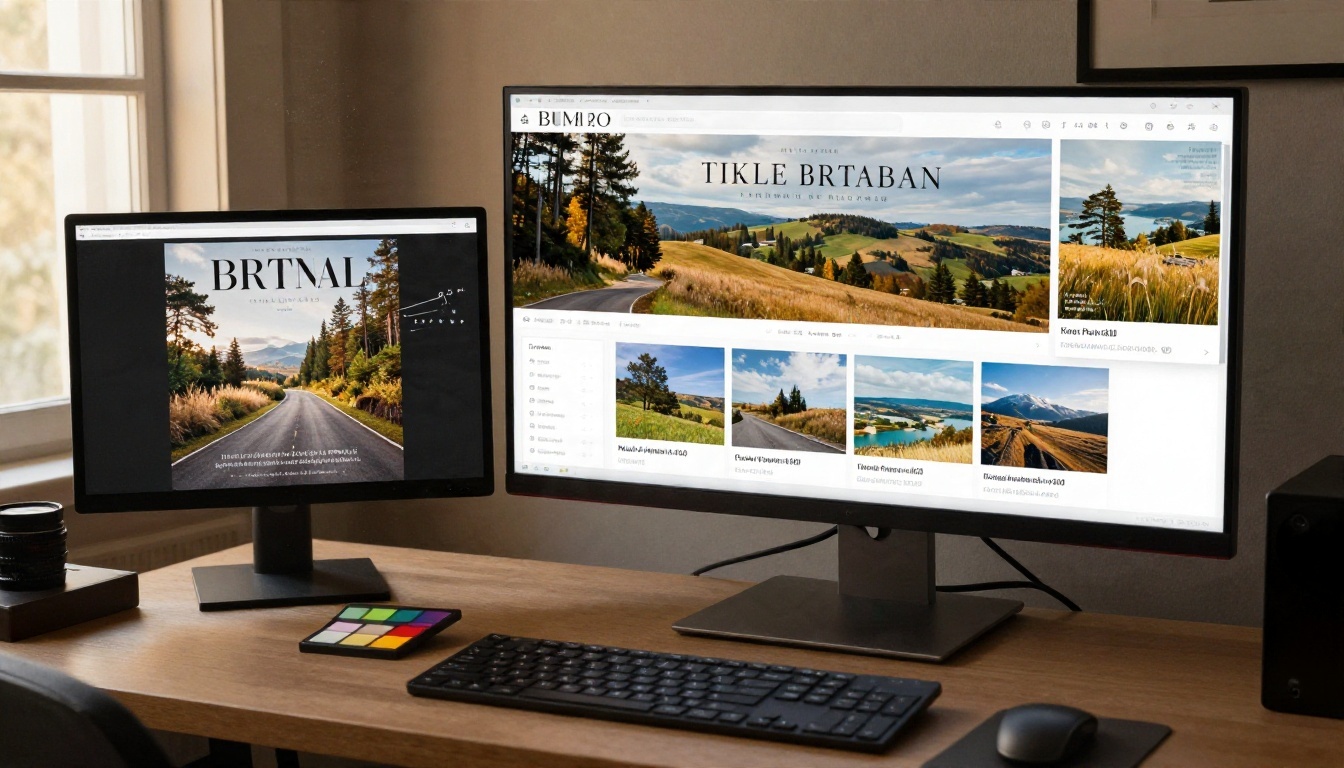
Adobe InDesign remains the industry standard for magazines. Its paragraph and character styles, master pages, data merge, and linked assets are built for exactly this job, and most printers expect files from it. Affinity Publisher is the main alternative, with similar core features and a pricing model that has shifted recently, so check the current terms before you decide. QuarkXPress still has a loyal base in established newsrooms.
Choosing by Team Size
The right tool depends less on features than on who touches the file.
| Situation | Sensible pick | Why |
|---|
| Solo editor, tight budget | Scribus or Affinity | Low cost, full control |
| Two to five people, mixed skills | Canva for drafts, desktop app for final | Fast collaboration, clean output |
| Agency or freelance designers | InDesign | Client and printer compatibility |
| Newsletter or short zine | Browser editor | Speed over typography |
| Digital-only title | Any layout tool plus an online publisher | No press requirements |
A useful rule: pick the tool your designer already knows. A fast designer in a mediocre app beats a beginner in a perfect one.
A Practical Production Workflow
Software matters less than sequence. Here's a workflow that holds up issue after issue.

Plan the Flatplan First
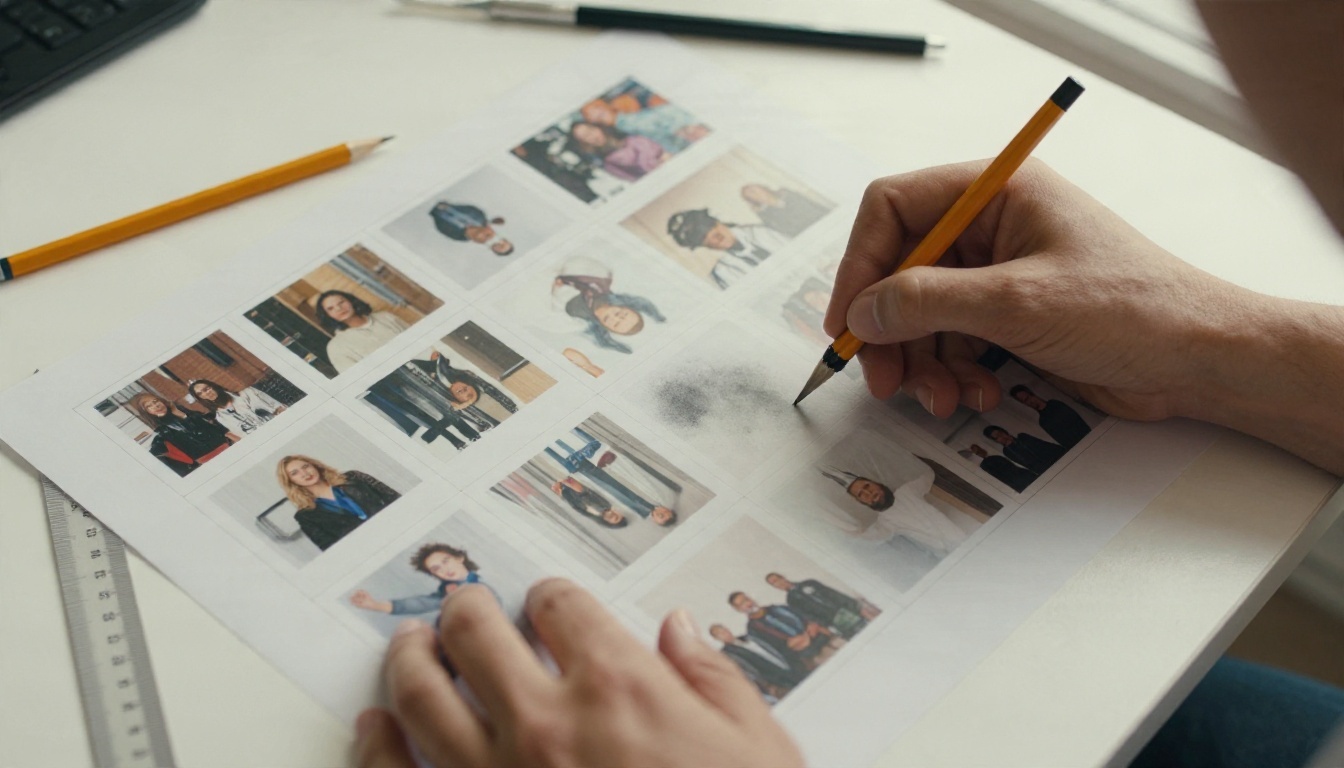
Before opening any layout app, sketch the issue as a grid of thumbnails. Mark where ads, full-page photos, and long features fall. Magazines are paced like music: a dense feature wants a visual breather on the next spread.
A simple flatplan prevents the most expensive mistake in production: discovering on page 40 that your features don't divide evenly into signatures.
Build Styles Before Pages
Set up your master pages, grid, and paragraph styles before placing a single story. Define headline, standfirst, body, caption, and pull quote styles once. Then every page inherits them, and a typography change takes ten seconds instead of ten hours.
✅ Best practice: Name styles by function, not looks. "Body" and "Caption" survive a redesign. "Georgia 10pt" doesn't.
Proof Before Export
Run a proofing pass on a PDF, not on screen inside the layout app. Check for:
- Orphans, widows, and awkward line breaks
- Image resolution and missing links
- Bleed and safe margins
- Consistent captions and credits
- Page numbers matching the contents list
Print one spread at actual size if you can. Type that looks fine on a monitor often feels cramped on paper.
The Workflow at a Glance
| Stage | Free route | Paid route | Output |
|---|
| Planning | Spreadsheet or paper | Project board app | Flatplan |
| Writing | Google Docs | Shared editorial system | Edited copy |
| Layout | Scribus or Canva | InDesign or Affinity | Layout file |
| Proofing | PDF comments | PDF review platform | Corrected PDF |
| Print | Printer upload portal | Same | PDF/X file |
| Online | Flipbooks AI | Flipbooks AI | Shareable flipbook |
How to Publish Online with Flipbooks AI
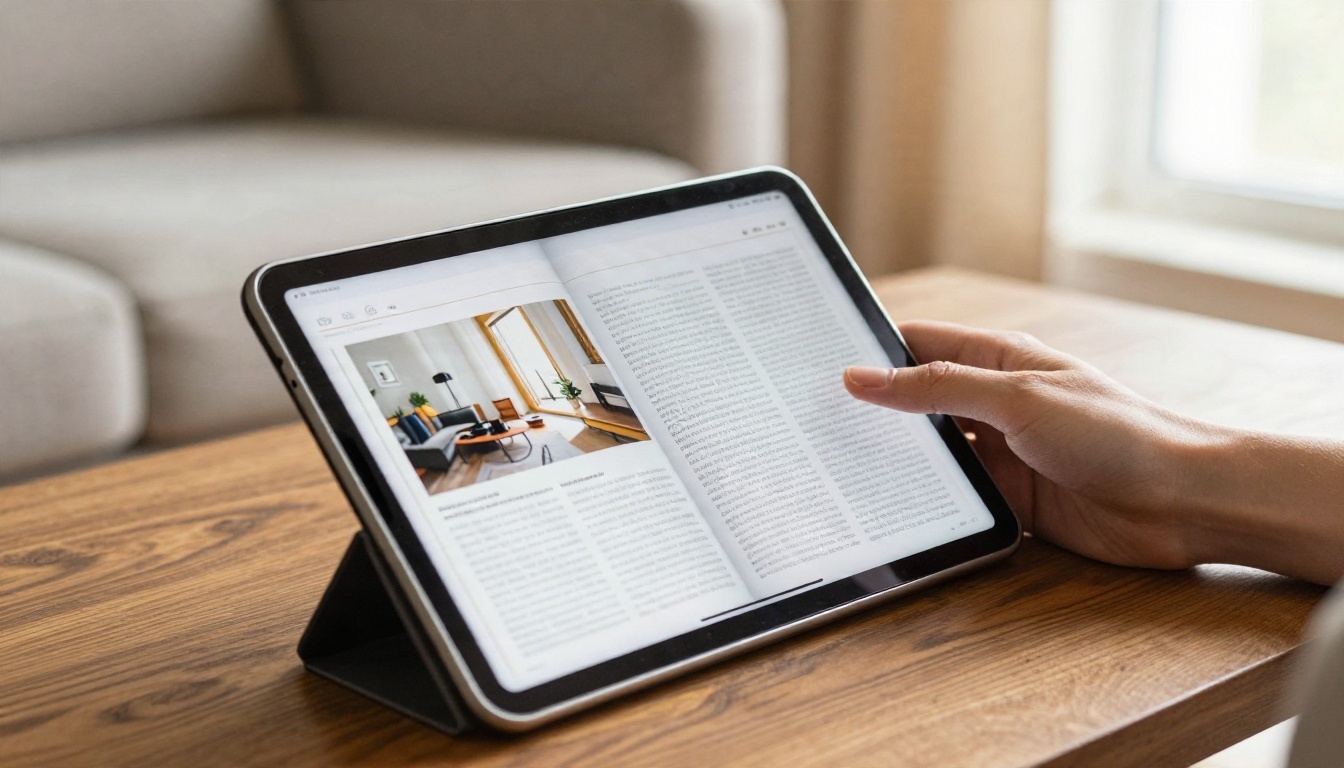
A PDF is a finished file, but it's a poor reading experience. Readers on a phone pinch, zoom, and give up. A flipbook keeps the spread design intact, adds page-turning motion, and works in a browser with no download. The Magazine Flipbook Creator and the E-Magazine Publishing Tool are built for exactly this step.
Upload Your PDF
- Export your final layout as a PDF (single pages for a flipbook, or spreads if you prefer).
- Create an account on Flipbooks AI.
- Upload the file using the PDF to Flipbook Converter.
- Wait a moment while pages are converted into an interactive flipbook.
Your fonts, images, and layout carry over exactly as designed. No watermarks, ever.
Brand and Customize
Once the flipbook loads, open the customization panel:
- Branding: add your logo and match your accent colors.
- Page effects: choose a realistic page curl or a flatter, faster transition.
- Multimedia: embed video and audio, such as a reporter's interview clip beside the feature it supports.
- Background: pick a neutral tone that doesn't fight your page colors.
💡 If your magazine has a strong color palette, set the viewer background to a muted version of your masthead color. It frames the pages without competing.
Share and Protect
You have three main ways to put the issue in front of readers:
| Sharing method | Best use |
|---|
| Direct link | Social posts, email, messaging apps |
| Embed code | Your website, via the Embed Flipbook on Website tool |
| Password protection | Paid subscribers or members-only issues |
Password protection is handy for subscriber editions. You can publish the same issue publicly with a preview and privately with the full content.
Track Readers
On the Professional plan, you get analytics and lead generation. You can see which pages hold attention, how long readers stay, and where they drop off. Offline downloads let subscribers keep the issue for flights and commutes. Compare options on the pricing page to see which plan matches your circulation.
Real-World Examples
Here's how different publishers use the same workflow:
- A local arts quarterly designs in Scribus, prints 500 copies, and publishes the same PDF as a flipbook so out-of-town readers can browse it free.
- A brand magazine drafts in Canva, finalizes in InDesign, and embeds the flipbook on its site to keep readers on its own domain.
- A school or club builds a termly publication and shares it through the Newsletter Flipbook Publisher with a simple link.

The pattern is the same each time: one master file, two outputs, and no duplicated effort.
Common Mistakes to Avoid
Even with good tools, a few habits cause most production headaches.
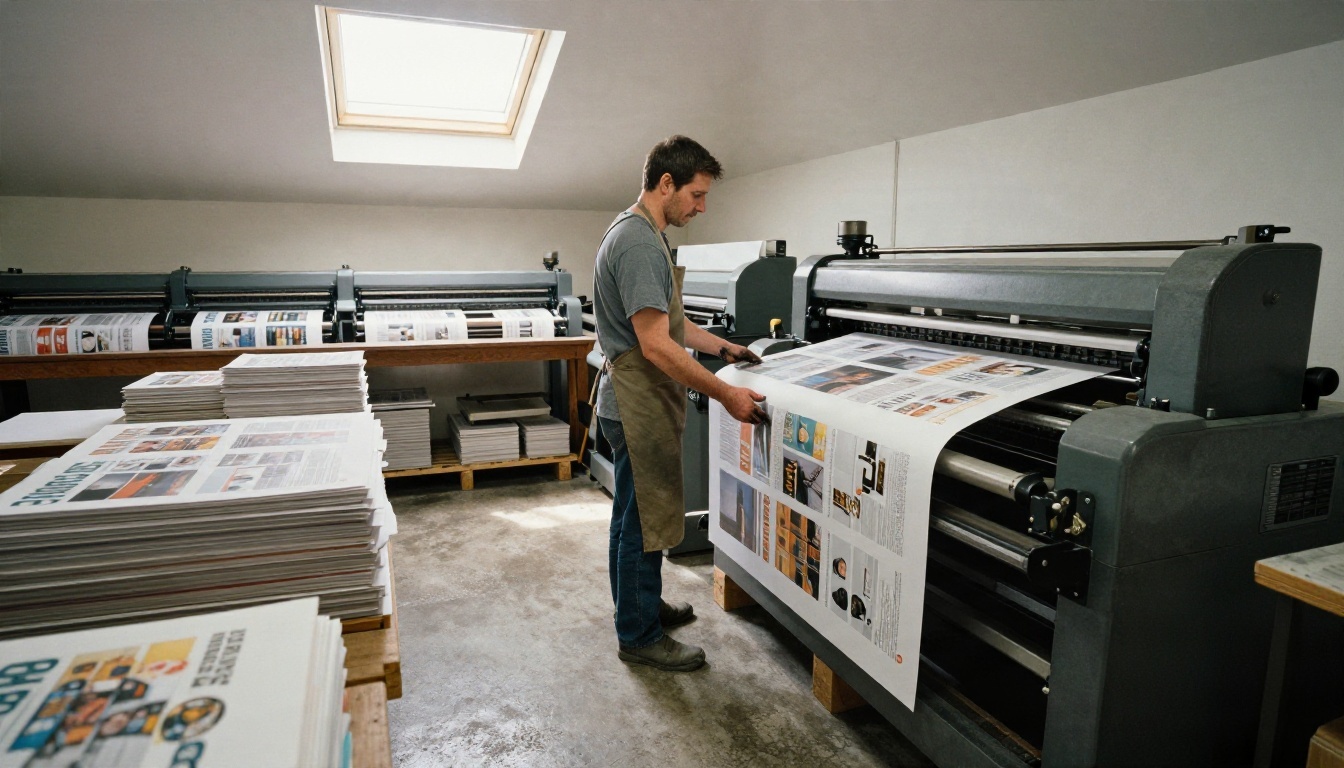
- Designing in RGB for a print run. Colors shift when converted to CMYK. Set the color mode early.
- Forgetting to package fonts and links. Missing assets break files when they move between computers.
- Skipping the flatplan. Page counts for print should be multiples of four, and a plan makes that obvious.
- Over-compressing the PDF for the web. Keep a high-quality master. Let the flipbook handle display optimization.
- Publishing without a mobile check. Open the online edition on a phone before announcing it.
Your Production Toolkit
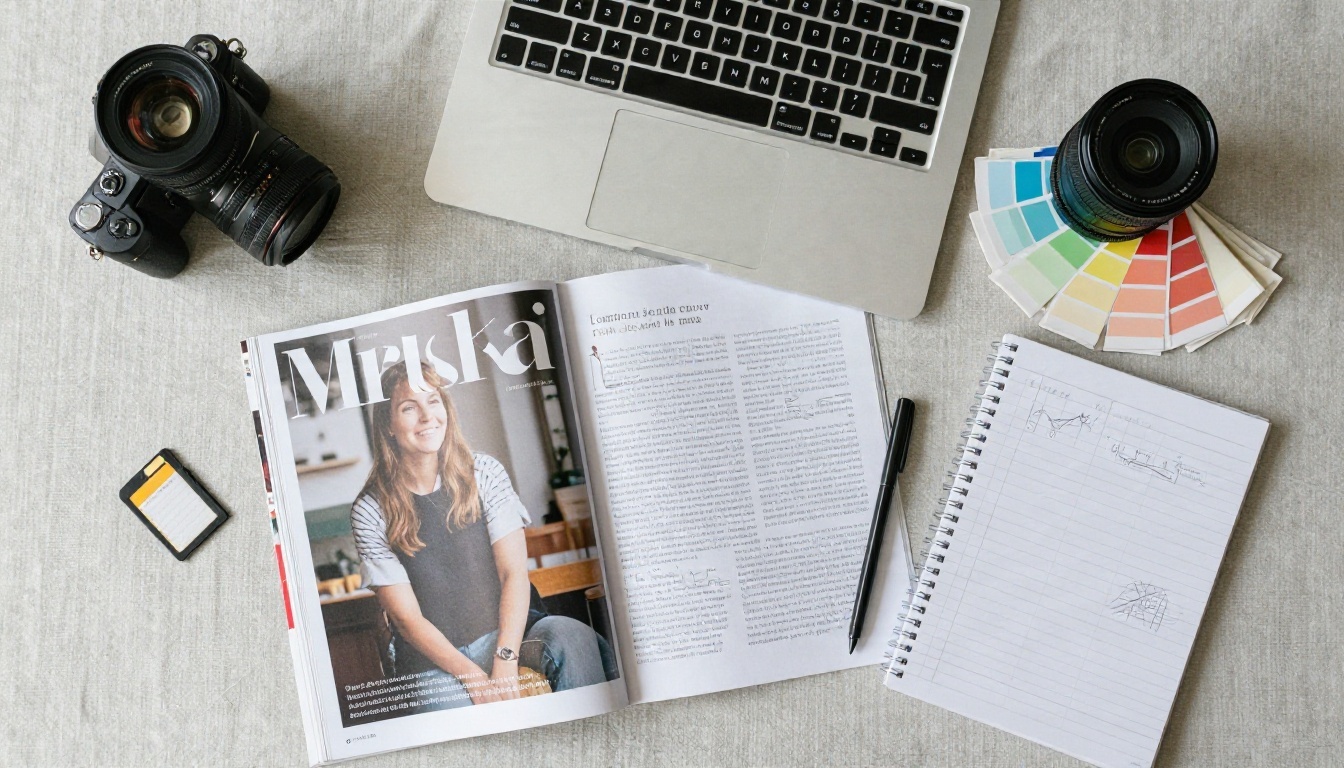
A lean toolkit for a small publisher looks like this:
- A layout app (Scribus, Affinity, or InDesign)
- An image editor for color correction
- A shared document tool for copy
- A PDF proofing routine
- An online publisher for the digital edition
That's it. Five pieces, each with one job.
Ready to Publish Your Issue?
Good magazine production is a sequence, not a single purchase. Pick a layout tool that fits your skills, build styles before pages, proof on a PDF, and give readers an online edition that works on any screen.
When your next issue is exported, get started for free on Flipbooks AI and turn the PDF into a flipbook in minutes. Browse all flipbook tools to find the format that fits your title, or compare pricing plans to choose the one that matches your readership.



