You have 400 photos in a folder named "New Folder (3)". Nobody has seen them, because nobody wants to scroll through a gallery of random thumbnails. A flip through book fixes that. It takes ordinary JPG files and turns them into pages that curl, turn, and read like a real album. With Flipbooks AI you can go from a pile of images to a shareable online book in a single afternoon, and most of the preparation can be done with tools you already own.
This article walks through the whole process: how to prepare JPGs, how to control image order, which free tools convert pictures into a PDF, and how to share the finished album online without handing your photos to the entire internet.
Why JPG Photos Make Great Flipbooks
JPG is the format your phone, your camera, and most scanners produce. That makes it the most common starting point for a personal photo album. It is also the one format that feels the least like a "document", which is exactly why people struggle to share it well.
What Gets Lost in a Gallery
A gallery app shows pictures one at a time or as tiny squares. There is no story, no pacing, and no sense of "here is where the trip started." A flipbook gives every photo a page, a position, and a beginning and an end.
Here is what changes when you move from a folder to a flipbook:
- Order becomes fixed. Viewers see photo 1, then photo 2, exactly as you planned.
- Pages feel physical. The page-turn effect makes browsing slower and more deliberate.
- One link replaces forty attachments. No more zip files that bounce back from email.
- Captions and titles fit naturally. You can add a title page or a short note before each chapter.
Who Actually Does This
Flip through photo books are not only for professionals. Typical use cases look like this:
| Use case | Typical JPG source | Who it is for |
|---|
| Family album | Phone photos, scanned prints | Relatives, grandparents |
| Wedding or event recap | Photographer delivery folder | Guests, close family |
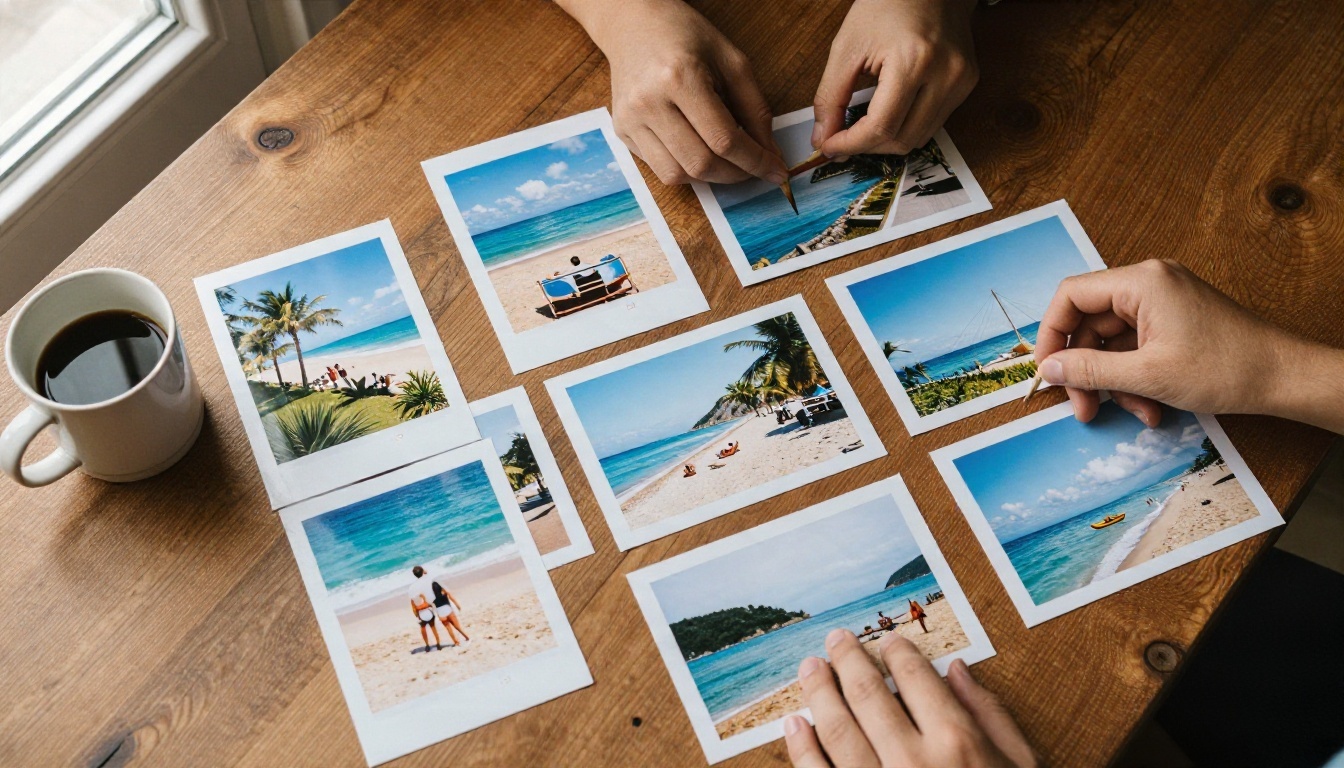
| Travel journal | Phone and camera mix | Friends, followers |
| Baby's first year | Monthly phone snapshots | Family group chat |
| Art or photo portfolio | High-resolution exports | Clients, galleries |
| School or club memories | Mixed camera uploads | Parents, members |
Prepare Your JPG Files First
The quality of a flip through book is decided before you upload anything. Ten minutes of preparation saves an hour of fixing pages later.
Check Resolution and File Size
Flipbooks are viewed on phones, laptops, and sometimes big screens. A good target for most albums is 1600 to 3000 pixels on the long edge. Anything smaller looks soft on a retina screen. Anything much larger just makes your PDF heavy and slow to open.
💡 Pro tip: If your phone photos are 12 megapixels or more, you do not need to shrink them by hand. Most PDF tools compress sensibly. Only resize manually if the final PDF goes past 100 MB.
Cull Before You Build
Be strict. An album of 60 strong pictures beats an album of 400 average ones. Delete blurry shots, near-duplicates, and photos where someone blinked. Keep the best frame from each burst.
Rename Files So Order Sticks
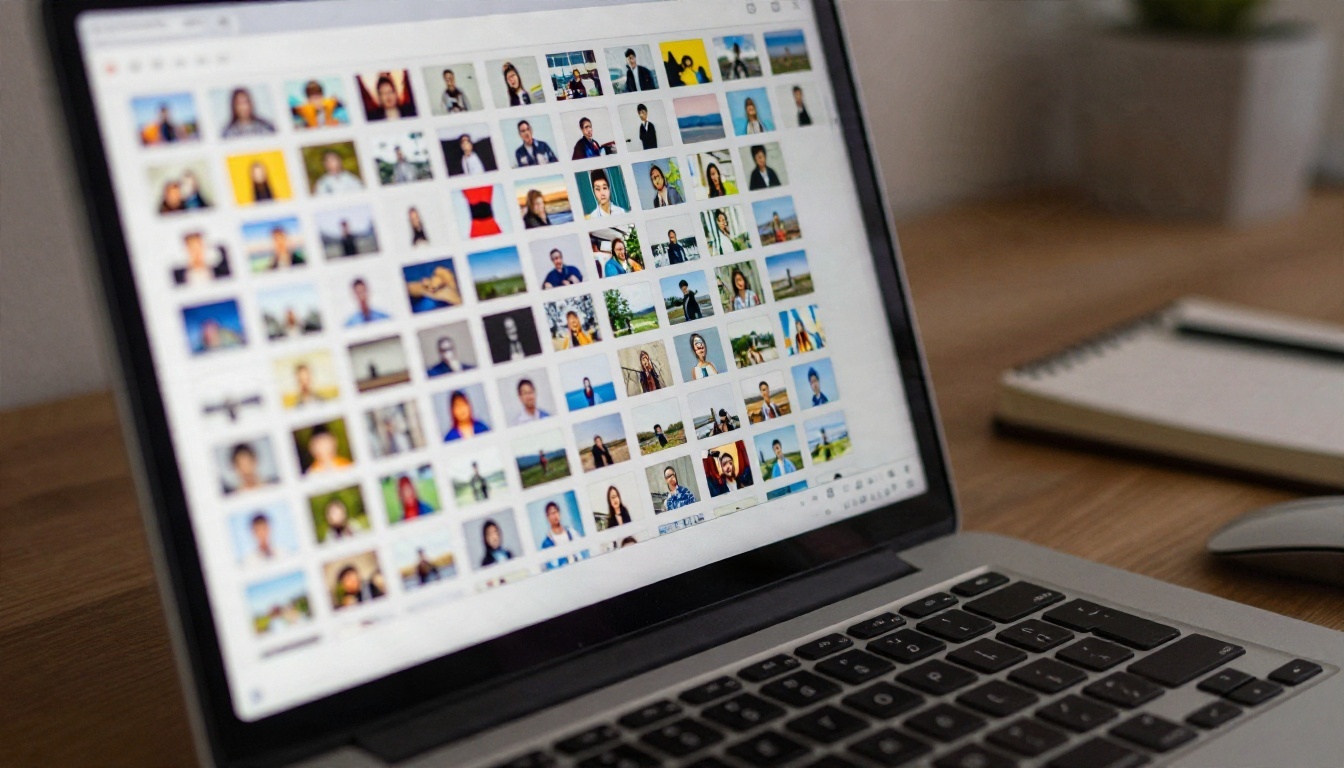
Most PDF tools sort files alphabetically. That means "IMG_10.jpg" can land before "IMG_2.jpg." Fix it once by adding leading zeros: 001, 002, 003. This is the most reliable way to control page order without any special software.
How to Control Image Order
Order is the difference between a story and a slideshow. Decide on a logic before you touch a single file.
Pick an Ordering Logic
| Method | Best for | How to apply it |
|---|
| Chronological | Trips, weddings, baby albums | Sort by date taken, then rename with numbers |
| Chapter-based | Long trips, multi-day events | Group by day or location, add a title page per group |
| Theme-based | Portfolios, collections | Group by subject: people, landscapes, details |
| Rhythm-based | Short, emotional albums | Alternate wide shots with close-ups |
Use Date Taken, Not Date Modified
Edited files often carry a new "modified" date, which scrambles the order. In Windows File Explorer, switch the folder view to Details and sort by Date taken. On a Mac, open the folder in Finder and use View > Show View Options to sort by Date Created or by EXIF date in Photos. Once the list looks right, rename the batch so the order is locked in.
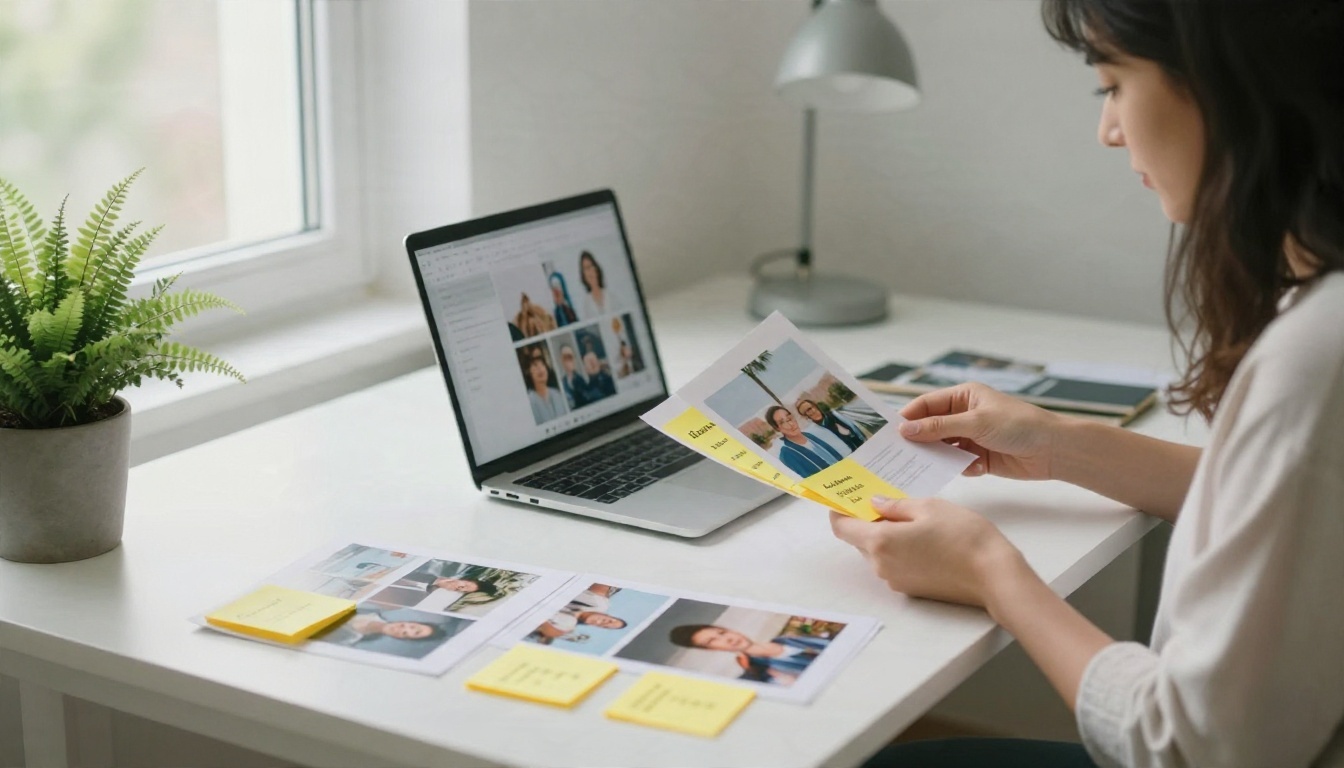
✅ Best practice: Start with your strongest photo as page 1 and end on a quiet, emotional one. People remember the first and last pages most.
Plan the Spreads
In a flipbook, pages are viewed in pairs, like an open book. A horizontal photo on the left page and a vertical photo on the right can feel unbalanced. Try pairing images with similar color or mood. If a photo is especially strong, give it a page to itself.
Photo Album Ideas That Work
Once your files are ordered, think about the shape of the book. Here are three directions that people actually finish.
The Family Archive
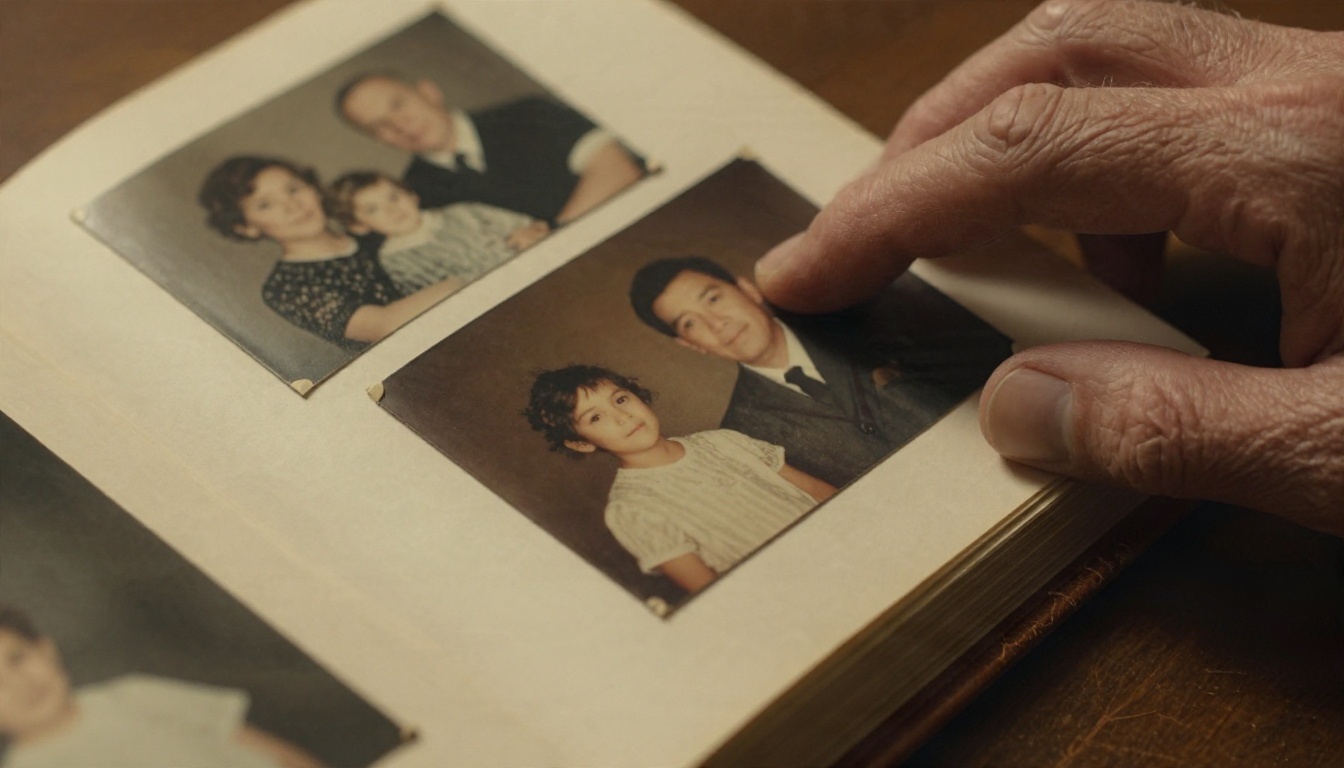
Scanned prints and old snapshots make a beautiful flipbook because the page-turn effect matches the feeling of a real album. Scan at 300 DPI, save as JPG, and order by decade. Add a title page like "The 1990s" before each group.
The Wedding Recap
A photographer usually delivers hundreds of JPGs. Pick the 40 to 80 that tell the day in order: getting ready, ceremony, portraits, reception, last dance. If you want a ready-made layout, the Wedding Album Flipbook tool is built for exactly this.

The Travel Journal
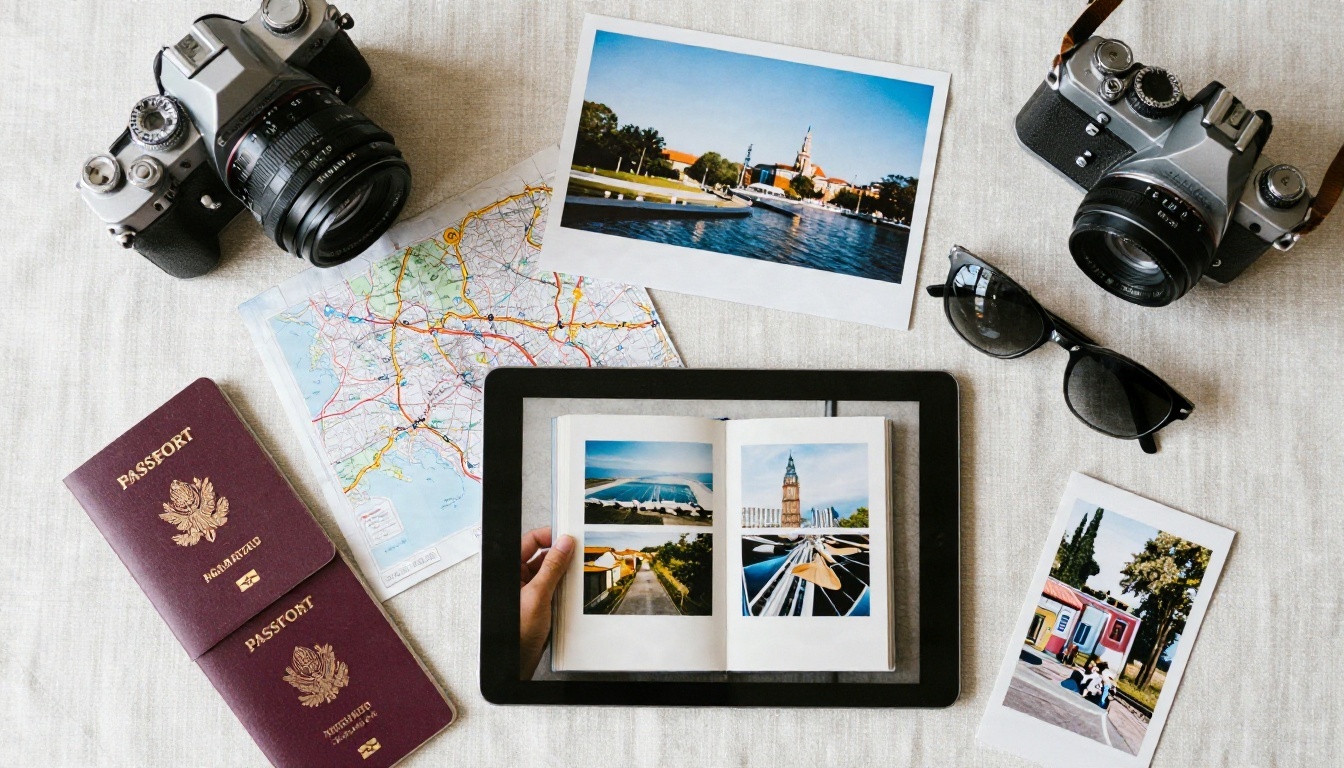
Trips have a natural structure: arrival, days, departure. Use one page per day as a divider, then follow with photos. For something more guided, the Travel Guide Flipbook template gives you a head start.
If your pictures are more about craft than memories, the Photography Portfolio and Digital Portfolio Creator tools are better fits.
A flipbook starts from a PDF. So the real task is: combine JPGs into one PDF, in the right order. You can do this for free on almost any device.
Free Options You Already Have
| Tool | Platform | Order control | Best for |
|---|
| Print to PDF (File Explorer) | Windows | Alphabetical by file name | Quick albums under 100 photos |
| Preview | Mac | Drag thumbnails in sidebar | Fine-tuning order visually |
| Photos app, Print as PDF | Mac, iPhone | Album order | Albums built on the phone |
| Google Docs or Slides export | Any browser | Manual placement | Pages with captions |
| Free online JPG to PDF converters | Any browser | Upload order | One-off jobs, no installation |
| Microsoft Word | Windows, Mac | Manual placement | Adding text next to photos |
Quick Method on Windows
- Select all your numbered JPGs in File Explorer.
- Right-click and choose Print.
- Set the printer to Microsoft Print to PDF.
- Choose Full page photo layout and tick Fit picture to frame.
- Click Print and name the file.
Quick Method on Mac
- Select all your images and open them in Preview.
- In the sidebar, drag the thumbnails into the order you want.
- Choose File > Print, then Save as PDF.
⚠️ Warning: Free online converters upload your photos to someone else's server. For private family images, prefer an offline method like Preview or Print to PDF.
Where Free Tools Run Out
Free converters give you a flat PDF. That is useful, but it does not turn pages, it does not give you a shareable link, and it does not let you protect the album with a password. Sending a 200 MB PDF over email usually fails. This is the gap a flipbook platform fills.
How to Create a Flipbook from JPG with Flipbooks AI
Once your PDF is ready, the rest takes minutes. Here is the full process on Flipbooks AI.
Step 1: Create Your Account
Go to Flipbooks AI and create an account. You can begin with a free account and compare plans later on the pricing page.
Step 2: Upload the PDF
Open the PDF to Flipbook Converter and upload your album PDF. The platform converts each page into a flipbook page. A 60-photo album typically processes in under a minute.
Step 3: Customize the Look
Your photos are the star, so keep the design quiet. Useful settings include:
- Background color: Dark gray or deep navy makes photos pop. Light cream suits vintage albums.
- Page-turn effect: Choose the realistic curl for family albums, a simple slide for portfolios.
- Custom branding: Add your name or logo if the album is for clients.
- Multimedia: Embed a short video clip or a background audio track, such as a favorite song from the trip.
- Mobile-responsive layout: Your album adapts to phones automatically, so relatives can open it from a messaging app.
💡 Pro tip: Flipbooks created here have no watermarks, ever. Your photos stay clean, even on the free tier.
Step 4: Preview and Fix Order
Flip through every page on a phone and on a laptop. If a photo is out of order, fix the PDF and re-upload. It is much faster than it sounds, because the numbered file names make the right sequence easy to rebuild.
Step 5: Publish and Share
Click publish and copy the link. That single link is now your album. The next section shows how to share it safely.
Pro Features Worth Knowing
If you are building albums for clients, such as a photographer delivering a wedding gallery, the Professional plan adds extra control. See pricing plans for the full list.
| Feature | Personal album | Client delivery |
|---|
| Unlimited flipbooks (Standard and above) | Helpful | Essential |
| Password protection | Recommended | Recommended |
| Offline downloads | Optional | Useful |
| Analytics | Not needed | Shows who opened it |
| Lead generation (Professional) | Not needed | Collect contacts from viewers |
| Custom branding | Optional | Strongly suggested |
Share Your Flipbook Online
Making the album is half the work. Sharing it well is the other half.
Send a Direct Link
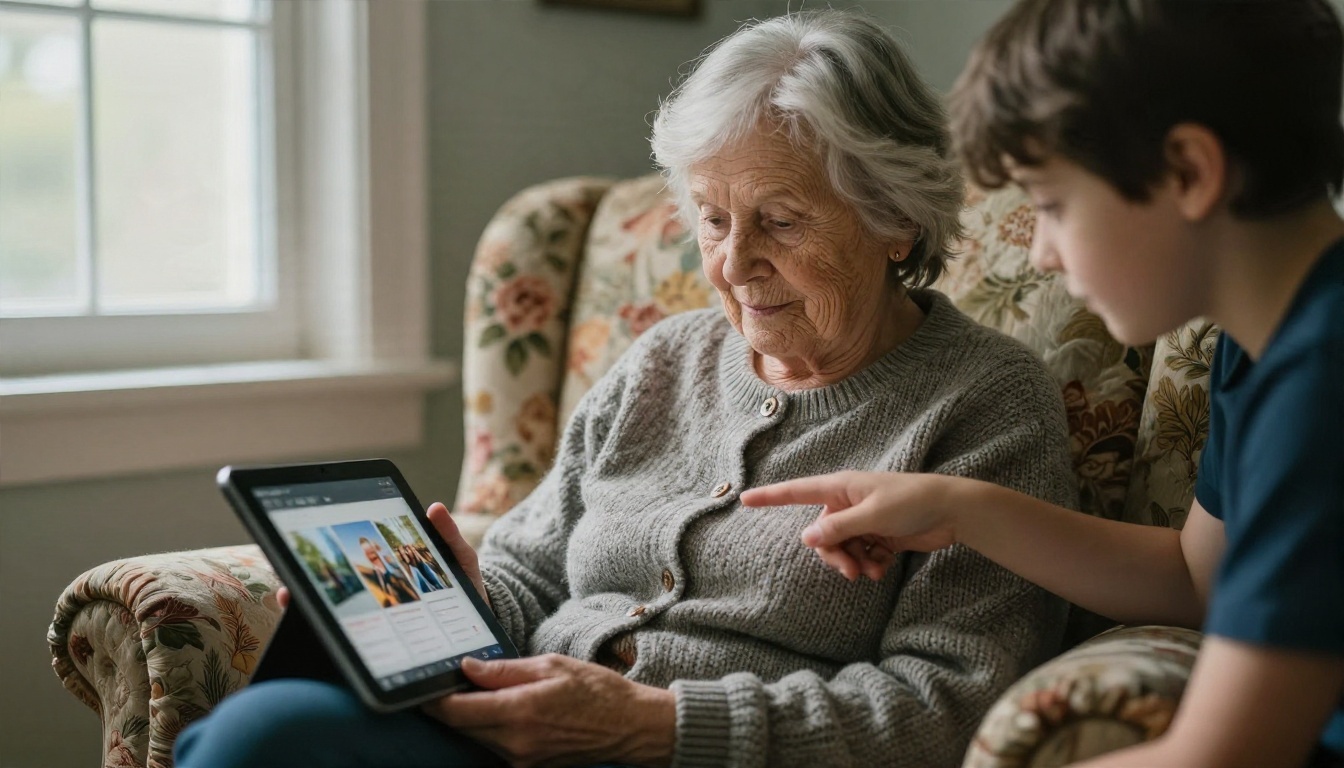
The simplest option. Paste the link into WhatsApp, iMessage, email, or a family group chat. It opens in any browser with no app and no login. Grandparents love this one.
Embed It on a Website
If you run a blog, a wedding site, or a portfolio, you can embed the flipbook so visitors read it without leaving your page. The Embed Flipbook on Website tool gives you a snippet to paste into most site builders.
Protect Private Albums
Family photos are not meant for strangers. Use password protection so only people with the password can open the album. Share the link in one message and the password in another.
| Sharing method | Setup time | Privacy level | Best for |
|---|
| Public link | 10 seconds | Low | Travel blogs, portfolios |
| Link plus password | 1 minute | High | Family and wedding albums |
| Embedded on a website | 5 minutes | Depends on the site | Wedding sites, galleries |
| Offline download | 1 minute | High | Relatives with poor internet |
✅ Best practice: Test the link on a phone that is not logged into your account. If it opens cleanly, your relatives will have no trouble either.
Common Mistakes to Avoid
Most flip through books go wrong in predictable ways. Here are the ones that show up again and again.
Skipping File Renaming
Without numbered names, the PDF follows an alphabetical order that rarely matches your story. Rename first, convert second.
Mixing Orientations Without a Plan
A random mix of portrait and landscape images creates uneven pages. Group similar orientations, or give wide shots their own page.
Uploading Huge Files Unnecessarily
A 400 MB PDF loads slowly on mobile data. Compress the PDF or resize the JPGs to about 2400 pixels on the long edge.
Forgetting Context
A photo with no caption is a mystery in ten years. Add dates and names in a text layer, or add a title page for each chapter.
Here is a quick checklist before you hit publish:
- Photos culled to the best set
- File names numbered with leading zeros
- PDF opens in the right order
- Title page added
- Password set for private albums
- Link tested on a phone
Make Your First One Today
You do not need design skills or a photo lab. You need a folder of JPGs, a numbered file order, and a PDF. From there, Flipbooks AI handles the page turns, the link, and the privacy settings.
Here is where to go next:
Pick the 40 best photos from your last trip, number them, and publish. That is a better album than most people ever finish.



