If you spent years building newsletters, flyers and trifolds in Publisher, you are probably wondering what to do now that Microsoft has ended support for it. The most common answer is "just use LibreOffice," and it is a fair answer for some projects and a frustrating one for others. This article gives you a straight look at the Microsoft Publisher alternative LibreOffice question: what it handles well, where it struggles, and which free tools are better for specific jobs. We will also look at how a PDF from any of these tools can become an interactive page-turning publication with Flipbooks AI.

Why Publisher Users Are Switching Now
Publisher was never the most powerful layout program, but it was approachable. You dragged a text box where you wanted it, dropped in a picture, and printed. That simplicity is exactly what people miss.
What Microsoft's Retirement Means
Microsoft ended support for Publisher in October 2026. The app may still open on a machine where it was already installed, but there are no more security patches, no fixes and no new features. Your old files are not deleted, yet relying on unsupported software for client work or school newsletters is a risk that grows every month.
What You Actually Need Back
Before you pick a replacement, write down what you really did in Publisher. Most people fall into a few buckets:
- Print layouts: flyers, trifold brochures, posters, business cards
- Multi-page documents: newsletters, club programs, small catalogs
- Reusable templates: a monthly bulletin with the same header and grid
- Old files: years of .pub documents you still need to edit
💡 Pro tip: Make a list of your five most frequent Publisher projects. Test every candidate tool on those exact five, not on a generic demo file.
What LibreOffice Does Well
LibreOffice is a free, open source office suite. It has no subscription, no account requirement and no watermarks. For many Publisher refugees, that alone is a relief.
Draw for Page Layout
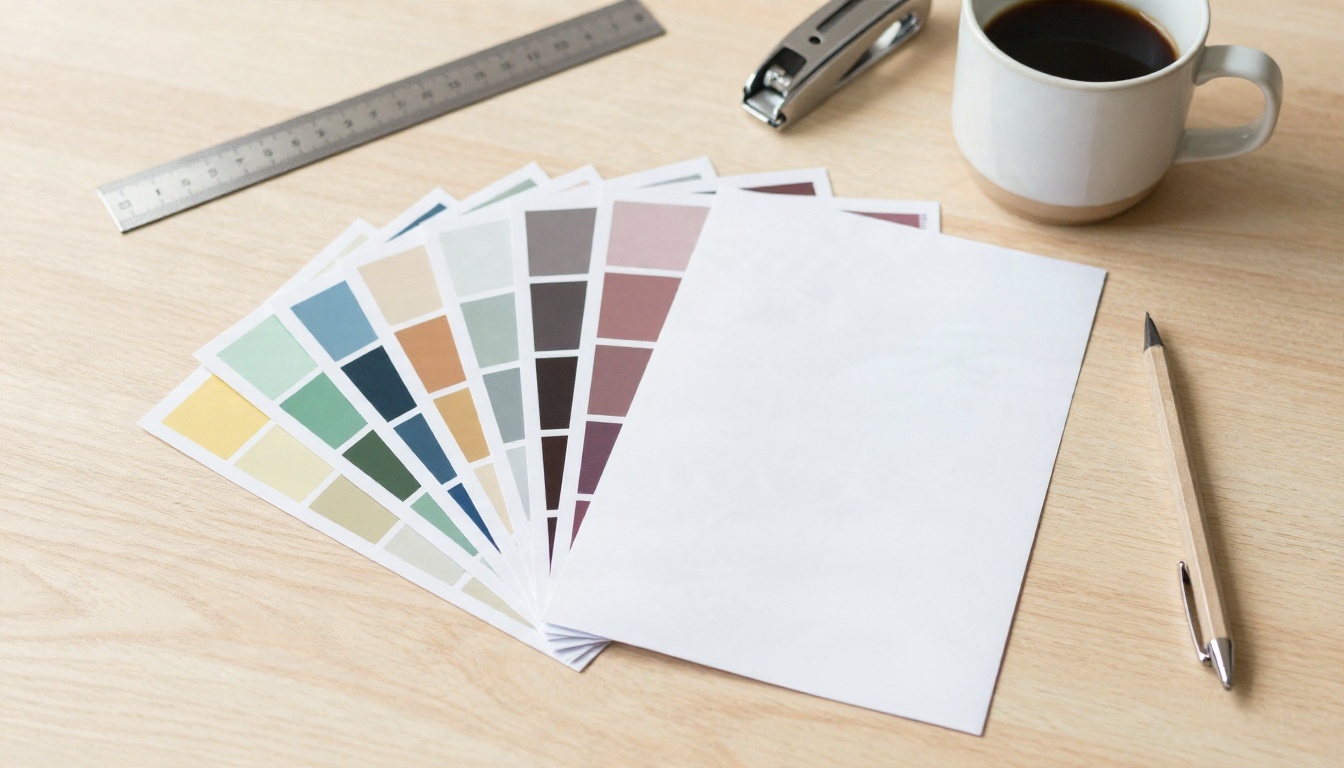
LibreOffice Draw is the closest thing to a Publisher-style canvas. You place text boxes, images and shapes anywhere on the page, set exact positions and sizes, use guides and snap to a grid. It exports to PDF, and you can set page sizes for A4, Letter, A5 or custom dimensions. For one-page flyers and simple posters, Draw is quick and reliable.
Writer With Frames
For documents that are mostly text, Writer is often the better choice. Text frames, linked columns, styles and automatic page numbers make newsletters and reports easier to maintain than a free-floating canvas. If your Publisher files were really Word documents with extra pictures, Writer will feel natural.
Opening Old .pub Files
LibreOffice includes an import filter for Publisher files. You can open a .pub document in Draw and see a usable version of the layout. Results vary. Simple files with text boxes and pictures usually arrive in good shape, while files with complex WordArt, layered effects or unusual fonts may shift.
⚠️ Warning: Always compare the imported file against the original on screen before you delete anything. Check fonts, line breaks and image positions on every page.
| Feature | LibreOffice Draw | LibreOffice Writer |
|---|
| Free-form layout | Excellent | Limited (frames only) |
| Multi-page text flow | Weak | Excellent |
| Master pages and styles | Basic | Strong |
| Opens .pub files | Yes (import only) | No |
| PDF export | Yes | Yes |
| Best for | Flyers, posters, cards | Newsletters, reports, manuals |
Where LibreOffice Falls Short
Here is the honest part. LibreOffice is a capable office suite, but it is not a dedicated desktop publishing program, and you will notice that on demanding projects.
Print Prep Gaps
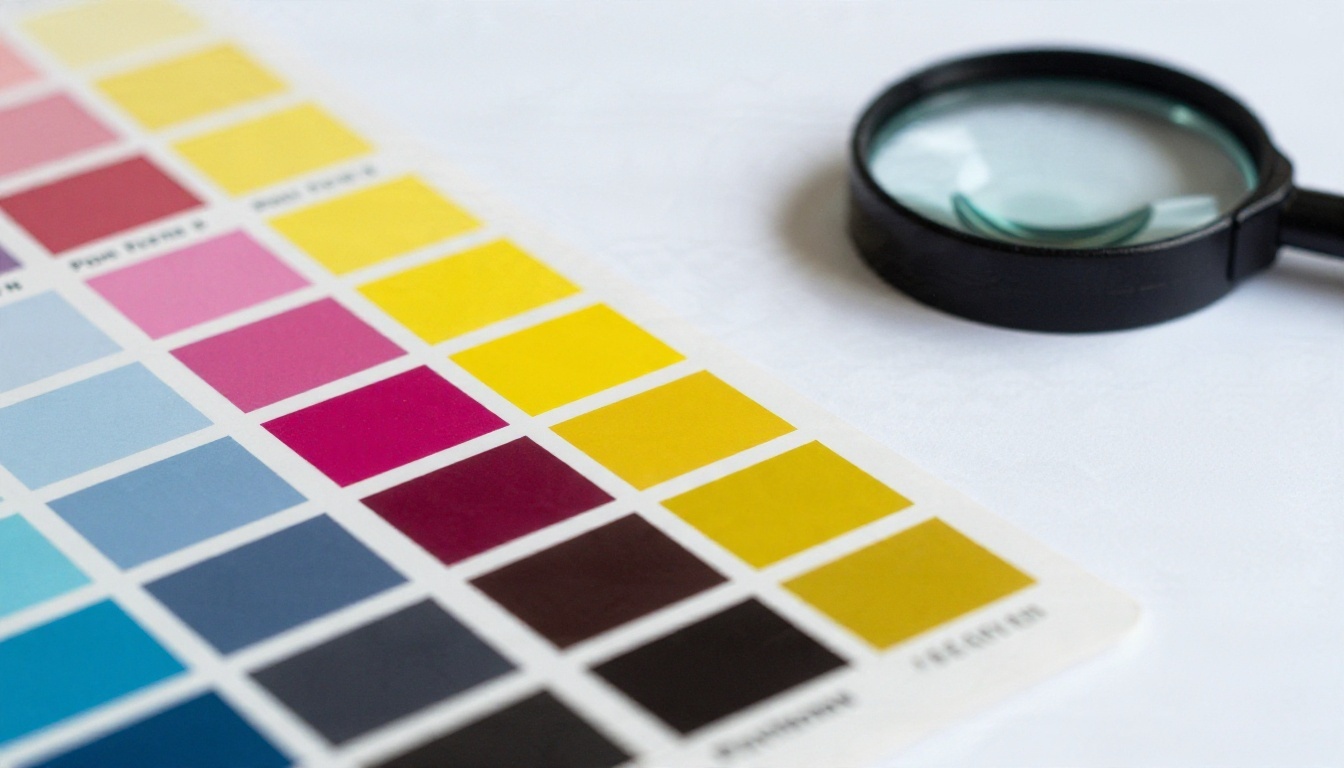
Professional print shops often ask for CMYK color, bleed, crop marks and sometimes PDF/X files. LibreOffice works mainly in RGB, and while you can add bleed manually, true color separations and spot colors are not its strength. For a home printer or a quick copy shop run, this rarely matters. For a glossy brochure printed in the thousands, it can cause colors to look duller than on screen.
Templates and Polish
Publisher shipped with a big library of templates. LibreOffice has far fewer, and the ones available look dated. You will spend more time on design decisions, and that is a real cost if you are not a designer.
- Typography control: kerning and ligature support are decent but not at the level of design software
- Image handling: no built-in photo effects, cropping masks or smart object features
- Collaboration: no real-time co-editing like cloud tools offer
💡 Rule of thumb: If the job ends on your own printer or in a PDF someone will read on a screen, LibreOffice is enough. If it goes to a commercial press, test with the printer first.
No single free program replaces Publisher. The practical approach is to match the tool to the project.
Scribus for Print Work
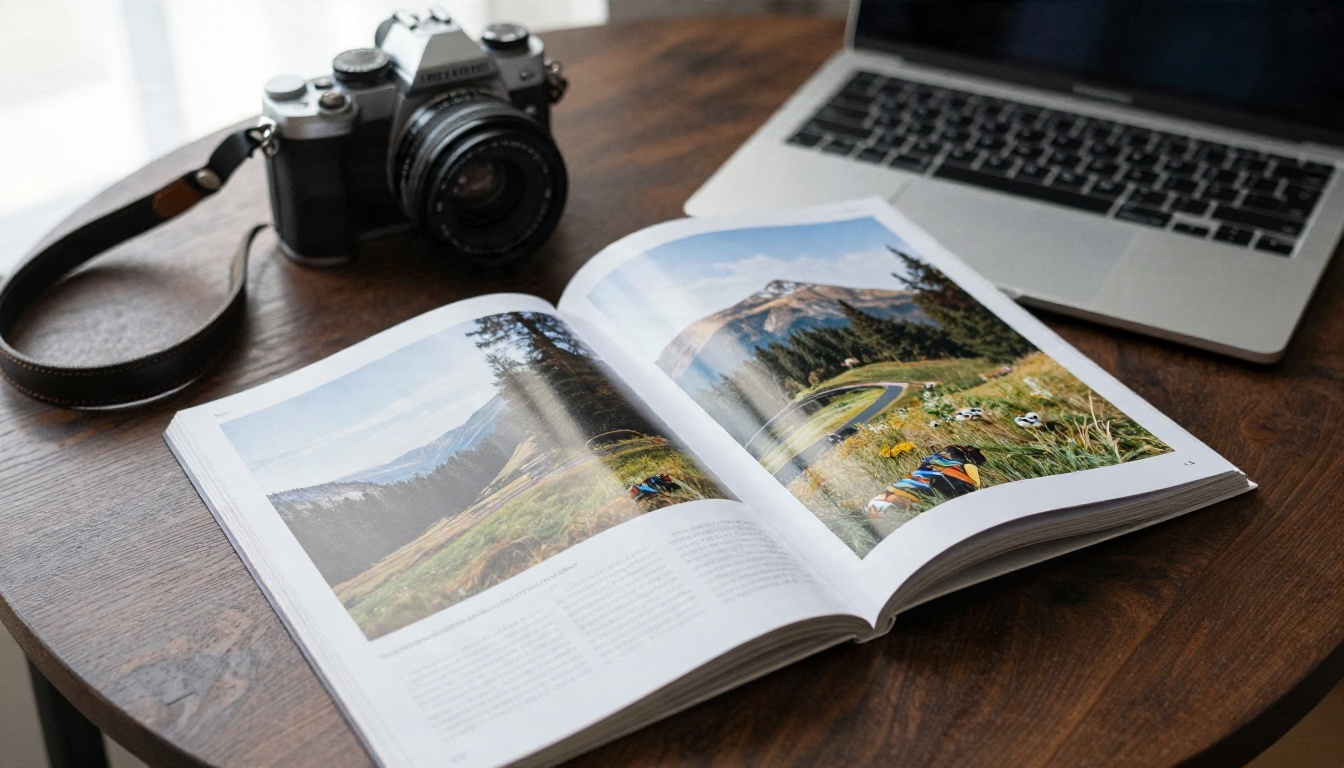
Scribus is a free, open source desktop publishing application built for print. It supports CMYK, spot colors, bleed, crop marks, master pages, linked text frames and PDF/X export. That makes it the strongest free option for brochures, magazines and anything headed to a commercial printer. The trade-off is a steeper interface. Expect an evening or two before it feels comfortable.
Canva Free for Quick Designs
Canva runs in your browser and offers thousands of templates. It is the fastest way to produce a social post, a simple flyer or a one-page poster that looks professional. The free plan has limits on premium assets and brand tools, and long multi-page documents can feel awkward. Export to PDF is straightforward.
Affinity, Inkscape and Google Slides
- Affinity: Canva made the Affinity design suite free in late 2025, which gives you a serious layout and photo editing application at no cost. It is a strong choice if you want a modern InDesign-style workflow.
- Inkscape: a vector editor that is excellent for logos, icons and illustrations you then place into a layout.
- Google Slides: a surprisingly good option for landscape-format brochures, catalogs and presentations, especially when several people need to edit at once.
| Tool | Learning Curve | Print Ready (CMYK) | Templates | Best For |
|---|
| LibreOffice Draw | Low | Limited | Few | Flyers, simple posters |
| LibreOffice Writer | Low | Limited | Few | Newsletters, reports |
| Scribus | High | Yes | Few | Brochures, magazines for press |
| Canva Free | Very low | Limited on free plan | Thousands | Social media, quick flyers |
| Affinity | Medium | Yes | Moderate | Professional layouts |
| Google Slides | Very low | No | Moderate | Collaborative catalogs |

Instead of searching for one perfect replacement, build a small toolkit. Here is how real situations usually play out.
A Monthly Club Newsletter
A volunteer who writes a four-page newsletter every month should use LibreOffice Writer. Set up styles for headlines and body text once, save a template, and every issue takes minutes. Export a PDF for email and print a few copies at the library.
A Trifold for a Local Business
A shop owner who wants a professional trifold has two good paths. Use Canva for speed and templates, or Affinity if you want more control. If the brochure goes to a commercial printer, ask for their file specs first.
A Product Catalog
Catalogs have many pages, repeated grids and lots of images. Scribus or Affinity handle that best. If your team collaborates, Google Slides is a practical shortcut for a lighter catalog. When you finish, a Product Catalog tool can turn the PDF into an interactive version that customers can browse on any phone.
A Photography Portfolio
Photographers care about image quality and page flow more than text features. Affinity or Canva suit portfolios well, and the finished PDF works nicely in a Photography Portfolio flipbook that keeps the page-turn feel of a printed book.
| Project | Best Free Tool | Backup Option |
|---|
| Flyer or poster | Canva Free | LibreOffice Draw |
| Newsletter | LibreOffice Writer | Google Docs |
| Trifold brochure | Canva or Affinity | Scribus |
| Magazine for print | Scribus | Affinity |
| Catalog | Scribus or Affinity | Google Slides |
| Portfolio | Affinity | Canva |
Why PDFs Are Only Half the Story
Whatever program you choose, you end up with a PDF. PDFs are reliable, but they have real weaknesses for sharing. They download slowly on mobile, they cannot track who read them, and they feel flat compared to a page you can flip.

A flipbook solves those problems. Readers open a link, turn pages with a swipe or a click, and never install anything. You can embed it on your website, protect it with a password and, on higher plans, see how people interact with it. That is why many small businesses now design in a free tool and publish through a flipbook platform.
How to Publish Your Layout with Flipbooks AI
This tutorial assumes you have finished a design in LibreOffice, Scribus, Canva or any other tool and exported it as a PDF.
Export a Clean PDF
- In LibreOffice, choose File, Export as PDF. In Scribus, use File, Export, Save as PDF.
- Set image quality to a high value so photographs stay sharp.
- Embed fonts so text looks identical for every reader.
- Export pages in reading order, as single pages rather than printer spreads.
Upload and Convert
- Create an account on Flipbooks AI.
- Click the upload button and select your PDF.
- Wait a few moments while the file is converted. Each page becomes a flippable page with a realistic page-turn effect.
- Use the PDF to Flipbook Converter if you want a quick one-off conversion.
✅ Best practice: Keep your file under a reasonable size and compress oversized images before exporting. Faster loading means more people reach page two.
Customize the Look
Once the flipbook is ready, adjust the details so it matches your brand:
- Branding: add your logo and choose a background color that suits the pages
- Page effects: pick the page-turn style and speed
- Multimedia: embed videos and audio where they help, such as a product demo on a catalog page
- Mobile layout: preview on a phone, since the design is responsive by default
Share, Protect and Track
- Copy the direct link and send it by email or message.
- Use the embed code to place the flipbook on your site. The Embed Flipbook on Website page explains the options.
- Turn on password protection for private content like internal reports.
- On the Professional plan, use analytics, lead generation and offline downloads. Check the pricing plans to see what each tier includes.
| Feature | Why It Matters |
|---|
| No watermarks | Your publication looks professional |
| Unlimited flipbooks (Standard and above) | Publish every issue without limits |
| Password protection | Keep private documents private |
| Analytics and lead capture (Professional) | See readers and collect contacts |
| Offline downloads | Readers can keep a copy |
| Mobile responsive | Works on every screen size |
Common Mistakes to Avoid

Switching tools is easier when you know where others tripped.
- Trusting the .pub import blindly. Fonts and spacing often shift. Review every page.
- Forcing one tool to do everything. A flyer in Scribus is overkill, and a magazine in LibreOffice Draw is painful.
- Skipping a print test. Print one copy at home before ordering a hundred.
- Ignoring fonts. Missing fonts silently change your layout. Embed them in the PDF or use free families like Open Sans or Lora.
- Sharing huge PDFs by email. Large attachments get blocked or ignored. Share a link instead.
- Waiting too long. Convert your most important old Publisher files first, while the app still opens on your machine.
💡 Quick check: Export one old Publisher document into each candidate tool this week. The one that needs the fewest fixes is usually your answer.
Your Next Step: Pick and Publish
So, is LibreOffice enough? For newsletters, simple flyers, reports and anything that ends on a home printer or a screen, yes. For commercial print, complex catalogs or polished marketing pieces, pair it with Scribus, Canva or Affinity, and pick the one that fits the job rather than the one that sounds most impressive.
Whatever you build, do not stop at the PDF. Turn it into something readers actually enjoy opening. Get started for free on Flipbooks AI, browse all available flipbook tools for catalogs, newsletters and portfolios, or compare pricing plans to find the right fit for your next publication.



