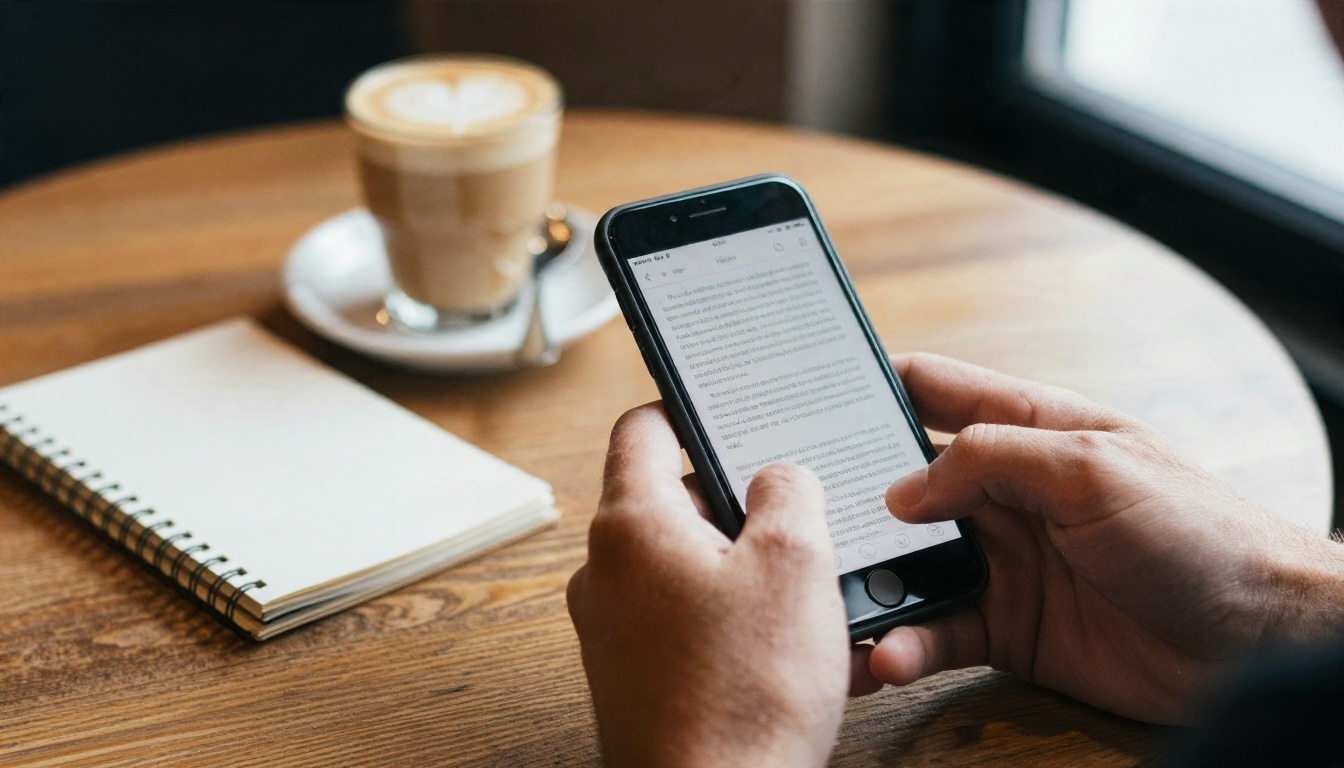
You tap a link, a PDF opens on your iPhone, and within ten seconds you are pinching, zooming and dragging a page sideways just to read one paragraph. Sound familiar? A PDF is a perfectly good file. It is just not a very good book. This article shows how to handle PDFs on iPhone with the free tools Apple already gives you, which free apps are worth a download, and when it makes sense to move up to a flipbook built with Flipbooks AI.
If you only need to read a contract on the train, the built-in options are fine. If you publish something you want people to enjoy, such as a catalog, a magazine or an ebook, a plain file will quietly hurt your results. Let's look at both sides honestly.
Why a PDF Never Feels Like a Book
The Problem With Plain Files
PDFs were designed to print the same on every machine. That is their strength and also their weakness on a phone. A letter-sized page shrunk onto a 6-inch screen forces readers to zoom, scroll in two directions and lose their place.
Typical complaints from iPhone readers:
- Text is too small until you zoom, then the line runs off the screen.
- There is no sense of progress, no page turn, no feeling of holding something.
- Large files take a long time to download on mobile data.
- Links and videos inside the file often do nothing.
- Sharing means sending an attachment that sits forgotten in a downloads folder.
What Readers Actually Want
People do not want a file. They want a book-like experience: quick loading, a clear sense of pages, smooth navigation and something that looks as good as the content deserves. That gap between "file" and "book" is exactly what the rest of this article is about.
| Reader expectation | Plain PDF on iPhone | Flipbook |
|---|
| Instant open from a link | Download first, then open | Opens in the browser |
| Natural page turning | Vertical scroll or swipe | Realistic page-turn effect |
| Fits the phone screen | Zoom and pan | Responsive layout |
| Clickable links and media | Limited | Links, video and audio |
| Tracking who reads | None | Analytics (Professional plan) |
How to Open a PDF on iPhone
Before you pick any app, know what your iPhone already does. Most people never touch these built-in options.
Using the Files App
The Files app is the home base for PDFs on iPhone. Open it, browse to iCloud Drive or On My iPhone, and tap a PDF to preview it. From there you can:
- Tap the Markup icon to highlight, draw or sign.
- Tap the Share icon to send it by Messages, Mail or AirDrop.
- Long-press the file to rename, move or compress it.
- Use the three-dot menu in a folder to Scan Documents and create a new PDF with the camera.
💡 Pro tip: If a PDF is huge, long-press it in Files and choose Compress. The file is smaller to share, though image quality can drop slightly.
Saving From Safari and Mail
When a PDF opens in Safari, tap the Share button and pick Save to Files. In Mail, tap the attachment, then Share, then Save to Files. This keeps the document out of your inbox and in a folder you can find later.
You can also make a PDF from almost anything. In Safari, the Share sheet lets you choose Options and then PDF before saving a web page. In the print preview of most apps, spreading two fingers on the page preview creates a shareable PDF of that content.
Adding PDFs to Apple Books
Here is the little secret that moves a file toward "book" territory. Open a PDF, tap Share, and choose Books. The PDF is added to your Apple Books library, where it sits next to your other titles. It syncs through iCloud, remembers your page and lets you set a bookmark.
It still behaves like a PDF, though. Scanned or designed pages do not reflow to the screen, so the zooming problem remains.
Free App Options Worth Trying
You do not need to pay to read PDFs well on iPhone. Here is how the common free choices stack up.
Apple Books and Files
These cost nothing and are already installed. Files is best for managing and marking up documents. Apple Books is best for reading and keeping a tidy library. Together they handle about 80 percent of what casual readers need.
Third-Party Readers
Several free apps add features Apple's tools lack:
- Adobe Acrobat Reader: strong for forms, comments and signing. Some editing tools sit behind a paid plan.
- Google Drive: great if your files already live there. Preview is quick and sharing is simple.
- Kindle app with Send to Kindle: lets you read personal documents alongside your purchased ebooks.
- Foxit and similar readers: lightweight viewers with annotation tools in the free tier.
- Microsoft Edge and other browsers: handy when you just want to read a PDF from a link without installing anything.
| App | Cost to read | Best for | Main limit |
|---|
| Files | Free, built in | Organizing and markup | Basic reading experience |
| Apple Books | Free, built in | Library and syncing | Pages do not reflow |
| Adobe Acrobat Reader | Free tier | Forms and signing | Editing needs a paid plan |
| Google Drive | Free tier | Cloud sharing | Plain viewer only |
| Send to Kindle | Free | Reading with ebooks | Conversion can alter layout |
⚠️ Check the fine print. Free tiers change often. Always confirm what a free plan includes before you rely on it for client work.
Where Free Apps Fall Short
Every option above solves the reading problem for one person on one device. None of them solves the publishing problem. If you want a hundred customers to open your catalog without installing anything, without downloading a file, and with a pleasant page-turning feel, a reader app cannot help. You would be asking each customer to do the work.
The Flipbook Alternative
What a Flipbook Does Differently
A flipbook takes the same PDF and turns it into an interactive, browser-based publication. Pages turn with a realistic motion, the layout adapts to the screen, and the viewer needs nothing but a link. On an iPhone, readers swipe through pages the way they would flip a magazine.
The practical differences matter for anyone sharing content with other people:
- No download, no app. One tap on a link and the book opens.
- Looks like a book. Page curl, thumbnails and a table of contents.
- Works on every device. Phone, tablet and desktop get the same publication.
- Live content. Embed videos, audio and clickable links.
- Control. Password protection and the option to allow offline downloads.
- Insight. Analytics and lead capture on the Professional plan.
Who Benefits Most
Not sure which fits? Browse all flipbook tools and pick the closest match to your document.

How to Create a Flipbook with Flipbooks AI
The whole process takes a few minutes. You can do every step from a laptop, and the result reads beautifully on iPhone. The PDF to Flipbook Converter is the quickest route.
Upload Your PDF
- Go to Flipbooks AI and create an account.
- Click to start a new flipbook.
- Upload your PDF from your computer. If the file is on your iPhone, save it to iCloud Drive from the Files app first so you can reach it from any device.
- Wait a moment while the pages are converted. Each page becomes part of the flipbook.
💡 Tip: Export your PDF at a sensible resolution. Very heavy files are slower to convert, and light compression keeps pages crisp without bloating the load time.
Customize the Look
Once the pages are in, make it yours:
- Branding: add your logo and choose a brand color for the viewer.
- Background and colors: match the surrounding page or website.
- Page effects: pick the page-turn style and speed that suit the content.
- Multimedia: embed videos and audio, and add clickable links to your store or booking page.
Share and Protect
You have several ways to publish:
| Sharing option | Best for |
|---|
| Direct link | Email, messages and social posts |
| Embed code | Showing the book on your own site, see the Embed Flipbook on Website tool |
| QR code | Menus, event programs and printed flyers |
| Password protection | Private reports and client-only material |
Pro Features Worth Knowing
The Professional plan adds analytics and lead generation, so you can see how people read and capture contact details before they open a gated ebook. Offline downloads let readers keep a copy when they are traveling. Other highlights across plans include no watermarks, unlimited flipbooks from the Standard plan up, and mobile-responsive design by default.
Real Examples From Real Work
Theory is fine, but what does this look like in a normal week?
A ceramics studio. The owner used to email a 40 MB PDF price list. Customers on phones often gave up. She now shares one link to a flipbook and brings it up on a tablet at craft fairs. Orders come from people who actually saw the products.
A freelance photographer. Instead of attaching a portfolio PDF to every pitch, she sends a Photography Portfolio link. Clients flip through on their phones between meetings.
A café owner. A QR code on each table opens the menu instantly. When prices change, he updates the PDF and republishes. No reprinting, no stale files floating around.
A coach with a free ebook. She gates the ebook flipbook behind an email form and reviews who opened it. Her list grows with readers who really want the content.

Common Mistakes to Avoid
- Sending a huge attachment. Many email providers reject big files, and phone users rarely wait for them. Send a link instead.
- Designing for print only. Tiny type that works on A4 is a squint on a phone. Use larger body text and clear headings.
- Skipping a table of contents. Readers on mobile jump around. Give them a way to do it.
- Forgetting the cover page. The first page decides whether people keep going. Make it count.
- Ignoring privacy. If a file contains client data, protect it with a password rather than relying on an obscure link.
- Never checking the result on a phone. Open your own flipbook on an iPhone before you send it to anyone.
✅ Best practice: Test the final link on at least one iPhone and one Android phone, in portrait and landscape, before you announce it.
Which Option Fits You?
Use this quick decision table to choose.
| Your situation | Best choice |
|---|
| Reading a document for yourself | Files or Apple Books |
| Signing or marking up a form | Adobe Acrobat Reader or Files Markup |
| Keeping PDFs next to your ebooks | Apple Books or Send to Kindle |
| Sharing a catalog, menu or ebook with many people | Flipbook |
| Needing to know who reads your content | Flipbook with analytics |
| Protecting private material | Flipbook with password protection |
The honest answer is that you will probably use both. Free apps are great for personal reading. A flipbook is what you use when other people are on the receiving end.
Turn Your Next PDF Into a Book
Ready to move from files to books? Get started for free on Flipbooks AI and turn your first PDF into a page-turning publication in minutes. Browse the full set of tools and templates to find a layout that fits your project, then compare pricing plans when you are ready for analytics, lead capture and unlimited flipbooks. Prefer to jump straight in? Sign up and choose a plan today.



