You print 500 flyers, hand them out all weekend, and nobody scans the code. The design looked fine on screen, but on paper the code is too small, too faint, or sitting on a glossy fold that bounces light straight back into the phone camera. A paper QR code is a physical object, and it follows physical rules. This article gives you the exact sizes, print settings and free tools to get it right, and shows how to point the code at a page-turning flipbook built with Flipbooks AI, so the scan lands on something worth opening instead of a flat PDF download.
💡 Quick answer: make the code at least 2 x 2 cm (0.8 in) for close reading, keep a clear margin of 4 modules around it, print dark on light at 300 DPI or as a vector file, and test it on two different phones before you send anything to the printer.
Why Paper QR Codes Still Work
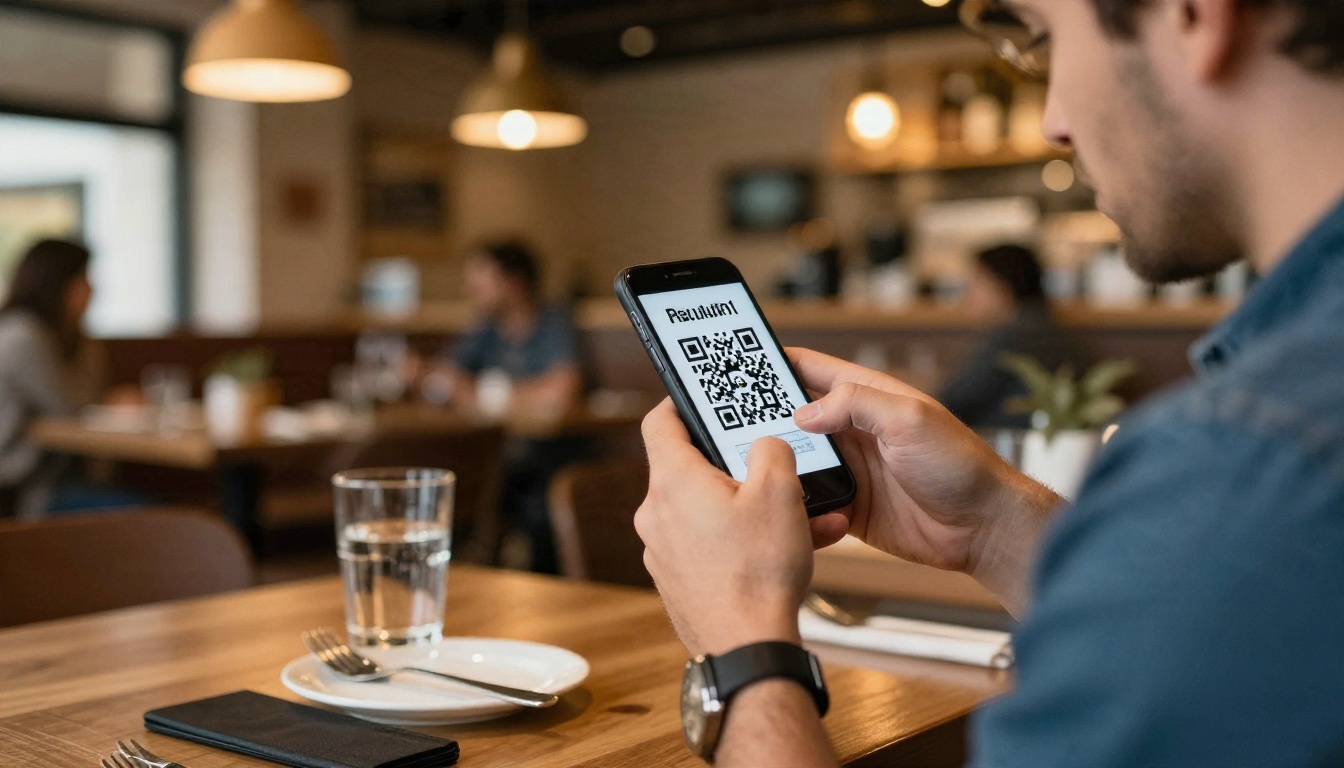
Scanning is built into every modern phone camera. No app, no typing, no search. That is why a small square of black and white dots remains the fastest bridge between a printed page and a digital one.
Print Needs a Different Mindset
On a screen, a QR code is backlit and flat. On paper it has to survive ambient light, curved surfaces, paper texture, ink spread and trimming errors. Every one of those can cost you scans. The good news is that each problem has a simple fix, and most of them are decided before you press print.
What a Flipbook Link Adds
Most people link their code to a plain PDF. The phone downloads a file, the reader pinches and zooms, and half of them leave. A flipbook loads as an actual page-turning publication that fits the phone screen. You can convert any file with the PDF to Flipbook Converter and use the share link as the destination of your QR code. The printed piece becomes a teaser, and the flipbook carries the full catalog, menu or brochure.
Best Size for a Paper QR Code
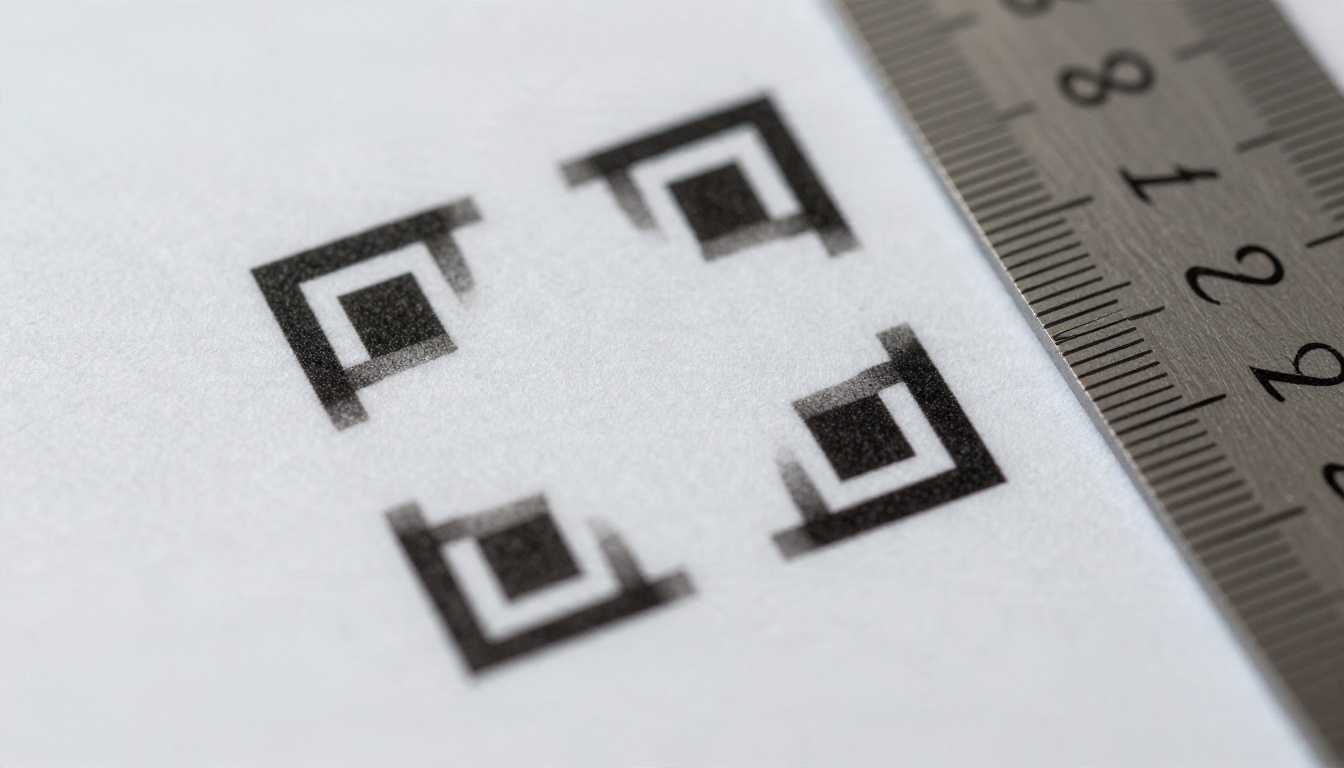
Size is the number one reason printed codes fail. The code has to be large enough for the camera to resolve each individual square, called a module.
The 10 to 1 Rule
The simple formula: scanning distance divided by 10 equals minimum code width. A code scanned from 30 cm away needs to be about 3 cm wide. A poster scanned from 2 meters needs about 20 cm.
| Use case | Typical scan distance | Minimum size | Safe size |
|---|
| Business card | 15 to 20 cm | 2 x 2 cm | 2.5 x 2.5 cm |
| Flyer or leaflet | 25 to 35 cm | 2.5 x 2.5 cm | 3 x 3 cm |
| Brochure or catalog page | 30 cm | 3 x 3 cm | 3.5 x 3.5 cm |
| Table tent or menu | 30 to 50 cm | 3 x 3 cm | 4 x 4 cm |
| Poster A3 | 1 m | 10 x 10 cm | 12 x 12 cm |
| Shop window or sign | 2 to 3 m | 20 x 20 cm | 30 x 30 cm |
⚠️ A code with a long URL has more modules, so each module gets smaller at the same overall size. If your link is long, make the code bigger or shorten the link first.
Quiet Zone and Margins
The quiet zone is the empty border around the code. The standard calls for at least 4 modules of blank space on every side. Designers love to crop this tight against an image or a colored box, and that is a frequent cause of failed scans. Keep the border white or very light, with nothing printed inside it.
Resolution and File Format
Vector files (SVG or EPS) stay razor sharp at any size. If you only have a PNG, export it at 300 DPI at the final print size, never upscale a small one. Soft edges turn squares into gray blobs, and scanners hate gray blobs.
| Format | Best for | Watch out for |
|---|
| SVG | Any print job, resizing | Some office tools cannot open it |
| EPS or PDF vector | Print shops | Convert text to outlines first |
| PNG 300 DPI | Quick flyers, documents | Do not enlarge after export |
| JPG | Avoid if possible | Compression adds noise around modules |
Printing Tips That Prevent Failed Scans
Pick the Right Paper Finish
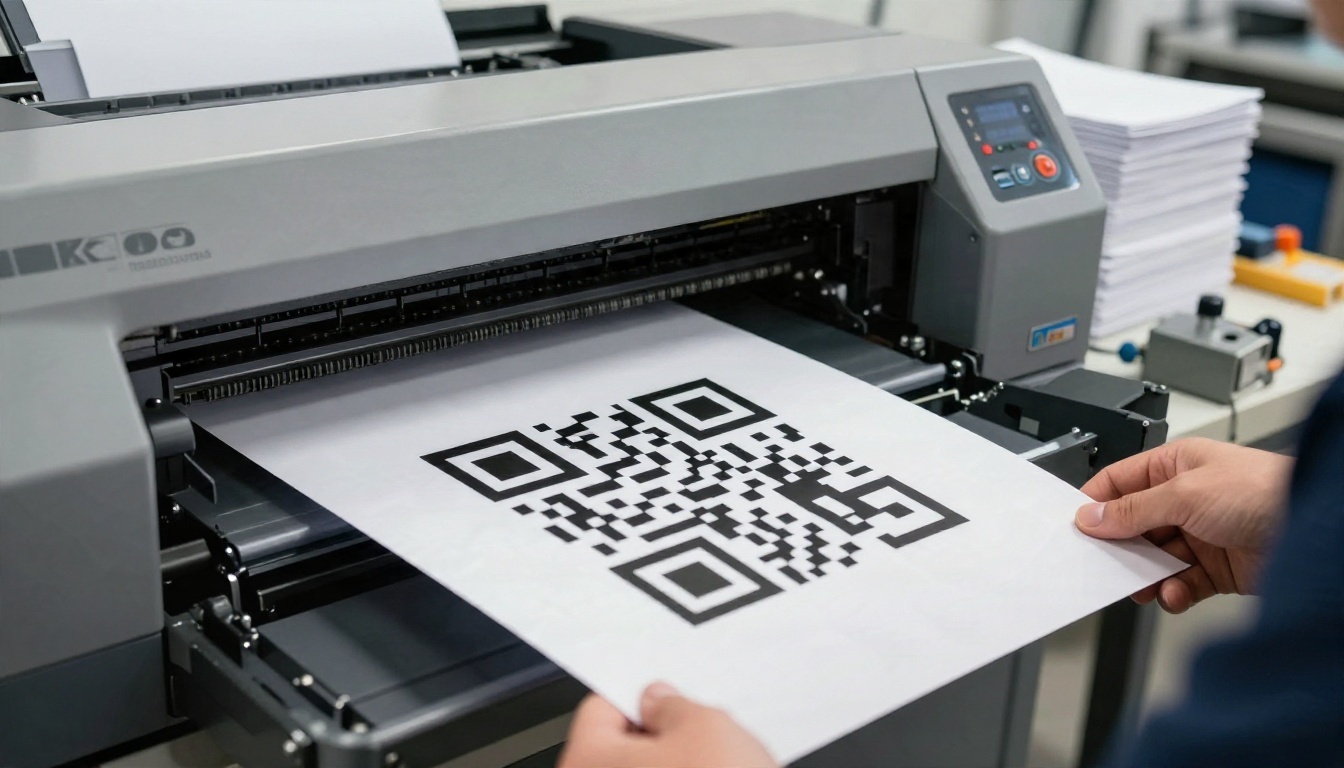
Paper finish decides how much glare reaches the camera. Uncoated and matte stocks scatter light, which is friendly to scanners. High gloss can mirror a window or ceiling light and wipe out part of the code.
| Paper finish | Scan reliability | Notes |
|---|
| Uncoated white | Excellent | Slight ink spread, so add a little size |
| Matte coated | Excellent | Sharp edges, low glare |
| Silk or satin | Good | Fine for most flyers |
| Gloss | Fair | Avoid placing the code on a fold or under a UV varnish |
| Kraft or colored stock | Fair to poor | Needs strong contrast, test first |
Contrast and Color Rules
Use a dark code on a light background. Black on white is the safest. Dark navy, deep green or charcoal also work when contrast stays high. Avoid these combinations:
- Light code on a dark background (many older scanners cannot read inverted codes)
- Red on black or yellow on white
- Gradients running through the code
- Photos or patterns directly behind the modules
Error Correction and Logos
QR codes include built-in redundancy, so a code can be read even when part of it is damaged or covered. Higher correction means more modules, which means a denser code.
| Level | Damage it can survive | When to use it |
|---|
| L | About 7% | Clean digital screens, short links |
| M | About 15% | Most flyers and brochures |
| Q | About 25% | Folded or handled paper |
| H | About 30% | Codes with a small logo in the center |
If you add a logo, keep it below roughly 20% of the code area and choose level Q or H. Then test again, because every logo changes how readable the result is.
Test Before You Print 500 Copies
Never approve a print run from the screen proof alone. Follow this routine:
- Print one copy at actual size on the same paper you will use.
- Scan it with an iPhone and an Android phone.
- Try it from the real distance, not from 5 cm away.
- Scan it in dim light and next to a window.
- Fold, curl or bend it the way readers will, and scan again.
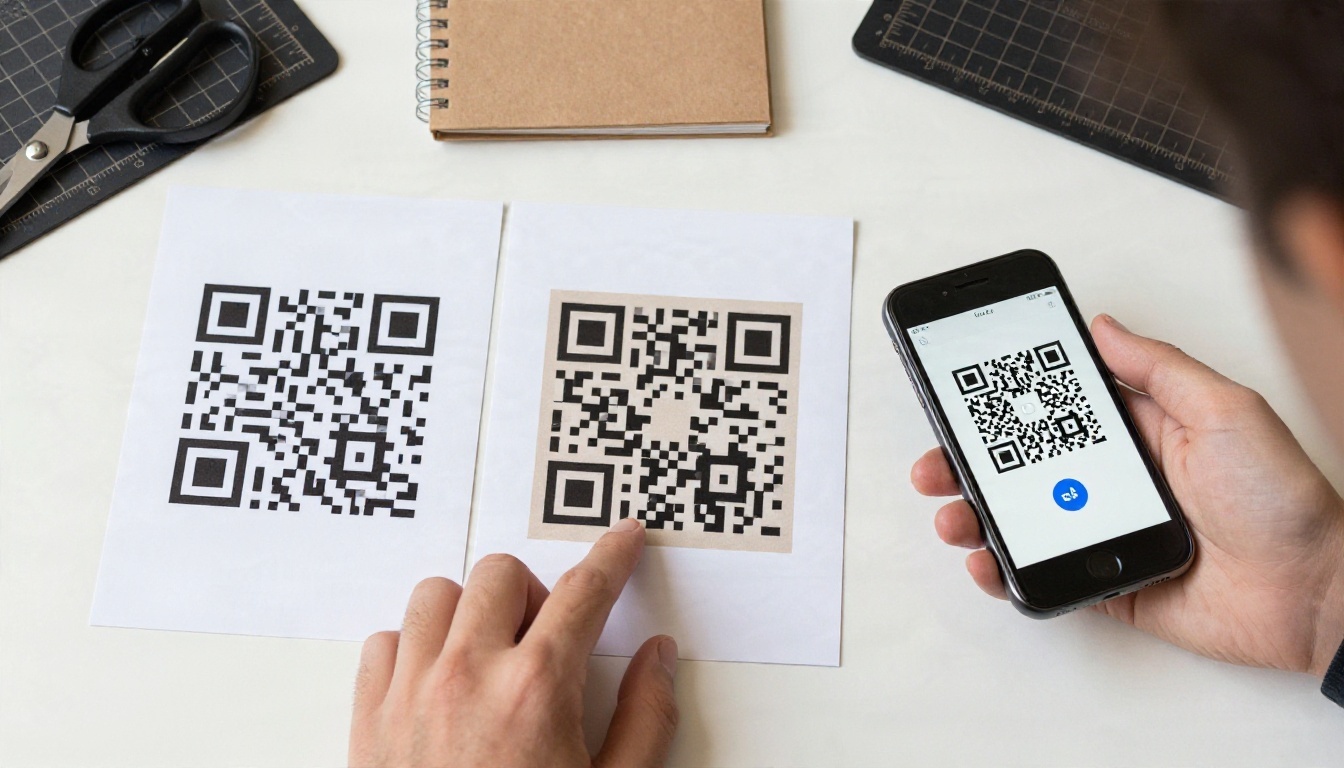
✅ Best practice: ask the print shop for a single digital proof on the final stock. It costs a few cents and saves an entire run.
Free QR Generator: What to Look For
You do not need to pay to make a good code. You do need to know what a "free" tool is actually doing with your link.
Static vs Dynamic Codes
A static code stores your URL directly inside the pattern. It never expires and has no tracking. A dynamic code stores a short redirect link that the generator controls, which lets you change the destination later but often locks that feature behind a subscription.
| Feature | Static code | Dynamic code |
|---|
| Cost | Free, forever | Free trial, then paid |
| Edit destination later | No | Yes |
| Built-in scan stats | No | Yes |
| Risk if the service closes | None | Printed codes stop working |
| Code density | Lower for short links | Very low, short redirect |
⚠️ A common trap: a free dynamic code that quietly stops redirecting after a trial ends. Hundreds of printed pieces then point at a payment page. If you want editability, keep control of the destination yourself instead.
A smart workaround is to print a static code that points to your flipbook link. When you update the flipbook content, the link stays the same, so the printed code never needs to change. Your analytics and editing live inside the flipbook, not inside the code.
Quick Generator Checklist
Before you trust any free generator, confirm that it:
- Lets you download SVG or high-resolution PNG
- Creates static codes with no forced registration
- Does not add a watermark or its own branding to the image
- Allows you to pick the error correction level
- Does not wrap your link in a tracking redirect without telling you
How to Create a Flipbook QR Code
Here is the full workflow, from file to printed page. It takes about ten minutes.
Step 1: Build the Flipbook
- Open Flipbooks AI and create an account.
- Upload your PDF. Menus, catalogs, brochures, lookbooks and price lists all work. The conversion keeps your layout and creates realistic page turns.
- Add your branding: logo, colors and background. Pick page effects you like.
- Insert videos or audio where they help, for example a short clip of a dish or a product demo.
Step 2: Choose How People Open It
- Copy the direct link for the QR code.
- Turn on password protection if the content is private, for instance a partner price list.
- Use the Embed Flipbook on Website tool when you also want it on your own page.
- Allow offline downloads for readers with weak signal, such as trade show halls.
Step 3: Generate and Test the Code
- Paste the share link into a free static QR generator.
- Choose error correction level M (or Q if the paper will be folded).
- Download an SVG.
- Place it in your layout at the size from the table above, with a 4 module white border.
- Print a single proof and scan it on two phones.
Step 4: Track What Happens
On the Professional plan you get analytics and lead generation, so you can see which flyer or poster brought readers and capture contact details inside the flipbook. Check the pricing plans to pick the right level. Flipbooks AI never adds watermarks, and the Standard plan and above allow unlimited flipbooks, so you can make a separate flipbook for every campaign and see which one wins.
Real-World Examples That Work
Restaurant Table Menu
A cafe prints a 4 x 4 cm code on matte table tents. The code opens a flipbook menu built with the Restaurant Menu Creator. When prices change, the owner replaces the PDF and the same printed code keeps working. No reprinting and no crumpled laminated pages.
Real Estate Signs and Flyers
An agent puts a large weatherproof code on the yard sign and a smaller one on the handout. Both lead to a flipbook made with the Real Estate Brochure Creator, with floor plans and photos readers can flip through from the sidewalk.
Trade Show Brochures
A booth hands out a short flyer with one code on the back. The code opens a full catalog from the Digital Catalog Maker. Visitors skip carrying a heavy printed catalog, and the company sees exactly how many people opened it.

Posters in Shops and Bookstores
A bookstore hangs a poster at eye level with a 12 cm code that links to a flipbook of a staff picks catalog. Eye level matters: a code placed too high or too low forces awkward angles and cuts the scan rate.
Common Mistakes to Avoid
| Mistake | What happens | Fix |
|---|
| Code smaller than 2 cm | Slow or failed scans | Use 3 cm or more |
| No white border | Camera cannot find the edges | Keep a 4 module quiet zone |
| Placed on a fold or seam | Code is split and distorted | Move it to a flat area |
| Low contrast colors | Camera sees mush | Black on white, tested |
| Dynamic code that expires | Dead links on printed pieces | Use a static code to a stable link |
| No call to action next to it | Nobody knows why to scan | Add a short line such as "Scan to flip through" |
| Linking to a heavy PDF | Slow load on mobile data | Link to a mobile-friendly flipbook |
💡 Always put a short instruction near the code, like "Scan to see the menu." Codes with a clear reason to scan get noticeably more reads than a bare square.
Ready to Print Your Paper QR Code?
You now have the size chart, the paper rules and a free workflow. The final piece is the destination. Skip the plain PDF and send readers to something that feels like a real publication.
- Turn your file into a flipbook in minutes with Flipbooks AI.
- Browse all the flipbook tools to find the template that matches your menu, catalog or brochure.
- Compare pricing plans when you are ready for analytics, lead generation and unlimited flipbooks.
Make the code big enough, give it room to breathe, print it on friendly paper, test it twice, and link it to a flipbook. That is all it takes for your next print run to get scanned instead of ignored.



