PDF File Book Maker: Free Online Tool, Templates, Page-Flip Sharing and Embed
Turn a flat PDF into a book that readers can flip on any device. See what a free online PDF book maker really includes, how templates work, how to share by link or password, and how to embed the result on your website.
You exported a PDF, emailed it, and watched it sink into somebody's downloads folder. Nobody scrolled it on a phone, nobody pinched and zoomed their way to page twelve, and you have no idea whether anyone opened it at all. A PDF file book maker fixes that. It takes the same file and turns it into a page-turning book that opens in a browser, loads fast, and looks like something you would want to pick up. With Flipbooks AI, the whole process takes a few minutes, and you can start for free.
This article walks through what these tools actually do, what "free" usually includes, how to build a book step by step, which templates suit which content, and how to share or embed the finished result without a watermark getting in the way.
What a PDF Book Maker Does
From flat file to real book
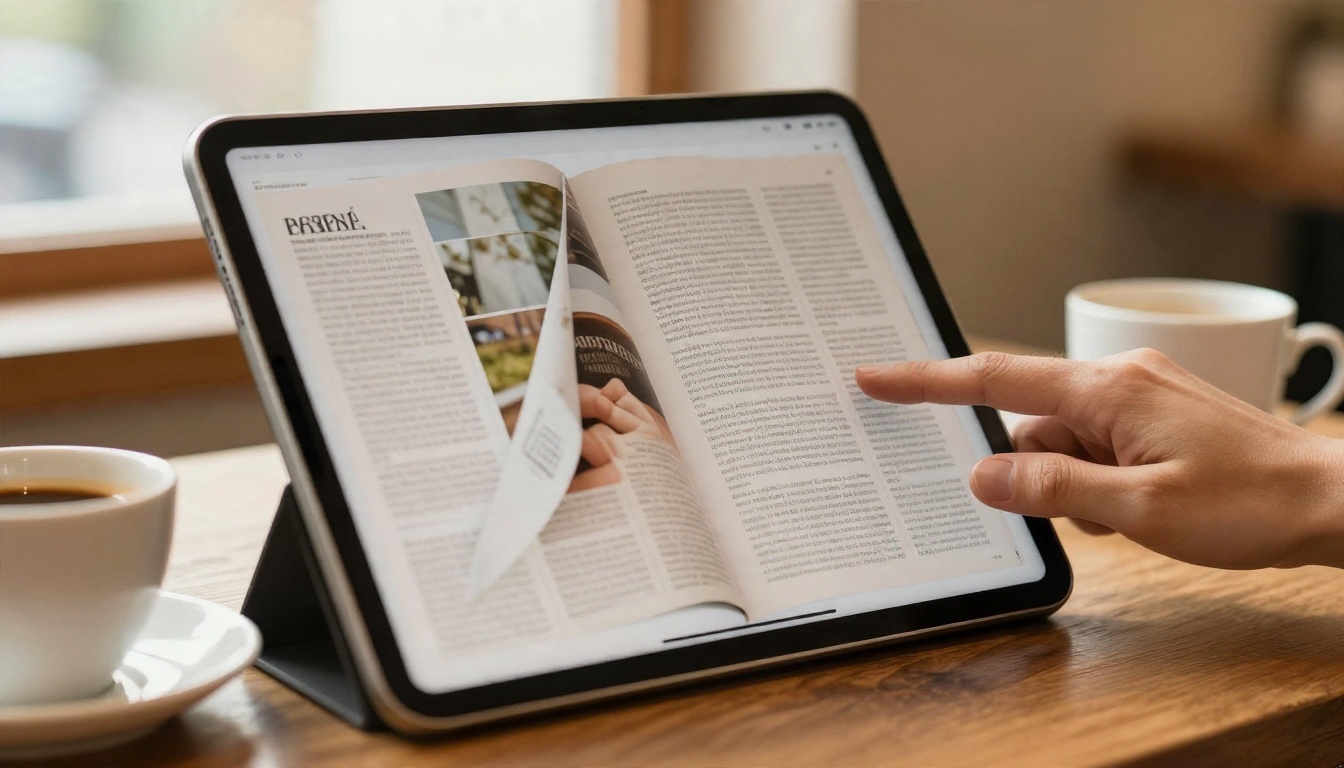
A PDF is a fixed print layout. It was designed for paper, and it behaves like paper even on a six-inch screen. A PDF book maker reads each page of that file and rebuilds it as a flipbook: a viewer with realistic page curls, a table of contents, zoom, full-screen mode, and a layout that adapts to the screen in front of the reader.
Your original design stays intact. Fonts, images, and spreads look the same. What changes is the experience around them:
Page-turn animation that mimics a physical book, with sound if you want it
Responsive display, so a two-page spread on a laptop becomes a single page on a phone
Clickable links that jump to a web page, an email address, or another page in the book
A shareable URL instead of an attachment
Embed code so the book lives on your own site
💡 Pro tip: If you already have a polished PDF from InDesign, Canva, Word, or Google Docs, you do not need to redesign anything. Upload it as it is and spend your time on the presentation layer.
Who actually needs one
The honest answer is anyone who sends PDFs to people they want to impress or inform. A few real examples:
A restaurant replaces a menu PDF that looked awful on mobile with a flipbook linked from a QR code on each table, using the Restaurant Menu Creator.
A real estate agent sends a property brochure that opens instantly and can be revisited from a single link, built with the Real Estate Brochure Creator.
A teacher shares a course packet that students can read on a phone during a commute, using the Course Material Publisher.
A photographer presents a portfolio that feels like a printed monograph, through the Photography Portfolio tool.
A small brand publishes a seasonal lookbook without paying for print.
Free Online Tool: What to Expect
Free versus paid, side by side
"Free" means different things on different platforms. Some give you a full tool with a small cap on usage. Others give you a demo that stamps a logo across every page. Before you commit your content to any service, check these points.
Feature
Typical free tool
Flipbooks AI
Upload a PDF and get a flipbook
Yes, often with size limits
Yes
Watermark on pages
Common
No watermarks, ever
Custom branding and colors
Usually locked
Available
Password protection
Rare
Available
Embed on your own website
Sometimes with a banner
Available
Video and audio inside pages
Rare
Available
Unlimited flipbooks
No
Standard plan and above
Analytics and lead capture
No
Professional plan
Offline download
Rare
Available
You can try it free and compare plans before you decide whether you need more than a single book.
Watermarks and hidden limits
The most common trap is the watermark. A logo in the corner of every page may be tolerable for a school project. For a client proposal or a product catalog, it is a deal breaker, and you often discover it only after you have uploaded and styled the whole file.
Watch for these other limits too:
Page caps. Some tools stop at 20 or 30 pages, which rules out most catalogs.
File size limits. A photo-heavy PDF can easily pass 50 MB.
Expiring links. A free book that vanishes after 30 days breaks every QR code you printed.
Forced ads or banners around the embed.
No export, which leaves you locked in.
⚠️ Warning: Never print a QR code that points to a temporary link. Confirm the book will stay online before the code goes on a menu, a flyer, or a poster.
How to Make a Book with Flipbooks AI
This is the practical part. The steps below follow the same flow you will see inside the editor, from a blank account to a live link.
Prepare your PDF first
A few minutes of cleanup saves a lot of frustration later. Check that:
Pages are in the correct order and share the same dimensions
Images are compressed to a sensible size (150 to 200 DPI is plenty for screens)
Fonts are embedded, so text does not shift
Any links in the PDF are tested and working
The file is under the upload limit for your plan
Step 1: Upload the PDF
Go to Flipbooks AI and create an account, or sign in.
Drag your file into the upload area, or click to browse your computer.
Wait while each page is processed. A 40-page file usually finishes in under a minute.
You will see a live preview as soon as conversion ends. Flip through it once to confirm every page rendered correctly.
Step 2: Pick a template and style
Next, decide how the book should look around your pages. This is where branding lives.
Background: a solid color, a gradient, or a photograph that matches your brand
Logo: upload your own and place it in the toolbar
Toolbar colors: match your website palette
Page effects: choose the curl intensity, shadow depth, and whether the book opens as a spread or a single page
Sound: keep the page-turn sound on or switch it off
✅ Best practice: Use your brand's main color for the toolbar and a neutral, slightly darker tone for the background. Pages stand out better when they are the brightest thing on the screen.
Step 3: Add media and links
Here the flipbook starts to outperform the PDF. On any page you can:
Embed a video from YouTube or Vimeo, or upload one directly
Attach audio, such as a narrated introduction or background music
Add clickable hotspots over products, so a reader can tap a jacket and land on its checkout page
Link to an email or phone number for quick contact
A fashion brand, for example, can build a lookbook where every outfit links straight to a product page. The Interactive Lookbook Designer is built for exactly that.
Step 4: Publish and share
Click Publish, and the book is live. You get:
A direct link you can paste anywhere
An embed code for your website
A QR code for print materials
Optional password protection for private content
An offline download option, so readers can save a copy
From there you can edit at any time. Fixing a typo or swapping a price updates the live book without changing the link.
Templates That Fit Your Content
A template is a starting point for the look and feel, and the right choice depends on what you are publishing. Browse the full tools directory to see every format, or start with the table below.
Catalogs and menus change often, which makes them ideal flipbooks. A furniture store can update a price list on Monday and have every shared link reflect it instantly. The Digital Catalog Maker and the Digital Price List Generator are designed for this kind of living document.
Tips that work well for both:
Keep the first page strong, since it acts as the front door
Add a clickable contents page near the start
Use hotspots on each item rather than a single link at the end
Test on a phone before you publish
Reports and portfolios
Reports and portfolios are about credibility. A flipbook makes a 60-page annual report feel lighter, and a portfolio feel intentional. The Corporate Report Maker and the Portfolio Flipbook Builder both keep layouts clean and put the focus on your pages.
If the content is sensitive, such as investor material, use a password. More on that below.
Page-Flip Sharing That Works
Direct links and passwords
The simplest way to share is a link. Paste it into a message, a bio, a proposal, or an invoice. Nothing to download, nothing to install.
When the content should not be public, add a password. Readers enter it once and the book opens. This suits:
💡 Pro tip: Send the link and the password in separate messages. It is a small habit that adds a real layer of privacy.
Email and social
Most readers will open your link on a phone, so the mobile experience matters more than anything else. Because the book is mobile-responsive, pages fit the screen, zoom works with a pinch, and swiping turns the page.
Here is how different channels compare:
Channel
Best use
Tip
Email
Proposals, newsletters
Link to the flipbook instead of attaching the PDF
Instagram or TikTok bio
Lookbooks, menus
Use one clean link
WhatsApp
Quick shares to clients
Add a short message above the link
Printed QR code
Menus, flyers, packaging
Place it on a flat surface where phones can scan easily
Website
Catalogs, reports
Embed the book on the page itself
A newsletter publisher can use the Newsletter Flipbook Publisher to turn each issue into a link subscribers can open in one tap.
Embed It on Your Website
A shared link sends people away from your site. An embed keeps them there. The book appears inside your own page, next to your navigation menu and your branding, and visitors read it without leaving. The Embed Flipbook on Website tool covers the process in detail.
Copy the embed code
Open your published flipbook in the dashboard.
Click Share, then Embed.
Choose the width and height, or pick a responsive size.
This works in WordPress, Shopify, Wix, Squarespace, Webflow, and any custom site that accepts an HTML block.
Keep it responsive
A fixed-width embed breaks on phones. Set the width to 100% and give the height a sensible minimum, then test the page on two or three devices. If the book feels cramped on a small screen, increase the height or let readers open it in full-screen mode.
Embed setting
Desktop
Mobile
Width
100% of the container
100% of the screen
Height
600 to 800 px
450 to 550 px
Full-screen button
Optional
Recommended
Page layout
Two-page spread
Single page
✅ Best practice: Place the embed near the top of its page, above the fold if you can. A book that sits under three paragraphs of text gets far fewer opens.
Track Readers and Capture Leads
Sending a PDF is like mailing a letter with no return address. A flipbook tells you what happened after you hit send. On the Professional plan, you get:
Views and unique readers for each book
Time spent on each page
Drop-off points, so you can see where people stop reading
Lead capture forms that ask for a name or email before the book opens
Device and location data
This changes how you improve your content. If most readers stop at page 8, the problem is on page 8. If a catalog page gets twice as much time as the others, feature that product more prominently.
A sales team can pair this with the Sales Presentation Flipbook to see which prospects actually read the proposal, and follow up while interest is high.
Three common mistakes to avoid:
Gating everything. A lead form on a public menu loses readers. Keep forms for high-value material such as whitepapers and reports.
Ignoring mobile. Check analytics by device, then fix pages that look cramped on phones.
Never updating. A flipbook can be edited forever, so use that to keep content current.
Start Your First Book Today
You do not need a design team, a print budget, or a developer. You need a PDF and about five minutes. Upload it, choose a look, add a few links, and share the result by link, QR code, or embed.